> ## Documentation Index
> Fetch the complete documentation index at: https://help.hiredata.com/llms.txt
> Use this file to discover all available pages before exploring further.
# Manually sync Carerix with HireData
> Trigger a manual sync between Carerix and HireData to refresh objects, fields, and statuses so your automations always run against up-to-date data.
*Welcome to our manual on syncing your Carerix account with HireData. Please follow the instructions below, in order to manually sync objects, statuses, and users. This way, you can use a candidate status, custom field or match stage you've just created or updated within Carerix, without waiting for the daily sync between your accounts.*
To do that, you should first [connect your Carerix](/apps/carerix/connect-with-carerix) account with HireData.
We will automatically schedule a sync to import the users' data from Carerix to HireData once the connection is established. That is required so the users can automatically send different types of communication through our platform. Then we schedule daily resyncs in case you make any changes in your Carerix profile.
However, you can also manually sync when, for instance, you want to see the changes you have made in your Carerix environment reflected in your HireData profile right away. Here is how to do it:
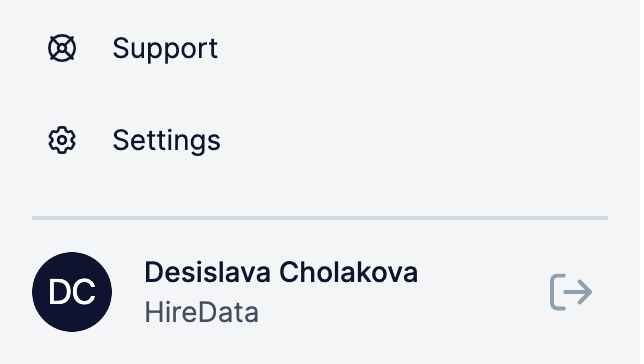
## Step 1: Navigate to the Settings page
Login to your HireData account and open the Settings page via the \[Settings] button above your name.
 ## Step 2: Open the Apps menu
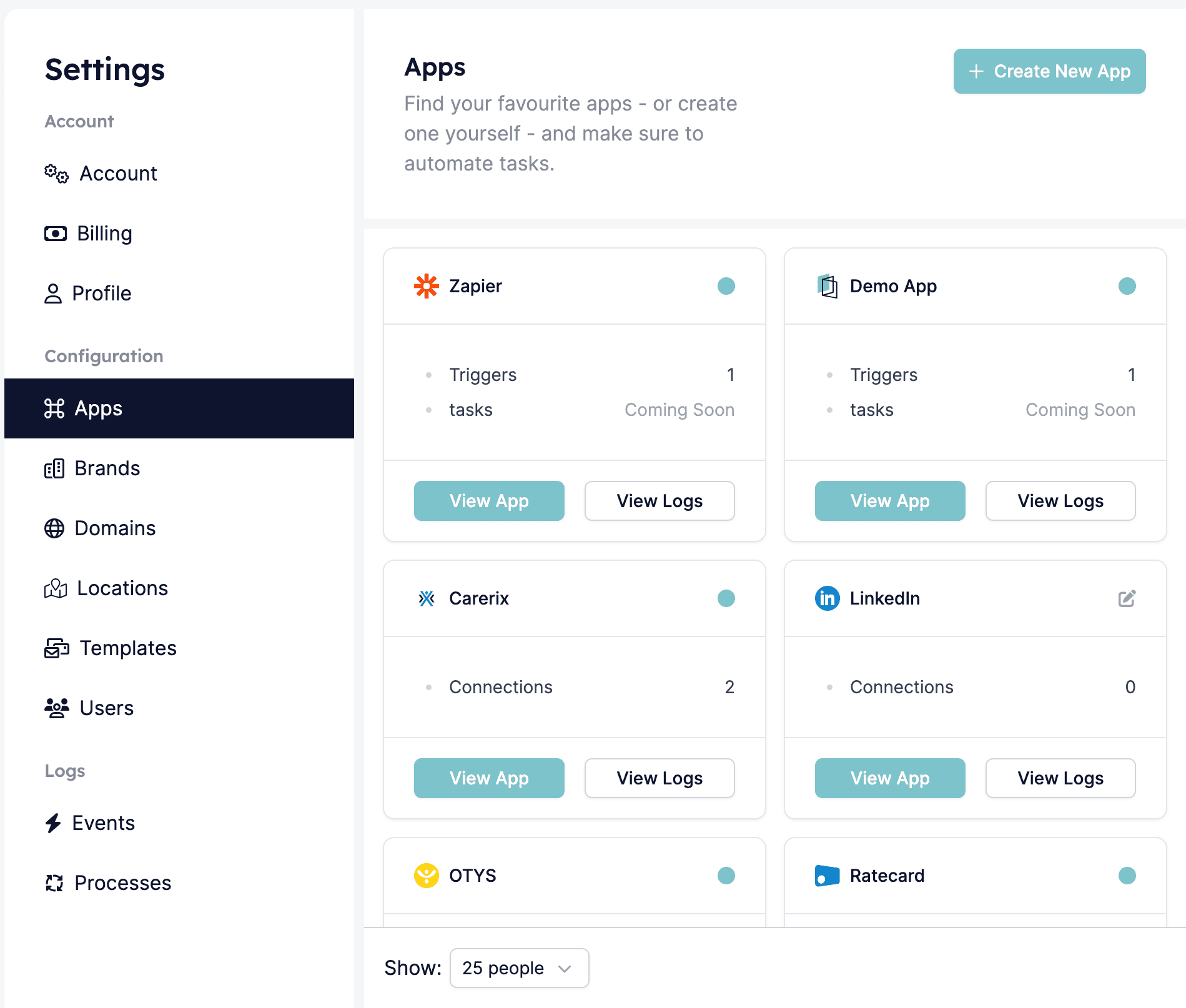 ## Step 3: Select the Carerix app
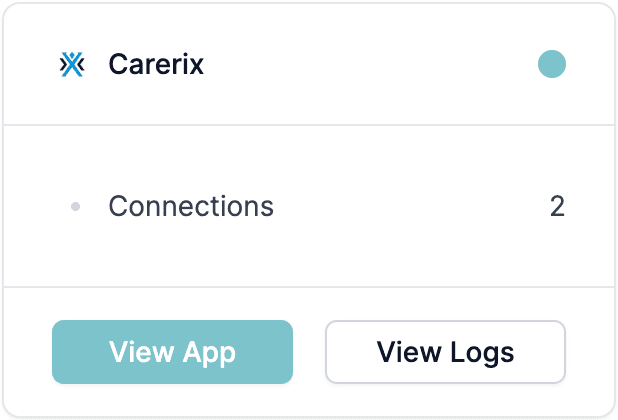
You can open the Carerix app either by clicking on the name or the \[View app] button.
## Step 3: Select the Carerix app
You can open the Carerix app either by clicking on the name or the \[View app] button.
 ## Step 4: Sync the data
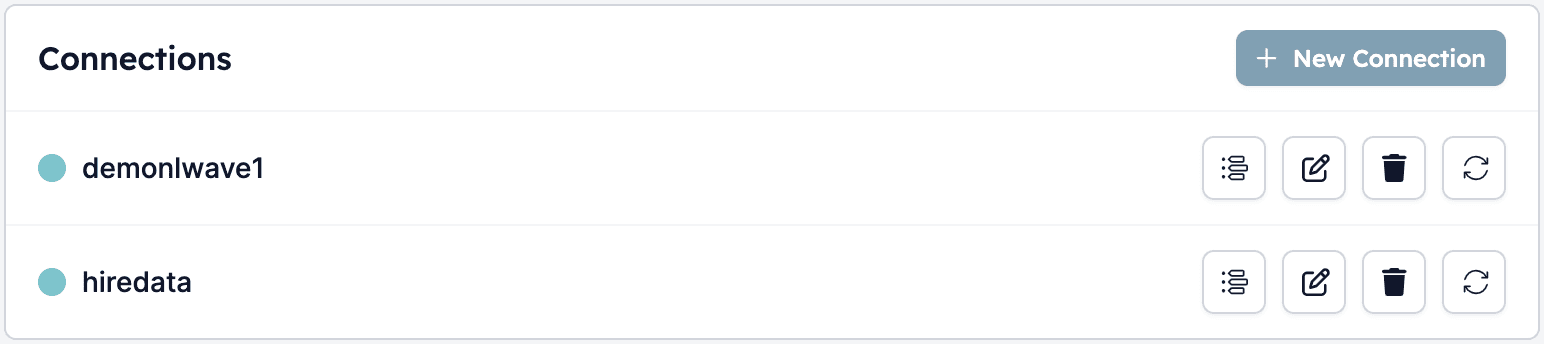
Click on the \[Sync] button (the two arrows in a circular motion) located at the end of the company's connection. After you have clicked on it, you will see the progress of the syncing.
## Step 4: Sync the data
Click on the \[Sync] button (the two arrows in a circular motion) located at the end of the company's connection. After you have clicked on it, you will see the progress of the syncing.
 ## Pro tip
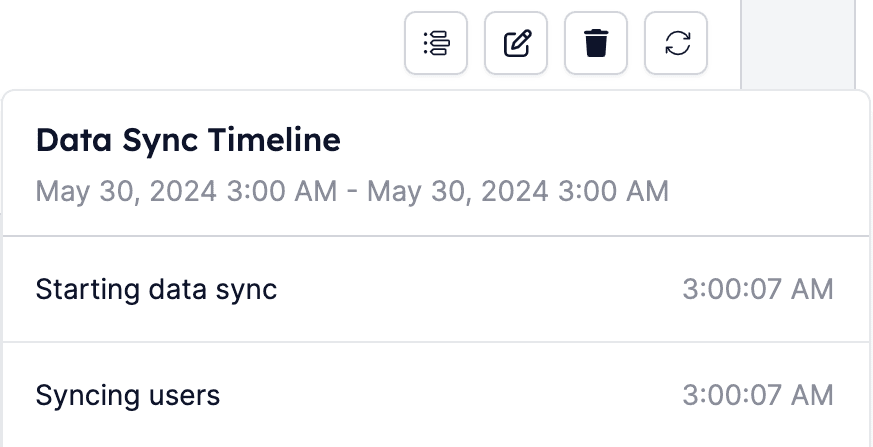
When you click the \[Timeline] button (the first of the four buttons), you can see what has been synced.
## Pro tip
When you click the \[Timeline] button (the first of the four buttons), you can see what has been synced.
 ***
## Video guide
## Related topics
- [Why is my Carerix not syncing with HireData](/apps/carerix/why-is-my-carerix-not-syncing-with-hiredata.md)
- [Manually sync Vincere with HireData](/apps/vincere/manually-sync-vincere-with-hiredata.md)
- [Manually sync OTYS with HireData](/apps/otys/manually-sync-otys-with-hiredata.md)
- [Manually sync WhatsApp with HireData](/apps/messaging/whatsapp/manually-sync-whatsapp-with-hiredata.md)
- [Add a Valid Payment Method for WhatsApp](/apps/messaging/whatsapp/add-a-valid-payment-method-for-whatsapp.md)
***
## Video guide
## Related topics
- [Why is my Carerix not syncing with HireData](/apps/carerix/why-is-my-carerix-not-syncing-with-hiredata.md)
- [Manually sync Vincere with HireData](/apps/vincere/manually-sync-vincere-with-hiredata.md)
- [Manually sync OTYS with HireData](/apps/otys/manually-sync-otys-with-hiredata.md)
- [Manually sync WhatsApp with HireData](/apps/messaging/whatsapp/manually-sync-whatsapp-with-hiredata.md)
- [Add a Valid Payment Method for WhatsApp](/apps/messaging/whatsapp/add-a-valid-payment-method-for-whatsapp.md)