> ## Documentation Index
> Fetch the complete documentation index at: https://help.hiredata.com/llms.txt
> Use this file to discover all available pages before exploring further.
# Why is my Carerix not syncing with HireData
> Troubleshoot common reasons why your Carerix account is not syncing with HireData, from permission errors to connection issues, and how to fix each one.
*Welcome to our concise but helpful guide on restoring a broken connection between your Carerix environment and HireData. Continue to find out how to identify an issue with the connection and easily fix it to avoid any disruptions in your campaigns.*
## Step 1: Test your Carerix connection with HireData
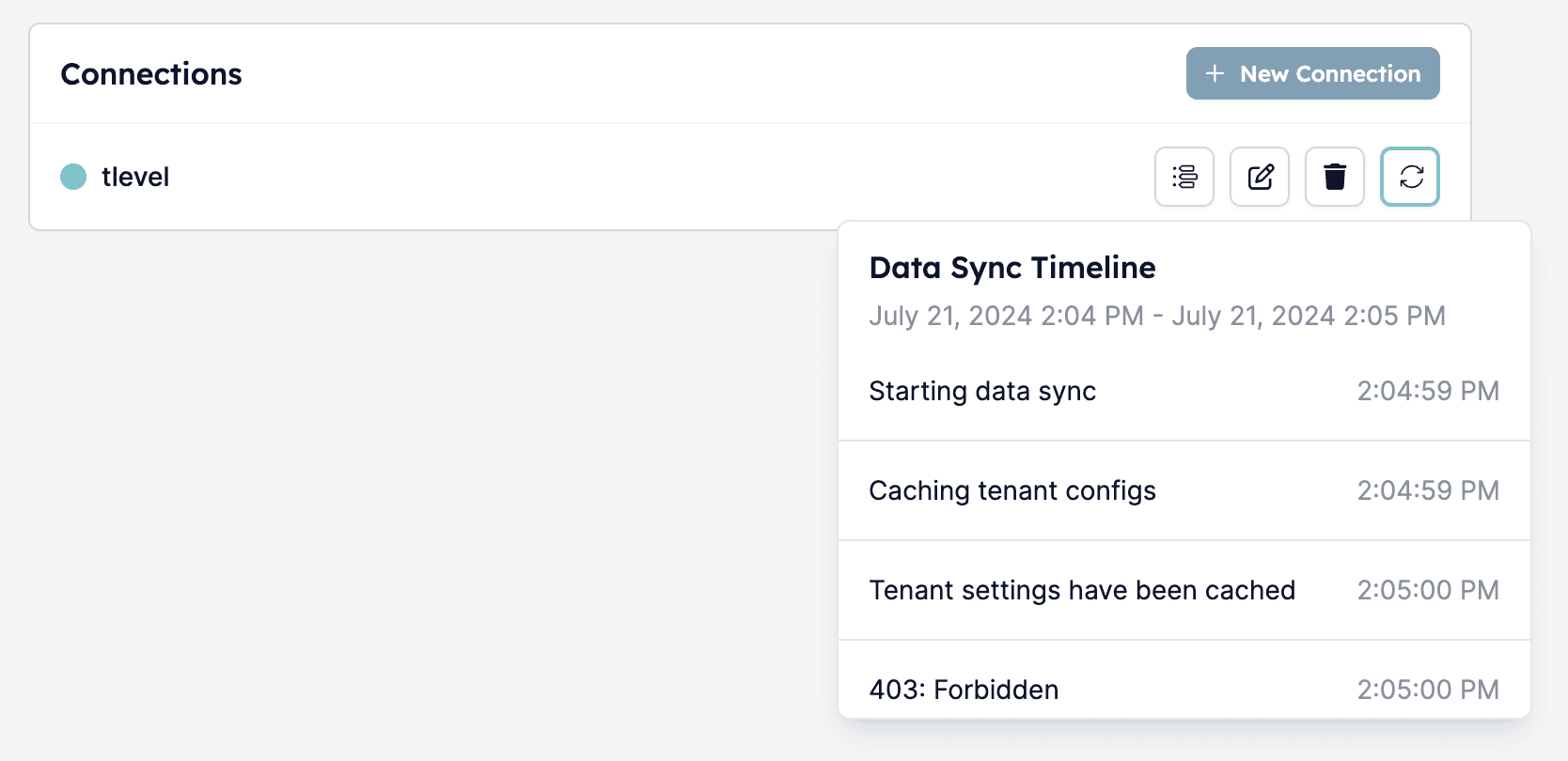
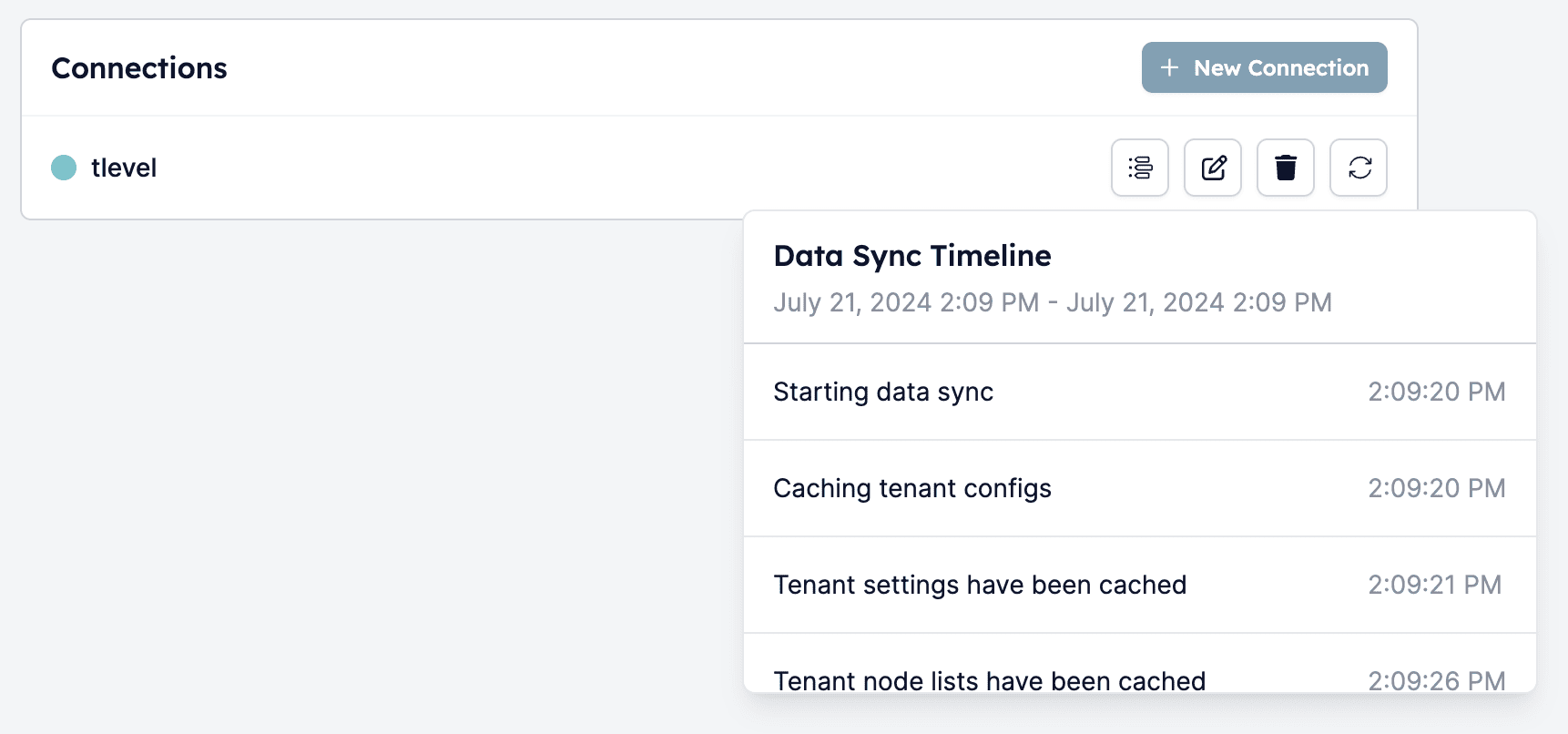
To test whether your Carerix account and HireData connection have the correct access, you can initiate a [manual sync](/apps/carerix/manually-sync-carerix-with-hiredata) from your account settings.
If you see a "403: Forbidden" message during the sync process, it means that HireData doesn't have the correct access within your Carerix setup. This issue is typically due to missing scopes in the client configuration.
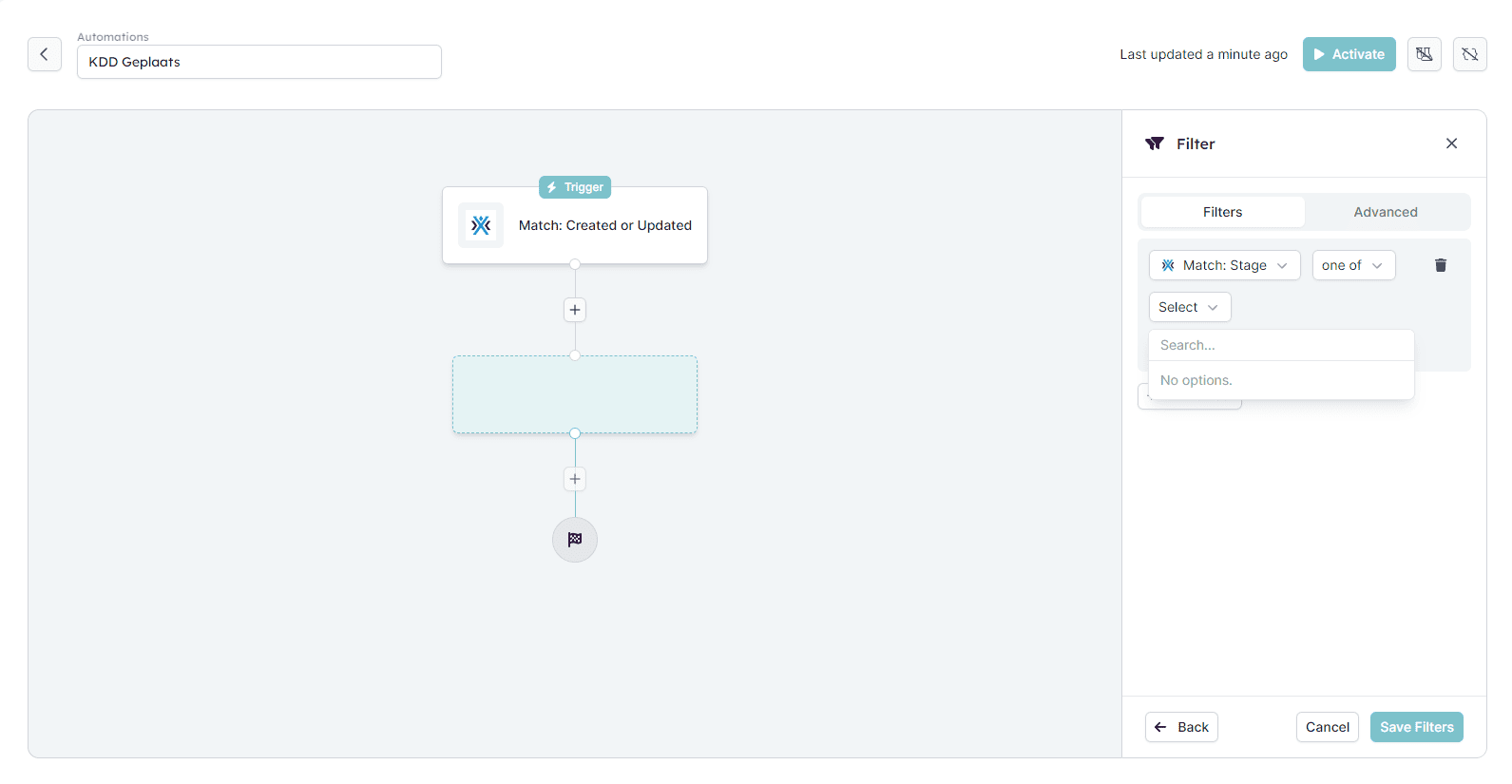
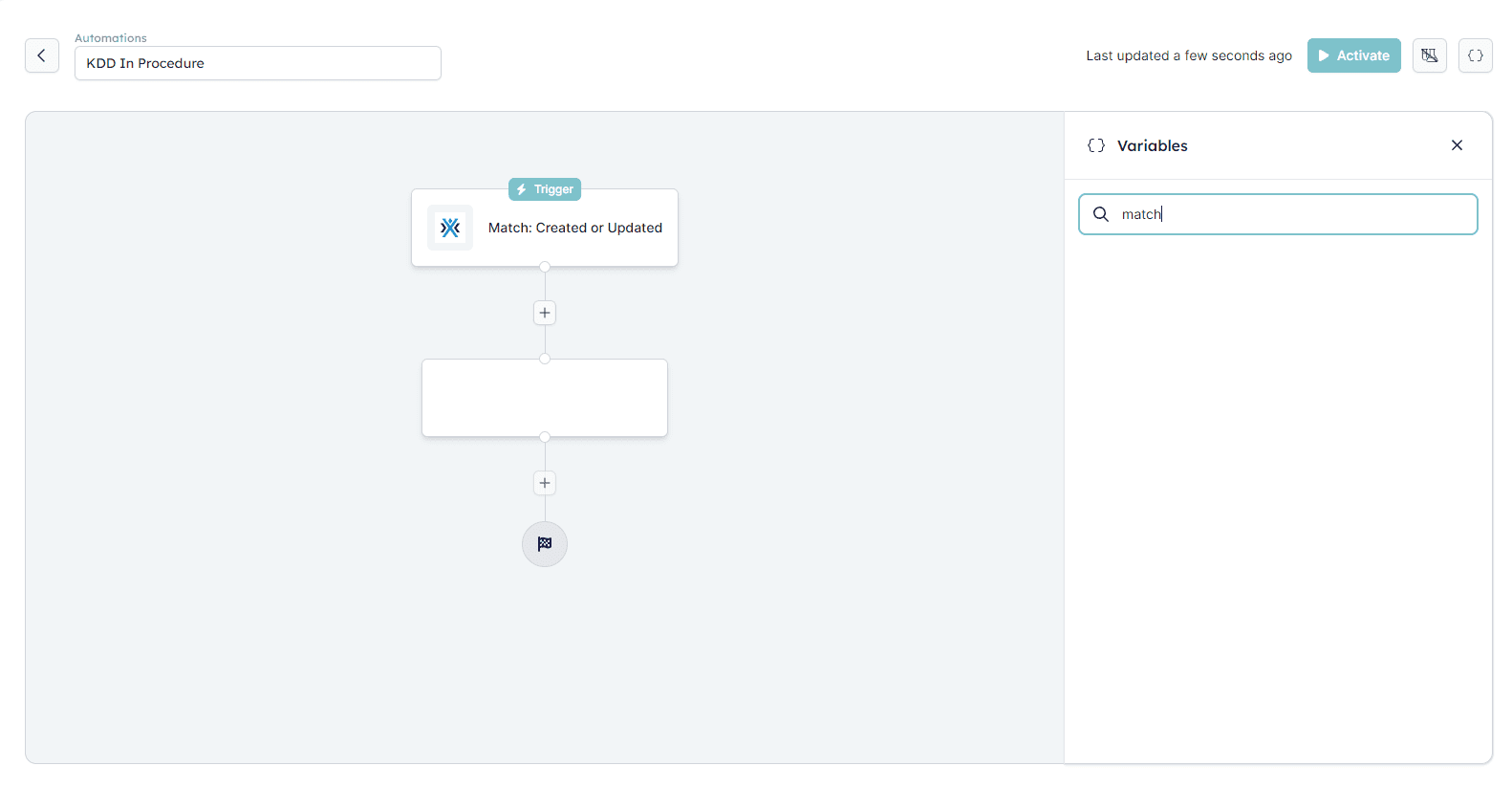
 Additionally, if you don't see any match stages or variables loading when creating automation in HireData, then the connection with Carerix is broken.
 ## Step 2: Fix the connection
To restore the connection, you have to add the missing scopes from Carerix to Hiredata by following these steps:
***2.1 Login to your Carerix account***
***2.2. Locate the client***
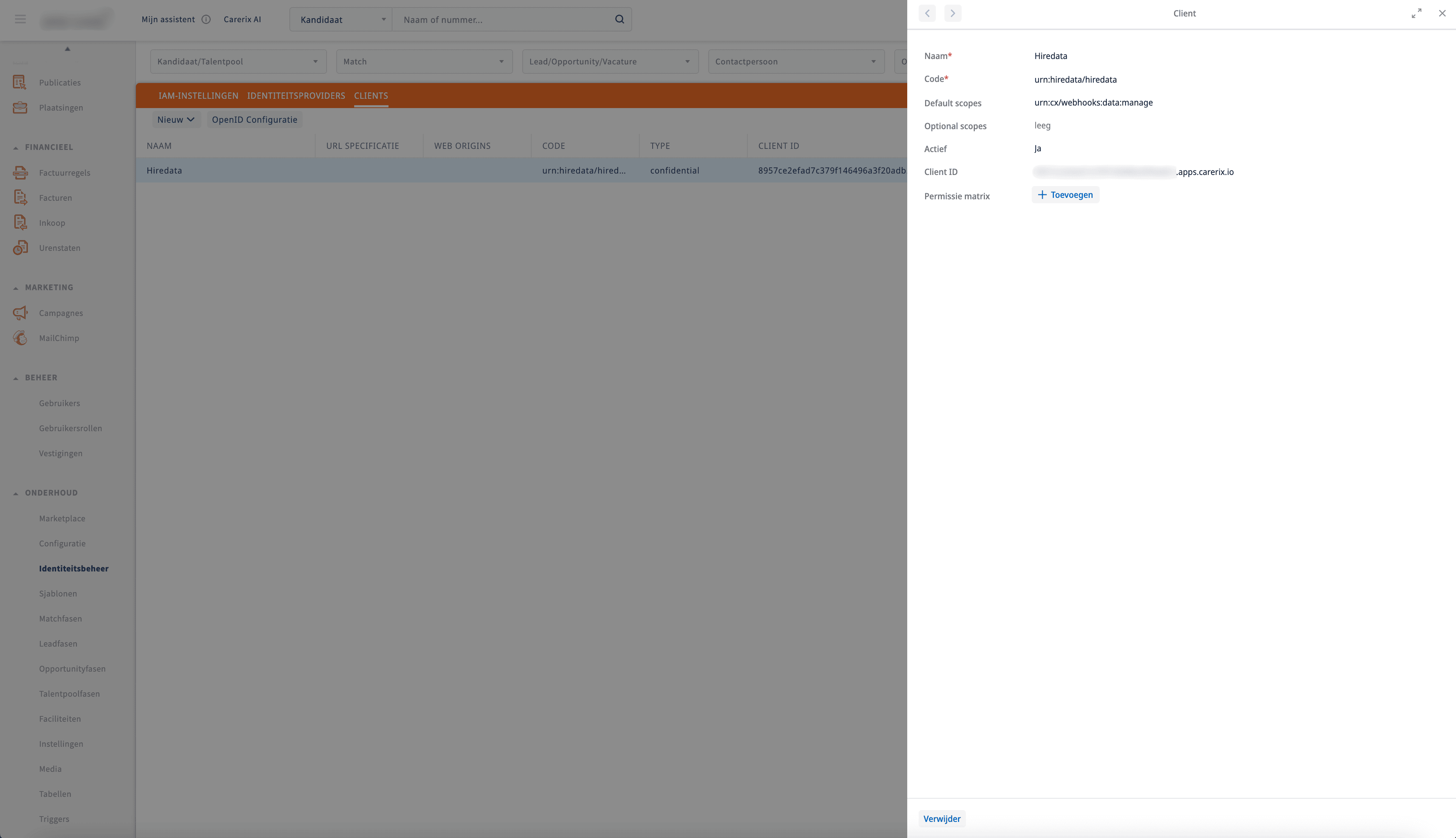
Navigate to the \[Maintenance] drop-down menu and then open the \[Identity Management] page to find the client that was created during the [initial setup](/apps/carerix/connect-with-carerix).
## Step 2: Fix the connection
To restore the connection, you have to add the missing scopes from Carerix to Hiredata by following these steps:
***2.1 Login to your Carerix account***
***2.2. Locate the client***
Navigate to the \[Maintenance] drop-down menu and then open the \[Identity Management] page to find the client that was created during the [initial setup](/apps/carerix/connect-with-carerix).
 ***2.3 Add the missing scopes***
This will ensure that HireData has the required permissions to access your Carerix environment. You can directly copy the default scopes from here, and then see ["Step 2.2: Setting up a Confidential Client"](/apps/carerix/connect-with-carerix) for more information:
* urn:cx/webhooks:data:manage
* urn:cx/cx5Acl:data:manage
* urn:cx/cx5Wrapper:data:manage
* urn:cx/webhooks:data/webhooks:manage
* urn:cx/webhooks:data/applications:manage
***2.3 Add the missing scopes***
This will ensure that HireData has the required permissions to access your Carerix environment. You can directly copy the default scopes from here, and then see ["Step 2.2: Setting up a Confidential Client"](/apps/carerix/connect-with-carerix) for more information:
* urn:cx/webhooks:data:manage
* urn:cx/cx5Acl:data:manage
* urn:cx/cx5Wrapper:data:manage
* urn:cx/webhooks:data/webhooks:manage
* urn:cx/webhooks:data/applications:manage
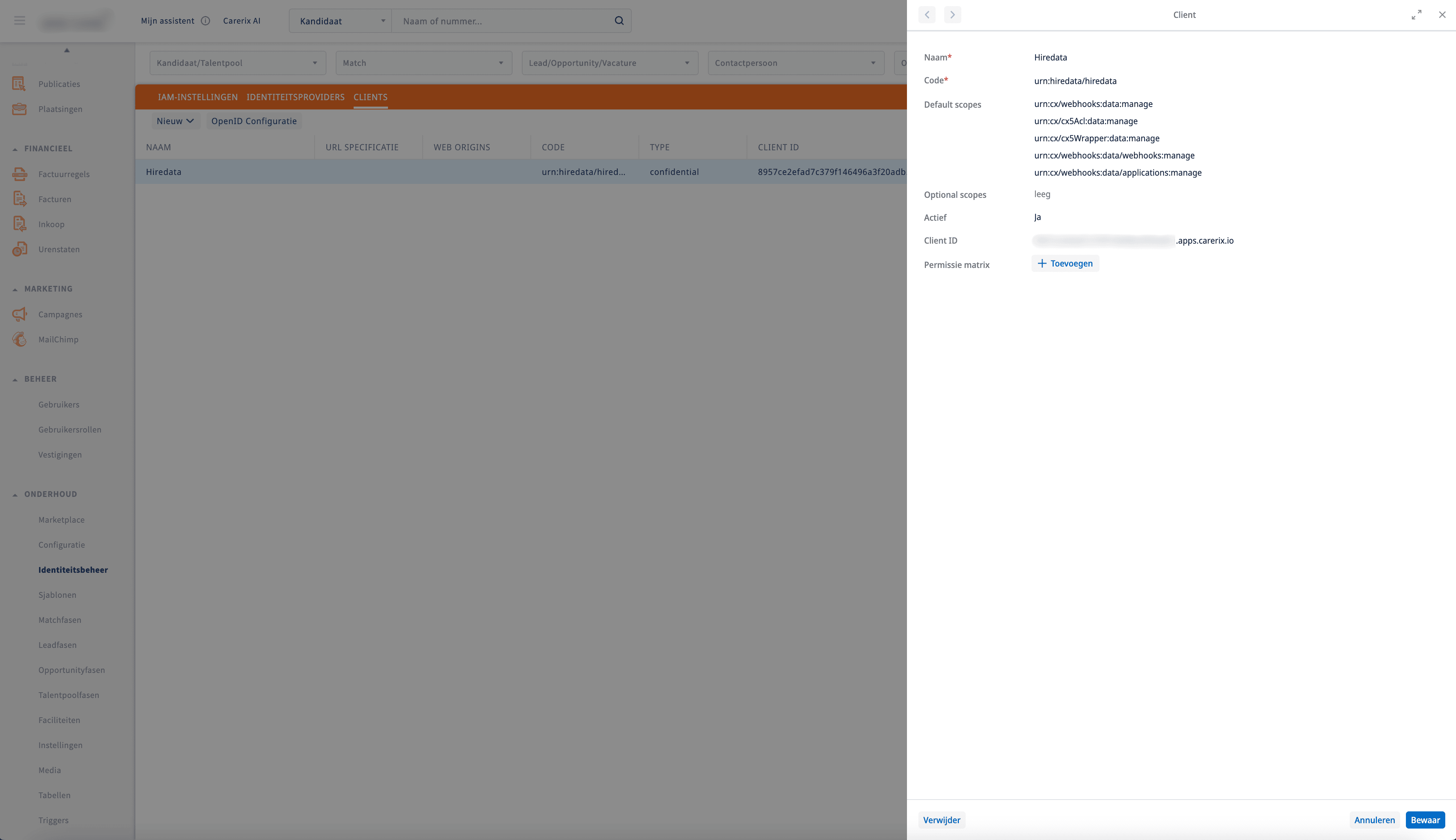 ***2.4 Save the changes***
## Step 3: Re-sync Carerix
After updating the client scopes, you can manually sync [Carerix](/apps/carerix/connect-with-carerix) again by following the same steps mentioned earlier for [manually syncing](/apps/carerix/manually-sync-carerix-with-hiredata). If the permissions were correctly updated, you should no longer see the "403: Forbidden" message, and the sync should proceed successfully.
***2.4 Save the changes***
## Step 3: Re-sync Carerix
After updating the client scopes, you can manually sync [Carerix](/apps/carerix/connect-with-carerix) again by following the same steps mentioned earlier for [manually syncing](/apps/carerix/manually-sync-carerix-with-hiredata). If the permissions were correctly updated, you should no longer see the "403: Forbidden" message, and the sync should proceed successfully.
 ## Related topics
- [Why Can't I Verify My DNS Records?](/knowledge-base/why-cant-i-verify-my-dns-records.md)
- [Why Didn't My Automation Run?](/knowledge-base/why-didnt-my-automation-run.md)
- [How to Verify a Domain in HireData to Send Emails](/settings/domains/how-to-verify-a-domain-in-hiredata-to-send-emails.md)
- [Manually sync Carerix with HireData](/apps/carerix/manually-sync-carerix-with-hiredata.md)
- [Connect with Carerix](/apps/carerix/connect-with-carerix.md)
## Related topics
- [Why Can't I Verify My DNS Records?](/knowledge-base/why-cant-i-verify-my-dns-records.md)
- [Why Didn't My Automation Run?](/knowledge-base/why-didnt-my-automation-run.md)
- [How to Verify a Domain in HireData to Send Emails](/settings/domains/how-to-verify-a-domain-in-hiredata-to-send-emails.md)
- [Manually sync Carerix with HireData](/apps/carerix/manually-sync-carerix-with-hiredata.md)
- [Connect with Carerix](/apps/carerix/connect-with-carerix.md)