> ## Documentation Index
> Fetch the complete documentation index at: https://help.hiredata.com/llms.txt
> Use this file to discover all available pages before exploring further.
# Add a Valid Payment Method for WhatsApp
> Step-by-step guide to adding a valid payment method to your WhatsApp Business account so you can keep sending template messages without interruptions.
*Adding a valid payment method to your WhatsApp business account is essential to successfully connecting it to HireData and automating your conversations. Follow the steps below to set up your payment method quickly and efficiently.*
## Step 1: Open the Payment Methods in Meta
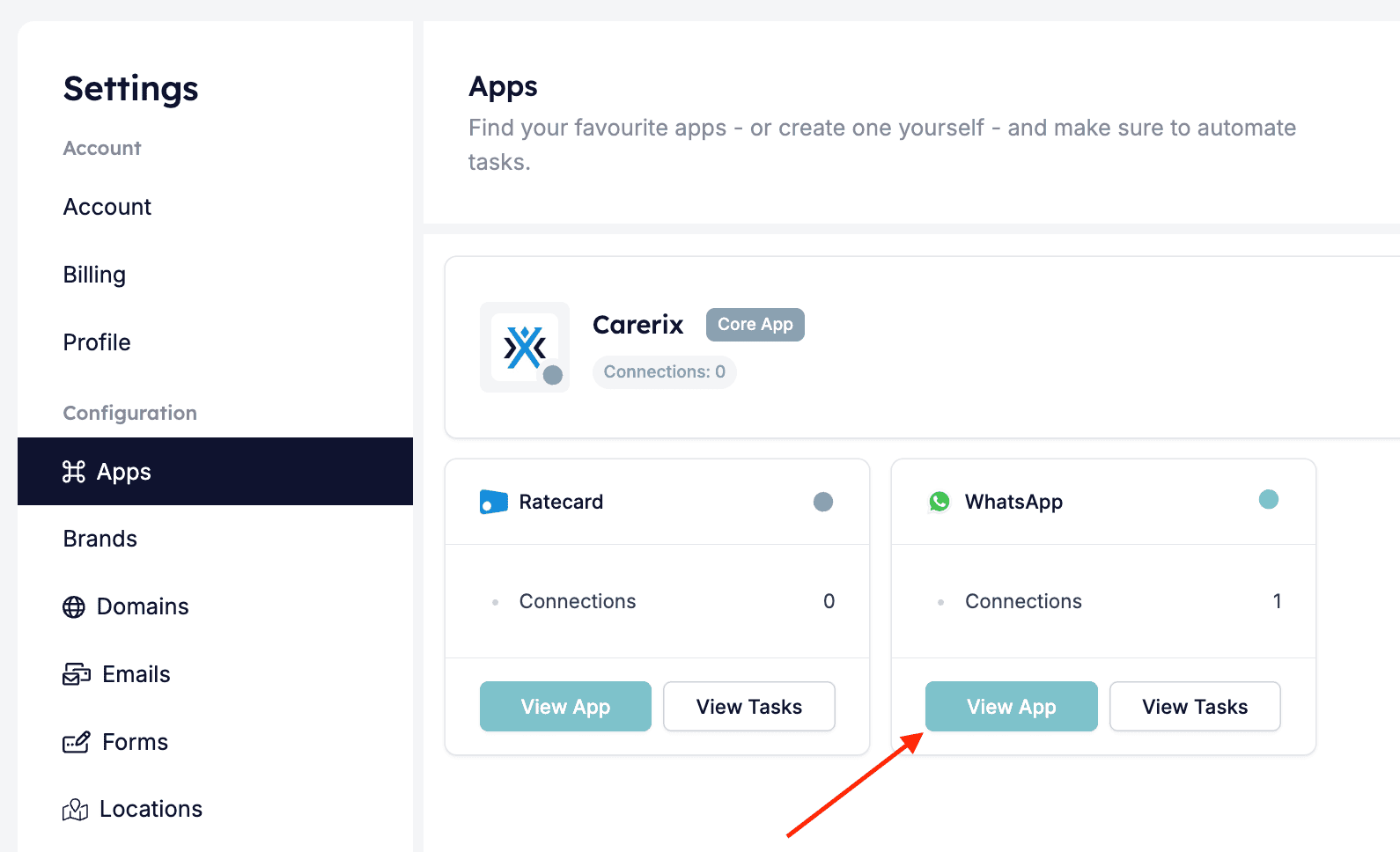
Navigate to the **Settings menu** within HireData and click on \[Apps]. Select WhatsApp from the apps list by clicking on the \[View App] button.
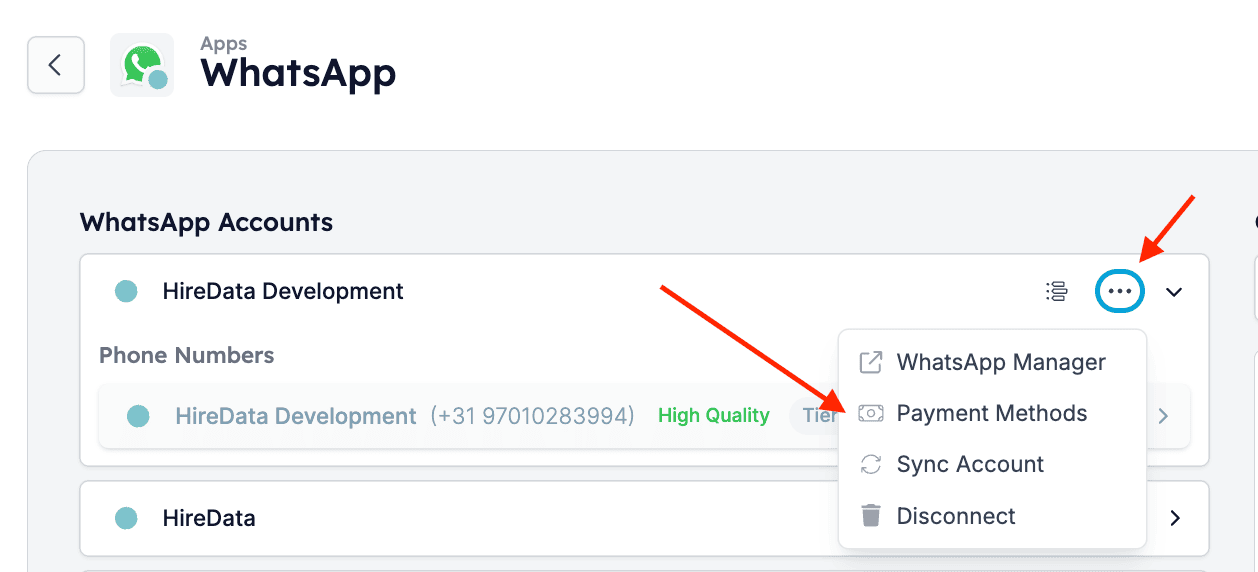
 Open the drop-down menu from the three dots next to your connection and click on \[Payment Methods] to go directly to the Payment Methods page in Meta.
 ## Step 2: Add a Payment Method
You will be redirected to the Payment Methods page where you need to click on the \[Add payment method] and enter the details of your credit card, debit card, or any other supported payment option. After you do that, review and save your details.
## Step 2: Add a Payment Method
You will be redirected to the Payment Methods page where you need to click on the \[Add payment method] and enter the details of your credit card, debit card, or any other supported payment option. After you do that, review and save your details.
 ## Step 3: Sync WhatsApp Account with HireData
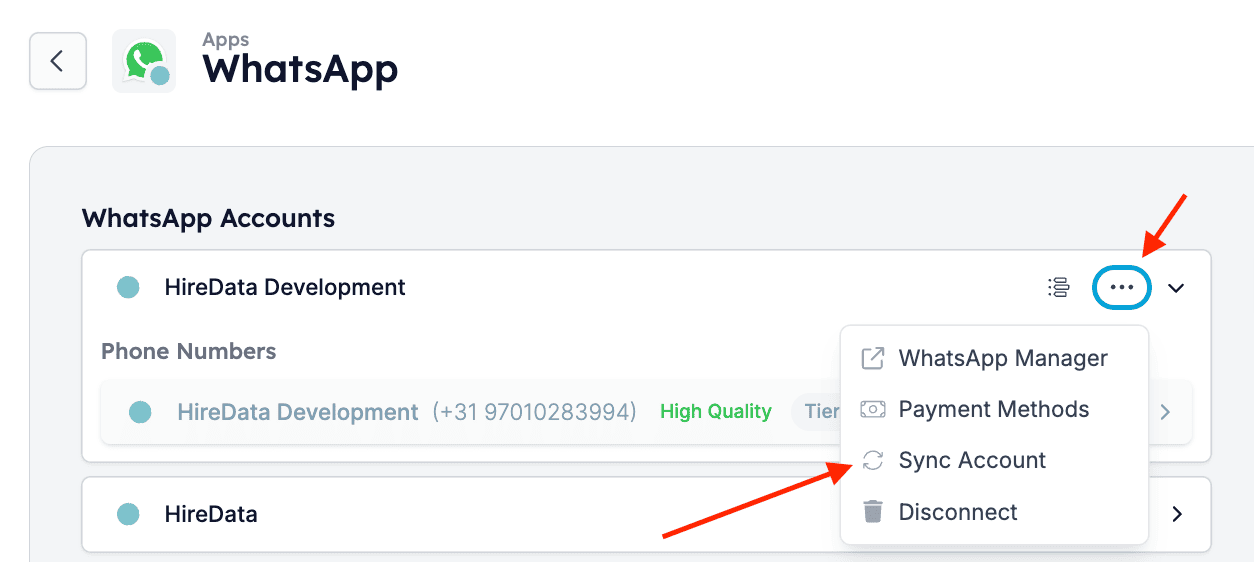
After you've updated your account's details in Meta, log in to HireData and open WhatsApp from the **Apps page** in the **Settings menu.** Then, select \[Sync Account] from the drop-down menu to initiate a manual sync. If everything is updated correctly, the error messages will disappear.
## Step 3: Sync WhatsApp Account with HireData
After you've updated your account's details in Meta, log in to HireData and open WhatsApp from the **Apps page** in the **Settings menu.** Then, select \[Sync Account] from the drop-down menu to initiate a manual sync. If everything is updated correctly, the error messages will disappear.
 By completing these steps, you’ll successfully add a valid payment method for WhatsApp, enabling seamless transactions and management of your business activities.
## 💡 Tips
* Ensure that the payment method you provide has sufficient funds and is authorised for online transactions.
* Verify that the billing details entered match the information associated with your payment method.
* If you encounter any issues, refer to Meta’s support documentation or contact their customer service for assistance.
## Related topics
- [How to Add a WhatsApp Chat Button to Your Website](/apps/messaging/whatsapp/how-to-add-a-whatsapp-chat-button-to-your-website.md)
- [How WhatsApp Templates Work](/apps/messaging/whatsapp/how-whatsapp-templates-work.md)
- [WhatsApp Error Codes Explained](/apps/messaging/whatsapp/whatsapp-error-codes-explained.md)
- [Your First Week with HireData](/get-started/your-first-week.md)
- [How to Resolve WhatsApp Business Account Permission Issues](/apps/messaging/whatsapp/how-to-resolve-whatsapp-business-account-permission-issues.md)
By completing these steps, you’ll successfully add a valid payment method for WhatsApp, enabling seamless transactions and management of your business activities.
## 💡 Tips
* Ensure that the payment method you provide has sufficient funds and is authorised for online transactions.
* Verify that the billing details entered match the information associated with your payment method.
* If you encounter any issues, refer to Meta’s support documentation or contact their customer service for assistance.
## Related topics
- [How to Add a WhatsApp Chat Button to Your Website](/apps/messaging/whatsapp/how-to-add-a-whatsapp-chat-button-to-your-website.md)
- [How WhatsApp Templates Work](/apps/messaging/whatsapp/how-whatsapp-templates-work.md)
- [WhatsApp Error Codes Explained](/apps/messaging/whatsapp/whatsapp-error-codes-explained.md)
- [Your First Week with HireData](/get-started/your-first-week.md)
- [How to Resolve WhatsApp Business Account Permission Issues](/apps/messaging/whatsapp/how-to-resolve-whatsapp-business-account-permission-issues.md)