> ## Documentation Index
> Fetch the complete documentation index at: https://help.hiredata.com/llms.txt
> Use this file to discover all available pages before exploring further.
# Connect with WhatsApp: Embedded sign-up
> Connect your WhatsApp Business account to HireData with embedded sign-up, a fast Meta-hosted flow to authenticate and start messaging candidates in minutes.
*Welcome to our guide on setting up WhatsApp in HireData. Follow along to learn each step of connecting the two platforms via the embedded sign-up.*
## Step 1: Choose a Connection Method
You can either do this from your \[Inbox] and then \[WhatsApp], or navigate to the \[Settings page], then \[Apps], and open \[WhatsApp].
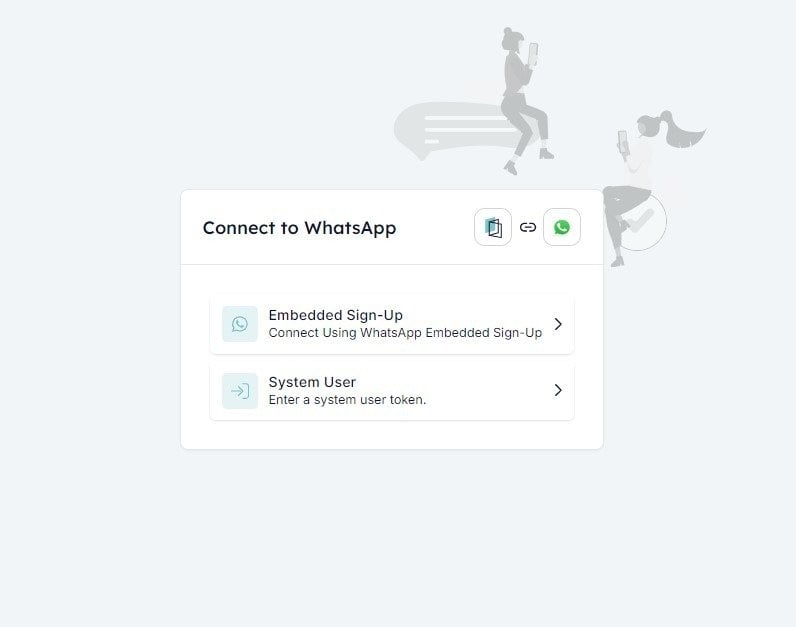
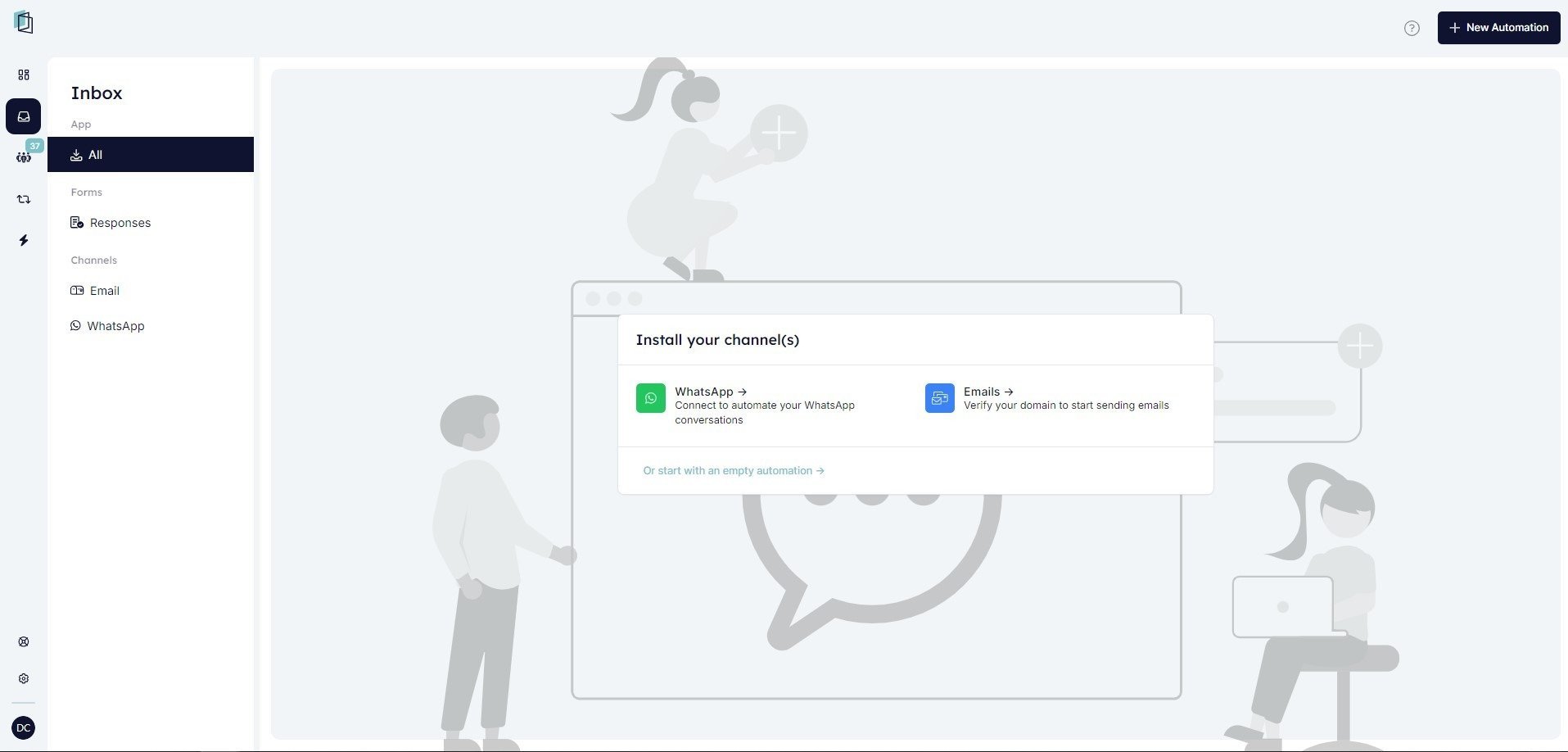 You will be presented with two options to connect your WhatsApp account to HireData:
* **Embedded Sign-Up**: This option allows you to use the WhatsApp Embedded Sign-Up feature for easier setup.
* **[System User](/apps/messaging/whatsapp/connect-with-whatsapp-embedded-sign-up)**: To connect your WhatsApp account via this option, you will need the **WhatsApp Business Account Id** and the **Access Token** (API key).
You will be presented with two options to connect your WhatsApp account to HireData:
* **Embedded Sign-Up**: This option allows you to use the WhatsApp Embedded Sign-Up feature for easier setup.
* **[System User](/apps/messaging/whatsapp/connect-with-whatsapp-embedded-sign-up)**: To connect your WhatsApp account via this option, you will need the **WhatsApp Business Account Id** and the **Access Token** (API key).
 ## Step 2: Grant HireData Access to WhatsApp Business
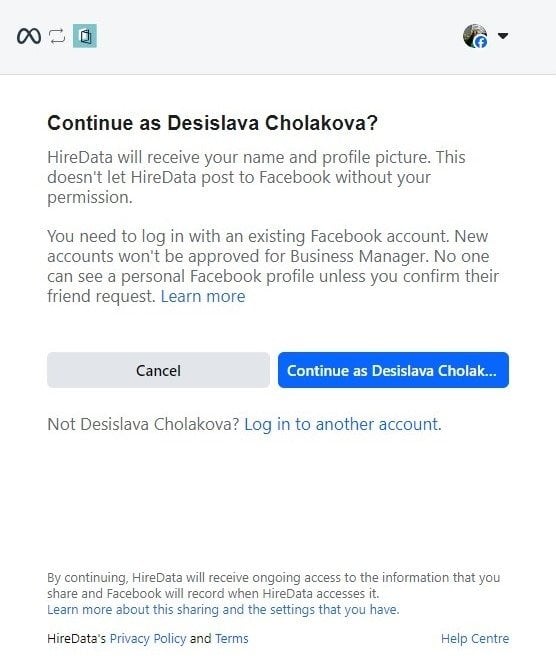
### 2.1. Once you select a connection method, you will be taken to Facebook, where you will need to log in to your Facebook account
## Step 2: Grant HireData Access to WhatsApp Business
### 2.1. Once you select a connection method, you will be taken to Facebook, where you will need to log in to your Facebook account
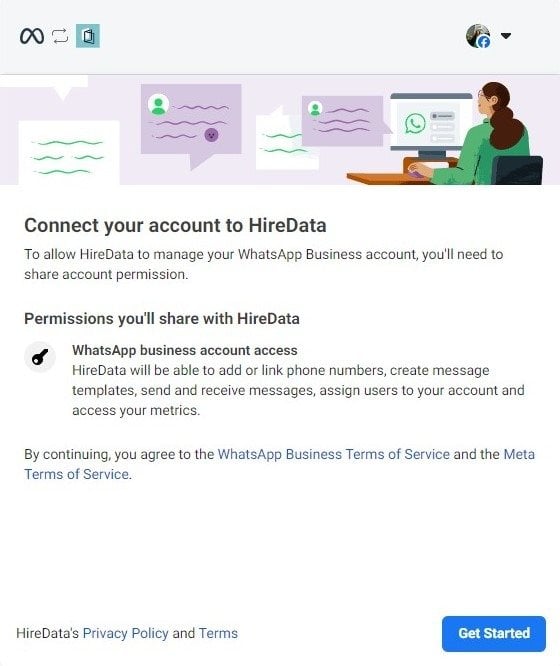
 ### 2.2. Then you will be redirected to the permissions page, where you will be asked to connect your WhatsApp Business account to HireData
By continuing, you will need to agree to the [WhatsApp Business Terms of Service](https://www.whatsapp.com/legal/business-terms?fbclid=IwZXh0bgNhZW0CMTAAAR0O-c4JvRz5u9AKYZq_4QBZjltjfxac5AoPTh3E31K3Ho2TtD8l-JP4DiA_aem_-GN92crMv9g93Rp_HF4Q-w) and the [Meta Terms of Service](https://business.facebook.com/legal/terms).
### 2.2. Then you will be redirected to the permissions page, where you will be asked to connect your WhatsApp Business account to HireData
By continuing, you will need to agree to the [WhatsApp Business Terms of Service](https://www.whatsapp.com/legal/business-terms?fbclid=IwZXh0bgNhZW0CMTAAAR0O-c4JvRz5u9AKYZq_4QBZjltjfxac5AoPTh3E31K3Ho2TtD8l-JP4DiA_aem_-GN92crMv9g93Rp_HF4Q-w) and the [Meta Terms of Service](https://business.facebook.com/legal/terms).
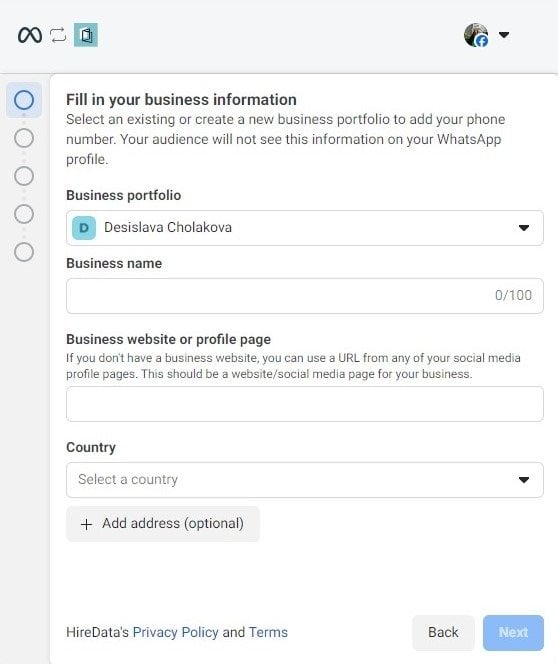
 ## Step 3: Fill in Your Business Information
You will need to complete the business information fields, including:
* **Business Portfolio**: Choose an existing portfolio or create a new one.
* **Business Name**: Type the name of your business.
* **Business Website or Profile Page**: If available, enter the URL of your company's website or social media profile.
* **Country**: Select the country where your business is based.
* \*\*Address (optional): \*\*You can also add your business address if you want.
Once done, click \[Next] to proceed.
## Step 3: Fill in Your Business Information
You will need to complete the business information fields, including:
* **Business Portfolio**: Choose an existing portfolio or create a new one.
* **Business Name**: Type the name of your business.
* **Business Website or Profile Page**: If available, enter the URL of your company's website or social media profile.
* **Country**: Select the country where your business is based.
* \*\*Address (optional): \*\*You can also add your business address if you want.
Once done, click \[Next] to proceed.
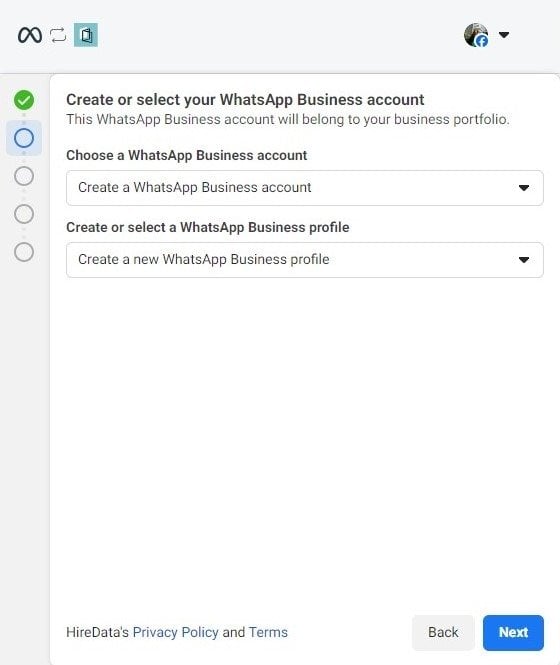
 ## Step 4: Create or Select your WhatsApp Business Account
If you already have a WhatsApp Business account, you will be able to select it at this stage, but if you don't, you will be asked to create a new one.
## Step 4: Create or Select your WhatsApp Business Account
If you already have a WhatsApp Business account, you will be able to select it at this stage, but if you don't, you will be asked to create a new one.
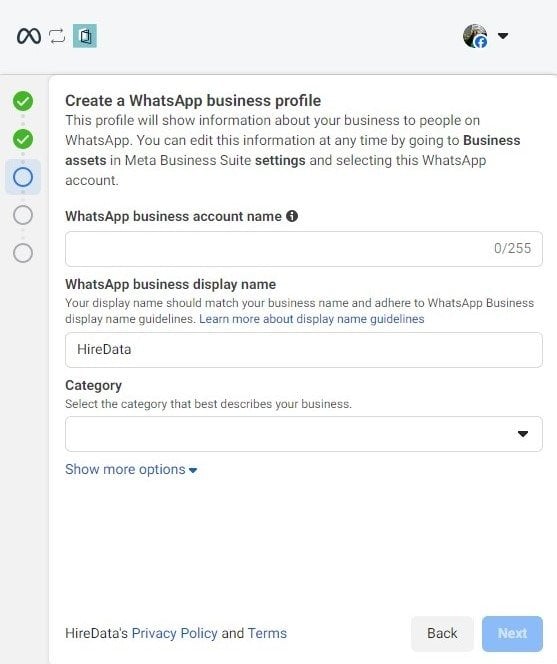
 ### 4.1. Creating a New WhatsApp Business Account
Fill in the required fields, including:
* **WhatsApp Business Account Name**: Enter the name of your WhatsApp Business Account. It shouldn't be longer than 255 characters.
* **WhatsApp Business Display Name**: Ensure the display name matches your business name and adheres to [WhatsApp's display name guidelines](https://www.facebook.com/business/help/757569725593362).
* **Category**: Select the business category that best describes your business.
Click \[Next] to continue.
### 4.1. Creating a New WhatsApp Business Account
Fill in the required fields, including:
* **WhatsApp Business Account Name**: Enter the name of your WhatsApp Business Account. It shouldn't be longer than 255 characters.
* **WhatsApp Business Display Name**: Ensure the display name matches your business name and adheres to [WhatsApp's display name guidelines](https://www.facebook.com/business/help/757569725593362).
* **Category**: Select the business category that best describes your business.
Click \[Next] to continue.
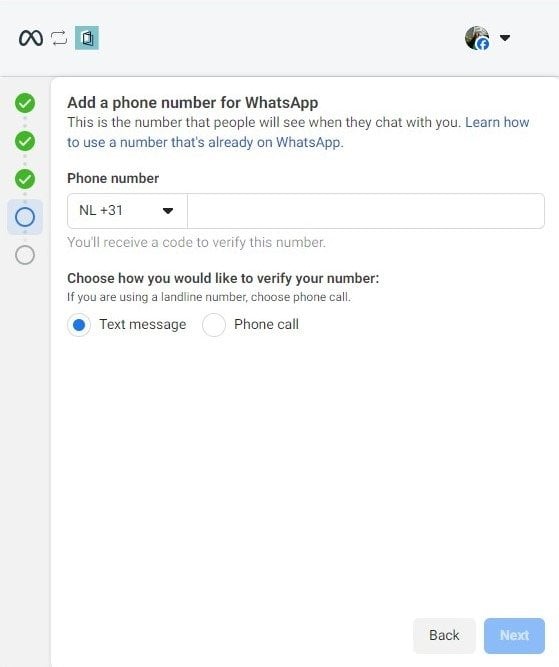
 ## Step 5: Add a Phone Number for WhatsApp
### 5.1. Enter the phone number that will be linked to your WhatsApp Business account
* **Phone Number**: Select the correct country code and input your phone number.
If the phone number you are attempting to use is already linked to WhatsApp, you will need to either [purchase a new phone number](/apps/messaging/whatsapp/buy-a-phone-number-from-numero-for-your-whatsapp-account) or delete your WhatsApp account and try again. Remember that if you do the latter, your chat history will be deleted.
* **Verification**: Choose how you would like to verify the phone number via a text message or a phone call.
## Step 5: Add a Phone Number for WhatsApp
### 5.1. Enter the phone number that will be linked to your WhatsApp Business account
* **Phone Number**: Select the correct country code and input your phone number.
If the phone number you are attempting to use is already linked to WhatsApp, you will need to either [purchase a new phone number](/apps/messaging/whatsapp/buy-a-phone-number-from-numero-for-your-whatsapp-account) or delete your WhatsApp account and try again. Remember that if you do the latter, your chat history will be deleted.
* **Verification**: Choose how you would like to verify the phone number via a text message or a phone call.
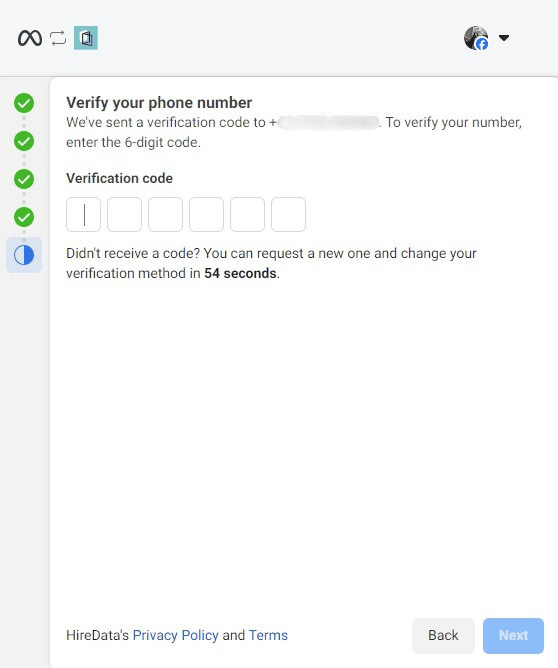
 ### 5.2. Verify your phone number by entering the 6-digit code you will receive
 ## Step 6: WhatsApp Connected
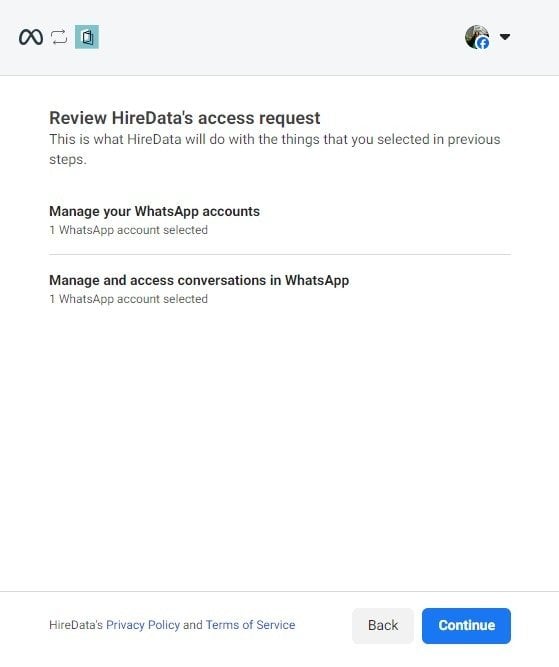
### 6.1. Review HireData's access request
## Step 6: WhatsApp Connected
### 6.1. Review HireData's access request
 ### 6.2. Confirmation message
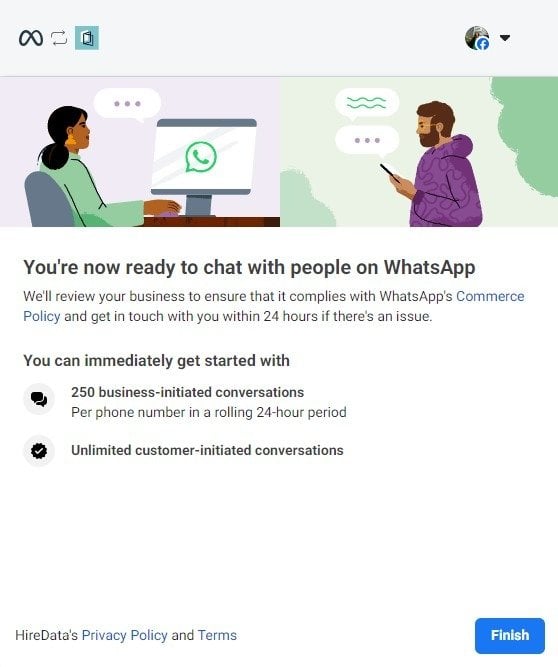
If you have set up everything correctly, you will see this message at the end, and you will be ready to use HireData with WhatsApp!
### 6.2. Confirmation message
If you have set up everything correctly, you will see this message at the end, and you will be ready to use HireData with WhatsApp!
 ### 6.3. Review the connection between WhatsApp and HireData
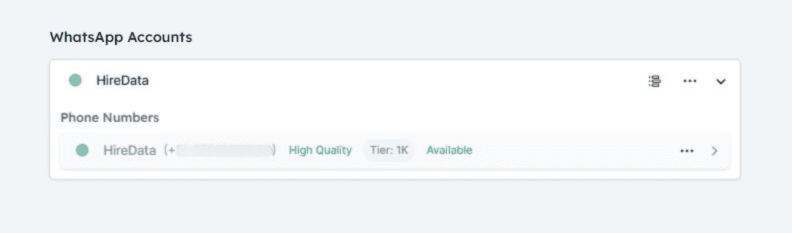
Simply navigate to \[Settings] > \[Apps] > \[WhatsApp] and review if the connection between HireData and WhatsApp is successful.
### 6.3. Review the connection between WhatsApp and HireData
Simply navigate to \[Settings] > \[Apps] > \[WhatsApp] and review if the connection between HireData and WhatsApp is successful.
 Now that you know all of the steps, visit our [WhatsApp sign-up page](https://app.hiredata.com/inbox/whatsapp) to get started on setting up your WhatsApp connection. If you experience any issues, you can also try connecting your account to HireData using a [system user sign-in](/apps/messaging/whatsapp/connect-with-whatsapp-embedded-sign-up).
## Related topics
- [Your First Week with HireData](/get-started/your-first-week.md)
- [Manually sync WhatsApp with HireData](/apps/messaging/whatsapp/manually-sync-whatsapp-with-hiredata.md)
- [Connect with Carerix](/apps/carerix/connect-with-carerix.md)
- [Prevent your WhatsApp account from being flagged as spam](/apps/messaging/whatsapp/how-to-prevent-your-whatsapp-account-from-being-flagged-as-spam.md)
- [Using a WhatsApp Business number after API connection](/apps/messaging/whatsapp/can-a-user-manually-use-their-whatsapp-business-number-after-connecting-it-via-api.md)
Now that you know all of the steps, visit our [WhatsApp sign-up page](https://app.hiredata.com/inbox/whatsapp) to get started on setting up your WhatsApp connection. If you experience any issues, you can also try connecting your account to HireData using a [system user sign-in](/apps/messaging/whatsapp/connect-with-whatsapp-embedded-sign-up).
## Related topics
- [Your First Week with HireData](/get-started/your-first-week.md)
- [Manually sync WhatsApp with HireData](/apps/messaging/whatsapp/manually-sync-whatsapp-with-hiredata.md)
- [Connect with Carerix](/apps/carerix/connect-with-carerix.md)
- [Prevent your WhatsApp account from being flagged as spam](/apps/messaging/whatsapp/how-to-prevent-your-whatsapp-account-from-being-flagged-as-spam.md)
- [Using a WhatsApp Business number after API connection](/apps/messaging/whatsapp/can-a-user-manually-use-their-whatsapp-business-number-after-connecting-it-via-api.md)