> ## Documentation Index
> Fetch the complete documentation index at: https://help.hiredata.com/llms.txt
> Use this file to discover all available pages before exploring further.
# Create a WhatsApp automation in HireData
> Build a WhatsApp automation in HireData: choose a trigger, select a template, and send personalised messages to candidates without any manual work.
*Welcome to our tutorial on setting up WhatsApp automation within HireData. With this integration, you can automate tasks such as collecting and updating candidates' details, such as availability status and notifying them about new job openings, thereby improving candidate experiences and streamlining your recruitment processes.*
*Follow along as we demonstrate each step to set up this automation efficiently.*
## Step 1: Create a New Automation
### 1.1. Navigate to the Automations panel and click on the \[New Automation] button to begin
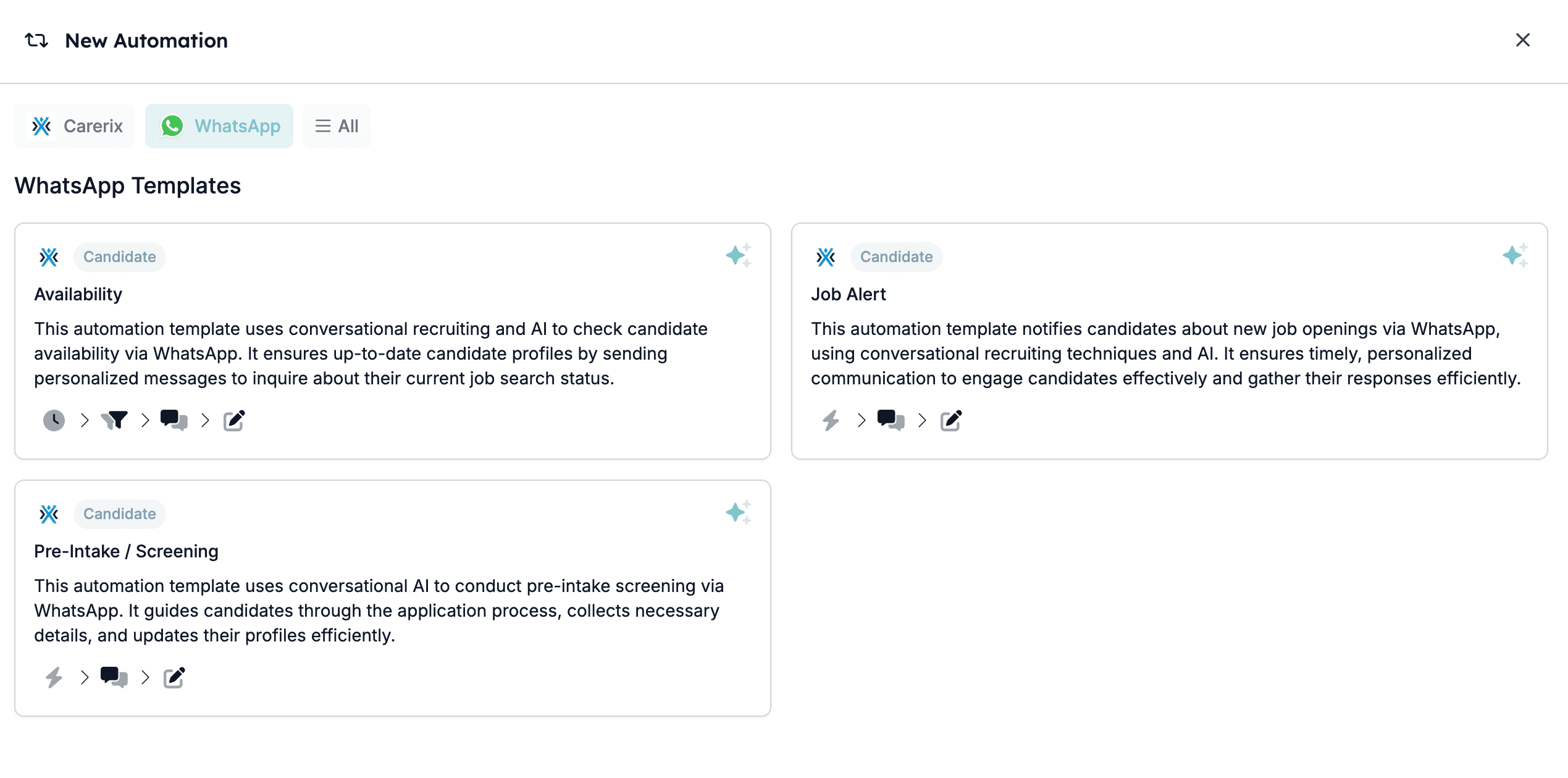
### 1.2. On the pop-up screen, click on \[WhatsApp] and select one of the templates depending on the topic of the conversation you want to create
*In this guide, we are going to use the "Availability" template.*
 *Learn how to create new WhatsApp templates in HireData and WhatsApp [here](/apps/messaging/whatsapp/how-whatsapp-templates-work).*
## Step 2: Select a Trigger
When you click on the trigger building block (the first one), you will see that the app and the connection will already be selected for you.
### 2.1. Select the Object you will listen to
*Learn how to create new WhatsApp templates in HireData and WhatsApp [here](/apps/messaging/whatsapp/how-whatsapp-templates-work).*
## Step 2: Select a Trigger
When you click on the trigger building block (the first one), you will see that the app and the connection will already be selected for you.
### 2.1. Select the Object you will listen to
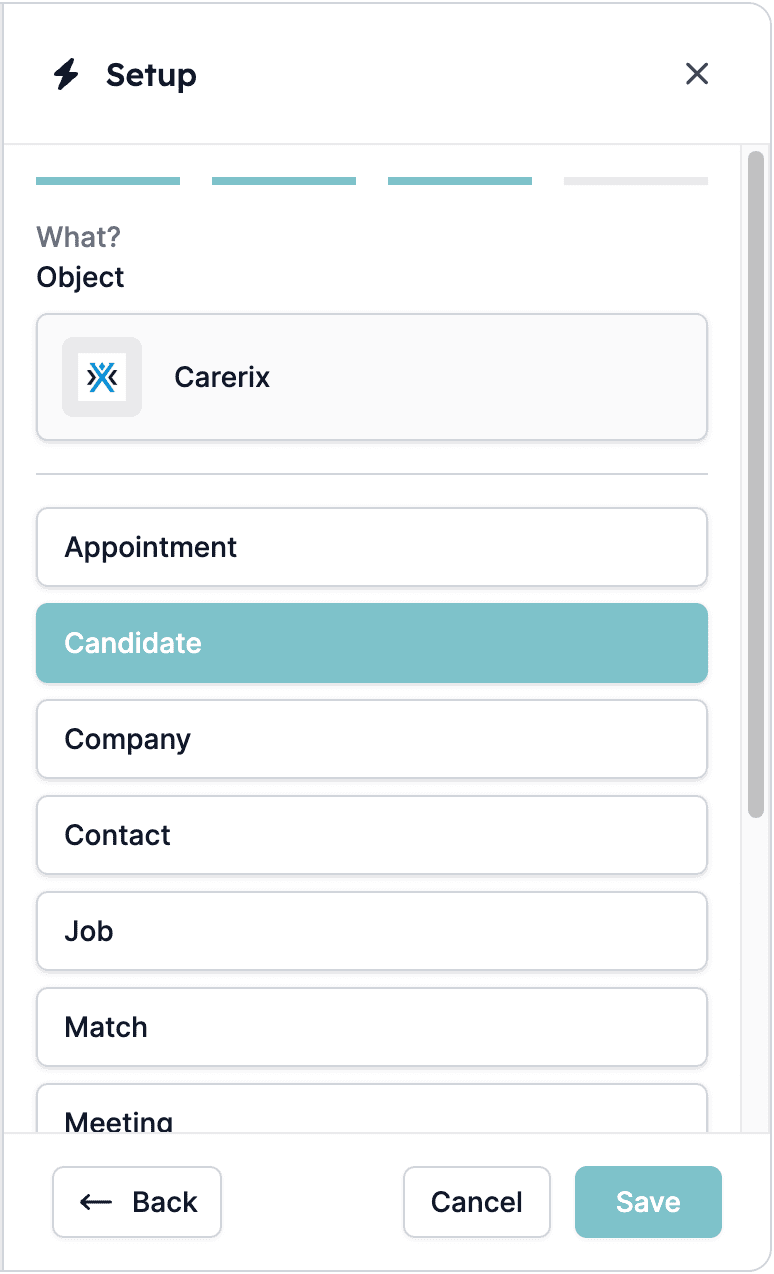 *Define the Object:*
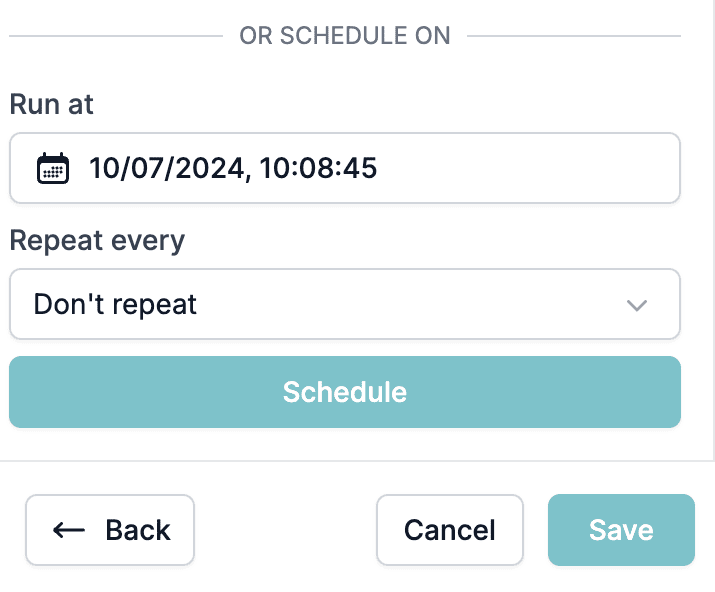
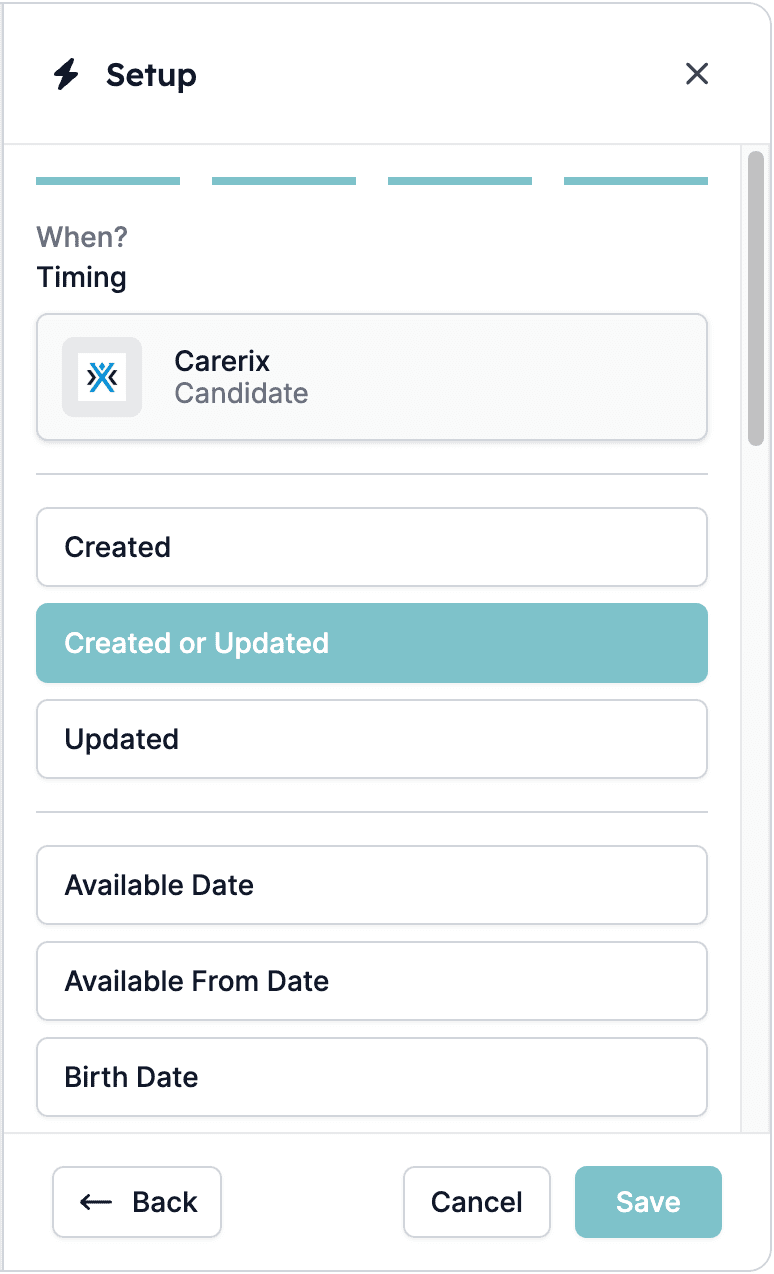 ### 2.2. Specify the date and time to execute the task
If this task needs to run periodically, configure the **Repeat every** setting. For one-time tasks, select **Don’t Repeat**.
### 2.2. Specify the date and time to execute the task
If this task needs to run periodically, configure the **Repeat every** setting. For one-time tasks, select **Don’t Repeat**.
 ## Step 3: Apply Filters
Open the next building block to add more filters to refine your candidate selection. For example, you can filter candidates by their status, as shown here:
## Step 3: Apply Filters
Open the next building block to add more filters to refine your candidate selection. For example, you can filter candidates by their status, as shown here:
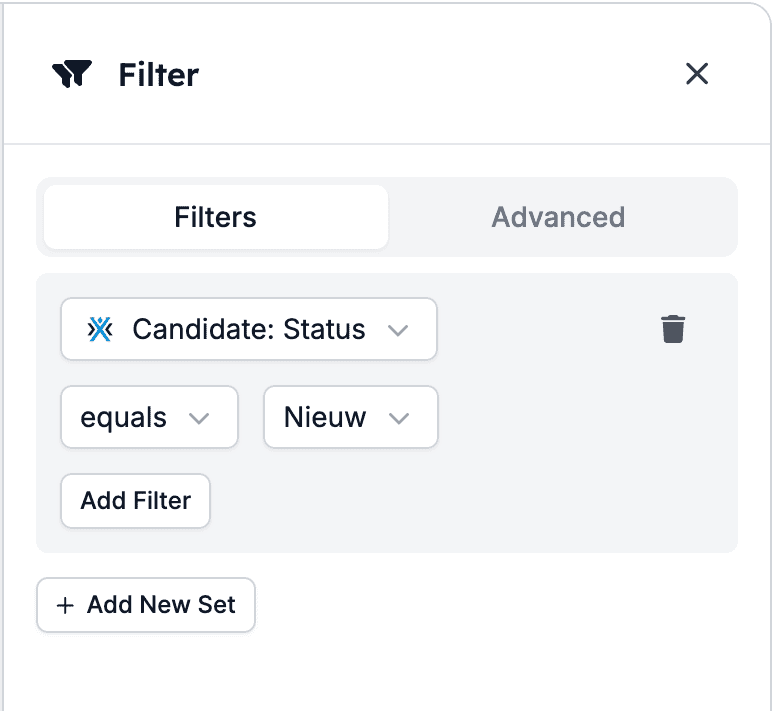 You can also add additional filters by clicking \[Add Filter], and if necessary, you can create multiple filter sets using the \[Add New Set] option to narrow or expand your selection.
## Step 4: Configure Task
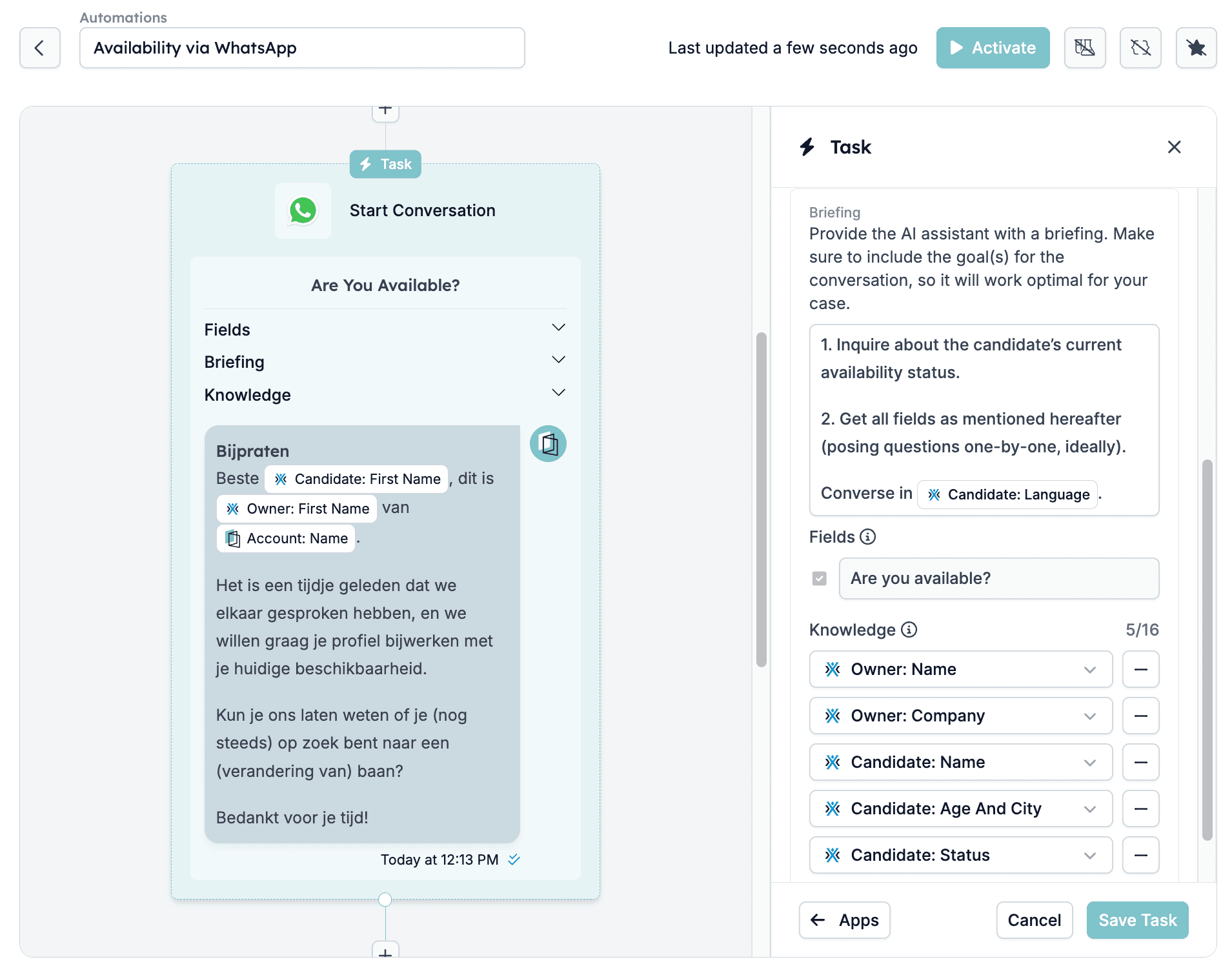
When using the available templates, the task will be automatically created for you, but you will also have the possibility to customise it by:
### 4.1. Changing the form
You can also add additional filters by clicking \[Add Filter], and if necessary, you can create multiple filter sets using the \[Add New Set] option to narrow or expand your selection.
## Step 4: Configure Task
When using the available templates, the task will be automatically created for you, but you will also have the possibility to customise it by:
### 4.1. Changing the form
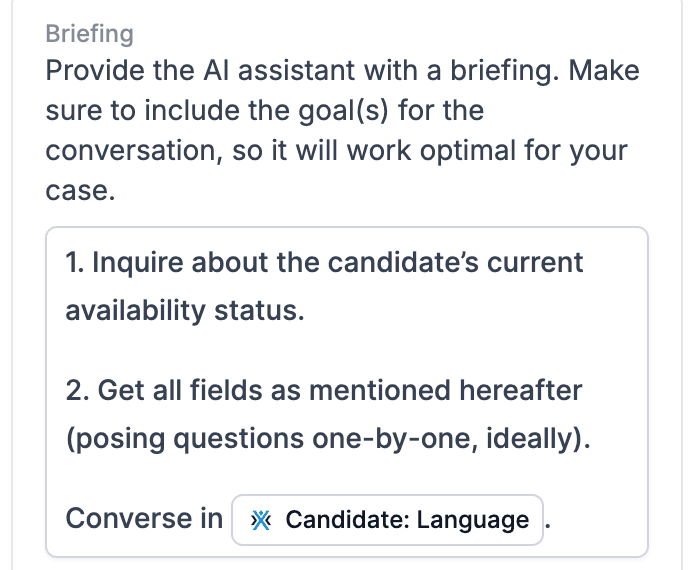
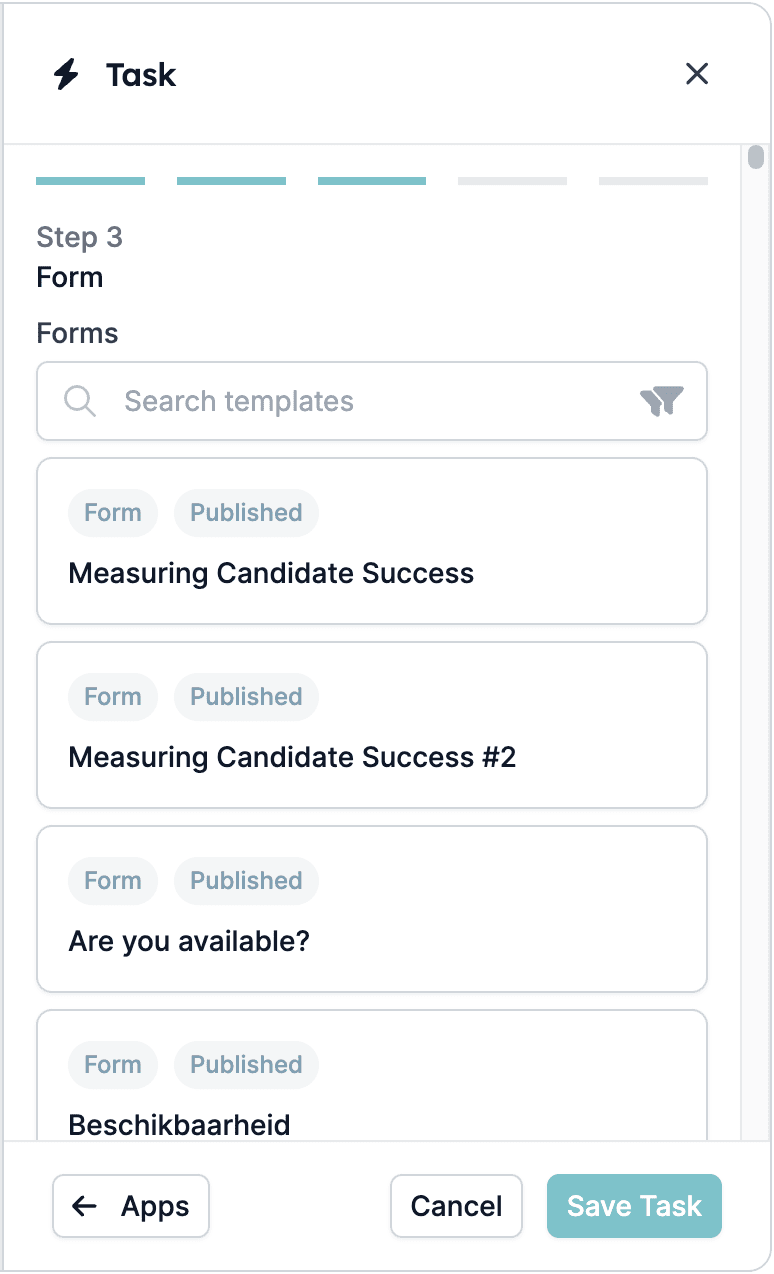 ### 4.2. Providing a detailed briefing, including any missing goals to ensure optimal performance
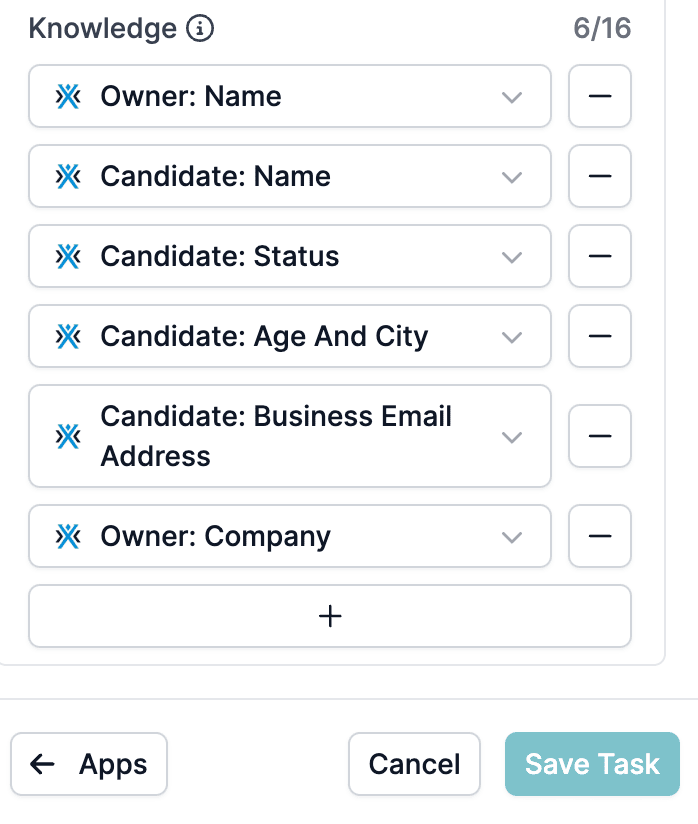
 ### 4.3. Adding more knowledge fields
These are fields you can add to provide additional context for the AI to use during conversations. Select items that it should be aware of to handle conversations effectively, such as the names of the participants, email addresses, etc.
Limits:
* Up to **16 fields**
* Key length: **64 characters**
* Value length: **512 characters**
### 4.3. Adding more knowledge fields
These are fields you can add to provide additional context for the AI to use during conversations. Select items that it should be aware of to handle conversations effectively, such as the names of the participants, email addresses, etc.
Limits:
* Up to **16 fields**
* Key length: **64 characters**
* Value length: **512 characters**
 ## Step 5: Update Fields
When the conversation in WhatsApp ends, the specified fields in this task will be updated in your app.
## Step 5: Update Fields
When the conversation in WhatsApp ends, the specified fields in this task will be updated in your app.
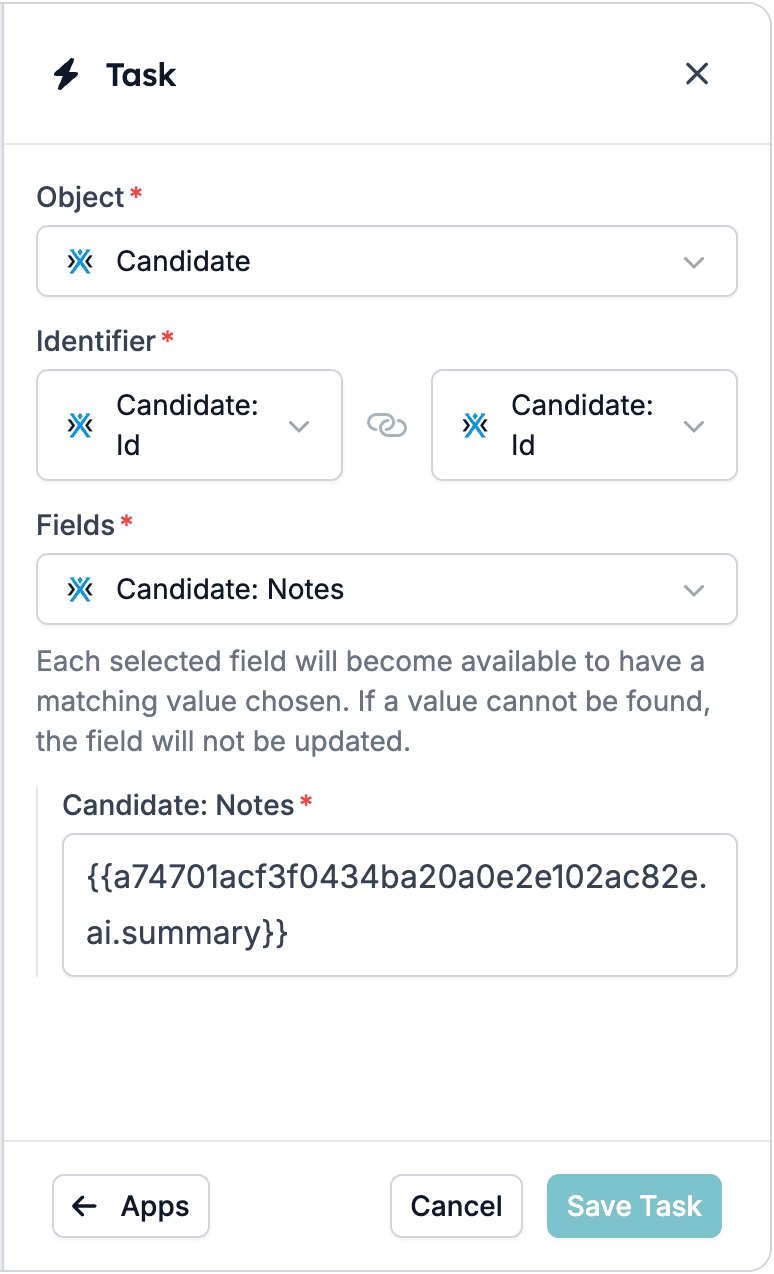 More information about the key components of this task:
1. **Object:**
* The object represents the data entity you want to update, e.g., "Candidate".
2. **Identifier:**
* An identifier is a unique field (like an ID) used to locate the exact record that should be updated. For example: "Candidate: ID" ensures the automation targets the correct candidate's record.
3. **Fields:**
* These are the fields within the object that you want to be updated. You can select different fields, such as "Candidate: Notes" or "Candidate: Available Date", etc., to specify what part of the record needs to be updated.
## Step 6: Review and Activate the automation
Ensure all filters, forms, and contextual knowledge are properly set before activating the automation.
More information about the key components of this task:
1. **Object:**
* The object represents the data entity you want to update, e.g., "Candidate".
2. **Identifier:**
* An identifier is a unique field (like an ID) used to locate the exact record that should be updated. For example: "Candidate: ID" ensures the automation targets the correct candidate's record.
3. **Fields:**
* These are the fields within the object that you want to be updated. You can select different fields, such as "Candidate: Notes" or "Candidate: Available Date", etc., to specify what part of the record needs to be updated.
## Step 6: Review and Activate the automation
Ensure all filters, forms, and contextual knowledge are properly set before activating the automation.
 ## 💡 Tips for Optimal Use
* Regularly update your filters and forms to align with your recruitment needs.
* Provide detailed and specific briefings to enhance AI effectiveness.
## Related topics
- [Logging WhatsApp conversations in Carerix with HireData](/apps/carerix/logging-whatsapp-conversations-in-carerix-with-hiredata.md)
- [Create a Recruitee automation in HireData](/apps/recruitee/create-a-recruitee-automation-in-hiredata.md)
- [Create an OTYS automation in HireData](/apps/otys/create-an-otys-automation-in-hiredata.md)
- [Create a Vincere automation in HireData](/apps/vincere/create-a-vincere-automation-in-hiredata.md)
- [Create a Carerix automation in HireData](/apps/carerix/create-a-carerix-automation-in-hiredata.md)
## 💡 Tips for Optimal Use
* Regularly update your filters and forms to align with your recruitment needs.
* Provide detailed and specific briefings to enhance AI effectiveness.
## Related topics
- [Logging WhatsApp conversations in Carerix with HireData](/apps/carerix/logging-whatsapp-conversations-in-carerix-with-hiredata.md)
- [Create a Recruitee automation in HireData](/apps/recruitee/create-a-recruitee-automation-in-hiredata.md)
- [Create an OTYS automation in HireData](/apps/otys/create-an-otys-automation-in-hiredata.md)
- [Create a Vincere automation in HireData](/apps/vincere/create-a-vincere-automation-in-hiredata.md)
- [Create a Carerix automation in HireData](/apps/carerix/create-a-carerix-automation-in-hiredata.md)