> ## Documentation Index
> Fetch the complete documentation index at: https://help.hiredata.com/llms.txt
> Use this file to discover all available pages before exploring further.
# How WhatsApp Templates Work
> Understand how WhatsApp templates work in HireData, including categories, approval by Meta, variables, and when you need them to message candidates.
*Our WhatsApp automation templates streamline candidate communication using AI and conversational recruiting techniques. These pre-built templates help recruiters engage with candidates efficiently via WhatsApp, ensuring timely responses and personalised interactions. Continue to learn how to use them effectively for your business, as well as how to create WhatsApp templates in the WhatsApp manager.*
## WhatsApp templates in HireData
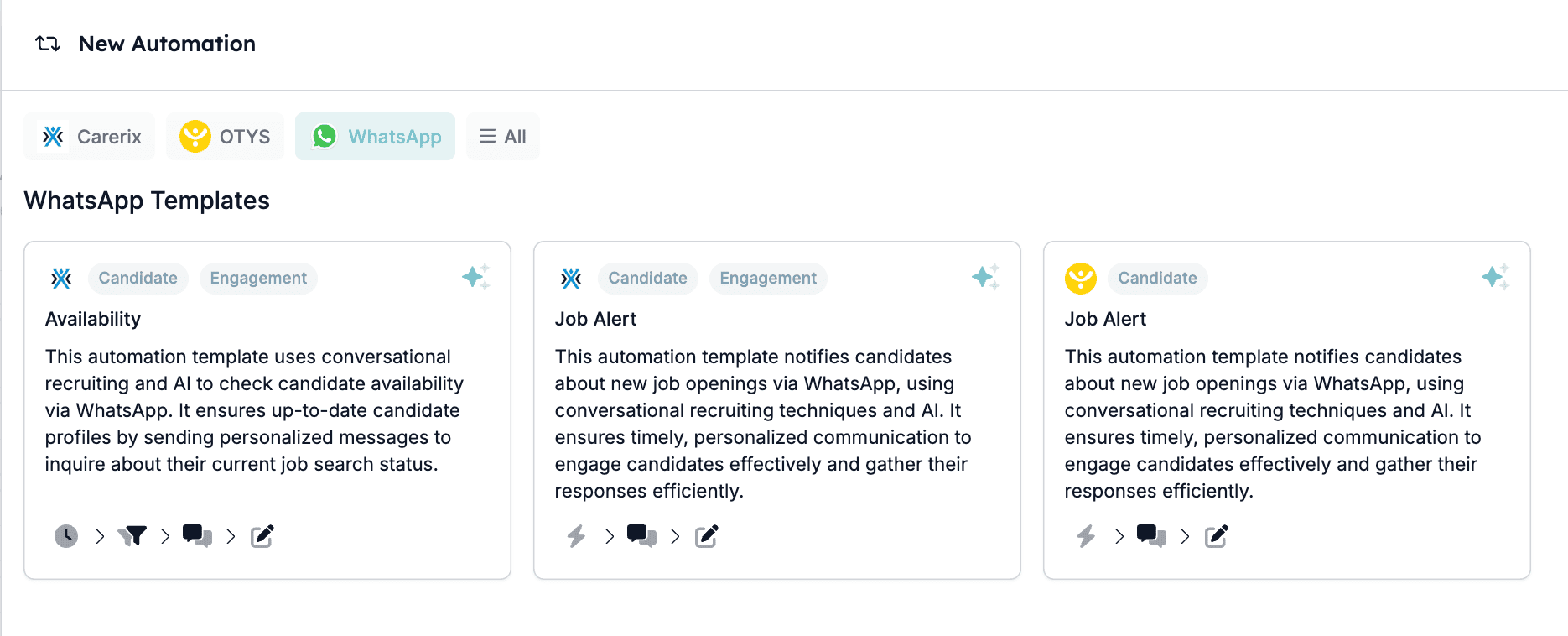
### Available WhatsApp templates
1. **Availability Check (via Carerix)** -\*\* \*\*This template is designed to verify a candidate's availability for job opportunities. It sends personalised messages to inquire about their current job search status, ensuring that candidate profiles remain up-to-date.
2. \*\*Job Alert (via Carerix) \*\*- This automation notifies candidates about new job openings via WhatsApp. It leverages AI-driven conversational techniques to ensure timely communication and gather responses effectively.
3. **Job Alert (via OTYS)** - Similar to the Carerix job alert template, this version is tailored for OTYS users. It informs candidates about new job opportunities while maintaining engagement through AI-powered messaging.
 ### How the trigger works
All of the WhatsApp templates use the same logic but can differentiate in the set trigger and the content of the conversation (e.g. the questions asked, the collected information, and the tone of voice). This article focuses on the Job Alert automation via Carerix.
In this automation, the trigger is based on a **stage update** within the Carerix system. Here's how it functions:
1. **Trigger Object** – The automation listens for when a **Match** is either **created or updated.**
2. **Filter Condition** – The automation only proceeds if the **\[Match: Stage]** is set to \*\*"Placed on shortlist" \*\*ensuring that only shortlisted candidates receive the job alert message.
### How the trigger works
All of the WhatsApp templates use the same logic but can differentiate in the set trigger and the content of the conversation (e.g. the questions asked, the collected information, and the tone of voice). This article focuses on the Job Alert automation via Carerix.
In this automation, the trigger is based on a **stage update** within the Carerix system. Here's how it functions:
1. **Trigger Object** – The automation listens for when a **Match** is either **created or updated.**
2. **Filter Condition** – The automation only proceeds if the **\[Match: Stage]** is set to \*\*"Placed on shortlist" \*\*ensuring that only shortlisted candidates receive the job alert message.
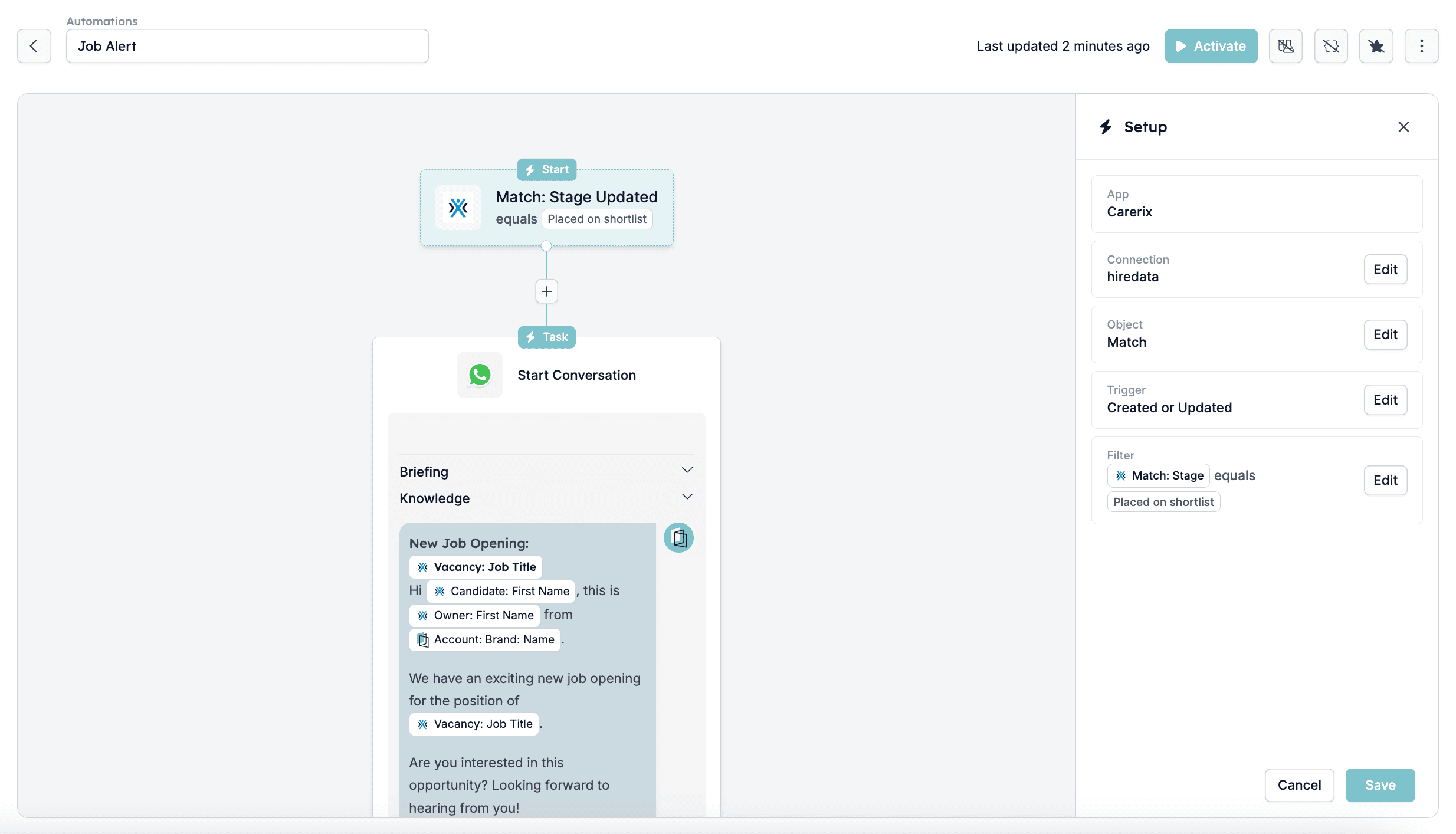 Once triggered, the automation initiates a **WhatsApp conversation**, sending a personalised job alert to the candidates informing them about the new opportunity.
### Configuring the \[Start Conversation] task
Once the trigger is set, the next step is to configure the task that defines how the WhatsApp message will be sent. Here's a breakdown of each configuration option:
1. **Phone Number Selection**
* Choose the phone number that will be used to send the WhatsApp messages. This is typically a verified business number associated with your WhatsApp Business that should already be verified and visible in the WhatsApp connection in HireData.
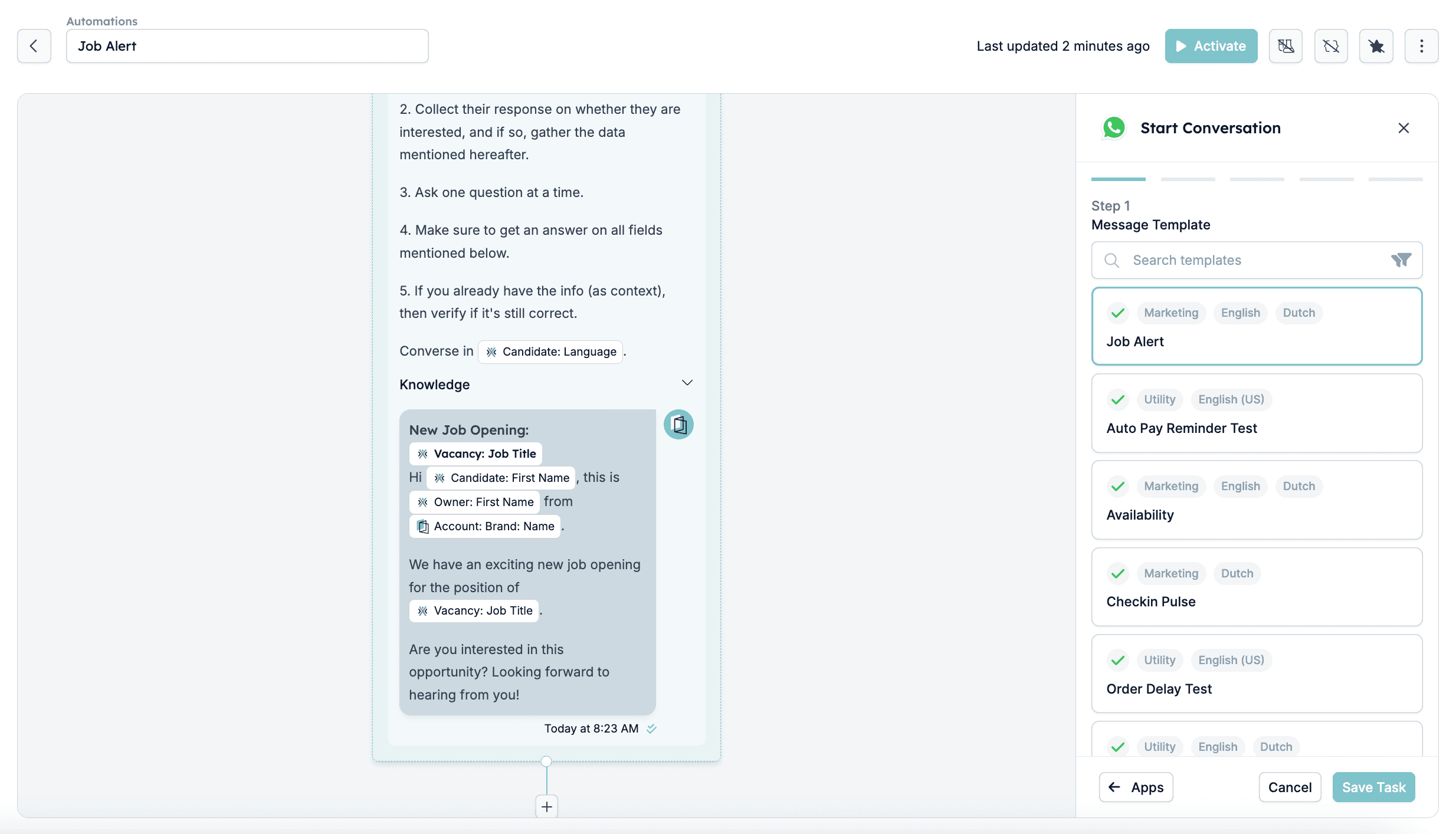
2. **Message Template**
* Select a pre-approved WhatsApp message template to ensure smooth and compliant communication. The template defines the structure of the first message, which can include placeholders for dynamic content (like candidate names, job titles, etc.).
Once triggered, the automation initiates a **WhatsApp conversation**, sending a personalised job alert to the candidates informing them about the new opportunity.
### Configuring the \[Start Conversation] task
Once the trigger is set, the next step is to configure the task that defines how the WhatsApp message will be sent. Here's a breakdown of each configuration option:
1. **Phone Number Selection**
* Choose the phone number that will be used to send the WhatsApp messages. This is typically a verified business number associated with your WhatsApp Business that should already be verified and visible in the WhatsApp connection in HireData.
2. **Message Template**
* Select a pre-approved WhatsApp message template to ensure smooth and compliant communication. The template defines the structure of the first message, which can include placeholders for dynamic content (like candidate names, job titles, etc.).
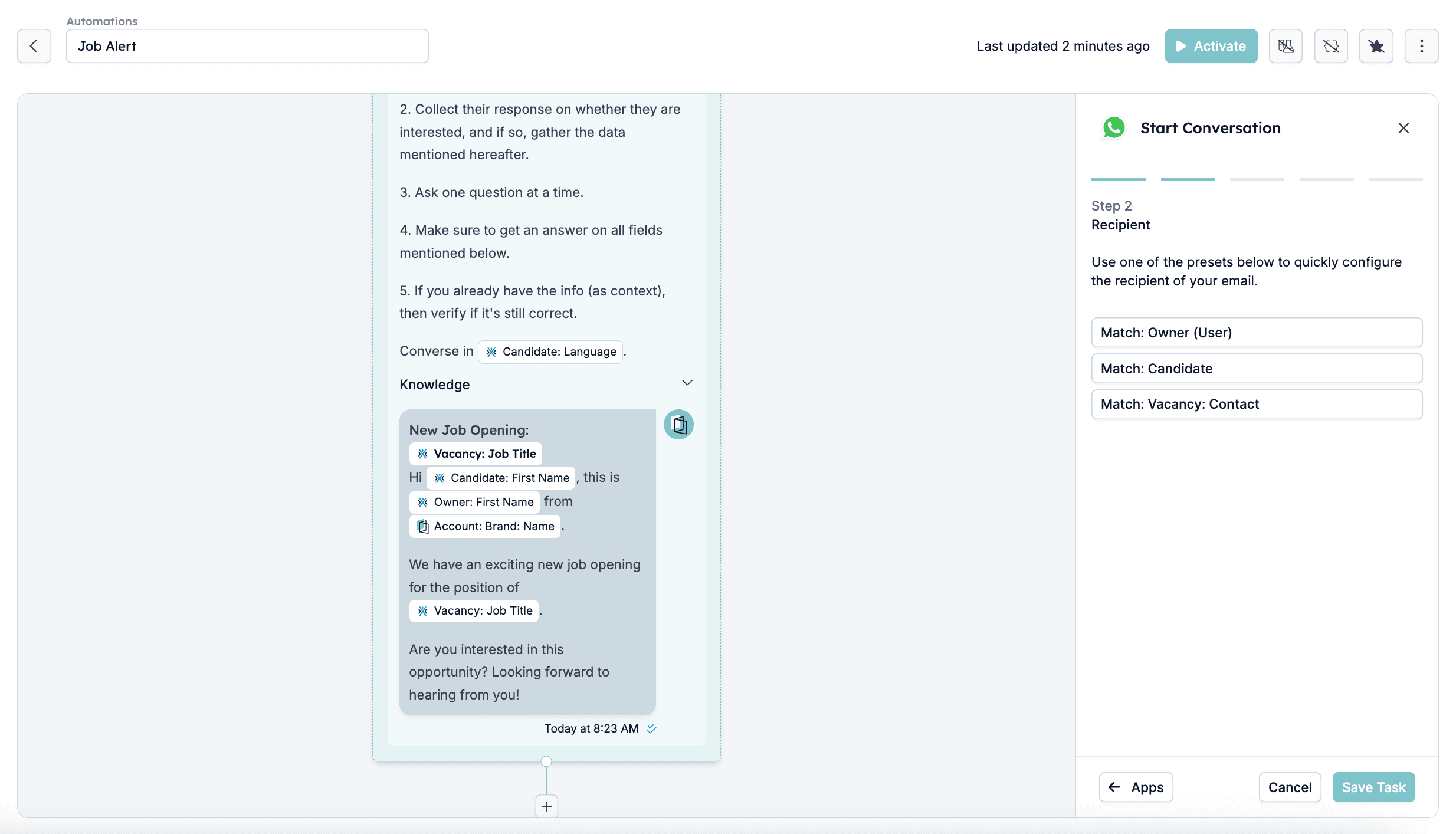
 3. **Recipient Selection**
* Define who will receive the message. In this case, it's typically the candidate linked to the match that triggered the automation.
3. **Recipient Selection**
* Define who will receive the message. In this case, it's typically the candidate linked to the match that triggered the automation.
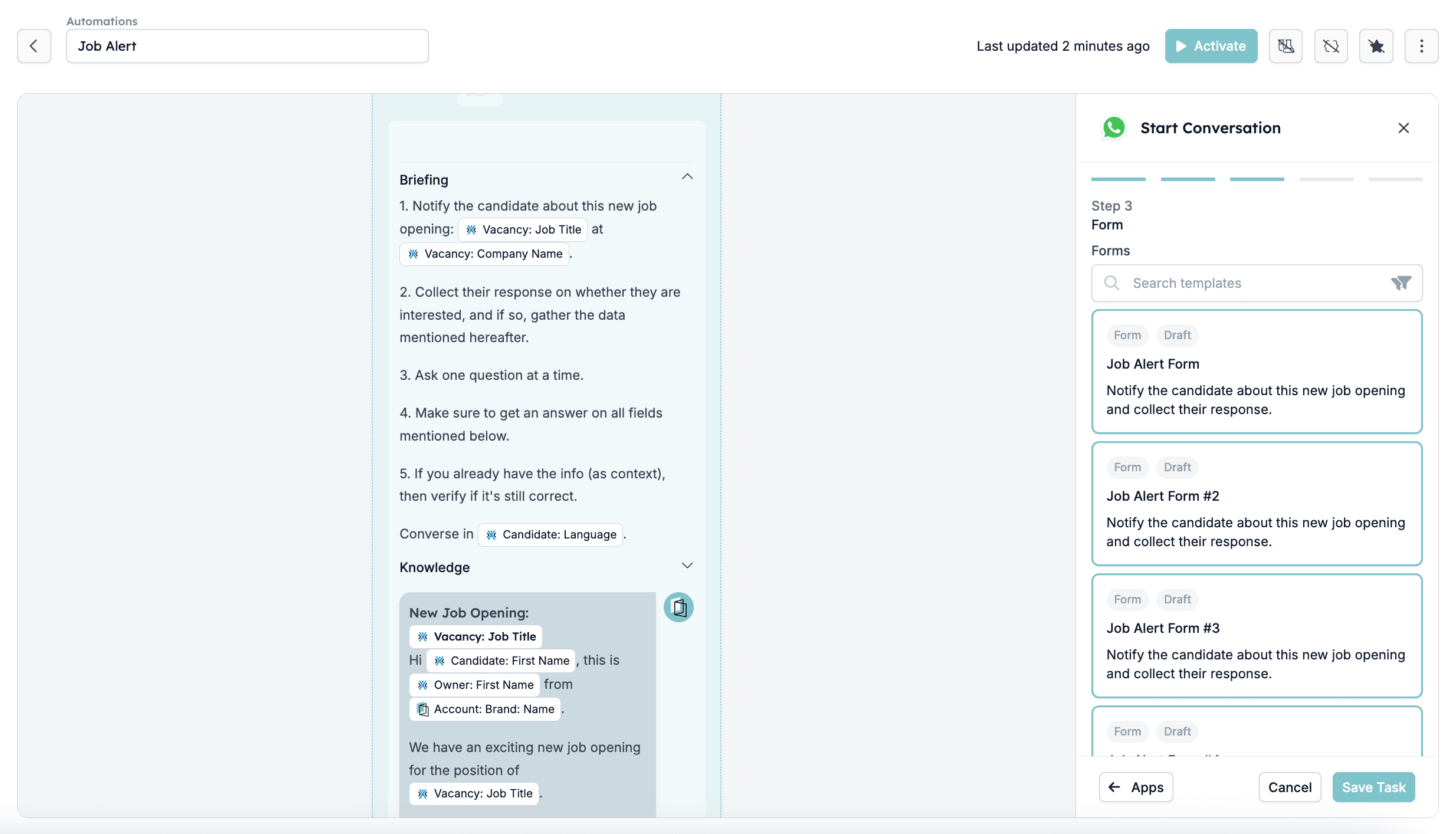
 4. **Form Selection**
* The form holds all of the questions that the recipient will be asked. You can select a template form or create your own on the Forms page in HireData.
4. **Form Selection**
* The form holds all of the questions that the recipient will be asked. You can select a template form or create your own on the Forms page in HireData.
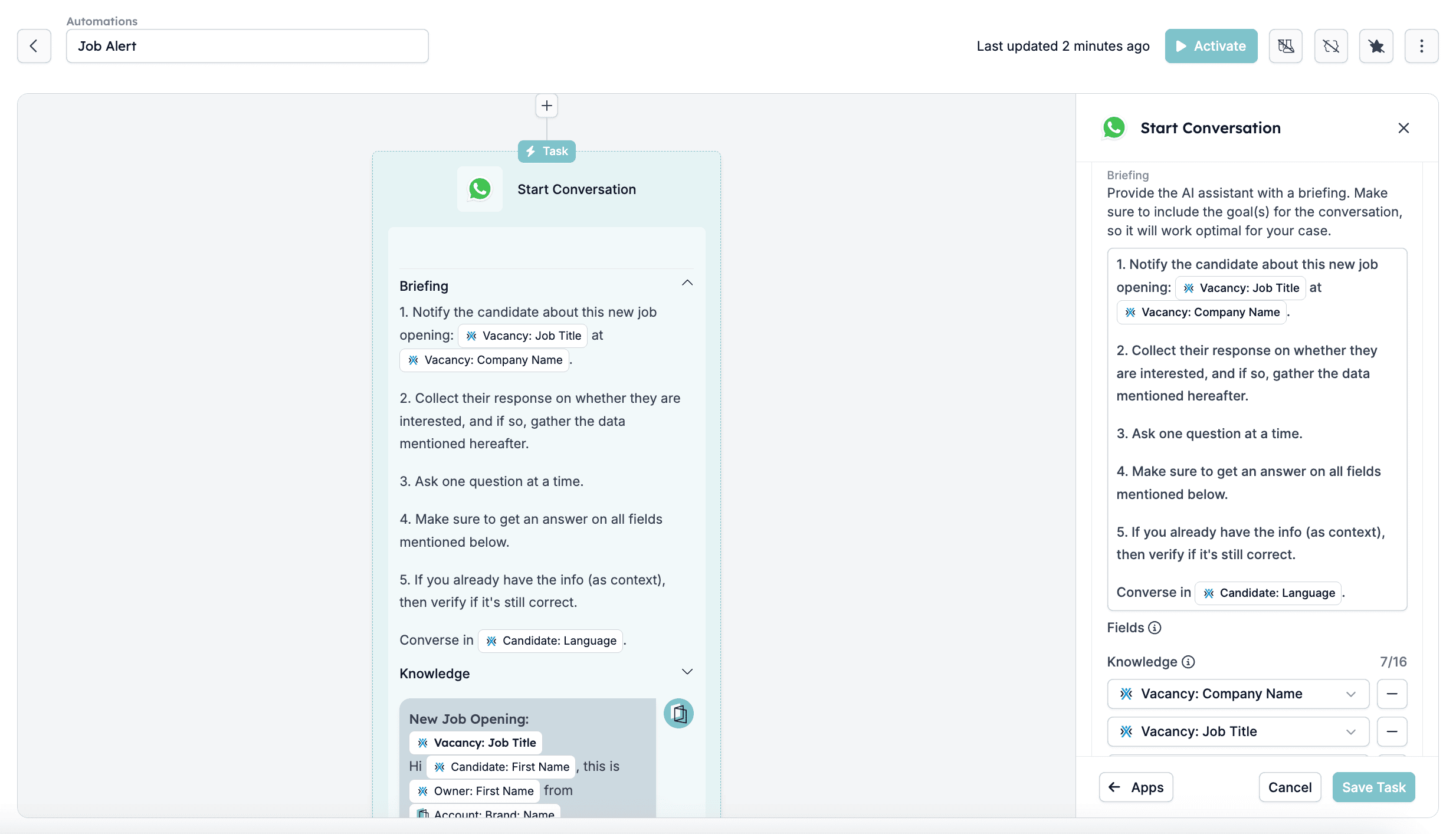
 5. **Briefing**
* Provide a briefing outlining the objective of the WhatsApp conversation. This helps maintain consistency and clarity in communication. You can include any guidance that will help the AI to communicate effectively with the audience.
5. **Briefing**
* Provide a briefing outlining the objective of the WhatsApp conversation. This helps maintain consistency and clarity in communication. You can include any guidance that will help the AI to communicate effectively with the audience.
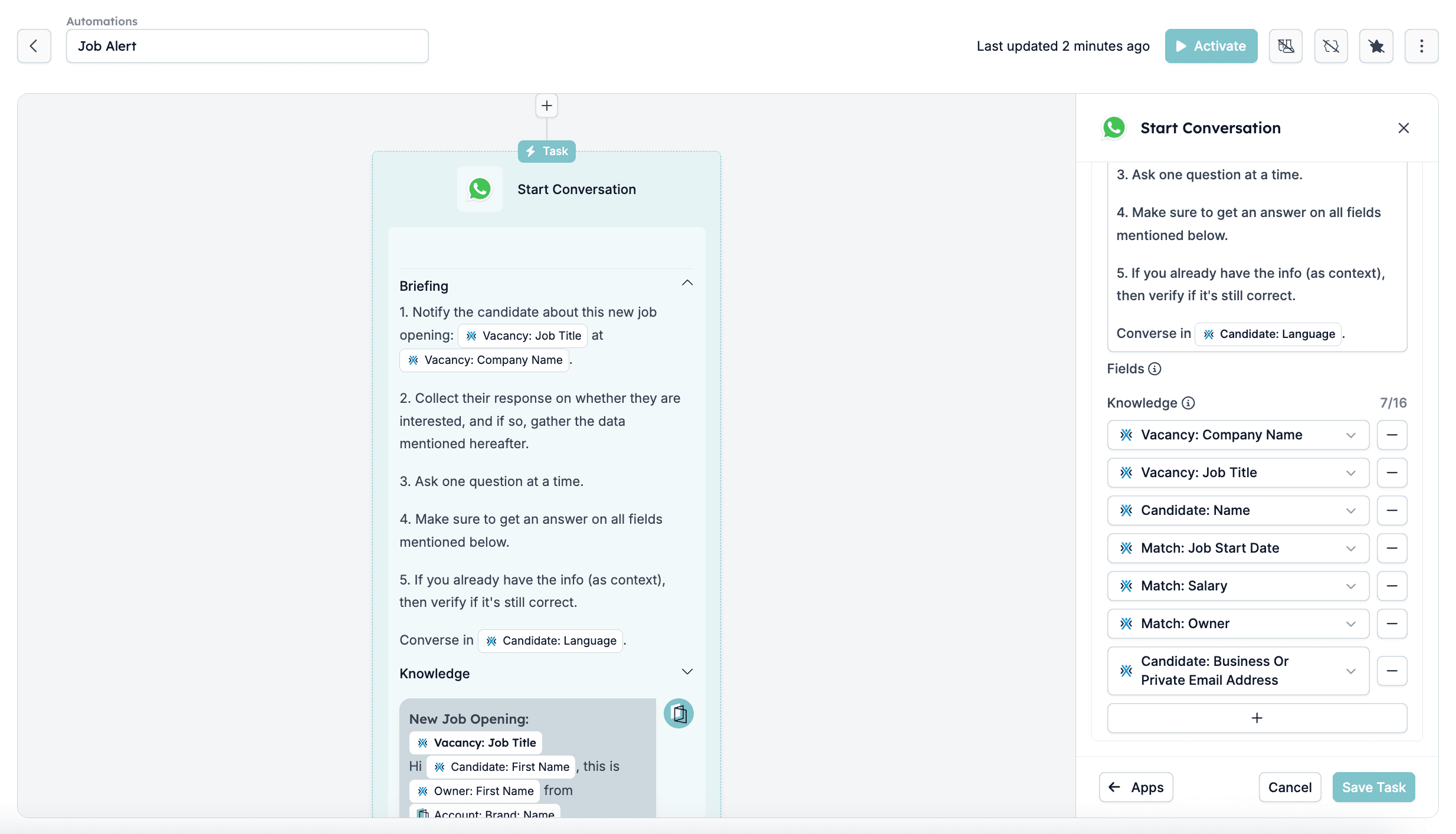
 6. **Knowledge**
* These are **up to 16 fields** you can add to provide additional context for the AI to use during conversations. Select items that it should be aware of to handle conversations effectively, such as the names of the participants, email addresses, etc.
These are some standard dynamic placeholders that will personalise the message:
* **Candidate Name** → Automatically inserts the recipient's name.
* **Job Title** → Populates the job vacancy title.
* **Recruiter Name** → Personalises the message with the sender's name.
* **Company Name** → References the hiring company or brand.
6. **Knowledge**
* These are **up to 16 fields** you can add to provide additional context for the AI to use during conversations. Select items that it should be aware of to handle conversations effectively, such as the names of the participants, email addresses, etc.
These are some standard dynamic placeholders that will personalise the message:
* **Candidate Name** → Automatically inserts the recipient's name.
* **Job Title** → Populates the job vacancy title.
* **Recruiter Name** → Personalises the message with the sender's name.
* **Company Name** → References the hiring company or brand.
 ### Configuring the \[Update Fields] task
After the WhatsApp conversation collects information from the candidate, the automation can **automatically update specific fields** in the system. This ensures that the candidate's profile stays up-to-date without requiring manual data entry.
Here's how this process works:
1. **Creating a Task to Update Fields**
* A task is added to the automation that updates specific fields in the candidate's records. This happens after the WhatsApp conversation when the candidate provides new information, such as their availability date or additional notes.
### Configuring the \[Update Fields] task
After the WhatsApp conversation collects information from the candidate, the automation can **automatically update specific fields** in the system. This ensures that the candidate's profile stays up-to-date without requiring manual data entry.
Here's how this process works:
1. **Creating a Task to Update Fields**
* A task is added to the automation that updates specific fields in the candidate's records. This happens after the WhatsApp conversation when the candidate provides new information, such as their availability date or additional notes.
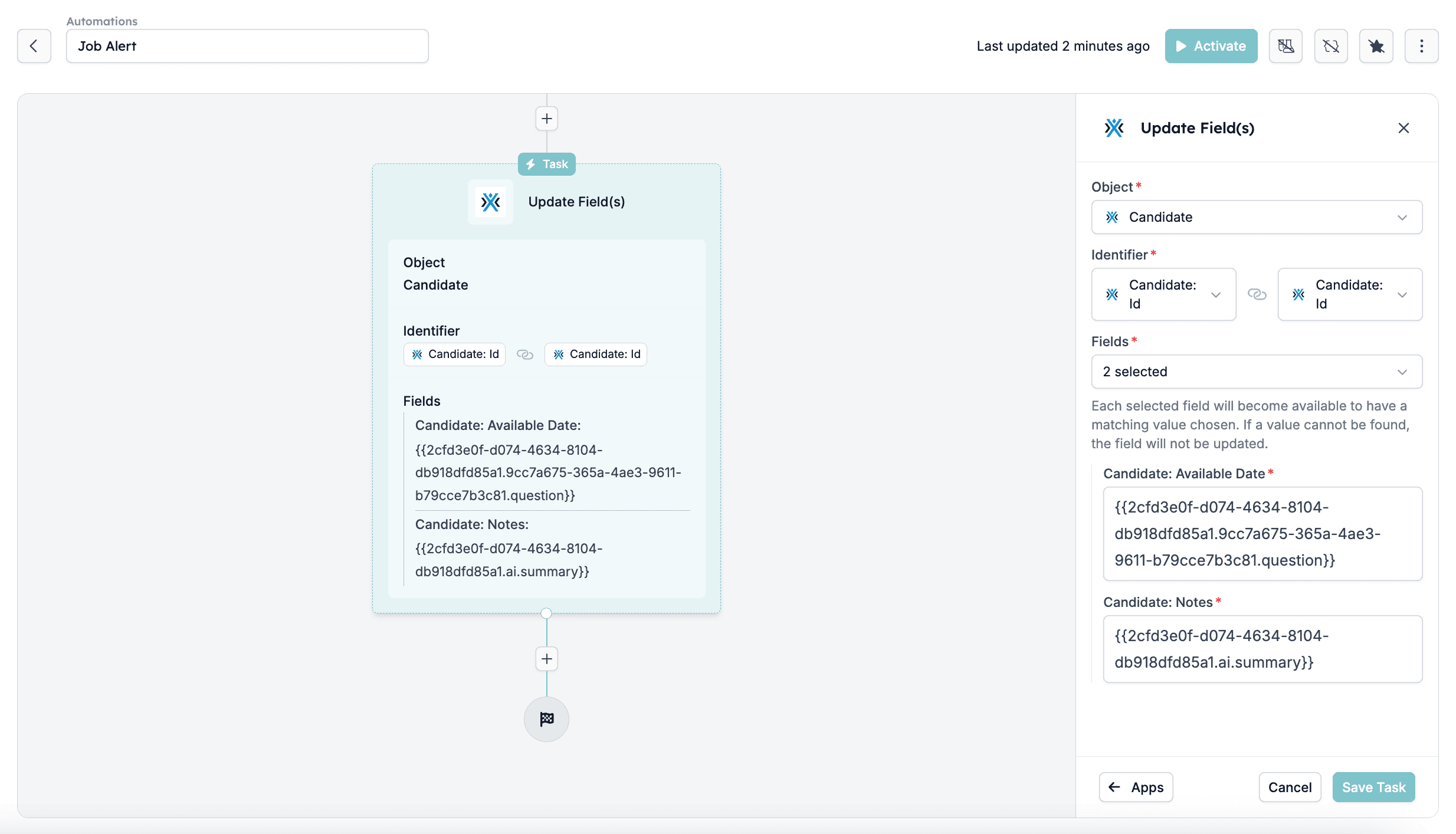 2. **Object Selection**
* The object being updated is the **Candidate** record. This ensures that all collected information is stored in the correct candidate profile.
3. **Identifier**
* To ensure the update is applied to the correct candidate, the system matches the **Candidate: ID** from the conversation with the **Candidate: ID** in the database. This unique identifier ensures that the data is updated only for the relevant candidate.
4. **Fields Updated**
* The automation updates one or more fields based on the responses received from the candidate. Common fields include:
* **Candidate: Available Date** → Updates the candidate's availability for new job opportunities.
* **Candidate: Notes** → Stores any additional information the candidate provided, such as preferences or special requests.
* **Other Fields** → Additional fields can be added as needed, such as preferred job type, location preference, or salary expectations.
## WhatsApp templates in WhatsApp
### Creating a WhatsApp template
*Go to your WhatsApp Template Manager by clicking \[Manage Templates]:*
2. **Object Selection**
* The object being updated is the **Candidate** record. This ensures that all collected information is stored in the correct candidate profile.
3. **Identifier**
* To ensure the update is applied to the correct candidate, the system matches the **Candidate: ID** from the conversation with the **Candidate: ID** in the database. This unique identifier ensures that the data is updated only for the relevant candidate.
4. **Fields Updated**
* The automation updates one or more fields based on the responses received from the candidate. Common fields include:
* **Candidate: Available Date** → Updates the candidate's availability for new job opportunities.
* **Candidate: Notes** → Stores any additional information the candidate provided, such as preferences or special requests.
* **Other Fields** → Additional fields can be added as needed, such as preferred job type, location preference, or salary expectations.
## WhatsApp templates in WhatsApp
### Creating a WhatsApp template
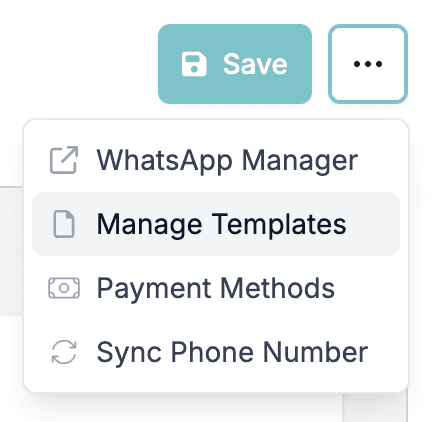
*Go to your WhatsApp Template Manager by clicking \[Manage Templates]:*
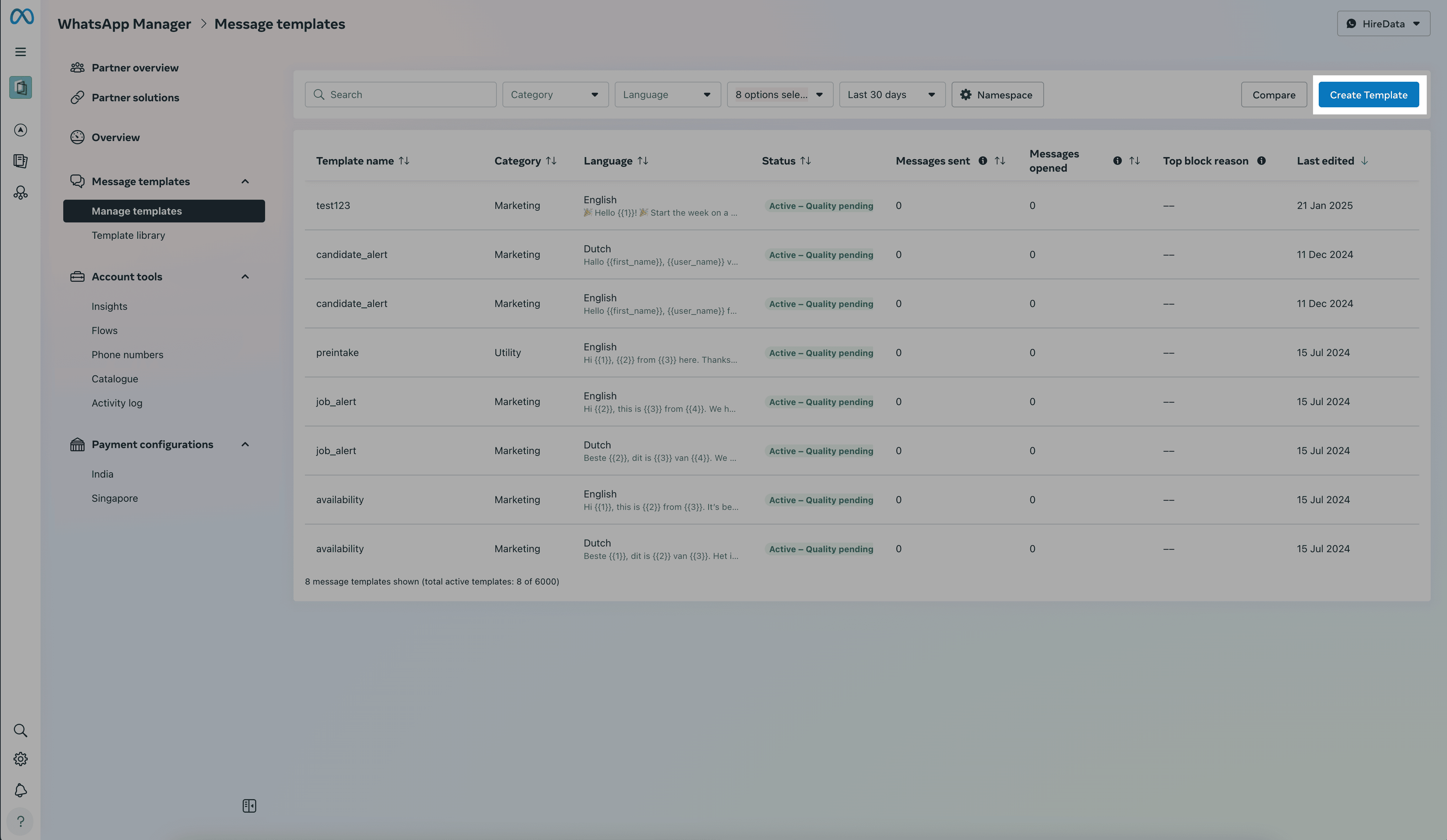
 *Click on \[Create Template]:*
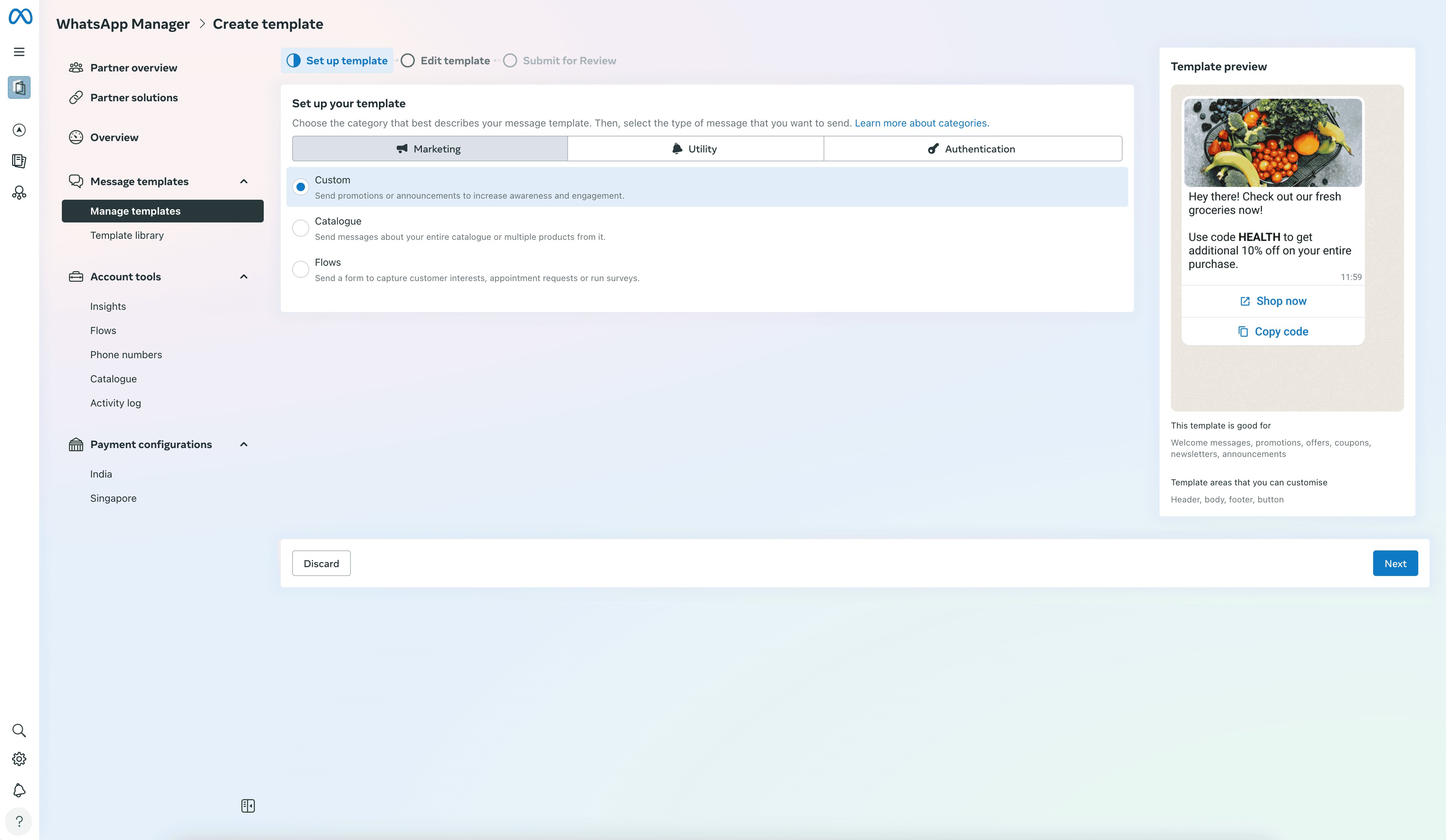
 *Select the template type, e.g. by selecting \[Marketing] and then \[Custom]:*
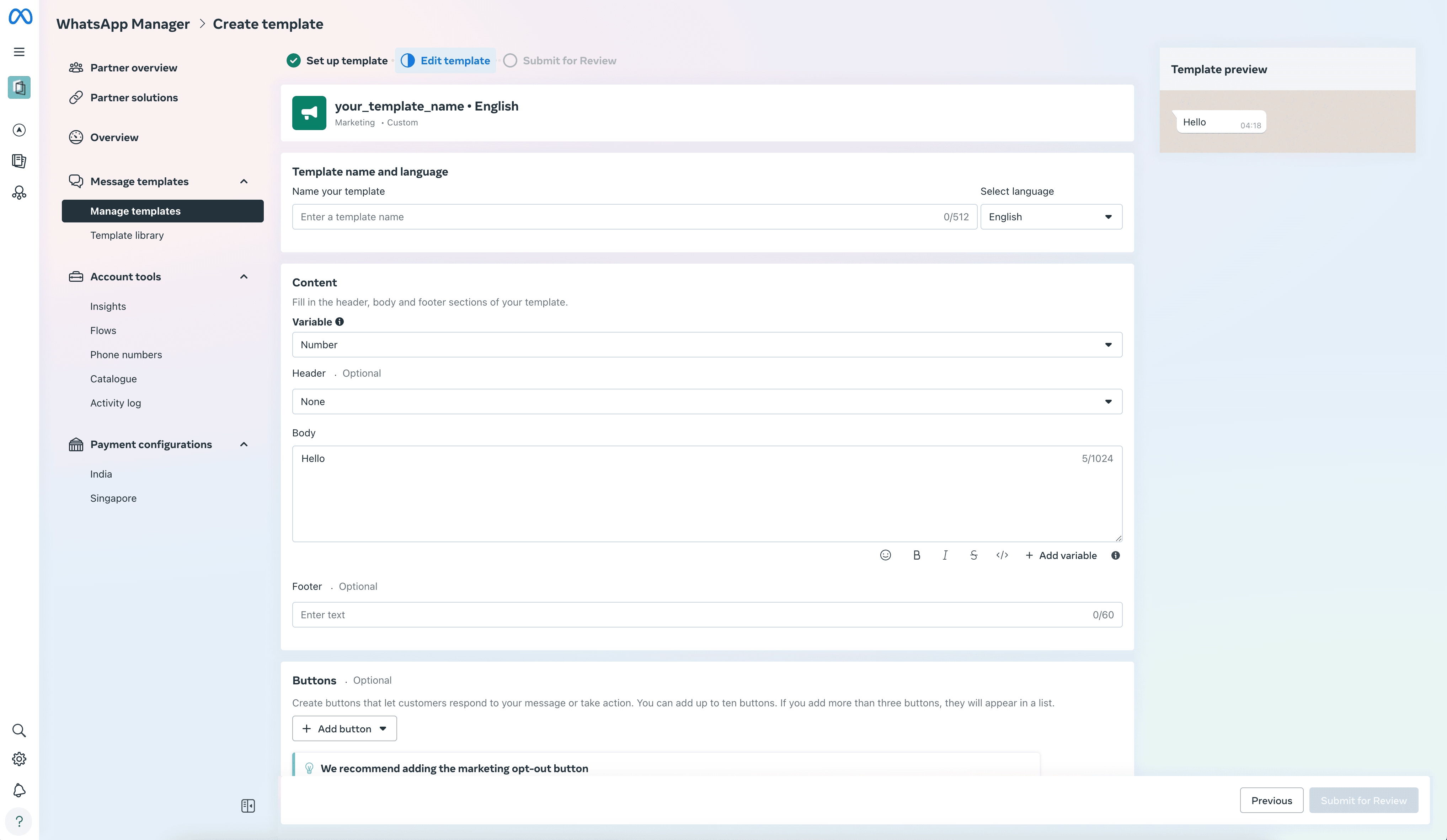
 *Set up your WhatsApp template in the editor:*
 ### 1. Name your WhatsApp template
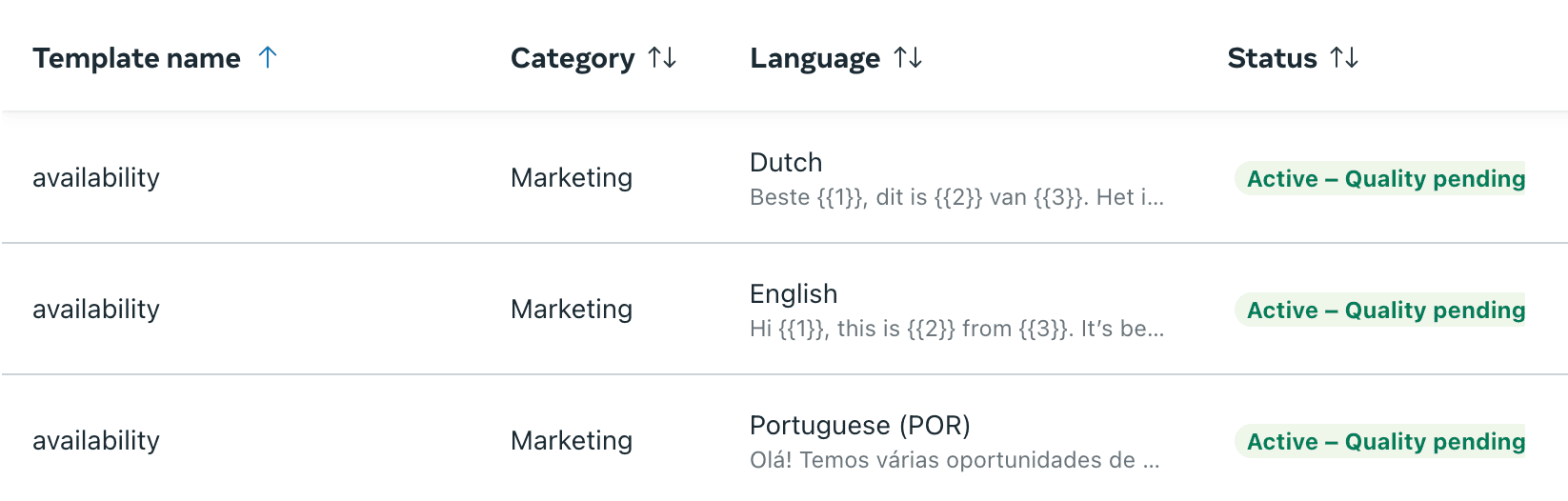
 *Use a clear and consistent name for your template. For example, if you're creating the same template in multiple languages, use the exact same name, e.g. “availability” in this case, for all versions (before):*
 *Use the name as an identifier for your WhatsApp template (after):*
 ### 2. Add variables to your WhatsApp template
*You can insert dynamic fields by clicking \[+ Add variable] in the editor:*
### 2. Add variables to your WhatsApp template
*You can insert dynamic fields by clicking \[+ Add variable] in the editor:*
 *For example, add a variable name, e.g. company:*
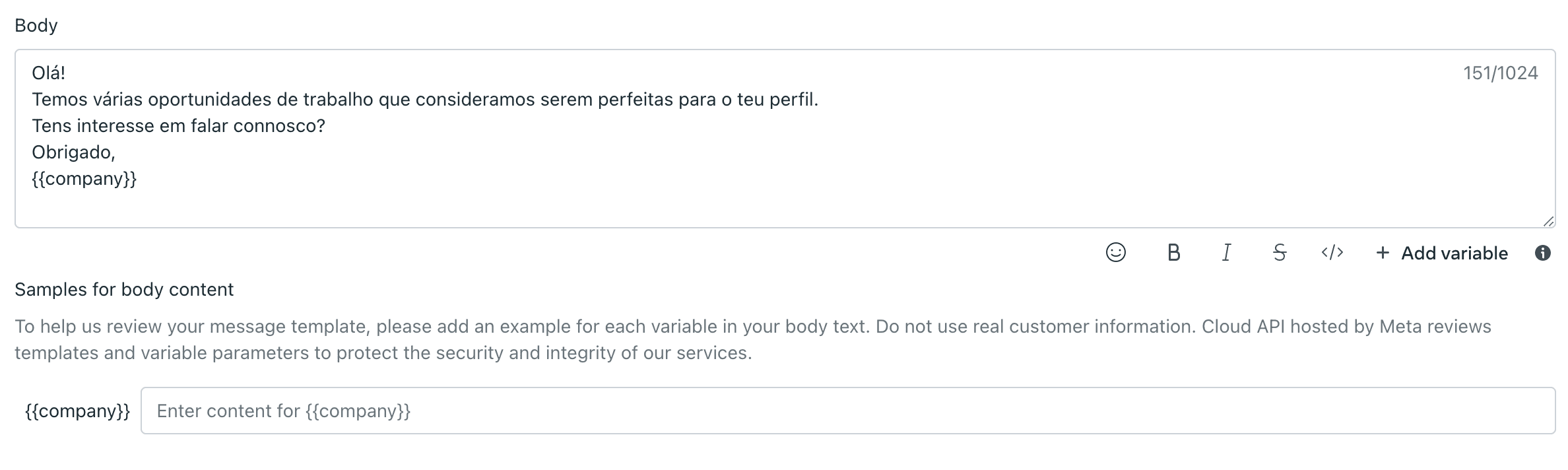 *Add a default value, e.g. Randstad:*
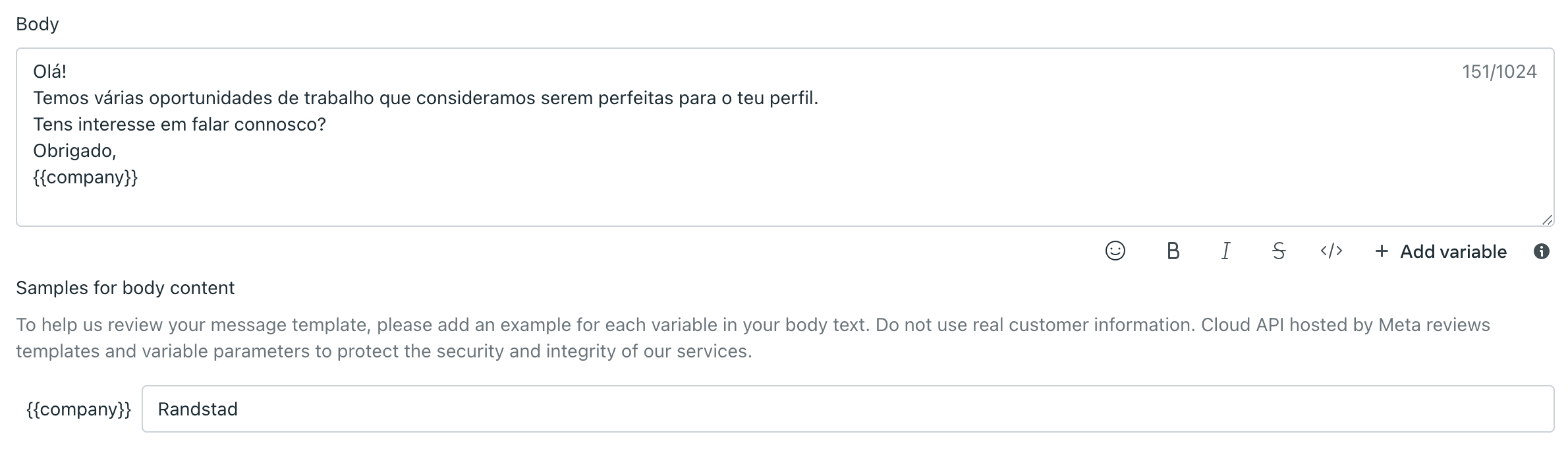 *Choose the variable type: Name vs. Number:*
 *An example of a numbered variable:*
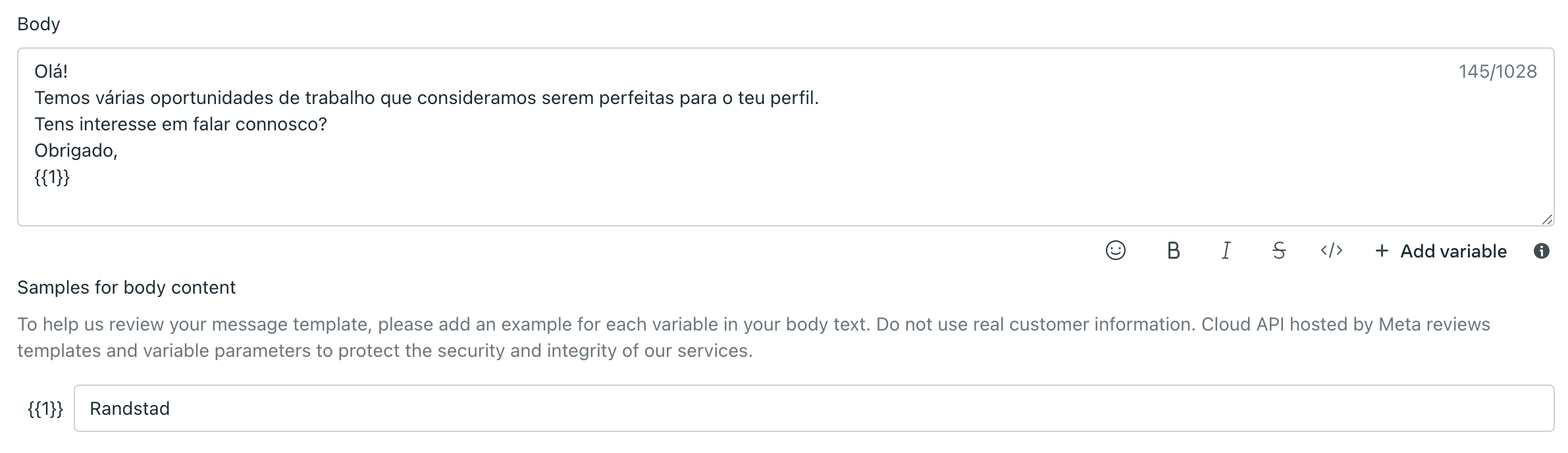 You can select between **Name** and **Number** as variable types. While numbered variables are allowed, we recommend using **named variables** for better clarity and reuse.
### 3. Add buttons to your WhatsApp template
Buttons help users interact with your message directly.
You can select between **Name** and **Number** as variable types. While numbered variables are allowed, we recommend using **named variables** for better clarity and reuse.
### 3. Add buttons to your WhatsApp template
Buttons help users interact with your message directly.
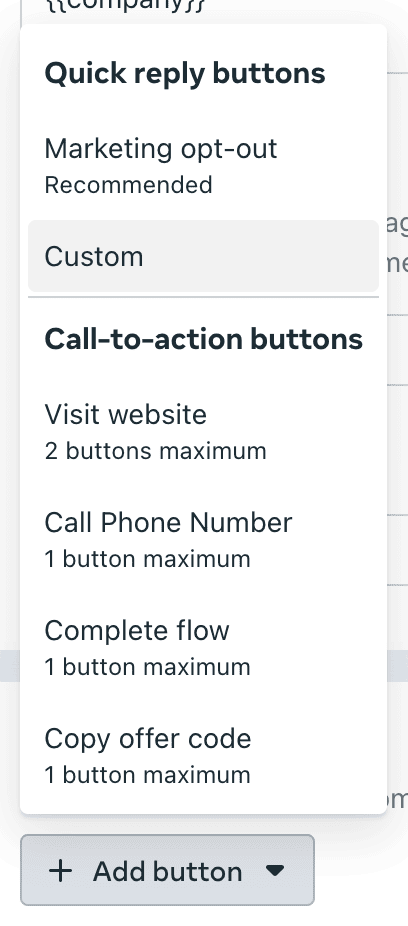
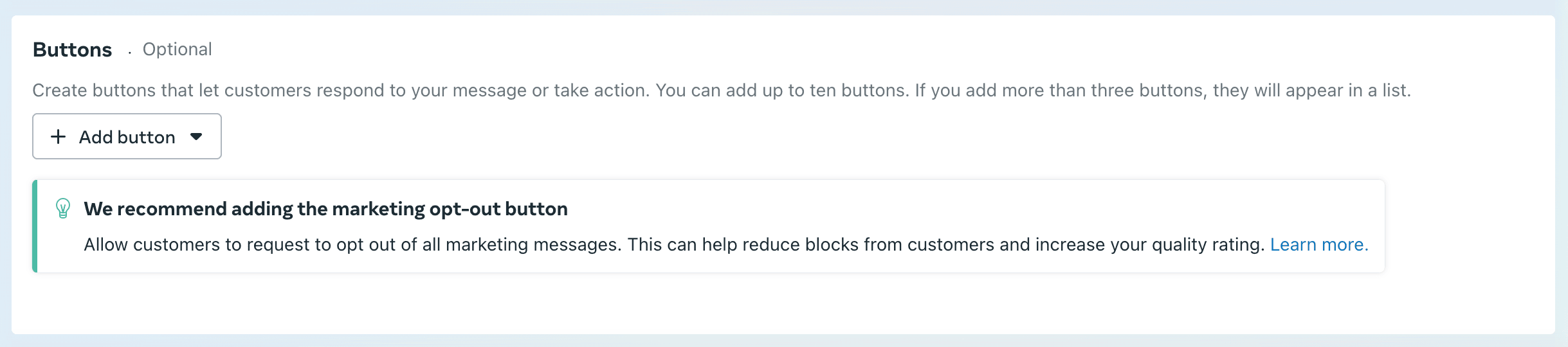 *Choose the button type, e.g. \[Custom]:*
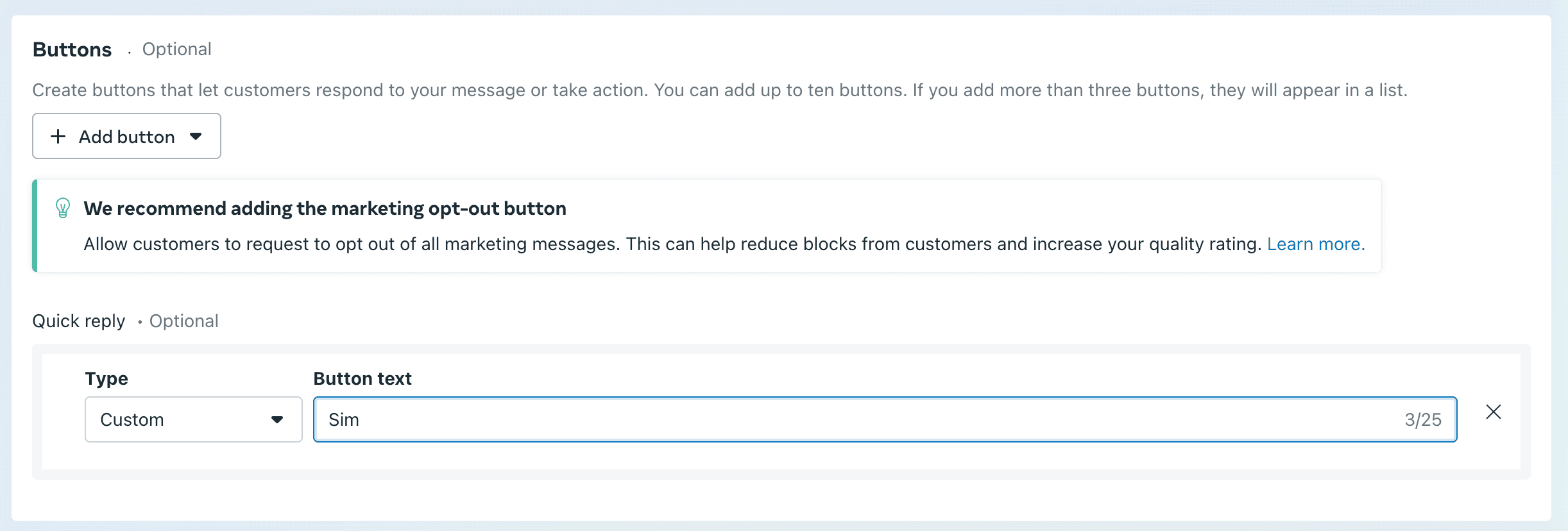
 *Add your first button, e.g. Sim:*
 💡 Tip: For templates in multiple languages, make sure you’re using the same variable name/number for consistency.
*Preview your button:*
💡 Tip: For templates in multiple languages, make sure you’re using the same variable name/number for consistency.
*Preview your button:*
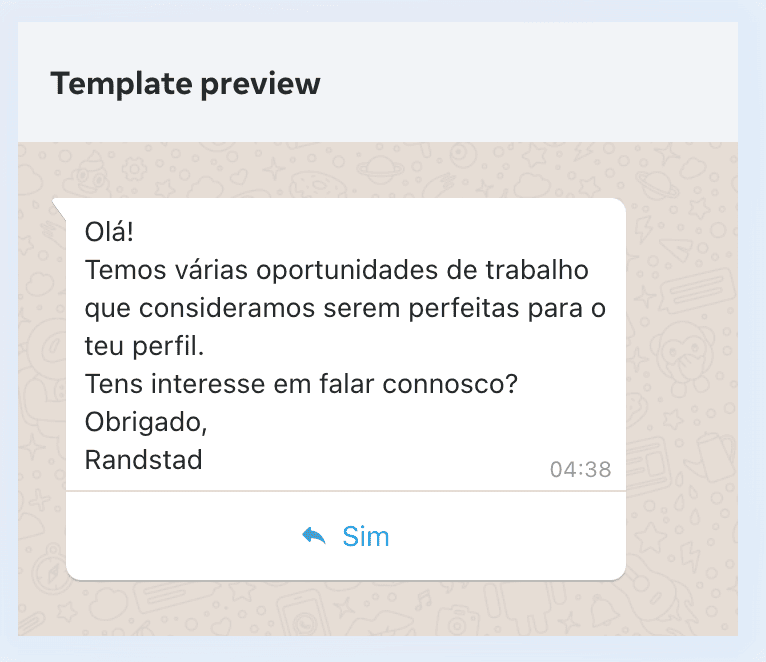 *Adding multiple button (optional):*
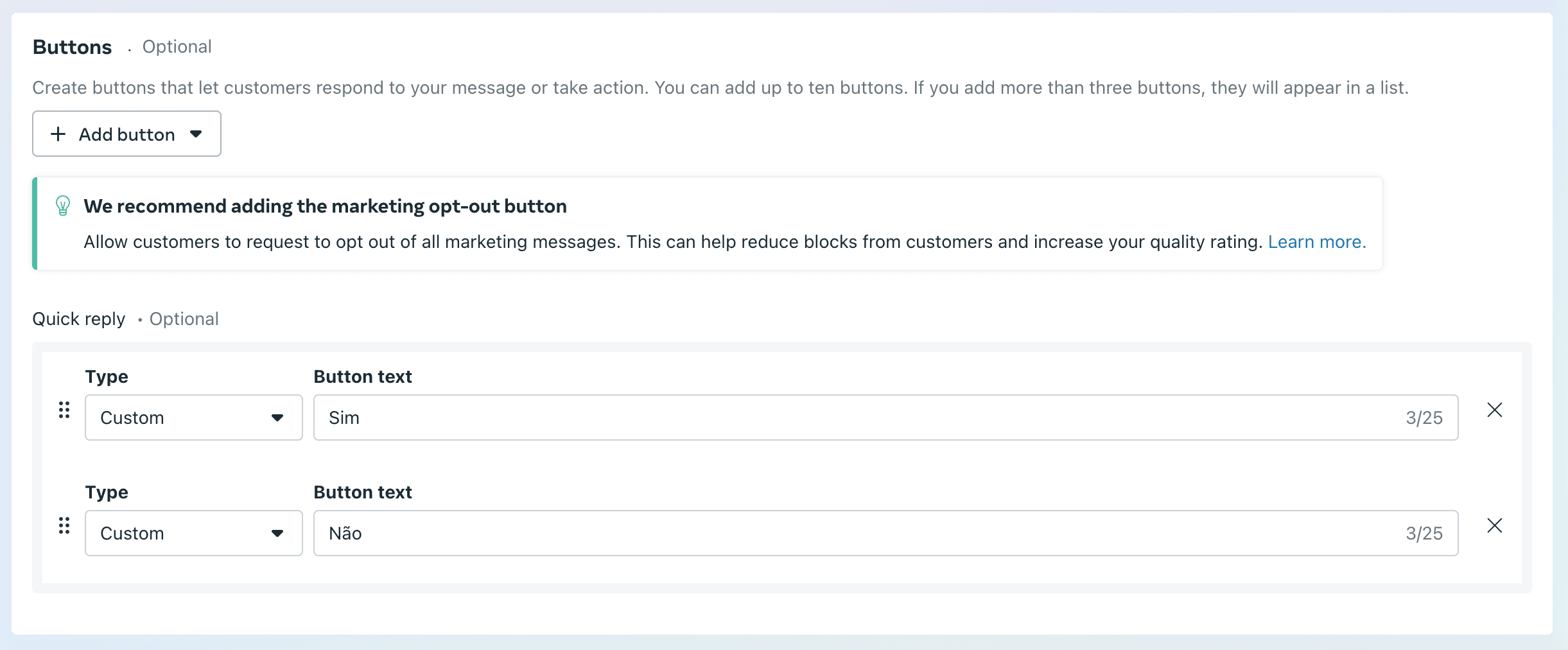 *Preview the WhatsApp template with its buttons:*
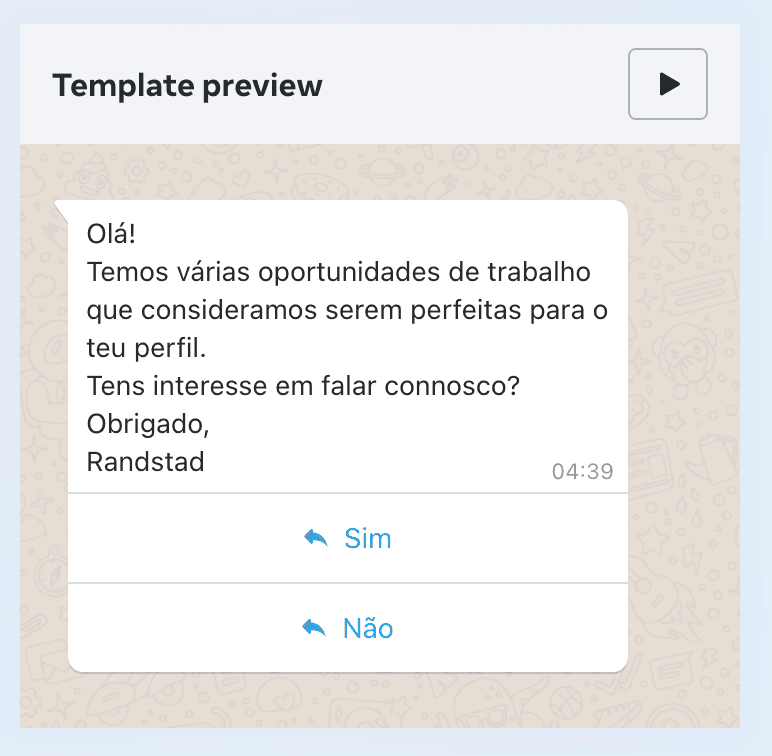 ### 4. Submit your WhatsApp template
*Once everything is ready, click \[Submit] to send the template for approval and wait for the template’s review:*
### 4. Submit your WhatsApp template
*Once everything is ready, click \[Submit] to send the template for approval and wait for the template’s review:*
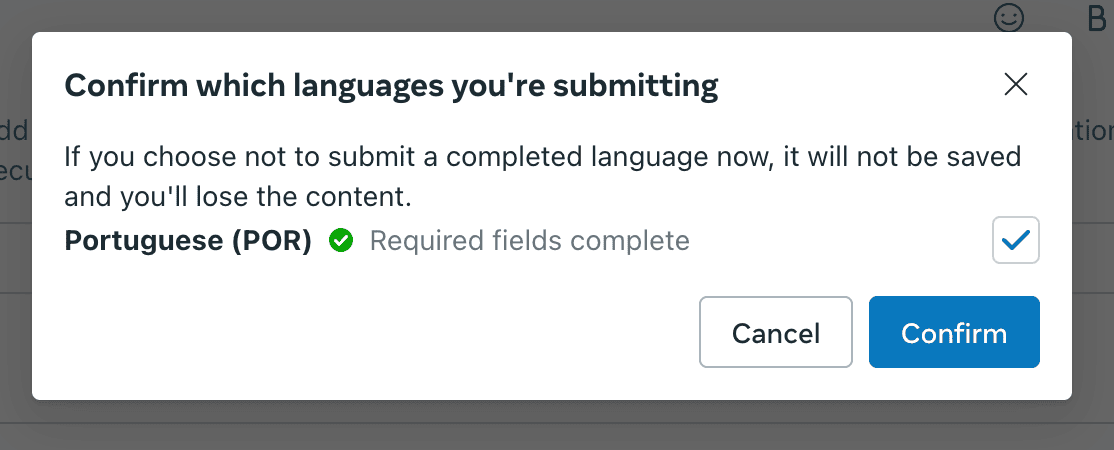
 *Hooray! Your WhatsApp template is verified*
 ### Syncing WhatsApp templates with HireData
\_To make your newly created template available in HireData,*c\_lick on \[Sync Account] in the dropdown menu of your WhatsApp account in HireData:*
### Syncing WhatsApp templates with HireData
\_To make your newly created template available in HireData,*c\_lick on \[Sync Account] in the dropdown menu of your WhatsApp account in HireData:*
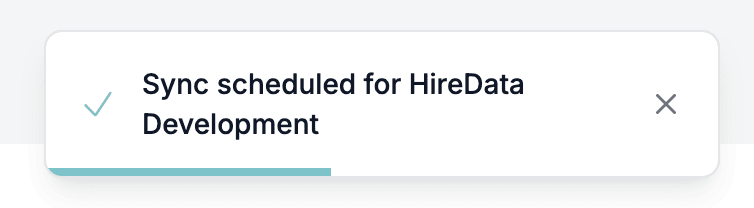
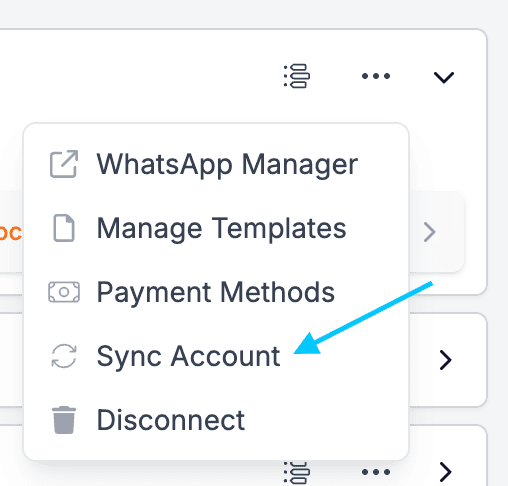 *A sync will be scheduled after this notification:*
 *After a while, you’ll see the sync will start:*
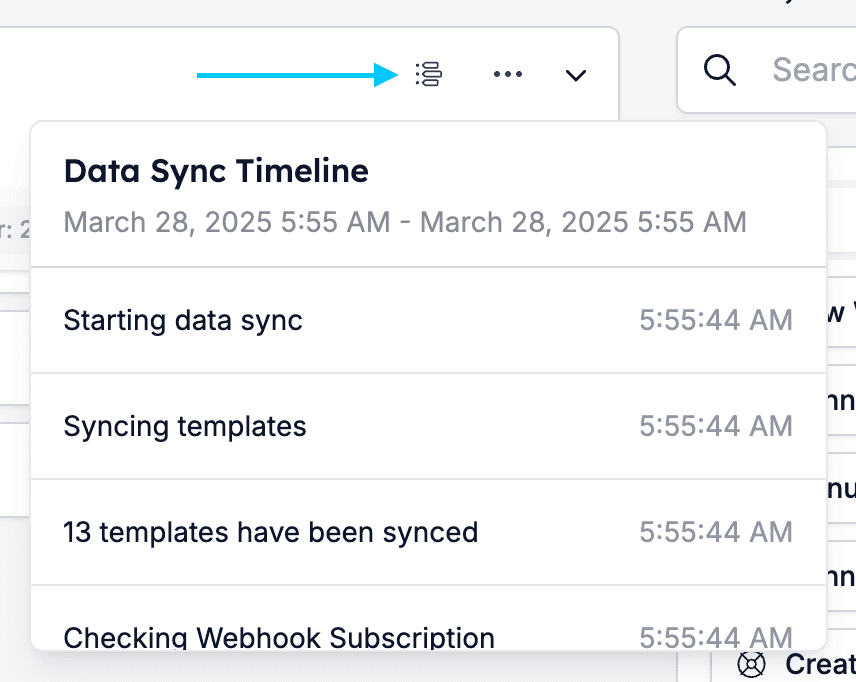
 *Click on the timeline icon to check the status of your sync:*
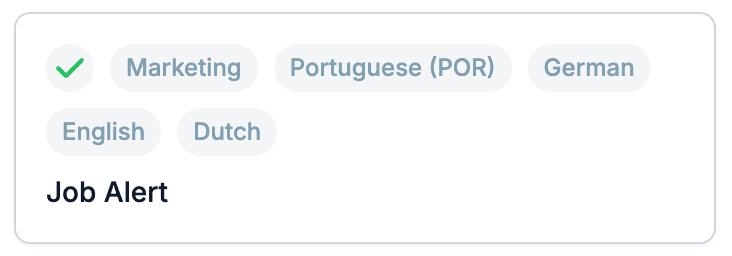
 *You can now select your new WhatsApp template in the WhatsApp tasks you’ll configure in any automation:*
 ### Editing a WhatsApp template
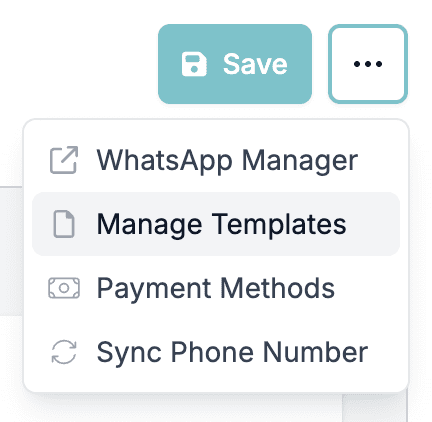
*Go to your WhatsApp Template Manager by clicking \[Manage Templates]:*
### Editing a WhatsApp template
*Go to your WhatsApp Template Manager by clicking \[Manage Templates]:*
 *Click on one of your existing templates:*
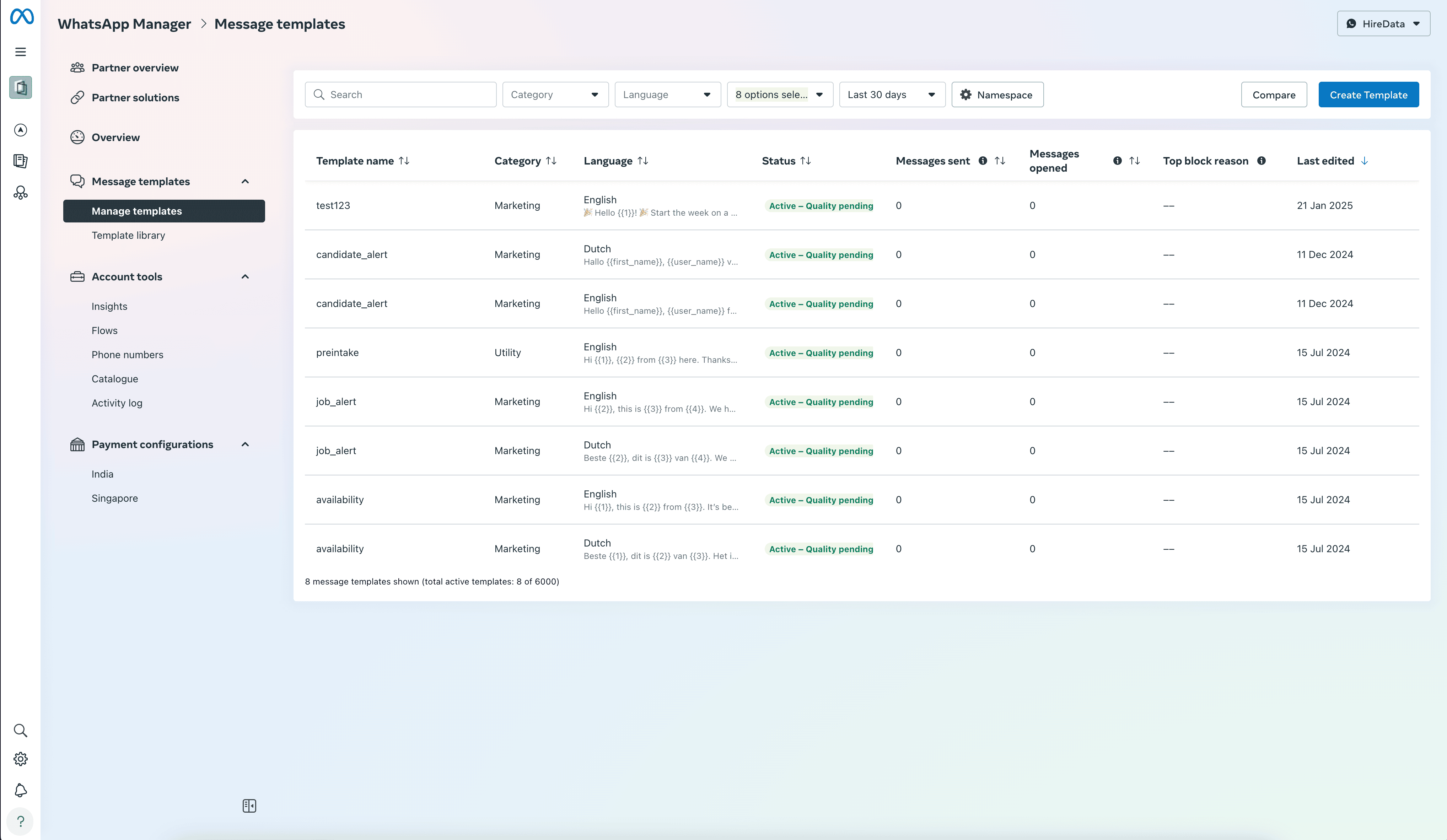 *Click on \[Edit Template] to go to the editor:*
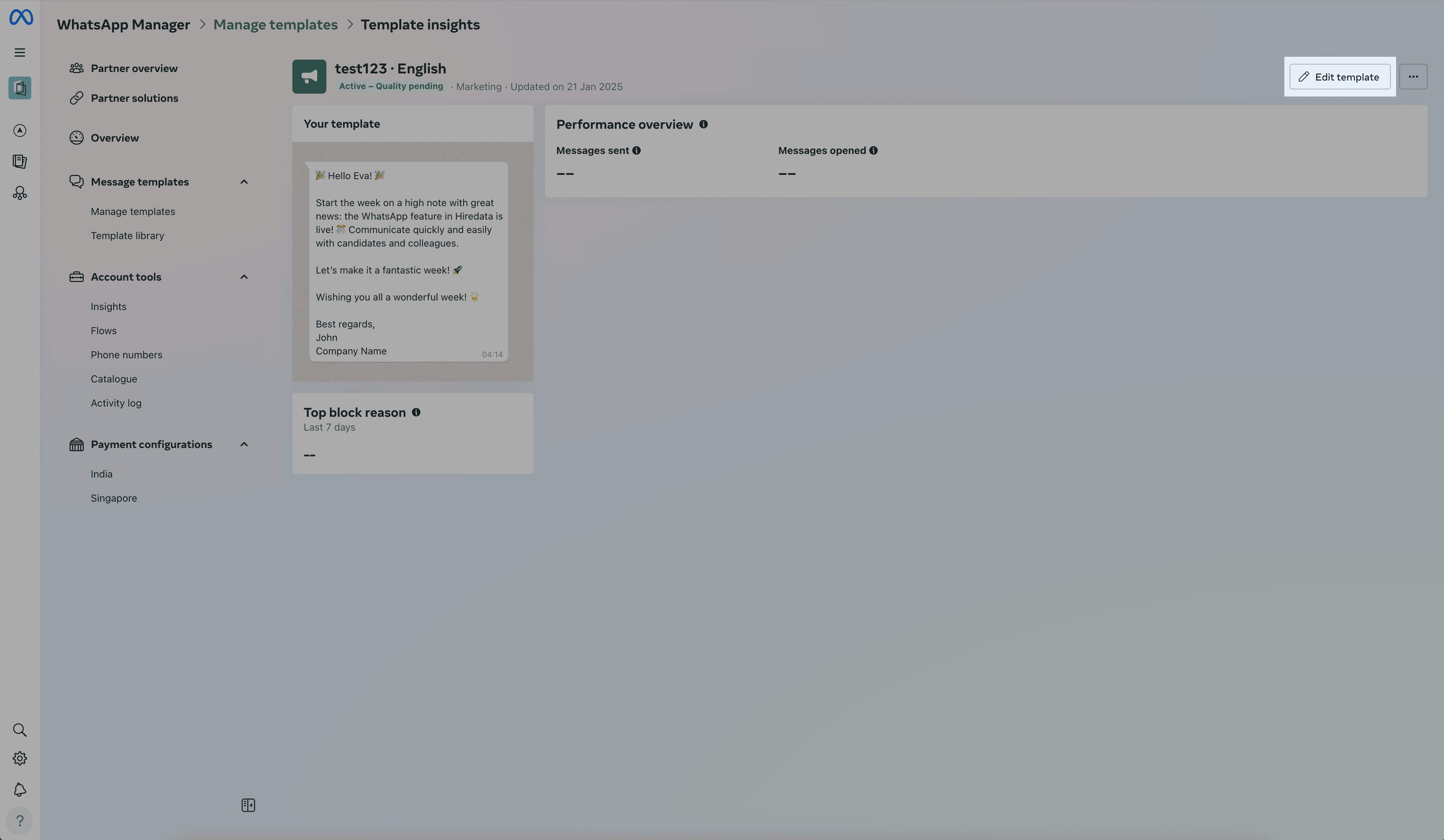 *Editing your WhatsApp template:*
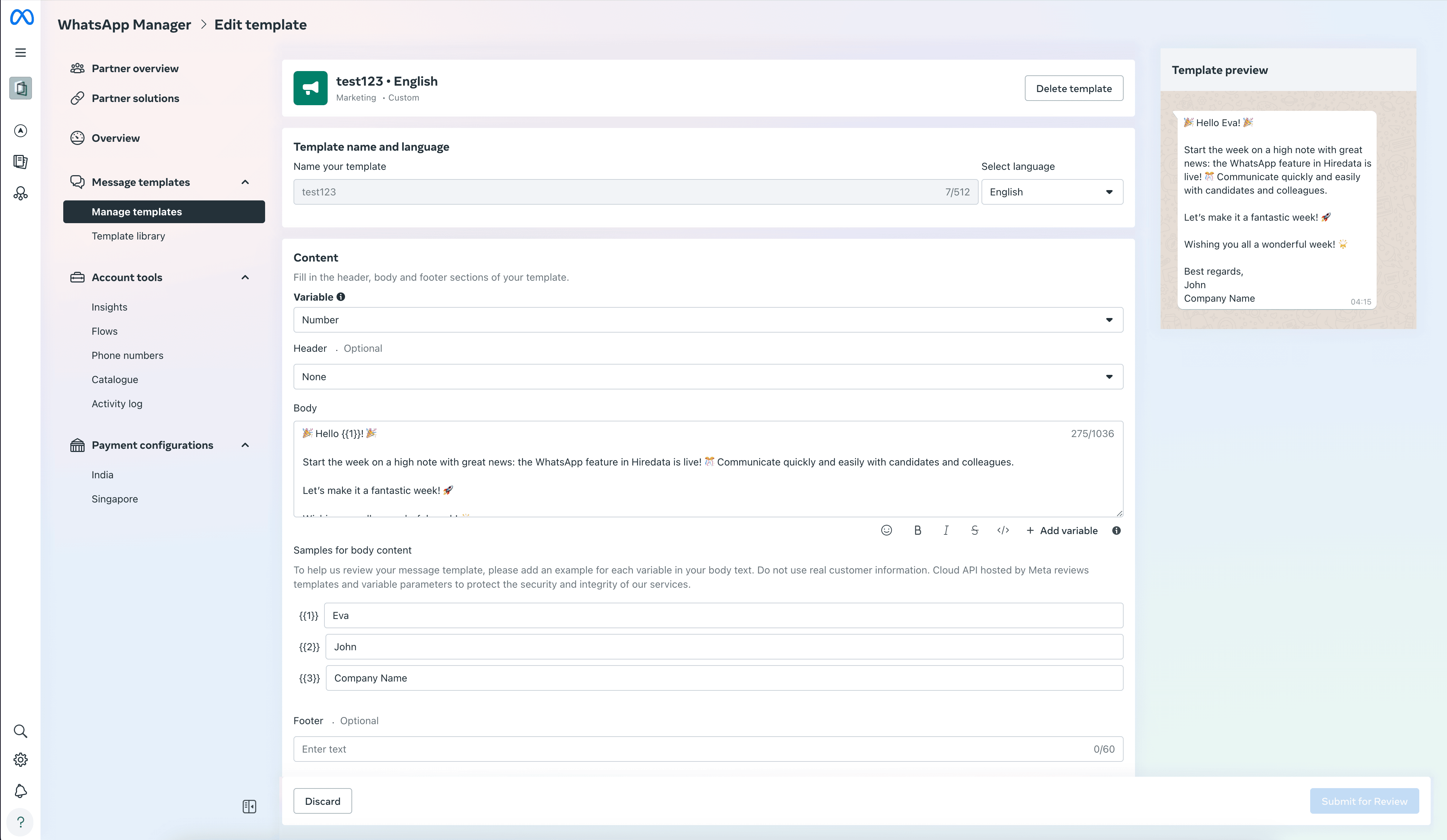 *Example: Adding a title to your WhatsApp template*
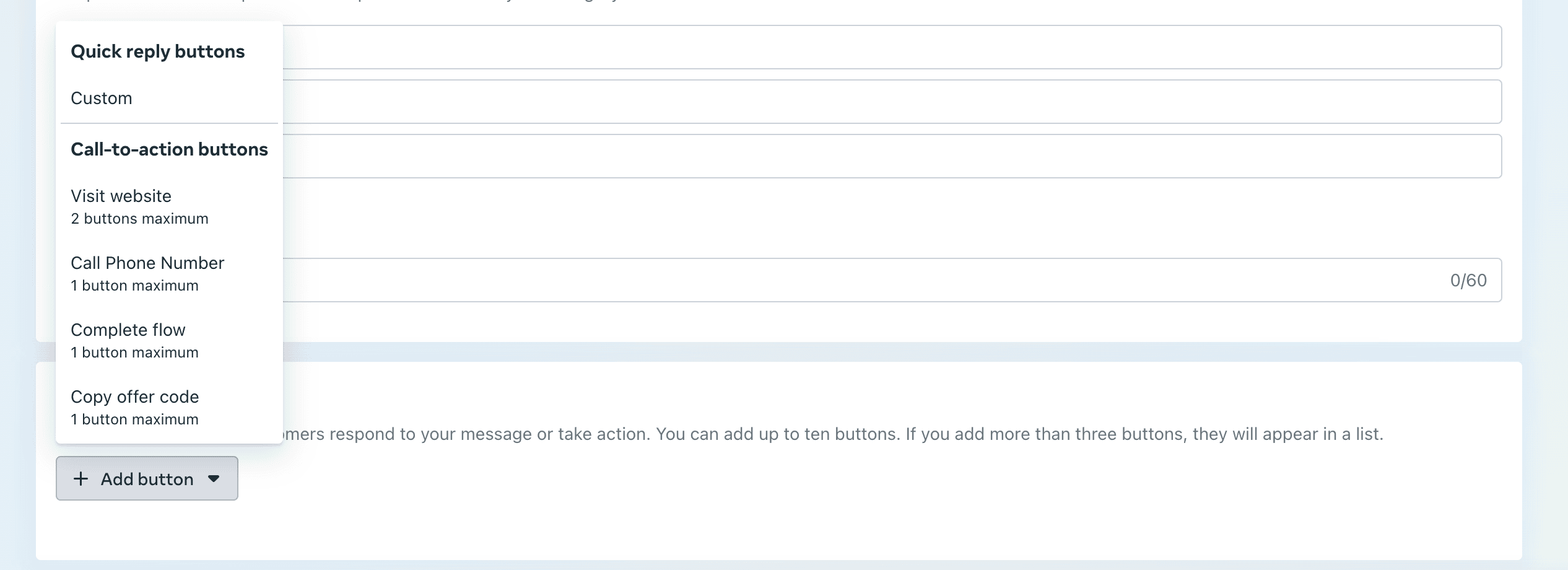
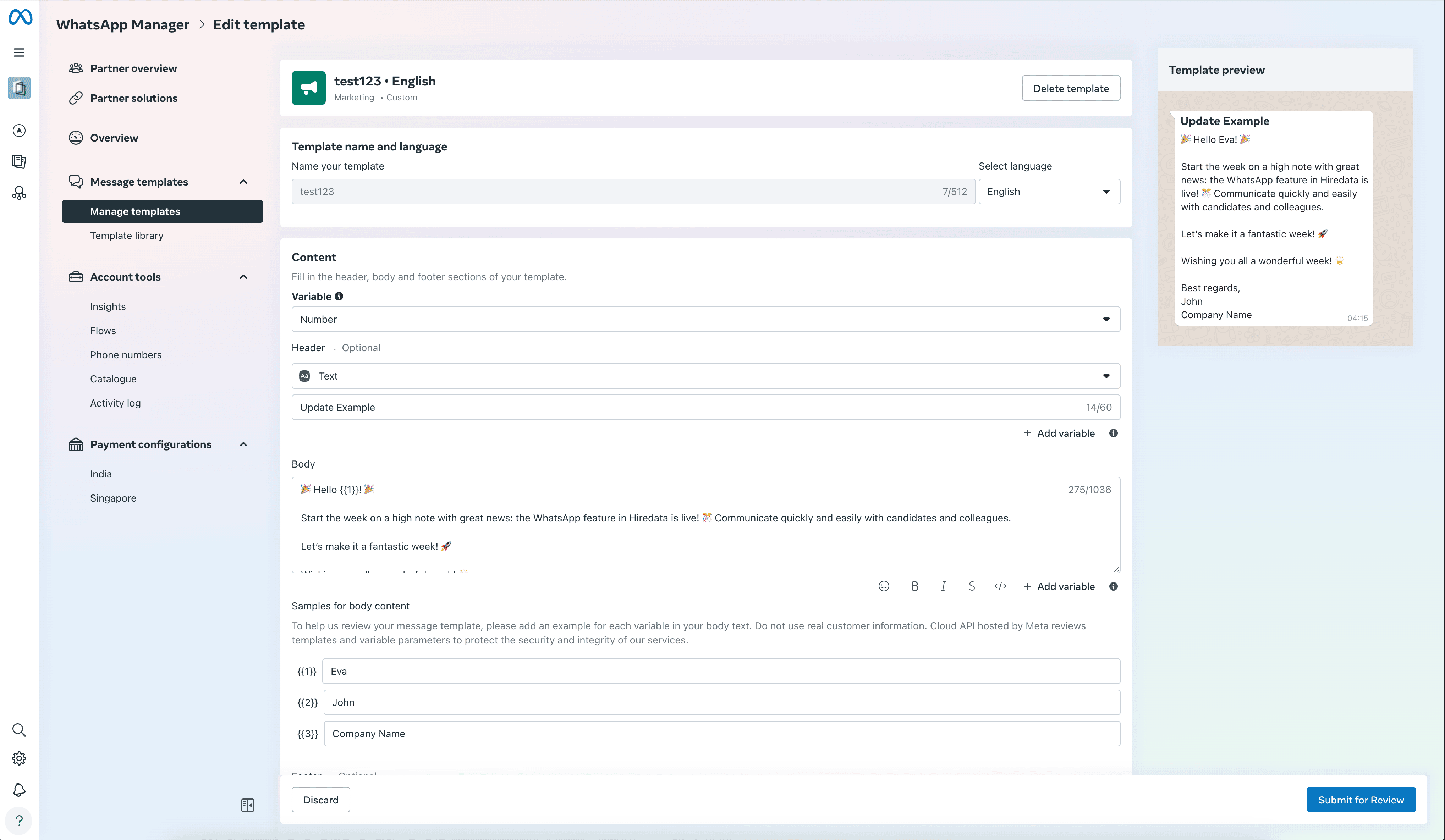 *Example: Adding a button (call-to-action) to your WhatsApp template*
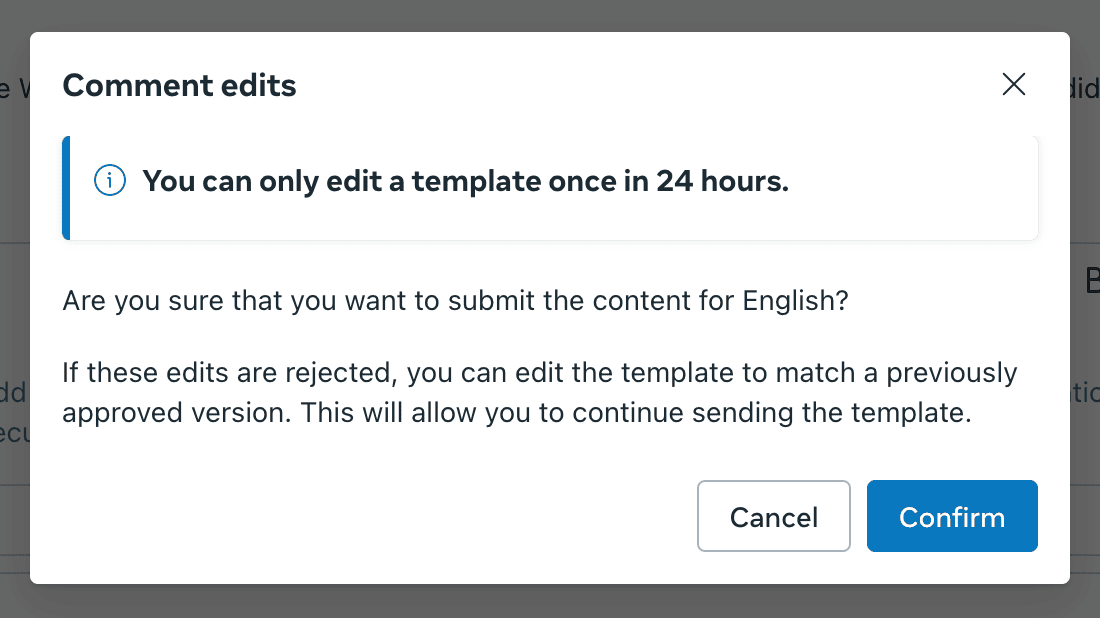
 *Submitting your updated WhatsApp template for review (usually almost instantly accepted, if you comply with the guidelines):*
 ### Deleting a WhatsApp template
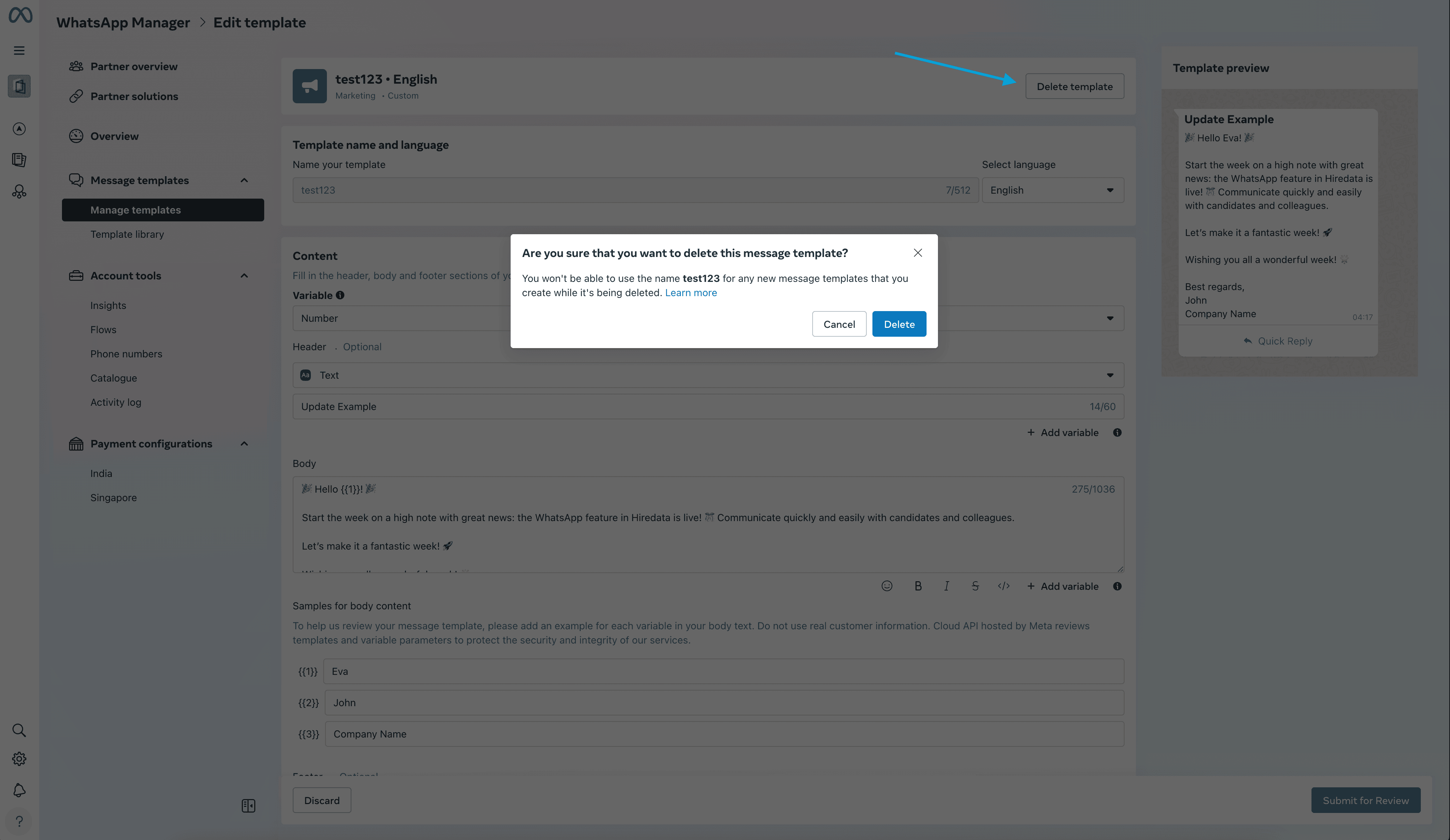
*Click on \[Delete template] in the top right corner of the editor:*
### Deleting a WhatsApp template
*Click on \[Delete template] in the top right corner of the editor:*
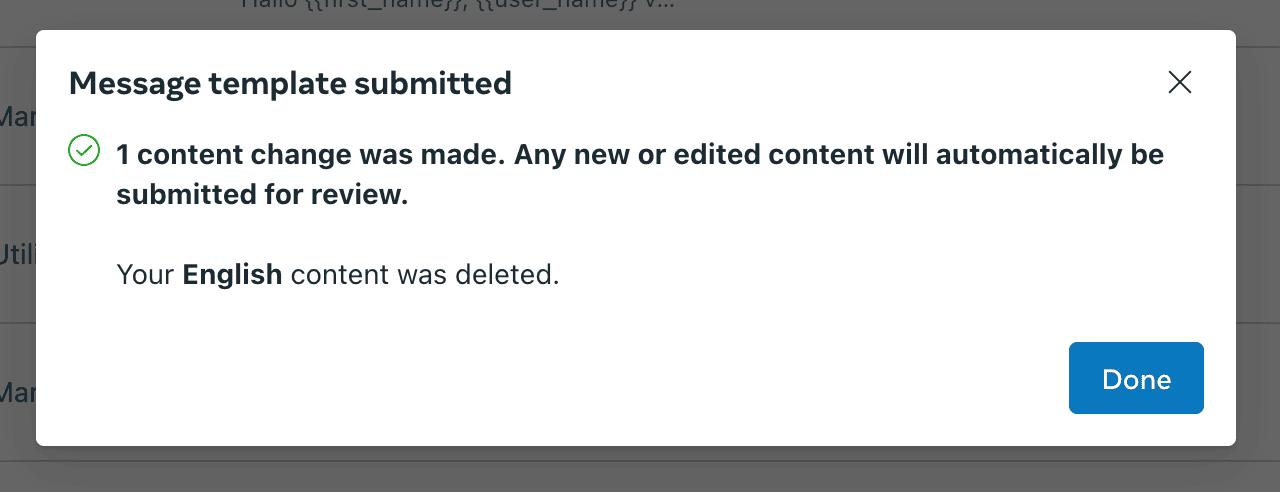
 *Confirmation of deleting your WhatsApp template:*
 ## Related topics
- [How does the WhatsApp messaging cost structure work?](/apps/messaging/whatsapp/how-does-the-whatsapp-messaging-cost-structure-work.md)
- [How to Edit WhatsApp Message Templates in HireData](/apps/messaging/whatsapp/how-to-edit-whatsapp-message-templates.md)
- [WhatsApp Inbox Basics](/apps/messaging/whatsapp/whatsapp-inbox-basics.md)
- [How to Add a WhatsApp Chat Button to Your Website](/apps/messaging/whatsapp/how-to-add-a-whatsapp-chat-button-to-your-website.md)
- [How to Use Forms in WhatsApp Conversations](/apps/messaging/whatsapp/how-to-use-forms-in-whatsapp-conversations.md)
## Related topics
- [How does the WhatsApp messaging cost structure work?](/apps/messaging/whatsapp/how-does-the-whatsapp-messaging-cost-structure-work.md)
- [How to Edit WhatsApp Message Templates in HireData](/apps/messaging/whatsapp/how-to-edit-whatsapp-message-templates.md)
- [WhatsApp Inbox Basics](/apps/messaging/whatsapp/whatsapp-inbox-basics.md)
- [How to Add a WhatsApp Chat Button to Your Website](/apps/messaging/whatsapp/how-to-add-a-whatsapp-chat-button-to-your-website.md)
- [How to Use Forms in WhatsApp Conversations](/apps/messaging/whatsapp/how-to-use-forms-in-whatsapp-conversations.md)