> ## Documentation Index
> Fetch the complete documentation index at: https://help.hiredata.com/llms.txt
> Use this file to discover all available pages before exploring further.
# WhatsApp Inbox Basics
> Learn how the HireData WhatsApp inbox is organised, what the coloured indicators mean, and how to collaborate with your team on candidate conversations.
*The WhatsApp inbox in HireData gives you a clear overview of all your candidate conversations, their status, and who is managing them. This article explains how the inbox is organised, what the coloured indicators mean, and how to manage conversations and collaborate with your team.*
## Inbox layout
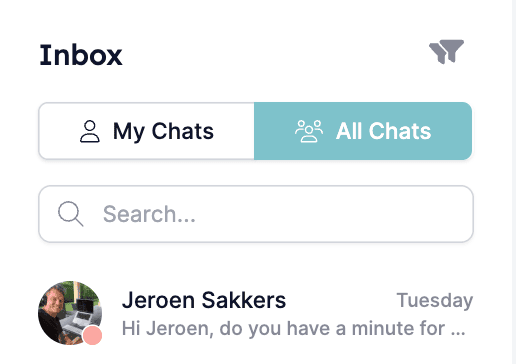
When you open the **Inbox**, you'll see two main views:
* **My Chats** – Shows conversations you personally own or are currently handling.
* **All Chats** – Displays all WhatsApp conversations across your organisation, based on your permissions.
You'll also see a list of candidates who haven't been messaged yet, allowing you to start new conversations using templates.
 ## Conversation indicators
Each conversation in the inbox has a coloured dot on the recipient's avatar that tells you the current status of that chat.
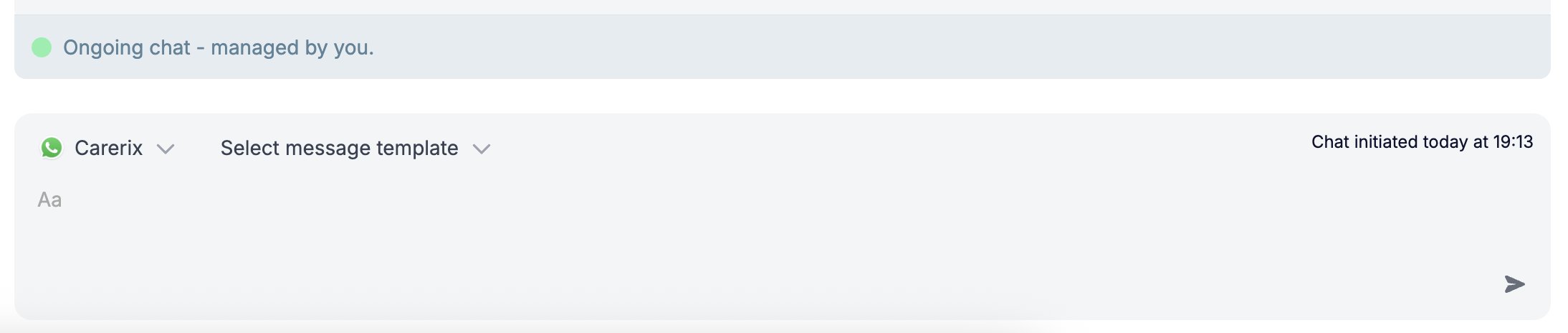
### Green: active chat
The conversation is active and being managed by the conversation owner.
* If you see **"Managed by you"**, you are the conversation owner.
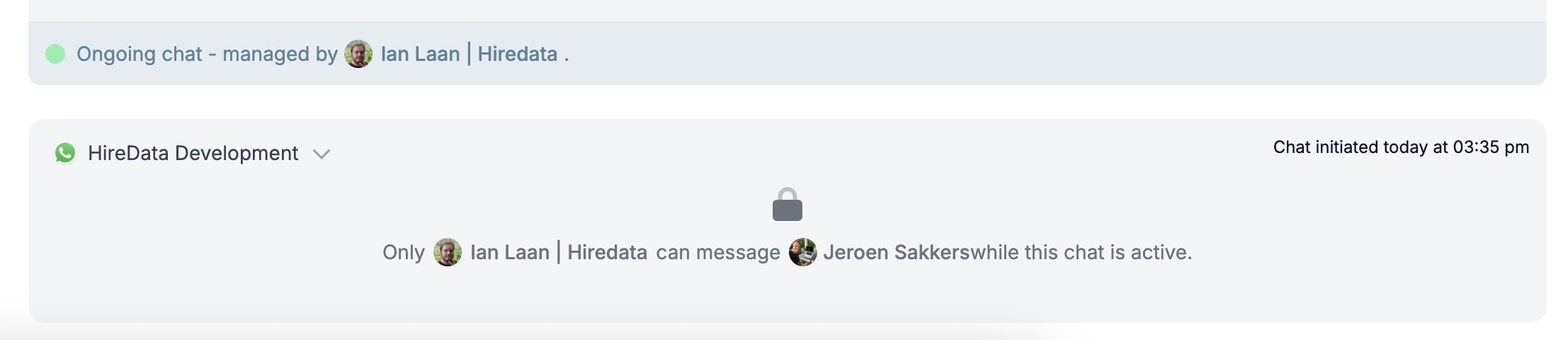
* If someone else owns the chat, their name and avatar will appear.
*An ongoing chat managed by you:*
## Conversation indicators
Each conversation in the inbox has a coloured dot on the recipient's avatar that tells you the current status of that chat.
### Green: active chat
The conversation is active and being managed by the conversation owner.
* If you see **"Managed by you"**, you are the conversation owner.
* If someone else owns the chat, their name and avatar will appear.
*An ongoing chat managed by you:*
 *An ongoing chat managed by another person:*
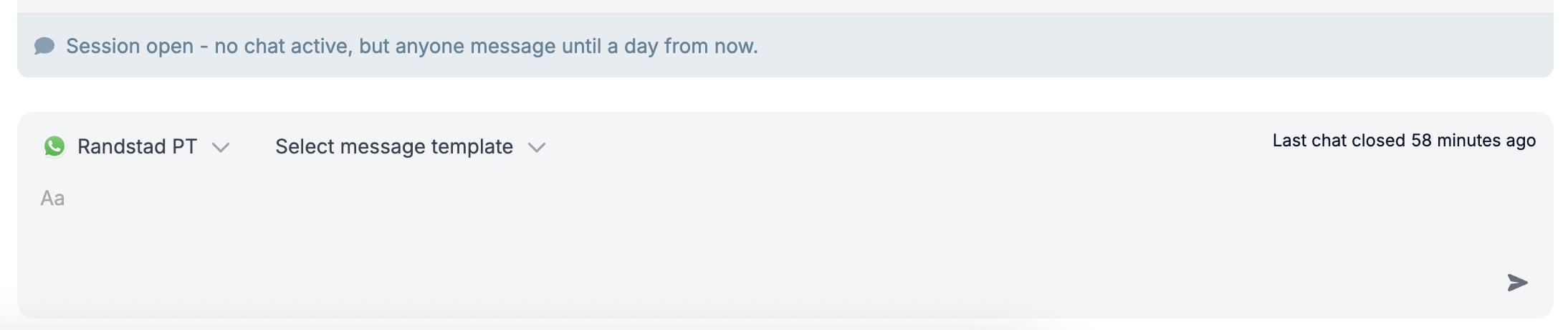
 ### Grey: session open, no active chat
The 24-hour messaging window is open, but no conversation is currently active. Any user can send a message during this period.
### Grey: session open, no active chat
The 24-hour messaging window is open, but no conversation is currently active. Any user can send a message during this period.
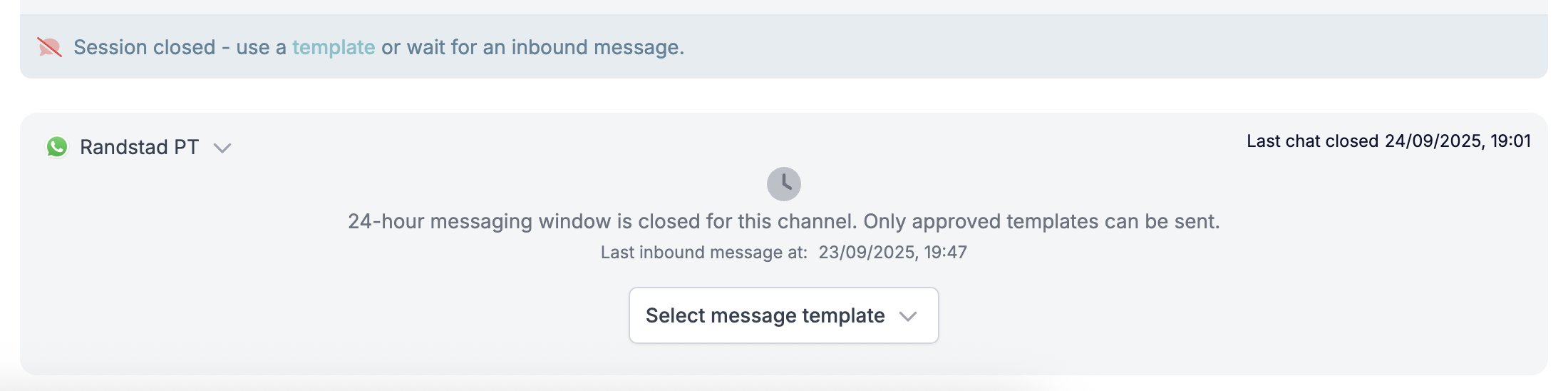
 ### Red: session closed
The 24-hour messaging window has expired. You can only reach the candidate again using an approved WhatsApp template, or by waiting for them to reply first.
### Red: session closed
The 24-hour messaging window has expired. You can only reach the candidate again using an approved WhatsApp template, or by waiting for them to reply first.
 ### Teal: unread inbound message
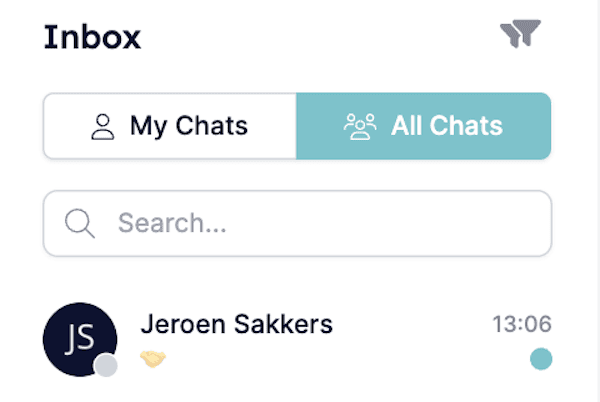
A teal dot appears on the right side of a manual conversation when the candidate's last message has not been answered yet and has arrived within the last 24 hours.
This indicator is visible in both **My Chats** and **All Chats**, so nothing slips through. It disappears once you reply or when 24 hours have passed since receiving the message.
*Open session (left grey dot) with an inbound message (right teal dot) in the last 24 hours:*
### Teal: unread inbound message
A teal dot appears on the right side of a manual conversation when the candidate's last message has not been answered yet and has arrived within the last 24 hours.
This indicator is visible in both **My Chats** and **All Chats**, so nothing slips through. It disappears once you reply or when 24 hours have passed since receiving the message.
*Open session (left grey dot) with an inbound message (right teal dot) in the last 24 hours:*
 ## The 24-hour conversation window
Every WhatsApp conversation has a **24-hour window** that begins when a candidate sends or replies to a message. Each new inbound message resets this 24-hour period, allowing you to continue messaging freely until the window expires.
During this window:
* You can freely exchange messages.
* The system automatically tracks which conversations are open.
When the window expires, you will only be able to message the candidate again using an approved WhatsApp template.
Only the **candidate owner** or the **conversation owner** can send outgoing messages. If a person doesn't have an assigned owner, anyone can message them.
## Sending messages
You can send messages to candidates directly from the WhatsApp inbox, either manually or through automations. What you can send depends on the conversation status shown by the coloured dot next to the chat:
* **Green (active chat):** You can freely send and receive messages during an ongoing conversation managed by the chat owner.
* **Grey (session open, no active chat):** The 24-hour window is open, but there's no current conversation. Any user can send a message to continue the chat before the window closes.
* **Red (session closed):** The 24-hour messaging window has expired. You'll need to use an approved WhatsApp template to restart the conversation or wait for the candidate to respond.
## Using WhatsApp message templates
Message templates are pre-approved WhatsApp messages required to start or reopen a chat outside the 24-hour window. They can include placeholders that automatically pull candidate or job data.
To enable or create a WhatsApp template for manual sending:
1. Go to **Settings → WhatsApp → Message Templates**.
2. Choose an existing approved template or create a new one.
3. Link it to the appropriate form or workflow.
4. The template will then appear in the inbox when messaging a candidate manually.
You can learn more in our detailed guides: [How WhatsApp Templates Work](/apps/messaging/whatsapp/how-whatsapp-templates-work) and [How to Edit WhatsApp Message Templates](/apps/messaging/whatsapp/how-to-edit-whatsapp-message-templates).
## Starting and managing conversations
If a candidate has a linked WhatsApp number:
1. Go to their profile.
2. Open the **Inbox** tab.
3. Click **Send Message**.
4. If the conversation window is open, you can send a message directly.
5. If it's closed, select a WhatsApp template to reopen it.
Open conversations (green dot) appear in:
* **Inbox:** Displays all accessible conversations.
* **My Chats:** Shows conversations you currently manage and that remain open.
## Chat ownership and permissions
A conversation appears in **My Chats** when:
* You are the owner of the candidate or conversation, or
* You've recently interacted with the candidate (sent or received a message).
If you are not the conversation owner, you will not be able to close or modify the conversation, and it will be visible to you in the **All Chats** section.
## Closing conversations
Closing a chat:
* Marks the chat as closed in the inbox (it isn't deleted).
* Removes it from your **My Chats** view.
* Stops automations from sending further messages unless reopened.
## Message reactions
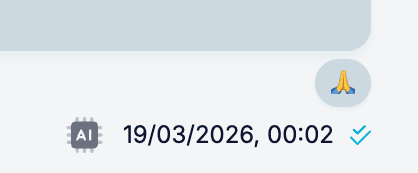
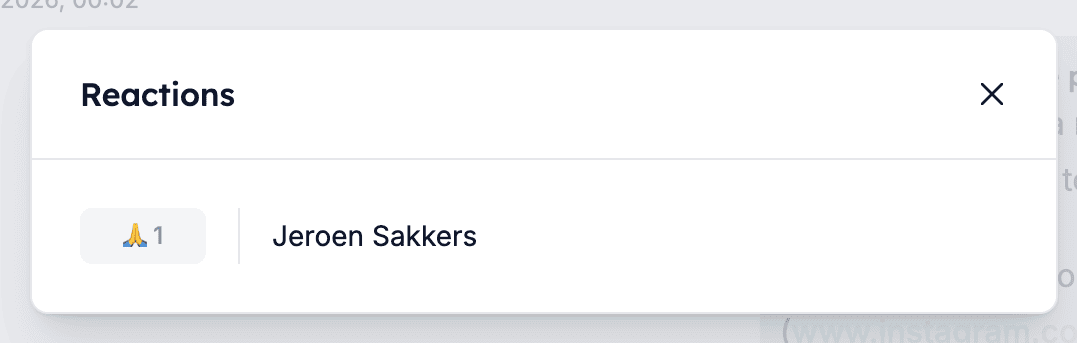
Candidates can react to your WhatsApp messages with emoji reactions. These reactions are visible directly in the inbox, giving you a quick read on how a message landed. Click on a reaction to see a full overview of who reacted and how.
## The 24-hour conversation window
Every WhatsApp conversation has a **24-hour window** that begins when a candidate sends or replies to a message. Each new inbound message resets this 24-hour period, allowing you to continue messaging freely until the window expires.
During this window:
* You can freely exchange messages.
* The system automatically tracks which conversations are open.
When the window expires, you will only be able to message the candidate again using an approved WhatsApp template.
Only the **candidate owner** or the **conversation owner** can send outgoing messages. If a person doesn't have an assigned owner, anyone can message them.
## Sending messages
You can send messages to candidates directly from the WhatsApp inbox, either manually or through automations. What you can send depends on the conversation status shown by the coloured dot next to the chat:
* **Green (active chat):** You can freely send and receive messages during an ongoing conversation managed by the chat owner.
* **Grey (session open, no active chat):** The 24-hour window is open, but there's no current conversation. Any user can send a message to continue the chat before the window closes.
* **Red (session closed):** The 24-hour messaging window has expired. You'll need to use an approved WhatsApp template to restart the conversation or wait for the candidate to respond.
## Using WhatsApp message templates
Message templates are pre-approved WhatsApp messages required to start or reopen a chat outside the 24-hour window. They can include placeholders that automatically pull candidate or job data.
To enable or create a WhatsApp template for manual sending:
1. Go to **Settings → WhatsApp → Message Templates**.
2. Choose an existing approved template or create a new one.
3. Link it to the appropriate form or workflow.
4. The template will then appear in the inbox when messaging a candidate manually.
You can learn more in our detailed guides: [How WhatsApp Templates Work](/apps/messaging/whatsapp/how-whatsapp-templates-work) and [How to Edit WhatsApp Message Templates](/apps/messaging/whatsapp/how-to-edit-whatsapp-message-templates).
## Starting and managing conversations
If a candidate has a linked WhatsApp number:
1. Go to their profile.
2. Open the **Inbox** tab.
3. Click **Send Message**.
4. If the conversation window is open, you can send a message directly.
5. If it's closed, select a WhatsApp template to reopen it.
Open conversations (green dot) appear in:
* **Inbox:** Displays all accessible conversations.
* **My Chats:** Shows conversations you currently manage and that remain open.
## Chat ownership and permissions
A conversation appears in **My Chats** when:
* You are the owner of the candidate or conversation, or
* You've recently interacted with the candidate (sent or received a message).
If you are not the conversation owner, you will not be able to close or modify the conversation, and it will be visible to you in the **All Chats** section.
## Closing conversations
Closing a chat:
* Marks the chat as closed in the inbox (it isn't deleted).
* Removes it from your **My Chats** view.
* Stops automations from sending further messages unless reopened.
## Message reactions
Candidates can react to your WhatsApp messages with emoji reactions. These reactions are visible directly in the inbox, giving you a quick read on how a message landed. Click on a reaction to see a full overview of who reacted and how.
 ## Comments and internal collaboration
You can add internal comments to any conversation directly from the inbox by using **Comments**. This is particularly useful for sharing notes or collaborating with your team without affecting the conversation.
* Comments are visible to all users.
* Comments are not visible to the candidate as they are for internal use only.
## Comments and internal collaboration
You can add internal comments to any conversation directly from the inbox by using **Comments**. This is particularly useful for sharing notes or collaborating with your team without affecting the conversation.
* Comments are visible to all users.
* Comments are not visible to the candidate as they are for internal use only.
 ## Automations and message labels
Messages marked **"Sent by automation"** were automatically triggered by workflows or rules, for example, reminders or follow-ups when a candidate reaches a certain stage or doesn't respond.
This label helps distinguish automated messages from those sent manually by users.
## Cost and billing overview
* Inbound messages (i.e., when a candidate sends a message first) are **free** for replies within a 24-hour window.
* Outbound messages (when you initiate a conversation) require using an **approved WhatsApp template**, which incurs fees.
* Template costs are billed by Meta Platforms (WhatsApp's platform owner) and vary based on message type and the region being sent to.
* On top of Meta's fees, using WhatsApp through HireData also deducts credits from your HireData plan for each message or automated task.
* You can monitor costs via Meta's billing interface for transparency.
For a detailed breakdown of how WhatsApp message costs and templates are billed, see [How Does the WhatsApp Messaging Cost Structure Work](/apps/messaging/whatsapp/how-does-the-whatsapp-messaging-cost-structure-work).
* **Use All Chats** to get a full picture of what your team is handling, especially useful for managers or team leads.
* **The teal dot is your priority signal.** If a conversation has a teal dot on the right side, a candidate is waiting for a reply.
* **Comments are private.** Candidates will never see what you write there, so use them freely for internal notes.
## Related topics
- [Using a WhatsApp Business number after API connection](/apps/messaging/whatsapp/can-a-user-manually-use-their-whatsapp-business-number-after-connecting-it-via-api.md)
- [How to Use Forms in WhatsApp Conversations](/apps/messaging/whatsapp/how-to-use-forms-in-whatsapp-conversations.md)
- [WhatsApp Active Chats Counter in Carerix RMA](/apps/carerix/whatsapp-active-chats-counter-in-carerix-rma.md)
- [Create a WhatsApp automation in HireData](/apps/messaging/whatsapp/create-a-whatsapp-automation-in-hiredata.md)
- [Connect with WhatsApp: Embedded sign-up](/apps/messaging/whatsapp/connect-with-whatsapp-embedded-sign-up.md)
## Automations and message labels
Messages marked **"Sent by automation"** were automatically triggered by workflows or rules, for example, reminders or follow-ups when a candidate reaches a certain stage or doesn't respond.
This label helps distinguish automated messages from those sent manually by users.
## Cost and billing overview
* Inbound messages (i.e., when a candidate sends a message first) are **free** for replies within a 24-hour window.
* Outbound messages (when you initiate a conversation) require using an **approved WhatsApp template**, which incurs fees.
* Template costs are billed by Meta Platforms (WhatsApp's platform owner) and vary based on message type and the region being sent to.
* On top of Meta's fees, using WhatsApp through HireData also deducts credits from your HireData plan for each message or automated task.
* You can monitor costs via Meta's billing interface for transparency.
For a detailed breakdown of how WhatsApp message costs and templates are billed, see [How Does the WhatsApp Messaging Cost Structure Work](/apps/messaging/whatsapp/how-does-the-whatsapp-messaging-cost-structure-work).
* **Use All Chats** to get a full picture of what your team is handling, especially useful for managers or team leads.
* **The teal dot is your priority signal.** If a conversation has a teal dot on the right side, a candidate is waiting for a reply.
* **Comments are private.** Candidates will never see what you write there, so use them freely for internal notes.
## Related topics
- [Using a WhatsApp Business number after API connection](/apps/messaging/whatsapp/can-a-user-manually-use-their-whatsapp-business-number-after-connecting-it-via-api.md)
- [How to Use Forms in WhatsApp Conversations](/apps/messaging/whatsapp/how-to-use-forms-in-whatsapp-conversations.md)
- [WhatsApp Active Chats Counter in Carerix RMA](/apps/carerix/whatsapp-active-chats-counter-in-carerix-rma.md)
- [Create a WhatsApp automation in HireData](/apps/messaging/whatsapp/create-a-whatsapp-automation-in-hiredata.md)
- [Connect with WhatsApp: Embedded sign-up](/apps/messaging/whatsapp/connect-with-whatsapp-embedded-sign-up.md)