> ## Documentation Index
> Fetch the complete documentation index at: https://help.hiredata.com/llms.txt
> Use this file to discover all available pages before exploring further.
# WhatsApp Template Categories in HireData
> Learn the difference between WhatsApp template categories in HireData, how Meta classifies each one, and how to pick the right category for deliverability.
*When creating a WhatsApp message template in HireData, you need to choose a category. This tells Meta how to classify and deliver your message. Choosing the wrong category can lead to lower deliverability, spam flags, or policy violations. This article explains what each category means and how to pick the right one.*
## Why the message category matters
Meta uses the template category to determine how a message is treated during delivery. A message sent under the wrong category, for example, a promotional job campaign labelled as Utility, can be [flagged as a policy violation](https://help.hiredata.com/en/articles/643863-how-to-prevent-your-whatsapp-account-from-being-flagged-as-spam), have reduced delivery rates, or contribute to your phone number receiving a lower quality rating.
## What are the template categories
## Marketing
Use this for any message that promotes your organisation, a role, or any other content that isn't directly tied to an action the candidate has already taken.
Examples:
* Outreach to passive candidates
* Job campaign announcements
* Recruitment newsletters
* Re-engagement messages
## Utility
Use this for transactional messages that are triggered by something the candidate or your team has already done - confirming a next step, sending a reminder, or updating a status.
Examples:
* Interview confirmation messages
* Application status updates
* Reminder messages before an interview
* Survey follow-ups linked to a specific process step
## Authentication
Use this for messages that send a one-time code or verify a candidate's identity. This category is rarely needed in day-to-day recruitment workflows.
Examples:
* Verification codes
* One-time passwords
## How to set the category in HireData
### When creating a new message template in HireData
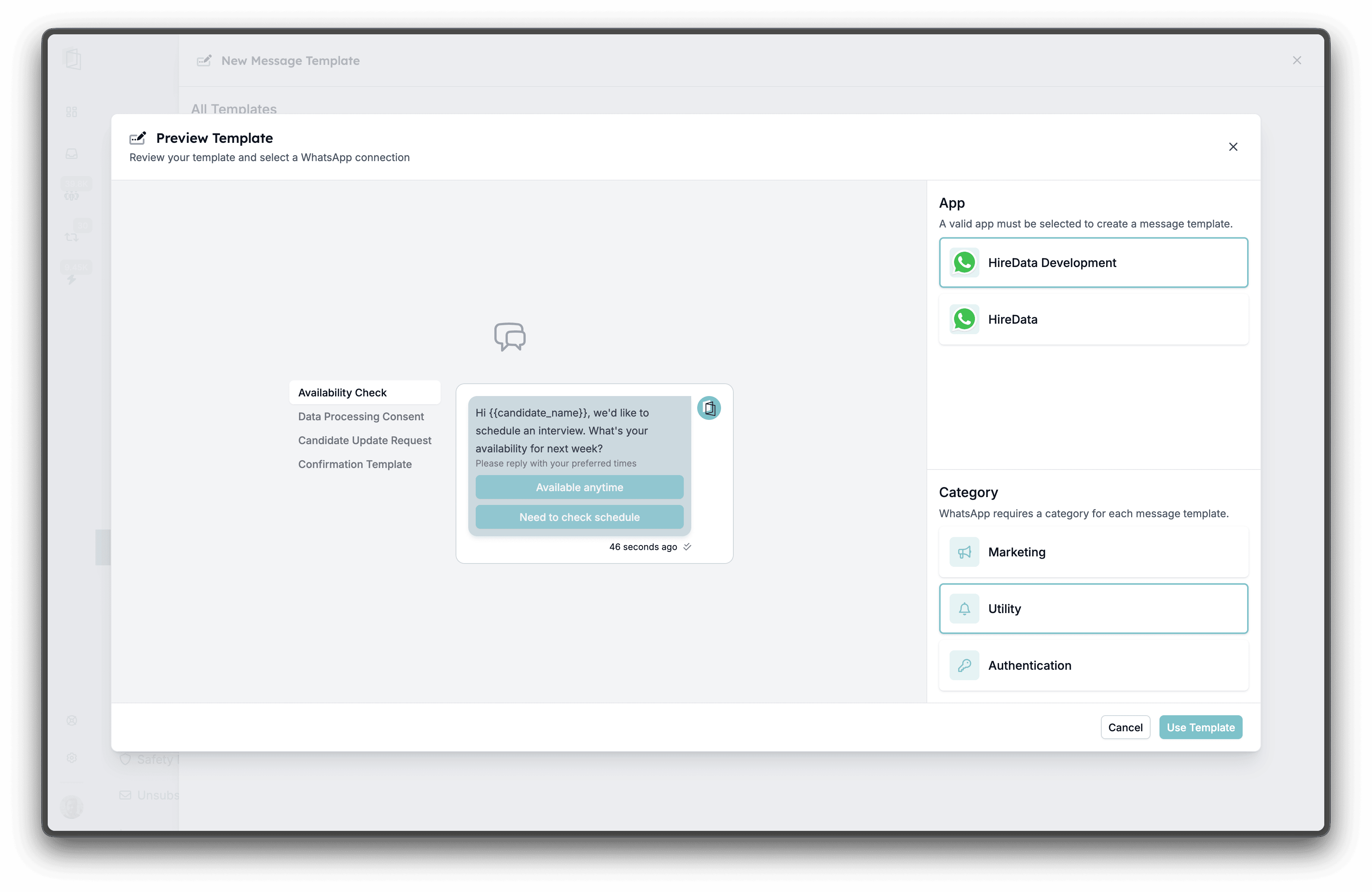
You'll find the category selector in the template builder. Select the category before submitting the template for Meta's approval.
 ### During the automation set-up
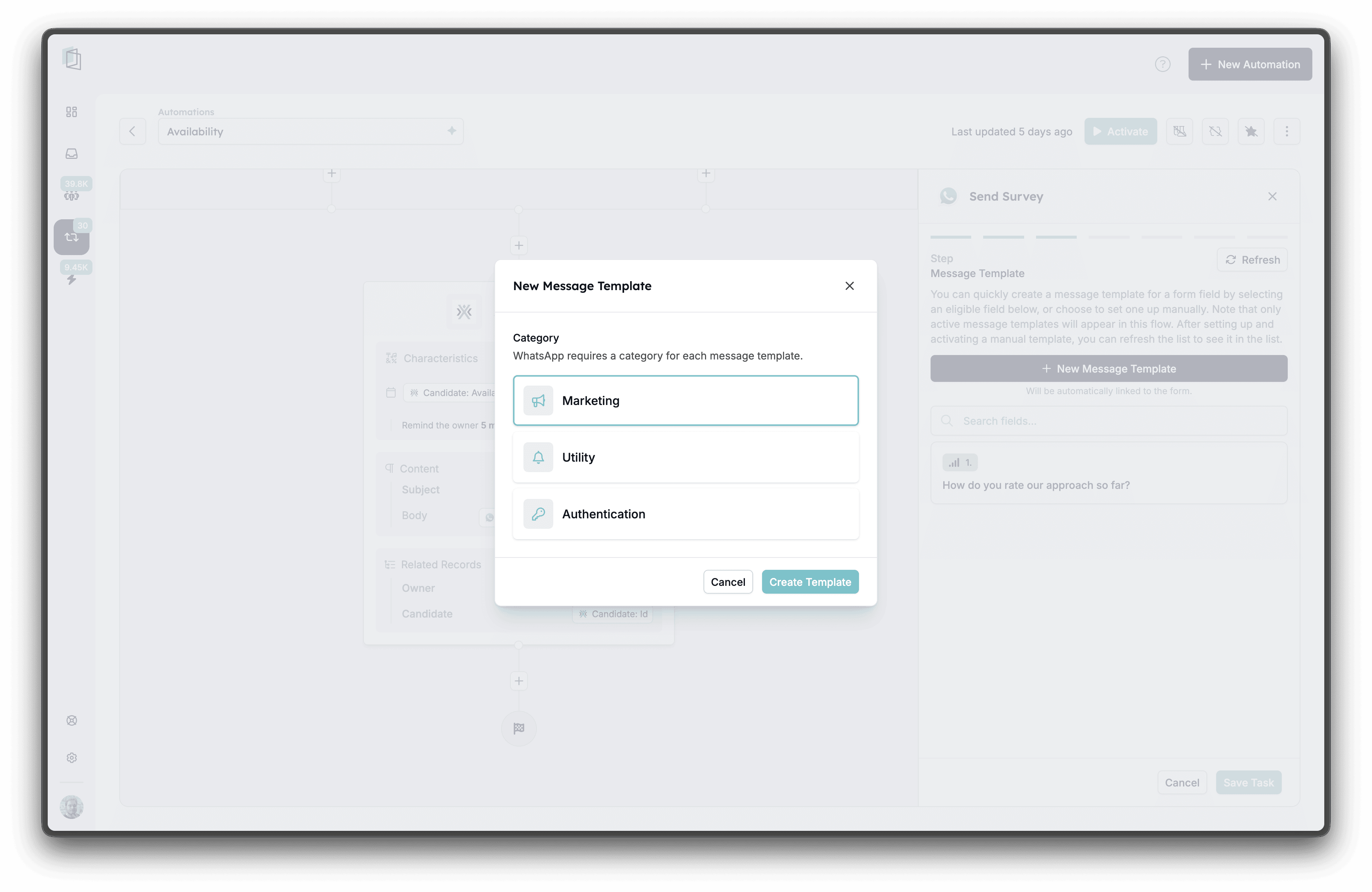
The category selector is also available when converting form fields into message templates inside the automation builder.
### During the automation set-up
The category selector is also available when converting form fields into message templates inside the automation builder.
 ### Edit and update categories on draft templates
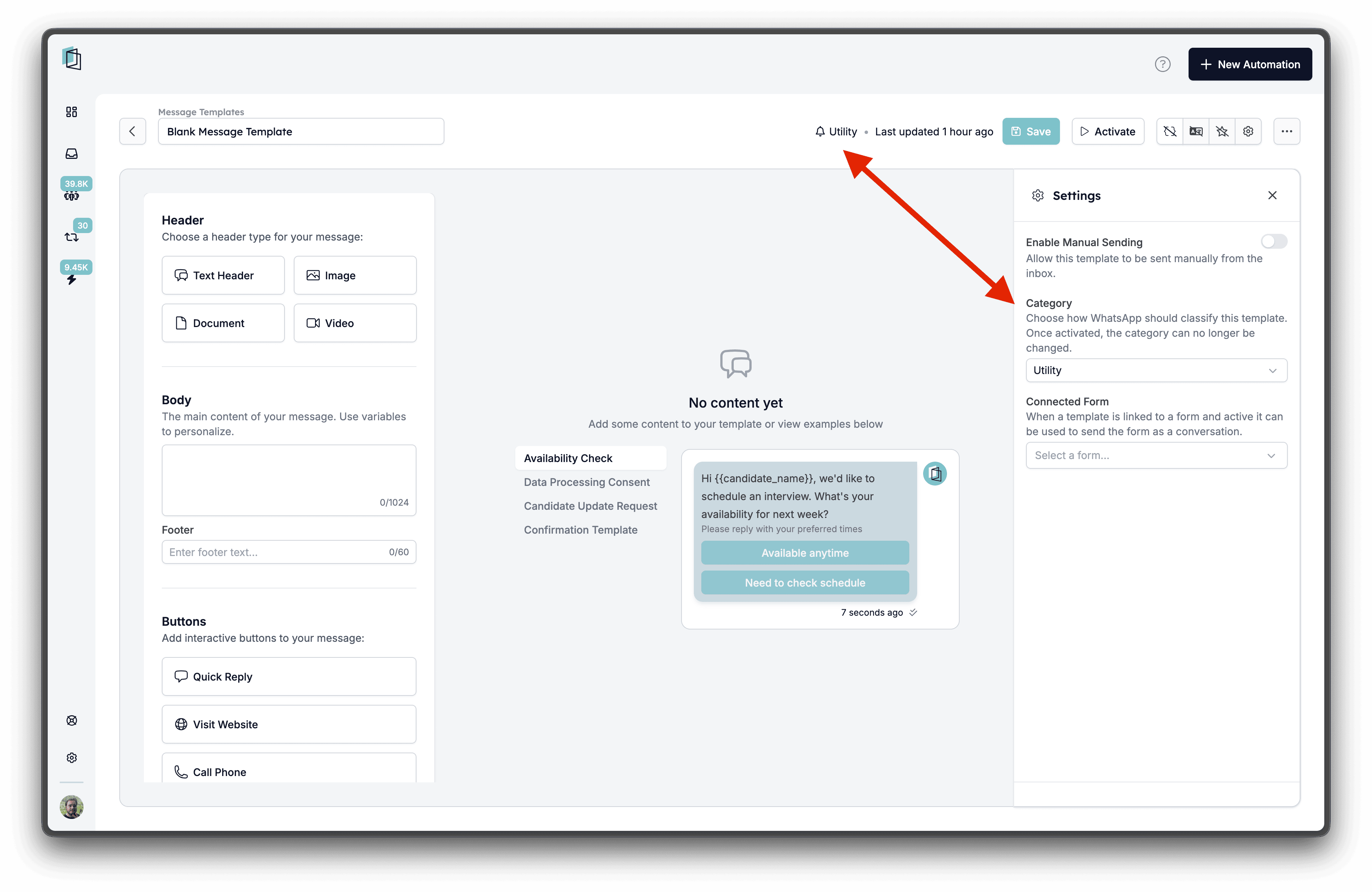
If a template is still in draft, you can change its category from the settings drawer. Once a template has been submitted and approved by Meta, the category is fixed - you'll need to create a new template if you want to change it.
### Edit and update categories on draft templates
If a template is still in draft, you can change its category from the settings drawer. Once a template has been submitted and approved by Meta, the category is fixed - you'll need to create a new template if you want to change it.
 ### Reviewing the template category
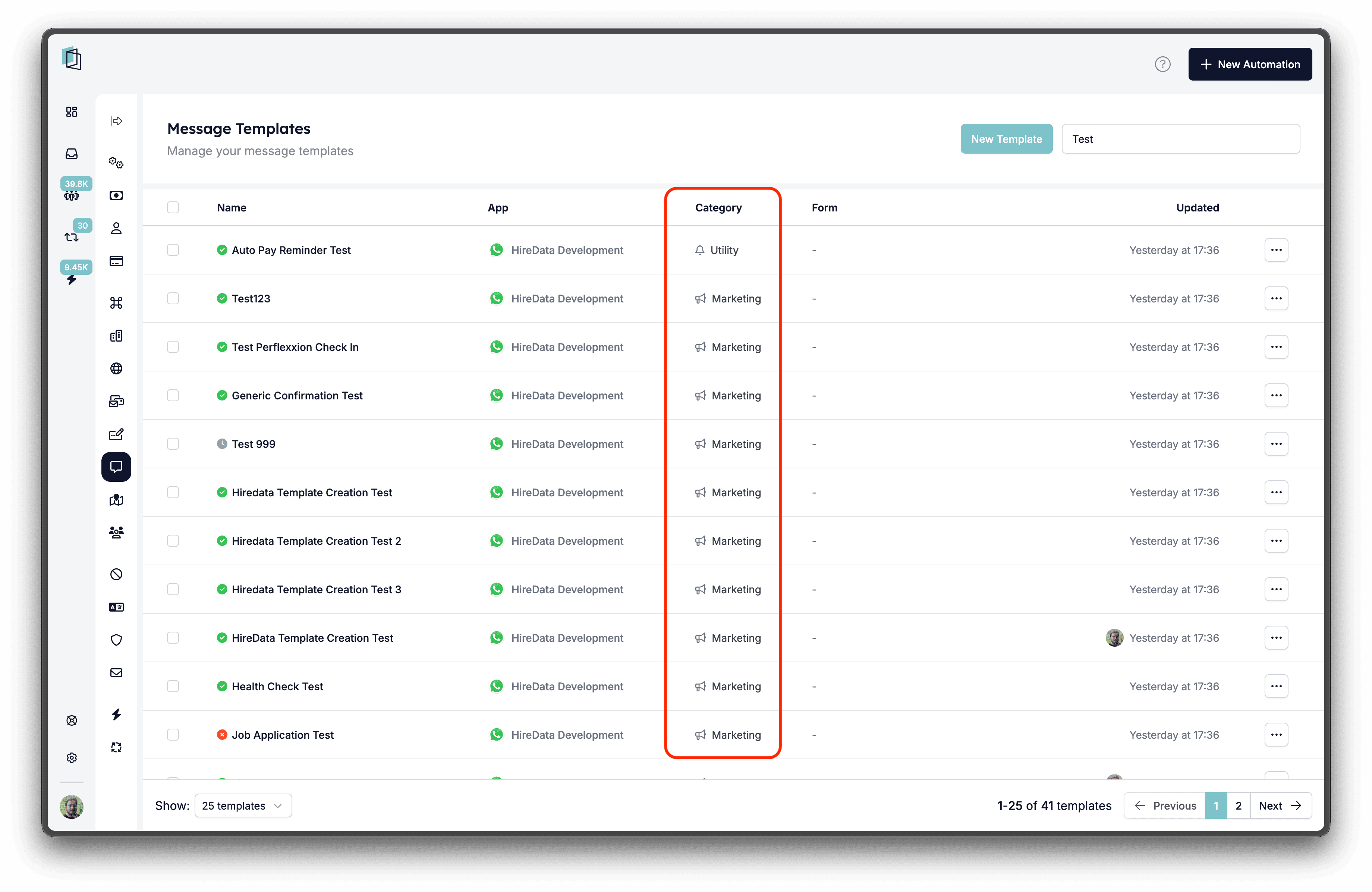
You can see the category of each template in the template list, where a **Category** column is shown next to the template name.
### Reviewing the template category
You can see the category of each template in the template list, where a **Category** column is shown next to the template name.
 ### Need more help?
If you're unsure which category fits your use case, reach out to us at [support@hiredata.com](mailto:support@hiredata.com).
## Related topics
- [How to Edit WhatsApp Message Templates in HireData](/apps/messaging/whatsapp/how-to-edit-whatsapp-message-templates.md)
- [Create a WhatsApp automation in HireData](/apps/messaging/whatsapp/create-a-whatsapp-automation-in-hiredata.md)
- [Manually sync WhatsApp with HireData](/apps/messaging/whatsapp/manually-sync-whatsapp-with-hiredata.md)
- [Logging WhatsApp conversations in Carerix with HireData](/apps/carerix/logging-whatsapp-conversations-in-carerix-with-hiredata.md)
- [How WhatsApp Templates Work](/apps/messaging/whatsapp/how-whatsapp-templates-work.md)
### Need more help?
If you're unsure which category fits your use case, reach out to us at [support@hiredata.com](mailto:support@hiredata.com).
## Related topics
- [How to Edit WhatsApp Message Templates in HireData](/apps/messaging/whatsapp/how-to-edit-whatsapp-message-templates.md)
- [Create a WhatsApp automation in HireData](/apps/messaging/whatsapp/create-a-whatsapp-automation-in-hiredata.md)
- [Manually sync WhatsApp with HireData](/apps/messaging/whatsapp/manually-sync-whatsapp-with-hiredata.md)
- [Logging WhatsApp conversations in Carerix with HireData](/apps/carerix/logging-whatsapp-conversations-in-carerix-with-hiredata.md)
- [How WhatsApp Templates Work](/apps/messaging/whatsapp/how-whatsapp-templates-work.md)