> ## Documentation Index
> Fetch the complete documentation index at: https://help.hiredata.com/llms.txt
> Use this file to discover all available pages before exploring further.
# Connect with Recruitee
> Step-by-step guide to connect HireData with Recruitee, authenticate your account, and start automating recruitment workflows between the two platforms.
*Welcome to our detailed guide on connecting your Recruitee account with HireData. This tutorial is designed to be user-friendly and efficient, helping you to leverage the full potential of Recruitee within your HireData automations. For a visual guide, be sure to watch our step-by-step **Connect with Recruitee Video** at the end.*
## Step 1: Navigating to the Recruitee App
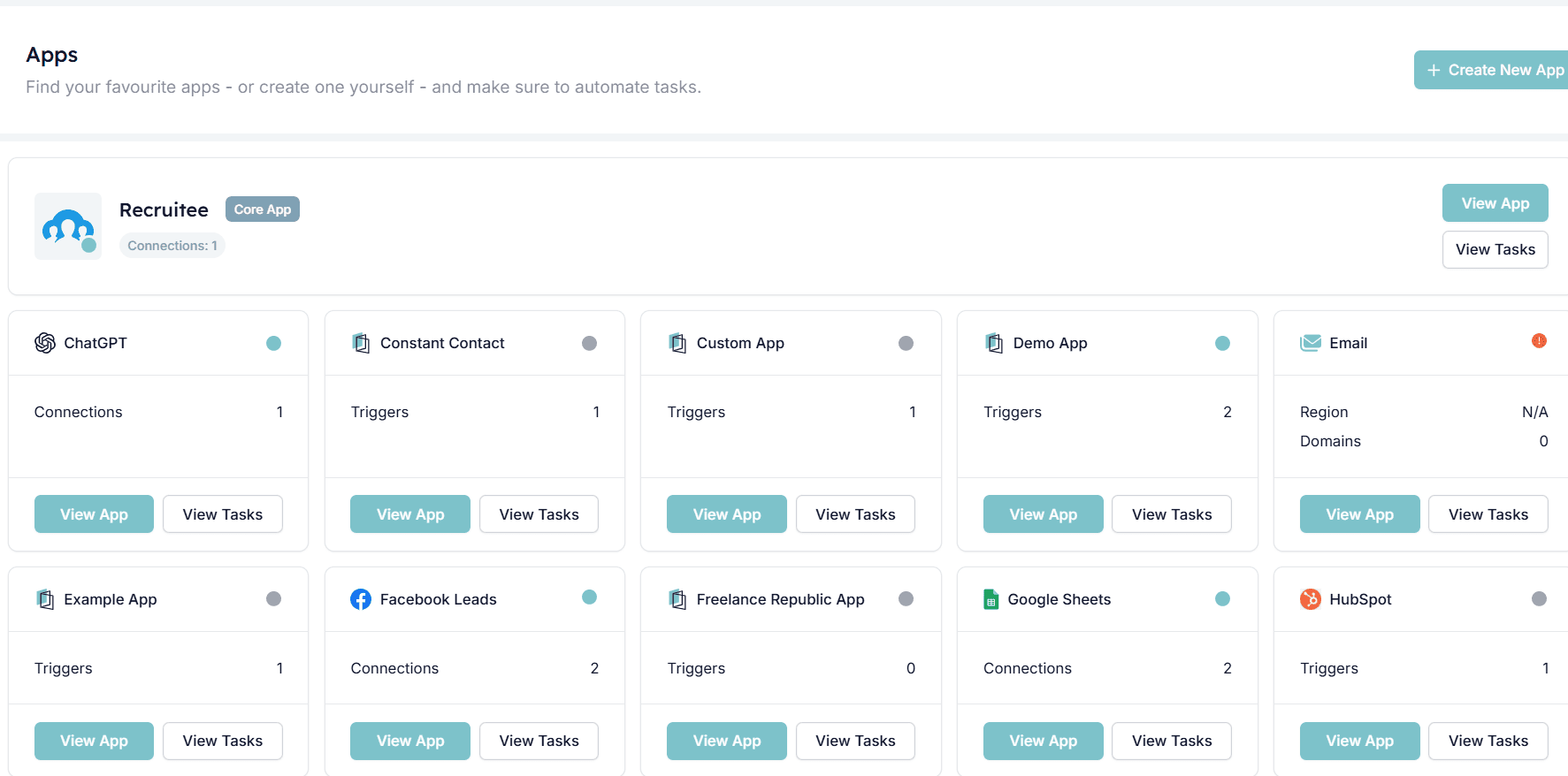
Begin by navigating to the [Apps section](https://app.hiredata.com/settings/apps) within HireData. You can find this under Settings > Apps. Here, you’ll see the option to [integrate with Recruitee.](https://app.hiredata.com/apps/recruitee) This initial step is simple but essential for the integration process.
 ## Step 2: Creating a Connecting with Recruitee
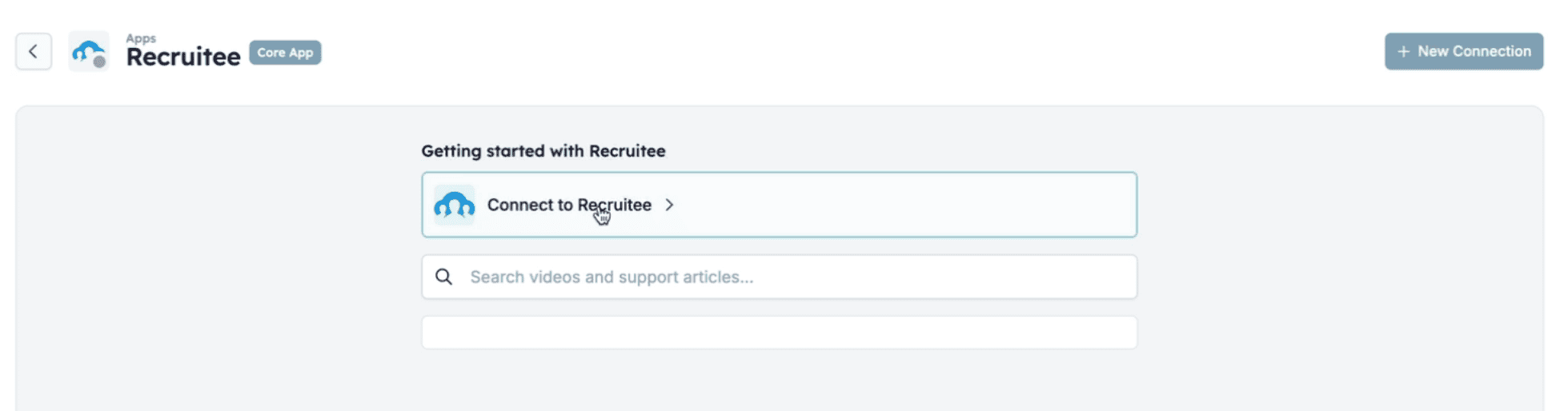
Open the app and click **Connect to Recruitee** to start the integration process. This will allow HireData to connect with your Recruitee account.
## Step 2: Creating a Connecting with Recruitee
Open the app and click **Connect to Recruitee** to start the integration process. This will allow HireData to connect with your Recruitee account.
 ### 2.1. Create API token
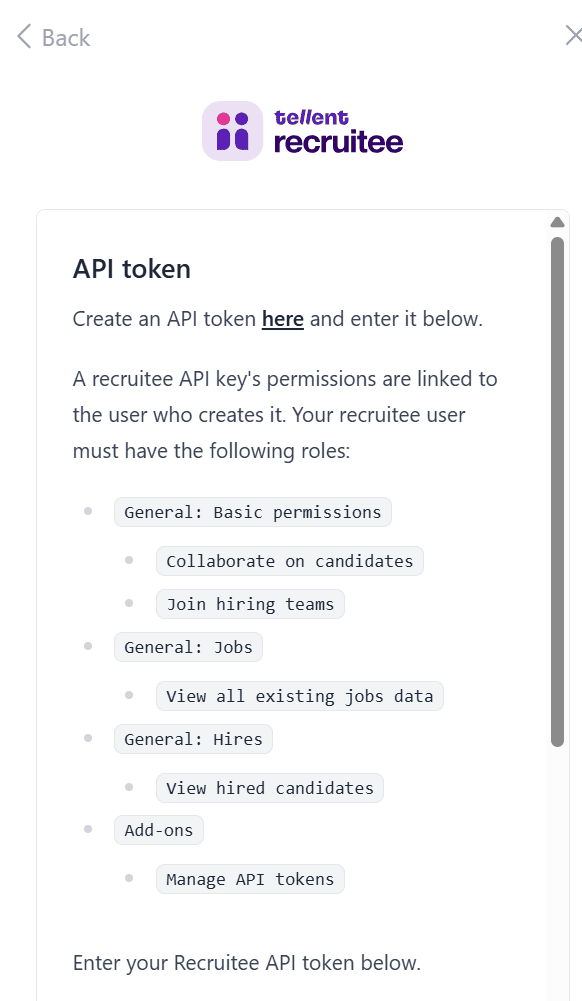
Click on '**here'** to create a new API token in Recruitee.
Make sure your user has these roles:
* Basic permissions → Collaborate on candidates, Join hiring teams
* Jobs → View all existing jobs data
* Hires → View hired candidates
* Add-ons → Manage API tokens
Now copy the generated API token and paste it below to connect Recruitee with HireData.
### 2.1. Create API token
Click on '**here'** to create a new API token in Recruitee.
Make sure your user has these roles:
* Basic permissions → Collaborate on candidates, Join hiring teams
* Jobs → View all existing jobs data
* Hires → View hired candidates
* Add-ons → Manage API tokens
Now copy the generated API token and paste it below to connect Recruitee with HireData.
 ### 2.2. Copy Your Recruitee Company ID
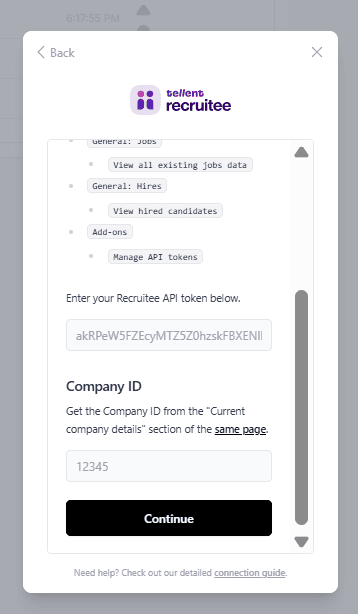
Under **Current company details in Recruitee**, you’ll see your **Company ID**. Simply copy this ID and paste it into the HireData field.
### 2.2. Copy Your Recruitee Company ID
Under **Current company details in Recruitee**, you’ll see your **Company ID**. Simply copy this ID and paste it into the HireData field.
 Once filled in, click \[Continue] to complete the connection with Recruitee.
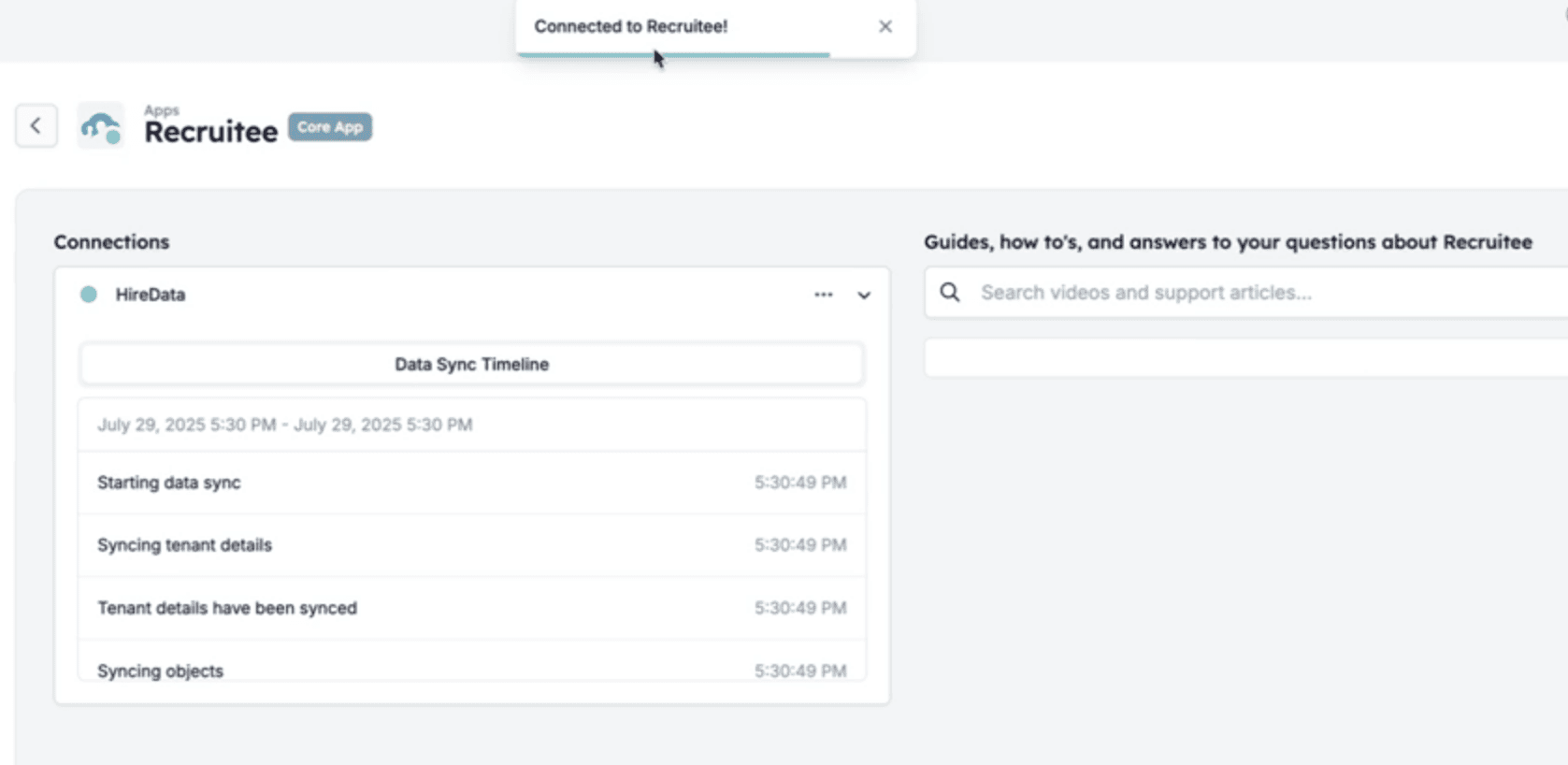
 ## Step 3: Recruitee Connected!
After you've clicked \[Continue], you've finished setting up the connection between Recruitee and HireData. When it's the first time you've set up this connection, HireData might need a few minutes to sync data from your Recruitee database. After that, you're all set to [set up your first Recruitee automation](/apps/recruitee/create-a-recruitee-automation-in-hiredata) in HireData.
## Step 3: Recruitee Connected!
After you've clicked \[Continue], you've finished setting up the connection between Recruitee and HireData. When it's the first time you've set up this connection, HireData might need a few minutes to sync data from your Recruitee database. After that, you're all set to [set up your first Recruitee automation](/apps/recruitee/create-a-recruitee-automation-in-hiredata) in HireData.
 ***
# Video Guide
## Related topics
- [Recruitee Integration Overview](/apps/recruitee/overview.md)
- [Your First Week with HireData](/get-started/your-first-week.md)
- [Apps](/apps/introduction.md)
- [Connect with Salesforce](/apps/salesforce/connect-with-salesforce.md)
- [Connect with Vincere](/apps/vincere/connect-with-vincere.md)
***
# Video Guide
## Related topics
- [Recruitee Integration Overview](/apps/recruitee/overview.md)
- [Your First Week with HireData](/get-started/your-first-week.md)
- [Apps](/apps/introduction.md)
- [Connect with Salesforce](/apps/salesforce/connect-with-salesforce.md)
- [Connect with Vincere](/apps/vincere/connect-with-vincere.md)