> ## Documentation Index
> Fetch the complete documentation index at: https://help.hiredata.com/llms.txt
> Use this file to discover all available pages before exploring further.
# Connect with Salesforce
> Step-by-step guide to connect HireData with Salesforce, authenticate the integration, and start syncing recruitment data between the two platforms.
*Welcome to our quick and informative guide on integrating your Salesforce account with HireData. This process is designed to be straightforward and user-friendly, enhancing your recruitment workflow efficiently. Check out the video below for a recorded tutorial.*
## Step 1: Navigating to the Salesforce App
First, we'll start by navigating to the [app section](https://app.hiredata.com/apps) within HireData. Here, you’ll find the option to [connect with Salesforce](https://app.hiredata.com/apps/salesforce). It's a simple process that forms the foundation of this integration.
## Step 2: Filling Out Your Login Credentials
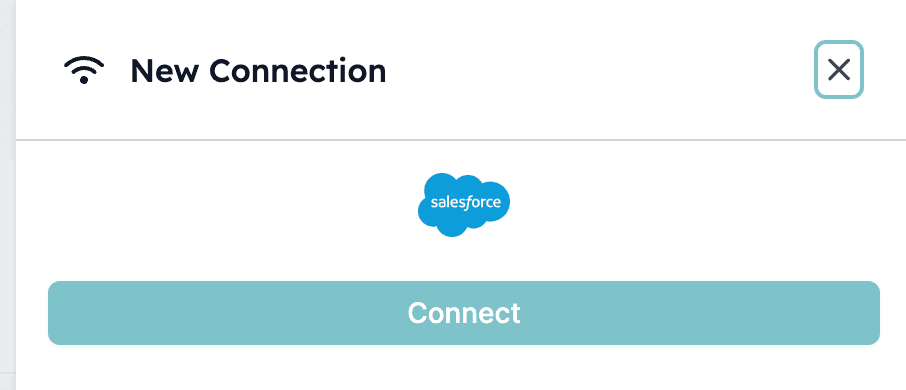
Next, you'll click on \[+ New Connection] and enter your Salesforce login credentials. Rest assured, our platform ensures the highest security standards to protect your data.
\_2.1: Click \[+ New Connection] and start connecting your Salesforce\_
 *2.2: Click \[Connect]*
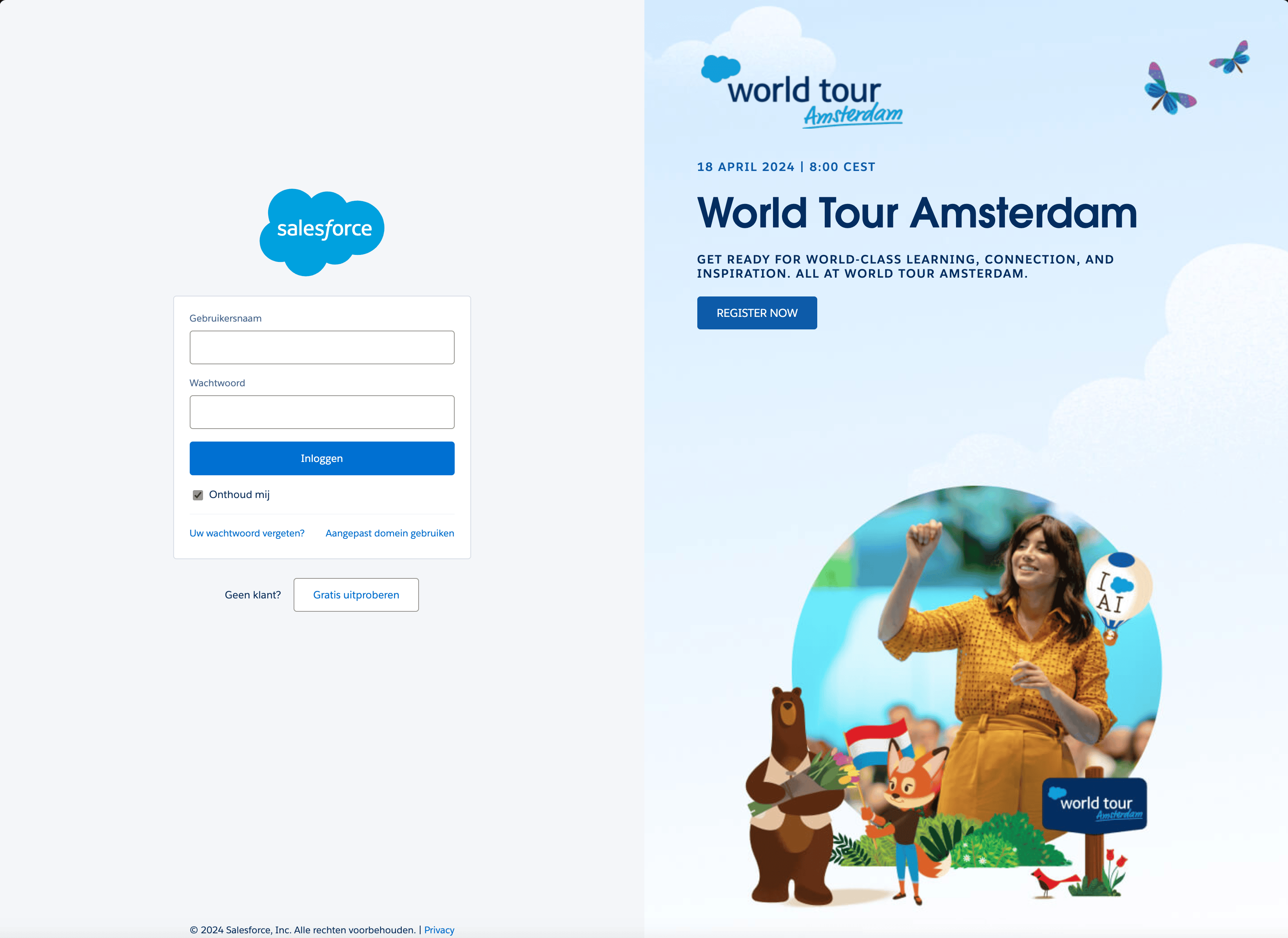
 *2.3: Log In to Salesforce using a user with admin rights:*
 ## Step 3: Using a Custom Domain (If Applicable)
For those using a custom domain in Salesforce, we provide specific instructions at the 00:24 mark of our video. This step is crucial for a seamless connection between the two platforms.
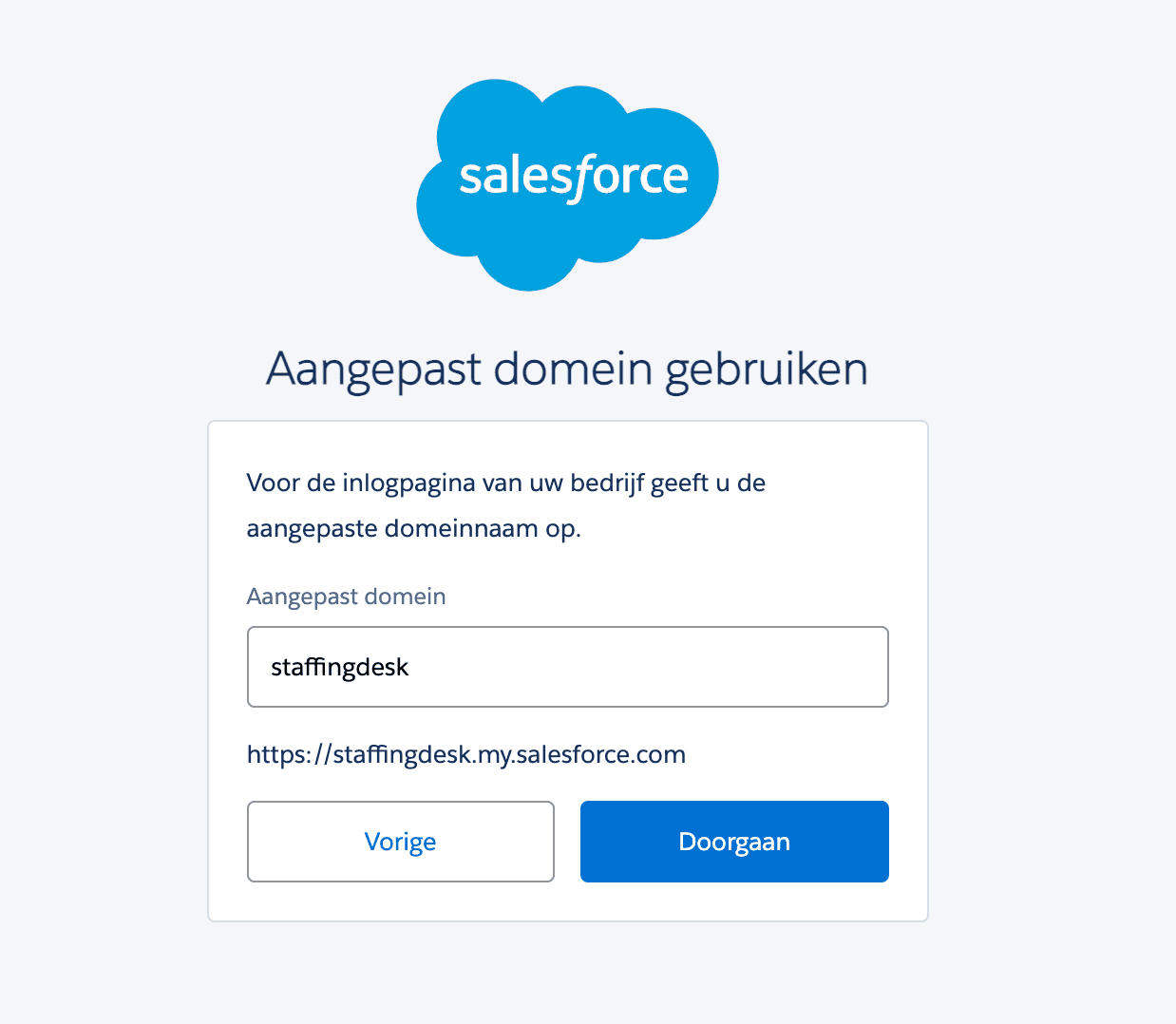
*Click \[Use custom domain] and make sure your custom domain is filled in:*
## Step 3: Using a Custom Domain (If Applicable)
For those using a custom domain in Salesforce, we provide specific instructions at the 00:24 mark of our video. This step is crucial for a seamless connection between the two platforms.
*Click \[Use custom domain] and make sure your custom domain is filled in:*
 ## Related topics
- [Salesforce Integration Overview](/apps/salesforce/overview.md)
- [Your First Week with HireData](/get-started/your-first-week.md)
- [Welcome to HireData](/index.md)
- [Apps](/apps/introduction.md)
- [Events](/settings/logs/events.md)
## Related topics
- [Salesforce Integration Overview](/apps/salesforce/overview.md)
- [Your First Week with HireData](/get-started/your-first-week.md)
- [Welcome to HireData](/index.md)
- [Apps](/apps/introduction.md)
- [Events](/settings/logs/events.md)