> ## Documentation Index
> Fetch the complete documentation index at: https://help.hiredata.com/llms.txt
> Use this file to discover all available pages before exploring further.
# Add an activity or item in Vincere with HireData
> Use HireData automations to automatically add activities or items in Vincere, keeping candidate and client records up to date without manual admin work.
*Welcome to our detailed guide on automatically adding an activity or item in Vincere with HireData. This tutorial is designed to be user-friendly and efficient, helping you to leverage the full potential of Vincere automations by HireData.*
Before we start setting up this automated task, make sure you've [set up the connection with Vincere](/apps/vincere/connect-with-vincere) and are familiar with [how to create a Vincere automation](/apps/vincere/create-a-vincere-automation-in-hiredata) in HireData. Now let's start configuring this automated task.
## Step 1: Adding a task to your automation
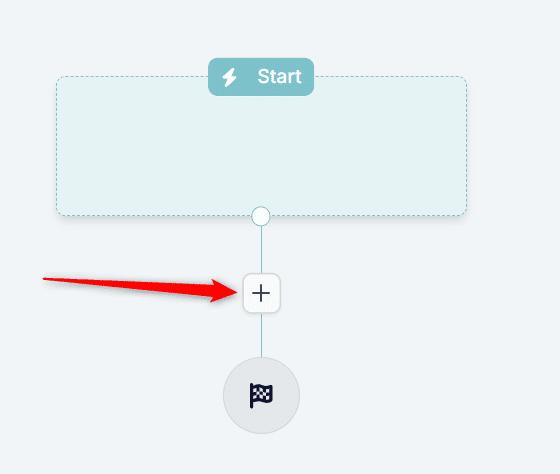
### 1.1. In your automation, click on the \[+] to open up the Building Block Panel
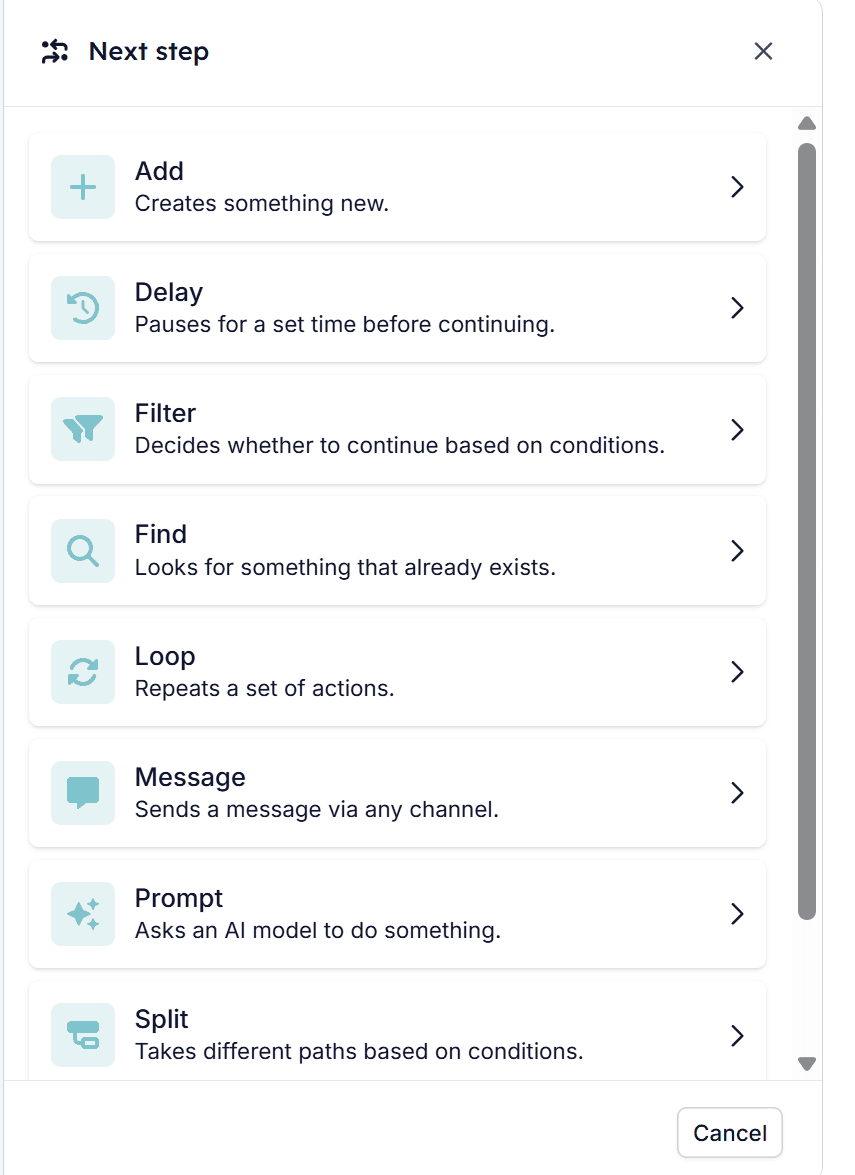
 ### 1.2. Click on \[Add] in the Building Block Panel
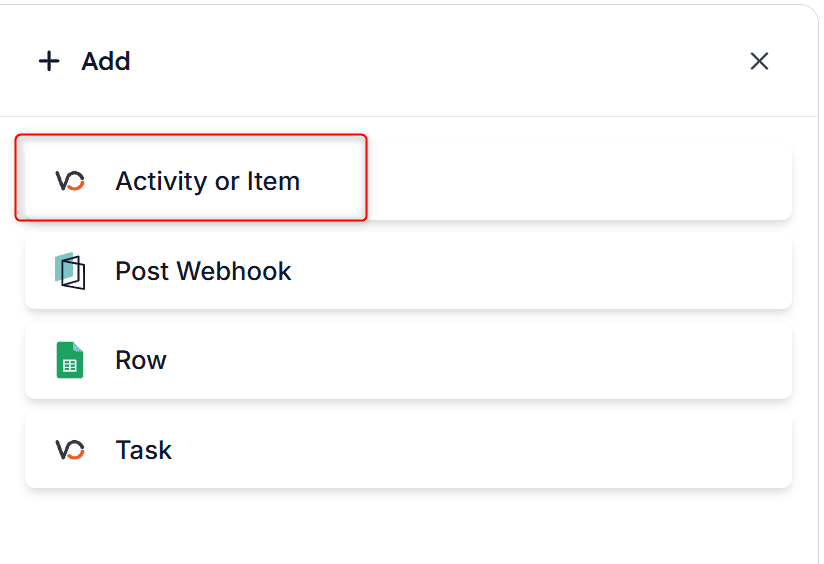
 ### 1.3. Choose Activity or Item Task
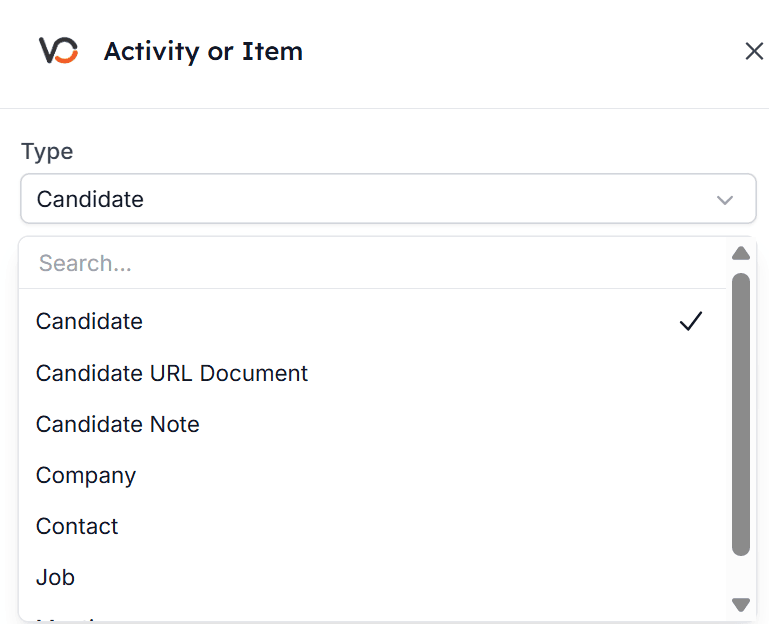
 ## Step 2: Choosing the Activity or Item type
These are the currently supported Types that you can choose from:
* Candidate
* Candidate URL Document
* Candidate Note
* Company
* Contact
* Job
* Meeting
*Select the activity or item type you'd like to add or log in Vincere:*
## Step 2: Choosing the Activity or Item type
These are the currently supported Types that you can choose from:
* Candidate
* Candidate URL Document
* Candidate Note
* Company
* Contact
* Job
* Meeting
*Select the activity or item type you'd like to add or log in Vincere:*
 ## Step 3: Filling in the item's fields
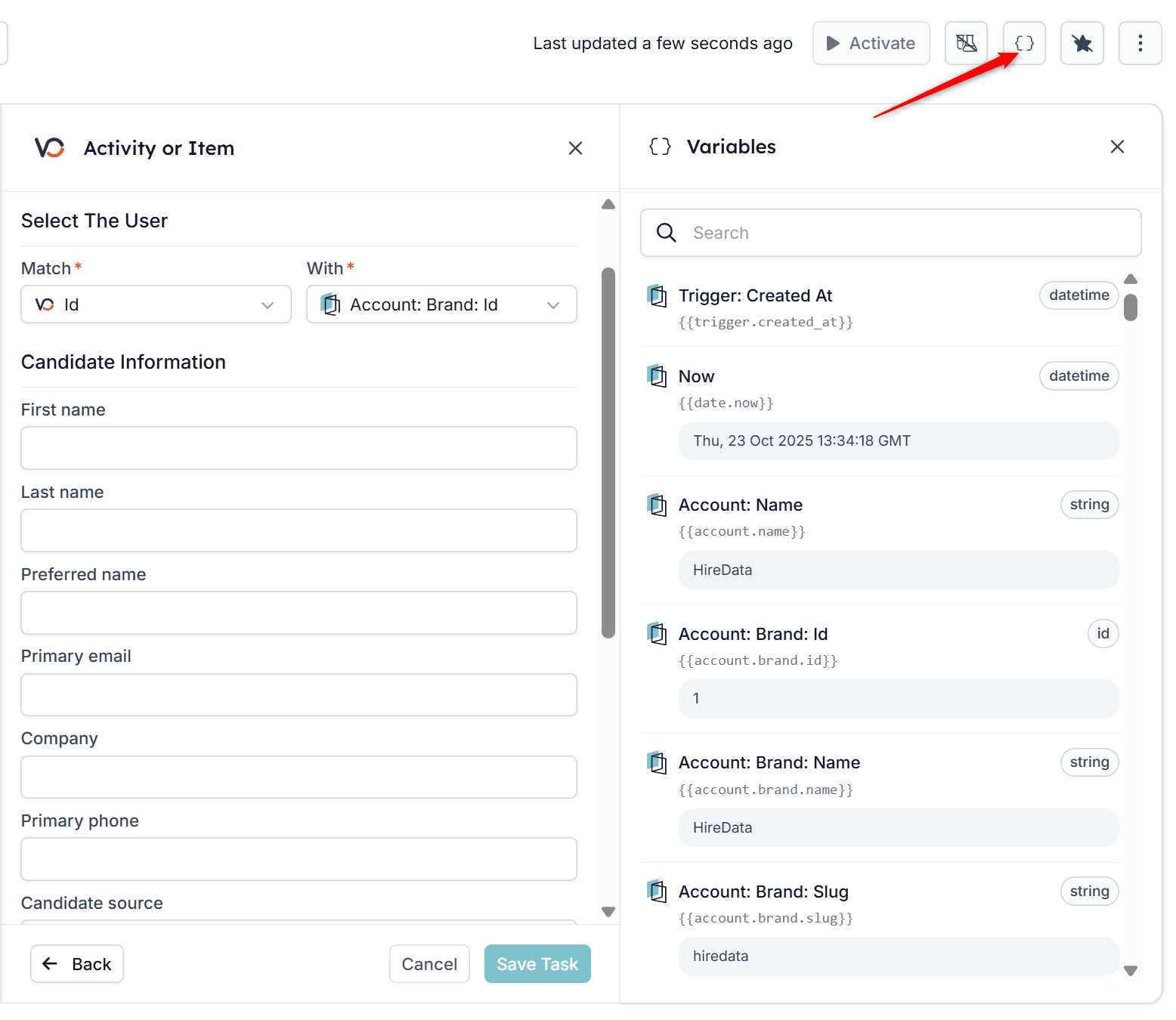
Now, you can complete the activity's or item's fields. You have the option to incorporate variables by clicking the icon located in the top-right corner. Both static and dynamic data can be used to populate the task. Remember to click \[Save Task] when finished.
*Click on the curly brackets for the Variables menu:*
## Step 3: Filling in the item's fields
Now, you can complete the activity's or item's fields. You have the option to incorporate variables by clicking the icon located in the top-right corner. Both static and dynamic data can be used to populate the task. Remember to click \[Save Task] when finished.
*Click on the curly brackets for the Variables menu:*
 ## Related topics
- [Add an activity or item in Carerix with HireData](/apps/carerix/add-an-activity-or-item-in-carerix-with-hiredata.md)
- [Schedule a task in Vincere with HireData](/apps/vincere/schedule-a-task-in-vincere-with-hiredata.md)
- [Create a Vincere automation in HireData](/apps/vincere/create-a-vincere-automation-in-hiredata.md)
- [Connect with Vincere](/apps/vincere/connect-with-vincere.md)
- [Manually sync Vincere with HireData](/apps/vincere/manually-sync-vincere-with-hiredata.md)
## Related topics
- [Add an activity or item in Carerix with HireData](/apps/carerix/add-an-activity-or-item-in-carerix-with-hiredata.md)
- [Schedule a task in Vincere with HireData](/apps/vincere/schedule-a-task-in-vincere-with-hiredata.md)
- [Create a Vincere automation in HireData](/apps/vincere/create-a-vincere-automation-in-hiredata.md)
- [Connect with Vincere](/apps/vincere/connect-with-vincere.md)
- [Manually sync Vincere with HireData](/apps/vincere/manually-sync-vincere-with-hiredata.md)