> ## Documentation Index
> Fetch the complete documentation index at: https://help.hiredata.com/llms.txt
> Use this file to discover all available pages before exploring further.
# Connect with Vincere
> Step-by-step guide to connect HireData with Vincere, authenticate the integration, and start automating recruitment workflows between the two platforms.
*Welcome to our detailed guide on connecting your Vincere account with HireData. This tutorial is designed to be user-friendly and efficient, helping you to leverage the full potential of Vincere within your HireData automations. For a visual guide, be sure to watch our step-by-step video.*
## Step 1: Navigating to the Vincere App
Begin by navigating to the [app section](https://app.hiredata.com/apps) within HireData. Here, you'll find the option to [integrate with Vincere](https://app.hiredata.com/apps/vincere). This initial step is simple yet fundamental for the integration process.
## Step 2: Creating a New Connection
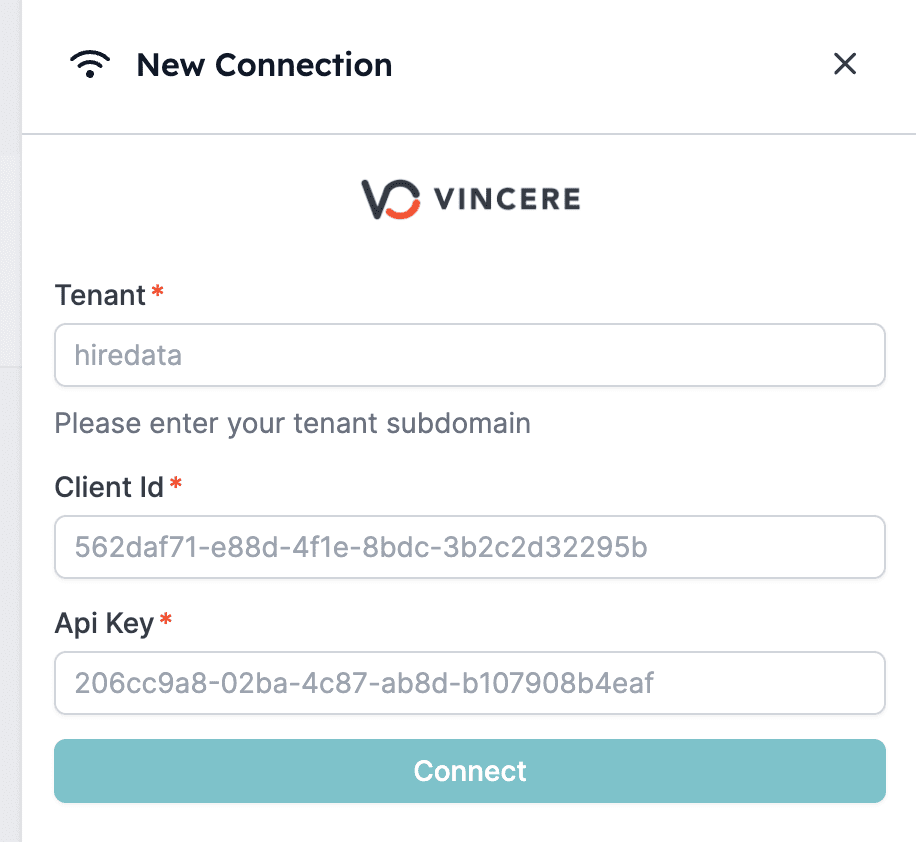
Click on \[+ New Connection] and enter the required Vincere details: your tenant, client ID, and API key. If you don't have a client ID and API key yet, get in touch with your account manager at Vincere. We prioritize your security, ensuring that your credentials are protected throughout the integration process.
*2.1: Click \[+ New Connection] and start connecting your Vincere*
 *2.2: Provide your tenant, client ID, and API key to set up a new connection*
 ## Step 3: Log in to Vincere
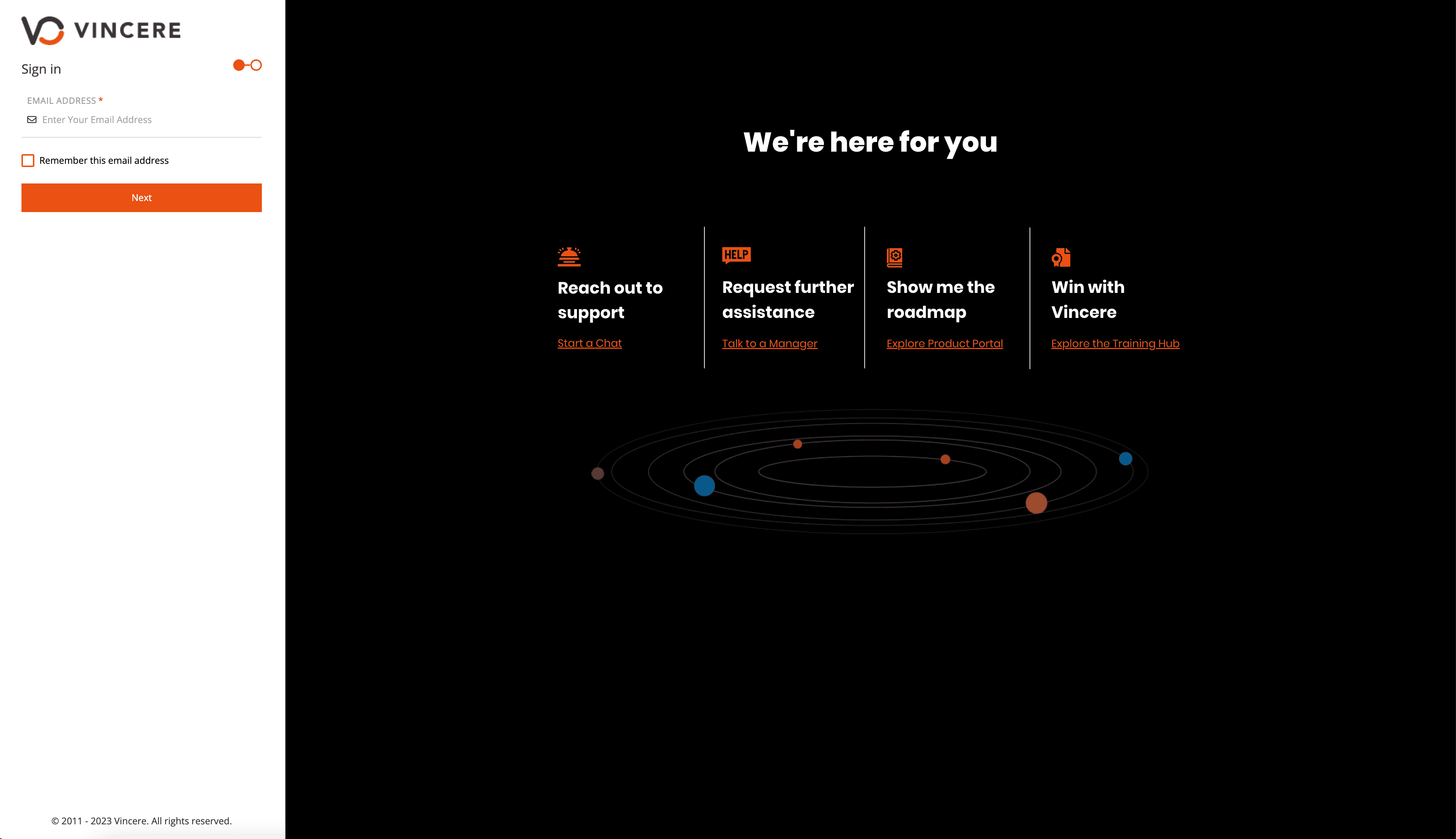
After you've configured your connection, you're asked to log in to Vincere. Make sure you're logging in with a user that has admin rights assigned to it.
*Log In to Vincere using a user with admin rights:*
## Step 3: Log in to Vincere
After you've configured your connection, you're asked to log in to Vincere. Make sure you're logging in with a user that has admin rights assigned to it.
*Log In to Vincere using a user with admin rights:*
 ## Step 4: Vincere Connected!
After you've logged in to your Vincere environment and gave your consent to HireData, you've finished setting up the connection between Vincere and HireData. Please check out the tutorial for a full step-by-step guide on how to set up the connection.
## Next step: Creating a Vincere Automation in HireData
Now that you've set up the connection with Vincere, let's [create your first Vincere automation](/apps/vincere/create-a-vincere-automation-in-hiredata) within HireData.
## Related topics
- [Vincere Integration Overview](/apps/vincere/overview.md)
- [Manually sync Vincere with HireData](/apps/vincere/manually-sync-vincere-with-hiredata.md)
- [Your First Week with HireData](/get-started/your-first-week.md)
- [Welcome to HireData](/index.md)
- [Connect with Recruitee](/apps/recruitee/connect-with-recruitee.md)
## Step 4: Vincere Connected!
After you've logged in to your Vincere environment and gave your consent to HireData, you've finished setting up the connection between Vincere and HireData. Please check out the tutorial for a full step-by-step guide on how to set up the connection.
## Next step: Creating a Vincere Automation in HireData
Now that you've set up the connection with Vincere, let's [create your first Vincere automation](/apps/vincere/create-a-vincere-automation-in-hiredata) within HireData.
## Related topics
- [Vincere Integration Overview](/apps/vincere/overview.md)
- [Manually sync Vincere with HireData](/apps/vincere/manually-sync-vincere-with-hiredata.md)
- [Your First Week with HireData](/get-started/your-first-week.md)
- [Welcome to HireData](/index.md)
- [Connect with Recruitee](/apps/recruitee/connect-with-recruitee.md)