> ## Documentation Index
> Fetch the complete documentation index at: https://help.hiredata.com/llms.txt
> Use this file to discover all available pages before exploring further.
# Schedule a task in Vincere with HireData
> Automatically schedule tasks and follow-ups in Vincere through HireData, so recruiters always know what to do next and never miss a candidate action.
*The Vincere Scheduled Task action allows you to automatically create scheduled tasks in Vincere whenever a specific trigger event occurs in a HireData automation workflow. This is useful for automating reminders and follow-up activities, ensuring no task is overlooked. Follow along as we demonstrate how to use this task.*
## Step 1: Create or edit an automation
In your HireData account, navigate to the **Automations** section and either create a new workflow or open an existing one by clicking on **+ New Automation**.
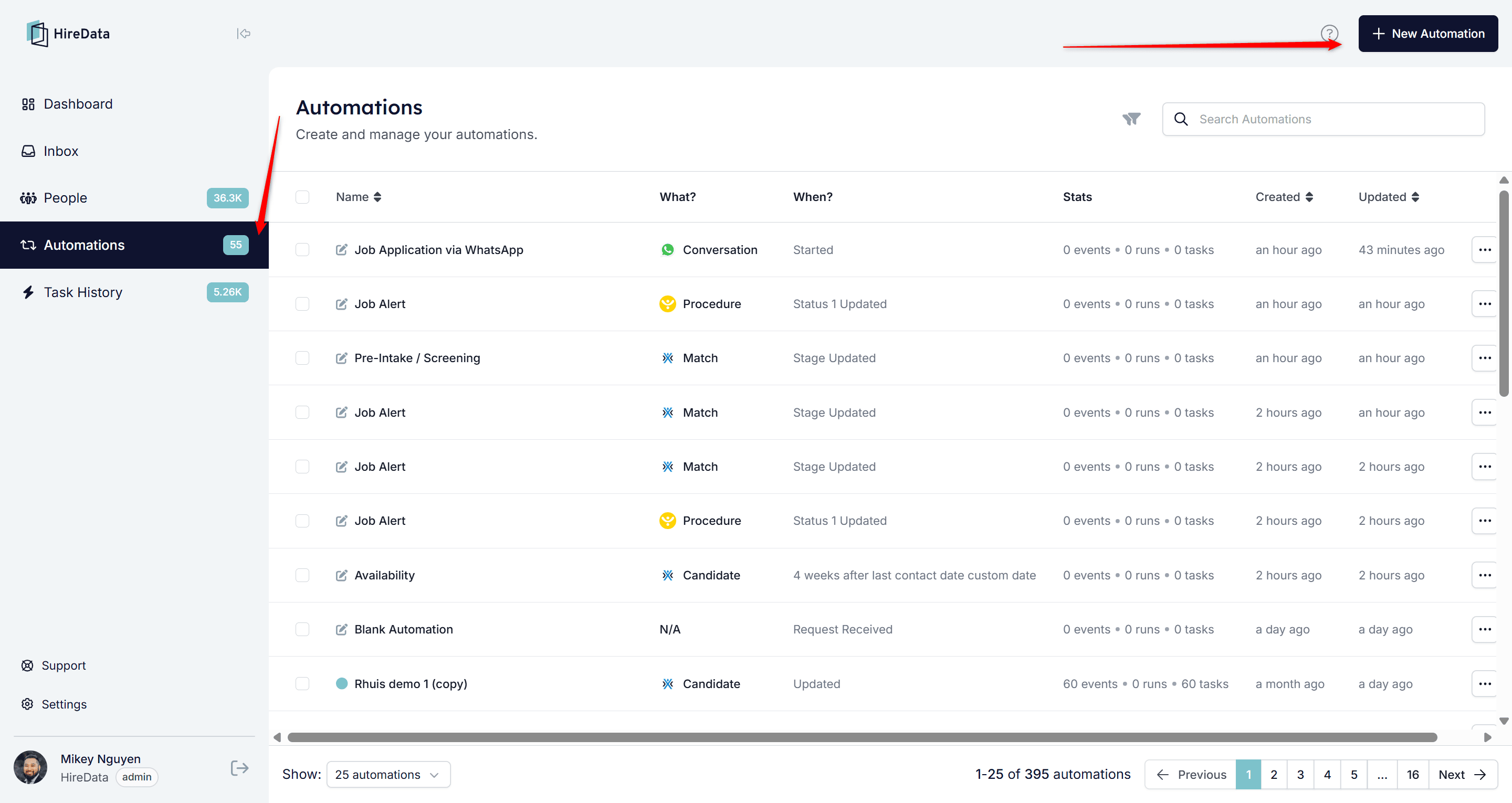 ## Step 2: Add the action
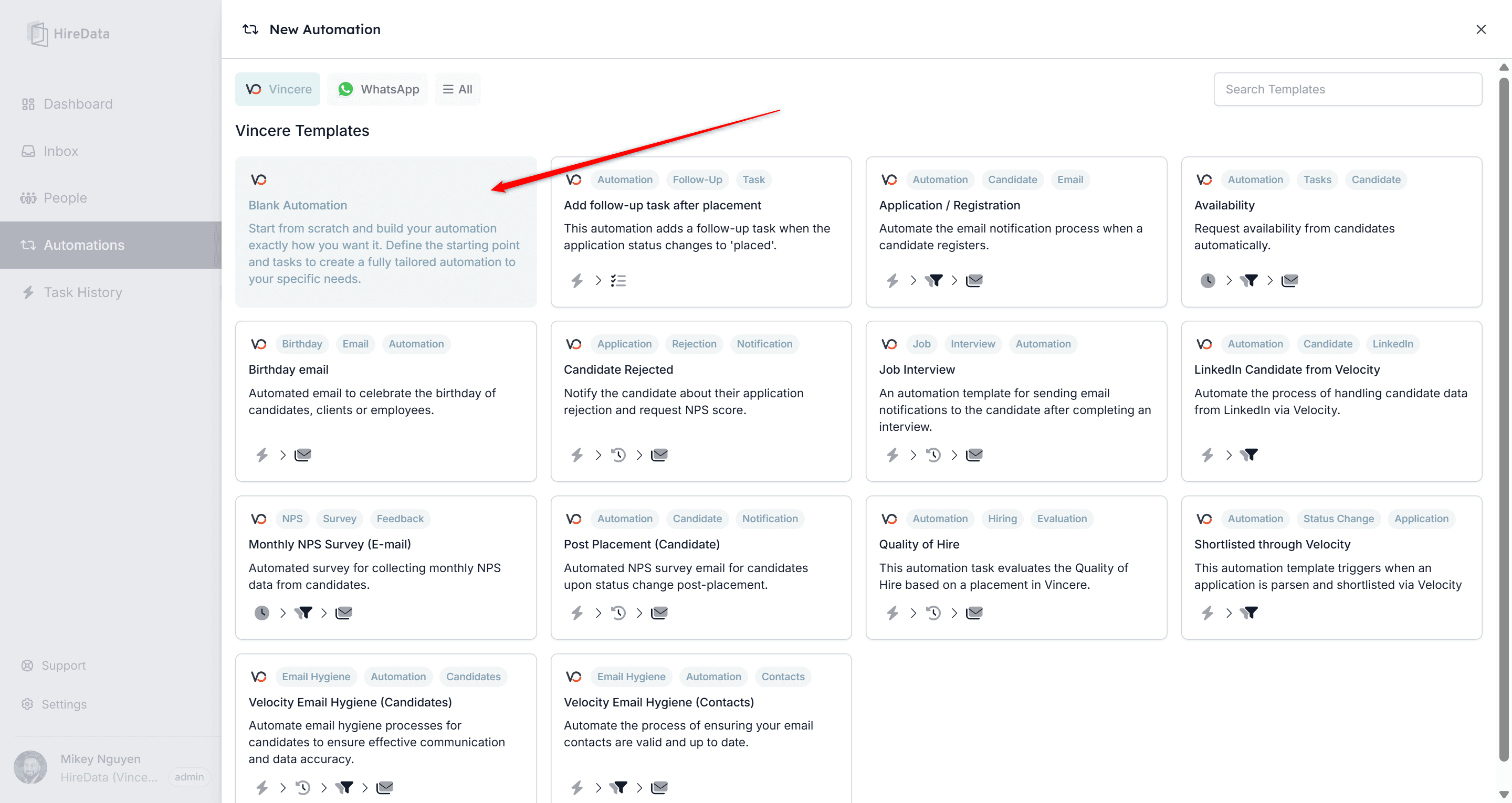
### 2.1. Click on **Blank Automation** to start a new automation from scratch
Selecting Blank Automation will create a new automation
## Step 2: Add the action
### 2.1. Click on **Blank Automation** to start a new automation from scratch
Selecting Blank Automation will create a new automation
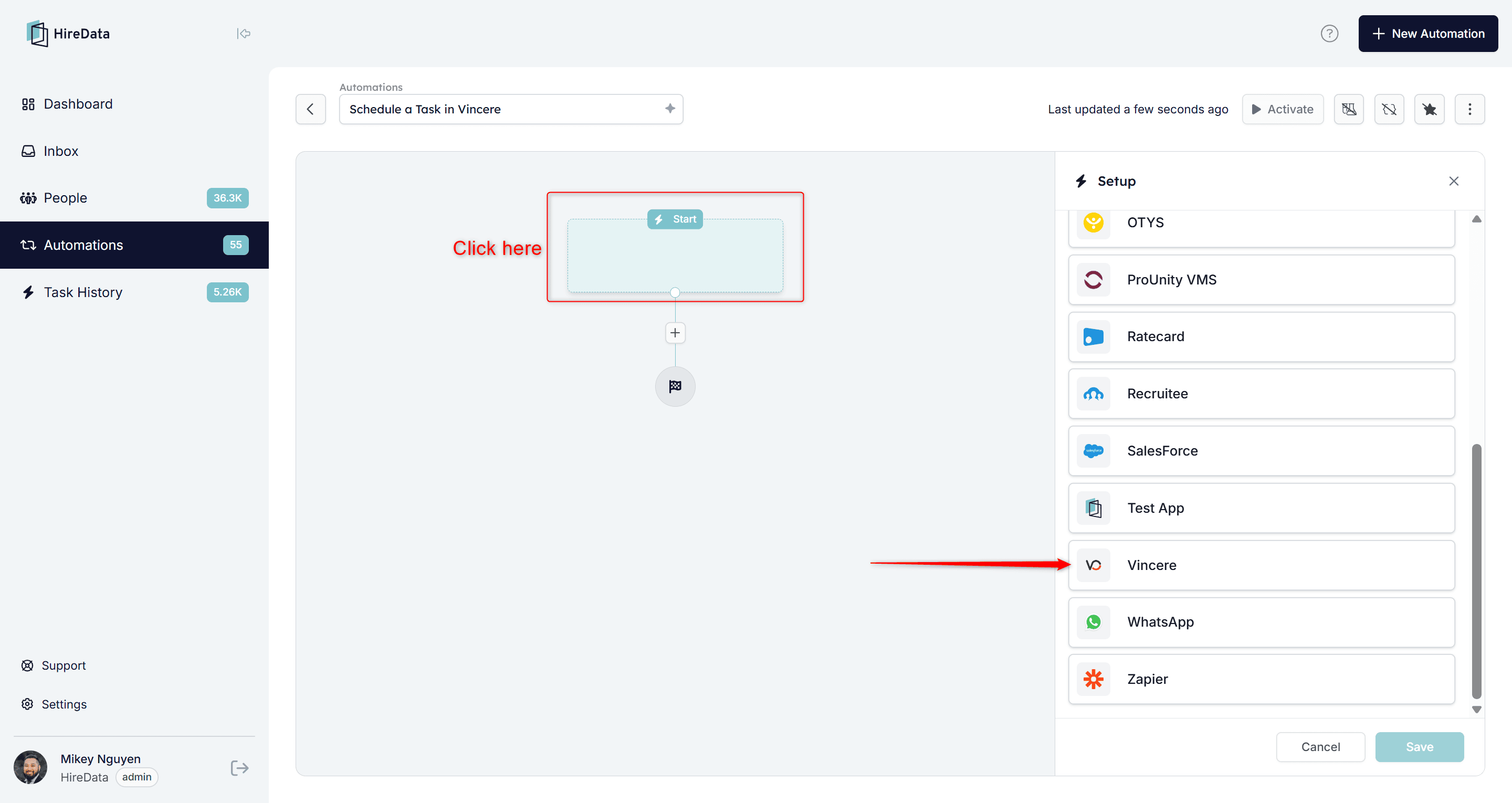
 ### 2.2. Click in the First Building Block/Trigger to bring up the App Panel and select **Vincere**
Clicking on the First Building block you'll be able to choose which App to link this to
### 2.2. Click in the First Building Block/Trigger to bring up the App Panel and select **Vincere**
Clicking on the First Building block you'll be able to choose which App to link this to
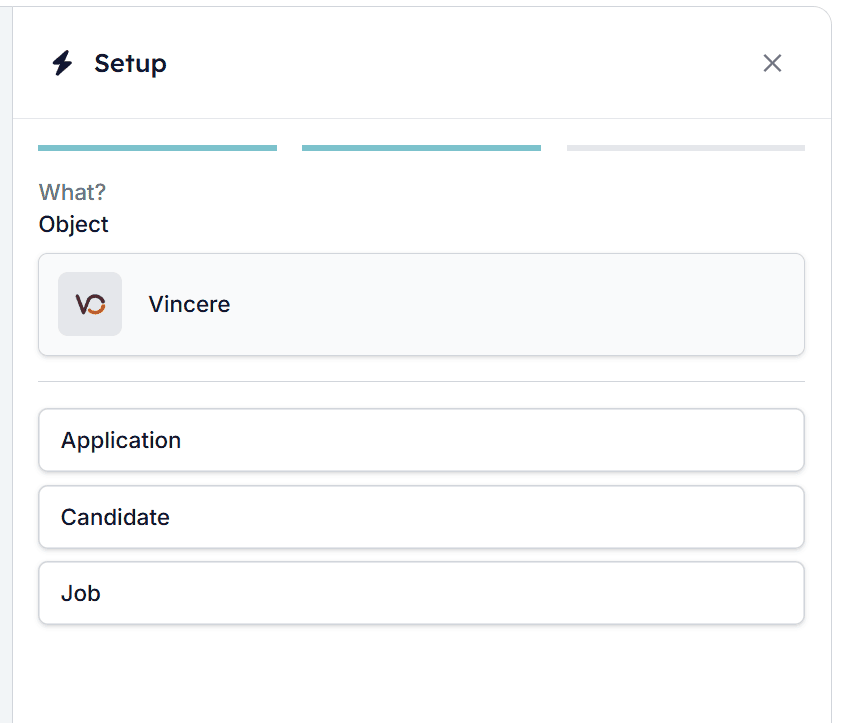
 ### 2.3. Select the Trigger for the Automation
Follow the setup steps to choose how you would like this automation to trigger and click **Save**.
Selecting the Object value for the app
### 2.3. Select the Trigger for the Automation
Follow the setup steps to choose how you would like this automation to trigger and click **Save**.
Selecting the Object value for the app
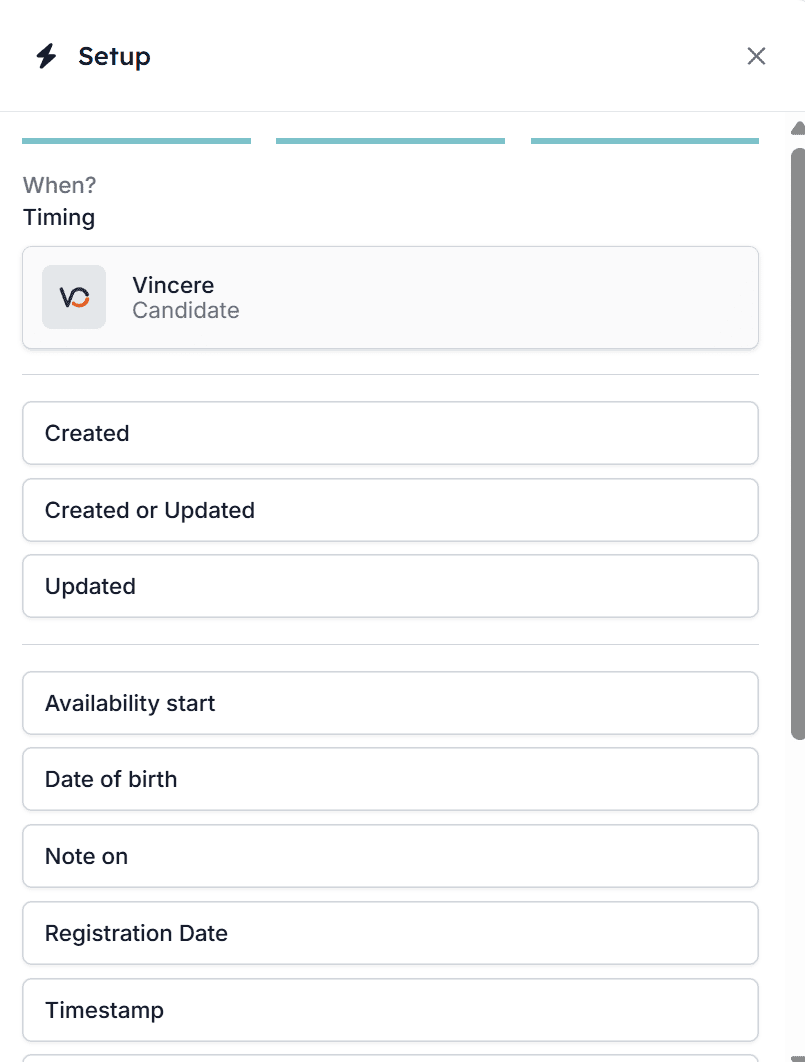
 Choosing the timing in which you would like the trigger to adhere to
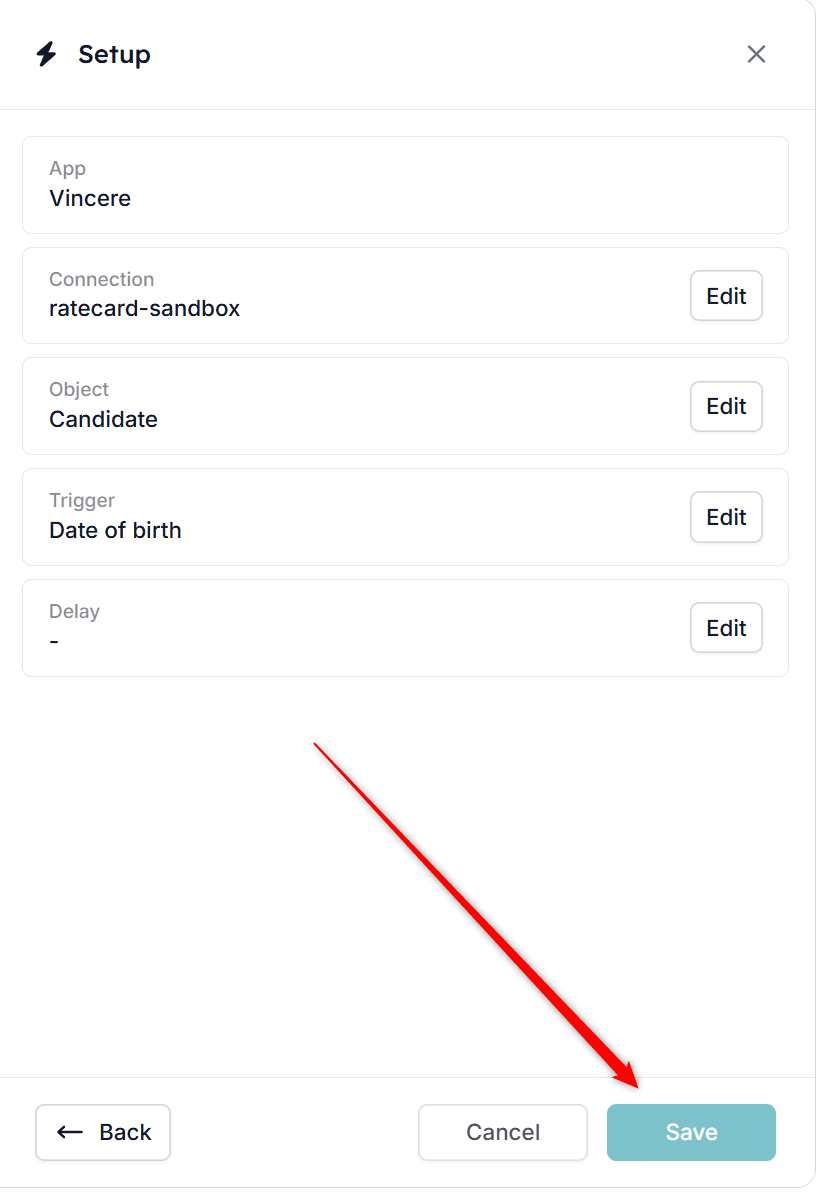
 Checking that everything is correct and saving the trigger
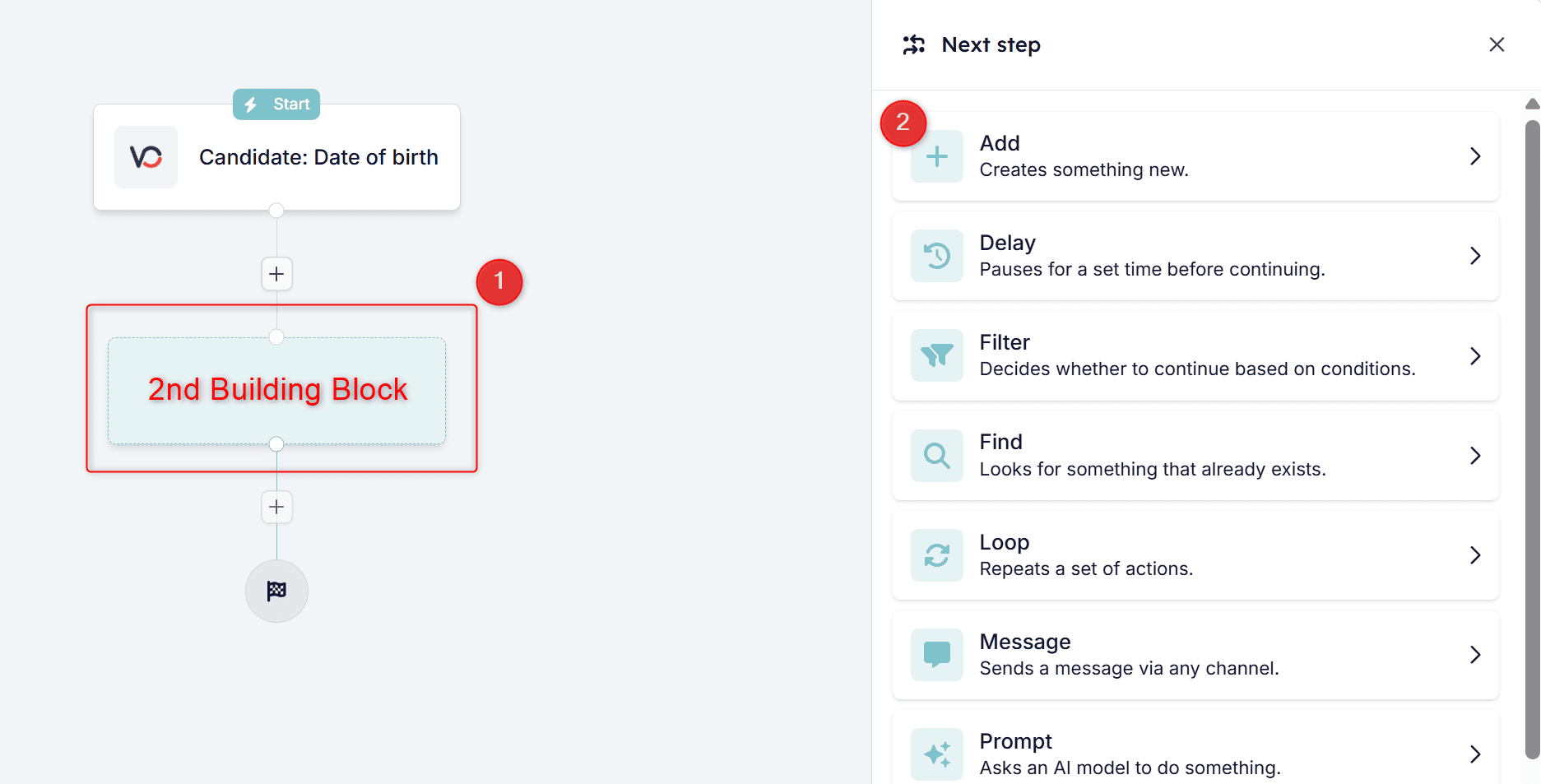
 ### 2.4. Click on the 2nd Building Block to open the action panel and click on **Add** to create a new Task
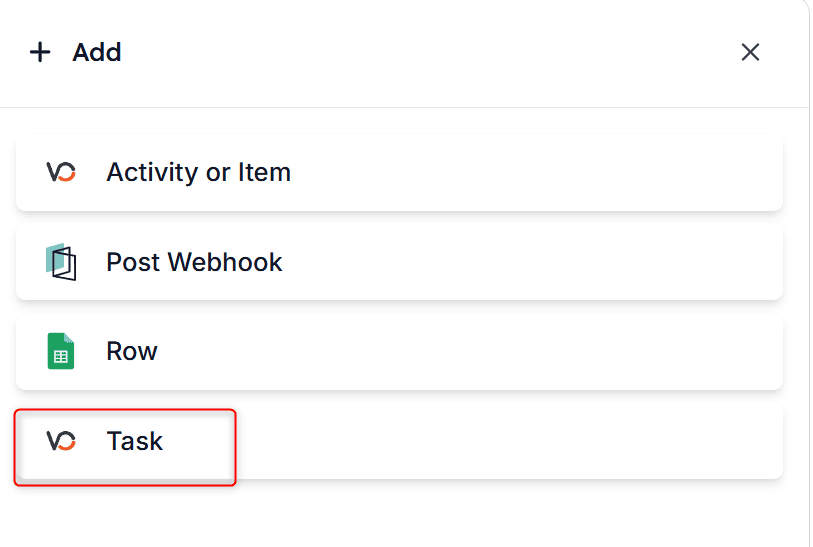
 ### 2.5. Navigate until you see the Vincere logo along with the text **Task**
 ## Step 3: Fill in the task details
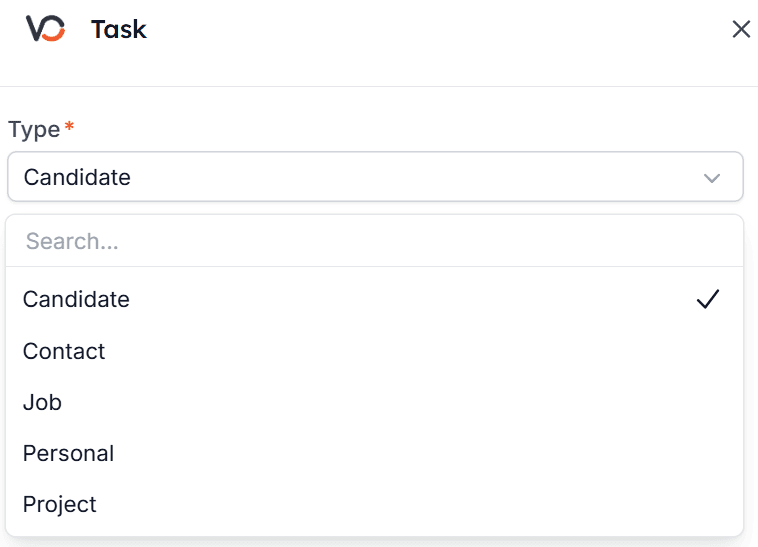
* **Type:** Choose the Item Type you would like the Task to correspond to. This can be:
* Candidate - A task relating to the Job Seeker
* Contact - A task tied to the Client Contact
* Job - A task relating to a Job Order or Vacancy
* Personal - A task for your own use, such as reminders or admin duties
* Project - A task associated with a larger project or campaign
## Step 3: Fill in the task details
* **Type:** Choose the Item Type you would like the Task to correspond to. This can be:
* Candidate - A task relating to the Job Seeker
* Contact - A task tied to the Client Contact
* Job - A task relating to a Job Order or Vacancy
* Personal - A task for your own use, such as reminders or admin duties
* Project - A task associated with a larger project or campaign
 * **Subject:** Enter a clear and descriptive subject for the task (e.g., "Test project, local")
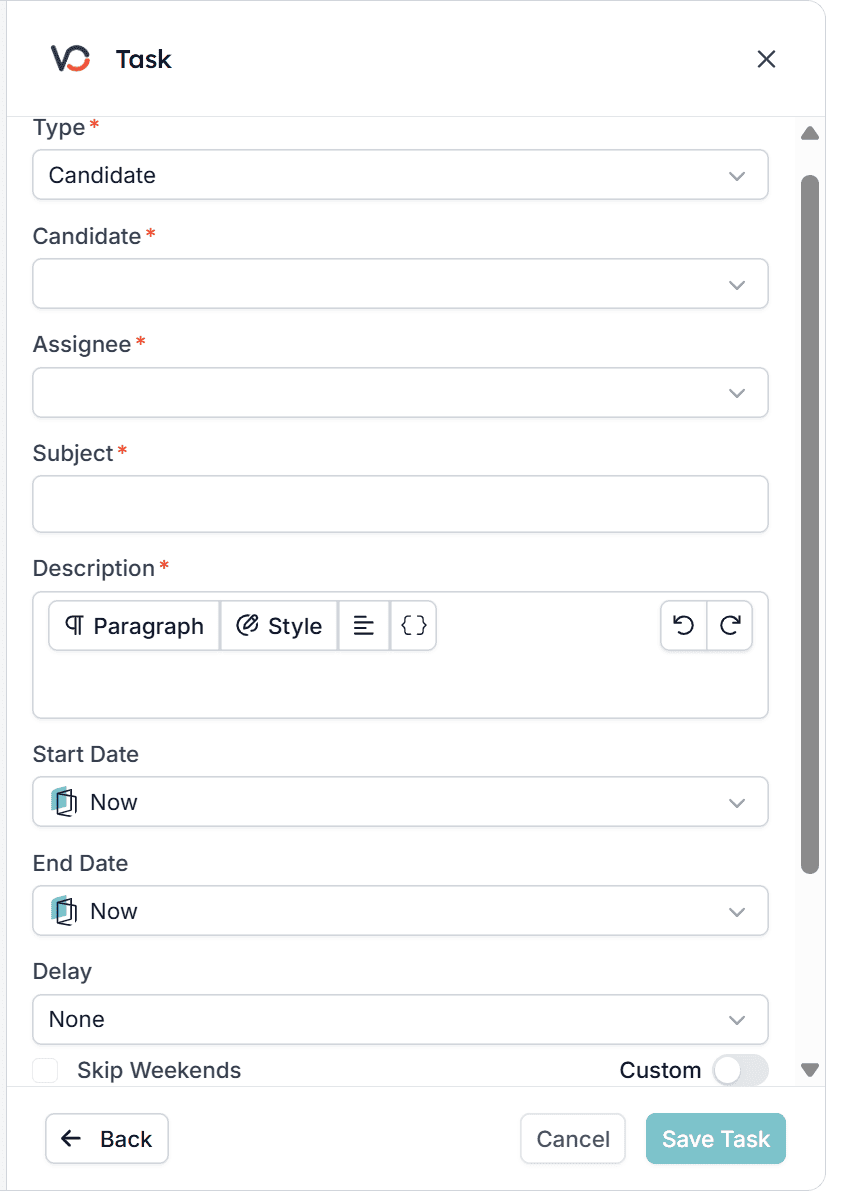
* **Description:** Provide a detailed description of the task
* **Start/End Date:** Set the task's start and end dates. You can also set a delay if you wish
* **Reminders:** Add a reminder to ensure the task is not forgotten
* **Assignee:** Assign the task to the relevant user in Vincere
* **Subject:** Enter a clear and descriptive subject for the task (e.g., "Test project, local")
* **Description:** Provide a detailed description of the task
* **Start/End Date:** Set the task's start and end dates. You can also set a delay if you wish
* **Reminders:** Add a reminder to ensure the task is not forgotten
* **Assignee:** Assign the task to the relevant user in Vincere
 ## Step 4: Save and test
Click **Save Task** to finalise the task configuration and [run the automation workflow to test it](/automations/how-to-test-an-automation).
## Step 5: Confirm the task
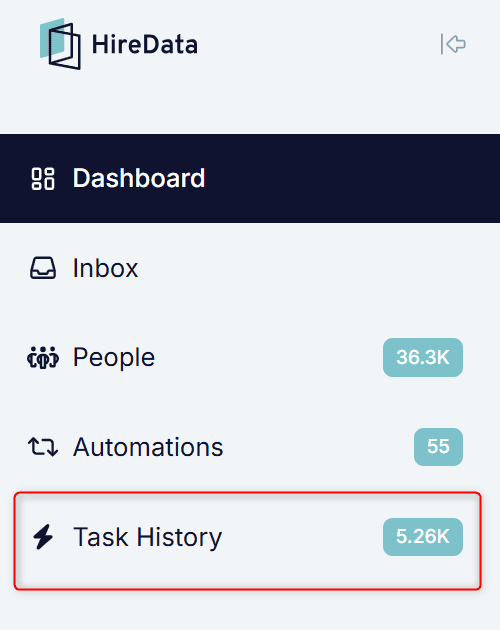
* **HireData** – Navigate to **Task History** to verify it was created.
## Step 4: Save and test
Click **Save Task** to finalise the task configuration and [run the automation workflow to test it](/automations/how-to-test-an-automation).
## Step 5: Confirm the task
* **HireData** – Navigate to **Task History** to verify it was created.
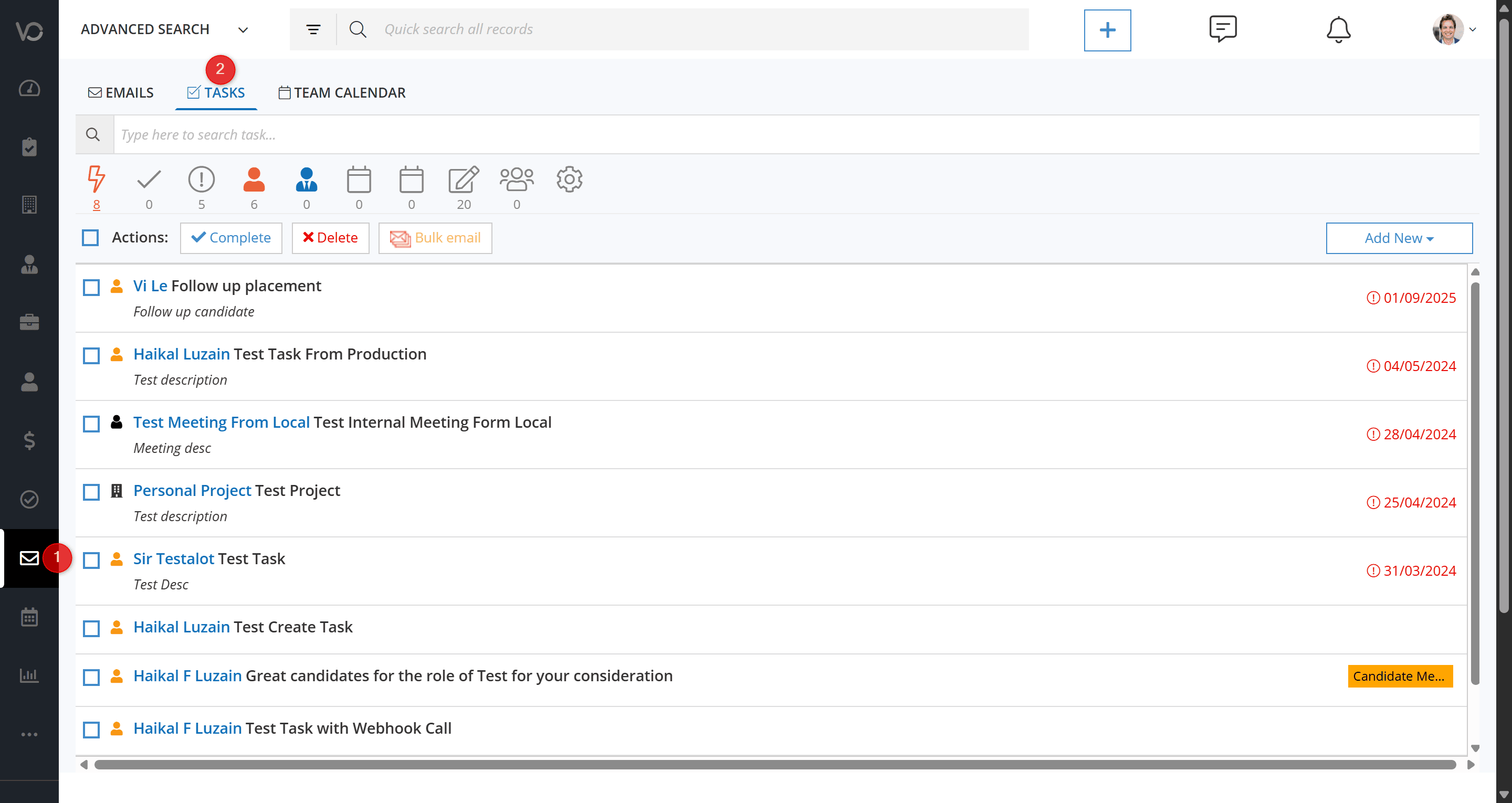
 * **Vincere** – Open **Email View → Task Tab**.
 ## Related topics
- [Schedule a task in Carerix with HireData](/apps/carerix/schedule-a-task-in-carerix-with-hiredata.md)
- [Manually sync Vincere with HireData](/apps/vincere/manually-sync-vincere-with-hiredata.md)
- [Create a Vincere automation in HireData](/apps/vincere/create-a-vincere-automation-in-hiredata.md)
- [Add an activity or item in Vincere with HireData](/apps/vincere/add-an-activity-or-item-in-vincere-with-hiredata.md)
- [Update fields in Vincere with HireData](/apps/vincere/update-fields-in-vincere-with-hiredata.md)
## Related topics
- [Schedule a task in Carerix with HireData](/apps/carerix/schedule-a-task-in-carerix-with-hiredata.md)
- [Manually sync Vincere with HireData](/apps/vincere/manually-sync-vincere-with-hiredata.md)
- [Create a Vincere automation in HireData](/apps/vincere/create-a-vincere-automation-in-hiredata.md)
- [Add an activity or item in Vincere with HireData](/apps/vincere/add-an-activity-or-item-in-vincere-with-hiredata.md)
- [Update fields in Vincere with HireData](/apps/vincere/update-fields-in-vincere-with-hiredata.md)