> ## Documentation Index
> Fetch the complete documentation index at: https://help.hiredata.com/llms.txt
> Use this file to discover all available pages before exploring further.
# Update fields in Vincere with HireData
> Use HireData automations to update candidate, vacancy, and contact fields in Vincere automatically, cutting manual admin work for your recruitment team.
*Welcome to our step-by-step guide on how to update one or more fields in different objects in Vincere with HireData. Follow this simple but helpful guide to understand how to update any field yourself.*
Before updating the fields in the object, you should have already created an [automation in Vincere](/apps/vincere/create-a-vincere-automation-in-hiredata).
## Step 1: Open the building blocks menu
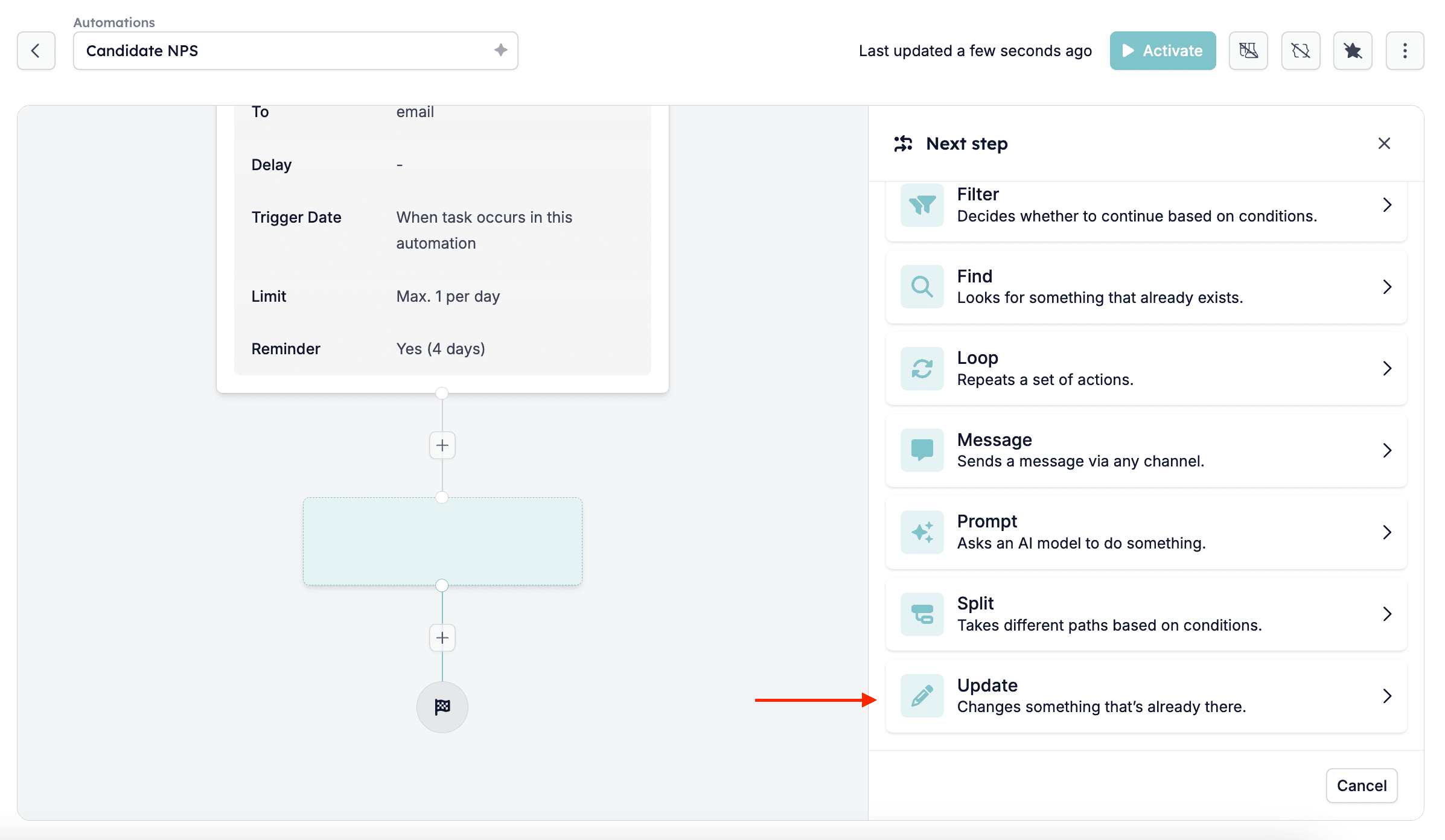
First, log in to your HireData account and open the automation you want to edit. Then click on the plus icon \[+] at the end of the automation to open the Building Blocks menu on the right side of the screen. After you have opened the menu, select \[Update].
 ## Step 2: Select the Object you want to edit
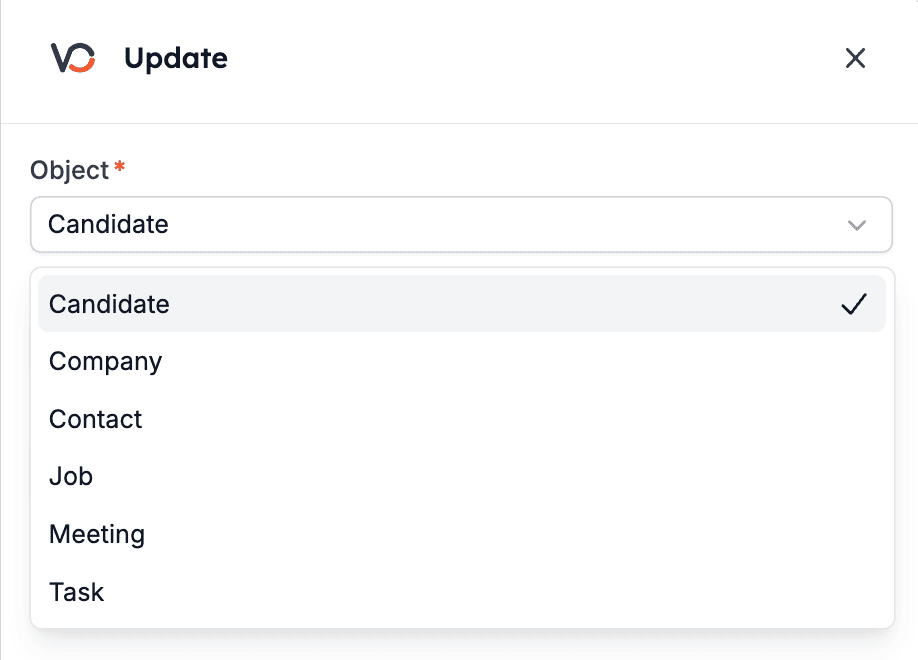
Choose the object you want to edit, which currently can be one of these:
* Candidate
* Company
* Contact
* Job
* Meeting
* Task
*For this example, we have selected the candidate:*
## Step 2: Select the Object you want to edit
Choose the object you want to edit, which currently can be one of these:
* Candidate
* Company
* Contact
* Job
* Meeting
* Task
*For this example, we have selected the candidate:*
 ## Step 3: Select an Identifier
Now you have to select an identifier, which will be used to find the object that you want to update.
## Step 3: Select an Identifier
Now you have to select an identifier, which will be used to find the object that you want to update.
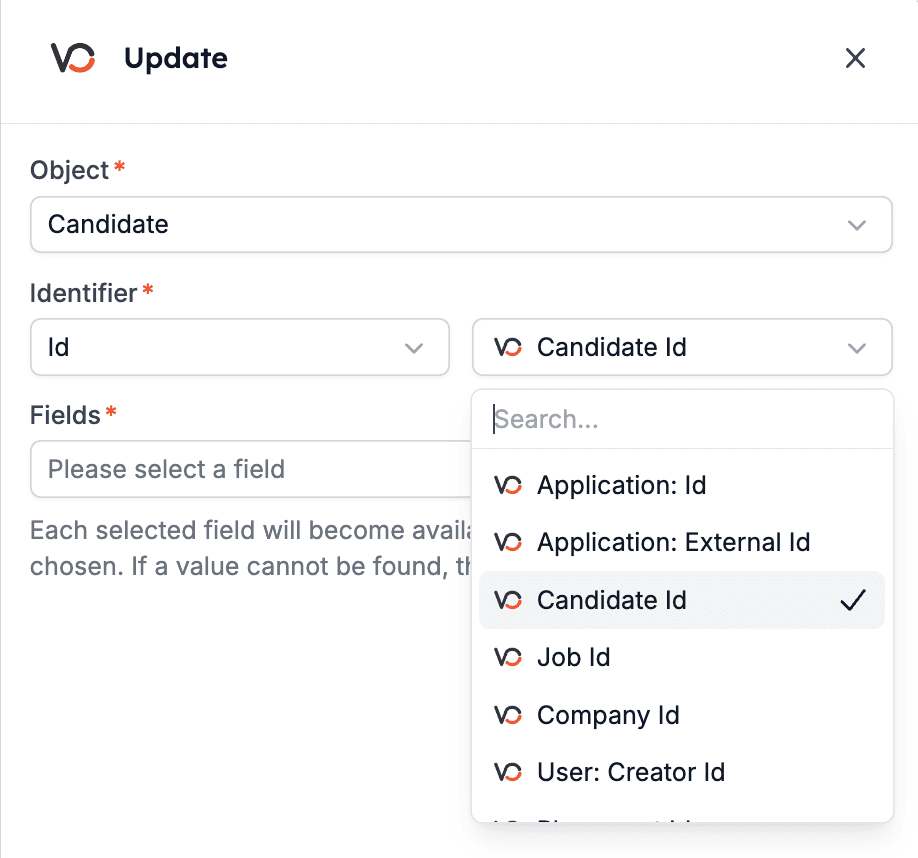
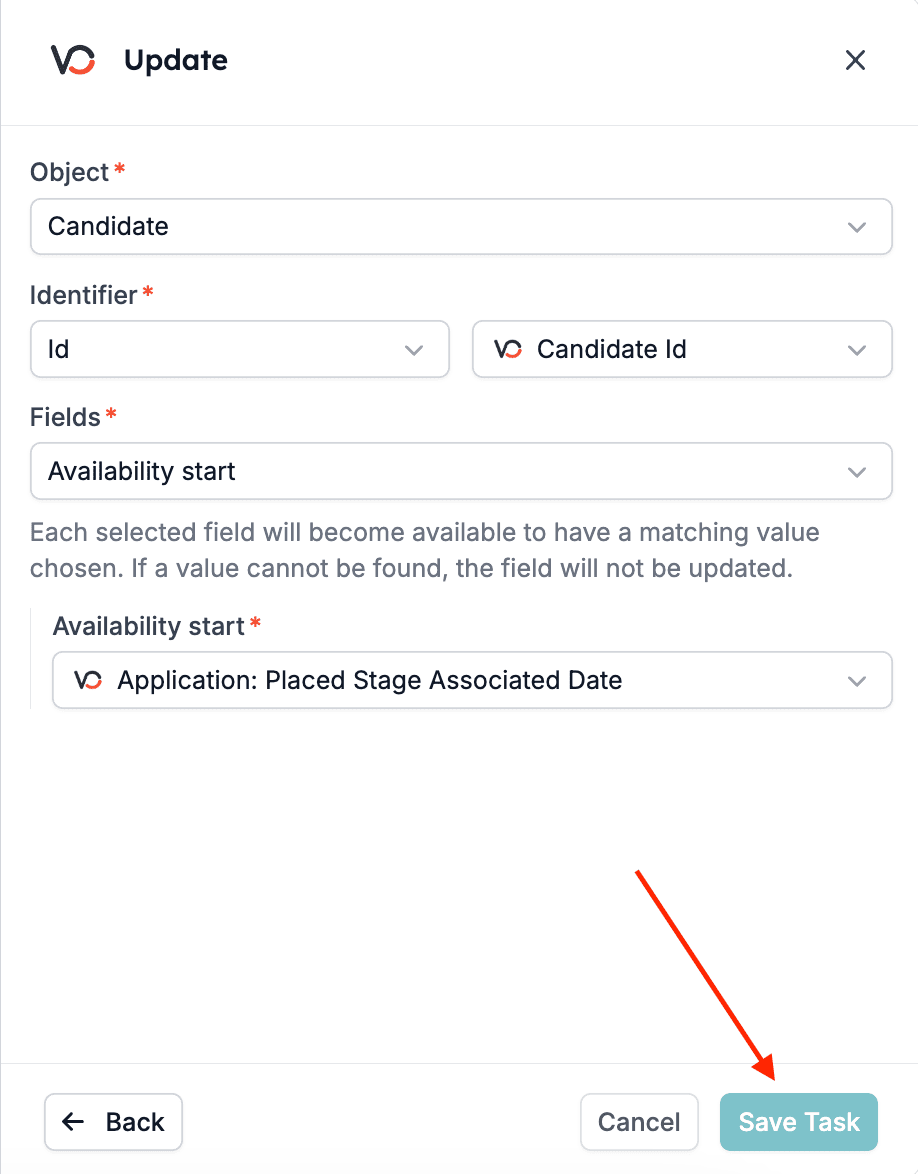
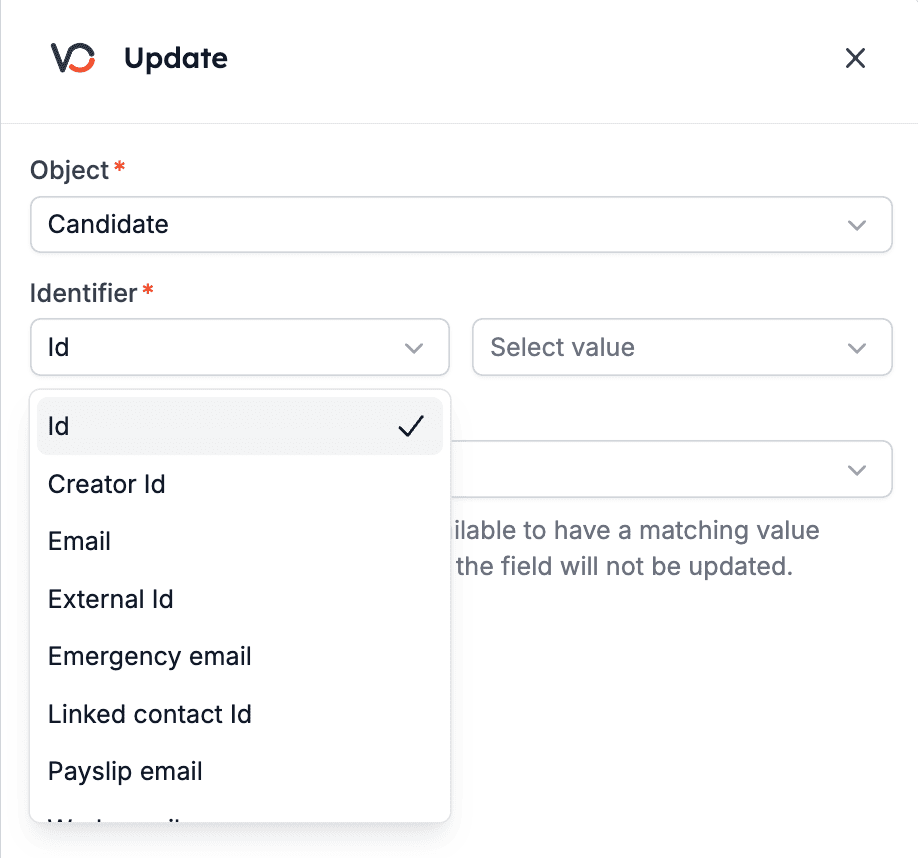 For this guide, we will use the \[ID] as an identifier and the \[Candidate: ID] as the value we want to track. In other words, we will use the Candidate ID to track the candidate we want to update in the automation.
***The displayed values will be different depending on the selected object and identifier.***
For this guide, we will use the \[ID] as an identifier and the \[Candidate: ID] as the value we want to track. In other words, we will use the Candidate ID to track the candidate we want to update in the automation.
***The displayed values will be different depending on the selected object and identifier.***
 ## Step 4: Update the fields
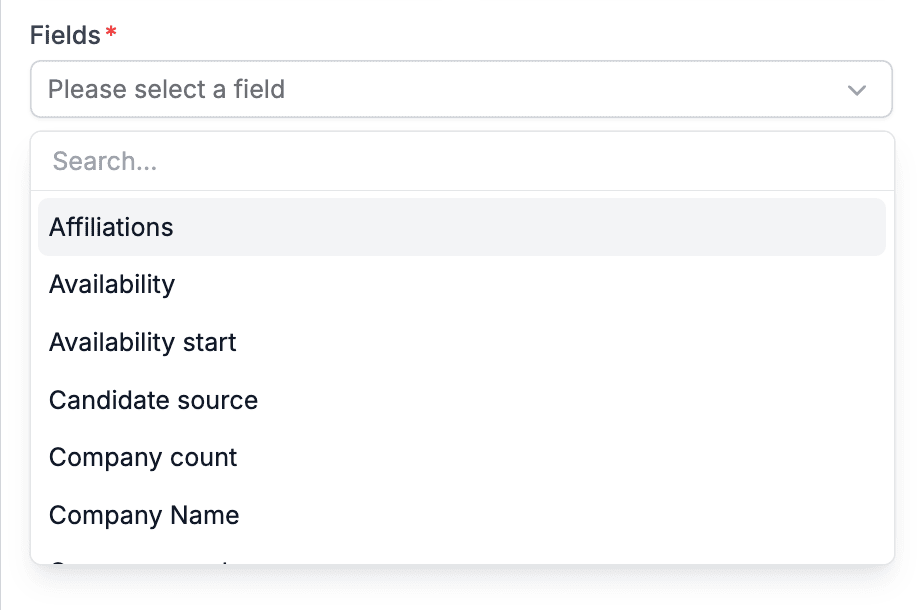
Now, you can select all the fields you want to update—you can select as many as you want, just use the search bar to find them.
## Step 4: Update the fields
Now, you can select all the fields you want to update—you can select as many as you want, just use the search bar to find them.
 Edit the fields and click the \[Save Task] button at the bottom of the page.
 ## Step 5: Review
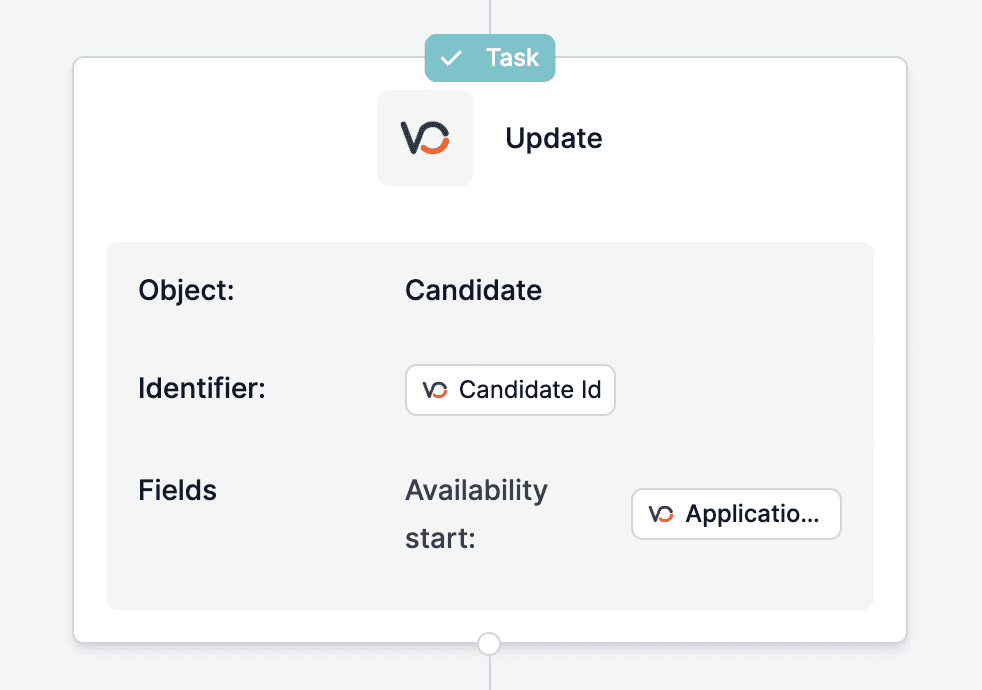
Last but not least, review the task pop-up, which will appear at the end of the automation, to ensure everything runs smoothly.
## Step 5: Review
Last but not least, review the task pop-up, which will appear at the end of the automation, to ensure everything runs smoothly.
 ## Related topics
- [Update fields in Carerix with HireData](/apps/carerix/update-fields-in-carerix-with-hiredata.md)
- [Add an activity or item in Vincere with HireData](/apps/vincere/add-an-activity-or-item-in-vincere-with-hiredata.md)
- [Create a Vincere automation in HireData](/apps/vincere/create-a-vincere-automation-in-hiredata.md)
- [Manually sync Vincere with HireData](/apps/vincere/manually-sync-vincere-with-hiredata.md)
- [Connect with Vincere](/apps/vincere/connect-with-vincere.md)
## Related topics
- [Update fields in Carerix with HireData](/apps/carerix/update-fields-in-carerix-with-hiredata.md)
- [Add an activity or item in Vincere with HireData](/apps/vincere/add-an-activity-or-item-in-vincere-with-hiredata.md)
- [Create a Vincere automation in HireData](/apps/vincere/create-a-vincere-automation-in-hiredata.md)
- [Manually sync Vincere with HireData](/apps/vincere/manually-sync-vincere-with-hiredata.md)
- [Connect with Vincere](/apps/vincere/connect-with-vincere.md)