> ## Documentation Index
> Fetch the complete documentation index at: https://help.hiredata.com/llms.txt
> Use this file to discover all available pages before exploring further.
# How to Restore a Deleted Automation
> Recover a deleted automation in HireData by finding it in the trash, restoring it in a few clicks, and reactivating it so recruitment workflows keep running.
*Accidentally deleted an automation or changed your mind? No worries, you can easily restore deleted automations from within the Automations page in HireData. Follow the steps below to bring them back into your active workflows.*
## Step 1: Enable the Deleted Automations View
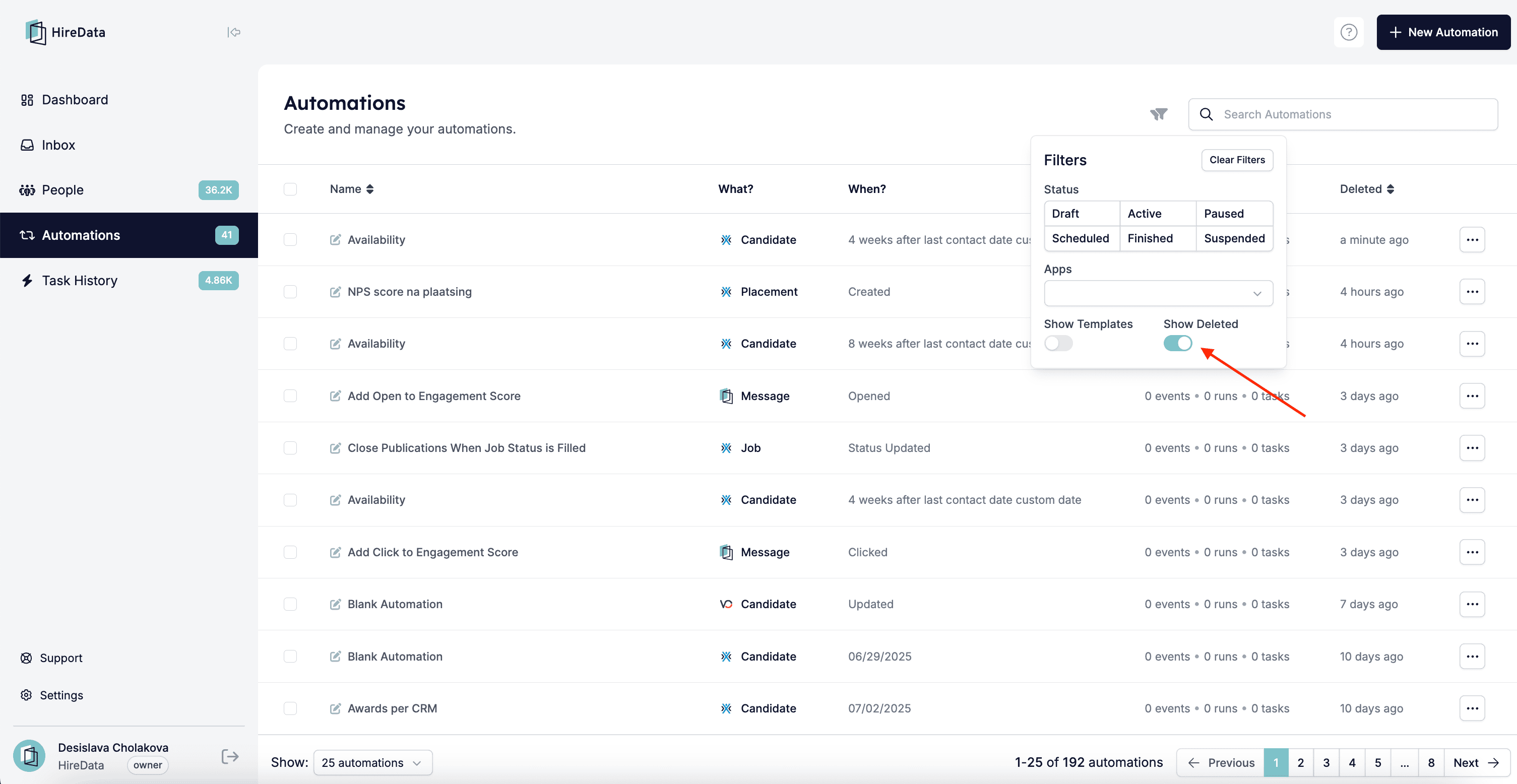
Go to the **Automations** page in HireData and click on the **Filters** drop-down menu at the top of the page. Toggle the option to **Show deleted**.
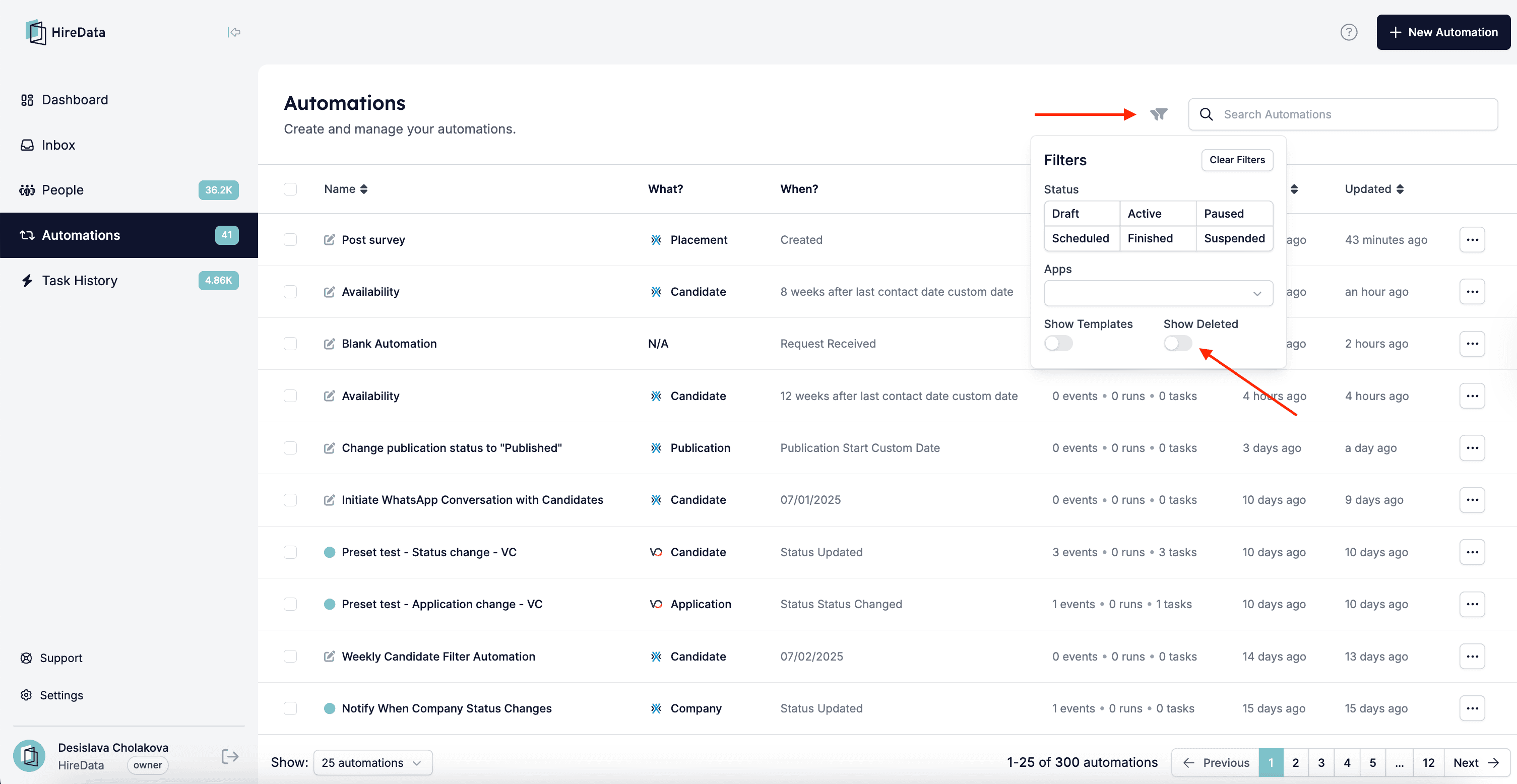 *Deleted Automations view:*
 ## Step 2: Select Automation(s) to Restore
You’ll now see a list of the deleted automations in your account. Check the box next to one or multiple automations you'd like to restore.
## Step 3: Restore the Automation(s)
Once selected, click the **Restore** button at the top of the list.
## Step 2: Select Automation(s) to Restore
You’ll now see a list of the deleted automations in your account. Check the box next to one or multiple automations you'd like to restore.
## Step 3: Restore the Automation(s)
Once selected, click the **Restore** button at the top of the list.
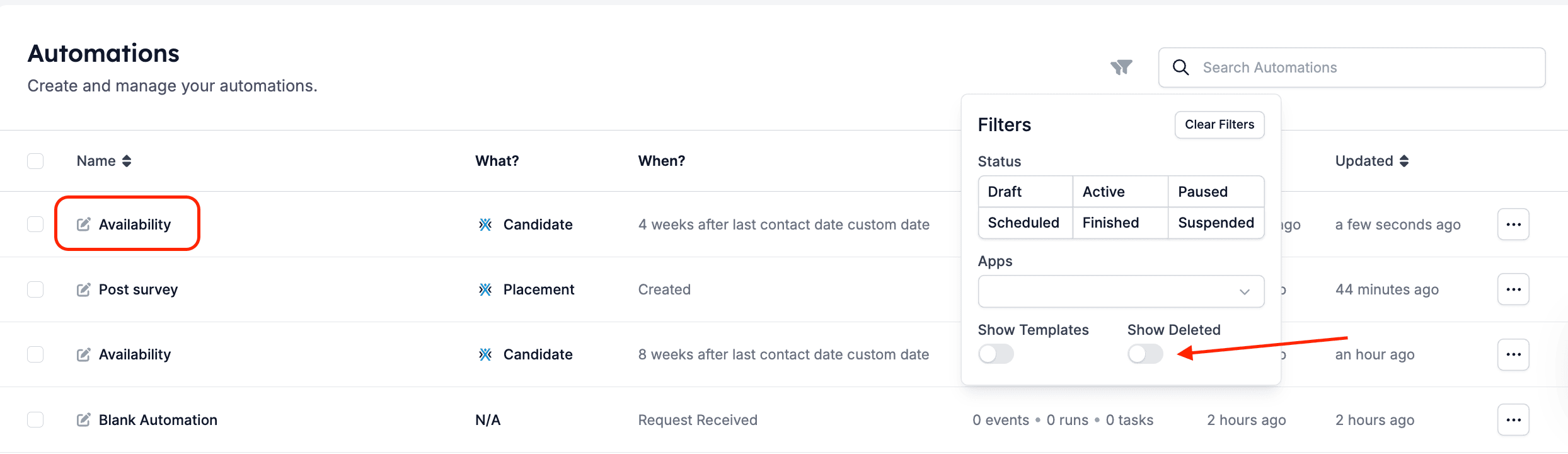
 Then, clear the filters to return to the default view and see if your automation(s) have been correctly restored.
 ## ✅ That's It!
Your automation is now ready to use and activate. If you're unsure about whether changes were preserved, open the restored automation to review and make any needed updates.
***
## Video guide
## Related topics
- [How to Resolve WhatsApp Business Account Permission Issues](/apps/messaging/whatsapp/how-to-resolve-whatsapp-business-account-permission-issues.md)
- [How to Test an Automation](/automations/how-to-test-an-automation.md)
- [WhatsApp Inbox Basics](/apps/messaging/whatsapp/whatsapp-inbox-basics.md)
- [Automation Safety Limits](/settings/automation-safety-limits.md)
- [Connect with WhatsApp: Embedded sign-up](/apps/messaging/whatsapp/connect-with-whatsapp-embedded-sign-up.md)
## ✅ That's It!
Your automation is now ready to use and activate. If you're unsure about whether changes were preserved, open the restored automation to review and make any needed updates.
***
## Video guide
## Related topics
- [How to Resolve WhatsApp Business Account Permission Issues](/apps/messaging/whatsapp/how-to-resolve-whatsapp-business-account-permission-issues.md)
- [How to Test an Automation](/automations/how-to-test-an-automation.md)
- [WhatsApp Inbox Basics](/apps/messaging/whatsapp/whatsapp-inbox-basics.md)
- [Automation Safety Limits](/settings/automation-safety-limits.md)
- [Connect with WhatsApp: Embedded sign-up](/apps/messaging/whatsapp/connect-with-whatsapp-embedded-sign-up.md)