> ## Documentation Index
> Fetch the complete documentation index at: https://help.hiredata.com/llms.txt
> Use this file to discover all available pages before exploring further.
# Task History
> Understand how many tasks have been executed, what went wrong if a task is canceled, and replay events when you want to test an automation
*This guide will introduce you to all the basics you need to know about the \[Task History] tab, including how to use the filters to see completed and cancelled tasks, where to look for event details, and how to replay them. Scroll to the end of the page if you prefer a video format.*
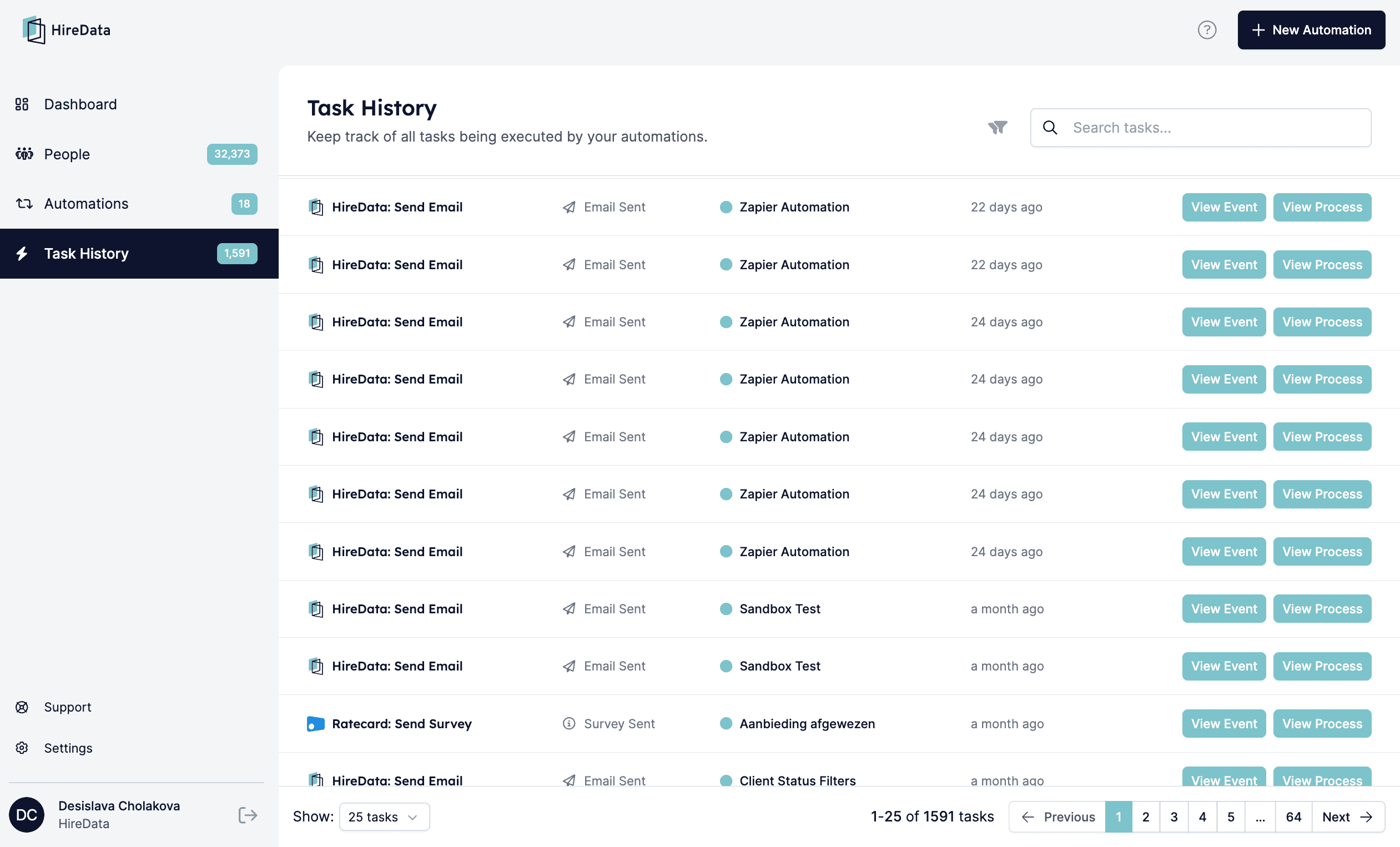
To see any tasks in the \[Task History] tab, you need to have [automations](/automations/automations) running through HireData. This is where you can see all of the tasks that they executed.
 ## How to filter tasks
One of the features of this tab is the \[Filters]. They allow you to filter the tasks as completed or cancelled.
*Completed tasks view:*
## How to filter tasks
One of the features of this tab is the \[Filters]. They allow you to filter the tasks as completed or cancelled.
*Completed tasks view:*
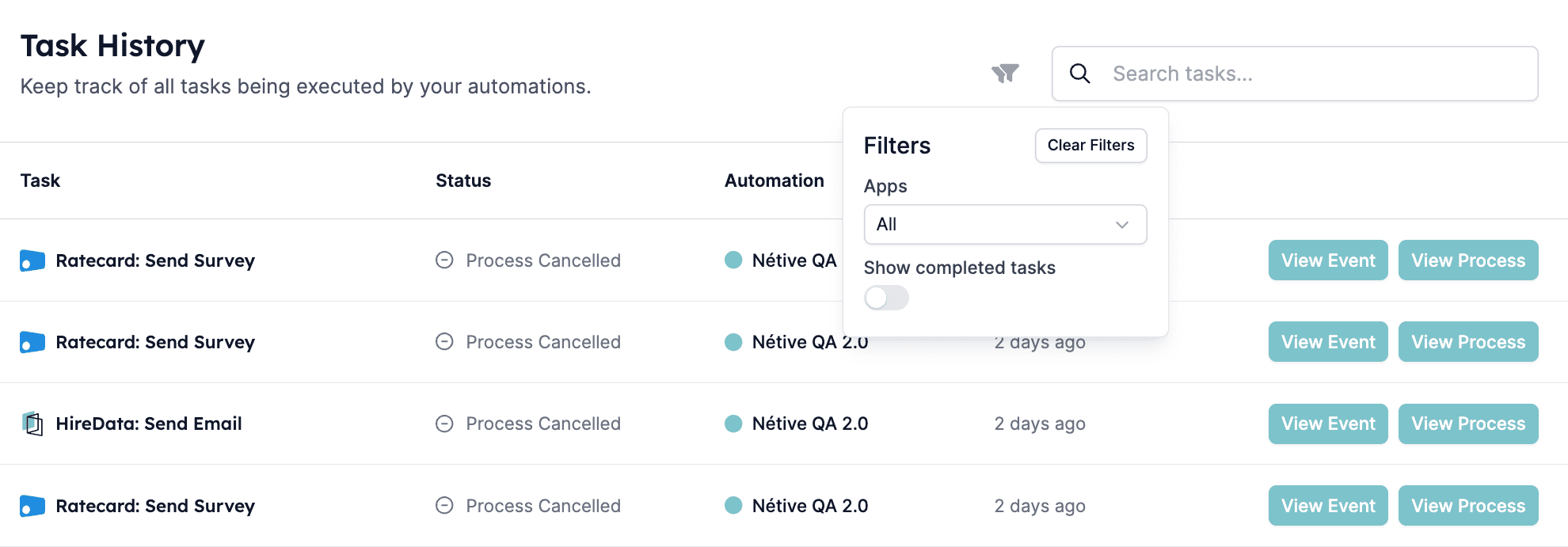
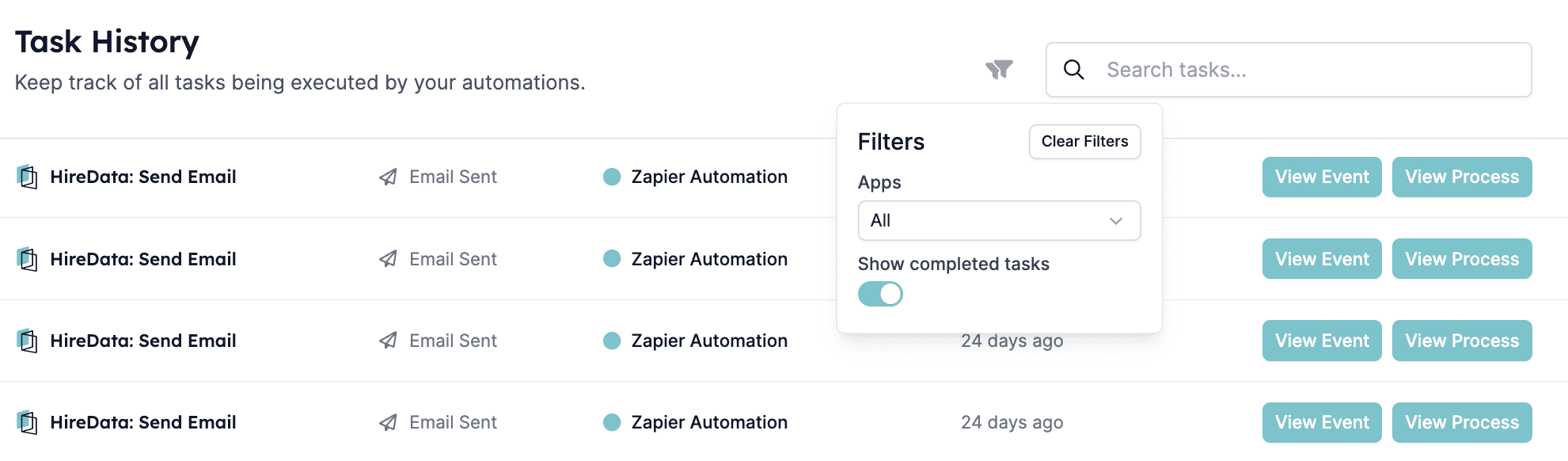 To see only the cancelled tasks, enable the cancelled filter by moving the slide bar to the left so it becomes grey.
*Cancelled tasks view:*
To see only the cancelled tasks, enable the cancelled filter by moving the slide bar to the left so it becomes grey.
*Cancelled tasks view:*
 ## Understanding events
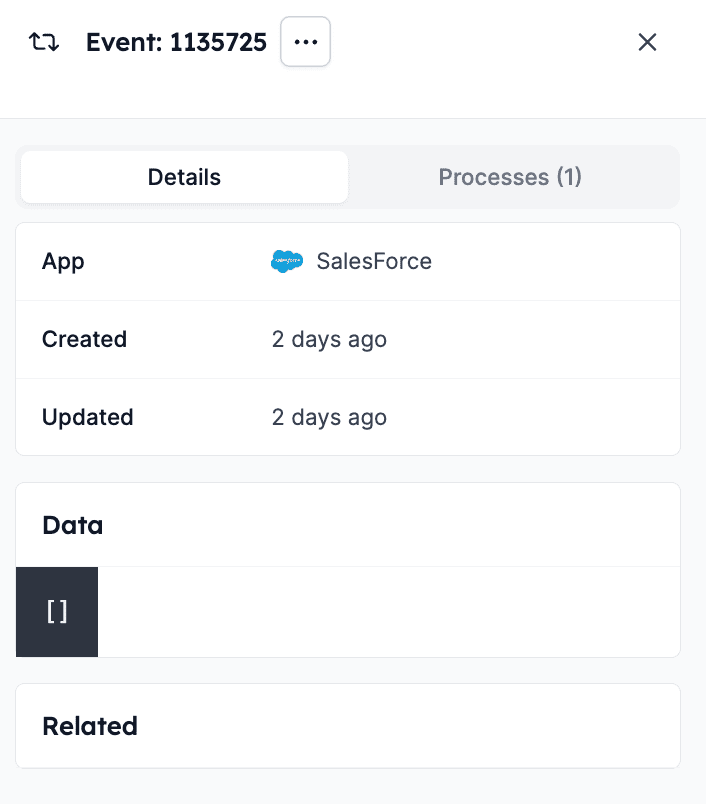
If you want to check why a task was cancelled, you can look at the event history. Click on \[View Event] next to the task you want to investigate, and you will see its details.
## Understanding events
If you want to check why a task was cancelled, you can look at the event history. Click on \[View Event] next to the task you want to investigate, and you will see its details.
 *Example event details:*
 If you click on \[Processes], you will see all the processes that were generated by this event. For example, in this event, we can see that the event ran through the displayed automation, but in the end, it was cancelled because of invalid data.
*Example event processes:*
If you click on \[Processes], you will see all the processes that were generated by this event. For example, in this event, we can see that the event ran through the displayed automation, but in the end, it was cancelled because of invalid data.
*Example event processes:*
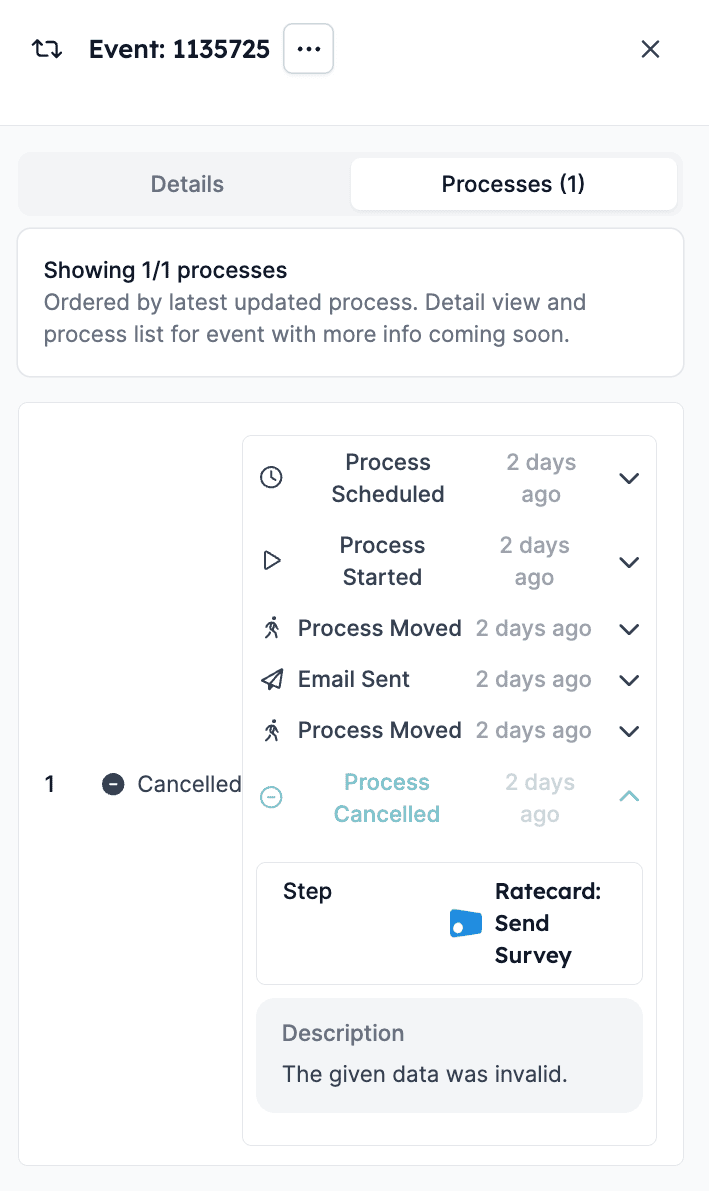 This overview gives you an idea of what happened and whether there were any errors that prevented the task from being completed. This allows you to fix them and complete the task.
## How to replay an event
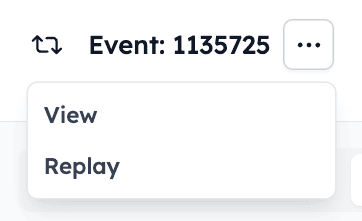
If you edit a task and you want to see if it will be completed, you can replay the event by clicking on the \[Replay] button in the drop-down menu.
For example, if, in the processes tab of the event, you see that the delay you set up in the automation is not working, you can remove it and then replay the event to see what will happen.
This overview gives you an idea of what happened and whether there were any errors that prevented the task from being completed. This allows you to fix them and complete the task.
## How to replay an event
If you edit a task and you want to see if it will be completed, you can replay the event by clicking on the \[Replay] button in the drop-down menu.
For example, if, in the processes tab of the event, you see that the delay you set up in the automation is not working, you can remove it and then replay the event to see what will happen.
 ## Pro tip
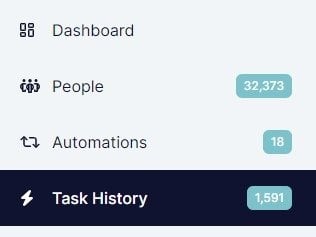
The numbers next to the \[Task History] tab will update as you switch between completed and cancelled tasks, displaying the total number of tasks.
## Pro tip
The numbers next to the \[Task History] tab will update as you switch between completed and cancelled tasks, displaying the total number of tasks.
 ***
## Video guide
## Related topics
- [Schedule a task in Vincere with HireData](/apps/vincere/schedule-a-task-in-vincere-with-hiredata.md)
- [How HireData Works](/concepts/how-hiredata-works.md)
- [Runs](/settings/logs/runs.md)
- [Logging Email Messages on Carerix with HireData](/apps/carerix/logging-email-messages-on-carerix-with-hiredata.md)
- [Logging WhatsApp conversations in Carerix with HireData](/apps/carerix/logging-whatsapp-conversations-in-carerix-with-hiredata.md)
***
## Video guide
## Related topics
- [Schedule a task in Vincere with HireData](/apps/vincere/schedule-a-task-in-vincere-with-hiredata.md)
- [How HireData Works](/concepts/how-hiredata-works.md)
- [Runs](/settings/logs/runs.md)
- [Logging Email Messages on Carerix with HireData](/apps/carerix/logging-email-messages-on-carerix-with-hiredata.md)
- [Logging WhatsApp conversations in Carerix with HireData](/apps/carerix/logging-whatsapp-conversations-in-carerix-with-hiredata.md)