> ## Documentation Index
> Fetch the complete documentation index at: https://help.hiredata.com/llms.txt
> Use this file to discover all available pages before exploring further.
# Follow a run
> Read one real HireData automation run from the Carerix event that started it to the task it created, screen by screen: event, run, run step, task, outcome.
The automation on this page listens for a Carerix candidate whose **Example text** field changes to a set value, finds that candidate, and adds a task to Carerix for the candidate's owner. One change in Carerix produced the event, run, run steps, and task below, and each section shows where that stage is on the screen and what it tells you.
## Event
The event is the change Carerix reported. It is the same event for every automation in the workspace.
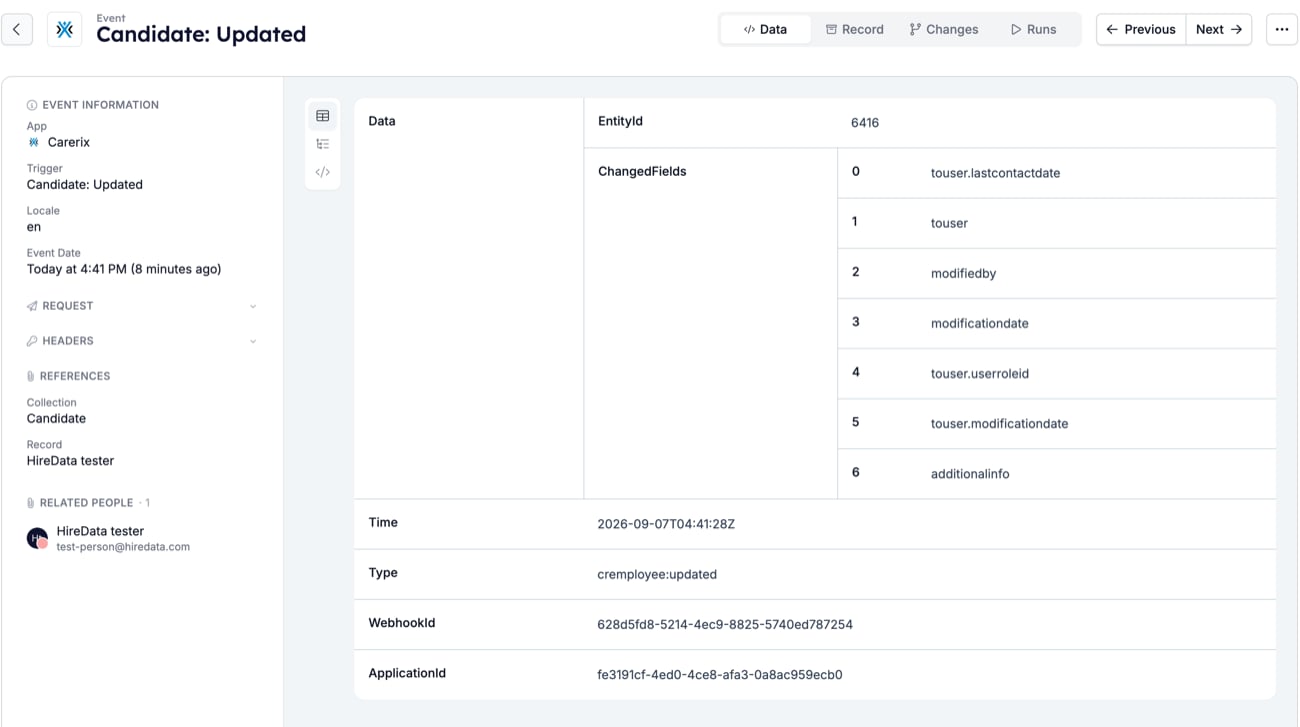 What to read. The heading names the object and the trigger, **Candidate: Updated**. **Event Information** gives the app, the trigger, and the event date. **References** names the record the event is about, and **Related People** lists the person HireData matched to it. The **Data** tab is the payload as Carerix sent it. `EntityId` is the record id and `ChangedFields` lists what changed, here `additionalinfo`, the group that holds the Example text field. The **Changes** tab shows the new value of each changed field, and the **Runs** tab lists every run this event started.
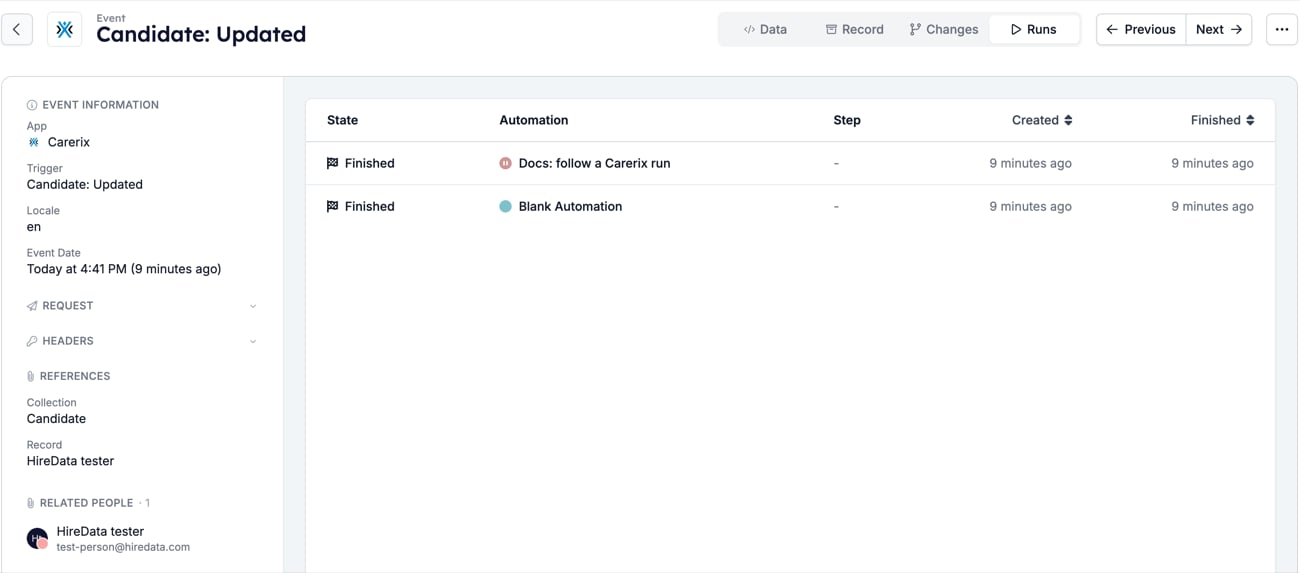 What it tells you. One event can start several runs. This event started two, because two active automations in the workspace listen for Carerix candidate updates. The run you want is the one on the automation you are following.
Find events under **Settings** > **Events**. [Events: inspect payloads from connected apps](/settings/logs/events) explains the filters and the raw request view.
## Run
The run is the automation's work for this one event. Click the run's row on the event's **Runs** tab to open it.
What it tells you. One event can start several runs. This event started two, because two active automations in the workspace listen for Carerix candidate updates. The run you want is the one on the automation you are following.
Find events under **Settings** > **Events**. [Events: inspect payloads from connected apps](/settings/logs/events) explains the filters and the raw request view.
## Run
The run is the automation's work for this one event. Click the run's row on the event's **Runs** tab to open it.
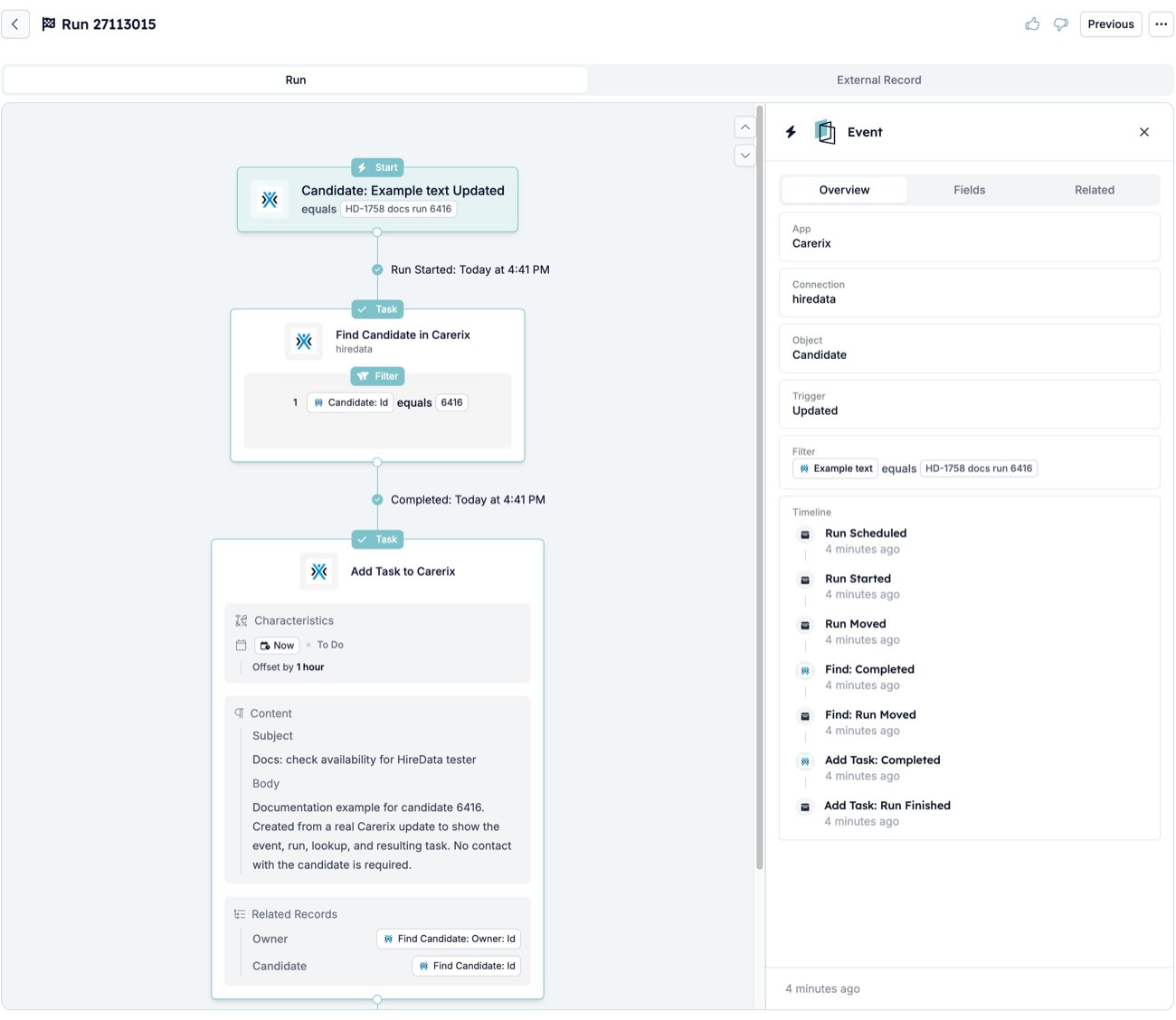 What to read. The canvas is the automation drawn top to bottom, with a status line on the connector below every step the run reached. "Run Started: Today at 4:41 PM" sits under the Start card, "Completed: Today at 4:41 PM" under the Find task, and "Completed: Today at 4:42 PM" under Add Task once you scroll. A step with no line was never reached. The **Event** panel on the right opens by default. Its **Overview** repeats the Start settings that let this event through, **App**, **Connection**, **Object**, **Trigger**, and **Filter**, then the **Timeline**.
What it tells you. The timeline is the run in order. **Run Scheduled** and **Run Started** are the event arriving and the run beginning. Each step then writes two entries, first its status ("Find: Completed") and then what the run did next ("Find: Run Moved" to the following step, or "Add Task: Run Finished" when the last step is done). A run that stopped early ends with a "Cancelled" entry and a message instead.
The Runs list shows the same runs with their state and, for a stopped run, the step that stopped it. [Setup](/reference/automations/steps/setup) documents the Start node and the Event panel it opens on the run page.
## Step inputs and outputs
Click a task's name on the canvas to open its run step. The Find step shows what it found; the step after it shows what it received.
What to read. The canvas is the automation drawn top to bottom, with a status line on the connector below every step the run reached. "Run Started: Today at 4:41 PM" sits under the Start card, "Completed: Today at 4:41 PM" under the Find task, and "Completed: Today at 4:42 PM" under Add Task once you scroll. A step with no line was never reached. The **Event** panel on the right opens by default. Its **Overview** repeats the Start settings that let this event through, **App**, **Connection**, **Object**, **Trigger**, and **Filter**, then the **Timeline**.
What it tells you. The timeline is the run in order. **Run Scheduled** and **Run Started** are the event arriving and the run beginning. Each step then writes two entries, first its status ("Find: Completed") and then what the run did next ("Find: Run Moved" to the following step, or "Add Task: Run Finished" when the last step is done). A run that stopped early ends with a "Cancelled" entry and a message instead.
The Runs list shows the same runs with their state and, for a stopped run, the step that stopped it. [Setup](/reference/automations/steps/setup) documents the Start node and the Event panel it opens on the run page.
## Step inputs and outputs
Click a task's name on the canvas to open its run step. The Find step shows what it found; the step after it shows what it received.
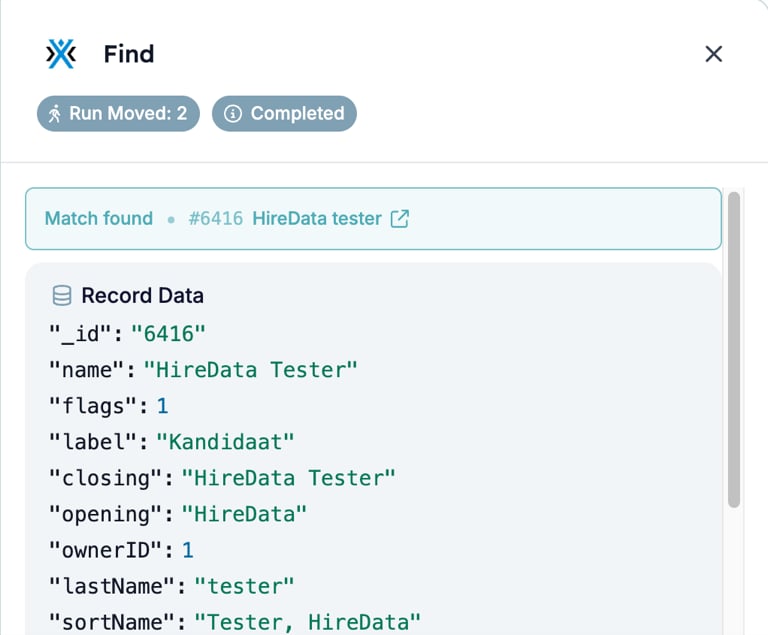 What to read. The Find step opens on a **Match found** line with the record's id and name. The arrow icon opens the record in Carerix. **Record Data** lists every field of the record as the app returned it, ids, names, salutations, the CV summary, dates, and more. Scroll the block to see them all. The **Run Moved** badge matches the step's last timeline entry, and **Completed** is its status. Unlike the Message and Update steps, this drawer has no **Overview** and **Fields** tabs.
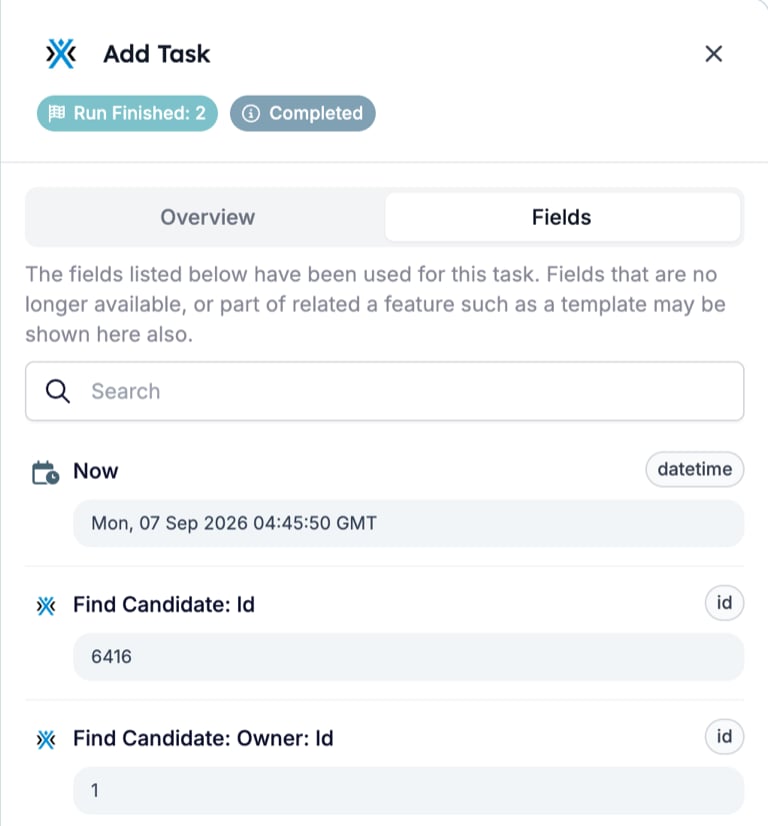 What it tells you. The Add Task step's **Fields** tab lists the values it read from the run, each with the icon of the step that produced it and a type badge. **Find Candidate: Id** and **Find Candidate: Owner: Id** came from the Find step, which is the whole reason the Find sits before the Add Task. **Now** is the run's clock. Its value on this tab is the time you opened the drawer, not the time the task ran, so read the task's own times on the **Overview** tab instead.
[Find](/reference/automations/steps/find) documents the step and what an empty result does to the run.
## Task
The last step created a task in Carerix. Its run step shows what HireData wrote, and Carerix shows what arrived.
What it tells you. The Add Task step's **Fields** tab lists the values it read from the run, each with the icon of the step that produced it and a type badge. **Find Candidate: Id** and **Find Candidate: Owner: Id** came from the Find step, which is the whole reason the Find sits before the Add Task. **Now** is the run's clock. Its value on this tab is the time you opened the drawer, not the time the task ran, so read the task's own times on the **Overview** tab instead.
[Find](/reference/automations/steps/find) documents the step and what an empty result does to the run.
## Task
The last step created a task in Carerix. Its run step shows what HireData wrote, and Carerix shows what arrived.
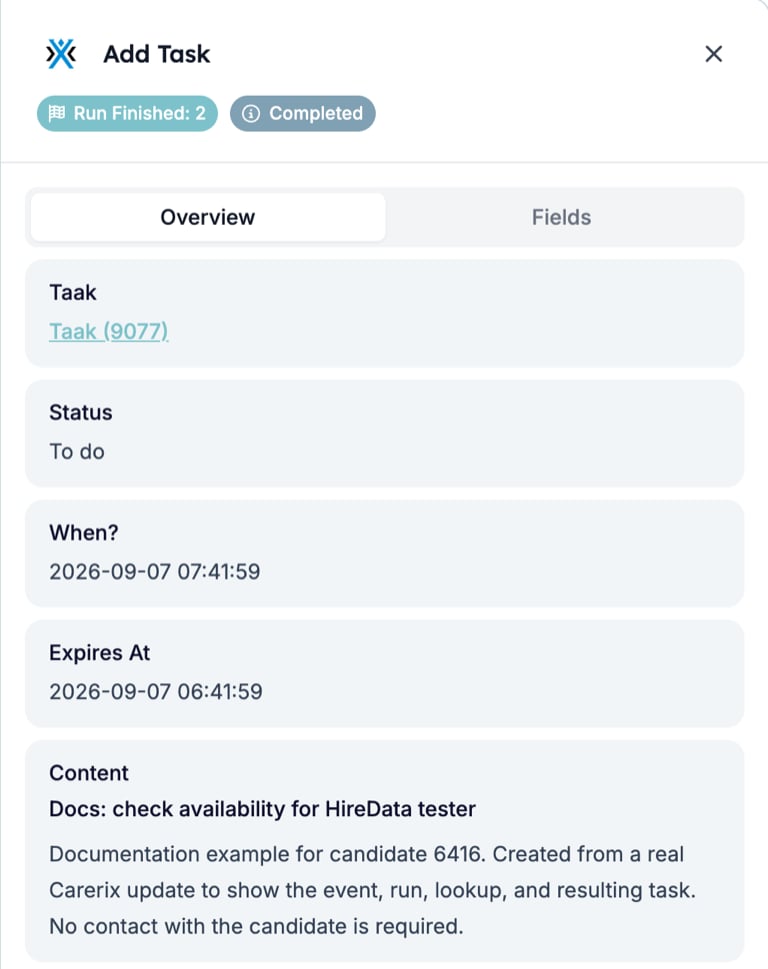 What to read. The **Overview** of an Add step links to the record it created, here **Taak (9077)**. Carerix supplies that label in the language of its account, so this Dutch sandbox says Taak where an English account says Task. **Status**, **When?**, and **Expires At** are the values Carerix stored. **When?** is one hour after the run, the offset set on the step, and **Expires At** is the run time. Both are timestamps as Carerix reports them, so they need not match the clock on the run page. **Content** is the subject and body the step wrote, and **Related Records** links the candidate and owner it attached.
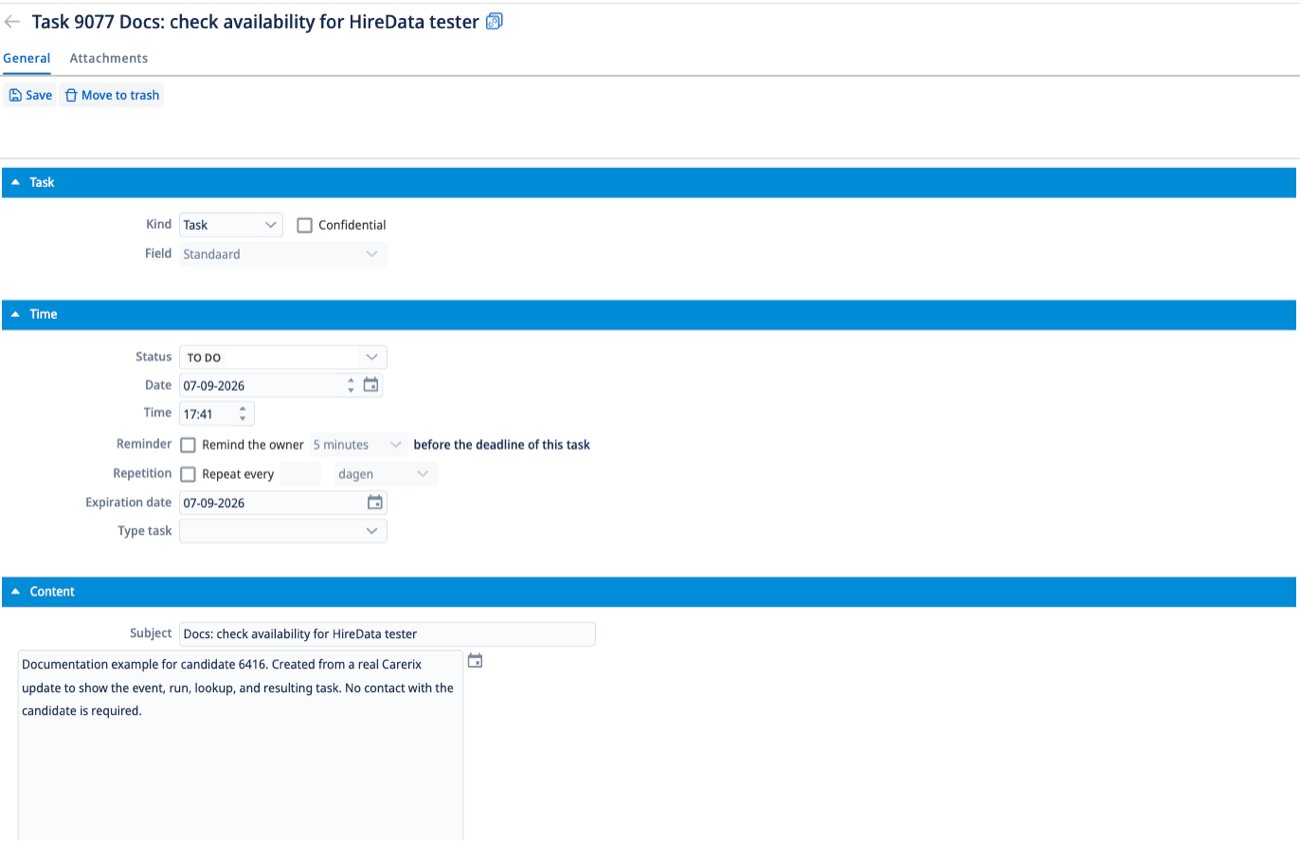 What it tells you. Open the **Taak (9077)** link and Carerix shows the same task from its side. The status is **TO DO**, the time is one hour after the run, and the subject and body match the step's Content. Carerix records the task as modified by "Automated" rather than by a colleague.
[Add](/reference/automations/steps/add) documents the step and where the created record's fields appear.
## Outcome
The automation's own page sums up every run so far.
What it tells you. Open the **Taak (9077)** link and Carerix shows the same task from its side. The status is **TO DO**, the time is one hour after the run, and the subject and body match the step's Content. Carerix records the task as modified by "Automated" rather than by a colleague.
[Add](/reference/automations/steps/add) documents the step and where the created record's fields appear.
## Outcome
The automation's own page sums up every run so far.
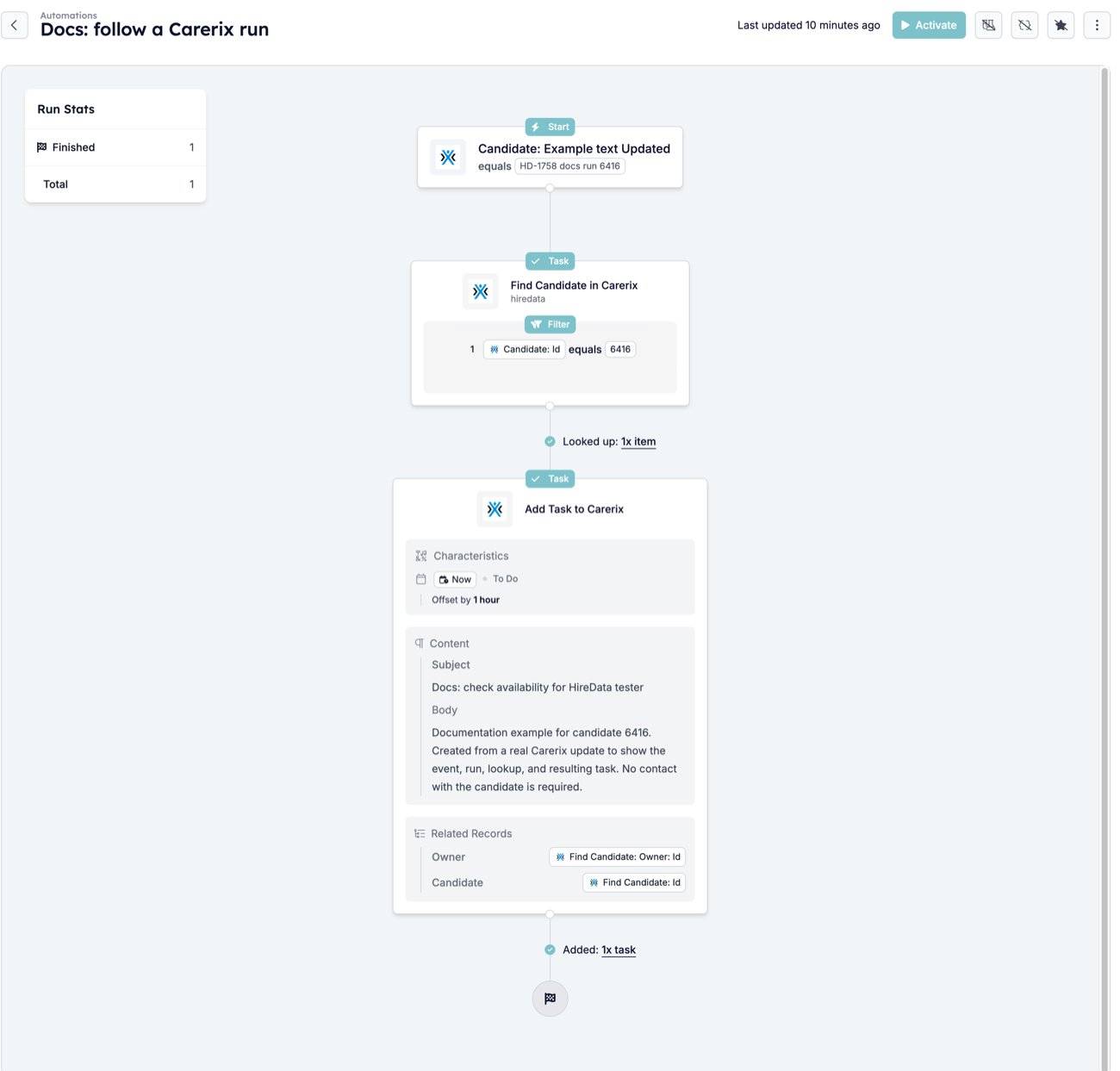 What to read. **Run Stats** on the left counts runs by state. The connectors between the steps count what each step did across all runs, "Looked up: 1x item" under the Find and "Added: 1x task" under the Add Task. Each count is a link to the Runs list filtered to that step and status.
What it tells you. Finished means every step completed and the run reached the end flag. A run that stopped early would count under a different state here, show "Cancelled" on the step that stopped it on the run page, and carry a message in the timeline. [Run cancellation reasons](/knowledge-base/run-cancellation-reasons) lists those messages and what to change before you start a new run.
## Related topics
- [Add](/reference/automations/steps/add.md)
- [Automations](/automations/automations.md)
- [Find](/reference/automations/steps/find.md)
- [Runs: read automation timelines and step details](/settings/logs/runs.md)
- [How HireData works](/concepts/how-hiredata-works.md)
What to read. **Run Stats** on the left counts runs by state. The connectors between the steps count what each step did across all runs, "Looked up: 1x item" under the Find and "Added: 1x task" under the Add Task. Each count is a link to the Runs list filtered to that step and status.
What it tells you. Finished means every step completed and the run reached the end flag. A run that stopped early would count under a different state here, show "Cancelled" on the step that stopped it on the run page, and carry a message in the timeline. [Run cancellation reasons](/knowledge-base/run-cancellation-reasons) lists those messages and what to change before you start a new run.
## Related topics
- [Add](/reference/automations/steps/add.md)
- [Automations](/automations/automations.md)
- [Find](/reference/automations/steps/find.md)
- [Runs: read automation timelines and step details](/settings/logs/runs.md)
- [How HireData works](/concepts/how-hiredata-works.md)