> ## Documentation Index
> Fetch the complete documentation index at: https://help.hiredata.com/llms.txt
> Use this file to discover all available pages before exploring further.
# Filter
> The Filter step in a HireData automation: every condition operator, how rows and sets combine, unique constraints, and what a stopped run shows.
**Filter** decides whether the run continues. When the conditions pass the run moves to the next step; when they do not, the run stops here.
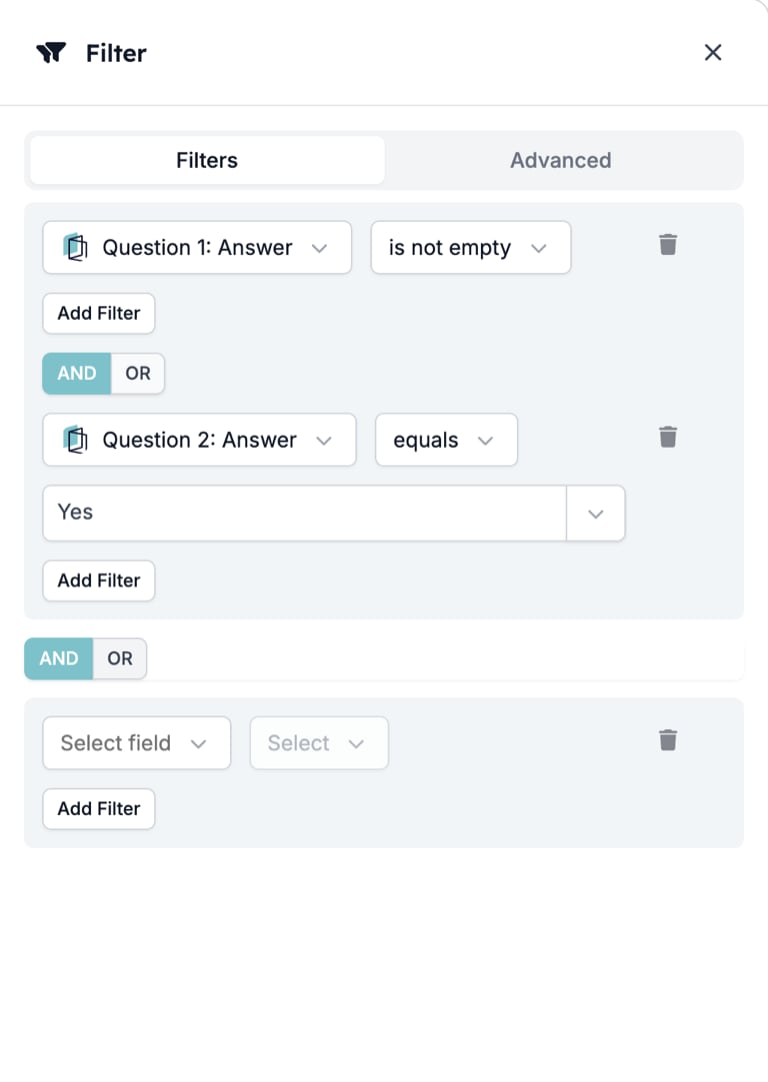
The drawer is headed **Filter** with tabs **Filters** and **Advanced**.
## Settings
* **Field**. The **Select field** box. Type to search: "2: Answer" finds "Question 2: Answer". The list holds the event's fields and the outputs of earlier steps.
* **Operator**. The **Select** box beside the field. Disabled until a field is chosen. The operators offered depend on the field's type, listed below.
* **Value**. A box that appears for operators that compare against something. **is empty** and **is not empty** have none.
* **Add Filter**. Adds a row to the same set.
* **Add New Set**. Starts a new set below the first.
* **AND / OR**. A toggle that appears between two rows, and another that appears between two sets. Default **AND**. Within a set it decides whether every row or any row must pass. Between sets it decides whether every set or any set must pass.
* **Unique Constraints**. On the **Advanced** tab. Pick fields, and the Filter passes only once for each combination of their values. With an identifier and a status field selected, a record passes for a given status once, however many events it produces with that status.
### Operators
| Field type | Operators |
| ---------- | -------------------------------------------------------------------------------------------------------------------------------------- |
| Text | equals, not equals, is empty, is not empty, contains, does not contain, starts with, ends with, does not start with, does not end with |
| Number | equals, not equals, is empty, is not empty, greater than, less than, greater than or equal, less than or equal |
Fields that hold a range or a set of values also offer **between**, **one of**, and **not one of**.
 ### On the canvas
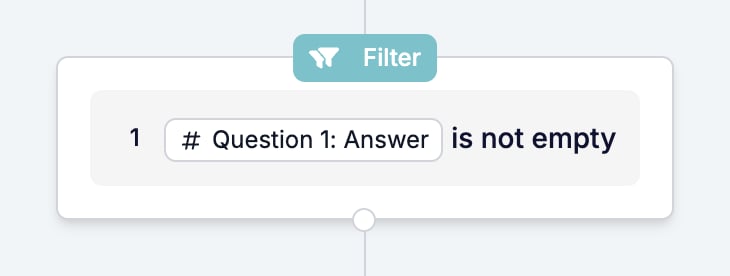
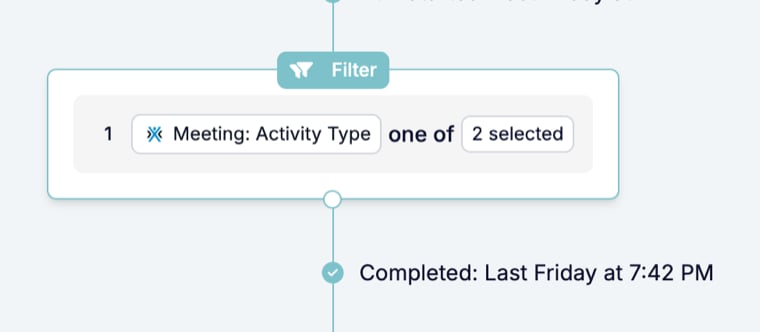
The card shows a **Filter** badge, the set number, and each row as field, operator, value.
### On the canvas
The card shows a **Filter** badge, the set number, and each row as field, operator, value.
 ## What it outputs
Nothing new. The variables available after a Filter are the same as before it.
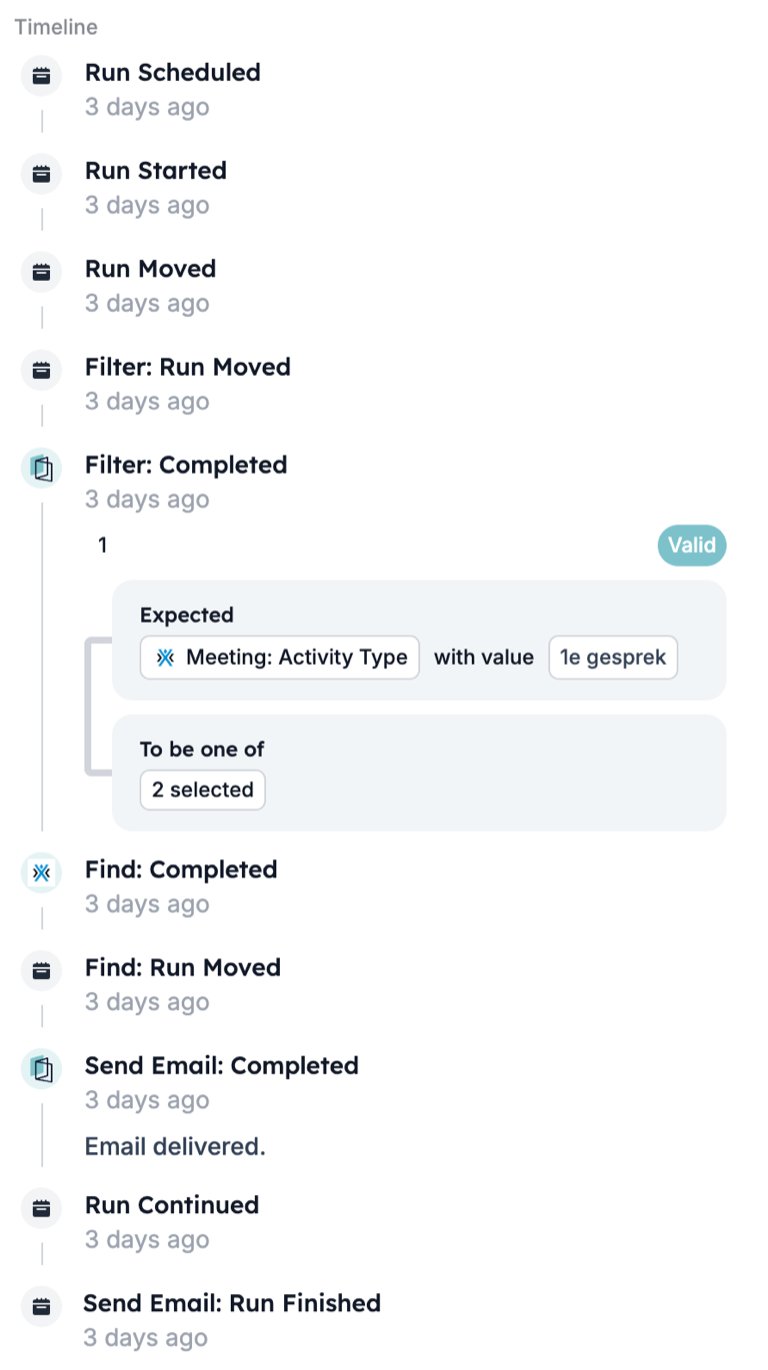
On the run page a passed Filter carries the line "Completed" with the time. The timeline records "Filter: Run Moved", then "Filter: Completed" with each set marked **Valid** and the value it expected against the value it found.
## What it outputs
Nothing new. The variables available after a Filter are the same as before it.
On the run page a passed Filter carries the line "Completed" with the time. The timeline records "Filter: Run Moved", then "Filter: Completed" with each set marked **Valid** and the value it expected against the value it found.
 ## What stops the run
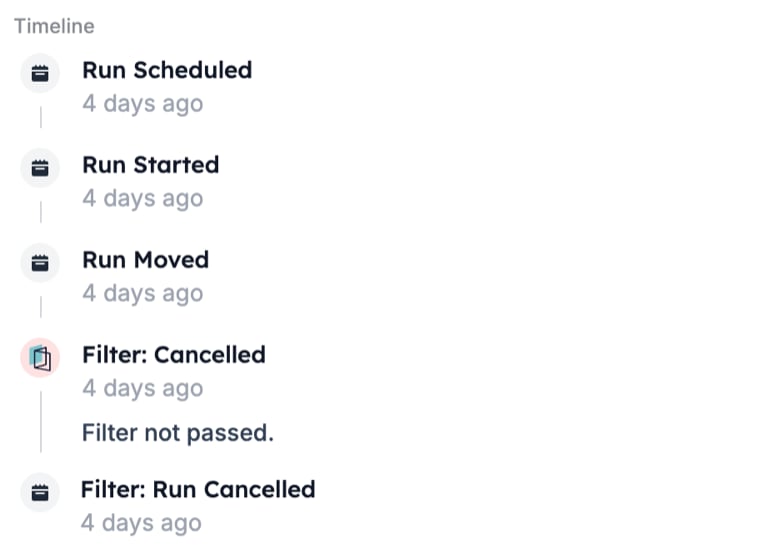
Conditions that do not pass. The timeline records "Filter: Cancelled" with the message "Filter not passed." followed by "Filter: Run Cancelled". Steps after the Filter show no status line, and in the runs list the run's **Step** column reads "Filter".
## What stops the run
Conditions that do not pass. The timeline records "Filter: Cancelled" with the message "Filter not passed." followed by "Filter: Run Cancelled". Steps after the Filter show no status line, and in the runs list the run's **Step** column reads "Filter".
 A Filter inside a Split stops only its own branch. See [Split](/reference/automations/steps/split).
Other reasons a run can stop are listed in [Run cancellation reasons](/knowledge-base/run-cancellation-reasons).
## Patterns
* **Guard the start.** A Filter as the first step stops runs the start cannot exclude on its own, such as a response with an empty answer to the question that matters.
* **Check again after a wait.** A Delay then a Filter confirms the record still qualifies once the wait is over. A candidate placed in the meantime never gets the follow-up.
* **Fire once per status.** A unique constraint on the record's id and its status field lets a status change through once, even when the app sends the same update more than once.
* **Choose Split for two outcomes.** A Filter ends the run on a no. When both yes and no need steps, use a [Split](/reference/automations/steps/split) with a Filter branch for each.
## Common mistakes
* **Saving a row without an operator.** The drawer saves it and the canvas shows the raw key `enums.conditions.undefined` in place of the operator. Open the Filter again and pick one.
* **Searching by number alone.** "Question 2" also matches "Question 12". Type part of the question's title as well.
* **Expecting a skipped step.** A Filter that does not pass cancels the run, it does not skip to the next step.
* **Mixing AND and OR without sets.** Rows in one set share one toggle. To combine "A and B" with "C", put A and B in one set, C in another, and set the toggle between the sets to **OR**.
## Related
* [Split](/reference/automations/steps/split) runs a Filter per branch instead of stopping the run.
* [Setup](/reference/automations/steps/setup) holds the start filter, which decides whether a run begins at all.
* [Run cancellation reasons](/knowledge-base/run-cancellation-reasons) explains where to read the message a stopped run leaves.
## Related topics
- [Data sources](/reference/forms/data-sources.md)
- [Create a WhatsApp automation in HireData](/apps/messaging/whatsapp/create-a-whatsapp-automation-in-hiredata.md)
- [Create a Recruitee automation in HireData](/apps/recruitee/create-a-recruitee-automation-in-hiredata.md)
- [Task history](/pages/task-history.md)
- [Create a Vincere automation in HireData](/apps/vincere/create-a-vincere-automation-in-hiredata.md)
A Filter inside a Split stops only its own branch. See [Split](/reference/automations/steps/split).
Other reasons a run can stop are listed in [Run cancellation reasons](/knowledge-base/run-cancellation-reasons).
## Patterns
* **Guard the start.** A Filter as the first step stops runs the start cannot exclude on its own, such as a response with an empty answer to the question that matters.
* **Check again after a wait.** A Delay then a Filter confirms the record still qualifies once the wait is over. A candidate placed in the meantime never gets the follow-up.
* **Fire once per status.** A unique constraint on the record's id and its status field lets a status change through once, even when the app sends the same update more than once.
* **Choose Split for two outcomes.** A Filter ends the run on a no. When both yes and no need steps, use a [Split](/reference/automations/steps/split) with a Filter branch for each.
## Common mistakes
* **Saving a row without an operator.** The drawer saves it and the canvas shows the raw key `enums.conditions.undefined` in place of the operator. Open the Filter again and pick one.
* **Searching by number alone.** "Question 2" also matches "Question 12". Type part of the question's title as well.
* **Expecting a skipped step.** A Filter that does not pass cancels the run, it does not skip to the next step.
* **Mixing AND and OR without sets.** Rows in one set share one toggle. To combine "A and B" with "C", put A and B in one set, C in another, and set the toggle between the sets to **OR**.
## Related
* [Split](/reference/automations/steps/split) runs a Filter per branch instead of stopping the run.
* [Setup](/reference/automations/steps/setup) holds the start filter, which decides whether a run begins at all.
* [Run cancellation reasons](/knowledge-base/run-cancellation-reasons) explains where to read the message a stopped run leaves.
## Related topics
- [Data sources](/reference/forms/data-sources.md)
- [Create a WhatsApp automation in HireData](/apps/messaging/whatsapp/create-a-whatsapp-automation-in-hiredata.md)
- [Create a Recruitee automation in HireData](/apps/recruitee/create-a-recruitee-automation-in-hiredata.md)
- [Task history](/pages/task-history.md)
- [Create a Vincere automation in HireData](/apps/vincere/create-a-vincere-automation-in-hiredata.md)