> ## Documentation Index
> Fetch the complete documentation index at: https://help.hiredata.com/llms.txt
> Use this file to discover all available pages before exploring further.
# Find
> The Find category in a HireData automation: tasks that look up a record, an email address, or a company domain and hand the result to later steps.
**Find** looks for something that already exists. It is a category: choosing it opens a list headed **Find** with one entry per task, and **Back** returns to the picker.
Find appears in the picker only when a connected app offers a task in this category.
## Settings
Each task has its own drawer. The shared settings are what to look for and where: the object or source to search, and the field values that identify the record.
The tasks that fill the category in a workspace with Carerix and HireData connected:
| Task | App | What it finds |
| ------------- | -------- | ------------------------------------------------------------------------ |
| Find | Carerix | A Carerix record of the object you choose, matched on the fields you set |
| Find Email | HireData | An email address for a person, from their name and company domain |
| Search Domain | HireData | The web domain of a company, from its name |
### On the canvas
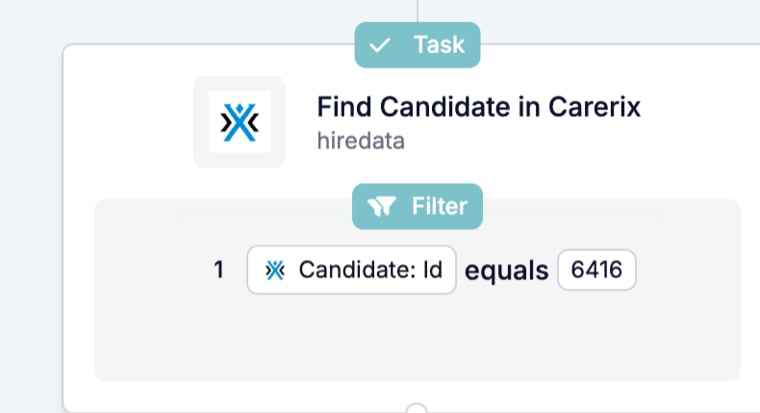
The card shows a **Task** badge, the task name with the connection under it, and a **Filter** block with the fields the task matches on.
 ## What it outputs
The record, address, or domain found. A Carerix Find opens on a **Match found** line with the record's id and name, linking to the record in Carerix, and a **Record Data** block that lists every field the record carries. Later steps use those fields under the task's name, so an Add task can attach the candidate a Find returned, and a Message task can address the email Find Email returned. [Follow a run](/reference/automations/follow-a-run) shows a Find step from a real run.
## What stops the run
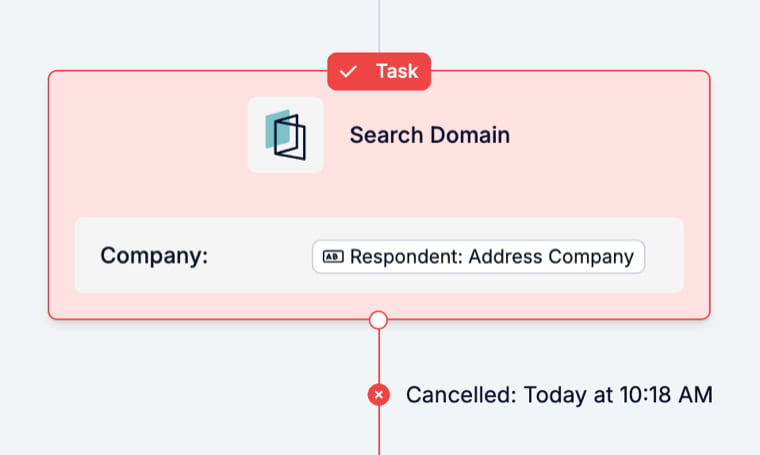
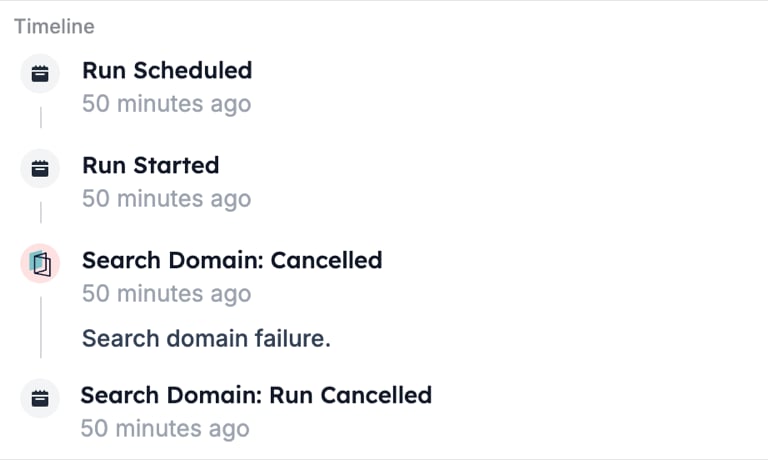
A Find that returns nothing. The task card turns red with the line "Cancelled" and the time, and the timeline records the task name with "Cancelled" and the reason, such as "Search domain failure." for a Search Domain that found no domain. Steps after it show no status line. Open the card's **Fields** tab to see the values the task searched with.
## What it outputs
The record, address, or domain found. A Carerix Find opens on a **Match found** line with the record's id and name, linking to the record in Carerix, and a **Record Data** block that lists every field the record carries. Later steps use those fields under the task's name, so an Add task can attach the candidate a Find returned, and a Message task can address the email Find Email returned. [Follow a run](/reference/automations/follow-a-run) shows a Find step from a real run.
## What stops the run
A Find that returns nothing. The task card turns red with the line "Cancelled" and the time, and the timeline records the task name with "Cancelled" and the reason, such as "Search domain failure." for a Search Domain that found no domain. Steps after it show no status line. Open the card's **Fields** tab to see the values the task searched with.
 Reasons are explained in [Run cancellation reasons](/knowledge-base/run-cancellation-reasons).
## Patterns
* **Find, then Update.** When the event comes from a form and the record lives in your ATS, Find the record on an id or email from the response, then [Update](/reference/automations/steps/update) it with the answers.
* **Find Email before Send Email.** Search Domain gives the company's domain, Find Email gives the person's address at it, and the Message step sends to that address.
* **Loop instead of Find for many.** Find returns one record. To act on every record that matches, use a [Loop](/reference/automations/steps/loop).
## Common mistakes
* **Matching on a field that is not unique.** A name matches more than one candidate. Match on an id or an email address.
* **Finding what the event already carries.** A Carerix event brings its record with it, and the Update task finds the record itself on the field you name. Add a Find only when the record is not in the event.
* **Treating no result as a skip.** An empty result cancels the run. If some events have nothing to find, put a [Filter](/reference/automations/steps/filter) before the Find so those runs stop with a clear reason.
## Related
* [Add](/reference/automations/steps/add) creates a record instead of finding one.
* [Update](/reference/automations/steps/update) changes the record a Find returned.
* [Loop](/reference/automations/steps/loop) retrieves every matching record and runs steps for each.
* [Task catalogue](/reference/automations/task-catalogue) lists every task per connected app.
## Related topics
- [Find incomplete candidate profiles](/knowledge-base/cookbook/incomplete-candidate-profiles.md)
- [HTTP Request task](/reference/automation-tasks/http-request-task.md)
- [Run cancellation reasons](/knowledge-base/run-cancellation-reasons.md)
- [Configuring a form per record](/content/configuring-a-form-per-record.md)
- [Task catalogue](/reference/automations/task-catalogue.md)
Reasons are explained in [Run cancellation reasons](/knowledge-base/run-cancellation-reasons).
## Patterns
* **Find, then Update.** When the event comes from a form and the record lives in your ATS, Find the record on an id or email from the response, then [Update](/reference/automations/steps/update) it with the answers.
* **Find Email before Send Email.** Search Domain gives the company's domain, Find Email gives the person's address at it, and the Message step sends to that address.
* **Loop instead of Find for many.** Find returns one record. To act on every record that matches, use a [Loop](/reference/automations/steps/loop).
## Common mistakes
* **Matching on a field that is not unique.** A name matches more than one candidate. Match on an id or an email address.
* **Finding what the event already carries.** A Carerix event brings its record with it, and the Update task finds the record itself on the field you name. Add a Find only when the record is not in the event.
* **Treating no result as a skip.** An empty result cancels the run. If some events have nothing to find, put a [Filter](/reference/automations/steps/filter) before the Find so those runs stop with a clear reason.
## Related
* [Add](/reference/automations/steps/add) creates a record instead of finding one.
* [Update](/reference/automations/steps/update) changes the record a Find returned.
* [Loop](/reference/automations/steps/loop) retrieves every matching record and runs steps for each.
* [Task catalogue](/reference/automations/task-catalogue) lists every task per connected app.
## Related topics
- [Find incomplete candidate profiles](/knowledge-base/cookbook/incomplete-candidate-profiles.md)
- [HTTP Request task](/reference/automation-tasks/http-request-task.md)
- [Run cancellation reasons](/knowledge-base/run-cancellation-reasons.md)
- [Configuring a form per record](/content/configuring-a-form-per-record.md)
- [Task catalogue](/reference/automations/task-catalogue.md)