> ## Documentation Index
> Fetch the complete documentation index at: https://help.hiredata.com/llms.txt
> Use this file to discover all available pages before exploring further.
# Message
> The Message category in a HireData automation: send an email, a WhatsApp message or survey, a Ratecard survey, or an HTTP request, and what stops a send.
**Message** sends something out. It is a category: choosing it opens a list headed **Message** with one entry per task, each marked with its app's icon, and **Back** returns to the picker.
Message appears in the picker only when a connected app offers a task in this category. Two entries can share a name, as the two **Send Survey** tasks below do. The icon tells them apart.
## Settings
Each task has its own drawer. The shared settings are the recipient, the sender or channel, and the content to send: a template, a form, or a request body. Send Email is a wizard with a progress bar whose final step, **Preview your email**, shows the rendered email under **Summary** and every setting under **Settings**.
The tasks that fill the category in a workspace with HireData, Ratecard, and WhatsApp connected:
| Task | App | What it sends |
| ------------------------------------------------------------- | -------- | -------------------------------------------------------------------------------------------------------------------------------------------- |
| [Send Email](/reference/automations/tasks/send-email) | HireData | An email built from an email template, to a fixed address or a person from the event |
| Send Message | WhatsApp | A WhatsApp message from a message template |
| Send Survey | WhatsApp | A form as a WhatsApp conversation, one question at a time |
| Send Survey | Ratecard | A form as a Ratecard survey |
| [HTTP Request](/reference/automation-tasks/http-request-task) | HireData | A request to any external API |
| Post Webhook | HireData | The older form of HTTP Request. See [Existing Post Webhook tasks](/reference/automation-tasks/http-request-task#existing-post-webhook-tasks) |
### On the canvas
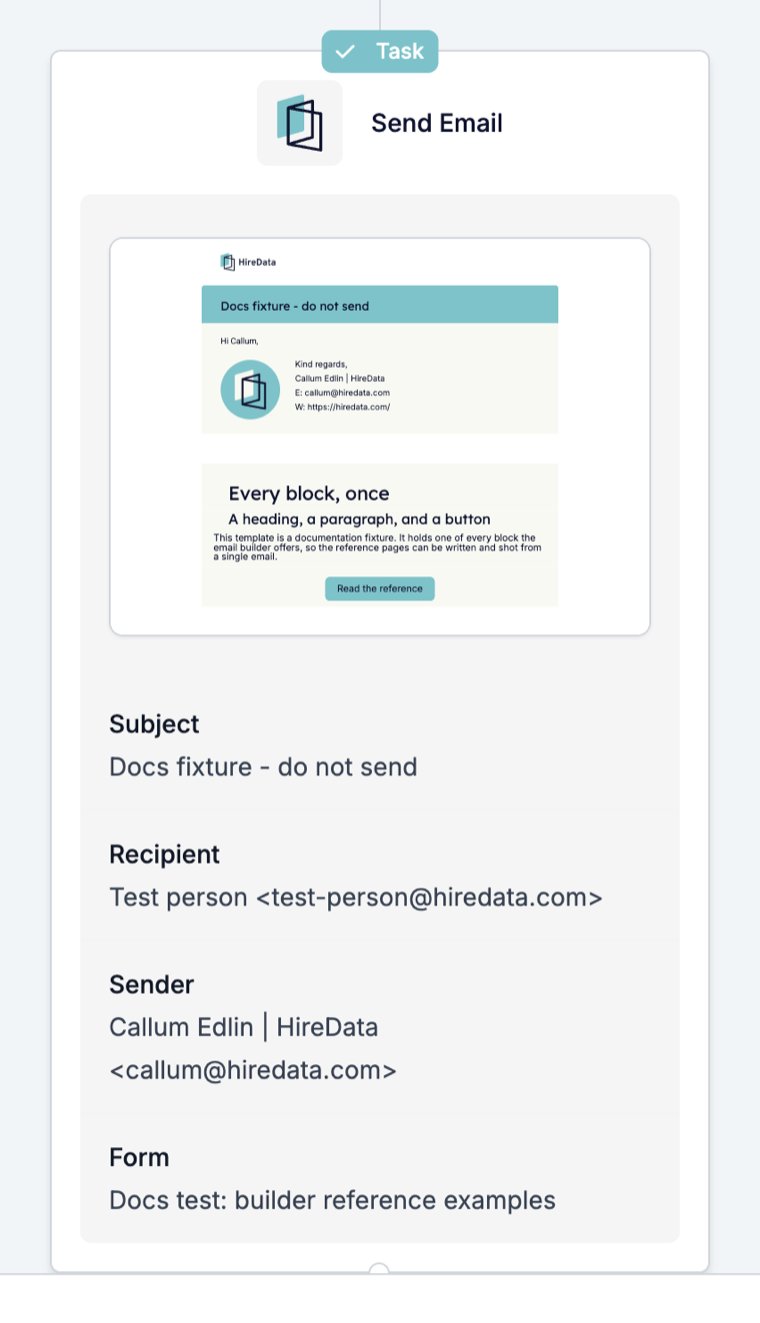
A Message task shows a **Task** badge, the task name, and what it will send. Send Email renders the template and lists Subject, Recipient, Sender, and Form.
 ## What it outputs
What the channel reports back. A delivered email completes with the message "Email delivered." A survey outputs the answers once the person replies, which is how a Filter after a WhatsApp survey can branch on an answer. An HTTP Request outputs the response you described. The run step's **Fields** tab lists the values the task used, such as the subject, recipient, and sender of an email.
A survey holds the run while it waits for the reply: the step shows Waiting and the timeline records "Message Sent" and, when the answer arrives, "Message Received".
## What stops the run
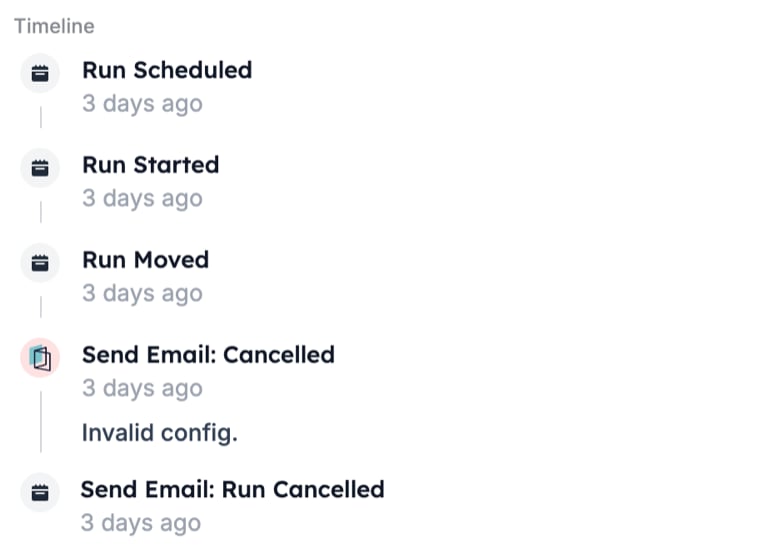
A send that the channel refuses. The task card turns red with the line "Cancelled" and the time, and the timeline records the task name with "Cancelled" and the message. In the runs list the **Step** column names the task, such as "HireData: Send Email".
## What it outputs
What the channel reports back. A delivered email completes with the message "Email delivered." A survey outputs the answers once the person replies, which is how a Filter after a WhatsApp survey can branch on an answer. An HTTP Request outputs the response you described. The run step's **Fields** tab lists the values the task used, such as the subject, recipient, and sender of an email.
A survey holds the run while it waits for the reply: the step shows Waiting and the timeline records "Message Sent" and, when the answer arrives, "Message Received".
## What stops the run
A send that the channel refuses. The task card turns red with the line "Cancelled" and the time, and the timeline records the task name with "Cancelled" and the message. In the runs list the **Step** column names the task, such as "HireData: Send Email".
 The messages you are most likely to meet, each explained in [Run cancellation reasons](/knowledge-base/run-cancellation-reasons):
| Message | Meaning |
| ------------------------------------- | ---------------------------------------------------------------------------------------------------------- |
| `Invalid sender email.` | The sender's domain is not verified in HireData |
| `Send Limits Exceeded` | The recipient reached an account-level limit under **Settings** > **Safety Limits** |
| `Send Limits Per Automation Exceeded` | The recipient reached a limit set in this automation's **Settings** |
| `Invalid config.` | The task is missing a setting it needs, such as a sender. Open the task and check every step of its wizard |
## Related
* [Automation safety limits](/settings/automation-safety-limits) explains the limits behind the two send-limit messages.
* [Send Email task](/reference/automations/tasks/send-email) documents the wizard and the Settings tab, including CC and BCC.
* [Task catalogue](/reference/automations/task-catalogue) lists every task per connected app.
* [HTTP Request task](/reference/automation-tasks/http-request-task) documents the request, authentication, and response settings.
* [Add](/reference/automations/steps/add) also lists HTTP Request, because a request can create a record as well as send one.
## Related topics
- [Logging email messages on Carerix with HireData](/apps/carerix/logging-email-messages-on-carerix-with-hiredata.md)
- [How to edit WhatsApp message templates in HireData](/apps/messaging/whatsapp/how-to-edit-whatsapp-message-templates.md)
- [Prevent your WhatsApp account from being flagged as spam](/apps/messaging/whatsapp/how-to-prevent-your-whatsapp-account-from-being-flagged-as-spam.md)
- [WhatsApp inbox basics](/apps/messaging/whatsapp/whatsapp-inbox-basics.md)
- [Using a WhatsApp Business number after API connection](/apps/messaging/whatsapp/can-a-user-manually-use-their-whatsapp-business-number-after-connecting-it-via-api.md)
The messages you are most likely to meet, each explained in [Run cancellation reasons](/knowledge-base/run-cancellation-reasons):
| Message | Meaning |
| ------------------------------------- | ---------------------------------------------------------------------------------------------------------- |
| `Invalid sender email.` | The sender's domain is not verified in HireData |
| `Send Limits Exceeded` | The recipient reached an account-level limit under **Settings** > **Safety Limits** |
| `Send Limits Per Automation Exceeded` | The recipient reached a limit set in this automation's **Settings** |
| `Invalid config.` | The task is missing a setting it needs, such as a sender. Open the task and check every step of its wizard |
## Related
* [Automation safety limits](/settings/automation-safety-limits) explains the limits behind the two send-limit messages.
* [Send Email task](/reference/automations/tasks/send-email) documents the wizard and the Settings tab, including CC and BCC.
* [Task catalogue](/reference/automations/task-catalogue) lists every task per connected app.
* [HTTP Request task](/reference/automation-tasks/http-request-task) documents the request, authentication, and response settings.
* [Add](/reference/automations/steps/add) also lists HTTP Request, because a request can create a record as well as send one.
## Related topics
- [Logging email messages on Carerix with HireData](/apps/carerix/logging-email-messages-on-carerix-with-hiredata.md)
- [How to edit WhatsApp message templates in HireData](/apps/messaging/whatsapp/how-to-edit-whatsapp-message-templates.md)
- [Prevent your WhatsApp account from being flagged as spam](/apps/messaging/whatsapp/how-to-prevent-your-whatsapp-account-from-being-flagged-as-spam.md)
- [WhatsApp inbox basics](/apps/messaging/whatsapp/whatsapp-inbox-basics.md)
- [Using a WhatsApp Business number after API connection](/apps/messaging/whatsapp/can-a-user-manually-use-their-whatsapp-business-number-after-connecting-it-via-api.md)