> ## Documentation Index
> Fetch the complete documentation index at: https://help.hiredata.com/llms.txt
> Use this file to discover all available pages before exploring further.
# Prompt
> The Prompt step in a HireData automation, the Ask AI drawer: intents, inputs, output fields, language, model settings, and what it returns.
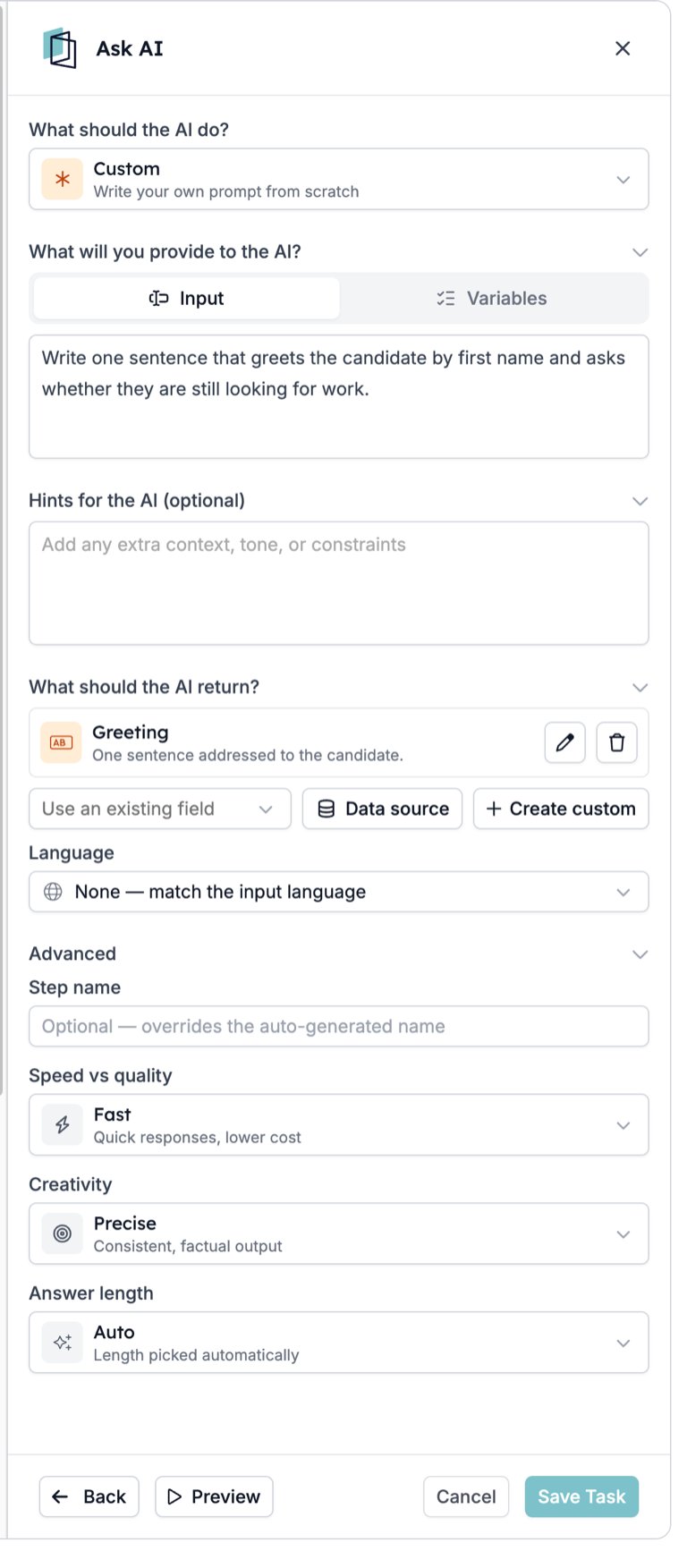
**Prompt** asks an AI model to do something with the run's data and returns the answer as fields for later steps. The drawer is headed **Ask AI**. **Preview** in its footer runs the prompt against sample data before you save.
The drawer opens on the question **What should the AI do?** with eight intents. **Custom** writes the prompt from scratch; the other seven frame the prompt for one kind of job.
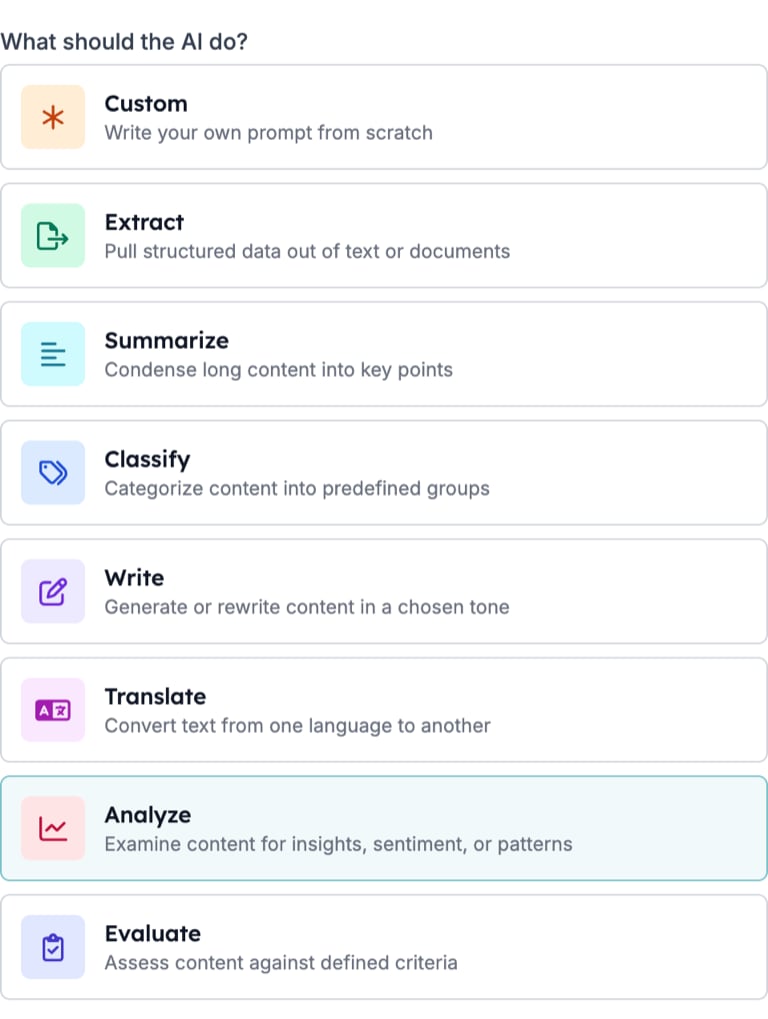 Choosing an intent other than **Custom** creates the output fields that intent usually returns, so you start from fields that already exist.
## Settings
* **What should the AI do?** The intent, as a select once chosen.
* **What will you provide to the AI?** Two tabs. **Input** holds the prompt box; type your instruction and insert variables into it. **Variables** lists fields to pass alongside the prompt without writing them into the text.
* **Hints for the AI (optional)**. Extra context, tone, or constraints, kept apart from the instruction.
* **What should the AI return?** The output fields. **Use an existing field** maps the answer onto a field the automation already knows. **Data source** returns a value from a data source. **Create custom** defines a new field. A saved field shows its name and description with buttons to edit or remove it.
* **Language**. The language of the answer, default **None**, which matches the language of the input.
* **Advanced**. Collapsed by default.
* **Step name**. Replaces the automatic name in the drawer header only. The canvas card and the variable names keep the automatic name. Every task drawer offers the same rename when you hover its name in the header.
* **Speed vs quality**. **Fast** (quick, lower cost), **Balanced**, or **Quality** (best results, slower).
* **Creativity**. **Precise** (consistent, factual), **Balanced**, or **Creative** (more varied).
* **Answer length**. **Short**, **Medium**, **Long**, or **Auto**.
### New output field
**Create custom** opens a two-step dialog.
* **Choose Field Type**. A **Search types...** box and the types in groups. Basics: Text, Number, Yes / No, List, ID. Date & Time: Date, Time, Datetime. People & Places: Email, Phone, Address, Country, Language, Locale, Timezone. Web & Media: URL, Domain, IP Address, Image, File, Color, Font. Advanced: Whole number, Decimal.
* **Configure your field**. **Name** is the label you see. **Reference as** is the variable name, default `text` for a Text field. **What is it for? (optional)** tells the model what to put in the field. **Save & New** saves and starts another; **Done** closes.
Choosing an intent other than **Custom** creates the output fields that intent usually returns, so you start from fields that already exist.
## Settings
* **What should the AI do?** The intent, as a select once chosen.
* **What will you provide to the AI?** Two tabs. **Input** holds the prompt box; type your instruction and insert variables into it. **Variables** lists fields to pass alongside the prompt without writing them into the text.
* **Hints for the AI (optional)**. Extra context, tone, or constraints, kept apart from the instruction.
* **What should the AI return?** The output fields. **Use an existing field** maps the answer onto a field the automation already knows. **Data source** returns a value from a data source. **Create custom** defines a new field. A saved field shows its name and description with buttons to edit or remove it.
* **Language**. The language of the answer, default **None**, which matches the language of the input.
* **Advanced**. Collapsed by default.
* **Step name**. Replaces the automatic name in the drawer header only. The canvas card and the variable names keep the automatic name. Every task drawer offers the same rename when you hover its name in the header.
* **Speed vs quality**. **Fast** (quick, lower cost), **Balanced**, or **Quality** (best results, slower).
* **Creativity**. **Precise** (consistent, factual), **Balanced**, or **Creative** (more varied).
* **Answer length**. **Short**, **Medium**, **Long**, or **Auto**.
### New output field
**Create custom** opens a two-step dialog.
* **Choose Field Type**. A **Search types...** box and the types in groups. Basics: Text, Number, Yes / No, List, ID. Date & Time: Date, Time, Datetime. People & Places: Email, Phone, Address, Country, Language, Locale, Timezone. Web & Media: URL, Domain, IP Address, Image, File, Color, Font. Advanced: Whole number, Decimal.
* **Configure your field**. **Name** is the label you see. **Reference as** is the variable name, default `text` for a Text field. **What is it for? (optional)** tells the model what to put in the field. **Save & New** saves and starts another; **Done** closes.
 ### On the canvas
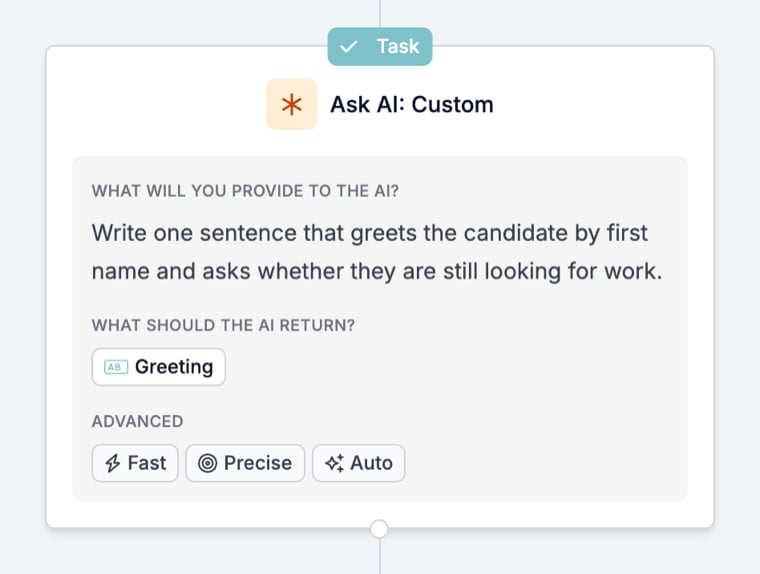
The card shows a **Task** badge, "Ask AI" followed by the intent, the prompt text, a chip per output field, and the three Advanced values.
### On the canvas
The card shows a **Task** badge, "Ask AI" followed by the intent, the prompt text, a chip per output field, and the three Advanced values.
 ## What it outputs
One variable per output field, named by its **Reference as** value, under the task's name. Alongside them the task records whether the model answered, its reasoning, and an error message when it did not.
| Variable | Holds |
| -------------------- | --------------------------------------------------------- |
| `output.` | The value of that output field, such as `output.greeting` |
| `is_successful` | Whether the model returned an answer that fit the fields |
| `reasoning` | The model's account of how it reached the answer |
| `error_message` | Why it could not answer, empty on success |
The run step's **Fields** tab lists the values passed in and the values returned.
## What stops the run
An answer the model could not give. The task card shows Cancelled with the reason in the timeline, and the steps after it show no status line. Prompts that run but return an unexpected value do not stop the run; check the output in a [Filter](/reference/automations/steps/filter) when the next step depends on it.
See [Run cancellation reasons](/knowledge-base/run-cancellation-reasons).
## Patterns
* **Classify, then Split.** A **Classify** prompt with a List output, then a [Split](/reference/automations/steps/split) whose branches filter on the list value.
* **Extract into a record.** An **Extract** prompt with one output field per value, then an [Update](/reference/automations/steps/update) task that writes the fields to the record.
* **One sentence, not a whole email.** For a personalised line inside an email template, an [AI variable](/variables/ai-variables) in the template does the job without a step. Use the Prompt step when the answer has to be stored or has to steer the run.
## Common mistakes
* **A prompt with no variables.** Text alone gives the model nothing about this run. Insert the fields it needs into the **Input** box or add them on the **Variables** tab.
* **Two fields with the same Reference as.** The second overwrites the first. Give each output field its own reference.
* **Expecting a rename to change the card.** **Step name**, and the rename you reach by hovering a task's name in its drawer header, change the drawer header only.
* **Leaving Language on None for a fixed-language output.** The answer follows the input's language. Set the language when the record or template expects one.
## Related
* [AI variables](/variables/ai-variables) generate a value inside an email, form, or automation without a Prompt step.
* [Filter](/reference/automations/steps/filter) checks an output before the next step relies on it.
* [Update](/reference/automations/steps/update) writes output fields to a record.
## Related topics
- [Install the HireData skills with a prompt](/apps/mcp/install-hiredata-skills-with-a-prompt.md)
- [Install the HireData plugin](/apps/mcp/install-hiredata-plugin.md)
- [Keep your HireData skills up to date](/apps/mcp/keep-hiredata-skills-up-to-date.md)
- [AI variables](/variables/ai-variables.md)
- [Task catalogue](/reference/automations/task-catalogue.md)
## What it outputs
One variable per output field, named by its **Reference as** value, under the task's name. Alongside them the task records whether the model answered, its reasoning, and an error message when it did not.
| Variable | Holds |
| -------------------- | --------------------------------------------------------- |
| `output.` | The value of that output field, such as `output.greeting` |
| `is_successful` | Whether the model returned an answer that fit the fields |
| `reasoning` | The model's account of how it reached the answer |
| `error_message` | Why it could not answer, empty on success |
The run step's **Fields** tab lists the values passed in and the values returned.
## What stops the run
An answer the model could not give. The task card shows Cancelled with the reason in the timeline, and the steps after it show no status line. Prompts that run but return an unexpected value do not stop the run; check the output in a [Filter](/reference/automations/steps/filter) when the next step depends on it.
See [Run cancellation reasons](/knowledge-base/run-cancellation-reasons).
## Patterns
* **Classify, then Split.** A **Classify** prompt with a List output, then a [Split](/reference/automations/steps/split) whose branches filter on the list value.
* **Extract into a record.** An **Extract** prompt with one output field per value, then an [Update](/reference/automations/steps/update) task that writes the fields to the record.
* **One sentence, not a whole email.** For a personalised line inside an email template, an [AI variable](/variables/ai-variables) in the template does the job without a step. Use the Prompt step when the answer has to be stored or has to steer the run.
## Common mistakes
* **A prompt with no variables.** Text alone gives the model nothing about this run. Insert the fields it needs into the **Input** box or add them on the **Variables** tab.
* **Two fields with the same Reference as.** The second overwrites the first. Give each output field its own reference.
* **Expecting a rename to change the card.** **Step name**, and the rename you reach by hovering a task's name in its drawer header, change the drawer header only.
* **Leaving Language on None for a fixed-language output.** The answer follows the input's language. Set the language when the record or template expects one.
## Related
* [AI variables](/variables/ai-variables) generate a value inside an email, form, or automation without a Prompt step.
* [Filter](/reference/automations/steps/filter) checks an output before the next step relies on it.
* [Update](/reference/automations/steps/update) writes output fields to a record.
## Related topics
- [Install the HireData skills with a prompt](/apps/mcp/install-hiredata-skills-with-a-prompt.md)
- [Install the HireData plugin](/apps/mcp/install-hiredata-plugin.md)
- [Keep your HireData skills up to date](/apps/mcp/keep-hiredata-skills-up-to-date.md)
- [AI variables](/variables/ai-variables.md)
- [Task catalogue](/reference/automations/task-catalogue.md)