> ## Documentation Index
> Fetch the complete documentation index at: https://help.hiredata.com/llms.txt
> Use this file to discover all available pages before exploring further.
# Send Email task
> The Send Email task in a HireData automation: the seven-step wizard, the Settings tab with CC, BCC, and UTM, what the task outputs, and what stops a send.
**Send Email** sends an email built from one of your email templates to one address per run. It sits under **Message** in the **Next step** drawer, marked with the HireData icon.
The drawer is a wizard of up to seven steps with a progress bar. Two steps appear only when they have something to ask. **Select a brand** appears when the workspace has brands. **Set up your form** appears when the template holds a form. When you reopen a saved task, the wizard opens on the first step that still needs input, which for a finished task is **Preview your email**.
A search box and one card per email template, each with a live preview. Click a card to open the template in a preview dialog with its subject, the rendered email, **Edit Email**, a **Send test mail** button, a toggle that shows or hides variable values, and **Use template**. A template that carries a brand fills in the brand for you.
**Appears when** the workspace has at least one brand. A **Brands** search box and one card per brand with its colour strip. Click a card to see the template rendered in that brand, then **Use brand**.
Presets for the people the event carries, such as **Response (Respondent)**. Choosing one moves the wizard on. Switch on **Use fixed recipient** to send every run to the same address: pick a **User**, or leave it on None and type a **Name** and **Email**, then **Continue**.
The same choice for the sender, with **Use fixed sender**. In a scheduled automation the sender is always fixed and the switch is not shown.
**Subject**, prefilled from the template and open to variables, then one input per [variable](/reference/email-builder/variables) the template defines. A date, email, or phone variable offers the matching fields from the run in a select; a text variable takes typed text or a variable. **Objects** appears when the template or its form reads from a data source. **Continue** moves on. You reach this step after choosing a recipient or sender preset. **Continue** after a fixed sender goes straight to the preview, and the same fields wait under **Settings** > **Template**.
**Appears when** the template holds a form. **Prefill Questions** lists the form's questions so a run can answer them in advance. **Additional Fields** lists the form's custom fields. A form without questions or without custom fields says so in place of the list.
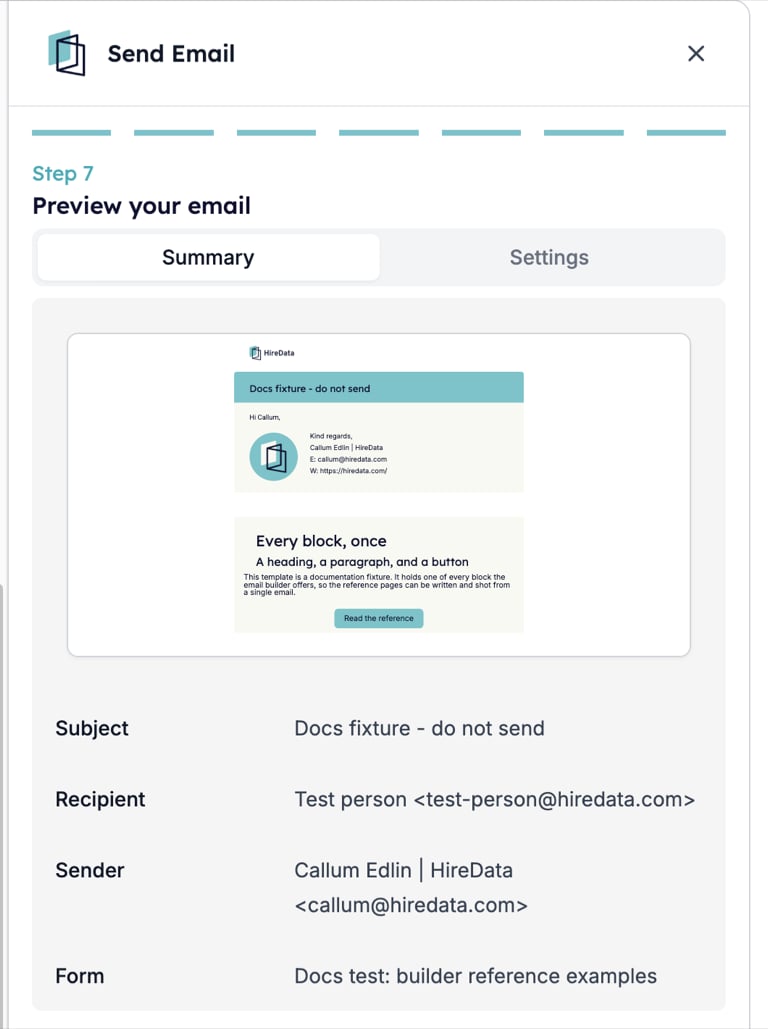
Two tabs. **Summary** shows the rendered email with **Subject**, **Recipient**, **Sender**, and **Form**; click the email to open the preview dialog. **Settings** lists every setting of the task, described below.
From **Set up your template** onwards a **Skip** button sits beside the step title. It moves to the next step without changing anything.
 ## Settings
The **Settings** tab of the last step holds one section per setting. Open a section to change it without walking the wizard again.
* **Template**. The subject and the template's variables, as in **Set up your template**.
* **Form**. The prefilled questions and additional fields, as in **Set up your form**.
* **Recipient**. **Use fixed recipient** with a **User** select, or **Name** and **Email** when no user is chosen. With the switch off, **Preset** names the person from the event and **Label** is the name the card shows for them, followed by the field mapping that decides which of the person's fields supply the name and address.
* **Sender**. The same controls for the sender. The address must belong to a domain verified in HireData. When it does not, HireData sends from the default sender of the brand's domain or the workspace domain if one is set, and stops the run with "Invalid sender email." if not.
* **CC** and **BCC**. Click **+** to add a copy recipient. Each entry has a **Name** and an **Address**. Both take a field from the run or typed text: type it and choose the **Create** option that appears under the box. Fill both before saving. **–** removes an entry. CC addresses are visible to everyone on the email; BCC addresses are not. A test send drops CC and BCC.
* **UTM Campaign**. **Campaign Name**, **Campaign Source**, **Campaign Medium**, **Campaign Term**, and **Campaign Content**, added to every link in the email. The placeholders show the template's own UTM values. Leave a field empty to keep the template's value.
* **Objects**. Shown when the template or its form reads from a data source. Picks the record each object refers to in this run, by **External ID**, by **Fields**, or by choosing a **Record**. An object marked with an asterisk is required: leave it empty and every run stops with "Required data reference missing."
### On the canvas
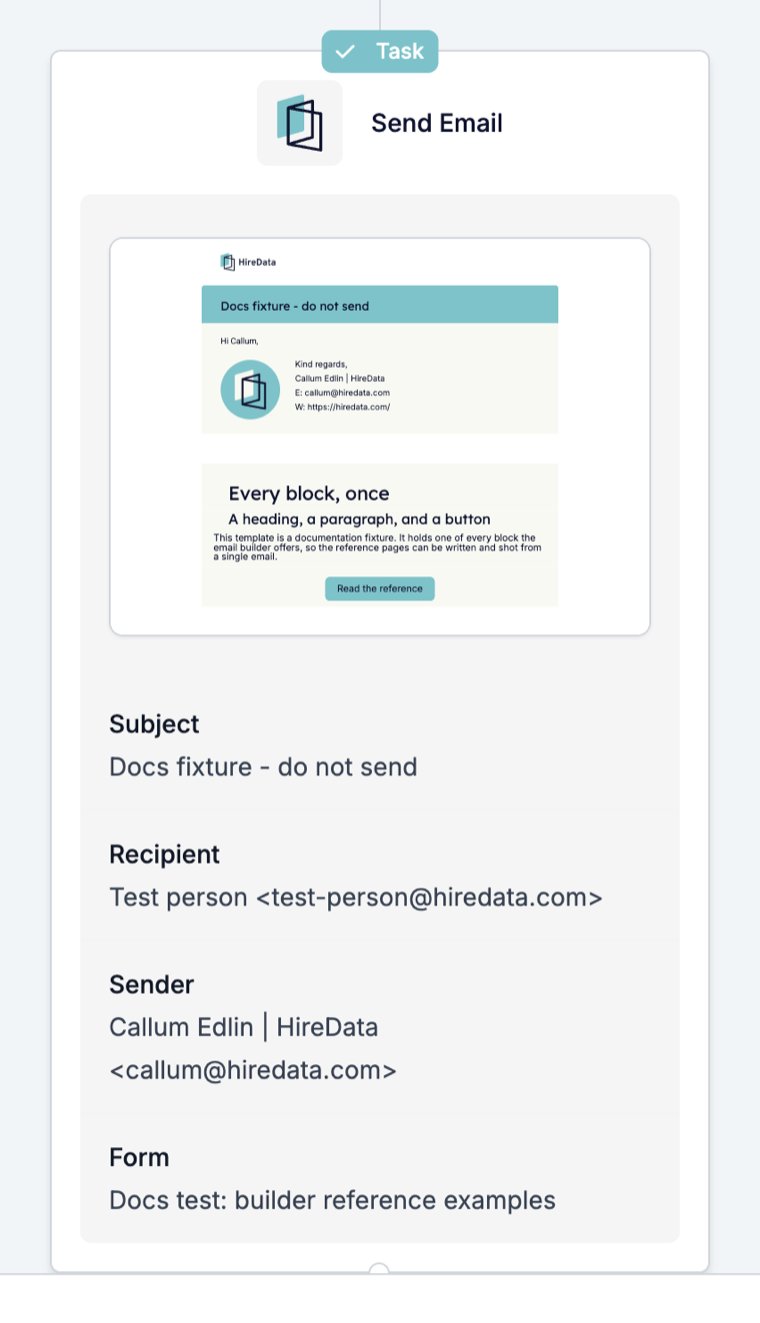
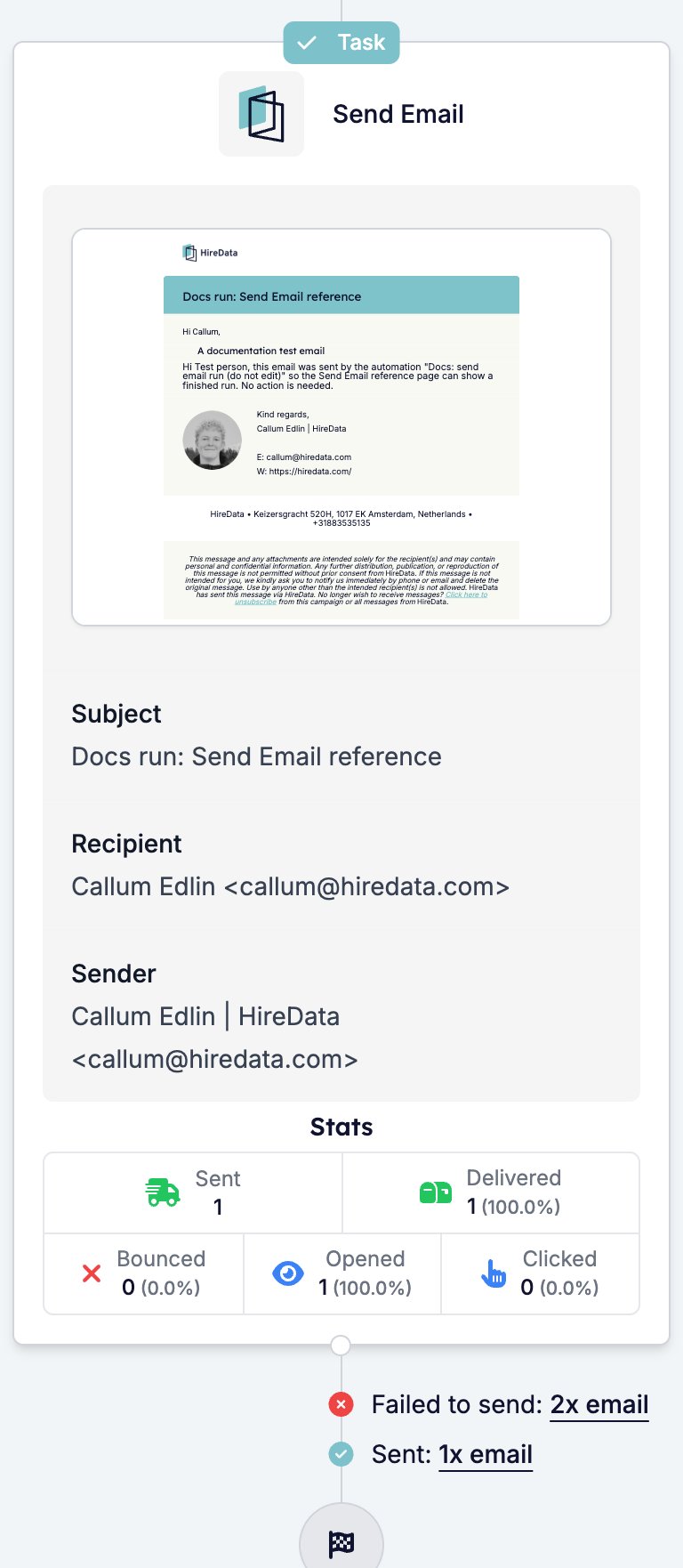
The card shows a **Task** badge, "Send Email", the rendered email, and rows for **Subject**, **Recipient**, **Sender**, and **Form**.
## Settings
The **Settings** tab of the last step holds one section per setting. Open a section to change it without walking the wizard again.
* **Template**. The subject and the template's variables, as in **Set up your template**.
* **Form**. The prefilled questions and additional fields, as in **Set up your form**.
* **Recipient**. **Use fixed recipient** with a **User** select, or **Name** and **Email** when no user is chosen. With the switch off, **Preset** names the person from the event and **Label** is the name the card shows for them, followed by the field mapping that decides which of the person's fields supply the name and address.
* **Sender**. The same controls for the sender. The address must belong to a domain verified in HireData. When it does not, HireData sends from the default sender of the brand's domain or the workspace domain if one is set, and stops the run with "Invalid sender email." if not.
* **CC** and **BCC**. Click **+** to add a copy recipient. Each entry has a **Name** and an **Address**. Both take a field from the run or typed text: type it and choose the **Create** option that appears under the box. Fill both before saving. **–** removes an entry. CC addresses are visible to everyone on the email; BCC addresses are not. A test send drops CC and BCC.
* **UTM Campaign**. **Campaign Name**, **Campaign Source**, **Campaign Medium**, **Campaign Term**, and **Campaign Content**, added to every link in the email. The placeholders show the template's own UTM values. Leave a field empty to keep the template's value.
* **Objects**. Shown when the template or its form reads from a data source. Picks the record each object refers to in this run, by **External ID**, by **Fields**, or by choosing a **Record**. An object marked with an asterisk is required: leave it empty and every run stops with "Required data reference missing."
### On the canvas
The card shows a **Task** badge, "Send Email", the rendered email, and rows for **Subject**, **Recipient**, **Sender**, and **Form**.
 ## What it outputs
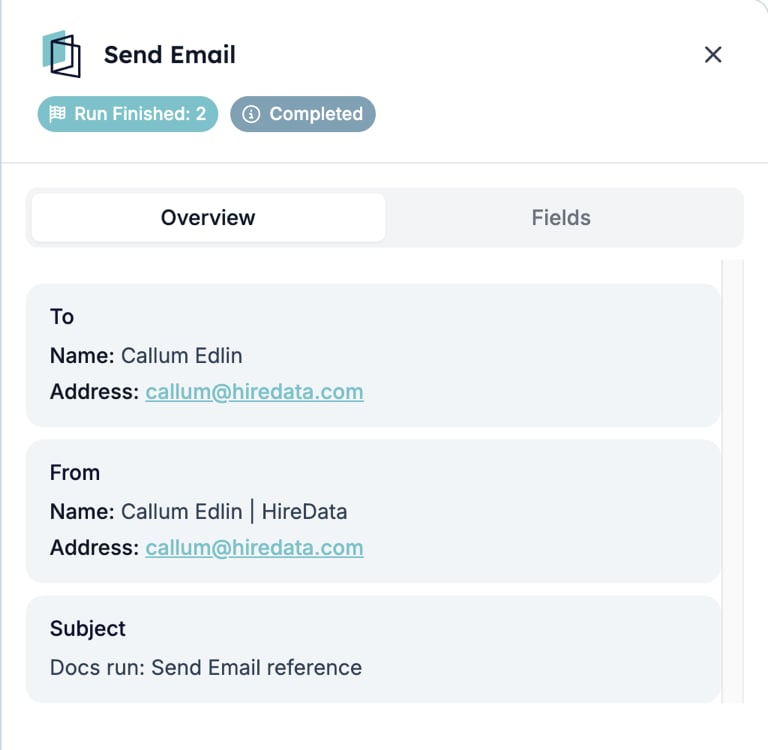
The sent email. On the run page the task's card shows the email that went out; click it to read the message as the recipient saw it, with **Edit Form** and **Edit Email** links to its sources. Clicking the card itself opens the run step, headed **Send Email** with a **Completed** badge. Its **Overview** lists **To** and **From** with a name and address each, the **Subject**, and the value of every template variable. **Fields** lists every value the task read from the run.
## What it outputs
The sent email. On the run page the task's card shows the email that went out; click it to read the message as the recipient saw it, with **Edit Form** and **Edit Email** links to its sources. Clicking the card itself opens the run step, headed **Send Email** with a **Completed** badge. Its **Overview** lists **To** and **From** with a name and address each, the **Subject**, and the value of every template variable. **Fields** lists every value the task read from the run.
 Later steps can read the email's status. A [Filter](/reference/automations/steps/filter) after a [Delay](/reference/automations/steps/delay) can branch on whether the email was opened.
| Variable | Holds |
| --------------------------------------------------------------------------------- | --------------------------------------------------------------- |
| `email.status` | The latest status: Sent, Delivered, Bounced, Opened, or Clicked |
| `email.sent`, `email.delivered`, `email.opened`, `email.clicked`, `email.bounced` | Yes or No for each event the email has reached |
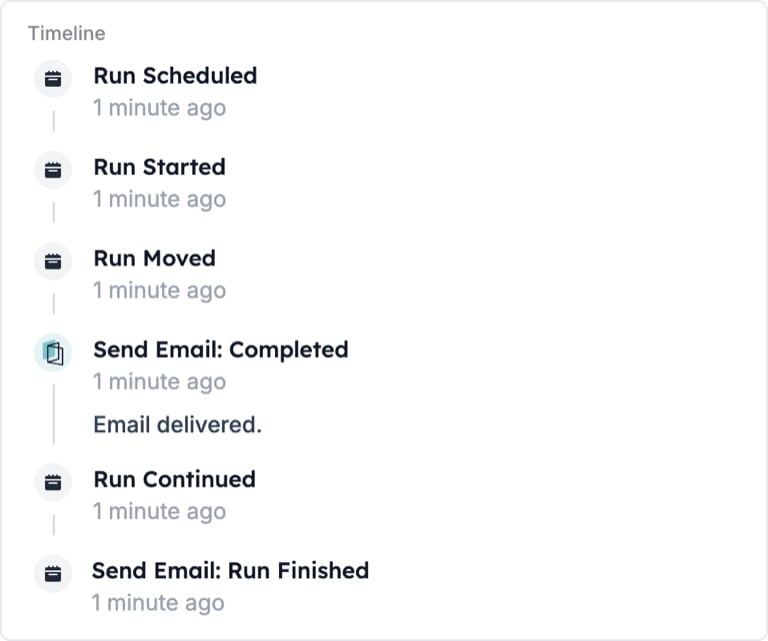
A delivered email completes the step with the message "Email delivered."
Later steps can read the email's status. A [Filter](/reference/automations/steps/filter) after a [Delay](/reference/automations/steps/delay) can branch on whether the email was opened.
| Variable | Holds |
| --------------------------------------------------------------------------------- | --------------------------------------------------------------- |
| `email.status` | The latest status: Sent, Delivered, Bounced, Opened, or Clicked |
| `email.sent`, `email.delivered`, `email.opened`, `email.clicked`, `email.bounced` | Yes or No for each event the email has reached |
A delivered email completes the step with the message "Email delivered."
 ### Delivery figures
The automation's own page, the one that opens from the Automations list before you click into edit mode, adds the figures the run page lacks. They take a few seconds to load and disappear as soon as you enter edit mode.
* **Stats** on the Send Email card: **Sent**, **Delivered**, **Bounced**, **Opened**, and **Clicked**, each with a count and a percentage of sent.
* **Under the card**, one line per outcome with a link to the tasks behind it, such as "Sent: 1x email" and "Failed to send: 2x email".
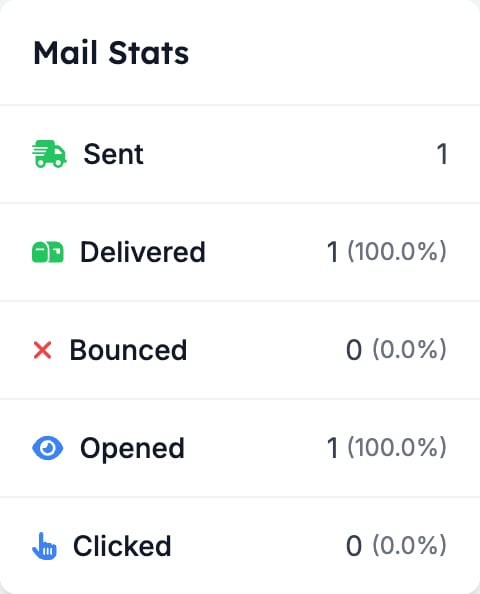
* **Mail Stats** in the left panel: the same five figures added up across every Send Email step in the automation. **Run Stats** above it counts runs by state.
### Delivery figures
The automation's own page, the one that opens from the Automations list before you click into edit mode, adds the figures the run page lacks. They take a few seconds to load and disappear as soon as you enter edit mode.
* **Stats** on the Send Email card: **Sent**, **Delivered**, **Bounced**, **Opened**, and **Clicked**, each with a count and a percentage of sent.
* **Under the card**, one line per outcome with a link to the tasks behind it, such as "Sent: 1x email" and "Failed to send: 2x email".
* **Mail Stats** in the left panel: the same five figures added up across every Send Email step in the automation. **Run Stats** above it counts runs by state.
 ## What stops the run
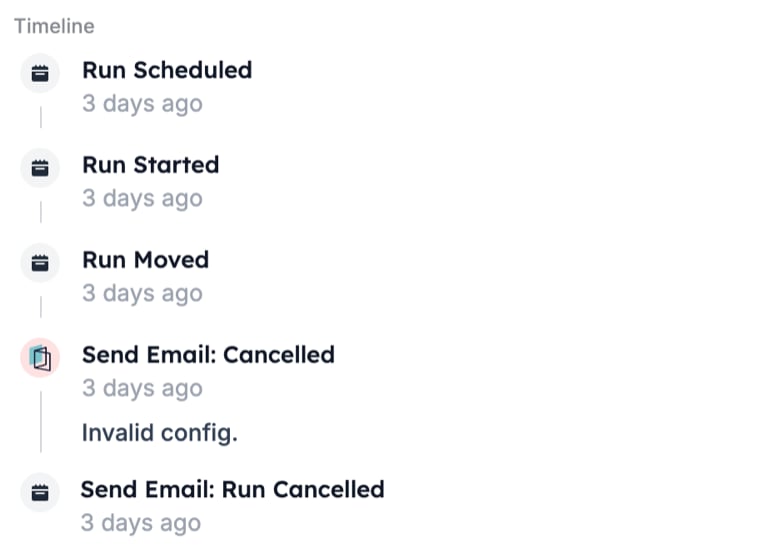
A send that HireData refuses. The task card turns red with the line "Cancelled" and the time, and the timeline records "Send Email: Cancelled" with the message. In the runs list the **Step** column reads "HireData: Send Email".
## What stops the run
A send that HireData refuses. The task card turns red with the line "Cancelled" and the time, and the timeline records "Send Email: Cancelled" with the message. In the runs list the **Step** column reads "HireData: Send Email".
 | Message | Meaning |
| ------------------------------------- | ------------------------------------------------------------------------------------------------------------------------------ |
| `Invalid config.` | The task has no recipient or no sender. Open it and check **Recipient** and **Sender** under **Settings** |
| `Invalid sender email.` | The sender's domain is not verified and no default sender could stand in |
| `Send Limits Exceeded` | The recipient reached an account-level limit under **Settings** > **Safety Limits** |
| `Send Limits Per Automation Exceeded` | The recipient reached a limit set in this automation's **Settings** |
| `Email unsubscribed.` | The recipient is on the list under **Settings** > **Unsubscribes**. An address that bounced as unknown lands there too |
| `Required data reference missing.` | The template needs an object under **Settings** > **Objects** and none was chosen. The step shows Failed rather than Cancelled |
A recipient address that is not a valid email address, an address on your blocklist, or an address that email validation marked invalid also stops the run, each with its own message in the timeline. Reasons are explained in [Run cancellation reasons](/knowledge-base/run-cancellation-reasons).
## Related
* [Message](/reference/automations/steps/message) lists the other tasks that send something.
* [Email builder overview](/reference/email-builder/overview) documents the builder that makes the template this task sends.
* [Automation safety limits](/settings/automation-safety-limits) explains the two send-limit messages.
* [How to verify a domain in HireData to send emails](/settings/domains/how-to-verify-a-domain-in-hiredata-to-send-emails) fixes "Invalid sender email."
* [Task catalogue](/reference/automations/task-catalogue) lists every task per connected app.
## Related topics
- [Sending an email newsletter to your audience](/apps/messaging/emails/sending-an-email-newsletter-to-your-audience.md)
- [Message](/reference/automations/steps/message.md)
- [Ask for feedback in one click](/knowledge-base/cookbook/one-click-feedback-email.md)
- [Create a Recruitee automation in HireData](/apps/recruitee/create-a-recruitee-automation-in-hiredata.md)
- [Create a Vincere automation in HireData](/apps/vincere/create-a-vincere-automation-in-hiredata.md)
| Message | Meaning |
| ------------------------------------- | ------------------------------------------------------------------------------------------------------------------------------ |
| `Invalid config.` | The task has no recipient or no sender. Open it and check **Recipient** and **Sender** under **Settings** |
| `Invalid sender email.` | The sender's domain is not verified and no default sender could stand in |
| `Send Limits Exceeded` | The recipient reached an account-level limit under **Settings** > **Safety Limits** |
| `Send Limits Per Automation Exceeded` | The recipient reached a limit set in this automation's **Settings** |
| `Email unsubscribed.` | The recipient is on the list under **Settings** > **Unsubscribes**. An address that bounced as unknown lands there too |
| `Required data reference missing.` | The template needs an object under **Settings** > **Objects** and none was chosen. The step shows Failed rather than Cancelled |
A recipient address that is not a valid email address, an address on your blocklist, or an address that email validation marked invalid also stops the run, each with its own message in the timeline. Reasons are explained in [Run cancellation reasons](/knowledge-base/run-cancellation-reasons).
## Related
* [Message](/reference/automations/steps/message) lists the other tasks that send something.
* [Email builder overview](/reference/email-builder/overview) documents the builder that makes the template this task sends.
* [Automation safety limits](/settings/automation-safety-limits) explains the two send-limit messages.
* [How to verify a domain in HireData to send emails](/settings/domains/how-to-verify-a-domain-in-hiredata-to-send-emails) fixes "Invalid sender email."
* [Task catalogue](/reference/automations/task-catalogue) lists every task per connected app.
## Related topics
- [Sending an email newsletter to your audience](/apps/messaging/emails/sending-an-email-newsletter-to-your-audience.md)
- [Message](/reference/automations/steps/message.md)
- [Ask for feedback in one click](/knowledge-base/cookbook/one-click-feedback-email.md)
- [Create a Recruitee automation in HireData](/apps/recruitee/create-a-recruitee-automation-in-hiredata.md)
- [Create a Vincere automation in HireData](/apps/vincere/create-a-vincere-automation-in-hiredata.md)