> ## Documentation Index
> Fetch the complete documentation index at: https://help.hiredata.com/llms.txt
> Use this file to discover all available pages before exploring further.
# Heading
> The Heading block in the HireData email builder: the six levels, the default size each one gives you, and what a level does and does not mean in a sent email.
A Heading block is a line of text set larger than the body around it. Add it from the **Blocks** menu of a section or a column, which offers **Heading 1**, **Heading 2**, and **Heading 3**.
## How it renders
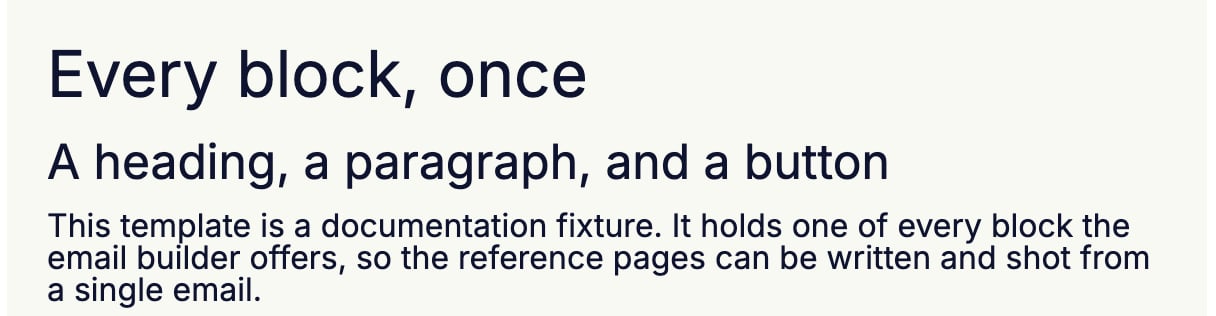
A heading comes out of the email builder as a styled line of text. It is not wrapped in an HTML heading tag, so the level you pick does not mark the line as a heading for a screen reader. Treat the level as a size preset, and pick it for the size you want rather than for the outline it implies.
 That leaves the wording to carry the structure. Write headings that read as headings on their own, and keep them short enough to scan.
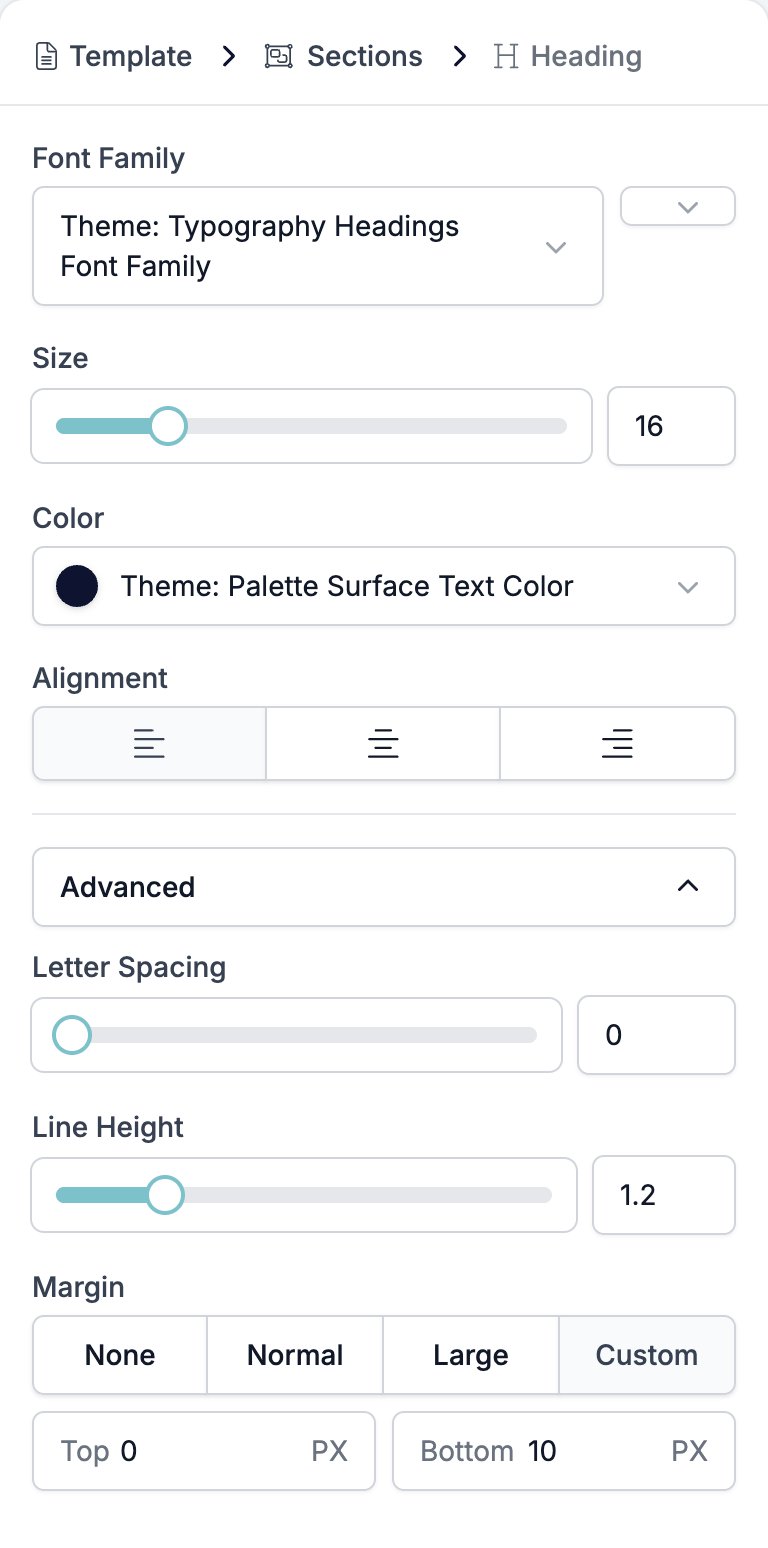
The breadcrumb reads **Heading** with no number, so it will not tell you which level you are on. The **Size** box will.
## Settings
* **Font Family** picks the typeface, with a weight selector beside it. It starts on the brand's heading font, which is a separate setting from the brand's body font.
* **Size** is a slider and a box, 8 to 48 pixels.
* **Color** sets the text colour.
* **Alignment** is left, centre, or right.
* **Advanced** holds three controls.
* **Letter Spacing**, 0 to 10.
* **Line Height**, 1 to 2.
* **Margin**, the gap above and below the heading.
There is no level control on the panel. To change a heading's level, click into it in the email and press **Cmd + Alt** and a number on a Mac, or **Ctrl + Alt** and a number on Windows. All six levels work, including the three the menu does not offer.
Each level carries its own default size, and switching level resets **Size** to it.
| Level | Default size |
| --------- | ------------ |
| Heading 1 | 32 px |
| Heading 2 | 24 px |
| Heading 3 | 19 px |
| Heading 4 | 16 px |
| Heading 5 | 13 px |
| Heading 6 | 11 px |
Type `{{` in a heading to drop in a variable.
That leaves the wording to carry the structure. Write headings that read as headings on their own, and keep them short enough to scan.
The breadcrumb reads **Heading** with no number, so it will not tell you which level you are on. The **Size** box will.
## Settings
* **Font Family** picks the typeface, with a weight selector beside it. It starts on the brand's heading font, which is a separate setting from the brand's body font.
* **Size** is a slider and a box, 8 to 48 pixels.
* **Color** sets the text colour.
* **Alignment** is left, centre, or right.
* **Advanced** holds three controls.
* **Letter Spacing**, 0 to 10.
* **Line Height**, 1 to 2.
* **Margin**, the gap above and below the heading.
There is no level control on the panel. To change a heading's level, click into it in the email and press **Cmd + Alt** and a number on a Mac, or **Ctrl + Alt** and a number on Windows. All six levels work, including the three the menu does not offer.
Each level carries its own default size, and switching level resets **Size** to it.
| Level | Default size |
| --------- | ------------ |
| Heading 1 | 32 px |
| Heading 2 | 24 px |
| Heading 3 | 19 px |
| Heading 4 | 16 px |
| Heading 5 | 13 px |
| Heading 6 | 11 px |
Type `{{` in a heading to drop in a variable.
 ## Related
* [Email builder overview](/reference/email-builder/overview) covers the builder, the toolbar, the theme, and every block type.
* [Paragraph](/reference/email-builder/blocks/paragraph) shares the same text controls and adds a link colour.
* [Section](/reference/email-builder/sections) is the band a heading sits in.
* [Variables](/reference/email-builder/variables) covers the picker, the fallbacks, and what a missing value looks like.
## Related topics
- [Paragraph](/reference/email-builder/blocks/paragraph.md)
- [Email builder overview](/reference/email-builder/overview.md)
- [Setting up an email template in HireData](/apps/messaging/emails/setting-up-an-email-template-in-hiredata.md)
- [Ask for feedback in one click](/knowledge-base/cookbook/one-click-feedback-email.md)
- [Signature](/reference/email-builder/blocks/signature.md)
## Related
* [Email builder overview](/reference/email-builder/overview) covers the builder, the toolbar, the theme, and every block type.
* [Paragraph](/reference/email-builder/blocks/paragraph) shares the same text controls and adds a link colour.
* [Section](/reference/email-builder/sections) is the band a heading sits in.
* [Variables](/reference/email-builder/variables) covers the picker, the fallbacks, and what a missing value looks like.
## Related topics
- [Paragraph](/reference/email-builder/blocks/paragraph.md)
- [Email builder overview](/reference/email-builder/overview.md)
- [Setting up an email template in HireData](/apps/messaging/emails/setting-up-an-email-template-in-hiredata.md)
- [Ask for feedback in one click](/knowledge-base/cookbook/one-click-feedback-email.md)
- [Signature](/reference/email-builder/blocks/signature.md)