> ## Documentation Index
> Fetch the complete documentation index at: https://help.hiredata.com/llms.txt
> Use this file to discover all available pages before exploring further.
# Image
> The Image block in the HireData email builder: picking a picture from the media library or a variable, sizing it, and where its alt text comes from.
An Image block puts a picture in the email. Add it from the **Blocks** menu of a section or a column.
## How it renders
The image goes into the email as a plain picture, sized by **Width** and **Height** and aligned by **Alignment**.
 Inside a column it ignores **Width** and takes the width of the column instead, so a picture in a 40 per cent column comes out at 40 per cent of the section. That is what makes a picture beside a paragraph line up.
The block sets no maximum for the file size or the pixel dimensions of what you pick. A photograph straight off a phone goes out at its full weight, so scale it down before you upload it.
## Settings
* **Image** opens the media library, with **Upload media** for a new file and two tabs for what is already there. **Fields** lists the variables that carry an image, such as a brand logo or a sender avatar. Pick one of those and the picture changes with whoever the email is about.
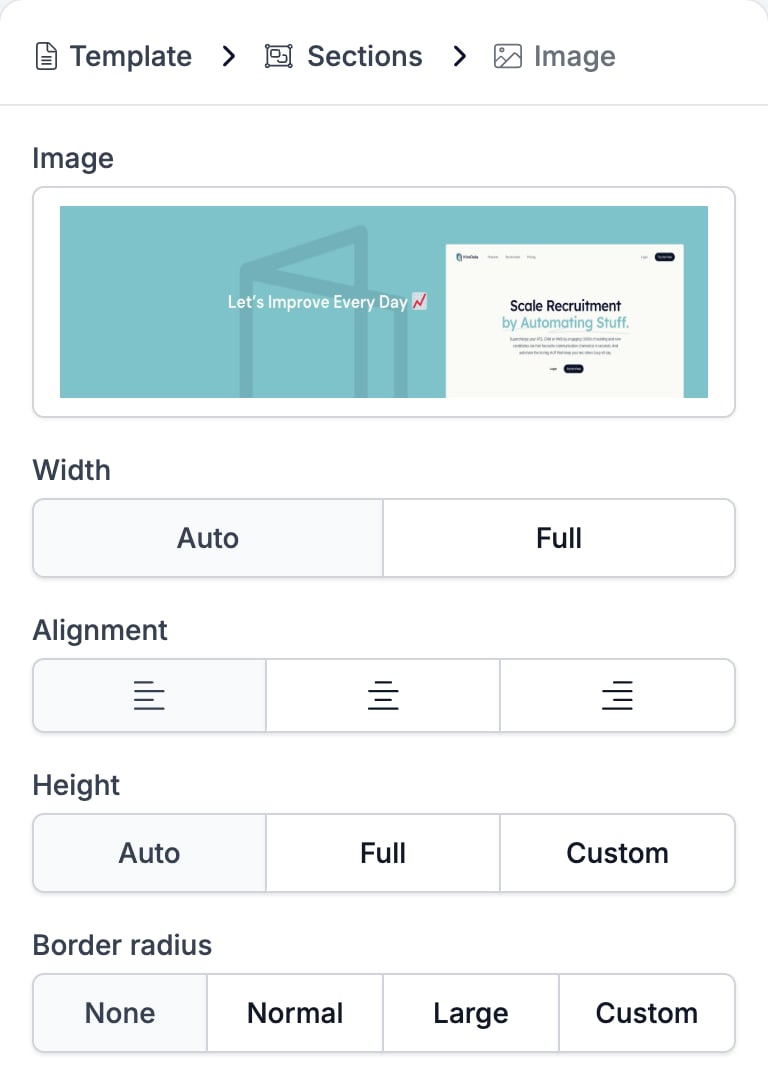
* **Width** is **Auto**, which keeps the picture at its own size, or **Full**, which stretches it to fill whatever holds it.
* **Alignment** is left, centre, or right, and does nothing at **Full** width.
* **Height** is **Auto**, **Full**, or **Custom**, which opens a slider from 10 to 300 pixels.
* **Border radius** rounds the corners: **None**, **Normal**, **Large**, or **Custom** for a value per corner.
Inside a column it ignores **Width** and takes the width of the column instead, so a picture in a 40 per cent column comes out at 40 per cent of the section. That is what makes a picture beside a paragraph line up.
The block sets no maximum for the file size or the pixel dimensions of what you pick. A photograph straight off a phone goes out at its full weight, so scale it down before you upload it.
## Settings
* **Image** opens the media library, with **Upload media** for a new file and two tabs for what is already there. **Fields** lists the variables that carry an image, such as a brand logo or a sender avatar. Pick one of those and the picture changes with whoever the email is about.
* **Width** is **Auto**, which keeps the picture at its own size, or **Full**, which stretches it to fill whatever holds it.
* **Alignment** is left, centre, or right, and does nothing at **Full** width.
* **Height** is **Auto**, **Full**, or **Custom**, which opens a slider from 10 to 300 pixels.
* **Border radius** rounds the corners: **None**, **Normal**, **Large**, or **Custom** for a value per corner.
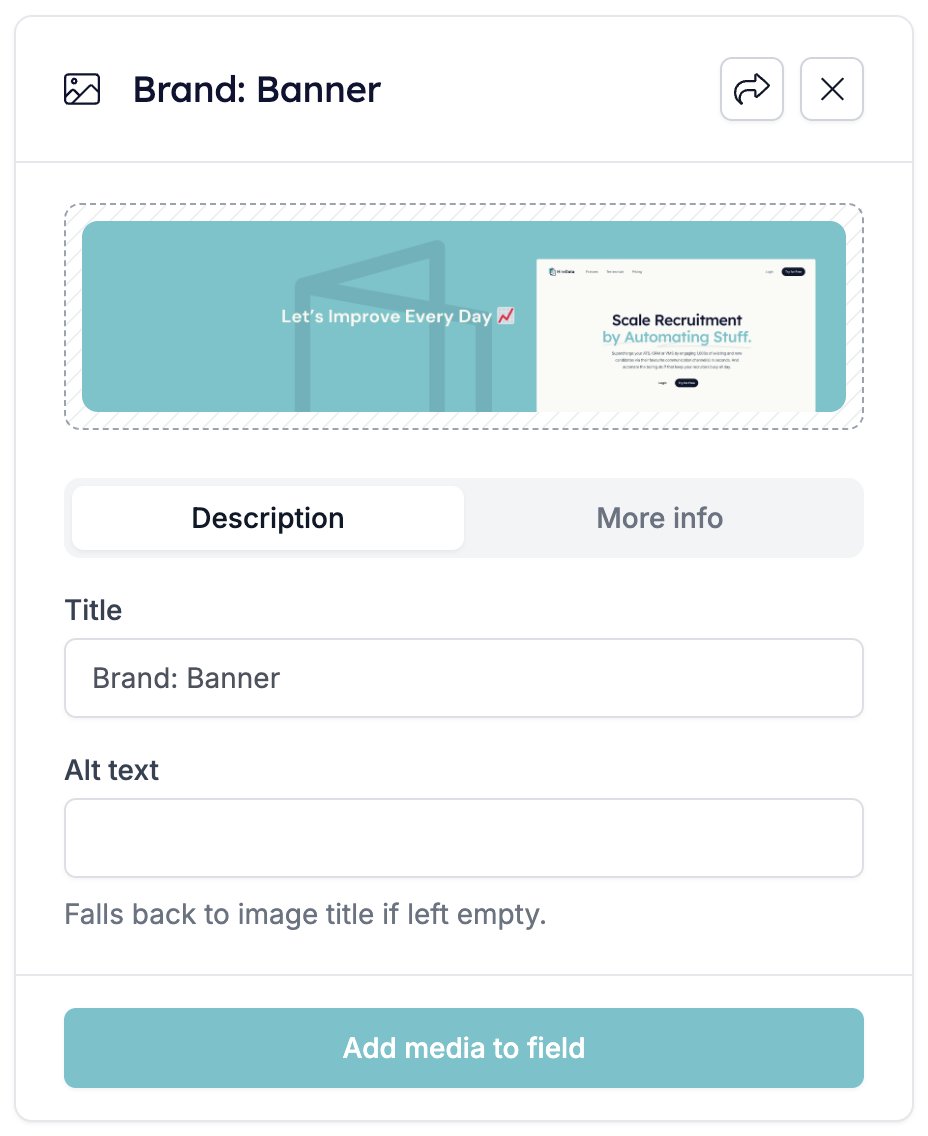
 Alt text is not on this panel. It belongs to the picture, so you set it in the media library. Open **Image**, click the picture, and fill in **Alt text** on the card that opens. It falls back to the image title when you leave it empty, which is why an upload named `image.png` is worth renaming.
A picture from the **Fields** tab is the exception. Both boxes are read-only there, so a brand logo or a sender photo carries the variable's title as its alt text and cannot be given anything else.
Alt text is not on this panel. It belongs to the picture, so you set it in the media library. Open **Image**, click the picture, and fill in **Alt text** on the card that opens. It falls back to the image title when you leave it empty, which is why an upload named `image.png` is worth renaming.
A picture from the **Fields** tab is the exception. Both boxes are read-only there, so a brand logo or a sender photo carries the variable's title as its alt text and cannot be given anything else.
 Write alt text that says what the picture is for, not what it looks like. A recipient whose client blocks images sees that line instead of the picture, and blocked images are the normal case rather than the exception.
## Related
* [Email builder overview](/reference/email-builder/overview) covers the builder, the toolbar, the theme, and every block type.
* [Adding images to your emails](/apps/messaging/emails/adding-images-to-your-emails) walks through the media library.
* [Two Columns](/reference/email-builder/blocks/columns) is where an image takes its width from the column.
* [Variables](/reference/email-builder/variables) covers the tokens behind the **Fields** tab.
* [Signature](/reference/email-builder/blocks/signature) has its own picture, sized and cropped for you.
## Related topics
- [Adding images to your emails](/apps/messaging/emails/adding-images-to-your-emails.md)
- [Sections](/reference/email-builder/sections.md)
- [Signature](/reference/email-builder/blocks/signature.md)
- [How profile pictures work in HireData](/apps/carerix/how-profile-pictures-work-in-hiredata.md)
- [How to add a WhatsApp chat button to your website](/apps/messaging/whatsapp/how-to-add-a-whatsapp-chat-button-to-your-website.md)
Write alt text that says what the picture is for, not what it looks like. A recipient whose client blocks images sees that line instead of the picture, and blocked images are the normal case rather than the exception.
## Related
* [Email builder overview](/reference/email-builder/overview) covers the builder, the toolbar, the theme, and every block type.
* [Adding images to your emails](/apps/messaging/emails/adding-images-to-your-emails) walks through the media library.
* [Two Columns](/reference/email-builder/blocks/columns) is where an image takes its width from the column.
* [Variables](/reference/email-builder/variables) covers the tokens behind the **Fields** tab.
* [Signature](/reference/email-builder/blocks/signature) has its own picture, sized and cropped for you.
## Related topics
- [Adding images to your emails](/apps/messaging/emails/adding-images-to-your-emails.md)
- [Sections](/reference/email-builder/sections.md)
- [Signature](/reference/email-builder/blocks/signature.md)
- [How profile pictures work in HireData](/apps/carerix/how-profile-pictures-work-in-hiredata.md)
- [How to add a WhatsApp chat button to your website](/apps/messaging/whatsapp/how-to-add-a-whatsapp-chat-button-to-your-website.md)