> ## Documentation Index
> Fetch the complete documentation index at: https://help.hiredata.com/llms.txt
> Use this file to discover all available pages before exploring further.
# Signature
> The Signature block in the HireData email builder: a picture beside a block of sign-off text, what you can change about it, and what is fixed.
A Signature block is a picture beside a block of sign-off text. It is the usual way to close an email, with the sender's name, email address, and website under a "Kind regards".
Add it from a section's **Blocks** menu. A column cannot hold one.
## How it renders
The signature is a fixed two-column layout. The picture goes in a 125 pixel column on the left, cropped to a circle at 100 by 100 pixels, and the text fills the column beside it.
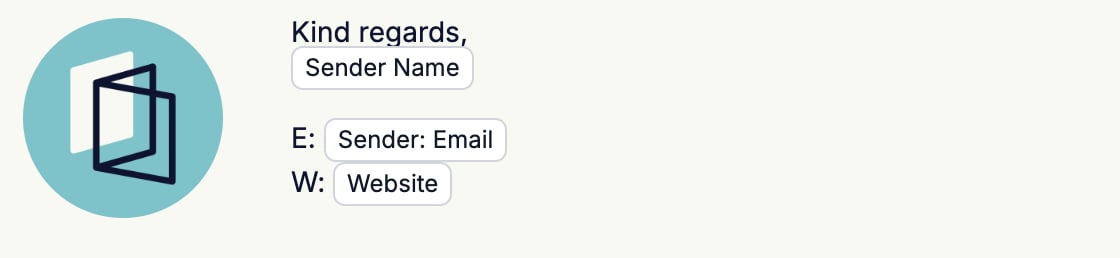 Leave **Image** empty and the picture column disappears. The text then runs the full width of the section, which is the layout to use for a plain text sign-off.
Every line is a [paragraph](/reference/email-builder/blocks/paragraph), so each one carries its own font, size, colour, and alignment. Select a line and the breadcrumb reads `Template > Sections > Signature > Paragraph`.
## Settings
* **Image** opens the media library. Pick an uploaded picture, or a variable such as the sender's avatar or the brand logo, which then changes with whoever sends the email.
* **Color** sets the text colour for the whole signature.
* **Background color** sets the colour behind it.
* **Blocks** lists the lines of the signature, one row per paragraph. The rows drag to reorder and nothing else. There is no **+** and no **−**.
* **Spacing** holds **Margin**, the space above and below the block. It has no padding and no width.
Leave **Image** empty and the picture column disappears. The text then runs the full width of the section, which is the layout to use for a plain text sign-off.
Every line is a [paragraph](/reference/email-builder/blocks/paragraph), so each one carries its own font, size, colour, and alignment. Select a line and the breadcrumb reads `Template > Sections > Signature > Paragraph`.
## Settings
* **Image** opens the media library. Pick an uploaded picture, or a variable such as the sender's avatar or the brand logo, which then changes with whoever sends the email.
* **Color** sets the text colour for the whole signature.
* **Background color** sets the colour behind it.
* **Blocks** lists the lines of the signature, one row per paragraph. The rows drag to reorder and nothing else. There is no **+** and no **−**.
* **Spacing** holds **Margin**, the space above and below the block. It has no padding and no width.
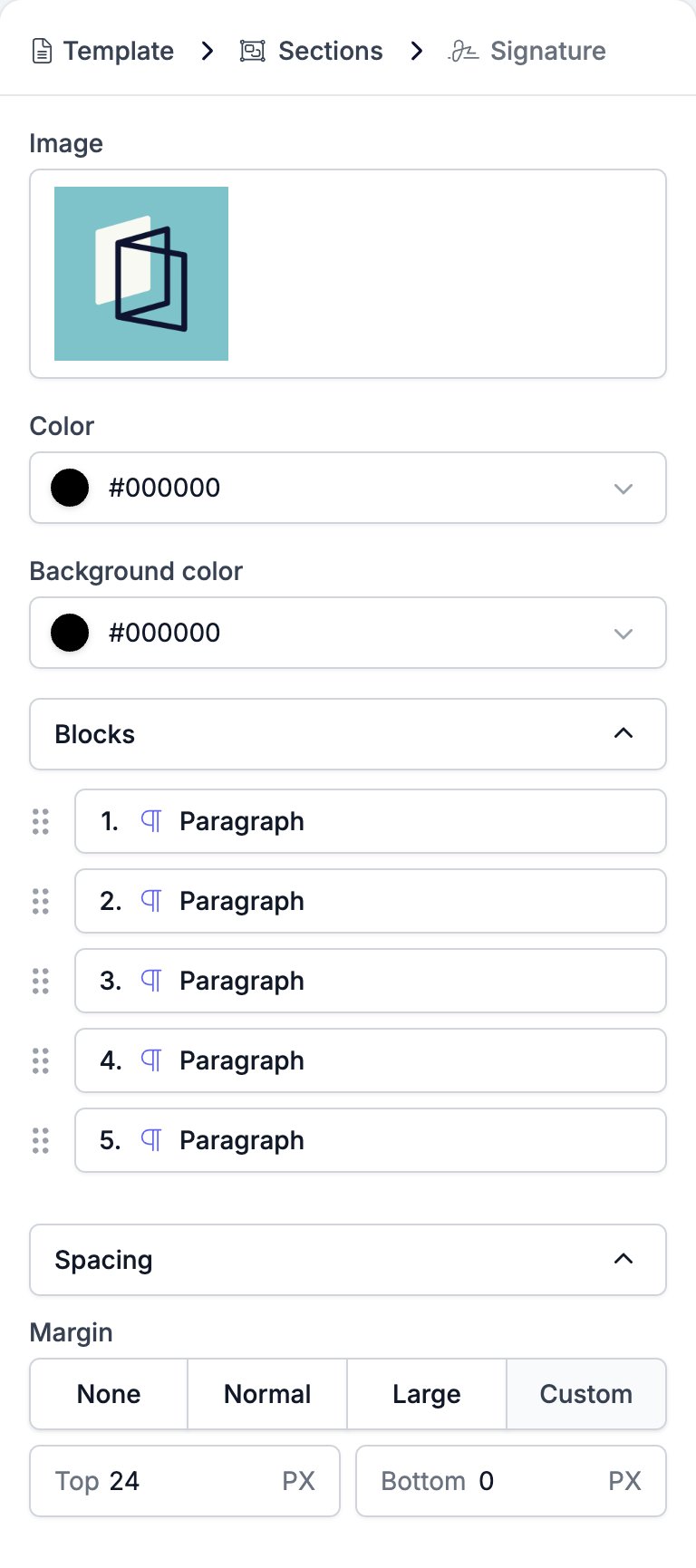 You add and remove lines in the email rather than on the panel. Click at the end of a line and press **Enter** for a new one, and delete a line the way you would delete any other text.
## Limits
The layout is the one thing you cannot touch. There is no setting for the column widths, for putting the picture on the right, for squaring off the circle, or for a second picture. If you need a different shape, build it out of a [Two Columns](/reference/email-builder/blocks/columns) block instead.
The **Blocks** list holds paragraphs and nothing else. A signature cannot contain a button, an image, or a heading.
A signature image set to the sender's avatar resolves per sender, so the same template sends a different photograph for every colleague who uses it. Point it at the brand logo instead when the email should not carry a face.
## Related
* [Email builder overview](/reference/email-builder/overview) covers the builder, the toolbar, the theme, and every block type.
* [Paragraph](/reference/email-builder/blocks/paragraph) is the block every signature line is made of.
* [Image](/reference/email-builder/blocks/image) is the block for a picture you want to size yourself.
* [Two Columns](/reference/email-builder/blocks/columns) is the way to build a sign-off the signature block cannot.
* [Variables](/reference/email-builder/variables) covers the sender and brand tokens a signature usually carries.
## Related topics
- [Adding images to your emails](/apps/messaging/emails/adding-images-to-your-emails.md)
- [Setting up an email template in HireData](/apps/messaging/emails/setting-up-an-email-template-in-hiredata.md)
- [Create your own skill](/apps/mcp/create-your-own-skill.md)
- [Template](/reference/email-builder/template.md)
- [Translations](/reference/email-builder/translations.md)
You add and remove lines in the email rather than on the panel. Click at the end of a line and press **Enter** for a new one, and delete a line the way you would delete any other text.
## Limits
The layout is the one thing you cannot touch. There is no setting for the column widths, for putting the picture on the right, for squaring off the circle, or for a second picture. If you need a different shape, build it out of a [Two Columns](/reference/email-builder/blocks/columns) block instead.
The **Blocks** list holds paragraphs and nothing else. A signature cannot contain a button, an image, or a heading.
A signature image set to the sender's avatar resolves per sender, so the same template sends a different photograph for every colleague who uses it. Point it at the brand logo instead when the email should not carry a face.
## Related
* [Email builder overview](/reference/email-builder/overview) covers the builder, the toolbar, the theme, and every block type.
* [Paragraph](/reference/email-builder/blocks/paragraph) is the block every signature line is made of.
* [Image](/reference/email-builder/blocks/image) is the block for a picture you want to size yourself.
* [Two Columns](/reference/email-builder/blocks/columns) is the way to build a sign-off the signature block cannot.
* [Variables](/reference/email-builder/variables) covers the sender and brand tokens a signature usually carries.
## Related topics
- [Adding images to your emails](/apps/messaging/emails/adding-images-to-your-emails.md)
- [Setting up an email template in HireData](/apps/messaging/emails/setting-up-an-email-template-in-hiredata.md)
- [Create your own skill](/apps/mcp/create-your-own-skill.md)
- [Template](/reference/email-builder/template.md)
- [Translations](/reference/email-builder/translations.md)