> ## Documentation Index
> Fetch the complete documentation index at: https://help.hiredata.com/llms.txt
> Use this file to discover all available pages before exploring further.
# Email builder overview
> A tour of the HireData email builder: the canvas and the settings panel, how you add a block, every block type, the toolbar, the theme, and saving.
An email template is a message you write once and send many times, in an automation or a newsletter. Open **Settings**, then **Emails** under **Templates**, and click **New Email**. Pick **Blank Email** or one of the ready-made templates, and the new template opens in the builder.
This page maps the builder. For a walkthrough that takes one email from blank to ready, read [Setting up an email template in HireData](/apps/messaging/emails/setting-up-an-email-template-in-hiredata).
## The builder at a glance
The builder has three parts.
* The **Subject** box across the top. It is the line the recipient sees in their inbox, and it takes variables.
* The email itself on the left. Click any text in it and type. Click any block to select it.
* The settings panel on the right, showing the settings of whatever you last selected.
 Click a block's text and you select that block, so the panel fills with the block's own settings. To select the **section** that holds it, click beside the block instead, to the left or right of the text. Sections are not outlined in the canvas, so aim for the band of background colour a section fills.
A template holds sections, and a section holds the blocks the recipient reads. [Template](/reference/email-builder/template) explains how the three levels nest, how you move between them, and why you never add one and cannot delete it.
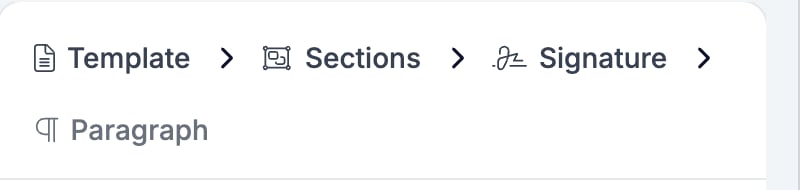
A breadcrumb above the settings names everything that contains the selected block. Select a line of a signature and all four levels appear.
Click a block's text and you select that block, so the panel fills with the block's own settings. To select the **section** that holds it, click beside the block instead, to the left or right of the text. Sections are not outlined in the canvas, so aim for the band of background colour a section fills.
A template holds sections, and a section holds the blocks the recipient reads. [Template](/reference/email-builder/template) explains how the three levels nest, how you move between them, and why you never add one and cannot delete it.
A breadcrumb above the settings names everything that contains the selected block. Select a line of a signature and all four levels appear.
 ## Adding a block
Every settings panel that can contain other blocks lists them under **Blocks**, numbered, in the order they appear in the email. Each row carries three controls.
* The **+** adds a new block below that row. Where the container accepts more than one kind of block, it opens a menu of them.
* The **−** deletes that block.
* The handle on the left drags the block up and down the list.
## Adding a block
Every settings panel that can contain other blocks lists them under **Blocks**, numbered, in the order they appear in the email. Each row carries three controls.
* The **+** adds a new block below that row. Where the container accepts more than one kind of block, it opens a menu of them.
* The **−** deletes that block.
* The handle on the left drags the block up and down the list.
 Click a block's own row to select it and open its settings. [The breadcrumb](/reference/email-builder/template#the-breadcrumb) walks back out. Click **Sections** for the settings of the section that holds the block, and **Template** for the settings of the email as a whole. The email on the left does not change. Only the panel does.
## Choosing a block
Two entries in the list cover more than one block. A **Two Columns** block arrives with its two columns already inside it, and a **Socials** block holds one child per network you link.
| Block | Where you can add it | What it puts in the email |
| ------------------------------------------------------ | -------------------- | --------------------------------------------------------------------- |
| [Section](/reference/email-builder/sections) | Template | a band across the email, with its own background, padding, and border |
| [Paragraph](/reference/email-builder/blocks/paragraph) | Section or column | body text |
| [Heading](/reference/email-builder/blocks/heading) | Section or column | a heading, at the level you pick |
| [Two Columns](/reference/email-builder/blocks/columns) | Section | two columns side by side, each holding its own blocks |
| [Form](/reference/email-builder/blocks/form) | Section | buttons that answer a question from one of your forms |
| [Image](/reference/email-builder/blocks/image) | Section or column | a picture from your media library, or one held in a variable |
| [Socials](/reference/email-builder/blocks/socials) | Section | a row of social icons, one per link |
| [Button](/reference/email-builder/blocks/button) | Section or column | a call to action that opens a URL |
| [HTML](/reference/email-builder/blocks/html) | Section or column | markup you write yourself |
| [Signature](/reference/email-builder/blocks/signature) | Section | a picture beside a block of sign-off text |
Click a block's own row to select it and open its settings. [The breadcrumb](/reference/email-builder/template#the-breadcrumb) walks back out. Click **Sections** for the settings of the section that holds the block, and **Template** for the settings of the email as a whole. The email on the left does not change. Only the panel does.
## Choosing a block
Two entries in the list cover more than one block. A **Two Columns** block arrives with its two columns already inside it, and a **Socials** block holds one child per network you link.
| Block | Where you can add it | What it puts in the email |
| ------------------------------------------------------ | -------------------- | --------------------------------------------------------------------- |
| [Section](/reference/email-builder/sections) | Template | a band across the email, with its own background, padding, and border |
| [Paragraph](/reference/email-builder/blocks/paragraph) | Section or column | body text |
| [Heading](/reference/email-builder/blocks/heading) | Section or column | a heading, at the level you pick |
| [Two Columns](/reference/email-builder/blocks/columns) | Section | two columns side by side, each holding its own blocks |
| [Form](/reference/email-builder/blocks/form) | Section | buttons that answer a question from one of your forms |
| [Image](/reference/email-builder/blocks/image) | Section or column | a picture from your media library, or one held in a variable |
| [Socials](/reference/email-builder/blocks/socials) | Section | a row of social icons, one per link |
| [Button](/reference/email-builder/blocks/button) | Section or column | a call to action that opens a URL |
| [HTML](/reference/email-builder/blocks/html) | Section or column | markup you write yourself |
| [Signature](/reference/email-builder/blocks/signature) | Section | a picture beside a block of sign-off text |
 A column takes fewer kinds of block than a section. It cannot hold a Two Columns, a Form, or a Signature.
## The toolbar
The toolbar runs along the top of the builder, from **Save** to the four drawer buttons on the right.
A column takes fewer kinds of block than a section. It cannot hold a Two Columns, a Form, or a Signature.
## The toolbar
The toolbar runs along the top of the builder, from **Save** to the four drawer buttons on the right.
 **Save** stores your changes.
Two buttons follow it:
* The eye opens a [preview](/reference/email-builder/testing#the-preview) of the finished email, at mobile, tablet, or desktop width, with a language picker and a **Copy Preview URL** button. Its tooltip warns that it saves the email first.
* The paper plane opens [Test Email](/reference/email-builder/testing#sending-a-test-email). It sends the email to you with realistic values filled in.
**Brand** picks the brand the email's colours, fonts, and logo come from.
Two toggles follow the brand selector:
* **Show variable values** is a display toggle for the canvas. To read an email with real values in it, use the [preview](/reference/email-builder/testing#the-preview).
* **Show code editor** opens the generated markup. It appears only for accounts that may edit templates directly.
Four buttons at the end open drawers over the email:
* **Show variable list** lists the variables this email can use, and adds ones of your own. See [Variables](/reference/email-builder/variables).
* **Manage Template** publishes the open email to the shared template library. It appears only for accounts that maintain that library.
* **Show objects** links records such as a vacancy or a match to the email. Their fields then become [variables](/reference/email-builder/variables#bringing-in-a-records-fields) you can write into it.
* **Manage Languages** sets the email's default language and its [translations](/reference/email-builder/translations).
## Brand and theme
Every colour and font in a new email starts as a value from the brand you pick in **Brand**. The panel names the value rather than showing a hex code, such as "Theme: Palette Surface Color".
Switch **Brand** and the whole email restyles, blocks you already wrote included. Replace one of those values with a colour of your own and that one control stops following the brand. See [Template](/reference/email-builder/template#brand-theme-and-metadata) for the settings that decide it, and for the difference between switching brand and setting a theme.
## Saving
The email builder does not save as you type. **Save** saves. The preview button and **Send test email** each save before they run, so either of those commits whatever you have changed. See [Testing](/reference/email-builder/testing).
Try to leave the builder with unsaved changes and a warning appears. It offers to **Save** them, or to **Discard** them and carry on.
**Save** stores your changes.
Two buttons follow it:
* The eye opens a [preview](/reference/email-builder/testing#the-preview) of the finished email, at mobile, tablet, or desktop width, with a language picker and a **Copy Preview URL** button. Its tooltip warns that it saves the email first.
* The paper plane opens [Test Email](/reference/email-builder/testing#sending-a-test-email). It sends the email to you with realistic values filled in.
**Brand** picks the brand the email's colours, fonts, and logo come from.
Two toggles follow the brand selector:
* **Show variable values** is a display toggle for the canvas. To read an email with real values in it, use the [preview](/reference/email-builder/testing#the-preview).
* **Show code editor** opens the generated markup. It appears only for accounts that may edit templates directly.
Four buttons at the end open drawers over the email:
* **Show variable list** lists the variables this email can use, and adds ones of your own. See [Variables](/reference/email-builder/variables).
* **Manage Template** publishes the open email to the shared template library. It appears only for accounts that maintain that library.
* **Show objects** links records such as a vacancy or a match to the email. Their fields then become [variables](/reference/email-builder/variables#bringing-in-a-records-fields) you can write into it.
* **Manage Languages** sets the email's default language and its [translations](/reference/email-builder/translations).
## Brand and theme
Every colour and font in a new email starts as a value from the brand you pick in **Brand**. The panel names the value rather than showing a hex code, such as "Theme: Palette Surface Color".
Switch **Brand** and the whole email restyles, blocks you already wrote included. Replace one of those values with a colour of your own and that one control stops following the brand. See [Template](/reference/email-builder/template#brand-theme-and-metadata) for the settings that decide it, and for the difference between switching brand and setting a theme.
## Saving
The email builder does not save as you type. **Save** saves. The preview button and **Send test email** each save before they run, so either of those commits whatever you have changed. See [Testing](/reference/email-builder/testing).
Try to leave the builder with unsaved changes and a warning appears. It offers to **Save** them, or to **Discard** them and carry on.
 Reload the page or close the tab instead and your browser asks you to confirm before you lose them.
## Related
* [Setting up an email template in HireData](/apps/messaging/emails/setting-up-an-email-template-in-hiredata) walks one email from blank to ready.
* [Adding images to your emails](/apps/messaging/emails/adding-images-to-your-emails) covers the media library.
* [Variables](/reference/email-builder/variables) covers the picker, the fallbacks, and what a missing value looks like.
* [Translations](/reference/email-builder/translations) covers sending one email in several languages.
* [Testing](/reference/email-builder/testing) covers the preview, the test send, and what neither of them proves.
* [Form builder overview](/reference/forms/overview) covers the forms a Form block can point at.
## Related topics
- [Form](/reference/email-builder/blocks/form.md)
- [Heading](/reference/email-builder/blocks/heading.md)
- [Sections](/reference/email-builder/sections.md)
- [Paragraph](/reference/email-builder/blocks/paragraph.md)
- [Two Columns](/reference/email-builder/blocks/columns.md)
Reload the page or close the tab instead and your browser asks you to confirm before you lose them.
## Related
* [Setting up an email template in HireData](/apps/messaging/emails/setting-up-an-email-template-in-hiredata) walks one email from blank to ready.
* [Adding images to your emails](/apps/messaging/emails/adding-images-to-your-emails) covers the media library.
* [Variables](/reference/email-builder/variables) covers the picker, the fallbacks, and what a missing value looks like.
* [Translations](/reference/email-builder/translations) covers sending one email in several languages.
* [Testing](/reference/email-builder/testing) covers the preview, the test send, and what neither of them proves.
* [Form builder overview](/reference/forms/overview) covers the forms a Form block can point at.
## Related topics
- [Form](/reference/email-builder/blocks/form.md)
- [Heading](/reference/email-builder/blocks/heading.md)
- [Sections](/reference/email-builder/sections.md)
- [Paragraph](/reference/email-builder/blocks/paragraph.md)
- [Two Columns](/reference/email-builder/blocks/columns.md)