> ## Documentation Index
> Fetch the complete documentation index at: https://help.hiredata.com/llms.txt
> Use this file to discover all available pages before exploring further.
# Data sources
> Fill a HireData form's Multiple Choice or Dropdown question from a saved list instead of typed options, and what changes when you edit a shared list.
A data source is a saved list your workspace keeps in one place, drawn from your own records or from a connected app. Point a [Multiple Choice or Dropdown](/reference/forms/fields/multiple-choice-and-dropdown) question at one and its options come from that list rather than from options you type into the field. Six forms asking which office someone wants then share one list, and adding the seventh office is a single edit.
## Point a question at a data source
Open the question and click **Add Data Source** above the options. The **Data Sources** window lists every source the workspace has. Each card carries a badge naming the list it reads, plus a **Filters** badge when the source narrows that list. **Add Data Source** in the window's header builds a new one from a workspace entity or from a connected app.
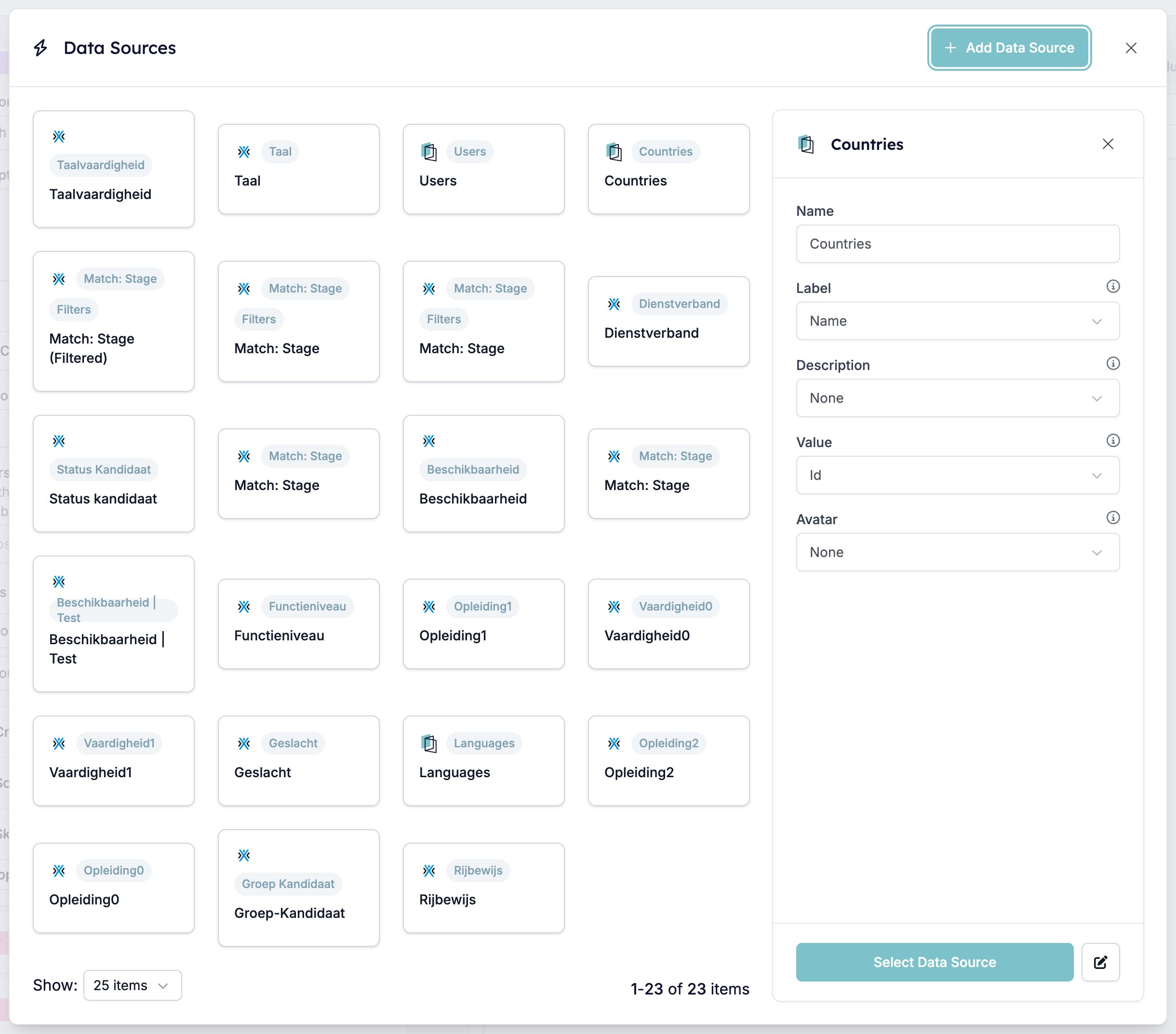 Click a card to see what the source maps, then **Select Data Source** to attach it.
The options you typed disappear while a source is attached, and a question holds one source at a time. **Remove Data Source** detaches it and puts an empty pair of options back, so anything you typed before is gone for good.
Click a card to see what the source maps, then **Select Data Source** to attach it.
The options you typed disappear while a source is attached, and a question holds one source at a time. **Remove Data Source** detaches it and puts an empty pair of options back, so anything you typed before is gone for good.
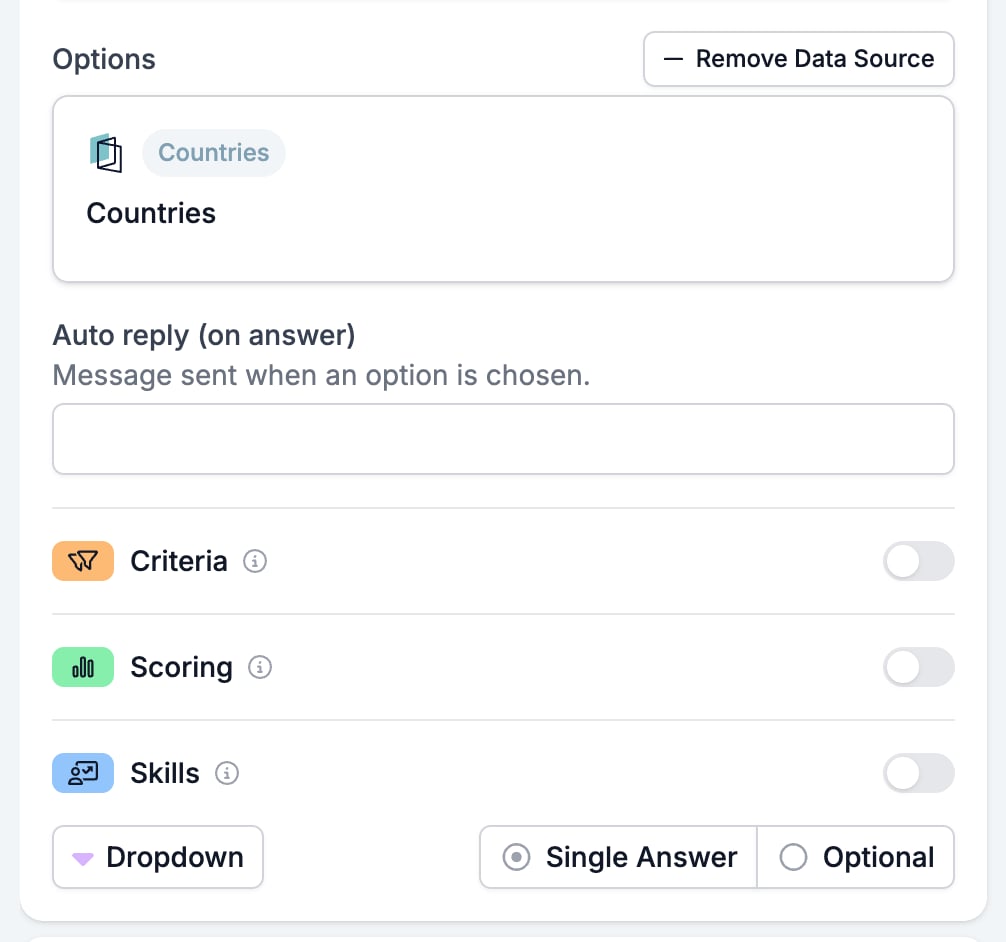 Attaching a source also collapses the per-option auto replies into one **Auto reply (on answer)**, sent whichever option the respondent picks. There is no way to write a different WhatsApp reply per country when the countries come from a list.
## What a source maps
The pencil next to **Select Data Source** opens the source itself. Every setting here decides how a record turns into an option.
Attaching a source also collapses the per-option auto replies into one **Auto reply (on answer)**, sent whichever option the respondent picks. There is no way to write a different WhatsApp reply per country when the countries come from a list.
## What a source maps
The pencil next to **Select Data Source** opens the source itself. Every setting here decides how a record turns into an option.
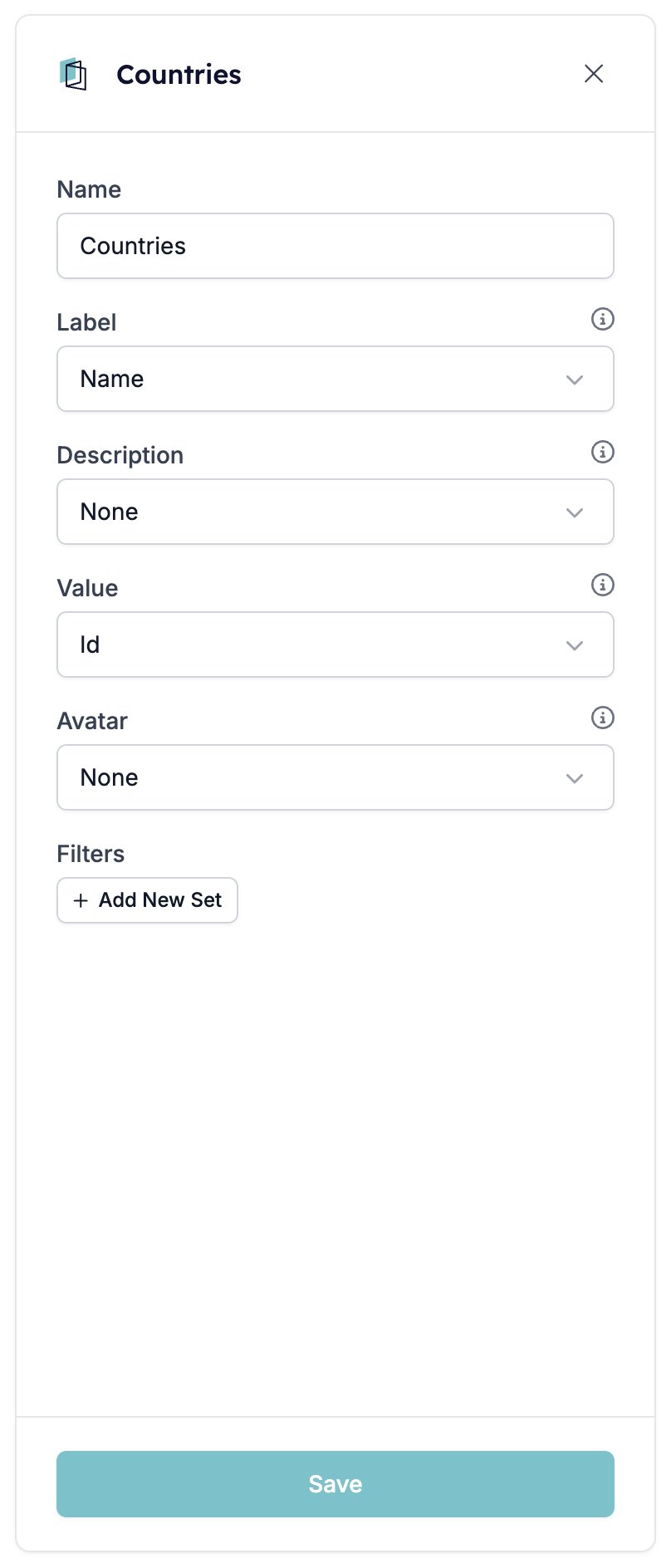 * **Name** is what the source is called in the library. It is the only setting you type. The rest are pickers listing the fields the records carry.
* **Label** is the field the respondent reads. Get this wrong and your options are a column of IDs.
* **Description** adds a second line under the label where there is room for one. **None** leaves it off.
* **Value** is the field stored with the answer, usually the record's ID rather than its name.
* **Avatar** puts an image beside the label. Only image fields are offered, so most sources have nothing to pick.
## Filters
**Add New Set** starts a set of conditions. Each row picks a field, a condition, and a value, and **Add Filter** adds another row to the set. **Add New Set** again gives you a second set.
Filters are what make a source worth saving. Every country in the world is rarely the list you want to put in front of a candidate. The handful you recruit in usually is.
## One source, every question that uses it
A data source belongs to the workspace, not to the form. **Save** in the editor rewrites it for every question in every form pointing at it, and there is no per-form copy to fall back on. Before you narrow a source's filters, work out who else is reading it.
The records themselves are read when the form runs. A record added to the underlying list turns up as a new option without anyone opening the form builder.
## Related
* [Multiple Choice and Dropdown](/reference/forms/fields/multiple-choice-and-dropdown) is the only field type that takes a data source.
* [Objects](/reference/forms/objects) links a record to the form and turns its fields into variables.
* [Form builder overview](/reference/forms/overview) covers the builder, the shared settings, and every field type.
## Related topics
- [Form builder overview](/reference/forms/overview.md)
- [Generated fields](/reference/forms/evaluation/generated-fields.md)
- [Multiple Choice and Dropdown](/reference/forms/fields/multiple-choice-and-dropdown.md)
- [Logic](/reference/forms/logic.md)
- [Objects](/reference/forms/objects.md)
* **Name** is what the source is called in the library. It is the only setting you type. The rest are pickers listing the fields the records carry.
* **Label** is the field the respondent reads. Get this wrong and your options are a column of IDs.
* **Description** adds a second line under the label where there is room for one. **None** leaves it off.
* **Value** is the field stored with the answer, usually the record's ID rather than its name.
* **Avatar** puts an image beside the label. Only image fields are offered, so most sources have nothing to pick.
## Filters
**Add New Set** starts a set of conditions. Each row picks a field, a condition, and a value, and **Add Filter** adds another row to the set. **Add New Set** again gives you a second set.
Filters are what make a source worth saving. Every country in the world is rarely the list you want to put in front of a candidate. The handful you recruit in usually is.
## One source, every question that uses it
A data source belongs to the workspace, not to the form. **Save** in the editor rewrites it for every question in every form pointing at it, and there is no per-form copy to fall back on. Before you narrow a source's filters, work out who else is reading it.
The records themselves are read when the form runs. A record added to the underlying list turns up as a new option without anyone opening the form builder.
## Related
* [Multiple Choice and Dropdown](/reference/forms/fields/multiple-choice-and-dropdown) is the only field type that takes a data source.
* [Objects](/reference/forms/objects) links a record to the form and turns its fields into variables.
* [Form builder overview](/reference/forms/overview) covers the builder, the shared settings, and every field type.
## Related topics
- [Form builder overview](/reference/forms/overview.md)
- [Generated fields](/reference/forms/evaluation/generated-fields.md)
- [Multiple Choice and Dropdown](/reference/forms/fields/multiple-choice-and-dropdown.md)
- [Logic](/reference/forms/logic.md)
- [Objects](/reference/forms/objects.md)