> ## Documentation Index
> Fetch the complete documentation index at: https://help.hiredata.com/llms.txt
> Use this file to discover all available pages before exploring further.
# Scoring
> Award points for form answers with rules or with AI, turn the total into a percentage, and label it with a score range such as Low, Medium, or High.
Scoring turns a response into a number. You decide how many points each question is worth and when they are awarded, and HireData converts the total into a percentage and labels it with a range.
Criteria tells you who is out. Scoring tells you who to call first.
## Score ranges
Switch **Scoring** on for the form and it starts with three ranges: **Low** at 0, **Medium** at 50, and **High** at 80. Click **Scoring** to open them.
 Each range has a **Label** and a **Minimum score (%)**. A response lands in the highest range whose minimum it clears, so 82% is High and 79% is Medium. **Add range** adds another, and the bin removes one. Give every range a label and a different minimum between 0 and 100.
Keep one range at 0. A score below every minimum gets a percentage and no label, which reads as a missing result rather than a low one.
## Settings per question
Click **Scoring**, switch a question on, and its settings open.
* **How many points is this question worth?**, the most this question can add.
* **How to evaluate?** with **Use answer rules** and **Evaluate with AI**.
* **When should points be awarded?**, on the rules side, holding one or more rules.
* The note box, labelled **How should AI award points?**.
Each range has a **Label** and a **Minimum score (%)**. A response lands in the highest range whose minimum it clears, so 82% is High and 79% is Medium. **Add range** adds another, and the bin removes one. Give every range a label and a different minimum between 0 and 100.
Keep one range at 0. A score below every minimum gets a percentage and no label, which reads as a missing result rather than a low one.
## Settings per question
Click **Scoring**, switch a question on, and its settings open.
* **How many points is this question worth?**, the most this question can add.
* **How to evaluate?** with **Use answer rules** and **Evaluate with AI**.
* **When should points be awarded?**, on the rules side, holding one or more rules.
* The note box, labelled **How should AI award points?**.
 ### Rules
A rule is a set of conditions plus **How many points should be awarded?**. A condition reads ` ` and can only test this question's answer. **Add condition** adds a second one and an **All** and **Any** switch above it, and **Add rule** adds another rule underneath.
The operators are the same set Criteria offers, and the field type decides them: text operators on the text and contact types, comparisons on the numeric, rating, and date types, **is one of** on Multiple Choice and Dropdown, and file metadata on File Upload. See [the operator table](/reference/forms/evaluation/criteria#operators).
Every matching rule pays out, and the total is then capped at the question's maximum. Two rules that both match a five-year answer, one worth 20 and one worth 10, award 20 on a question worth 20. Overlapping bands are safe as long as the maximum is right. That is what lets you write "5 years or more, 20 points" above "3 years or more, 10 points" and stop thinking about the gap.
Leave **How many points is this question worth?** empty and the maximum becomes the sum of the rule points, so nothing can go over 100%.
### Evaluating with AI
Switch to **Evaluate with AI** and the rules disappear. The model reads the answer and your note and returns a number between zero and the question's maximum, with a sentence of reasoning.
Set the maximum before switching a question to AI. AI scoring needs a maximum above zero, and the whole evaluation fails with an error while it is empty.
## How the percentage is worked out
Only the questions you switched on and configured take part. HireData adds up the points they earned, divides by the sum of their maximums, and rounds to two decimals.
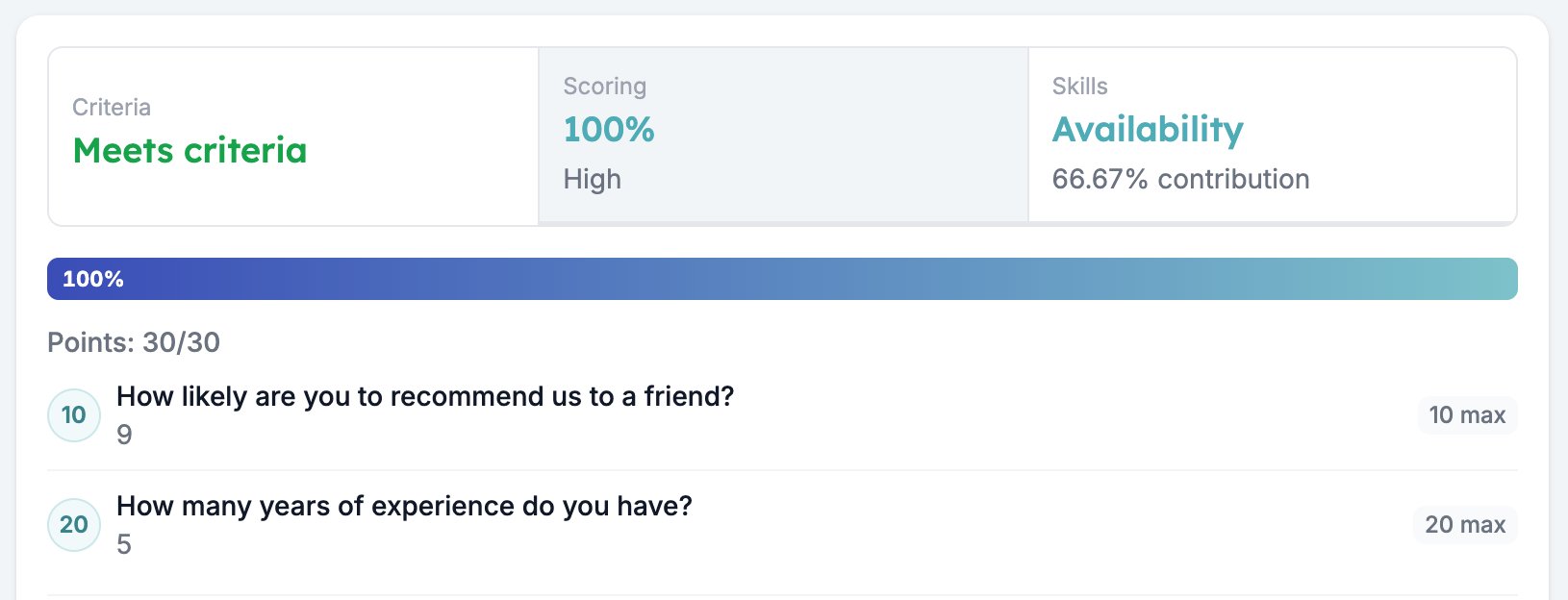
A form with a 10-point question and a 20-point question is scored out of 30. Earn 10 and 20 and the response scores 100%.
### Rules
A rule is a set of conditions plus **How many points should be awarded?**. A condition reads ` ` and can only test this question's answer. **Add condition** adds a second one and an **All** and **Any** switch above it, and **Add rule** adds another rule underneath.
The operators are the same set Criteria offers, and the field type decides them: text operators on the text and contact types, comparisons on the numeric, rating, and date types, **is one of** on Multiple Choice and Dropdown, and file metadata on File Upload. See [the operator table](/reference/forms/evaluation/criteria#operators).
Every matching rule pays out, and the total is then capped at the question's maximum. Two rules that both match a five-year answer, one worth 20 and one worth 10, award 20 on a question worth 20. Overlapping bands are safe as long as the maximum is right. That is what lets you write "5 years or more, 20 points" above "3 years or more, 10 points" and stop thinking about the gap.
Leave **How many points is this question worth?** empty and the maximum becomes the sum of the rule points, so nothing can go over 100%.
### Evaluating with AI
Switch to **Evaluate with AI** and the rules disappear. The model reads the answer and your note and returns a number between zero and the question's maximum, with a sentence of reasoning.
Set the maximum before switching a question to AI. AI scoring needs a maximum above zero, and the whole evaluation fails with an error while it is empty.
## How the percentage is worked out
Only the questions you switched on and configured take part. HireData adds up the points they earned, divides by the sum of their maximums, and rounds to two decimals.
A form with a 10-point question and a 20-point question is scored out of 30. Earn 10 and 20 and the response scores 100%.
 An unanswered question scores zero and still counts its maximum, so a half-finished response scores low rather than scoring well on what it did answer. That is usually what you want. When it is not, put the scored questions early in the form, ahead of any [logic](/reference/forms/logic) jump that could step over them.
Automations read the result as `{{form_response.evaluation.scoring.score}}` for the percentage, and `{{form_response.evaluation.scoring.band.label}}` for the range label.
## Related
* [Form evaluation overview](/reference/forms/evaluation/overview) covers the five evaluators and the order you switch them on in.
* [Criteria](/reference/forms/evaluation/criteria) decides who qualifies at all.
* [Test & Evaluate](/reference/forms/testing/test-and-evaluate) shows the points each question earned.
* [Screen and score applicants with a pre-screening form](/knowledge-base/cookbook/pre-screening-form) builds a form around this evaluator.
## Related topics
- [Screen and score applicants with a pre-screening form](/knowledge-base/cookbook/pre-screening-form.md)
- [Form evaluation overview](/reference/forms/evaluation/overview.md)
- [Net Promoter Score and Opinion Scale](/reference/forms/fields/net-promoter-score-and-opinion-scale.md)
- [Number](/reference/forms/fields/number.md)
- [Test & Evaluate](/reference/forms/testing/test-and-evaluate.md)
An unanswered question scores zero and still counts its maximum, so a half-finished response scores low rather than scoring well on what it did answer. That is usually what you want. When it is not, put the scored questions early in the form, ahead of any [logic](/reference/forms/logic) jump that could step over them.
Automations read the result as `{{form_response.evaluation.scoring.score}}` for the percentage, and `{{form_response.evaluation.scoring.band.label}}` for the range label.
## Related
* [Form evaluation overview](/reference/forms/evaluation/overview) covers the five evaluators and the order you switch them on in.
* [Criteria](/reference/forms/evaluation/criteria) decides who qualifies at all.
* [Test & Evaluate](/reference/forms/testing/test-and-evaluate) shows the points each question earned.
* [Screen and score applicants with a pre-screening form](/knowledge-base/cookbook/pre-screening-form) builds a form around this evaluator.
## Related topics
- [Screen and score applicants with a pre-screening form](/knowledge-base/cookbook/pre-screening-form.md)
- [Form evaluation overview](/reference/forms/evaluation/overview.md)
- [Net Promoter Score and Opinion Scale](/reference/forms/fields/net-promoter-score-and-opinion-scale.md)
- [Number](/reference/forms/fields/number.md)
- [Test & Evaluate](/reference/forms/testing/test-and-evaluate.md)