> ## Documentation Index
> Fetch the complete documentation index at: https://help.hiredata.com/llms.txt
> Use this file to discover all available pages before exploring further.
# Multiple Choice and Dropdown
> The option field in a HireData form. Multiple Choice lists the options, Dropdown hides them in a menu, and both can take their options from a data source.
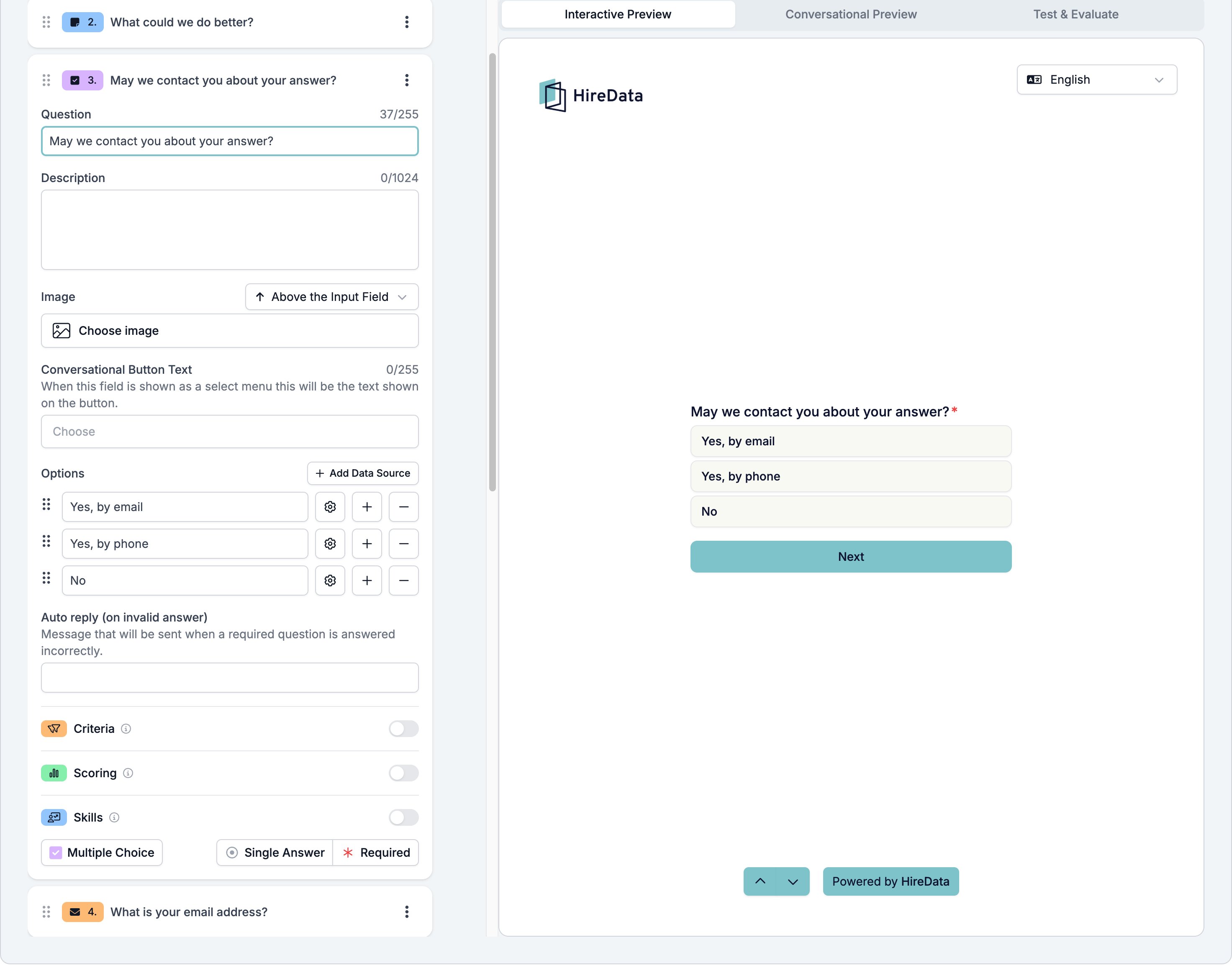
Multiple Choice and Dropdown are one field type with a switch between them. Multiple Choice lists every option on the screen, so the respondent sees all of them at once. Dropdown puts them behind a menu, which is the better shape once the list gets long.
Both sit in the **Choice** group of the **Add Content** palette. The button at the bottom left of the card switches between them.
## Settings
The card carries the [settings every field shares](/reference/forms/overview#settings-every-field-shares). The options themselves and three more settings belong to this type.
* **Options**, the list the respondent picks from.
* **Add Data Source**, above the list, which fills the options from a saved list your workspace already keeps instead of options you type. See [Data sources](/reference/forms/data-sources).
* **Conversational Button Text**, the label on the button that opens the list in a WhatsApp conversation. The box shows "Choose" as its placeholder.
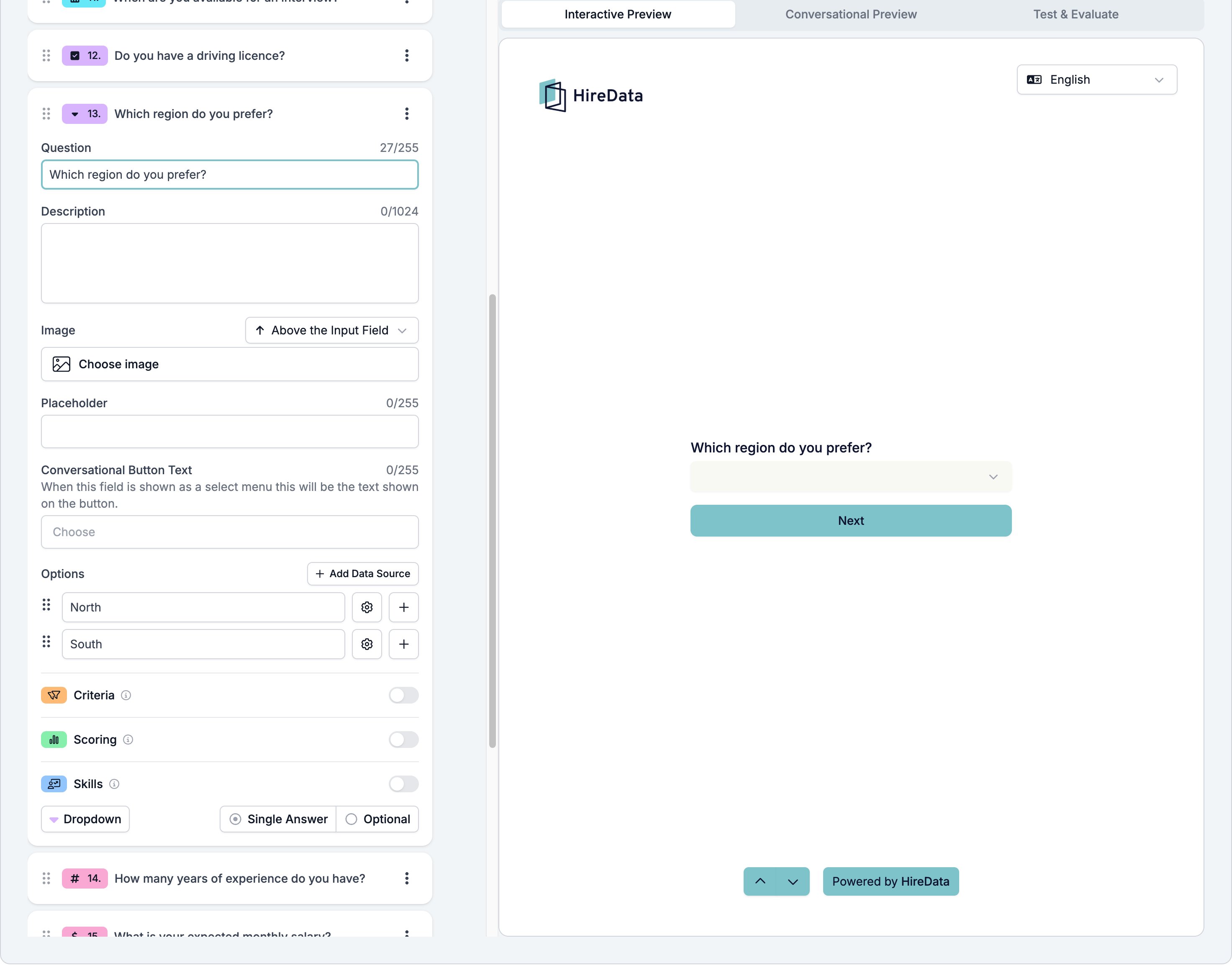
* **Placeholder**, on Dropdown only, the text in the closed menu before anything is picked.
* The footer button reading **Single Answer** opens **Answer selection**, which holds one switch, **Allow multiple answers**. Turn it on and the respondent can pick more than one option.
Each option row has the option text, a gear, a plus, and a minus. The gear opens that option's **Auto reply (on answer)**, the WhatsApp message sent when this option is chosen. The plus adds a row underneath and the minus removes one. A choice field needs two options, so the minus disappears once only two are left.
 The same field as a Dropdown, which adds a **Placeholder**:
 ## What it stores
The chosen options, as a list. A single-answer field stores a list of one.
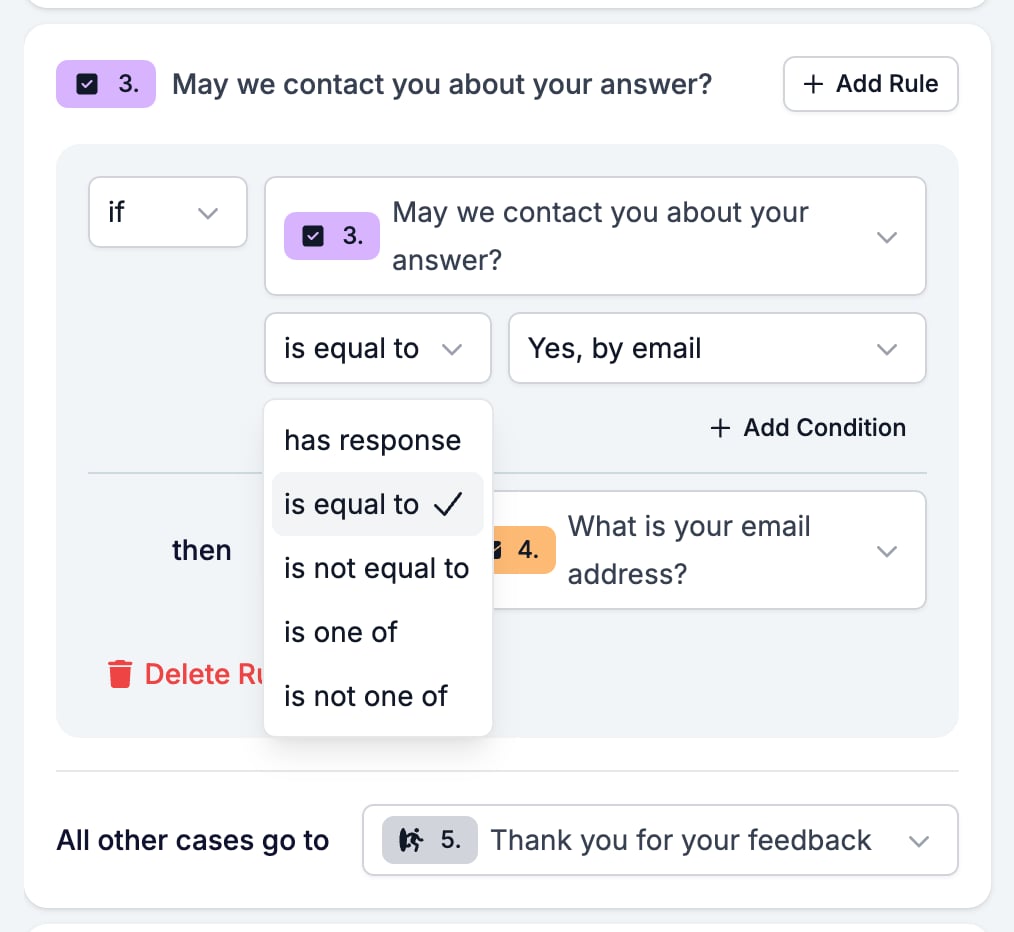
## Logic operators
| Operator | Matches when |
| --------------- | -------------------------------------------- |
| has response | the respondent picked anything |
| is equal to | the answer is the option you picked |
| is not equal to | the answer is any other option |
| is one of | the answer is any of the options you picked |
| is not one of | the answer is none of the options you picked |
**is one of** is the one that saves rules. Three options that all lead to the same follow-up need one rule, not three.
## What it stores
The chosen options, as a list. A single-answer field stores a list of one.
## Logic operators
| Operator | Matches when |
| --------------- | -------------------------------------------- |
| has response | the respondent picked anything |
| is equal to | the answer is the option you picked |
| is not equal to | the answer is any other option |
| is one of | the answer is any of the options you picked |
| is not one of | the answer is none of the options you picked |
**is one of** is the one that saves rules. Three options that all lead to the same follow-up need one rule, not three.
 ## Evaluation
Switch **Criteria**, **Scoring**, or **Skills** on for the form in the [Evaluation tab](/reference/forms/evaluation/overview) and each one gets a switch on this card.
A choice field is the easiest to score, because you already know every answer it can give. Points per option is a rule you can write once and trust.
## Related
* [Form builder overview](/reference/forms/overview) covers the builder, the shared settings, and every field type.
* [Logic](/reference/forms/logic) covers the operators, the branching patterns, and what to check when a rule does not fire.
* [Data sources](/reference/forms/data-sources) explains filling the options from a saved list.
* [Yes/No](/reference/forms/fields/yes-no) is the field to use for a plain yes or no.
## Related topics
- [Data sources](/reference/forms/data-sources.md)
- [Logic](/reference/forms/logic.md)
- [Time](/reference/forms/fields/time.md)
- [Net Promoter Score and Opinion Scale](/reference/forms/fields/net-promoter-score-and-opinion-scale.md)
- [Form builder overview](/reference/forms/overview.md)
## Evaluation
Switch **Criteria**, **Scoring**, or **Skills** on for the form in the [Evaluation tab](/reference/forms/evaluation/overview) and each one gets a switch on this card.
A choice field is the easiest to score, because you already know every answer it can give. Points per option is a rule you can write once and trust.
## Related
* [Form builder overview](/reference/forms/overview) covers the builder, the shared settings, and every field type.
* [Logic](/reference/forms/logic) covers the operators, the branching patterns, and what to check when a rule does not fire.
* [Data sources](/reference/forms/data-sources) explains filling the options from a saved list.
* [Yes/No](/reference/forms/fields/yes-no) is the field to use for a plain yes or no.
## Related topics
- [Data sources](/reference/forms/data-sources.md)
- [Logic](/reference/forms/logic.md)
- [Time](/reference/forms/fields/time.md)
- [Net Promoter Score and Opinion Scale](/reference/forms/fields/net-promoter-score-and-opinion-scale.md)
- [Form builder overview](/reference/forms/overview.md)