> ## Documentation Index
> Fetch the complete documentation index at: https://help.hiredata.com/llms.txt
> Use this file to discover all available pages before exploring further.
# Short Text and Long Text
> The free-text field in a HireData form. Short Text gives a one-line box, Long Text a taller one, and both accept length and pattern rules.
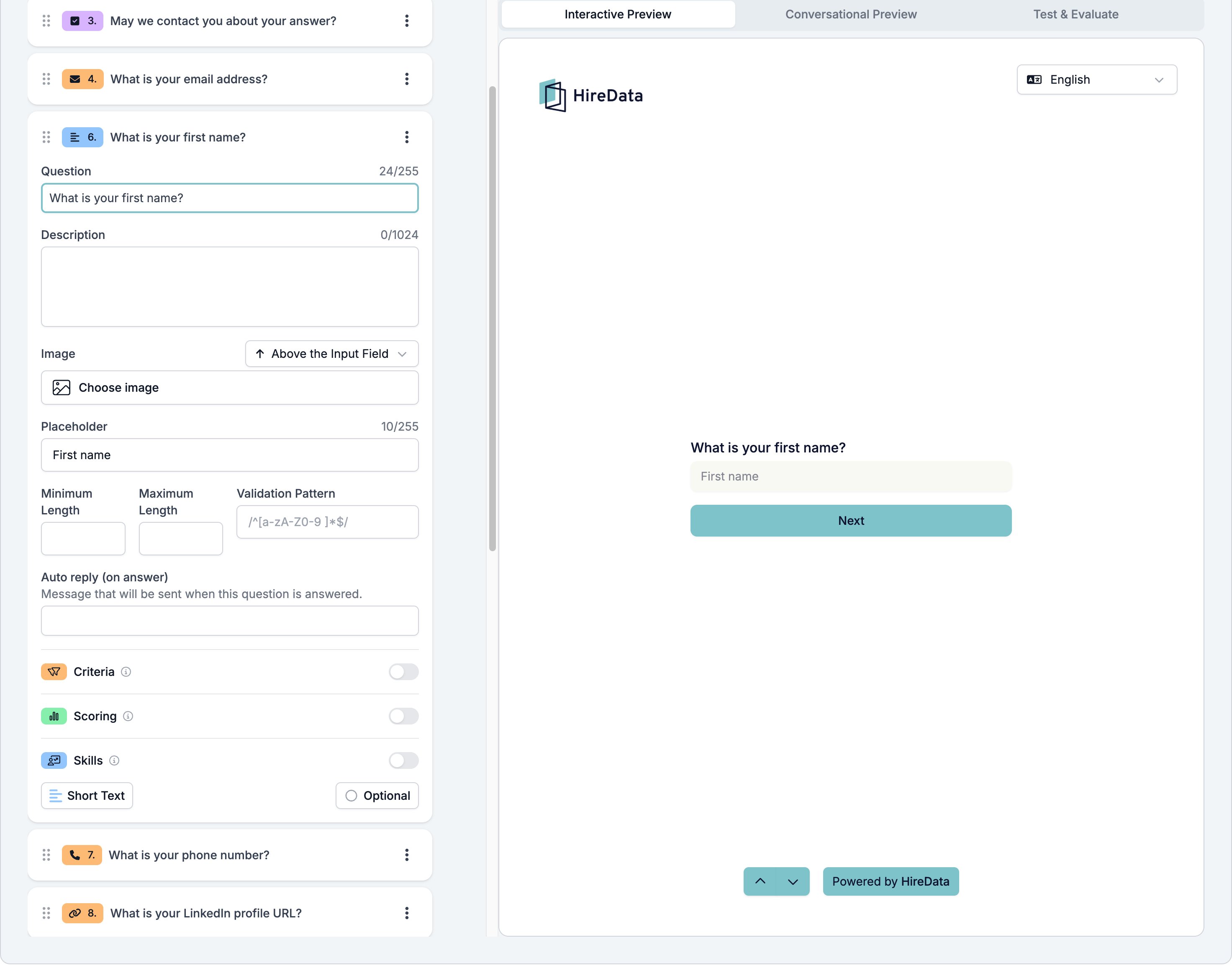
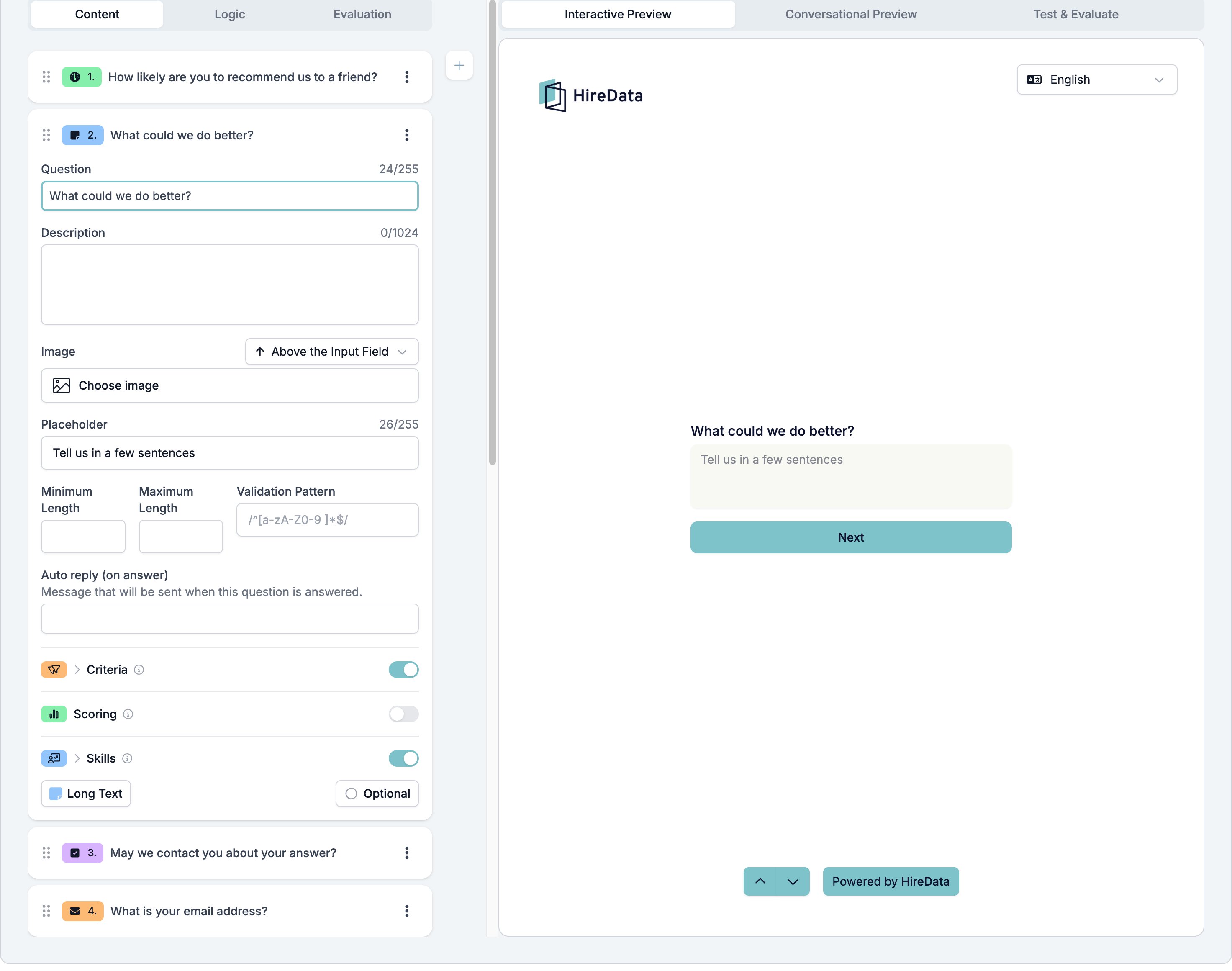
Short Text and Long Text are one field type with a switch between them. Short Text gives the respondent a single-line box. Long Text gives a taller box, which is what you want for a reason, an explanation, or anything you intend the AI evaluators to read.
Both sit in the **Text** group of the **Add Content** palette. The button at the bottom left of the card switches between them.
## Settings
The card carries the [settings every field shares](/reference/forms/overview#settings-every-field-shares). Short Text and Long Text add four of their own.
* **Placeholder**, up to 255 characters, shown in the empty box.
* **Minimum Length** and **Maximum Length**, counted in characters.
* **Validation Pattern**, a regular expression the answer has to match. The box shows `/^[a-zA-Z0-9 ]*$/` as an example.
The messages a respondent sees when an answer breaks one of these rules sit under **Validation** in [Languages and translations](/reference/forms/overview#localization), as **Min Text**, **Max Text**, and **Invalid Pattern**.
 The same field switched to Long Text, with Criteria and Skills on:
 ## What it stores
Text, exactly as the respondent typed it.
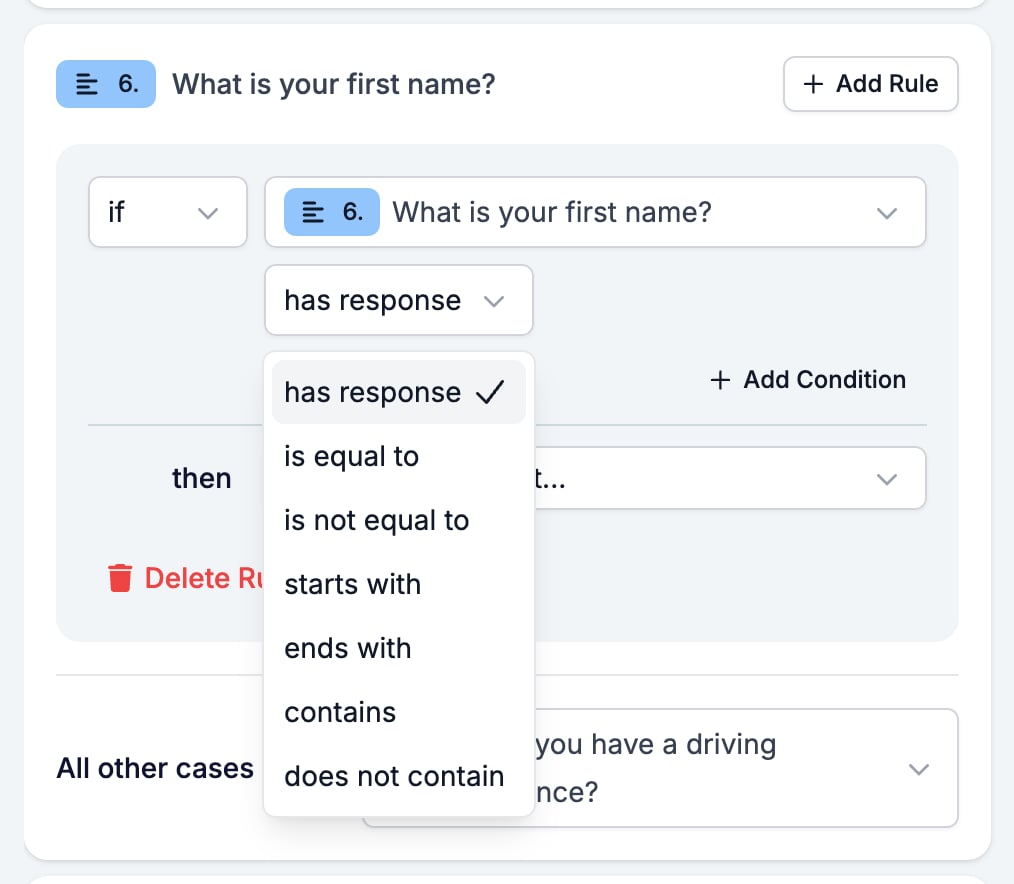
## Logic operators
| Operator | Matches when |
| ---------------- | ----------------------------------------- |
| has response | the respondent answered at all |
| is equal to | the answer is exactly the value |
| is not equal to | the answer is anything else |
| starts with | the answer begins with the value |
| ends with | the answer ends with the value |
| contains | the value appears somewhere in the answer |
| does not contain | the value appears nowhere in the answer |
## What it stores
Text, exactly as the respondent typed it.
## Logic operators
| Operator | Matches when |
| ---------------- | ----------------------------------------- |
| has response | the respondent answered at all |
| is equal to | the answer is exactly the value |
| is not equal to | the answer is anything else |
| starts with | the answer begins with the value |
| ends with | the answer ends with the value |
| contains | the value appears somewhere in the answer |
| does not contain | the value appears nowhere in the answer |
 ## Evaluation
Switch **Criteria**, **Scoring**, or **Skills** on for the form in the [Evaluation tab](/reference/forms/evaluation/overview) and each one gets a switch on this card.
Long Text is the field the AI has the most to work with, because the answer is prose rather than one value. It is the field to point **Skills** at, and the one where a **Criteria** check is worth handing to the AI instead of writing a rule.
## Related
* [Form builder overview](/reference/forms/overview) covers the builder, the shared settings, and every field type.
* [Logic](/reference/forms/logic) covers the operators, the branching patterns, and what to check when a rule does not fire.
* [Email](/reference/forms/fields/email), [Phone Number](/reference/forms/fields/phone-number), and [Website](/reference/forms/fields/website) are the same box with a format check on it.
* [Creating a form in HireData](/content/creating-a-form-in-hiredata) walks one form from blank to published.
## Related topics
- [Form builder overview](/reference/forms/overview.md)
- [Email](/reference/forms/fields/email.md)
- [Website](/reference/forms/fields/website.md)
- [Logic](/reference/forms/logic.md)
- [WhatsApp error codes explained](/apps/messaging/whatsapp/whatsapp-error-codes-explained.md)
## Evaluation
Switch **Criteria**, **Scoring**, or **Skills** on for the form in the [Evaluation tab](/reference/forms/evaluation/overview) and each one gets a switch on this card.
Long Text is the field the AI has the most to work with, because the answer is prose rather than one value. It is the field to point **Skills** at, and the one where a **Criteria** check is worth handing to the AI instead of writing a rule.
## Related
* [Form builder overview](/reference/forms/overview) covers the builder, the shared settings, and every field type.
* [Logic](/reference/forms/logic) covers the operators, the branching patterns, and what to check when a rule does not fire.
* [Email](/reference/forms/fields/email), [Phone Number](/reference/forms/fields/phone-number), and [Website](/reference/forms/fields/website) are the same box with a format check on it.
* [Creating a form in HireData](/content/creating-a-form-in-hiredata) walks one form from blank to published.
## Related topics
- [Form builder overview](/reference/forms/overview.md)
- [Email](/reference/forms/fields/email.md)
- [Website](/reference/forms/fields/website.md)
- [Logic](/reference/forms/logic.md)
- [WhatsApp error codes explained](/apps/messaging/whatsapp/whatsapp-error-codes-explained.md)