> ## Documentation Index
> Fetch the complete documentation index at: https://help.hiredata.com/llms.txt
> Use this file to discover all available pages before exploring further.
# Objects
> Linking records such as a vacancy or a match to a HireData form, the settings each link carries, and why the first object decides which records it serves.
An object is a type of record a connected app syncs into HireData, such as a vacancy, a candidate, or a match. Linking one to a form tells the form which record it is about, which is what turns a generic questionnaire into one that names the role the candidate applied for.
## Open the panel
The third of the five drawer buttons in the toolbar opens **Objects**.
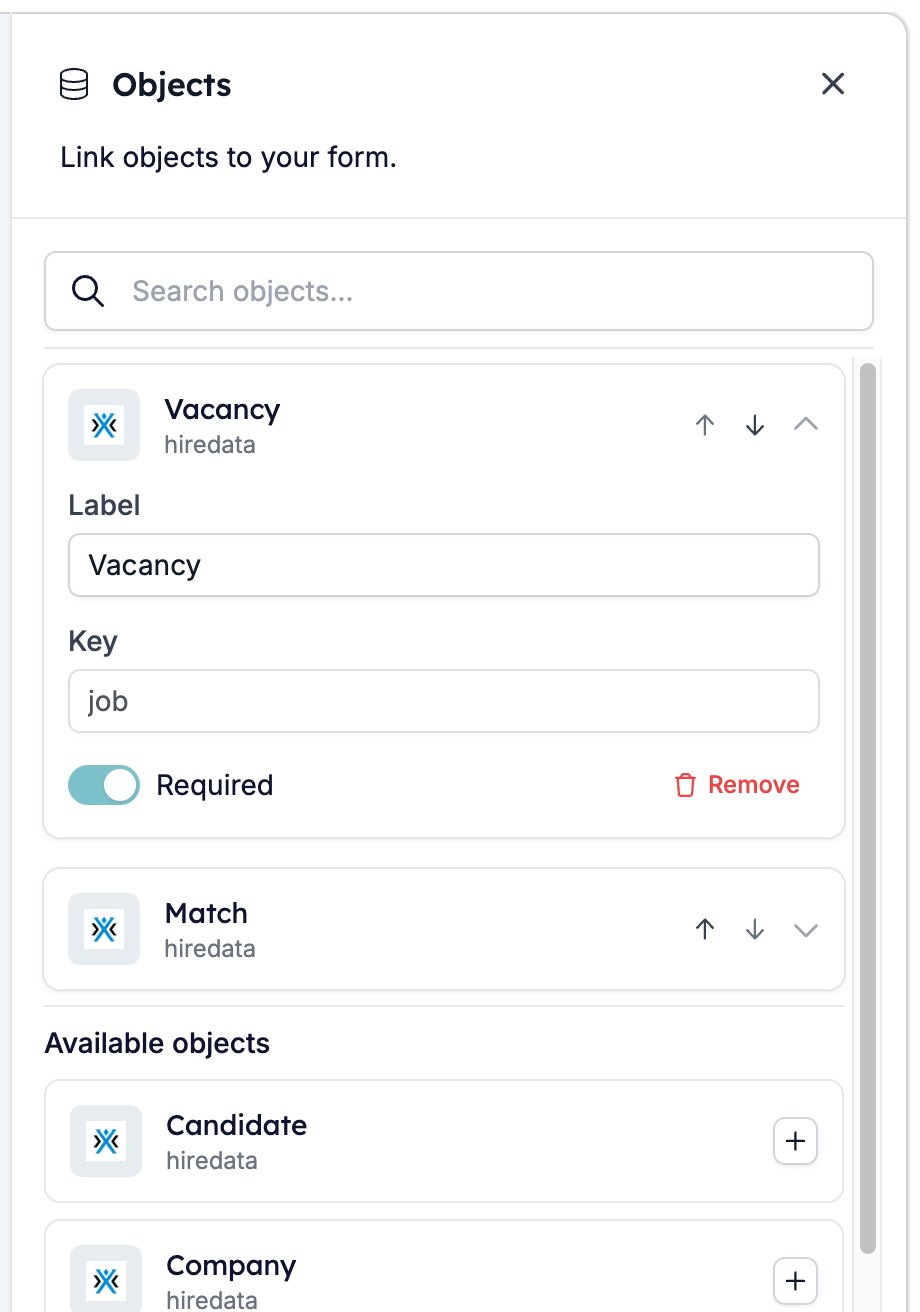
 The panel lists the objects already linked to this form, then **Available objects** with everything else the workspace can offer. The **+** on a row links it. **Search objects** filters a long list.
 ## What linking an object gives you
Every field on the linked record becomes a variable. You can write it into any text setting the form has, including the question, the description, a placeholder, and an option label, so a question can open with the job title rather than "this role".
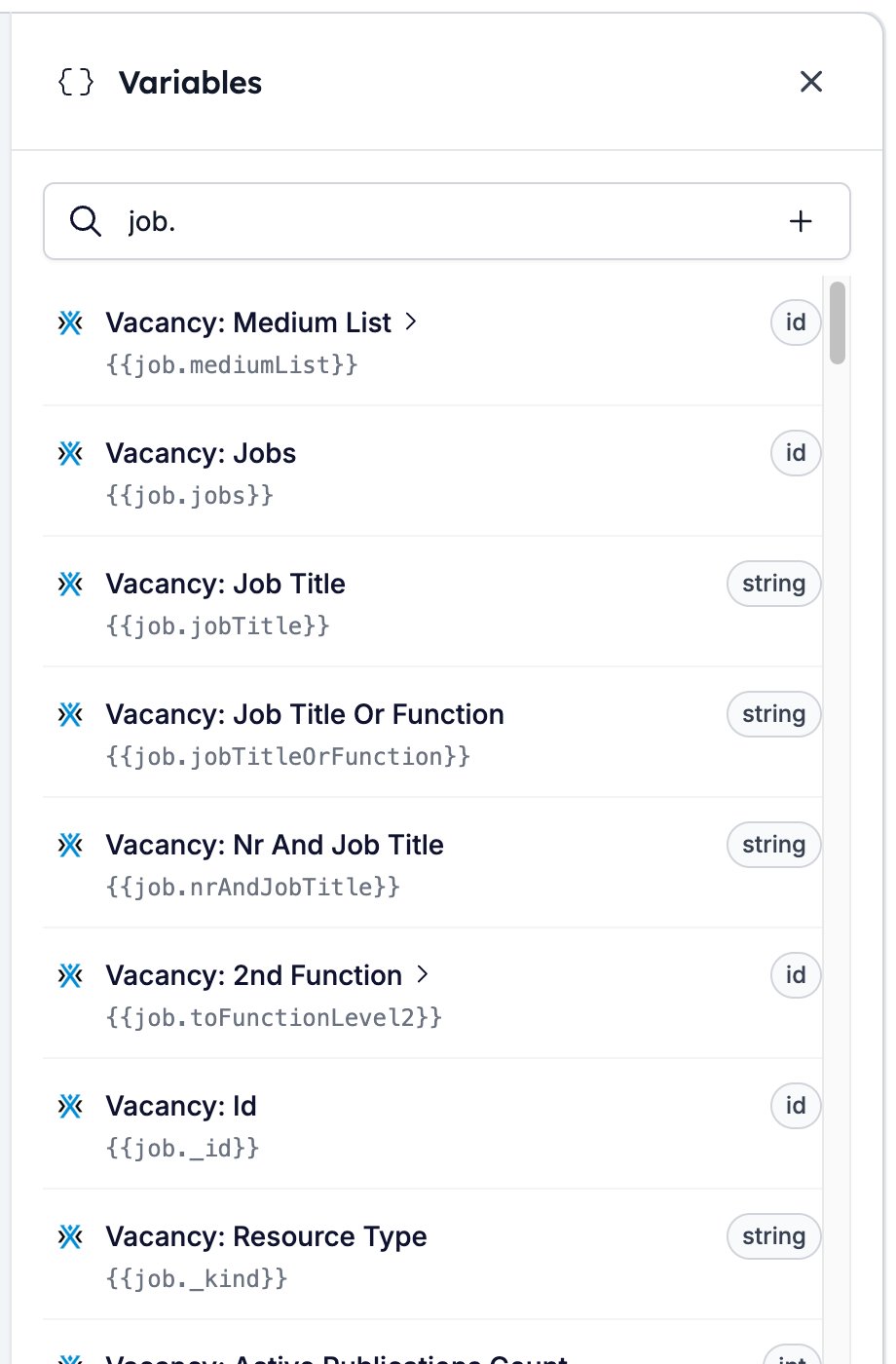
The variable list in the toolbar shows them all. Each one is named after the object's label and addressed by its key.
## What linking an object gives you
Every field on the linked record becomes a variable. You can write it into any text setting the form has, including the question, the description, a placeholder, and an option label, so a question can open with the job title rather than "this role".
The variable list in the toolbar shows them all. Each one is named after the object's label and addressed by its key.
 For the syntax, see [Variables](/variables/introduction).
The link also ties the responses to the record. A collection of that type gets a **Forms** tab listing the forms linked to it, and every record gets a **Responses** tab holding what came back. See [Configuring a form per record](/content/configuring-a-form-per-record).
## Settings per object
Click a linked object to open it.
* **Label** names the object in the variable list, which is where "Vacancy: Job Title" comes from. Change it whenever you like.
* **Key** is the first part of the variable itself, as in `{{job.jobTitle}}`. HireData sets the key when you link the object and locks it afterwards, so pick the object you want rather than planning to rename it later.
* **Required** decides what happens when nothing supplies a record. See [What Required does](#required).
* **Remove** unlinks the object. Its variables stop resolving, so check every question that used one.
* The up and down arrows move the object through the list. Which object sits at the top changes what the form can do, so read [The first object decides the configuration](#first-object) before you use them.
For the syntax, see [Variables](/variables/introduction).
The link also ties the responses to the record. A collection of that type gets a **Forms** tab listing the forms linked to it, and every record gets a **Responses** tab holding what came back. See [Configuring a form per record](/content/configuring-a-form-per-record).
## Settings per object
Click a linked object to open it.
* **Label** names the object in the variable list, which is where "Vacancy: Job Title" comes from. Change it whenever you like.
* **Key** is the first part of the variable itself, as in `{{job.jobTitle}}`. HireData sets the key when you link the object and locks it afterwards, so pick the object you want rather than planning to rename it later.
* **Required** decides what happens when nothing supplies a record. See [What Required does](#required).
* **Remove** unlinks the object. Its variables stop resolving, so check every question that used one.
* The up and down arrows move the object through the list. Which object sits at the top changes what the form can do, so read [The first object decides the configuration](#first-object) before you use them.
The first object decides the configuration
The object at the top of the list is the form's main object, and it decides which records you can configure the form for. Put Vacancy first and you can switch questions on and off per vacancy. Objects below it still supply their variables and still tie the response to their record, but you cannot configure the form against them.
Reordering the list therefore changes more than the panel. Read [Configuring a form per record](/content/configuring-a-form-per-record) before you move the top object on a form that is already in use.
What Required does
**Required** matters when an automation sends the form. If the run has no record for a required object, the task fails and nothing goes out, which is better than sending a form whose questions have gaps where the job title should be.
The form's own page is more forgiving. Open a public form with nothing supplying the record and it still loads. Every variable from that object resolves to nothing.
Turn **Required** off for an object that only adds context, such as a match the form can do without.
## Related
* [Data sources](/reference/forms/data-sources) fills a question's options from a saved list.
* [Configuring a form per record](/content/configuring-a-form-per-record) switches questions on and off per vacancy.
* [Variables](/variables/introduction) covers the syntax for writing a variable into a question.
* [Form builder overview](/reference/forms/overview) covers the builder, the shared settings, and every field type.
## Related topics
- [Enable Carerix fields and relationships in automations](/apps/carerix/how-to-enable-carerix-fields-and-relationships-in-your-automations.md)
- [Logging WhatsApp conversations in Carerix with HireData](/apps/carerix/logging-whatsapp-conversations-in-carerix-with-hiredata.md)
- [Form builder overview](/reference/forms/overview.md)
- [Logging email messages on Carerix with HireData](/apps/carerix/logging-email-messages-on-carerix-with-hiredata.md)
- [Create a WhatsApp automation in HireData](/apps/messaging/whatsapp/create-a-whatsapp-automation-in-hiredata.md)