> ## Documentation Index
> Fetch the complete documentation index at: https://help.hiredata.com/llms.txt
> Use this file to discover all available pages before exploring further.
# Form question types
> Reference for every question type in the HireData form builder: settings, stored answers, supported logic rules, and required question behavior.
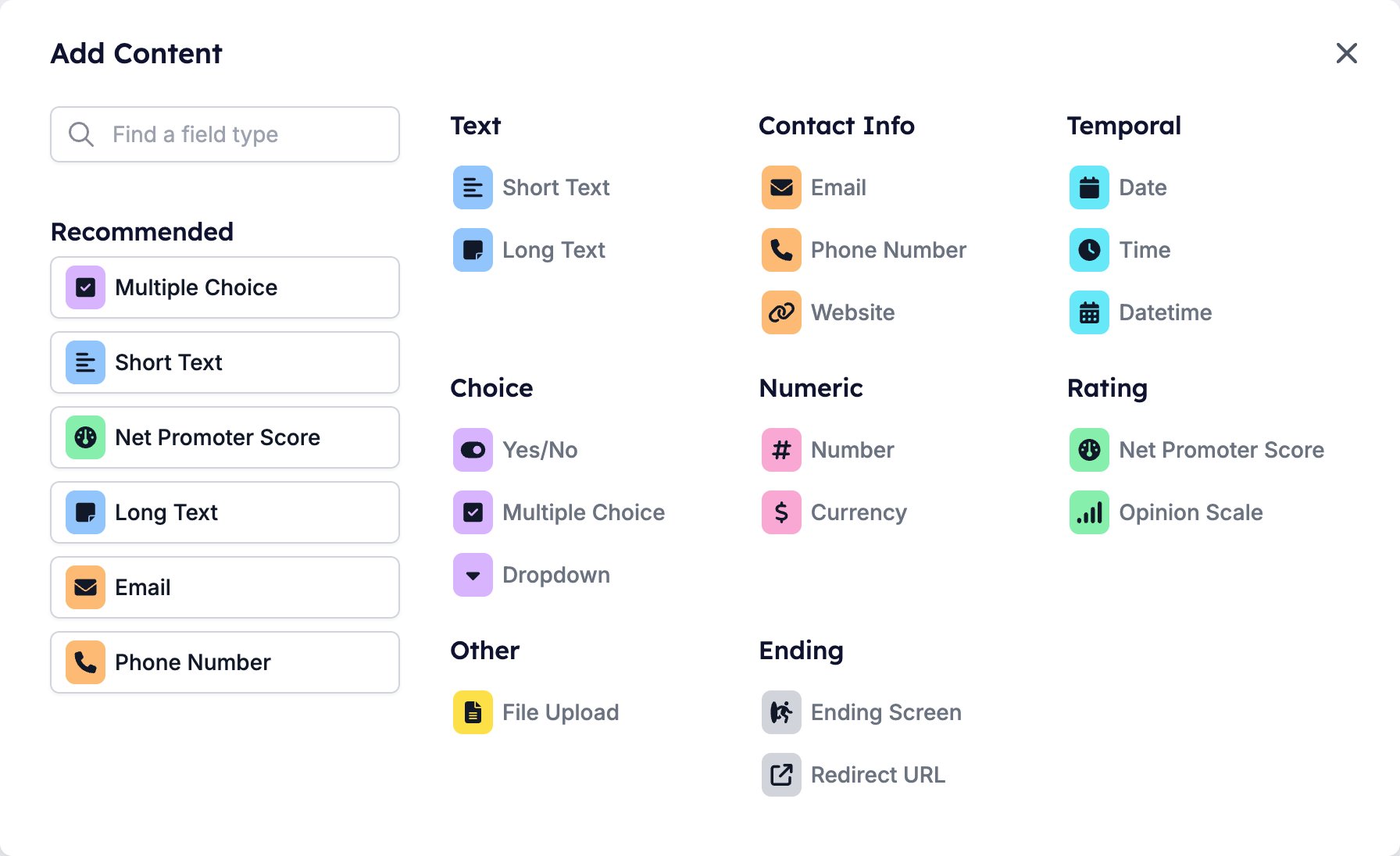
Every question in a form comes from the **Add Content** palette, which opens from the **+** button next to the **Content**, **Logic**, and **Evaluation** tabs. The palette groups question types by category and repeats the six most used ones in a **Recommended** list. Once a question is in the list, drag it by its handle to change the order.
To build a form from the start, including naming and publishing it, follow [Creating a form in HireData](/content/creating-a-form-in-hiredata). To check how the finished form looks, click the eye button next to **Save**. It opens the form in a new window.
 ## Choosing a question type
The palette shows 18 entries. Each row links to the section that describes that type.
| Question type | Group | Stores | Logic operators | Works with evaluation |
| ----------------------------------------------------------- | ------------ | -------------------- | --------------- | --------------------- |
| [Short Text](#short-text-and-long-text) | Text | text | text | Yes |
| [Long Text](#short-text-and-long-text) | Text | text | text | Yes |
| [Email](#email-phone-number-and-website) | Contact Info | text | text | Yes |
| [Phone Number](#email-phone-number-and-website) | Contact Info | text | text | Yes |
| [Website](#email-phone-number-and-website) | Contact Info | text | text | Yes |
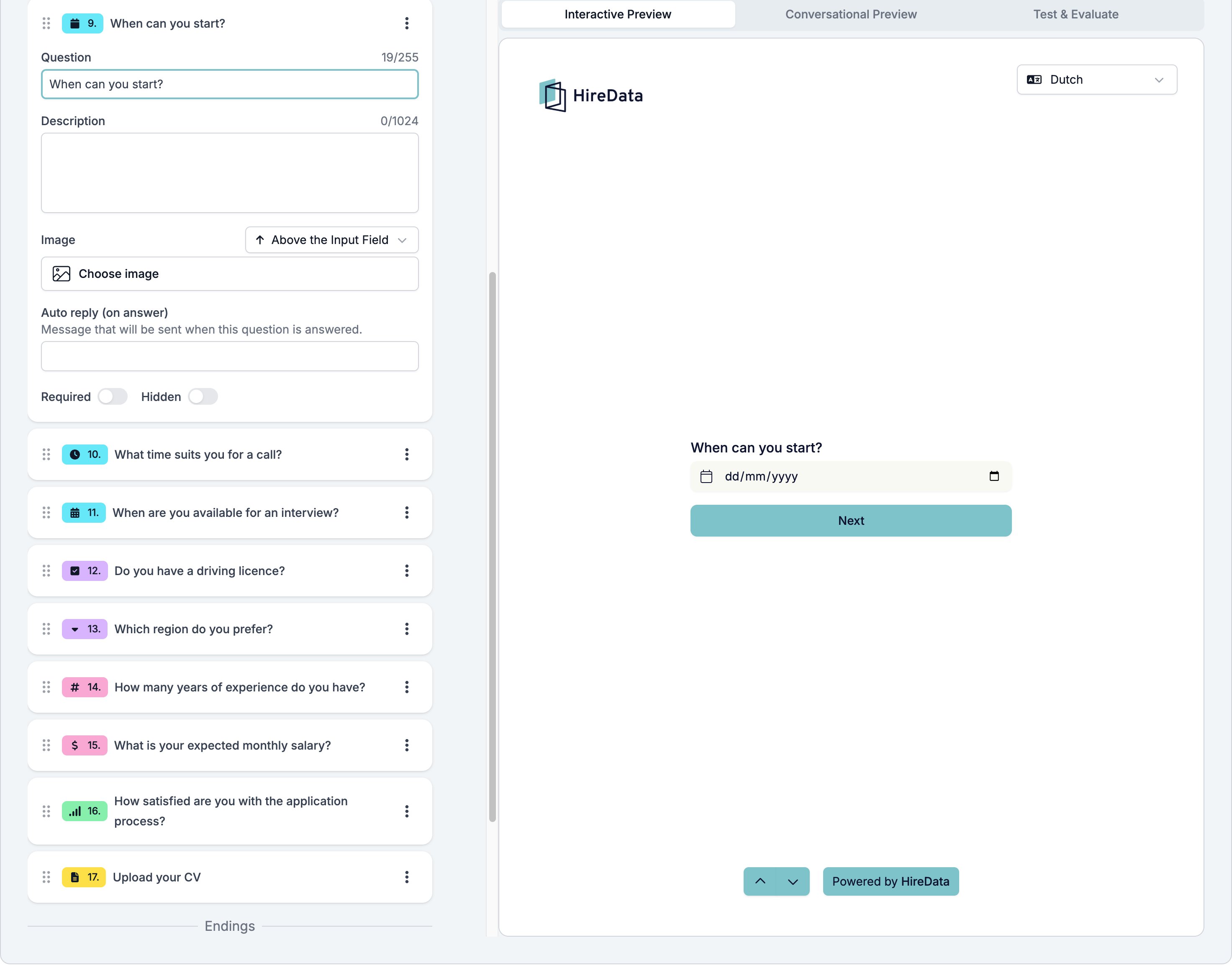
| [Date](#date-time-and-datetime) | Temporal | date and time | has response | Yes |
| [Time](#date-time-and-datetime) | Temporal | date and time | has response | Yes |
| [Datetime](#date-time-and-datetime) | Temporal | date and time | has response | Yes |
| [Yes/No](#yes-no) | Choice | Yes or No | Yes/No | Yes |
| [Multiple Choice](#multiple-choice-and-dropdown) | Choice | the chosen options | choice | Yes |
| [Dropdown](#multiple-choice-and-dropdown) | Choice | the chosen options | choice | Yes |
| [Number](#number-and-currency) | Numeric | a number | numeric | Yes |
| [Currency](#number-and-currency) | Numeric | a number | numeric | Yes |
| [Net Promoter Score](#net-promoter-score-and-opinion-scale) | Rating | 0 to 10 | numeric | Yes |
| [Opinion Scale](#net-promoter-score-and-opinion-scale) | Rating | a point on the scale | numeric | Yes |
| [File Upload](#file-upload) | Other | the files | has response | Yes |
| [Ending Screen](#ending-screen-and-redirect-url) | Ending | nothing | none | No |
| [Redirect URL](#ending-screen-and-redirect-url) | Ending | nothing | none | No |
"Works with evaluation" means the question can take part in Criteria, Scoring, and Skills on the **Evaluation** tab. Every question type except the two endings can. The operator groups are spelled out in [Logic operators by category](#logic-operators-by-category).
## Settings every question has
Click a question in the list to open its card. The card has the settings shared by every question type at the top and bottom, with the type's own settings in between.
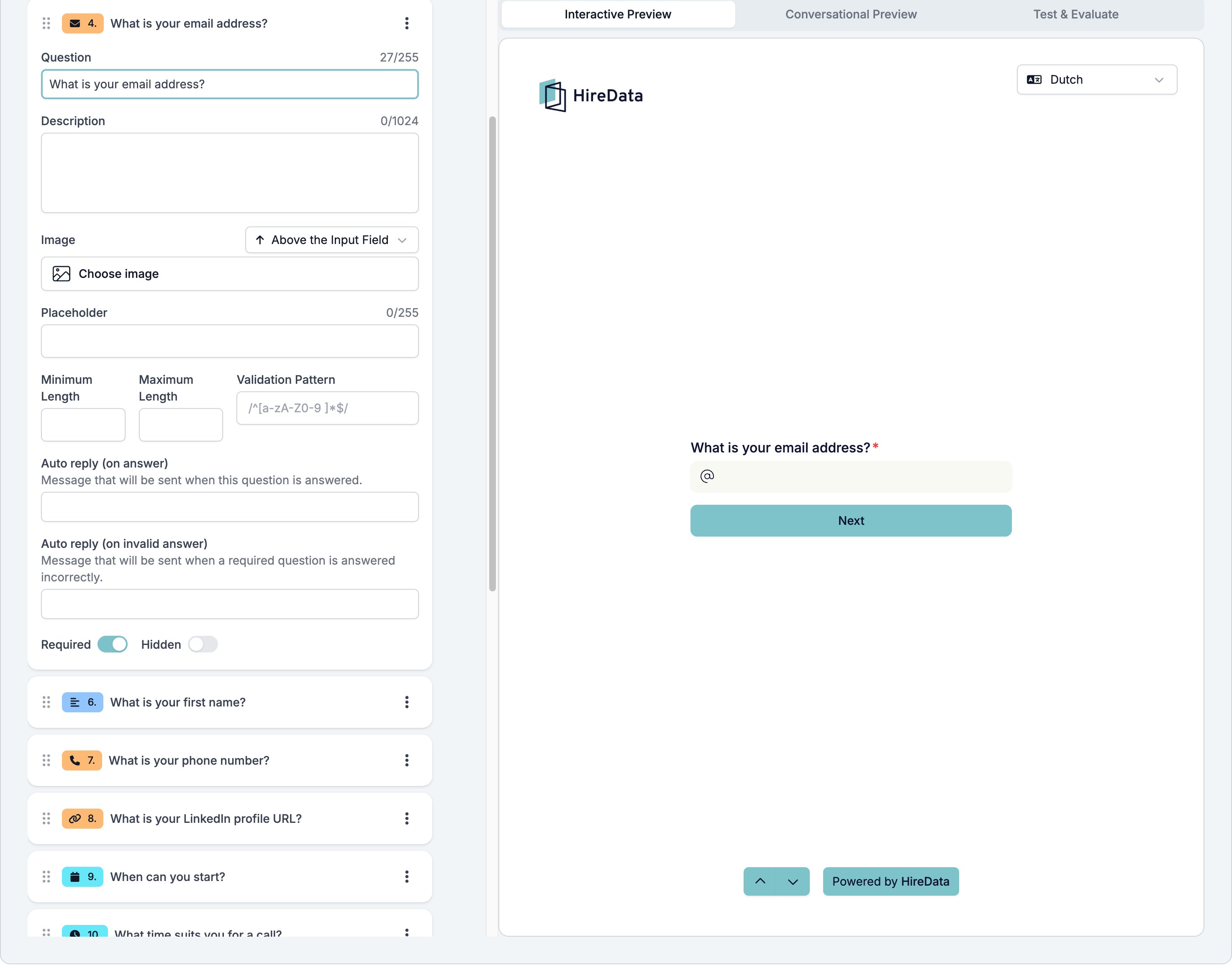
* **Question**, up to 255 characters. Ending screens call this **Title**.
* **Description**, up to 1024 characters, shown under the question.
* **Image**, with a placement selector that defaults to **Above the Input Field**. The other placements are **Left Side of Field**, **Right Side of Field**, **Right Half of the Page**, **Left Half of the Page**, and **Background**.
* **Required** and **Hidden** toggles in the footer.
* A type switch in the footer for types that come in two flavours: Short Text and Long Text, Yes/No's Checkbox and Toggle, Multiple Choice and Dropdown, Net Promoter Score and Opinion Scale.
Text settings such as **Question**, **Description**, and the placeholders accept variables, so a question can address the respondent by name or mention the vacancy. Some variables only become available after you add their object to the form, see [Objects](#objects). For the variable syntax, see [Variables](/variables/introduction).
Two more settings appear on most, but not all, question types. Both are messages for forms answered in a WhatsApp conversation:
* **Auto reply (on answer)** is sent as soon as the respondent answers the question. Yes/No replaces it with a reply per answer, and Multiple Choice and Dropdown move it onto each option.
* **Auto reply (on invalid answer)** appears once **Required** is on. The builder describes it as the message sent when a required question is answered incorrectly.
Redirect URL has none of these. It is a single field, described under [Ending Screen and Redirect URL](#ending-screen-and-redirect-url).
## Choosing a question type
The palette shows 18 entries. Each row links to the section that describes that type.
| Question type | Group | Stores | Logic operators | Works with evaluation |
| ----------------------------------------------------------- | ------------ | -------------------- | --------------- | --------------------- |
| [Short Text](#short-text-and-long-text) | Text | text | text | Yes |
| [Long Text](#short-text-and-long-text) | Text | text | text | Yes |
| [Email](#email-phone-number-and-website) | Contact Info | text | text | Yes |
| [Phone Number](#email-phone-number-and-website) | Contact Info | text | text | Yes |
| [Website](#email-phone-number-and-website) | Contact Info | text | text | Yes |
| [Date](#date-time-and-datetime) | Temporal | date and time | has response | Yes |
| [Time](#date-time-and-datetime) | Temporal | date and time | has response | Yes |
| [Datetime](#date-time-and-datetime) | Temporal | date and time | has response | Yes |
| [Yes/No](#yes-no) | Choice | Yes or No | Yes/No | Yes |
| [Multiple Choice](#multiple-choice-and-dropdown) | Choice | the chosen options | choice | Yes |
| [Dropdown](#multiple-choice-and-dropdown) | Choice | the chosen options | choice | Yes |
| [Number](#number-and-currency) | Numeric | a number | numeric | Yes |
| [Currency](#number-and-currency) | Numeric | a number | numeric | Yes |
| [Net Promoter Score](#net-promoter-score-and-opinion-scale) | Rating | 0 to 10 | numeric | Yes |
| [Opinion Scale](#net-promoter-score-and-opinion-scale) | Rating | a point on the scale | numeric | Yes |
| [File Upload](#file-upload) | Other | the files | has response | Yes |
| [Ending Screen](#ending-screen-and-redirect-url) | Ending | nothing | none | No |
| [Redirect URL](#ending-screen-and-redirect-url) | Ending | nothing | none | No |
"Works with evaluation" means the question can take part in Criteria, Scoring, and Skills on the **Evaluation** tab. Every question type except the two endings can. The operator groups are spelled out in [Logic operators by category](#logic-operators-by-category).
## Settings every question has
Click a question in the list to open its card. The card has the settings shared by every question type at the top and bottom, with the type's own settings in between.
* **Question**, up to 255 characters. Ending screens call this **Title**.
* **Description**, up to 1024 characters, shown under the question.
* **Image**, with a placement selector that defaults to **Above the Input Field**. The other placements are **Left Side of Field**, **Right Side of Field**, **Right Half of the Page**, **Left Half of the Page**, and **Background**.
* **Required** and **Hidden** toggles in the footer.
* A type switch in the footer for types that come in two flavours: Short Text and Long Text, Yes/No's Checkbox and Toggle, Multiple Choice and Dropdown, Net Promoter Score and Opinion Scale.
Text settings such as **Question**, **Description**, and the placeholders accept variables, so a question can address the respondent by name or mention the vacancy. Some variables only become available after you add their object to the form, see [Objects](#objects). For the variable syntax, see [Variables](/variables/introduction).
Two more settings appear on most, but not all, question types. Both are messages for forms answered in a WhatsApp conversation:
* **Auto reply (on answer)** is sent as soon as the respondent answers the question. Yes/No replaces it with a reply per answer, and Multiple Choice and Dropdown move it onto each option.
* **Auto reply (on invalid answer)** appears once **Required** is on. The builder describes it as the message sent when a required question is answered incorrectly.
Redirect URL has none of these. It is a single field, described under [Ending Screen and Redirect URL](#ending-screen-and-redirect-url).
 A hidden question is skipped when the respondent moves through the form, and logic rules cannot jump to it. Its stored answer stays available to automations, which is how you carry a default value through a form.
## Question types
Each section below lists the type's own settings, what a completed form stores for it, and which operators the **Logic** tab offers for it.
### Short Text and Long Text
Short Text is a single line. Long Text is a multi-line box. Switch between them with the footer type switch.
**Settings:**
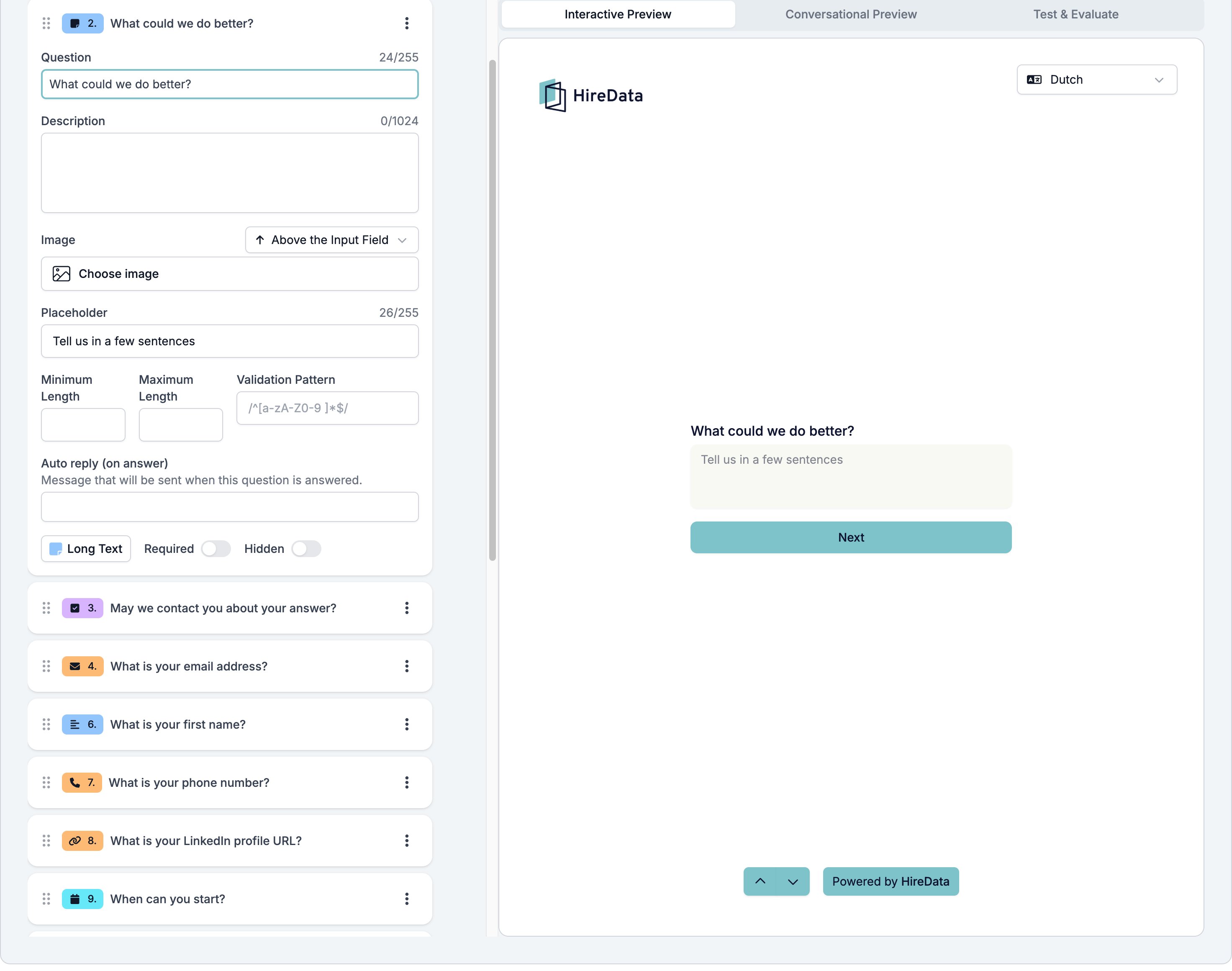
**Placeholder** (up to 255 characters), **Minimum Length**, **Maximum Length**, and **Validation Pattern**, a regular expression the answer has to match, for example `/^[a-zA-Z0-9 ]*$/`.
**Stores:**
The text the respondent typed.
**Logic:**
Has response, is equal to, is not equal to, starts with, ends with, contains, does not contain.
Criteria on a text question default to **Evaluate with AI**, because a free-text answer rarely matches an exact expectation.
A hidden question is skipped when the respondent moves through the form, and logic rules cannot jump to it. Its stored answer stays available to automations, which is how you carry a default value through a form.
## Question types
Each section below lists the type's own settings, what a completed form stores for it, and which operators the **Logic** tab offers for it.
### Short Text and Long Text
Short Text is a single line. Long Text is a multi-line box. Switch between them with the footer type switch.
**Settings:**
**Placeholder** (up to 255 characters), **Minimum Length**, **Maximum Length**, and **Validation Pattern**, a regular expression the answer has to match, for example `/^[a-zA-Z0-9 ]*$/`.
**Stores:**
The text the respondent typed.
**Logic:**
Has response, is equal to, is not equal to, starts with, ends with, contains, does not contain.
Criteria on a text question default to **Evaluate with AI**, because a free-text answer rarely matches an exact expectation.
 ### Email, Phone Number, and Website
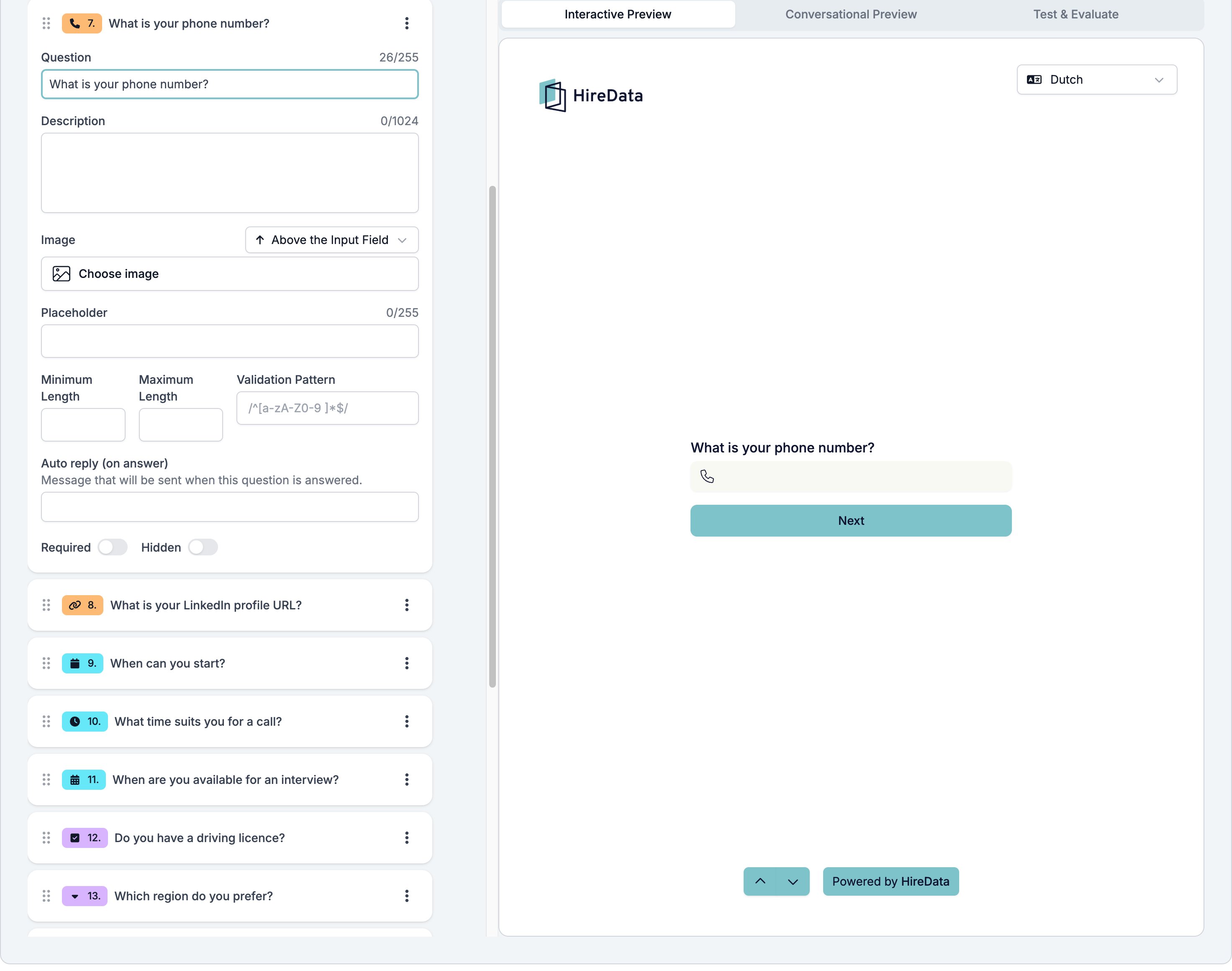
Three text questions with a format check on the answer. Email must be a valid email address. Phone Number accepts an optional leading `+` and then 5 to 20 characters of digits, spaces, dots, slashes, dashes, and brackets, with at least five digits. Website must be a valid web address.
**Settings:**
The same as text: **Placeholder**, **Minimum Length**, **Maximum Length**, **Validation Pattern**.
**Stores:**
The address or number as typed.
**Logic:**
The text operators.
### Email, Phone Number, and Website
Three text questions with a format check on the answer. Email must be a valid email address. Phone Number accepts an optional leading `+` and then 5 to 20 characters of digits, spaces, dots, slashes, dashes, and brackets, with at least five digits. Website must be a valid web address.
**Settings:**
The same as text: **Placeholder**, **Minimum Length**, **Maximum Length**, **Validation Pattern**.
**Stores:**
The address or number as typed.
**Logic:**
The text operators.
 ### Date, Time, and Datetime
Date asks for a calendar date, Time for a time of day, Datetime for both.
**Settings:**
None beyond the shared ones.
**Stores:**
A date and time. Time answers are stored with a date attached.
**Logic:**
Has response only. The builder offers no comparisons such as "is before" for these types. Answer rules on the **Evaluation** tab do offer greater than and less than for dates.
### Date, Time, and Datetime
Date asks for a calendar date, Time for a time of day, Datetime for both.
**Settings:**
None beyond the shared ones.
**Stores:**
A date and time. Time answers are stored with a date attached.
**Logic:**
Has response only. The builder offers no comparisons such as "is before" for these types. Answer rules on the **Evaluation** tab do offer greater than and less than for dates.
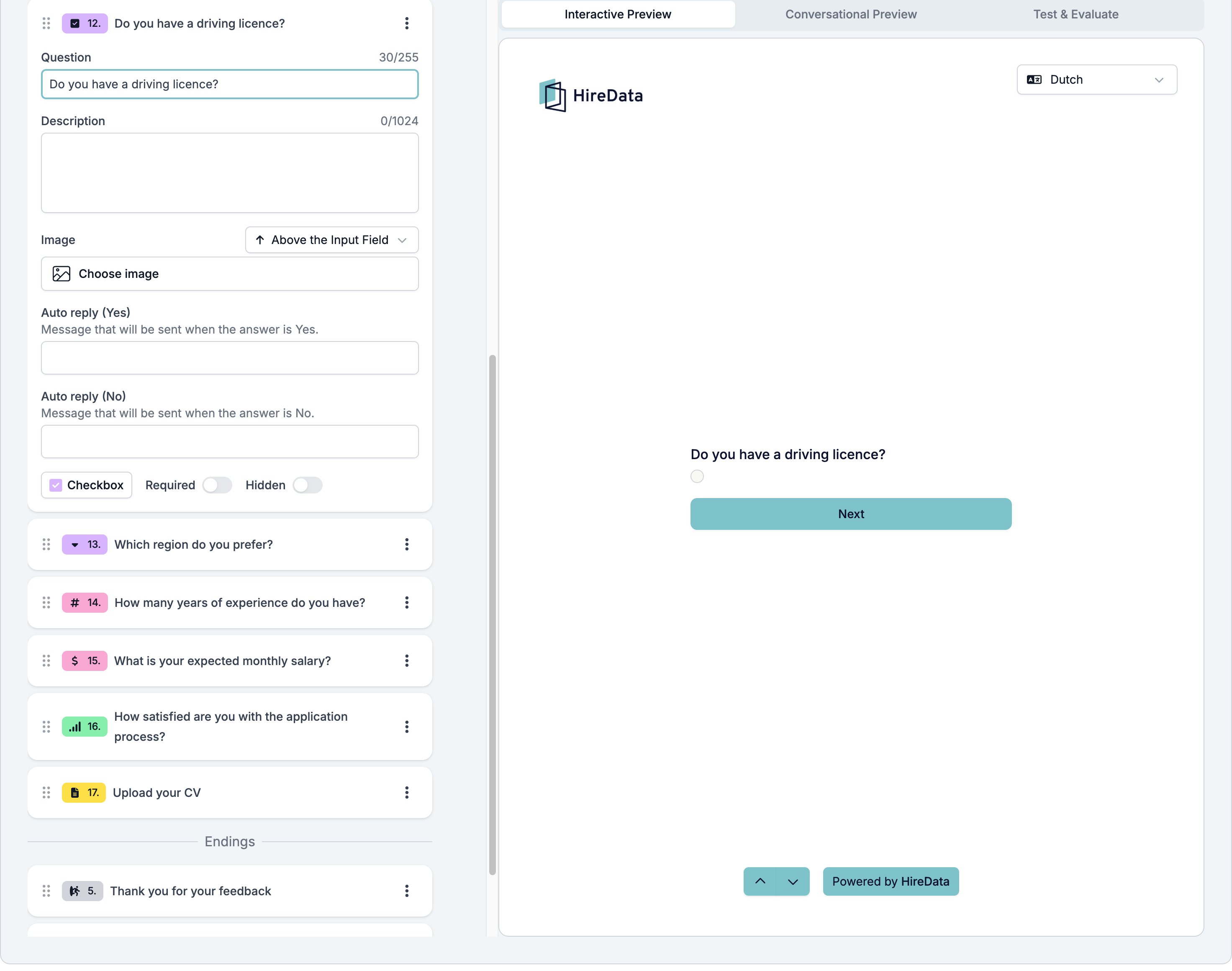
Yes/No
One question, two answers. New Yes/No questions start as **Checkbox**, a single tick box. Use the footer type switch to change to **Toggle**, an on/off switch.
**Settings:**
**Auto reply (Yes)**, "Message that will be sent when the answer is Yes." and **Auto reply (No)**, "Message that will be sent when the answer is No." There is no placeholder.
**Stores:**
Yes or No. A checkbox left unticked stores No.
**Logic:**
Has response, is equal to, is not equal to, with **Yes** and **No** as the values. The value box in a rule stays blank after you choose Yes or No. The choice is saved; open the picker again to see which one is selected.
Read [Required questions](#required-questions) before you make a Yes/No question required. A required Yes/No question cannot be answered No in the web form today.
 ### Multiple Choice and Dropdown
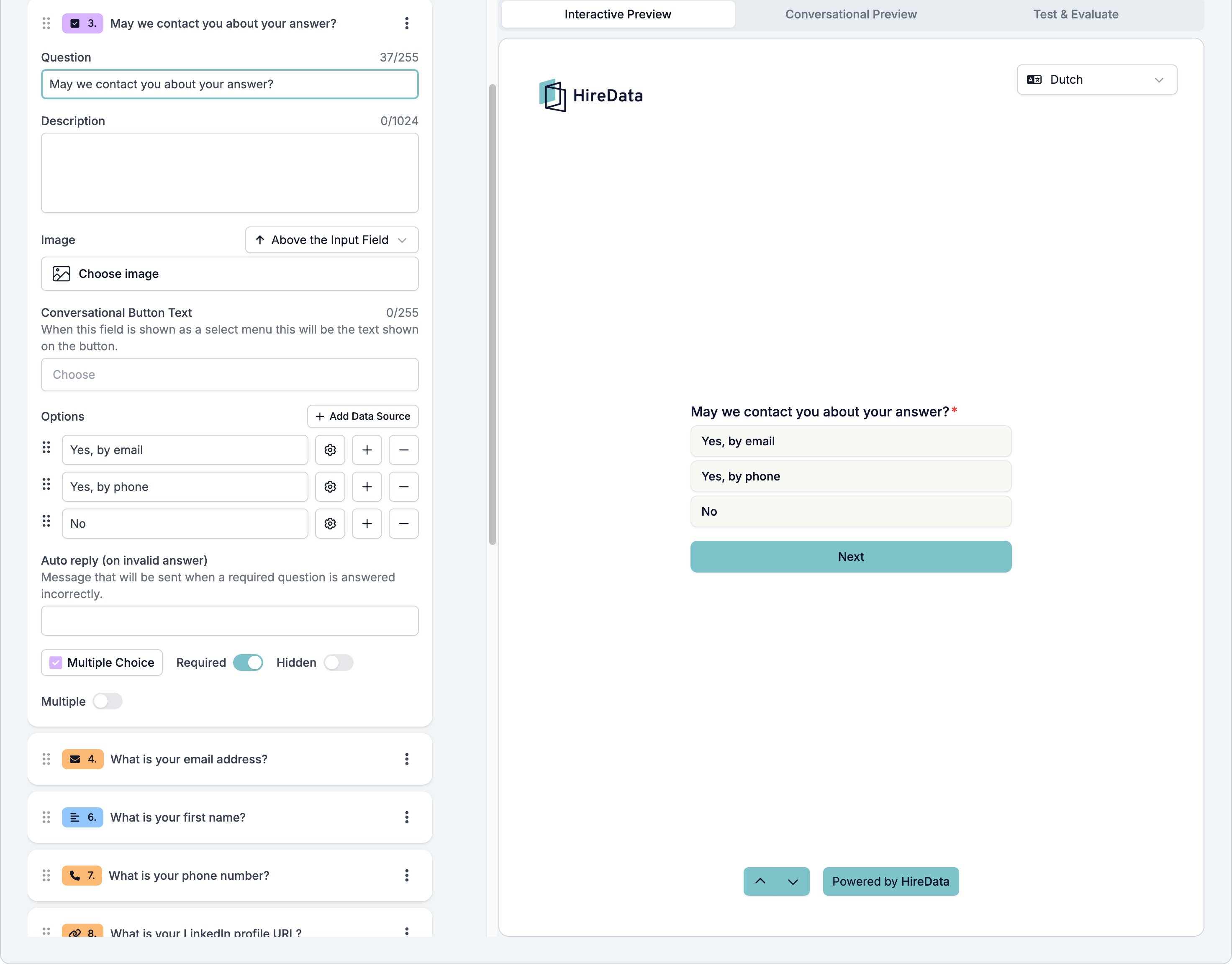
Multiple Choice shows the options as a list. Dropdown shows them in a select menu. Switch between them with the footer type switch.
**Settings:**
* **Options**. Each option has a label the respondent sees and a value that is stored. Drag to reorder. The cog on an option holds that option's **Auto reply (on answer)**.
* **Add Data Source** fills the options from a data source in your workspace, instead of options you type. A question uses one or the other, never both.
* **Conversational Button Text**, "When this field is shown as a select menu this will be the text shown on the button." Defaults to "Choose".
* **Placeholder**, Dropdown only.
* **Multiple** in the footer, which lets the respondent pick more than one option.
**Stores:**
The chosen option or options, each with its label and value. Nothing chosen counts as no answer.
**Logic:**
Has response, is equal to, is not equal to, is one of, is not one of. Rule values are picked from the question's options.
### Multiple Choice and Dropdown
Multiple Choice shows the options as a list. Dropdown shows them in a select menu. Switch between them with the footer type switch.
**Settings:**
* **Options**. Each option has a label the respondent sees and a value that is stored. Drag to reorder. The cog on an option holds that option's **Auto reply (on answer)**.
* **Add Data Source** fills the options from a data source in your workspace, instead of options you type. A question uses one or the other, never both.
* **Conversational Button Text**, "When this field is shown as a select menu this will be the text shown on the button." Defaults to "Choose".
* **Placeholder**, Dropdown only.
* **Multiple** in the footer, which lets the respondent pick more than one option.
**Stores:**
The chosen option or options, each with its label and value. Nothing chosen counts as no answer.
**Logic:**
Has response, is equal to, is not equal to, is one of, is not one of. Rule values are picked from the question's options.
 ### Number and Currency
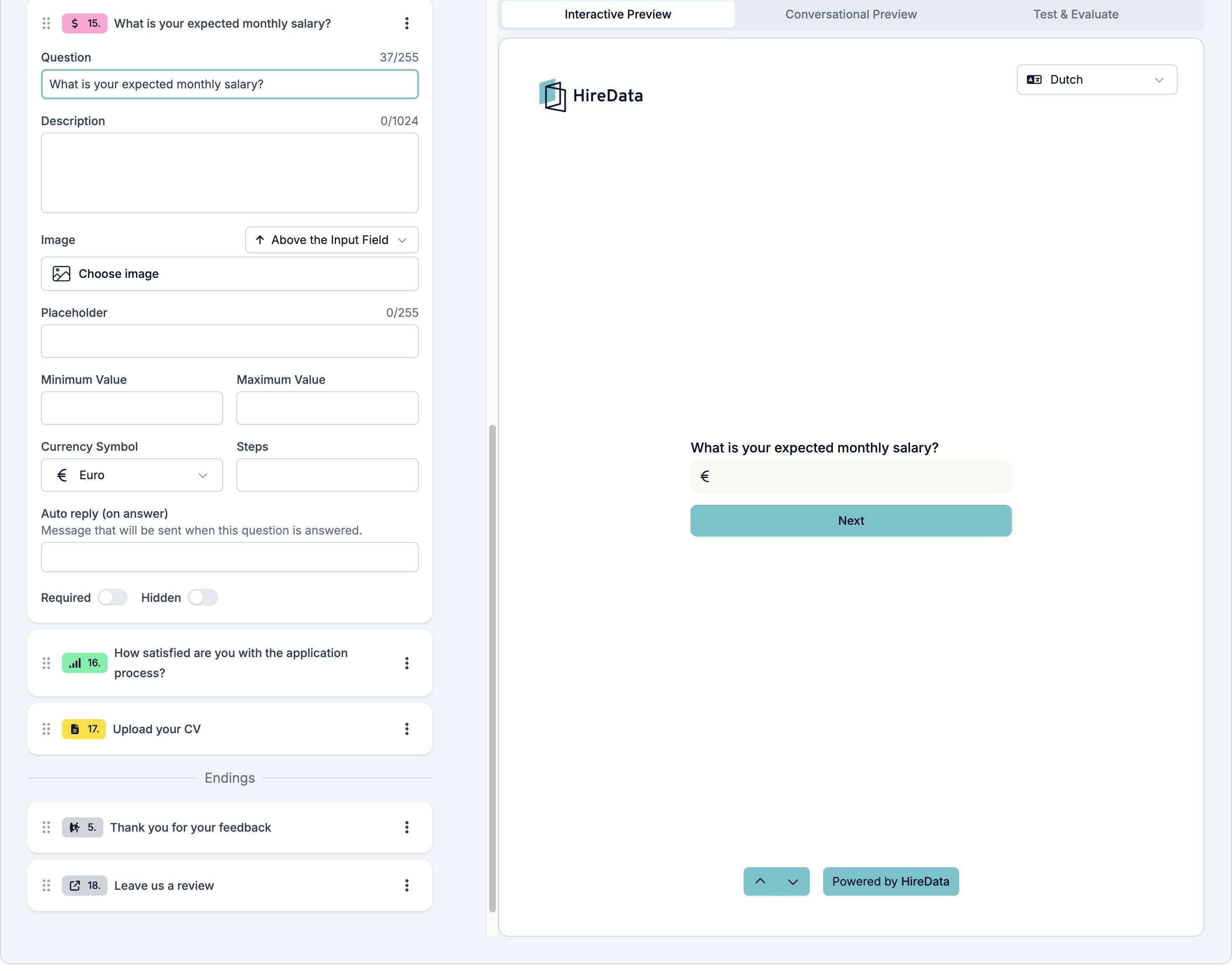
Number collects a plain number. Currency adds a symbol in front of it.
**Settings:**
**Placeholder**, **Minimum Value**, **Maximum Value**, **Steps**. Currency adds **Currency Symbol** with a choice of `$`, `€`, `£`, `¥`, and `₹`.
**Stores:**
The number. `0` is a valid answer.
**Logic:**
Has response, is equal to, is not equal to, is greater than, is less than, is greater than or equal to, is less than or equal to.
### Number and Currency
Number collects a plain number. Currency adds a symbol in front of it.
**Settings:**
**Placeholder**, **Minimum Value**, **Maximum Value**, **Steps**. Currency adds **Currency Symbol** with a choice of `$`, `€`, `£`, `¥`, and `₹`.
**Stores:**
The number. `0` is a valid answer.
**Logic:**
Has response, is equal to, is not equal to, is greater than, is less than, is greater than or equal to, is less than or equal to.
 ### Net Promoter Score and Opinion Scale
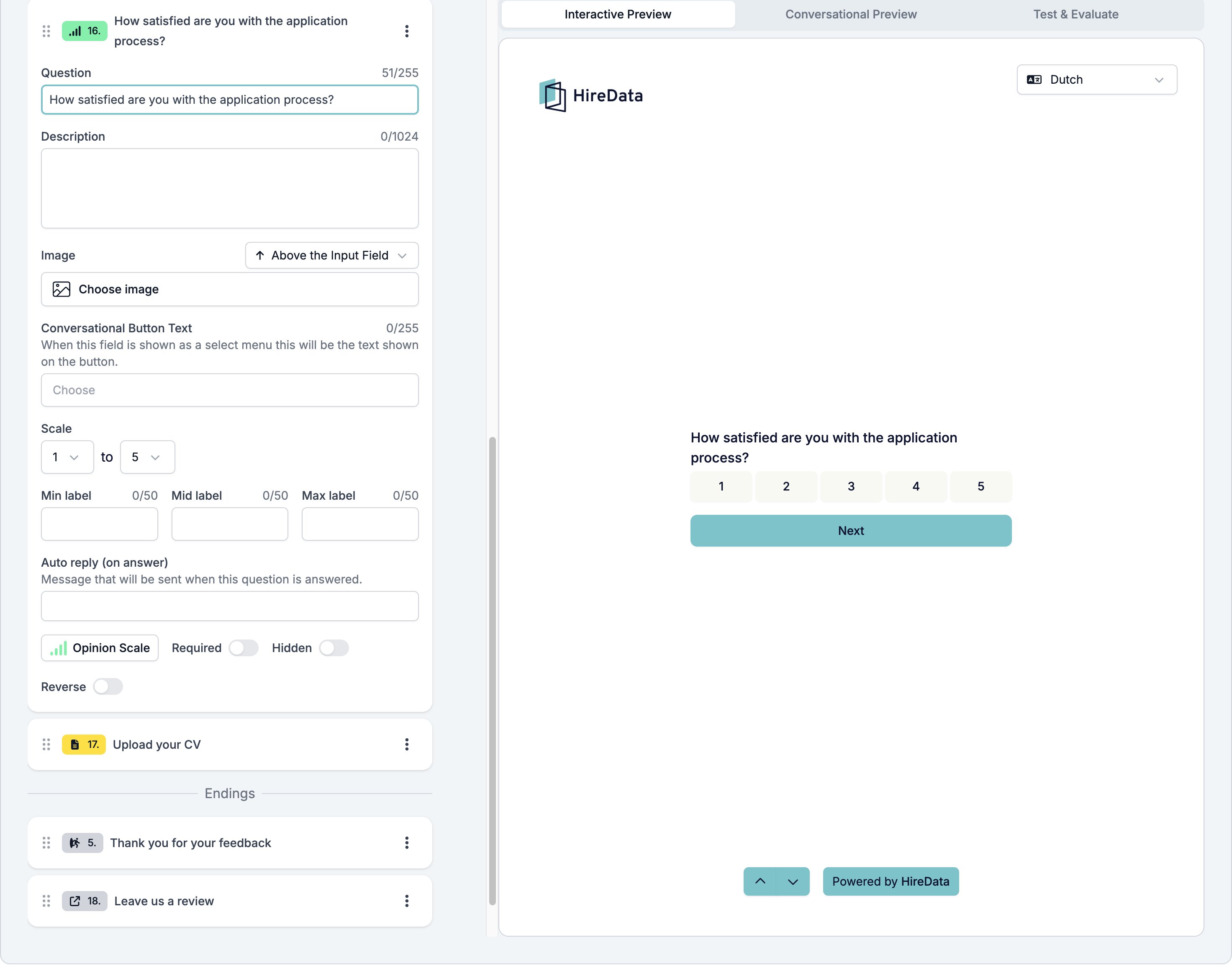
Net Promoter Score is a fixed 0 to 10 scale labelled "Not likely at all" and "Extremely likely". Opinion Scale lets you set the scale and the labels. Switch between them with the footer type switch.
**Settings for Net Promoter Score:**
**Conversational Button Text** only. The scale and labels are fixed.
**Settings for Opinion Scale:**
* **Scale**, a minimum of **0** or **1** and a maximum from **1** to **10**.
* **Min label**, **Mid label**, **Max label**, up to 50 characters each.
* **Reverse** in the footer, which shows the scale from high to low.
* **Conversational Button Text**.
**Stores:**
The point the respondent picked, as a whole number.
**Logic:**
The numeric operators. The value picker lists the points on the scale.
### Net Promoter Score and Opinion Scale
Net Promoter Score is a fixed 0 to 10 scale labelled "Not likely at all" and "Extremely likely". Opinion Scale lets you set the scale and the labels. Switch between them with the footer type switch.
**Settings for Net Promoter Score:**
**Conversational Button Text** only. The scale and labels are fixed.
**Settings for Opinion Scale:**
* **Scale**, a minimum of **0** or **1** and a maximum from **1** to **10**.
* **Min label**, **Mid label**, **Max label**, up to 50 characters each.
* **Reverse** in the footer, which shows the scale from high to low.
* **Conversational Button Text**.
**Stores:**
The point the respondent picked, as a whole number.
**Logic:**
The numeric operators. The value picker lists the points on the scale.
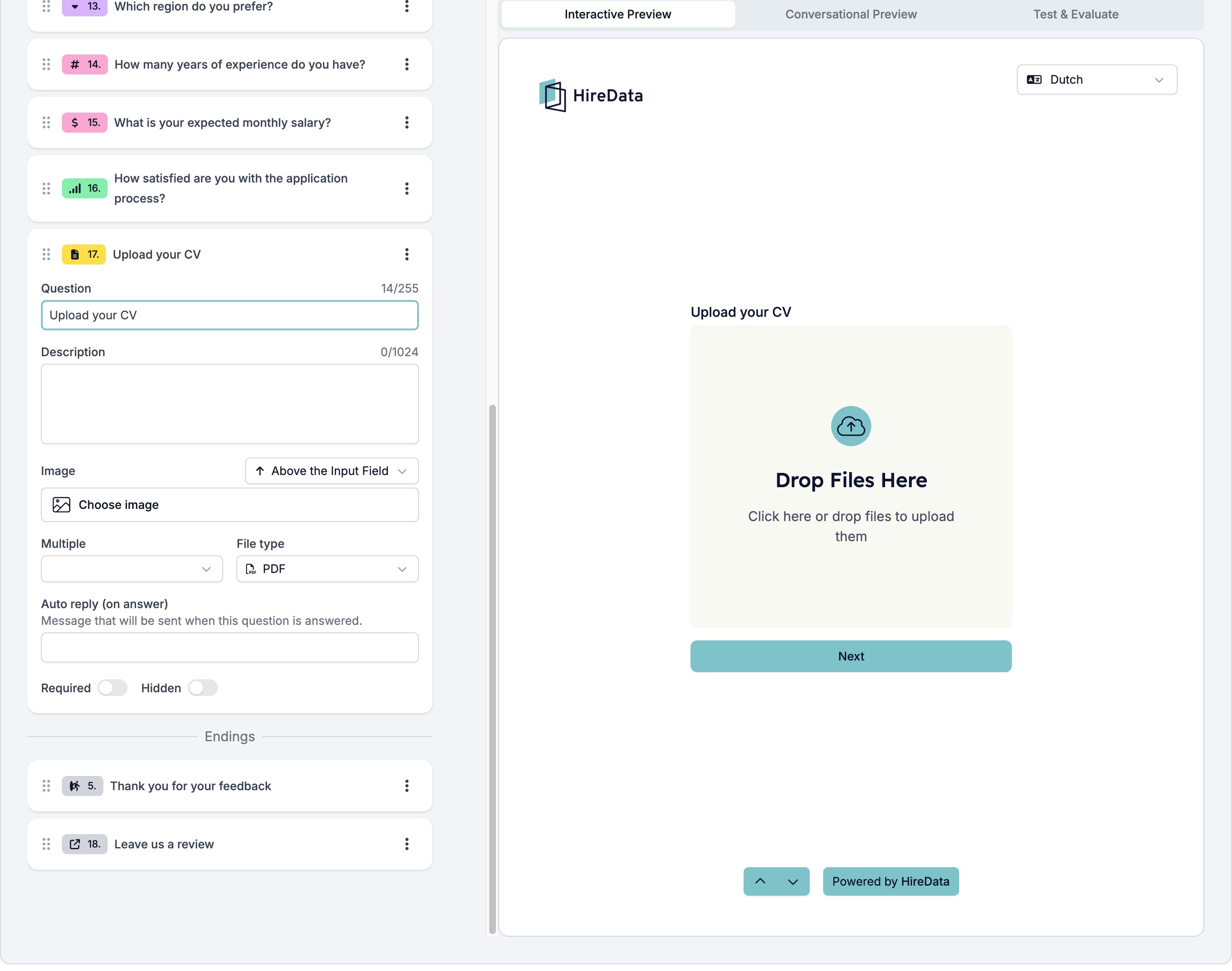
 ### File Upload
Lets the respondent attach files.
**Settings:**
**Multiple**, a Yes/No select, and **File type**, a preset list: Any, Image, Audio, Video, Media, PDF, Document, Powerpoint, Word Document, Sheet, Archive.
**Stores:**
The uploaded files, with their names and types.
**Logic:**
Has response only.
Rule-based evaluation sees only the file names and types. AI evaluation reads the contents of JPEG, PNG, GIF, WebP, and PDF files, up to 5 files and 10 MB in total.
### File Upload
Lets the respondent attach files.
**Settings:**
**Multiple**, a Yes/No select, and **File type**, a preset list: Any, Image, Audio, Video, Media, PDF, Document, Powerpoint, Word Document, Sheet, Archive.
**Stores:**
The uploaded files, with their names and types.
**Logic:**
Has response only.
Rule-based evaluation sees only the file names and types. AI evaluation reads the contents of JPEG, PNG, GIF, WebP, and PDF files, up to 5 files and 10 MB in total.
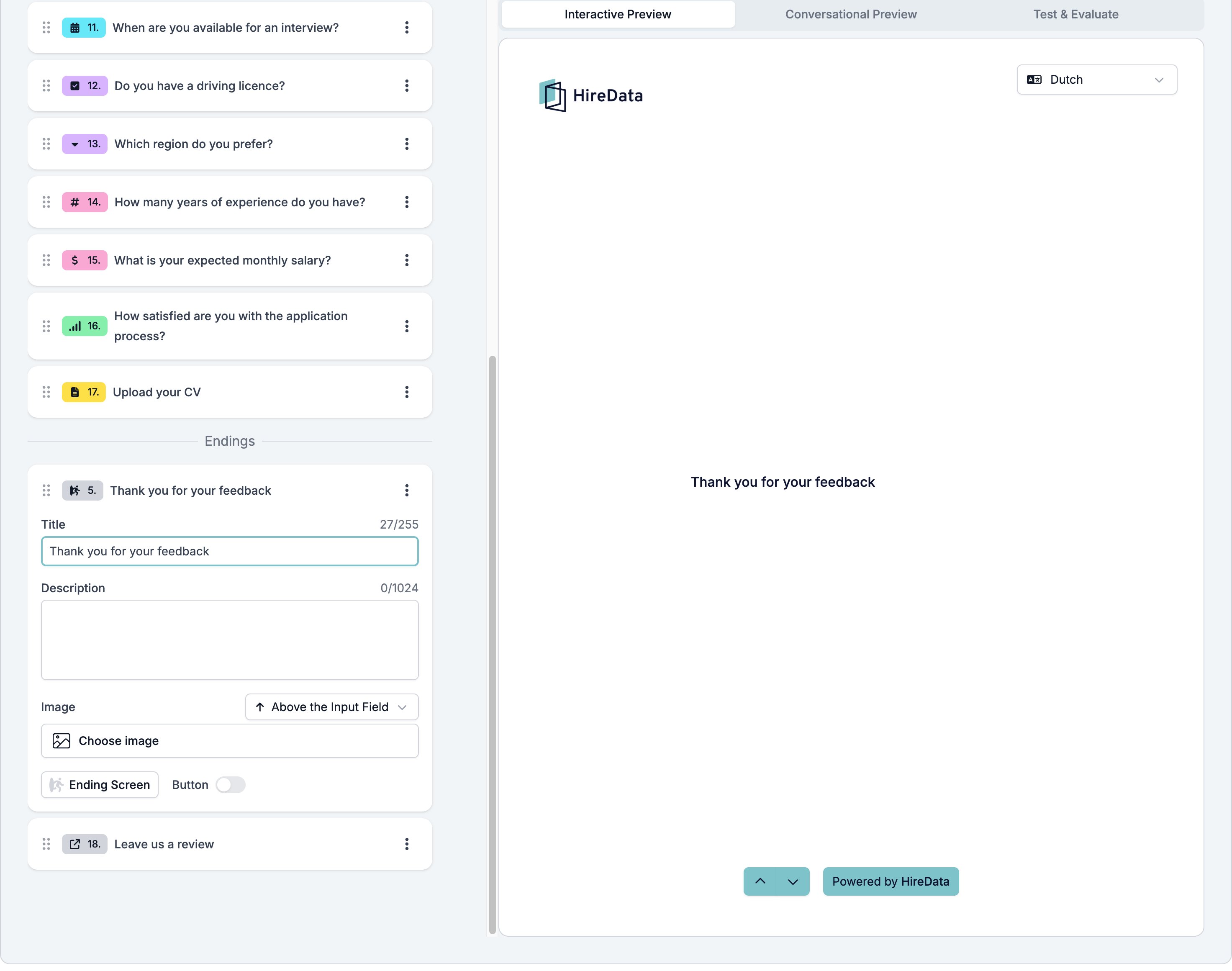
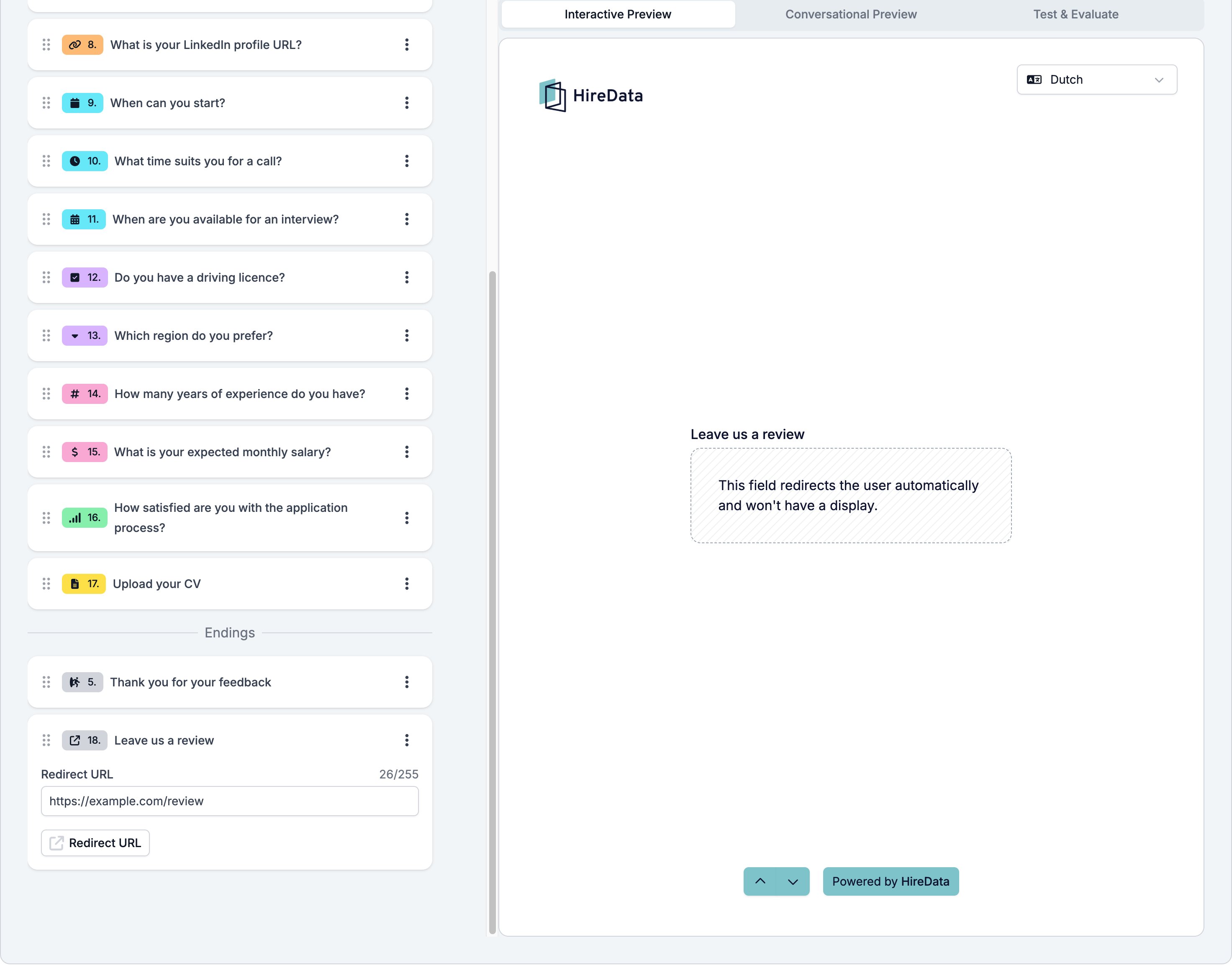
 ### Ending Screen and Redirect URL
Endings sit under the **Endings** divider at the bottom of the question list. A form can have several, and logic rules decide which one a respondent reaches.
**Ending Screen settings:**
**Title**, **Description**, **Image**, and a **Button** toggle. Turning the button on reveals **Button Text** (defaults to "Submit Form"), **Redirect URL**, **Redirect Timer**, and **Timer** in seconds from 0 to 10. With the timer on, the form opens the redirect URL after the countdown.
**Redirect URL settings:**
A single **Redirect URL** field. The respondent is sent there as soon as they reach it. No title, description, image, required, or hidden.
**Stores:**
Nothing. Endings hold no answer.
**Logic:**
Endings have no **Add Rule** button and cannot be used in a condition. They are the usual target of a rule.
Endings do not appear on the **Evaluation** tab.
### Ending Screen and Redirect URL
Endings sit under the **Endings** divider at the bottom of the question list. A form can have several, and logic rules decide which one a respondent reaches.
**Ending Screen settings:**
**Title**, **Description**, **Image**, and a **Button** toggle. Turning the button on reveals **Button Text** (defaults to "Submit Form"), **Redirect URL**, **Redirect Timer**, and **Timer** in seconds from 0 to 10. With the timer on, the form opens the redirect URL after the countdown.
**Redirect URL settings:**
A single **Redirect URL** field. The respondent is sent there as soon as they reach it. No title, description, image, required, or hidden.
**Stores:**
Nothing. Endings hold no answer.
**Logic:**
Endings have no **Add Rule** button and cannot be used in a condition. They are the usual target of a rule.
Endings do not appear on the **Evaluation** tab.
 ### Types the builder does not show
A few more question types exist in HireData than the palette offers: Range, Color, and the Star, Thumbs, Emoji, and Slider variants of a rating. The builder cannot add them and has no settings card for them.
Range, Color, and the Star, Thumbs, Emoji, and Slider ratings can only be added through an integration such as the HireData API. If one turns up in a form you did not build, it works, but you cannot change its settings in the builder.
## Required questions
Turning **Required** on adds an asterisk to the question label and stops the respondent from continuing until the question has an answer. An empty text box, an empty number box, no option chosen, and no file attached all count as no answer. The web form then shows a message under the question, such as "This field is required and cannot be empty."
Answering No, turning a toggle off, and entering 0 are real answers and are meant to satisfy a required question.
The web form at forms.hiredata.com currently gets this wrong. A respondent who answers No on a required Yes/No question, leaves a required toggle off, or enters 0 in a required Number, Currency, or rating question clicks **Next** and nothing happens. No message is shown. The answer is saved, but the form does not advance, and any logic rule on that question does not fire. Until this is fixed, keep Yes/No questions optional, and set a **Minimum Value** of 1 on required numeric questions where 0 is not a meaningful answer.
In a conversational form, **Auto reply (on invalid answer)** is the message sent back when a required question receives no usable answer.
## Objects
You can bring objects from your ATS or other apps into the form, so their fields are available as variables in your questions.
To add one, click the **Show objects** button in the toolbar at the top right of the builder, then pick the objects you need from the menu.
### Types the builder does not show
A few more question types exist in HireData than the palette offers: Range, Color, and the Star, Thumbs, Emoji, and Slider variants of a rating. The builder cannot add them and has no settings card for them.
Range, Color, and the Star, Thumbs, Emoji, and Slider ratings can only be added through an integration such as the HireData API. If one turns up in a form you did not build, it works, but you cannot change its settings in the builder.
## Required questions
Turning **Required** on adds an asterisk to the question label and stops the respondent from continuing until the question has an answer. An empty text box, an empty number box, no option chosen, and no file attached all count as no answer. The web form then shows a message under the question, such as "This field is required and cannot be empty."
Answering No, turning a toggle off, and entering 0 are real answers and are meant to satisfy a required question.
The web form at forms.hiredata.com currently gets this wrong. A respondent who answers No on a required Yes/No question, leaves a required toggle off, or enters 0 in a required Number, Currency, or rating question clicks **Next** and nothing happens. No message is shown. The answer is saved, but the form does not advance, and any logic rule on that question does not fire. Until this is fixed, keep Yes/No questions optional, and set a **Minimum Value** of 1 on required numeric questions where 0 is not a meaningful answer.
In a conversational form, **Auto reply (on invalid answer)** is the message sent back when a required question receives no usable answer.
## Objects
You can bring objects from your ATS or other apps into the form, so their fields are available as variables in your questions.
To add one, click the **Show objects** button in the toolbar at the top right of the builder, then pick the objects you need from the menu.
 ## Conditional logic
Open the **Logic** tab to attach rules to a question. Each question in the list has an **Add Rule** button and a footer target.
## Conditional logic
Open the **Logic** tab to attach rules to a question. Each question in the list has an **Add Rule** button and a footer target.
 ### Anatomy of a rule
A question can carry several rules, and each rule is checked on its own. A rule reads `if then go to `.
* The **if** row holds the rule's conditions. **Add Condition** adds another one to the same rule, and a rule fires only when every one of its conditions is met. To offer alternatives, add a second rule instead.
* A condition can look at the question itself or any earlier question. Later questions and endings are not offered.
* **then go to** picks the target from every other question and ending. Hidden questions are excluded.
* **Delete Rule** removes the rule.
Under the rules sits the fallback row. It reads **All other cases go to** when the question has at least one rule and **Always go to** when it has none. Leave it on **Select...** to continue to the next question in the list.
HireData checks the rules from top to bottom and follows the first one whose conditions are all met. If none match, it follows the fallback. Without a fallback, it moves to the next question. Hidden questions are skipped along the way.
### Logic operators by category
Every category offers **has response**, which is true once the question has any answer. The builder adds these per category:
| Category | Question types | Extra operators |
| --------------------- | --------------------------------------------------- | ------------------------------------------------------------------------------------------------------------------ |
| Text and Contact Info | Short Text, Long Text, Email, Phone Number, Website | is equal to, is not equal to, starts with, ends with, contains, does not contain |
| Choice: Yes/No | Yes/No | is equal to, is not equal to |
| Choice: options | Multiple Choice, Dropdown | is equal to, is not equal to, is one of, is not one of |
| Numeric and Rating | Number, Currency, Net Promoter Score, Opinion Scale | is equal to, is not equal to, is greater than, is less than, is greater than or equal to, is less than or equal to |
| Temporal and Other | Date, Time, Datetime, File Upload | none |
| Ending | Ending Screen, Redirect URL | rules not available |
### Logic cookbook
Each pattern below is shown as it appears on the **Logic** tab.
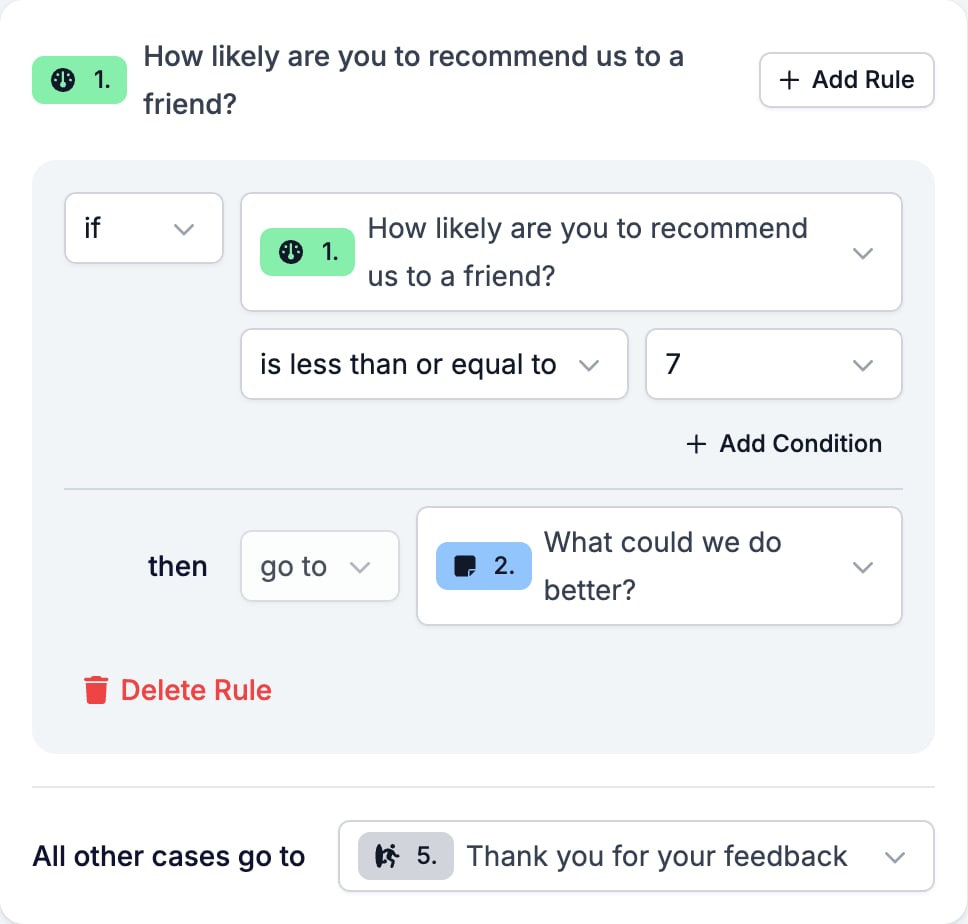
**Ask why after a low score.** On a Net Promoter Score question, add a rule `if` this question `is less than or equal to` `7` `then go to` a Long Text question such as "What could we do better?". Set **All other cases go to** the ending. Respondents who score 8 or higher skip the follow-up.
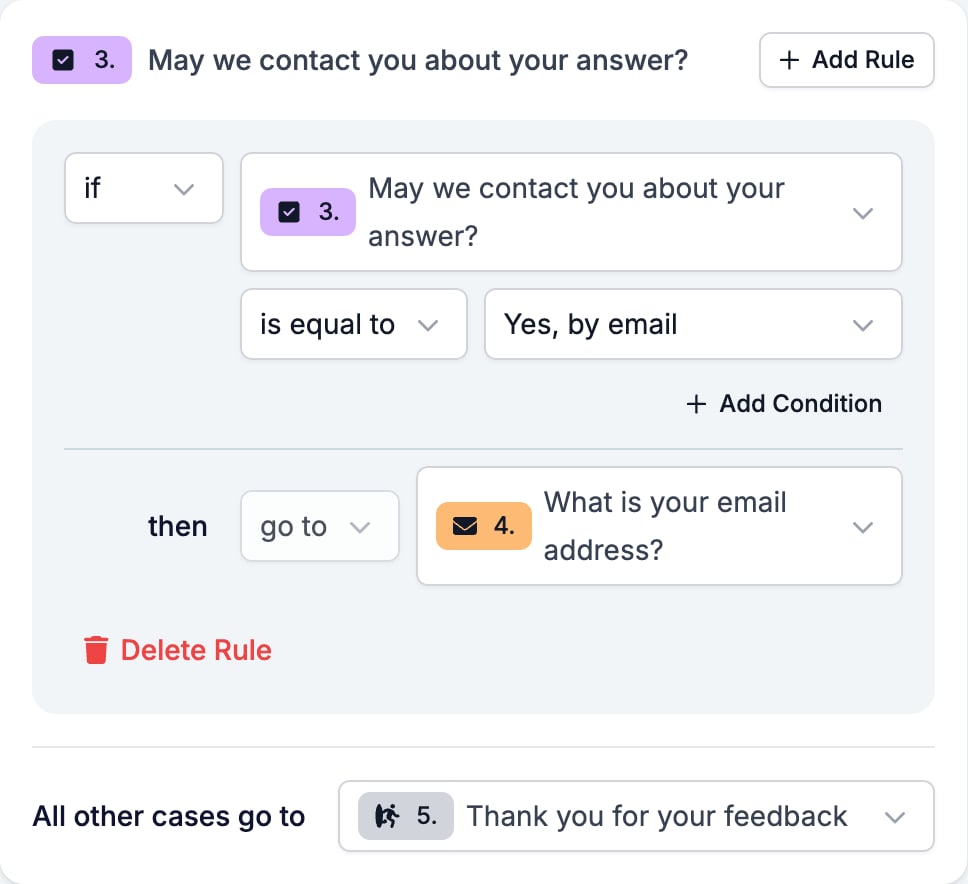
**Collect a contact detail only when asked for.** On a Multiple Choice question "May we contact you about your answer?" with the options "Yes, by email", "Yes, by phone", and "No", add a rule `if` this question `is equal to` "Yes, by email" `then go to` an Email question. Add a second rule for "Yes, by phone" that goes to a Phone Number question. Set **All other cases go to** the ending.
### Anatomy of a rule
A question can carry several rules, and each rule is checked on its own. A rule reads `if then go to `.
* The **if** row holds the rule's conditions. **Add Condition** adds another one to the same rule, and a rule fires only when every one of its conditions is met. To offer alternatives, add a second rule instead.
* A condition can look at the question itself or any earlier question. Later questions and endings are not offered.
* **then go to** picks the target from every other question and ending. Hidden questions are excluded.
* **Delete Rule** removes the rule.
Under the rules sits the fallback row. It reads **All other cases go to** when the question has at least one rule and **Always go to** when it has none. Leave it on **Select...** to continue to the next question in the list.
HireData checks the rules from top to bottom and follows the first one whose conditions are all met. If none match, it follows the fallback. Without a fallback, it moves to the next question. Hidden questions are skipped along the way.
### Logic operators by category
Every category offers **has response**, which is true once the question has any answer. The builder adds these per category:
| Category | Question types | Extra operators |
| --------------------- | --------------------------------------------------- | ------------------------------------------------------------------------------------------------------------------ |
| Text and Contact Info | Short Text, Long Text, Email, Phone Number, Website | is equal to, is not equal to, starts with, ends with, contains, does not contain |
| Choice: Yes/No | Yes/No | is equal to, is not equal to |
| Choice: options | Multiple Choice, Dropdown | is equal to, is not equal to, is one of, is not one of |
| Numeric and Rating | Number, Currency, Net Promoter Score, Opinion Scale | is equal to, is not equal to, is greater than, is less than, is greater than or equal to, is less than or equal to |
| Temporal and Other | Date, Time, Datetime, File Upload | none |
| Ending | Ending Screen, Redirect URL | rules not available |
### Logic cookbook
Each pattern below is shown as it appears on the **Logic** tab.
**Ask why after a low score.** On a Net Promoter Score question, add a rule `if` this question `is less than or equal to` `7` `then go to` a Long Text question such as "What could we do better?". Set **All other cases go to** the ending. Respondents who score 8 or higher skip the follow-up.
**Collect a contact detail only when asked for.** On a Multiple Choice question "May we contact you about your answer?" with the options "Yes, by email", "Yes, by phone", and "No", add a rule `if` this question `is equal to` "Yes, by email" `then go to` an Email question. Add a second rule for "Yes, by phone" that goes to a Phone Number question. Set **All other cases go to** the ending.
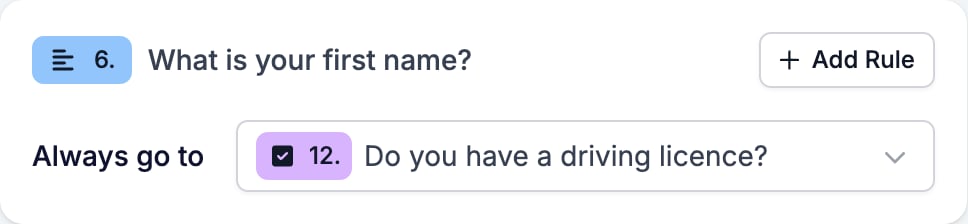
 **Skip a block of questions.** On the last question before the block, set **Always go to** the first question after the block. No rule is needed. Here the first-name question jumps straight to the driving-licence question, skipping five questions in between.
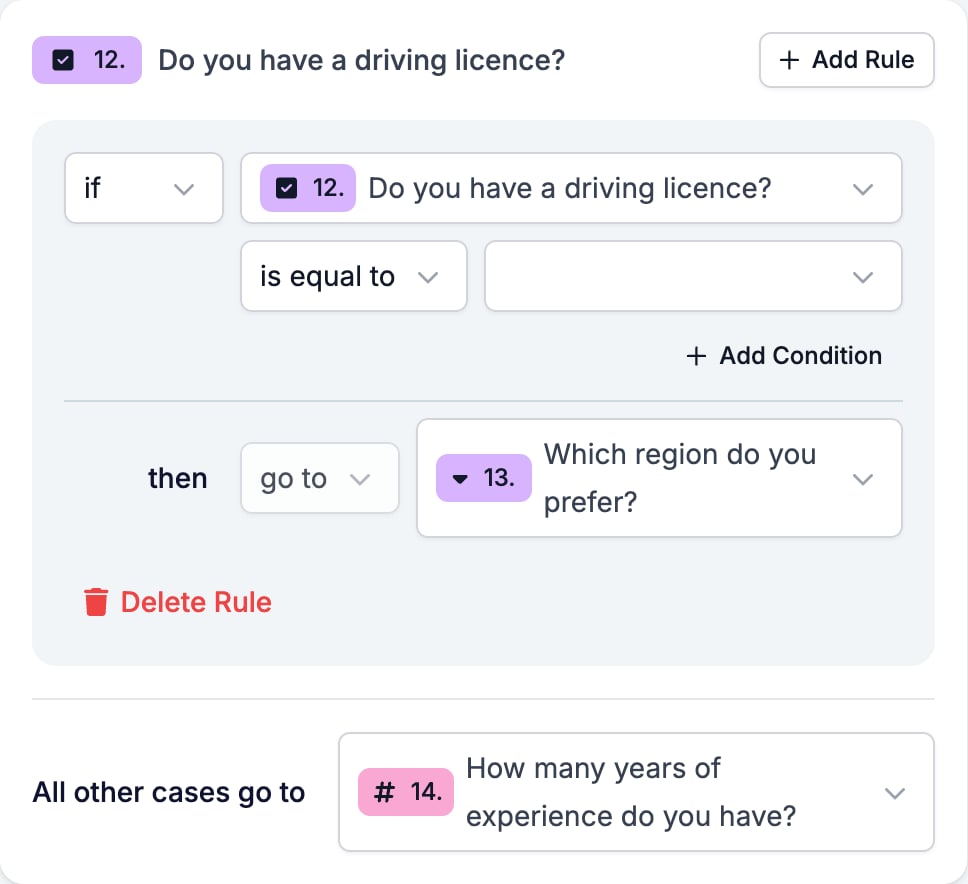
 **Route on Yes/No.** On a Yes/No question, add a rule `if` this question `is equal to` **Yes** `then go to` the follow-up. Set **All other cases go to** the question after the follow-up. Keep the question optional until the required-field issue above is fixed. The value box shows blank even though Yes is selected; see [Yes/No](#yes-no).
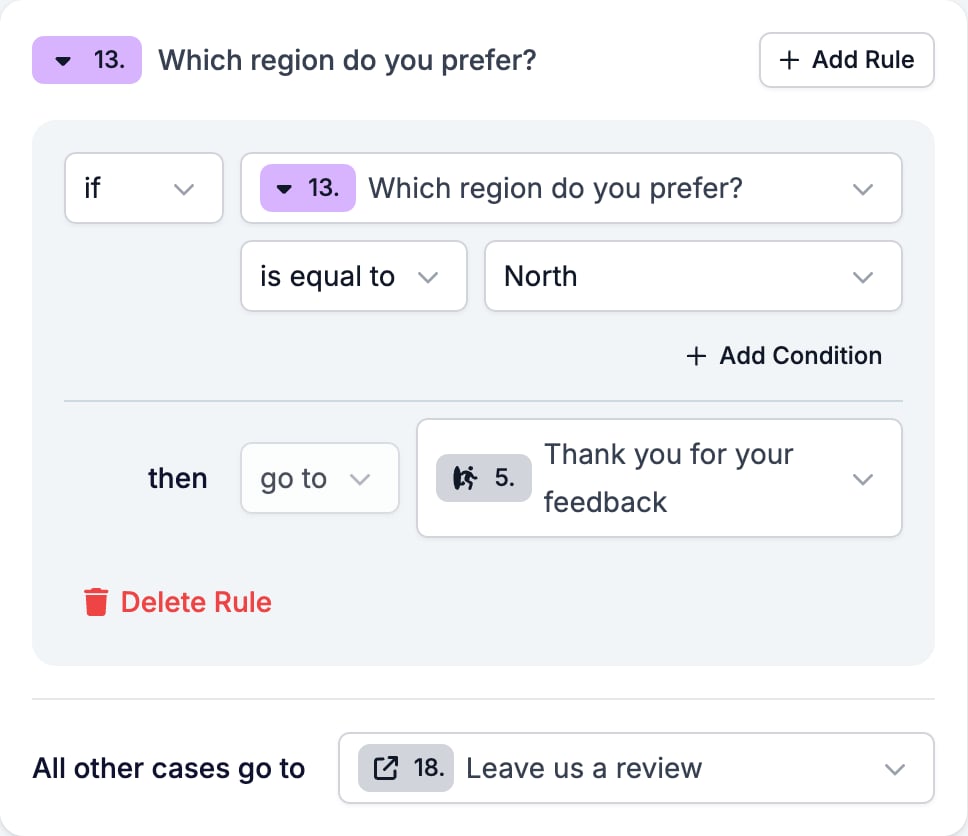
 **Send different groups to different endings.** Add one ending per outcome. On the deciding question, add one rule per outcome that goes to its ending, and point **All other cases go to** at the default ending. Here respondents from the North reach the thank-you screen and everyone else is sent to the review page.
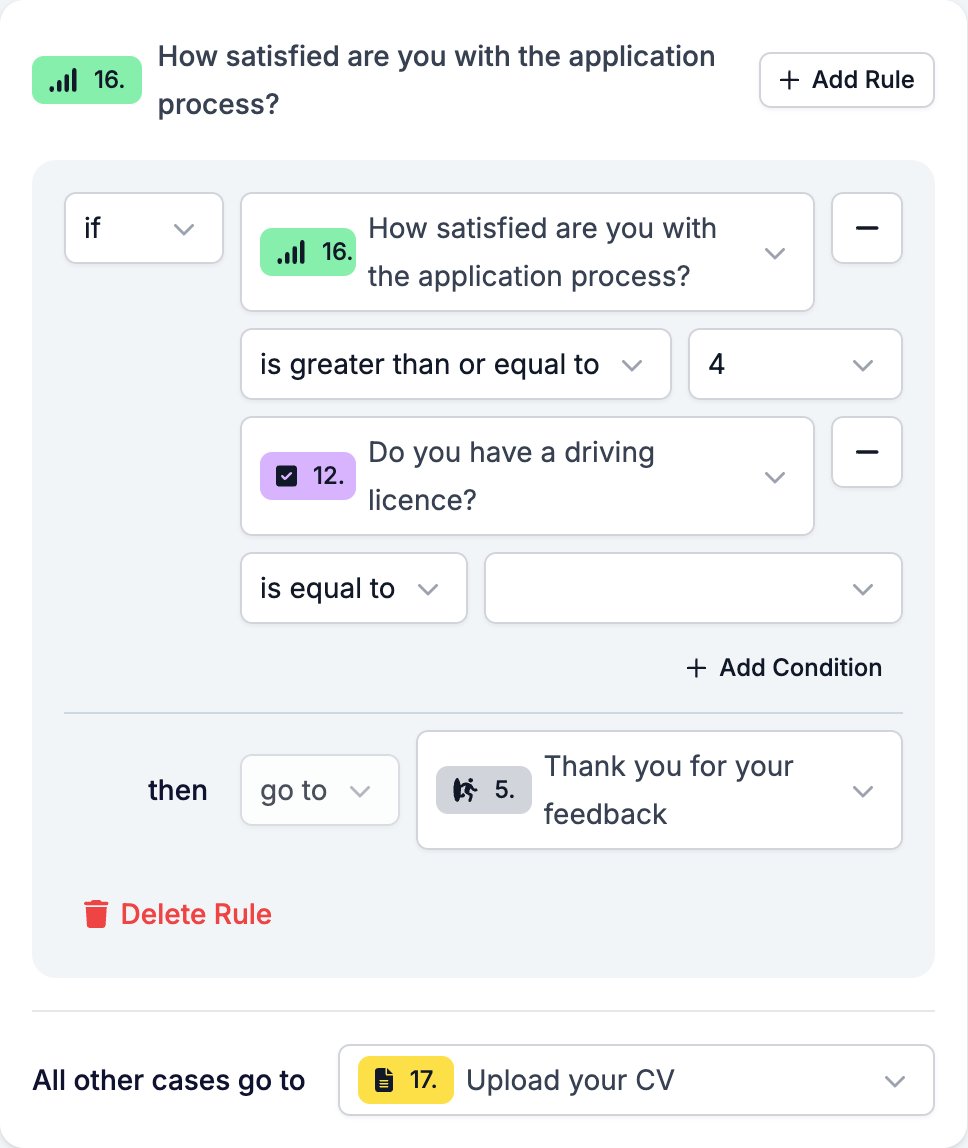
 **Combine two conditions.** Click **Add Condition** in a rule to require both. Here a respondent reaches the ending only when the satisfaction score is 4 or higher and they answered Yes to the driving-licence question. The second condition looks back at an earlier question.
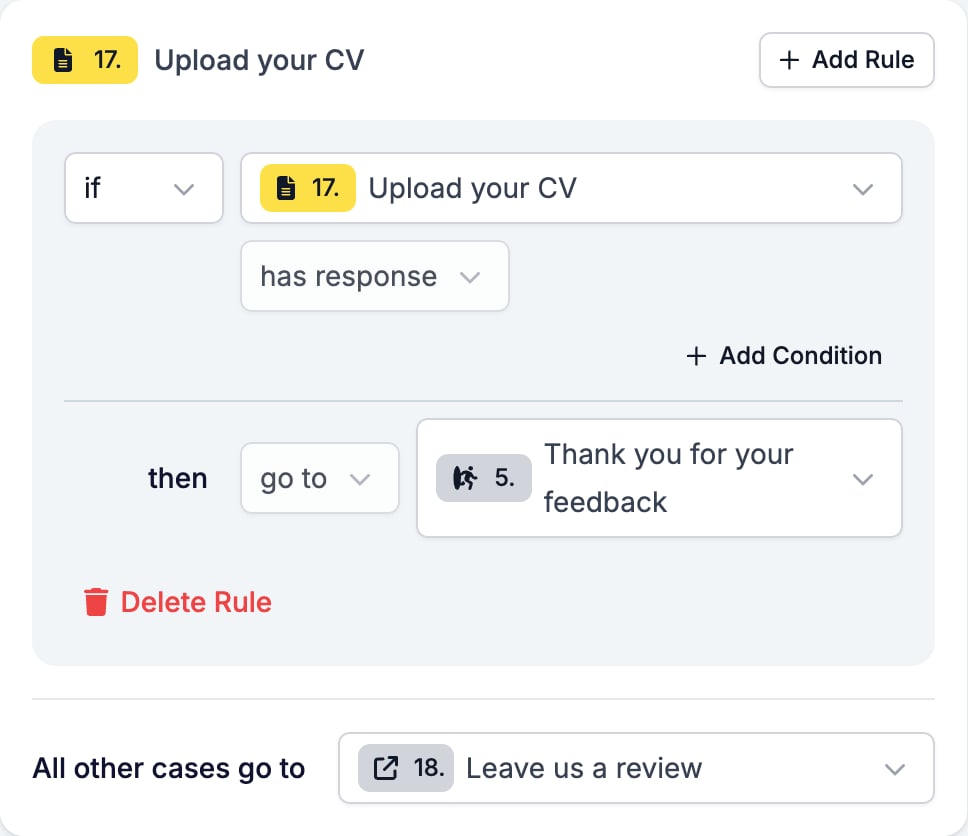
 **Check that a file was attached.** On a File Upload question, use `has response` to route respondents who attached something differently from those who skipped it.
 ## Testing and troubleshooting
The right side of the builder has three tabs: **Interactive Preview** walks the web form, **Conversational Preview** shows the chat version, and **Test & Evaluate** runs a response through the evaluators. Before you publish, walk the form once per branch in the Interactive Preview. It runs the same logic as the public form.
* **A rule never fires.** Check that the condition's question comes before, or is, the question that holds the rule. Rules cannot look ahead.
* **The form jumps to the wrong question.** Rules run top to bottom and the first match wins. Reorder the rules or narrow the earlier conditions.
* **The respondent is stuck on a required question with no message.** They answered No, turned a toggle off, or entered 0. See [Required questions](#required-questions).
* **A rule target is missing from the picker.** The target is hidden, or it is the question itself. Unhide it or pick another target.
* **The Yes/No value in a rule looks empty.** It is a display quirk. Open the picker; the selected value is marked.
* **A Yes/No auto reply is not sent.** Yes/No uses **Auto reply (Yes)** and **Auto reply (No)**, not the generic on-answer reply.
* **The option you need is not in the rule's value list.** The list is the question's options. Add the option on the **Content** tab first. When the options come from a data source, the list follows the source.
## Related topics
- [Creating a form in HireData](/content/creating-a-form-in-hiredata.md)
- [How to use forms in WhatsApp conversations](/apps/messaging/whatsapp/how-to-use-forms-in-whatsapp-conversations.md)
- [Setting up an email template in HireData](/apps/messaging/emails/setting-up-an-email-template-in-hiredata.md)
- [HireData MCP: Connect HireData to your AI assistant](/apps/mcp/connect-hiredata-to-your-ai-assistant.md)
- [Variables](/variables/introduction.md)
## Testing and troubleshooting
The right side of the builder has three tabs: **Interactive Preview** walks the web form, **Conversational Preview** shows the chat version, and **Test & Evaluate** runs a response through the evaluators. Before you publish, walk the form once per branch in the Interactive Preview. It runs the same logic as the public form.
* **A rule never fires.** Check that the condition's question comes before, or is, the question that holds the rule. Rules cannot look ahead.
* **The form jumps to the wrong question.** Rules run top to bottom and the first match wins. Reorder the rules or narrow the earlier conditions.
* **The respondent is stuck on a required question with no message.** They answered No, turned a toggle off, or entered 0. See [Required questions](#required-questions).
* **A rule target is missing from the picker.** The target is hidden, or it is the question itself. Unhide it or pick another target.
* **The Yes/No value in a rule looks empty.** It is a display quirk. Open the picker; the selected value is marked.
* **A Yes/No auto reply is not sent.** Yes/No uses **Auto reply (Yes)** and **Auto reply (No)**, not the generic on-answer reply.
* **The option you need is not in the rule's value list.** The list is the question's options. Add the option on the **Content** tab first. When the options come from a data source, the list follows the source.
## Related topics
- [Creating a form in HireData](/content/creating-a-form-in-hiredata.md)
- [How to use forms in WhatsApp conversations](/apps/messaging/whatsapp/how-to-use-forms-in-whatsapp-conversations.md)
- [Setting up an email template in HireData](/apps/messaging/emails/setting-up-an-email-template-in-hiredata.md)
- [HireData MCP: Connect HireData to your AI assistant](/apps/mcp/connect-hiredata-to-your-ai-assistant.md)
- [Variables](/variables/introduction.md)