> ## Documentation Index
> Fetch the complete documentation index at: https://help.hiredata.com/llms.txt
> Use this file to discover all available pages before exploring further.
# Previews
> Try a HireData form before you publish it: the web preview, the WhatsApp chat preview, and the preview window behind the eye button.
The right-hand panel of the builder is a working copy of the form. Two of its tabs run the form the way a respondent meets it, and the third runs the evaluators over a response you make up. This page covers the first two. For the third, see [Test & Evaluate](/reference/forms/testing/test-and-evaluate).
## Interactive Preview
**Interactive Preview** is the web form, with your theme, your logo, and the questions in the order the [logic](/reference/forms/logic) decides. Answer a question and click **Next** and you land where a respondent would land, which makes it the fastest way to check a route.
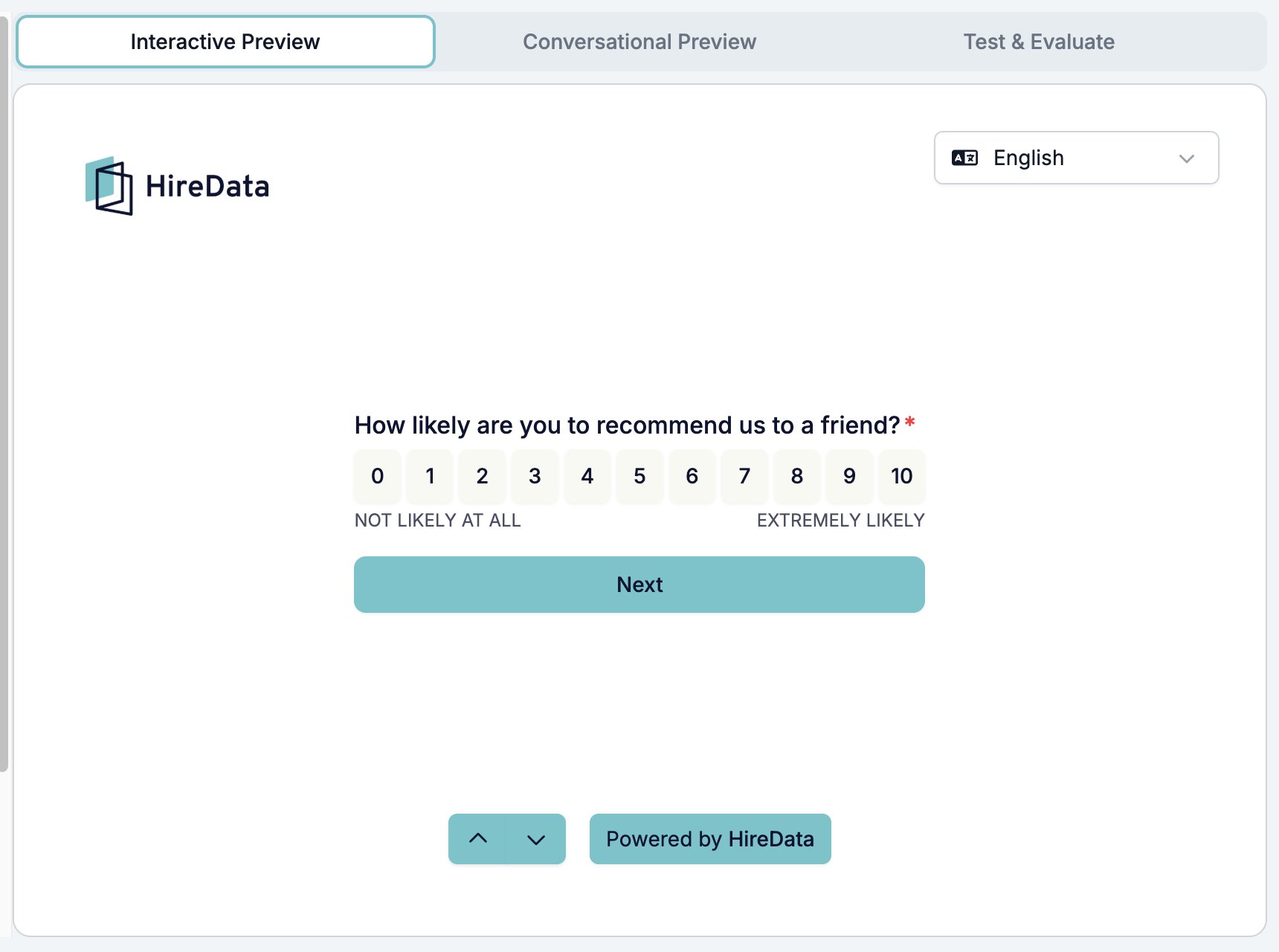 * The language picker at the top right starts on the form's default language and lists its [translations](/reference/forms/overview#localization).
* The arrows at the bottom move between questions without answering them, along the route the logic would take rather than down the field list.
* Clicking a question in the **Content** tab jumps the preview to that question, so the card you are editing is the one you are looking at.
Nothing you do here creates a response. Answers you type in the preview are thrown away.
## Conversational Preview
**Conversational Preview** is the same form as a WhatsApp conversation. It starts on a short setup screen.
* The language picker at the top right starts on the form's default language and lists its [translations](/reference/forms/overview#localization).
* The arrows at the bottom move between questions without answering them, along the route the logic would take rather than down the field list.
* Clicking a question in the **Content** tab jumps the preview to that question, so the card you are editing is the one you are looking at.
Nothing you do here creates a response. Answers you type in the preview are thrown away.
## Conversational Preview
**Conversational Preview** is the same form as a WhatsApp conversation. It starts on a short setup screen.
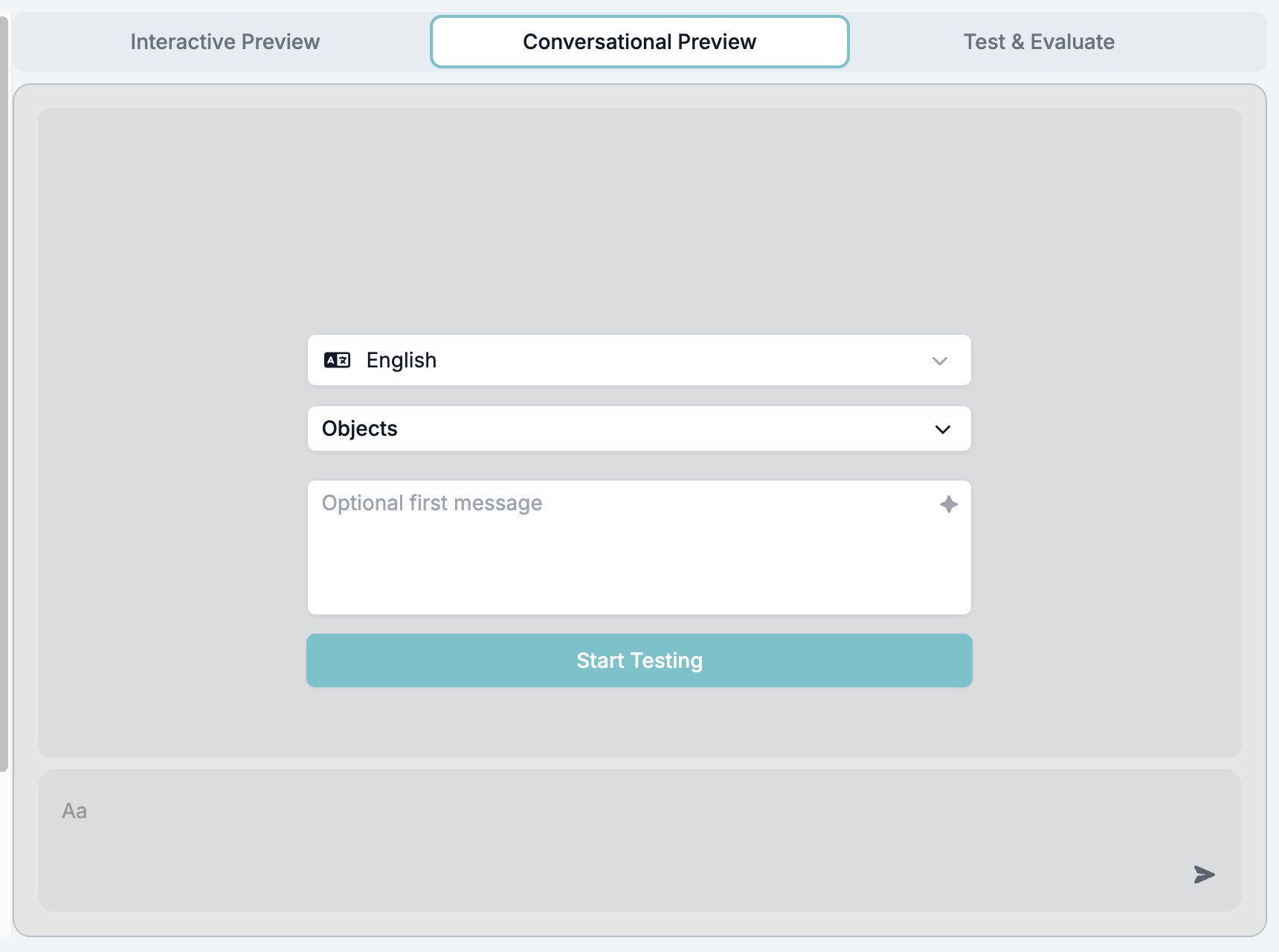 * The language picker sets the language the conversation runs in.
* **Objects** holds test values for the records the form links, so a question that greets someone by name has a name to use. It only appears on a form with linked [objects](/reference/forms/objects).
* **Optional first message** is what the tester says before the form starts. The sparkle button writes one for you.
* **Start Testing** opens the conversation.
Once it starts, the form messages you one question at a time, with a button where the web form would show a list or a scale.
* The language picker sets the language the conversation runs in.
* **Objects** holds test values for the records the form links, so a question that greets someone by name has a name to use. It only appears on a form with linked [objects](/reference/forms/objects).
* **Optional first message** is what the tester says before the form starts. The sparkle button writes one for you.
* **Start Testing** opens the conversation.
Once it starts, the form messages you one question at a time, with a button where the web form would show a list or a scale.
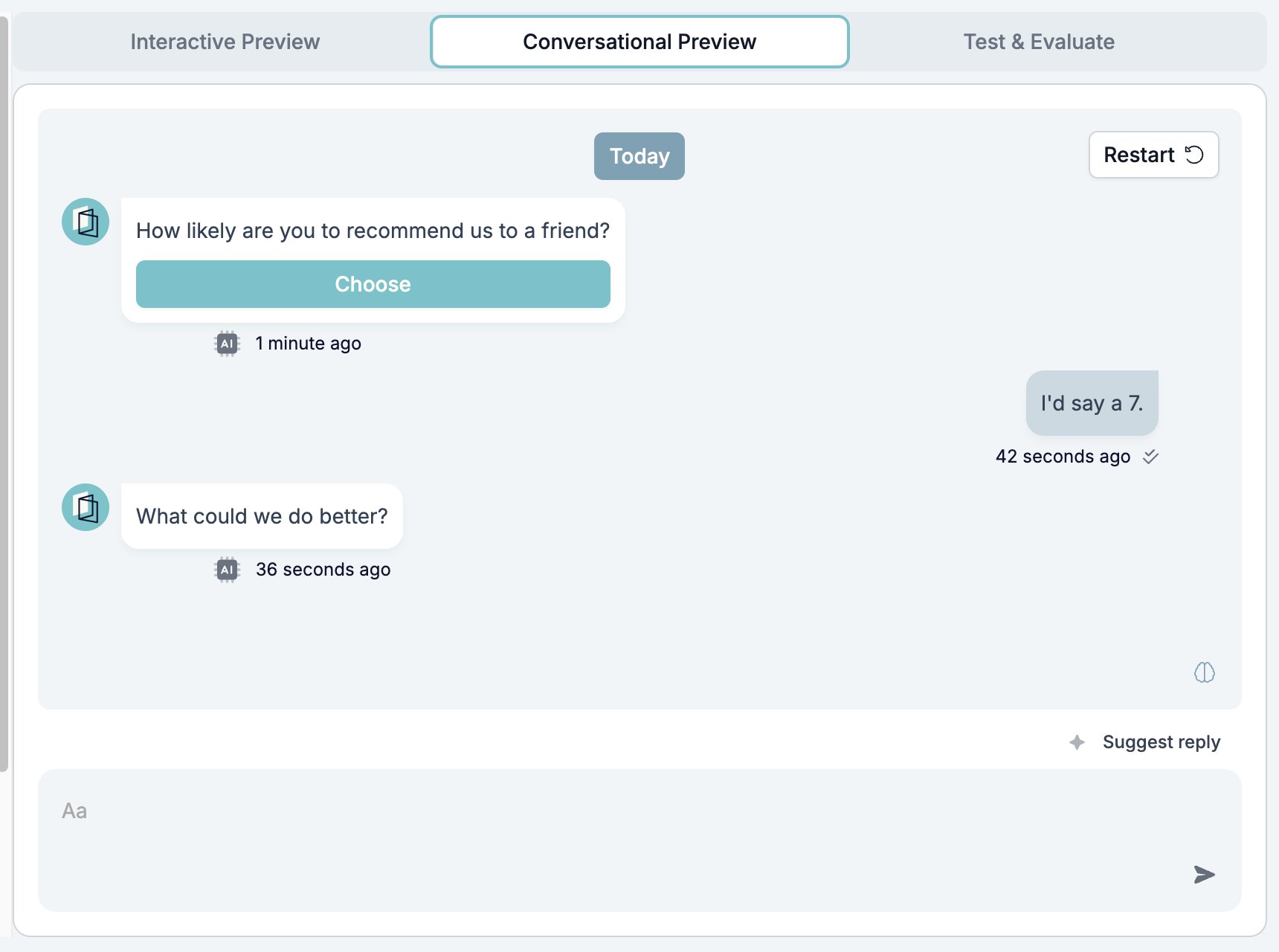 **Suggest reply** writes a plausible answer into the composer as the tester, which is quicker than inventing answers yourself and good enough to exercise the branching. **Restart** clears the conversation and takes you back to the setup screen.
This is the preview to use before sending a form over WhatsApp. It is where you find out that a question reads oddly as a chat message, or that the [auto replies](/reference/forms/overview#settings-every-field-shares) fire in the wrong place.
## The preview window
The eye button next to **Save** in the toolbar is the other way to open the form. It saves the form first, then opens the preview in a window over the builder.
**Suggest reply** writes a plausible answer into the composer as the tester, which is quicker than inventing answers yourself and good enough to exercise the branching. **Restart** clears the conversation and takes you back to the setup screen.
This is the preview to use before sending a form over WhatsApp. It is where you find out that a question reads oddly as a chat message, or that the [auto replies](/reference/forms/overview#settings-every-field-shares) fire in the wrong place.
## The preview window
The eye button next to **Save** in the toolbar is the other way to open the form. It saves the form first, then opens the preview in a window over the builder.
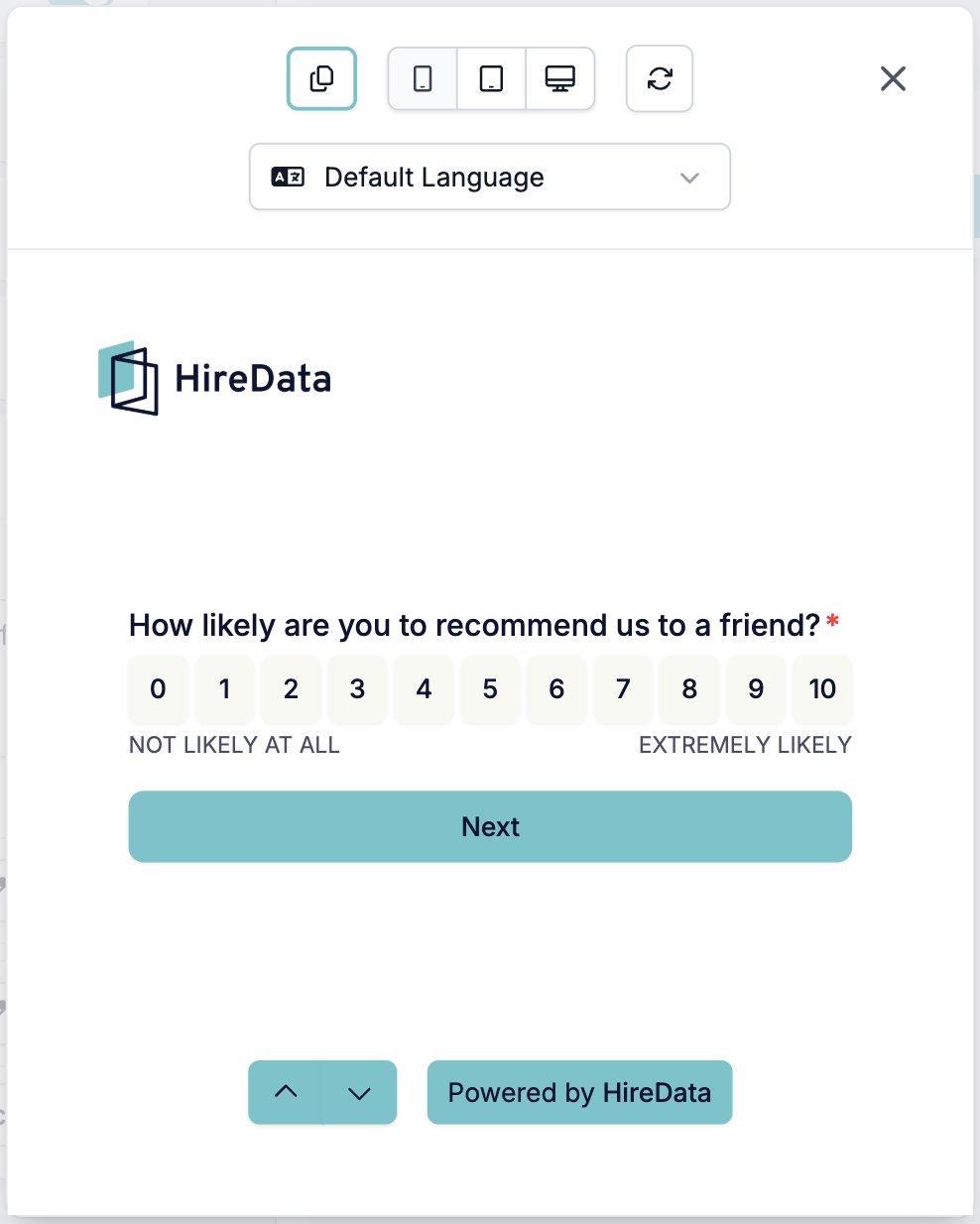 The window loads the form's own preview address, so it renders exactly as a respondent's browser would rather than inside the builder's layout. Across the top sit a copy button for the preview link, a **mobile**, **tablet**, and **desktop** switcher, a refresh button, and the language picker.
Use it for two things the builder panel cannot do: checking the form at phone width, and sending the link to a colleague. Submissions at the preview address are not stored either, so a colleague can walk the whole form without leaving a response behind.
A form configured for a record has a third preview. Open the record, click **Preview**, and the form renders with that record's values filled in. See [Configuring a form per record](/content/configuring-a-form-per-record).
## Related
* [Test & Evaluate](/reference/forms/testing/test-and-evaluate) fills a whole response and runs the evaluators over it.
* [Logic](/reference/forms/logic) covers the rules the previews run, and what to check when one does not fire.
* [Form builder overview](/reference/forms/overview) covers the builder, the toolbar, and the theme.
## Related topics
- [Form builder overview](/reference/forms/overview.md)
- [Creating a form in HireData](/content/creating-a-form-in-hiredata.md)
- [Sending an email newsletter to your audience](/apps/messaging/emails/sending-an-email-newsletter-to-your-audience.md)
- [How to test an automation](/automations/how-to-test-an-automation.md)
- [How WhatsApp templates work](/apps/messaging/whatsapp/how-whatsapp-templates-work.md)
The window loads the form's own preview address, so it renders exactly as a respondent's browser would rather than inside the builder's layout. Across the top sit a copy button for the preview link, a **mobile**, **tablet**, and **desktop** switcher, a refresh button, and the language picker.
Use it for two things the builder panel cannot do: checking the form at phone width, and sending the link to a colleague. Submissions at the preview address are not stored either, so a colleague can walk the whole form without leaving a response behind.
A form configured for a record has a third preview. Open the record, click **Preview**, and the form renders with that record's values filled in. See [Configuring a form per record](/content/configuring-a-form-per-record).
## Related
* [Test & Evaluate](/reference/forms/testing/test-and-evaluate) fills a whole response and runs the evaluators over it.
* [Logic](/reference/forms/logic) covers the rules the previews run, and what to check when one does not fire.
* [Form builder overview](/reference/forms/overview) covers the builder, the toolbar, and the theme.
## Related topics
- [Form builder overview](/reference/forms/overview.md)
- [Creating a form in HireData](/content/creating-a-form-in-hiredata.md)
- [Sending an email newsletter to your audience](/apps/messaging/emails/sending-an-email-newsletter-to-your-audience.md)
- [How to test an automation](/automations/how-to-test-an-automation.md)
- [How WhatsApp templates work](/apps/messaging/whatsapp/how-whatsapp-templates-work.md)