> ## Documentation Index
> Fetch the complete documentation index at: https://help.hiredata.com/llms.txt
> Use this file to discover all available pages before exploring further.
# Test & Evaluate
> Fill a whole HireData form response, let AI invent one for you, and read the verdict, score, skills, summary, and generated fields it produces.
**Test & Evaluate** is the third tab of the preview panel, and the fastest way to see what the [evaluators](/reference/forms/evaluation/overview) actually do. You give it a response, it runs Criteria, Scoring, Skills, Summary, and Generated fields over it, and shows every result next to the answer that produced it.
Use it whenever you change an evaluator. A rule that looks right on the card is often wrong the first time it meets an answer.
## Filling in the answers
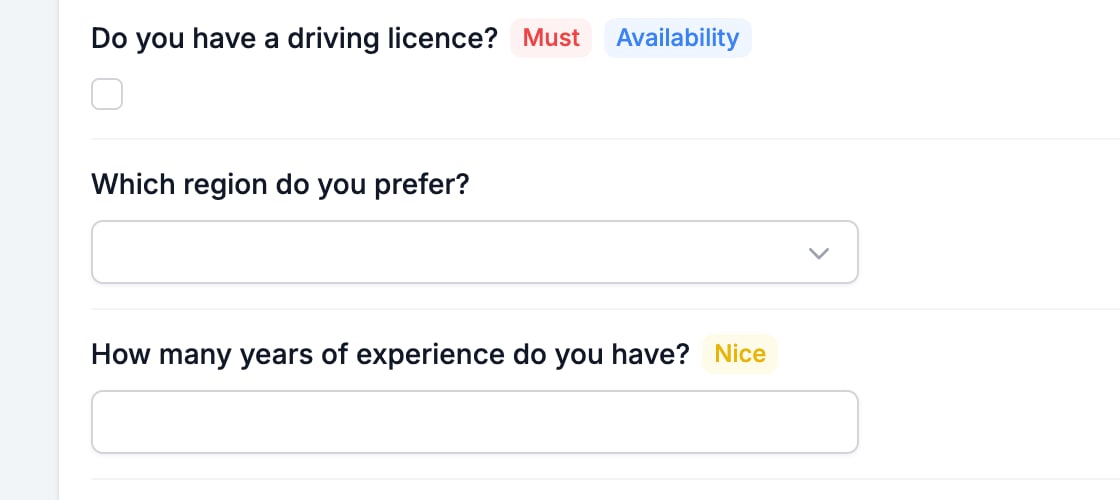
The tab lists every question except the endings, as a compact input. Badges after the question label say what the evaluators will do with it: **Must** or **Nice** from [Criteria](/reference/forms/evaluation/criteria), and one badge per skill the question feeds.
 Type the answers yourself, or let the AI write them. **Autofill with AI** fills every question in one go, and the chevron beside it picks the kind of respondent to imitate.
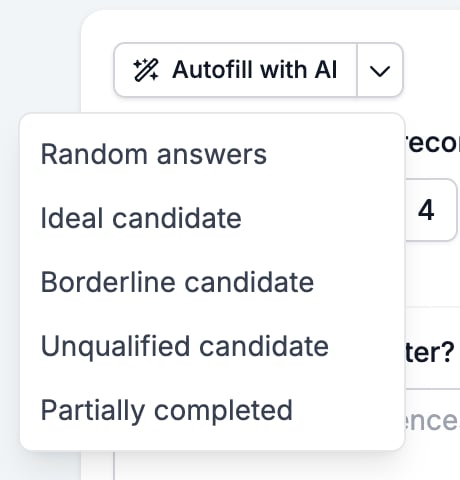 * **Random answers** is plausible but uninformed. Good for a first look.
* **Ideal candidate** answers the way someone who meets every criterion would.
* **Borderline candidate** aims at the middle, which is where a scoring mistake shows.
* **Unqualified candidate** should come back rejected. If it does not, a must-have is not doing its job.
* **Partially completed** leaves questions unanswered, which is how you check an **Incomplete** verdict.
The scenarios are not generic. The autofill sends your questions and your evaluation rules to the model, so "ideal" means ideal for this form's criteria, and "unqualified" is aimed at failing them.
The evaluation runs on its own as soon as there is an answer, and again a moment after you change one. There is no button to click. **Reset answers** at the bottom clears everything.
Running an evaluation saves the form first. Any unsaved change in the builder is committed the moment the evaluation runs, so do not use this tab to look at a change you were still deciding about.
## Reading the results
The results appear under the answers, starting with one panel per evaluator you switched on. Each panel shows the headline result, and clicking one opens its detail underneath.
* **Random answers** is plausible but uninformed. Good for a first look.
* **Ideal candidate** answers the way someone who meets every criterion would.
* **Borderline candidate** aims at the middle, which is where a scoring mistake shows.
* **Unqualified candidate** should come back rejected. If it does not, a must-have is not doing its job.
* **Partially completed** leaves questions unanswered, which is how you check an **Incomplete** verdict.
The scenarios are not generic. The autofill sends your questions and your evaluation rules to the model, so "ideal" means ideal for this form's criteria, and "unqualified" is aimed at failing them.
The evaluation runs on its own as soon as there is an answer, and again a moment after you change one. There is no button to click. **Reset answers** at the bottom clears everything.
Running an evaluation saves the form first. Any unsaved change in the builder is committed the moment the evaluation runs, so do not use this tab to look at a change you were still deciding about.
## Reading the results
The results appear under the answers, starting with one panel per evaluator you switched on. Each panel shows the headline result, and clicking one opens its detail underneath.
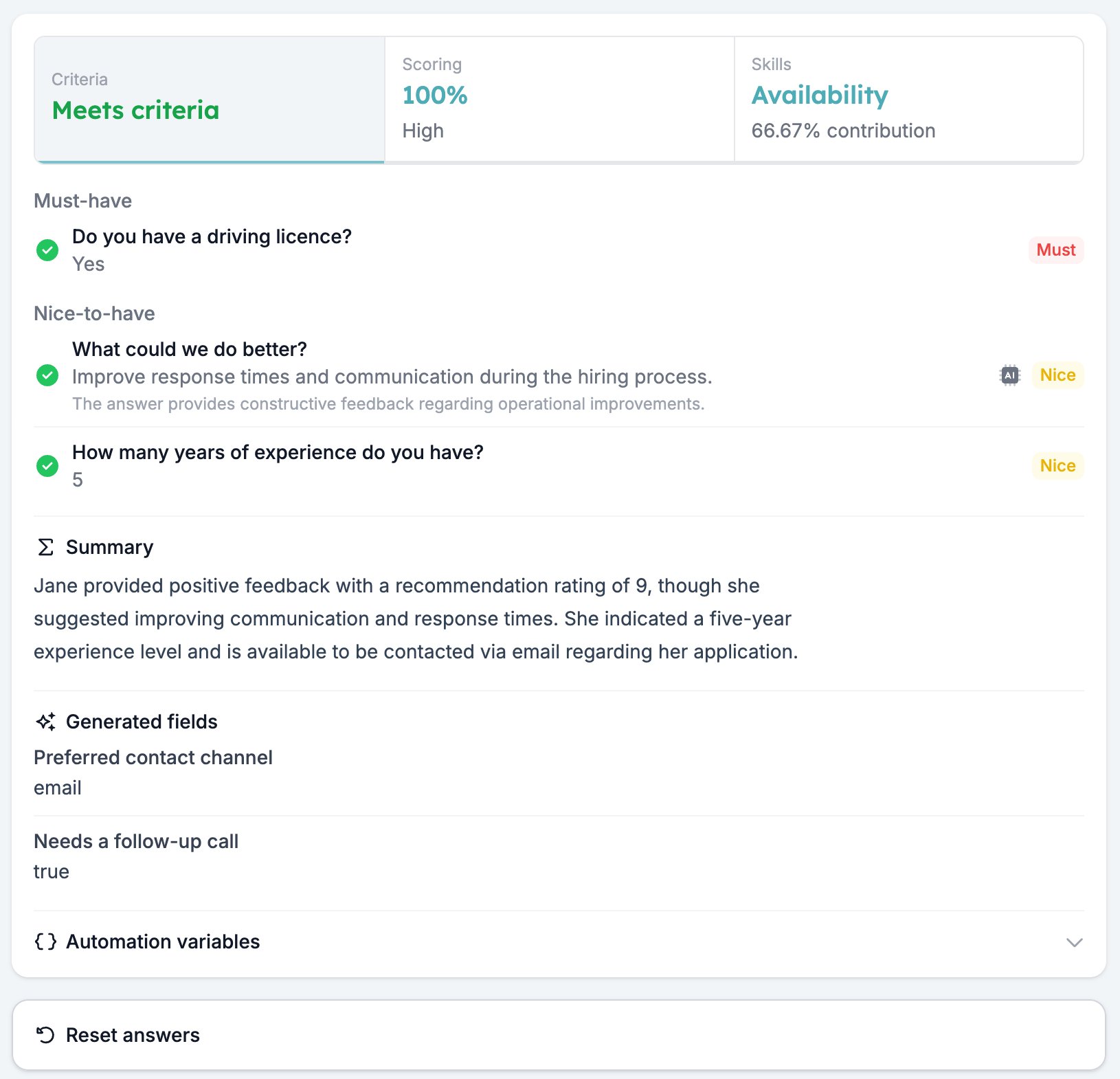 **Criteria** groups the questions under **Must-have** and **Nice-to-have**, with a tick or a cross, the answer, and the expected answer where you wrote one. A question judged by AI carries an AI chip and the model's one-line reasoning, which is the fastest way to see whether your note landed.
**Scoring** shows the percentage, the points tally, and what each question earned out of its own maximum.
**Criteria** groups the questions under **Must-have** and **Nice-to-have**, with a tick or a cross, the answer, and the expected answer where you wrote one. A question judged by AI carries an AI chip and the model's one-line reasoning, which is the fastest way to see whether your note landed.
**Scoring** shows the percentage, the points tally, and what each question earned out of its own maximum.
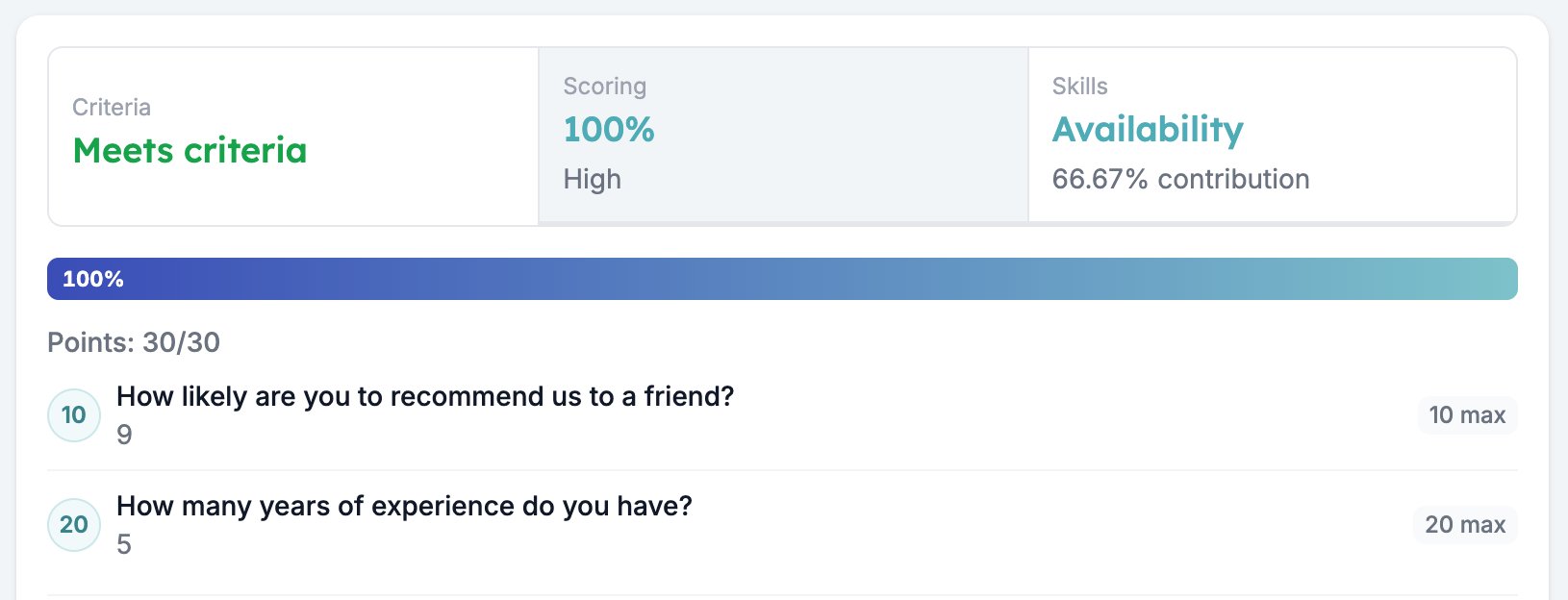 **Skills** shows a bar per skill. **Summary** and **Generated fields** sit below the panels, so they stay in view whichever detail you have open.
A grey **No result yet** is what the panels show before you enter an answer. If one stays grey after a run, that evaluator had nothing to work with. The usual cause is a question switched on with no rules written, which leaves the evaluator with no question to judge.
## Automation variables
**Automation variables** at the bottom lists every value this response makes available to an automation, with the variable to copy and the result from the run in front of you.
**Skills** shows a bar per skill. **Summary** and **Generated fields** sit below the panels, so they stay in view whichever detail you have open.
A grey **No result yet** is what the panels show before you enter an answer. If one stays grey after a run, that evaluator had nothing to work with. The usual cause is a question switched on with no rules written, which leaves the evaluator with no question to judge.
## Automation variables
**Automation variables** at the bottom lists every value this response makes available to an automation, with the variable to copy and the result from the run in front of you.
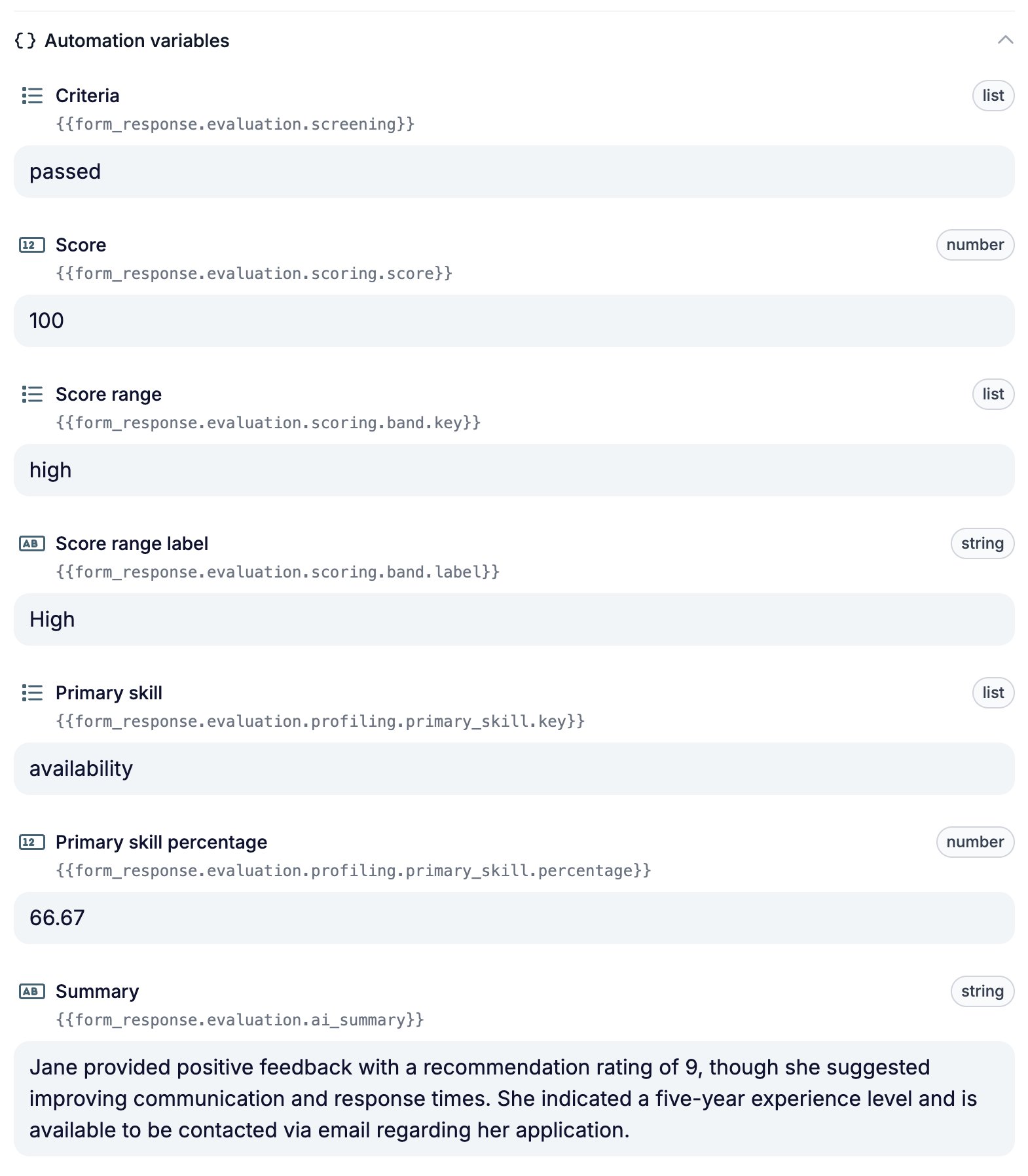 This is the list to build an automation against. Reading `passed` next to `{{form_response.evaluation.screening}}` tells you the exact value to compare, which guessing does not. See [Variables](/variables/introduction).
## What it does not do
A run here creates no response. The form's results are untouched, the response count does not move, and nothing reaches an automation. The evaluation is real, the response is not.
If none of Criteria, Scoring, and Skills is on for the form, the tab shows an **Enable Criteria**, **Enable Scoring**, and **Enable Skills** button in place of the result panels. Each one switches that evaluator on for the form without leaving the tab. See the [Evaluation tab](/reference/forms/evaluation/overview) for what to configure next.
## Related
* [Form evaluation overview](/reference/forms/evaluation/overview) covers the five evaluators and the order you switch them on in.
* [Previews](/reference/forms/testing/previews) run the form itself, as a web page or as a chat.
* [Screen and score applicants with a pre-screening form](/knowledge-base/cookbook/pre-screening-form) uses this tab to check a form end to end.
## Related topics
- [Form builder overview](/reference/forms/overview.md)
- [Form evaluation overview](/reference/forms/evaluation/overview.md)
- [Previews](/reference/forms/testing/previews.md)
- [Generated fields](/reference/forms/evaluation/generated-fields.md)
- [Skills](/reference/forms/evaluation/skills.md)
This is the list to build an automation against. Reading `passed` next to `{{form_response.evaluation.screening}}` tells you the exact value to compare, which guessing does not. See [Variables](/variables/introduction).
## What it does not do
A run here creates no response. The form's results are untouched, the response count does not move, and nothing reaches an automation. The evaluation is real, the response is not.
If none of Criteria, Scoring, and Skills is on for the form, the tab shows an **Enable Criteria**, **Enable Scoring**, and **Enable Skills** button in place of the result panels. Each one switches that evaluator on for the form without leaving the tab. See the [Evaluation tab](/reference/forms/evaluation/overview) for what to configure next.
## Related
* [Form evaluation overview](/reference/forms/evaluation/overview) covers the five evaluators and the order you switch them on in.
* [Previews](/reference/forms/testing/previews) run the form itself, as a web page or as a chat.
* [Screen and score applicants with a pre-screening form](/knowledge-base/cookbook/pre-screening-form) uses this tab to check a form end to end.
## Related topics
- [Form builder overview](/reference/forms/overview.md)
- [Form evaluation overview](/reference/forms/evaluation/overview.md)
- [Previews](/reference/forms/testing/previews.md)
- [Generated fields](/reference/forms/evaluation/generated-fields.md)
- [Skills](/reference/forms/evaluation/skills.md)