> ## Documentation Index
> Fetch the complete documentation index at: https://help.hiredata.com/llms.txt
> Use this file to discover all available pages before exploring further.
# Automation Safety Limits
> Configure automation safety limits in HireData to cap how many messages a contact receives, prevent runaway sends, and keep your recruitment outreach on track.
*The safety limits in HireData ensure that your automations don’t overwhelm your contacts by preventing excessive messaging. This feature helps maintain a balanced and professional outreach process while minimising errors. Continue reading our guide for a comprehensive breakdown of the different safety limits and learn how to use them.*
## Breakdown of the safety limits
### Prevent message overload
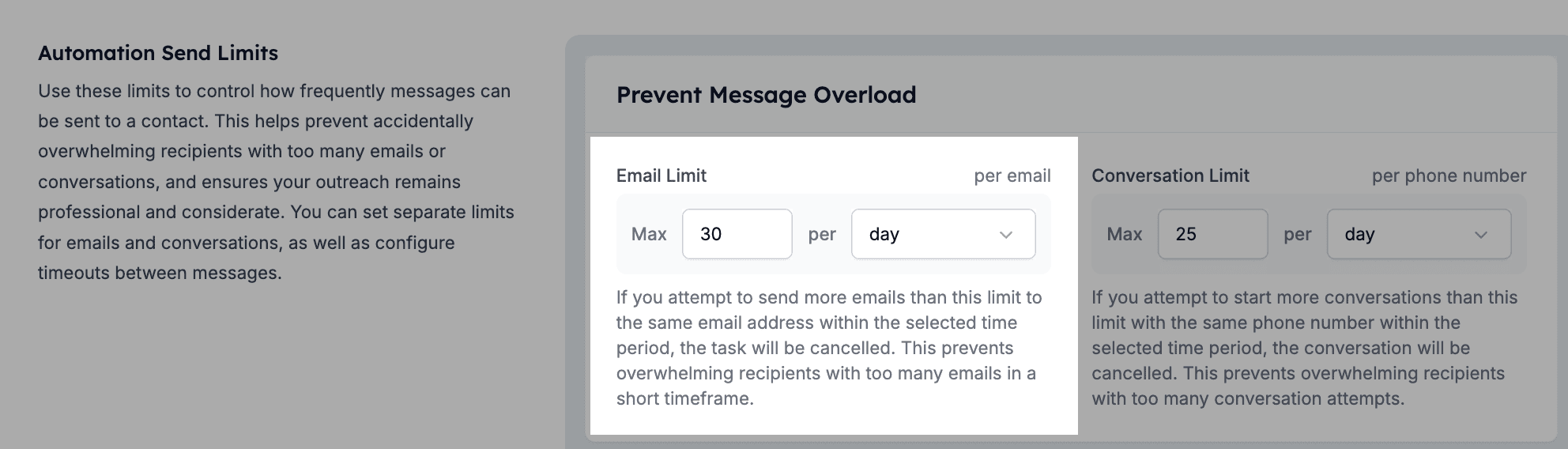
#### 1.1. Email send limits
* **Definition**: Limits the number of emails that can be sent to a single email address.
* **Purpose**: Prevents overloading a contact's inbox and avoids emails being flagged as spam.
* **Fully customisable**
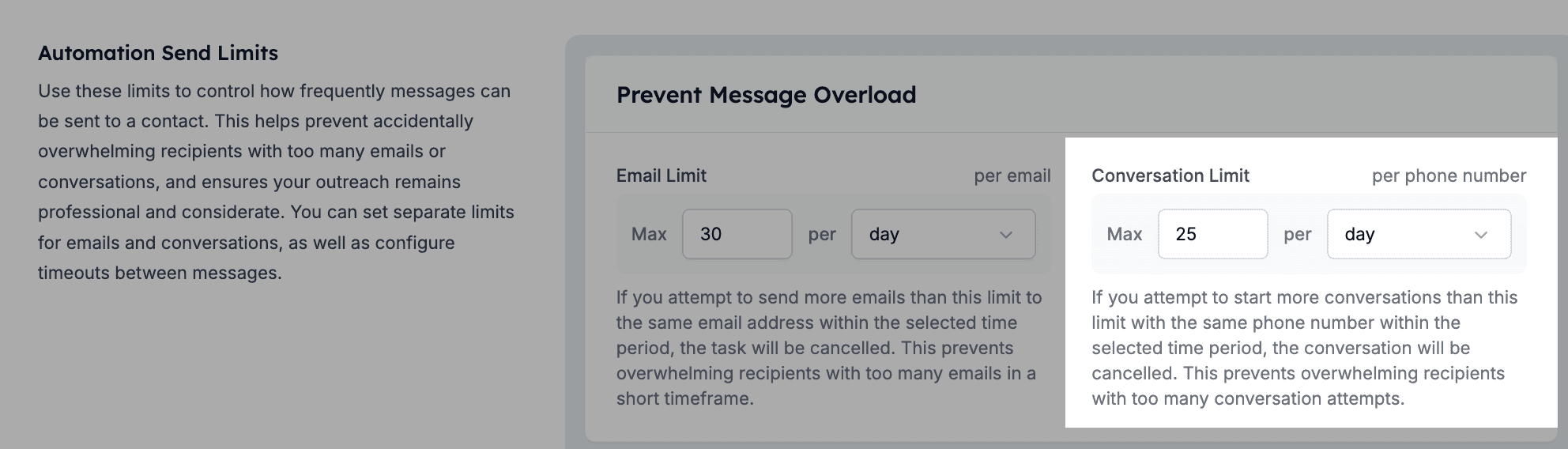
 #### 1.2. Conversation send limits
* **Definition**: Limits the number of conversations initiated per phone number.
* **Purpose**: Control outreach frequency to avoid excessive messages and potential contact fatigue.
* **Fully customisable**
#### 1.2. Conversation send limits
* **Definition**: Limits the number of conversations initiated per phone number.
* **Purpose**: Control outreach frequency to avoid excessive messages and potential contact fatigue.
* **Fully customisable**
 ### Automation message limits
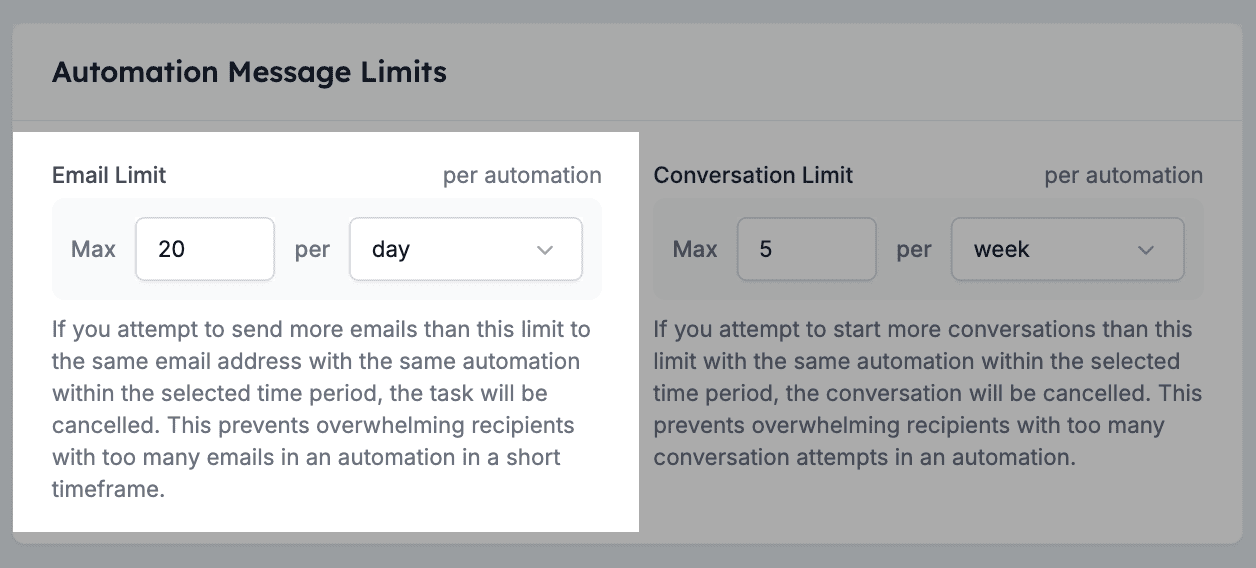
#### 2.1. Email send limit
* **Definition**: Limits the number of emails you can send to the same email with the same automation.
* **Purpose**: To prevent overloading recipient with the same email in a short period of time.
* **Fully customisable**
### Automation message limits
#### 2.1. Email send limit
* **Definition**: Limits the number of emails you can send to the same email with the same automation.
* **Purpose**: To prevent overloading recipient with the same email in a short period of time.
* **Fully customisable**
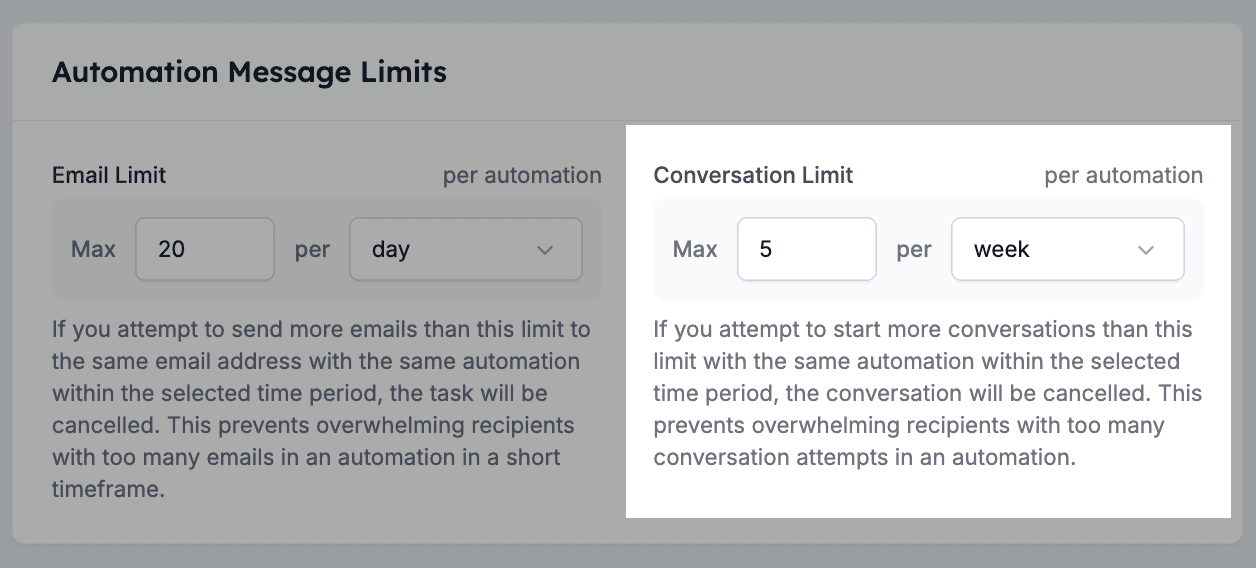
 #### 2.2. Conversation send limit
* **Definition**: Limits the number of conversations you can send to the same phone number with the same automation.
* **Purpose**: To prevent overloading recipient with the same messages in a short period of time.
* **Fully customisable**
#### 2.2. Conversation send limit
* **Definition**: Limits the number of conversations you can send to the same phone number with the same automation.
* **Purpose**: To prevent overloading recipient with the same messages in a short period of time.
* **Fully customisable**
 ### Close unresponsive conversations
#### 3.1. Ignored (no reply)
* **Definition**: Automatically cancels a conversation if there’s no reply within the set time period
* **Purpose**: Prevents inactive conversations from remaining open when recipients don’t respond.
* **Fully customisable**
### Close unresponsive conversations
#### 3.1. Ignored (no reply)
* **Definition**: Automatically cancels a conversation if there’s no reply within the set time period
* **Purpose**: Prevents inactive conversations from remaining open when recipients don’t respond.
* **Fully customisable**
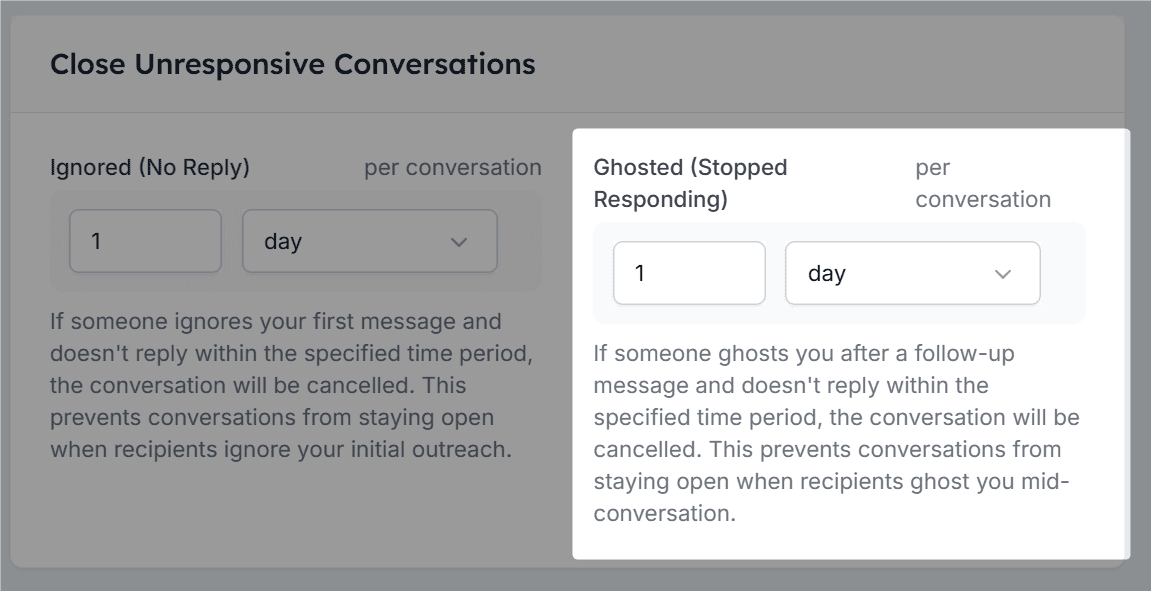
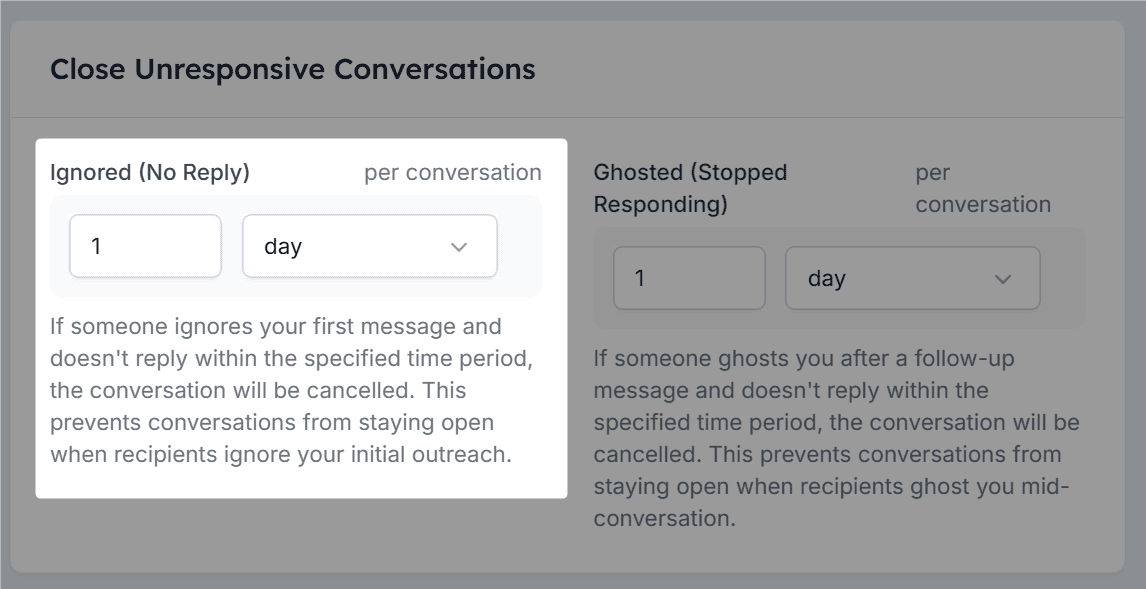 #### 3.2. Ghosted (stopped responding)
* **Definition**: Cancels a conversation if there’s no reply after a follow-up within the set time period.
* **Purpose**: Prevents stalled conversations from staying open when recipients stop responding mid-conversation.
* **Fully customisable**
#### 3.2. Ghosted (stopped responding)
* **Definition**: Cancels a conversation if there’s no reply after a follow-up within the set time period.
* **Purpose**: Prevents stalled conversations from staying open when recipients stop responding mid-conversation.
* **Fully customisable**
 ### Avoid accidental restarts
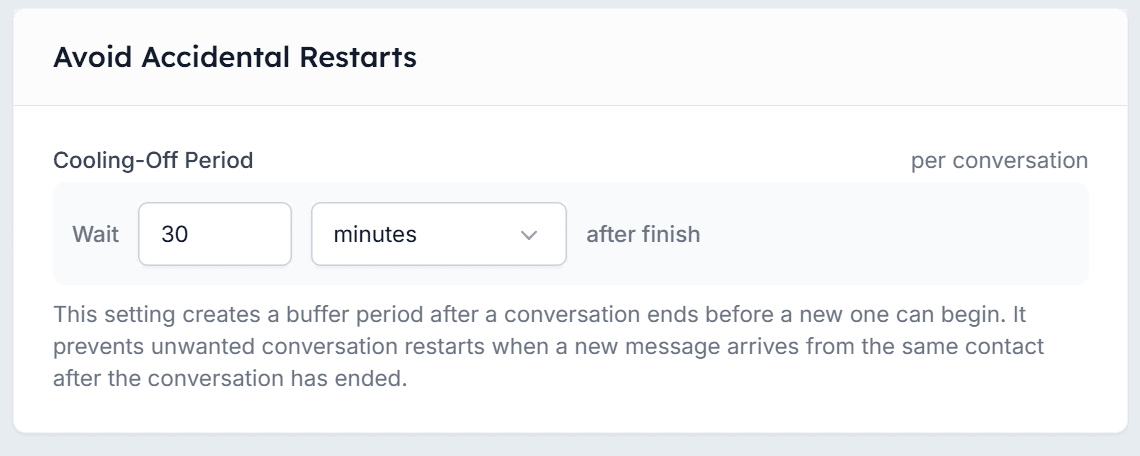
#### 4.1. Cooling-off period
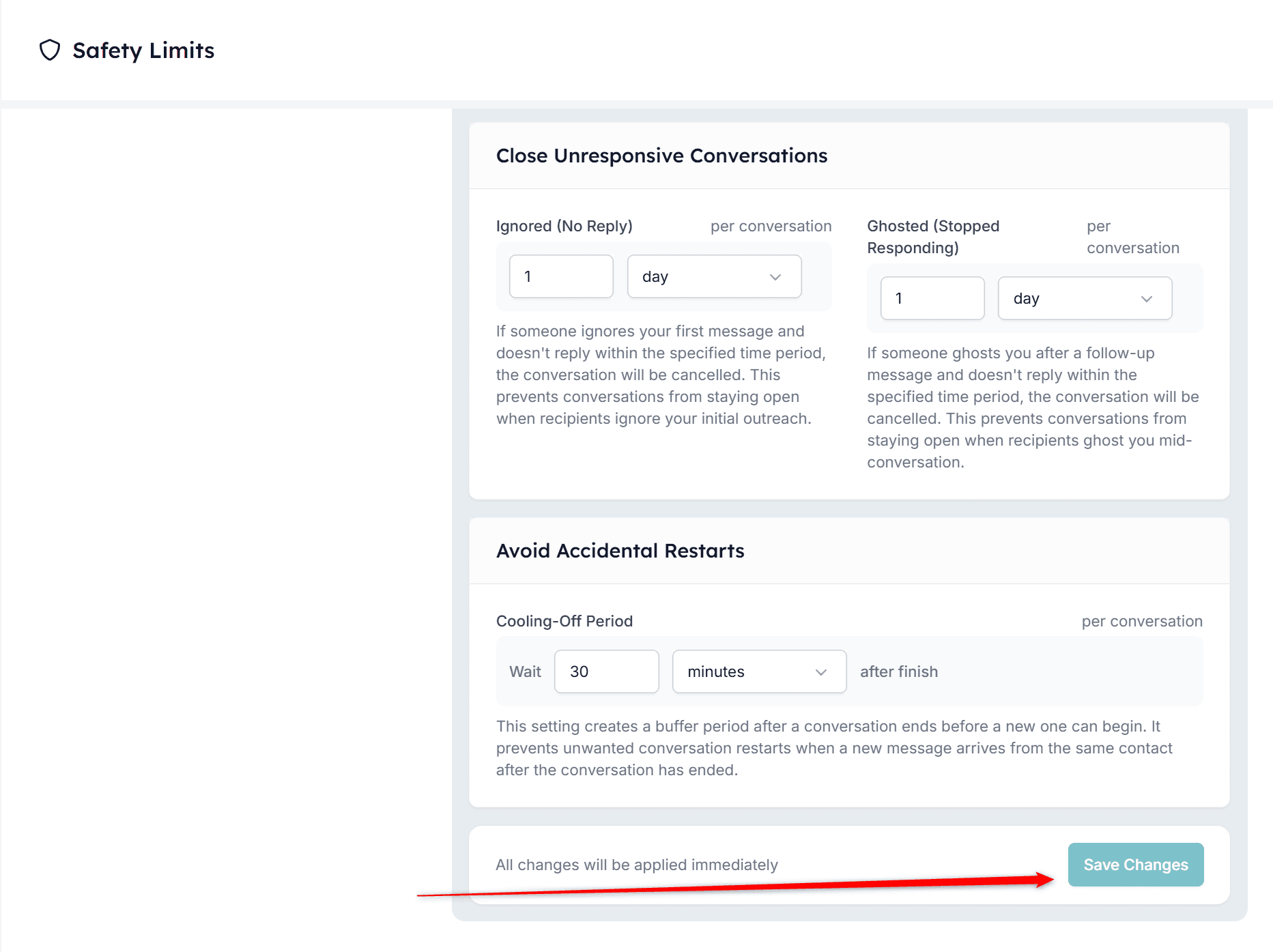
* **Definition**: Adds a buffer period after a conversation ends before a new one can start.
* **Purpose**: Prevents automatic restarts when a contact sends a new message too soon after a conversation has closed.
* **Fully customizable**
### Avoid accidental restarts
#### 4.1. Cooling-off period
* **Definition**: Adds a buffer period after a conversation ends before a new one can start.
* **Purpose**: Prevents automatic restarts when a contact sends a new message too soon after a conversation has closed.
* **Fully customizable**
 ## How to adjust your safety limits
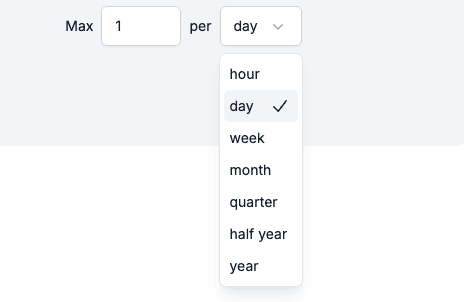
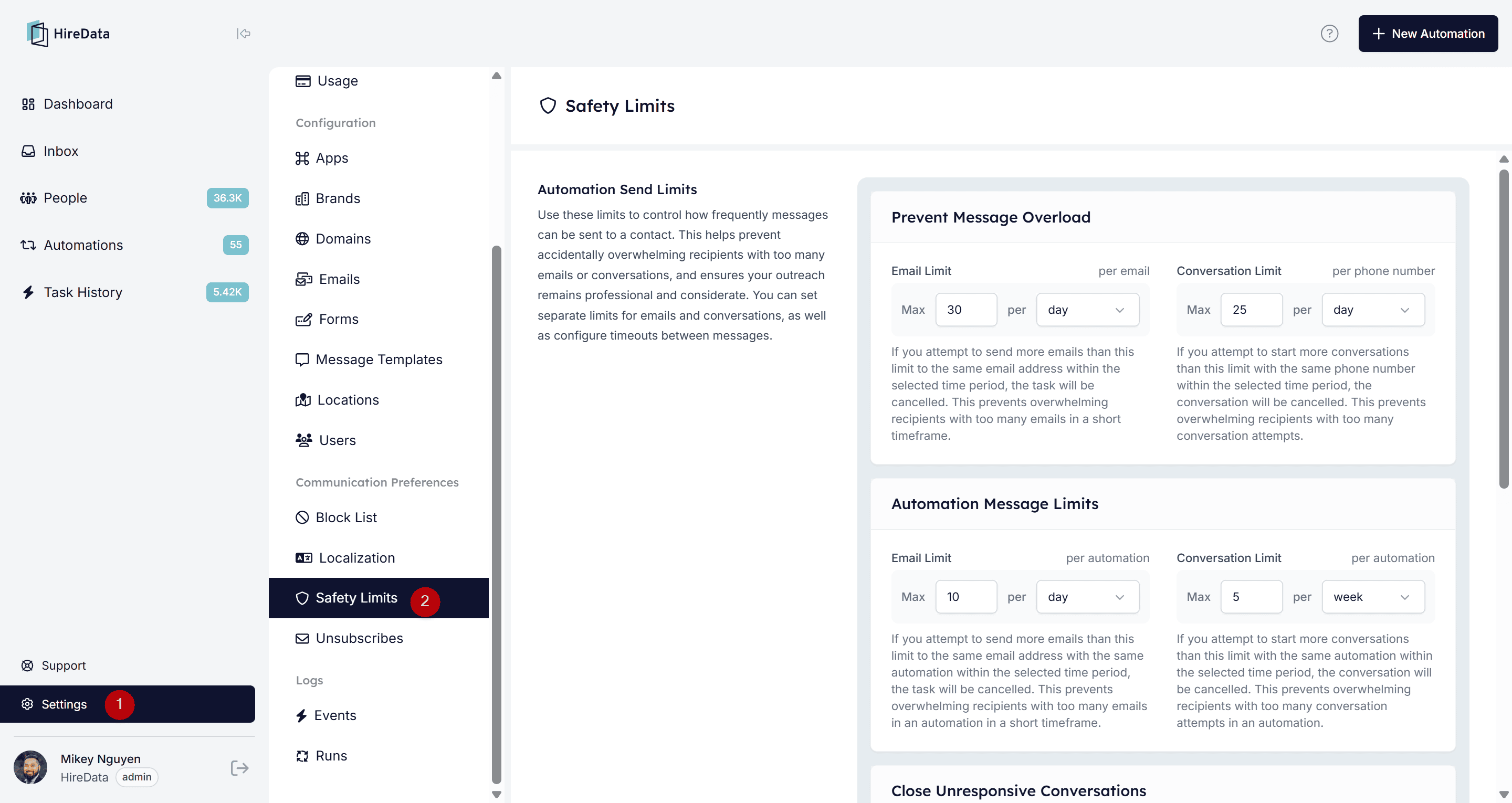 Enter the maximum allowed messages or timeouts and use the dropdown menu to set the frequency (e.g., per day/week/month/quarter/half year/year) of each setting.
 Click the **Save Changes** button to apply your changes immediately.
 ## Adjusting safety limits for an individual automation
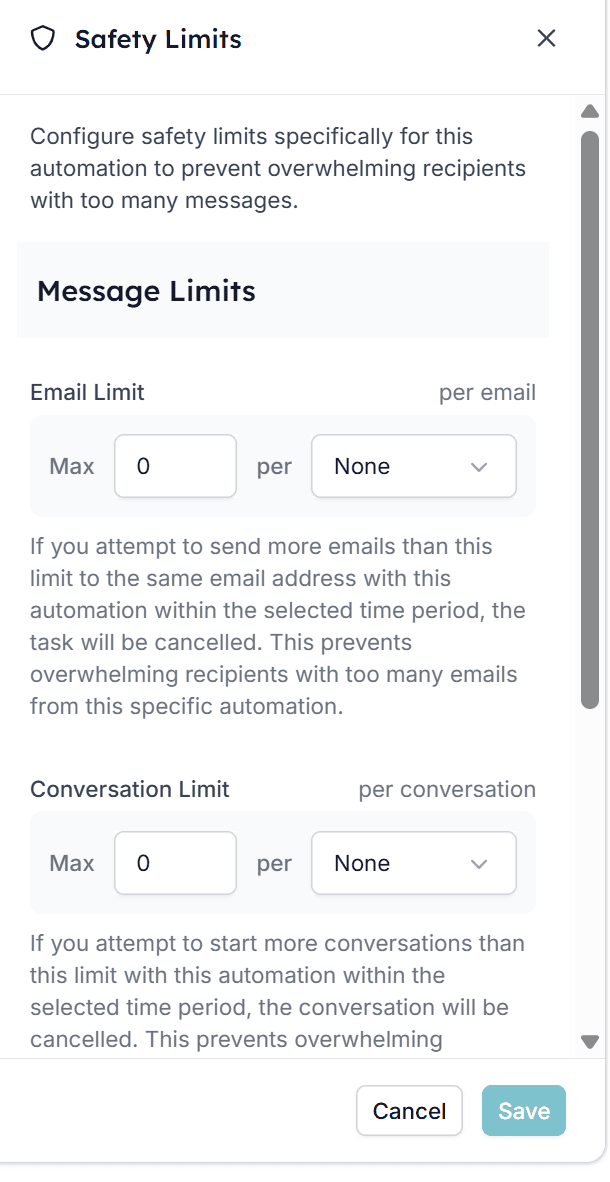
Every automation in HireData can have its own set of Safety Limits. These limits define how many messages a single recipient can receive from this specific automation within a certain time period.
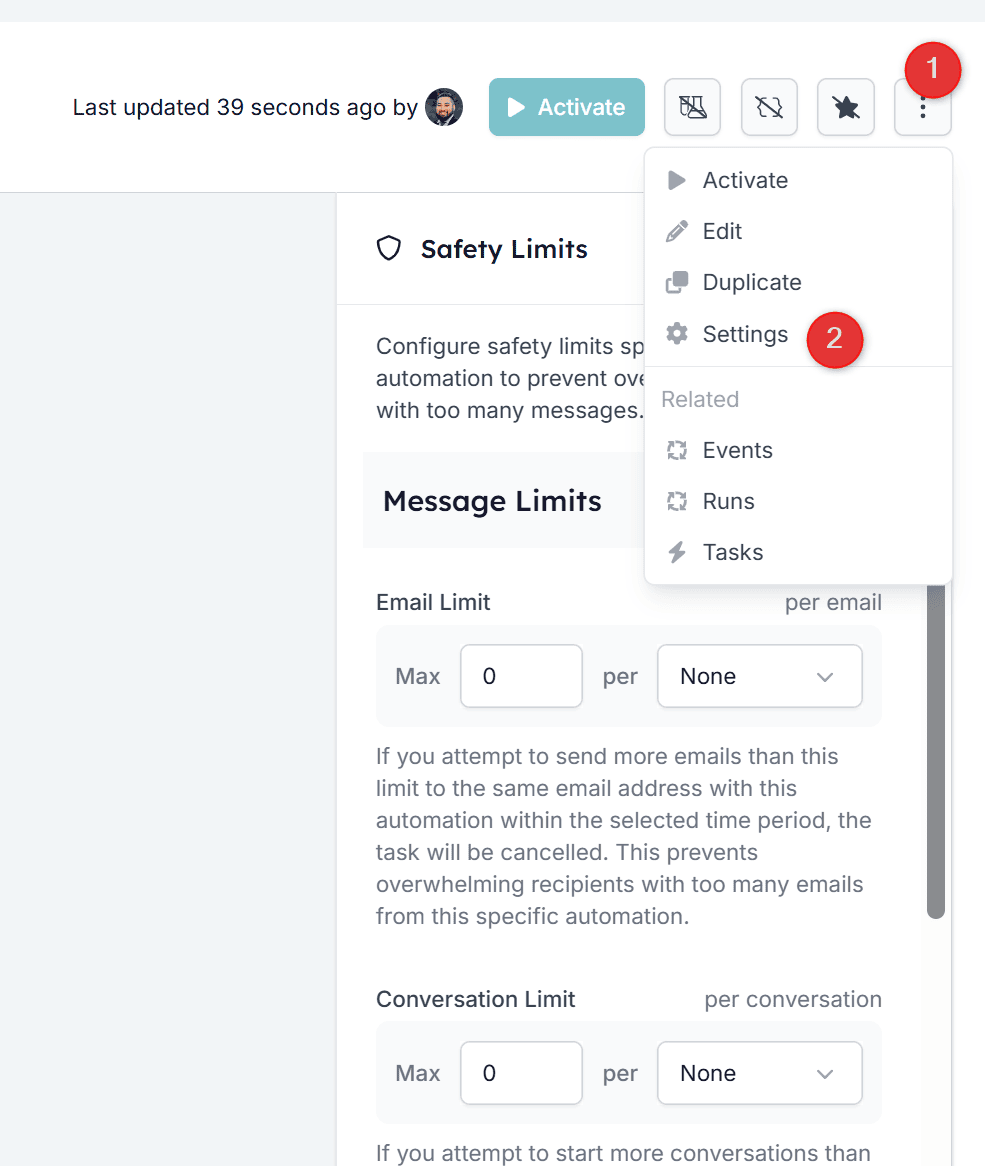
Inside each automation’s settings panel, you’ll find two types of limits:
* **Email Limit** – This limit determines how many emails the automation is allowed to send to the same email address within the selected time frame.
* **Conversation Limit** – This limit applies to automations that initiate conversations via WhatsApp. It defines how many new conversation attempts can be started for the same recipient within a given time period.
### How to set up the safety limits for individual automations
## Adjusting safety limits for an individual automation
Every automation in HireData can have its own set of Safety Limits. These limits define how many messages a single recipient can receive from this specific automation within a certain time period.
Inside each automation’s settings panel, you’ll find two types of limits:
* **Email Limit** – This limit determines how many emails the automation is allowed to send to the same email address within the selected time frame.
* **Conversation Limit** – This limit applies to automations that initiate conversations via WhatsApp. It defines how many new conversation attempts can be started for the same recipient within a given time period.
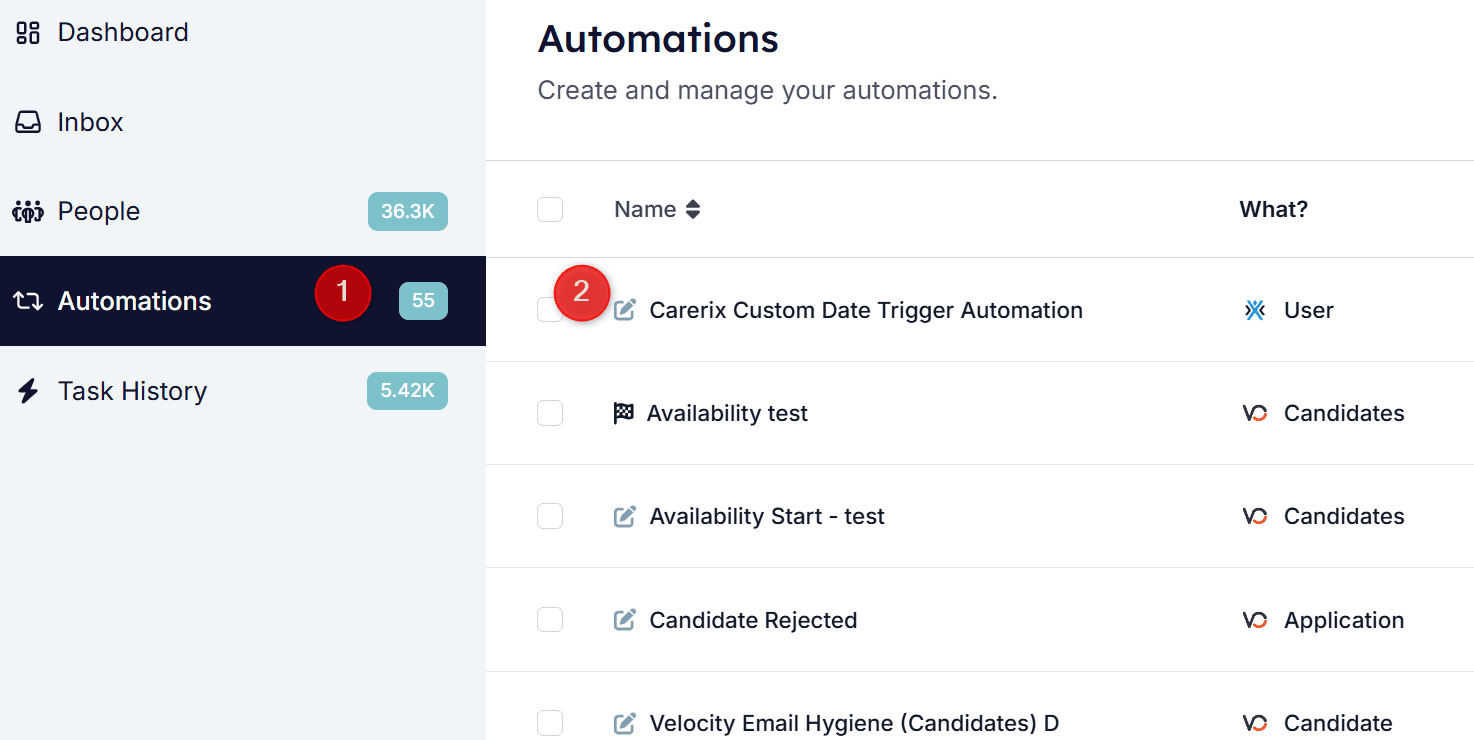
### How to set up the safety limits for individual automations
 ### What if you want no limits?
At the bottom of the Safety Limits panel, you’ll find an option called **Ignore Safety Limits**. When enabled, the automation **bypasses all safety limits**, both automation-specific limits configured above and account-level safety limits.
### What if you want no limits?
At the bottom of the Safety Limits panel, you’ll find an option called **Ignore Safety Limits**. When enabled, the automation **bypasses all safety limits**, both automation-specific limits configured above and account-level safety limits.
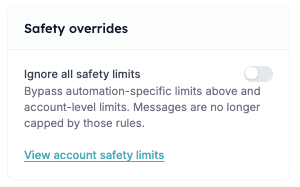 This option should only be used when you are fully confident that:
* The automation cannot trigger excessively
* The recipients expect multiple messages
* Your use case genuinely requires unrestricted sending
For most automations, we strongly recommend keeping the safety limits enabled.
## Related topics
- [Your First Week with HireData](/get-started/your-first-week.md)
- [Create a WhatsApp automation in HireData](/apps/messaging/whatsapp/create-a-whatsapp-automation-in-hiredata.md)
- [Automations](/automations/automations.md)
- [How to Test an Automation](/automations/how-to-test-an-automation.md)
- [WhatsApp Error Codes Explained](/apps/messaging/whatsapp/whatsapp-error-codes-explained.md)
This option should only be used when you are fully confident that:
* The automation cannot trigger excessively
* The recipients expect multiple messages
* Your use case genuinely requires unrestricted sending
For most automations, we strongly recommend keeping the safety limits enabled.
## Related topics
- [Your First Week with HireData](/get-started/your-first-week.md)
- [Create a WhatsApp automation in HireData](/apps/messaging/whatsapp/create-a-whatsapp-automation-in-hiredata.md)
- [Automations](/automations/automations.md)
- [How to Test an Automation](/automations/how-to-test-an-automation.md)
- [WhatsApp Error Codes Explained](/apps/messaging/whatsapp/whatsapp-error-codes-explained.md)