> ## Documentation Index
> Fetch the complete documentation index at: https://help.hiredata.com/llms.txt
> Use this file to discover all available pages before exploring further.
# How to change/reset your password
> Change or reset your HireData password from account settings or the login screen to keep your recruitment workspace secure and regain access if locked out.
*If you've forgotten your password or simply want to update it for security reasons, you're in the right place. This guide will walk you through the steps to reset or change your password quickly and securely. Whether you're locked out or just taking proactive steps to protect your account, the process is simple and only takes a few minutes.*
## Changing your Password while Logged in
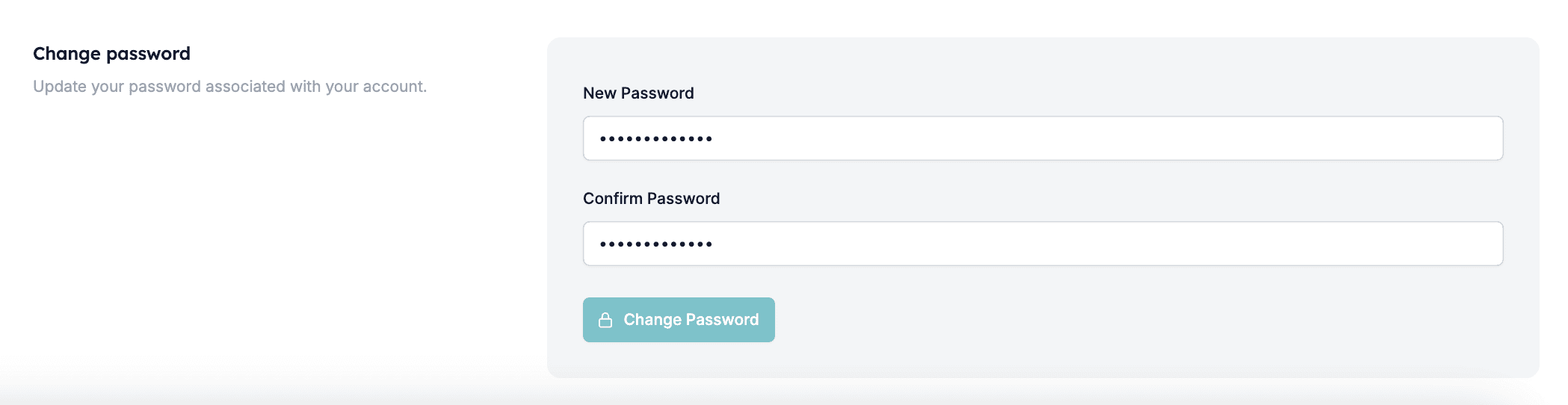
Navigate to the **Settings** menu and open your **Profile** page. Then, enter your new password, confirm it, and click \[Change Password].
 ## Resetting your Password
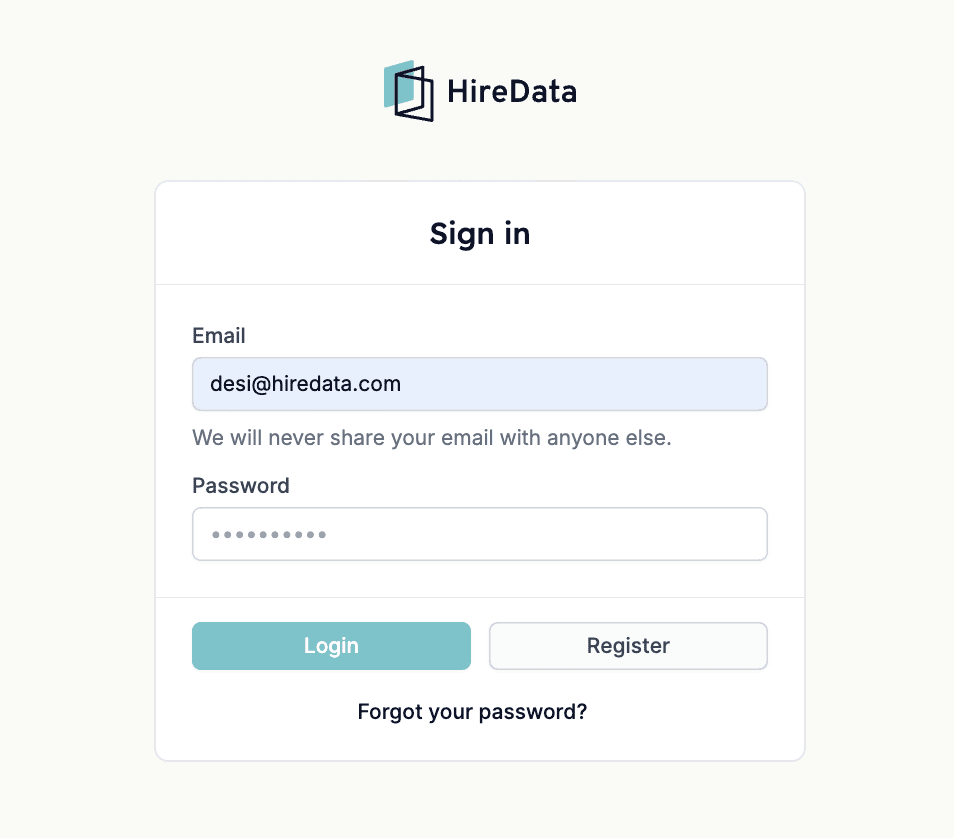
Head to the [HireData log-in page](https://app.hiredata.com/login) and click the \[Forgot your Password?] redirect link.
## Resetting your Password
Head to the [HireData log-in page](https://app.hiredata.com/login) and click the \[Forgot your Password?] redirect link.
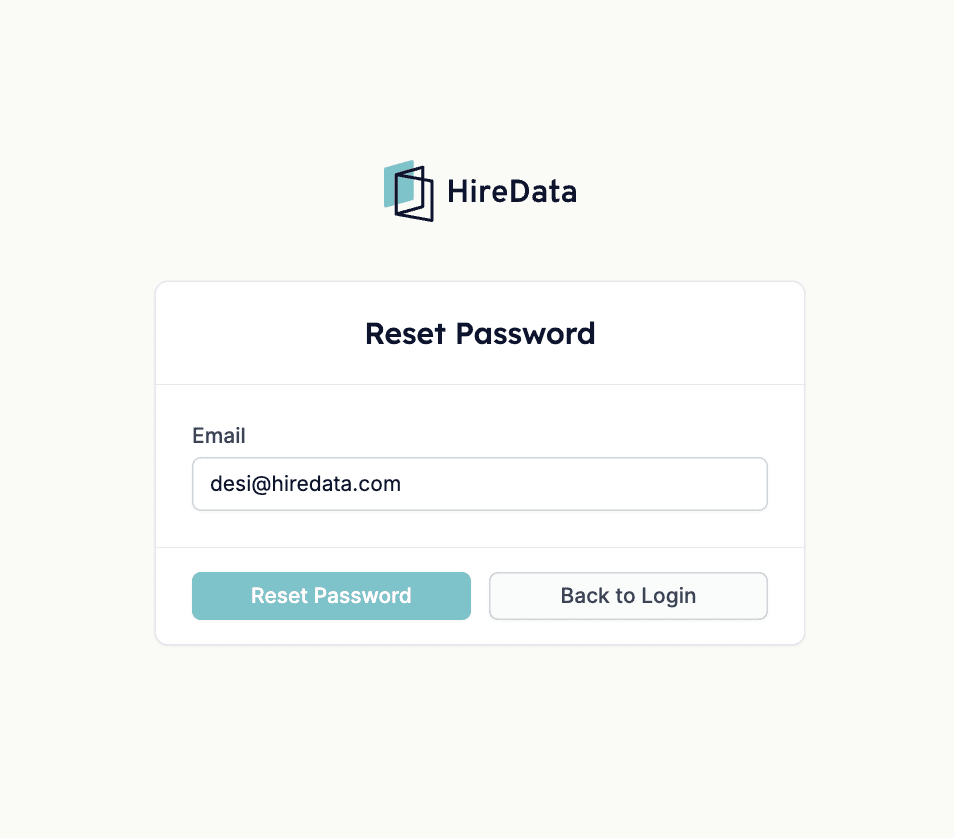
 Enter the email address you used to register in HireData and click on \[Reset Password].
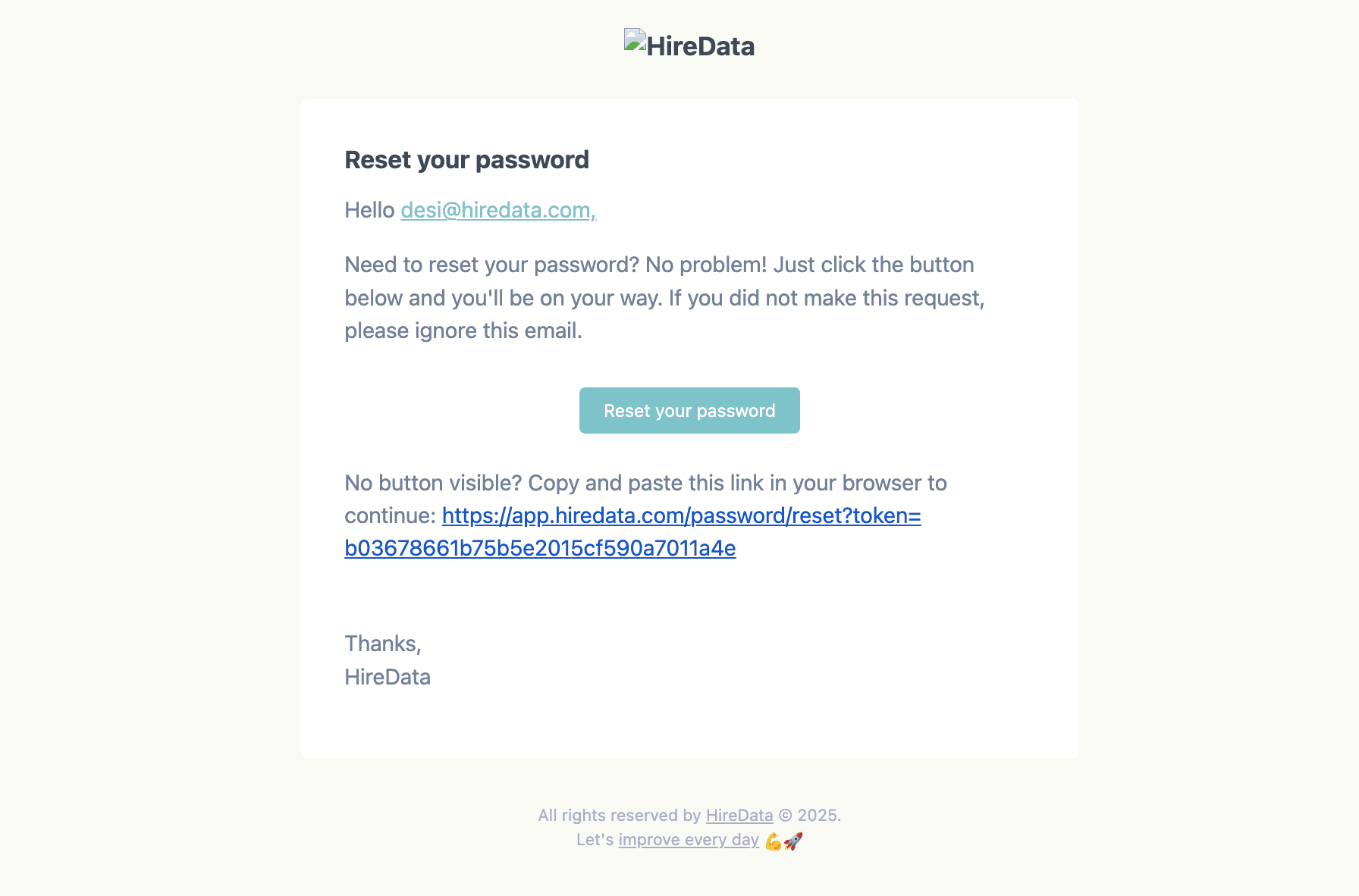
 Then open your email inbox, where you should receive an email from us with a link to change your Password.
 💡 **Pro Tip:** After changing your password, keep it safe in a password manager, such as Bitwarden, so you don't forget it.
## Related topics
- [How to Prevent User Role Changes During Third-Party Sync](/settings/prevent-user-role-changes-during-third-party-sync.md)
- [How to Restore a Deleted Automation](/automations/how-to-restore-a-deleted-automation.md)
- [Automation Safety Limits](/settings/automation-safety-limits.md)
- [How to Verify a Domain in HireData to Send Emails](/settings/domains/how-to-verify-a-domain-in-hiredata-to-send-emails.md)
- [How to Edit WhatsApp Message Templates in HireData](/apps/messaging/whatsapp/how-to-edit-whatsapp-message-templates.md)
💡 **Pro Tip:** After changing your password, keep it safe in a password manager, such as Bitwarden, so you don't forget it.
## Related topics
- [How to Prevent User Role Changes During Third-Party Sync](/settings/prevent-user-role-changes-during-third-party-sync.md)
- [How to Restore a Deleted Automation](/automations/how-to-restore-a-deleted-automation.md)
- [Automation Safety Limits](/settings/automation-safety-limits.md)
- [How to Verify a Domain in HireData to Send Emails](/settings/domains/how-to-verify-a-domain-in-hiredata-to-send-emails.md)
- [How to Edit WhatsApp Message Templates in HireData](/apps/messaging/whatsapp/how-to-edit-whatsapp-message-templates.md)