> ## Documentation Index
> Fetch the complete documentation index at: https://help.hiredata.com/llms.txt
> Use this file to discover all available pages before exploring further.
# Locations
> Add and manage business locations in HireData using the Google Maps integration, so vacancies and messages show the correct address for every office you run.
*Welcome to our concise guide on setting up a location for your business in HireData. We have created an integration with Google Maps that allows you to add one or multiple locations for your business, but to use it, your company must be listed on [Google Business](https://www.google.com/intl/en_uk/business/), so if you haven't registered your profile yet, please do this before you continue with this guide.*
## Step 1: Navigate to the Locations menu
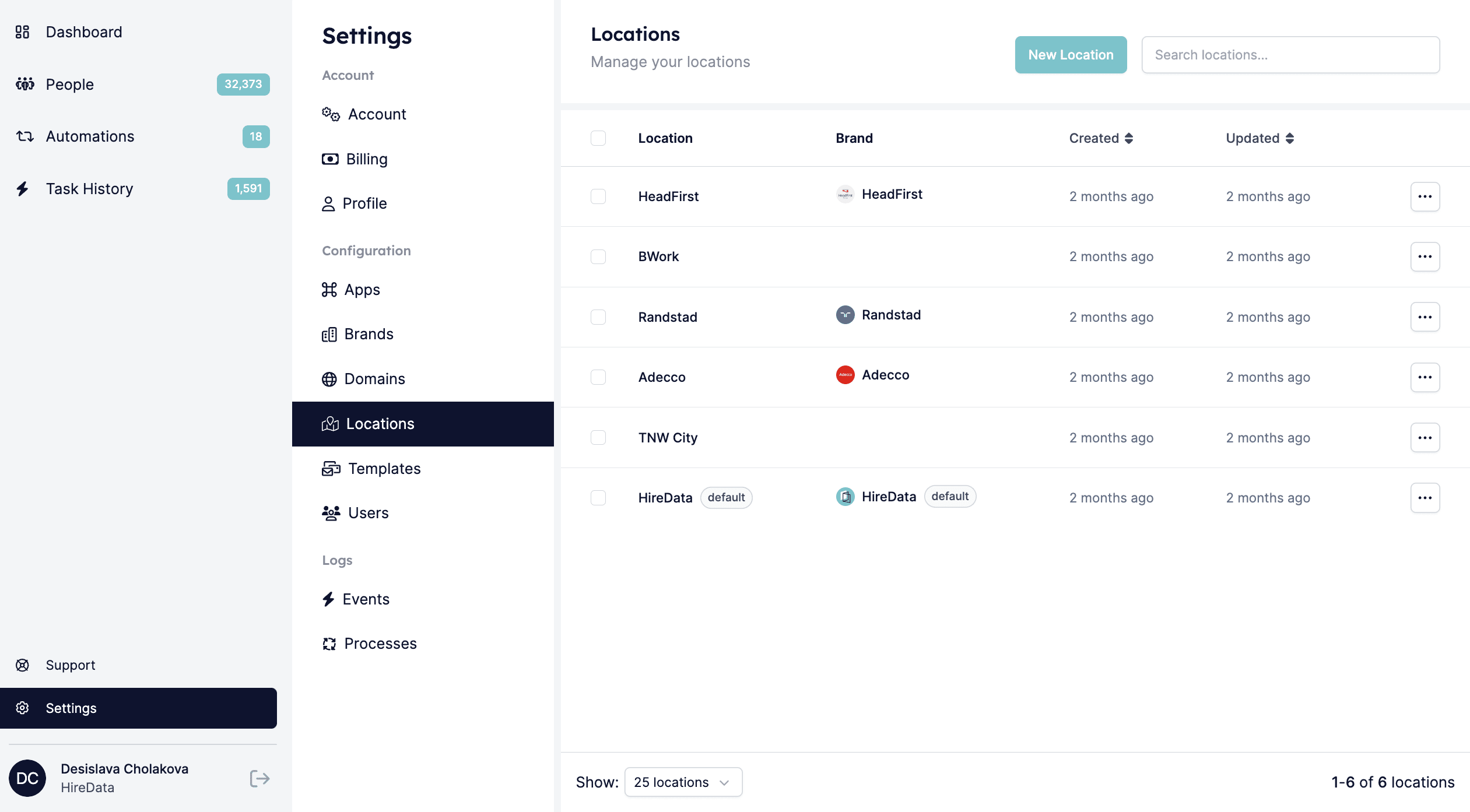
Log in to your HireData profile, go to the settings menu located above your name and open the \[Locations] tab.
 ## Step 2: Add a new location
*2.1. Click on the \[New Location] button:*
## Step 2: Add a new location
*2.1. Click on the \[New Location] button:*
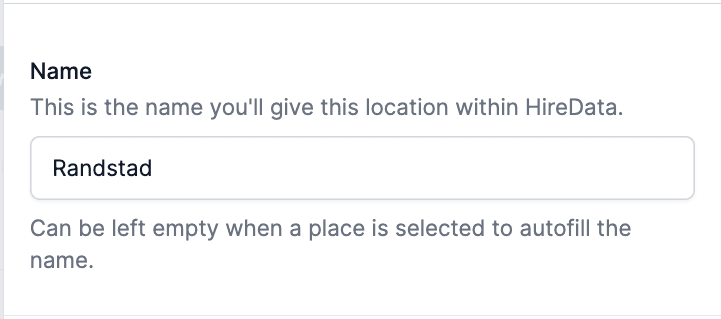
 *2.2. Name the location:*
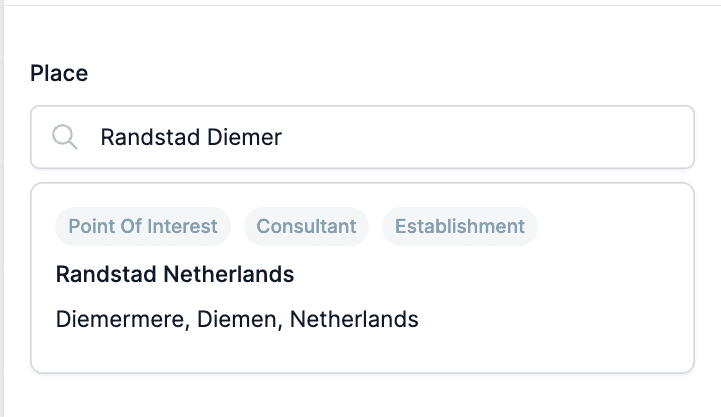
 *2.3. Select its location from the results:*
 *2.4. Click on the \[Create location] button*
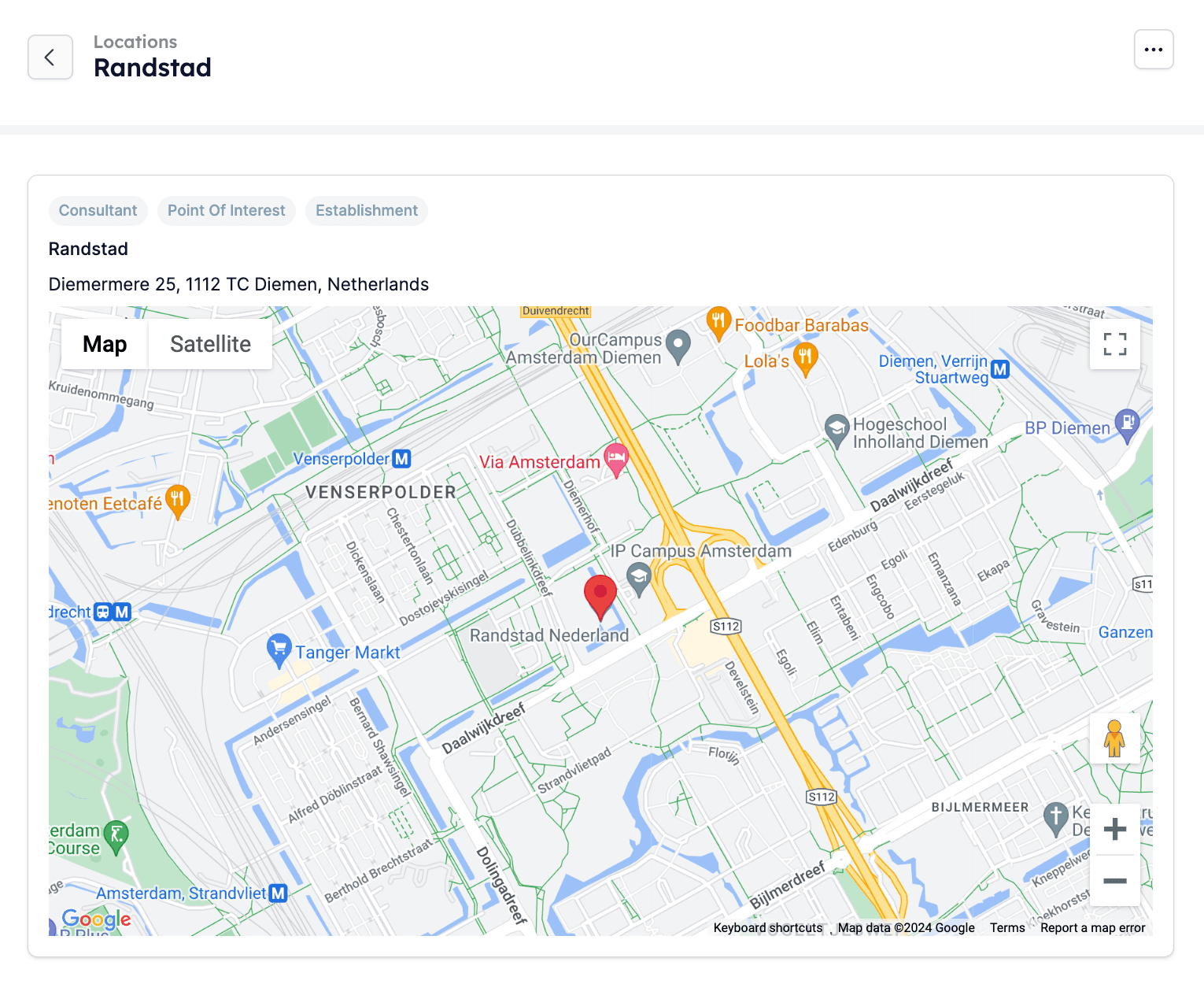
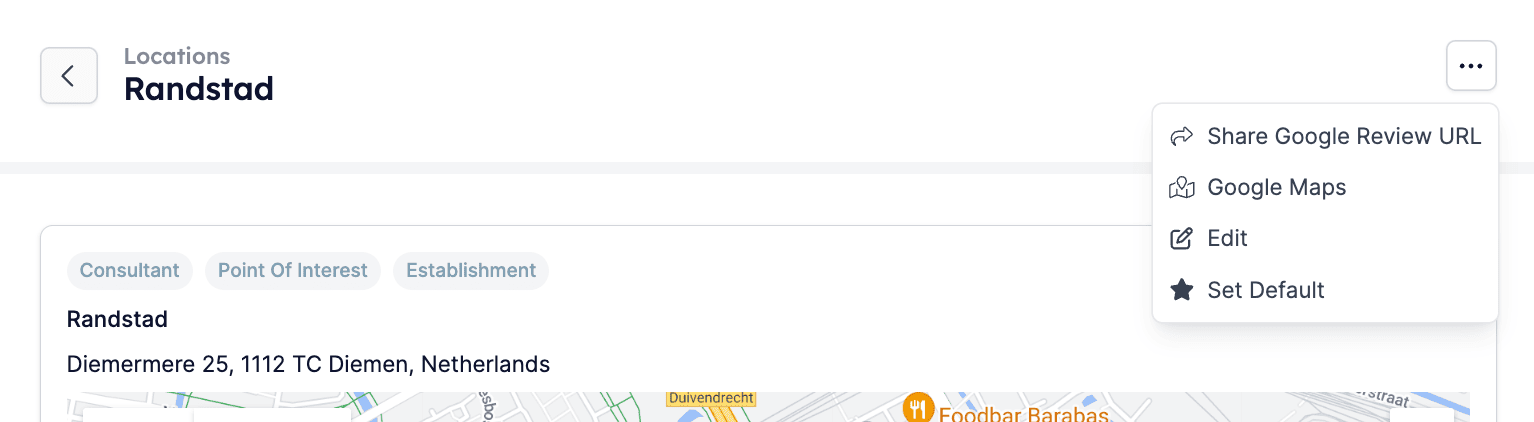
 *2.5. Review the location*
 ## Pro tip
Once your location is added to your HireData account, you will automatically get a Share Google Review URL, which you can send to others to collect native Google reviews. These types of reviews always perform better as a result of Google's algorithm.
## Pro tip
Once your location is added to your HireData account, you will automatically get a Share Google Review URL, which you can send to others to collect native Google reviews. These types of reviews always perform better as a result of Google's algorithm.
 Finally, you can also [connect your brand to the location](/settings/brands). That way, the location of your business will be automatically displayed in the communication you use, e.g. emails, where necessary.
***
## Video tutorial
## Related topics
- [Brands](/settings/brands.md)
- [How WhatsApp Templates Work](/apps/messaging/whatsapp/how-whatsapp-templates-work.md)
Finally, you can also [connect your brand to the location](/settings/brands). That way, the location of your business will be automatically displayed in the communication you use, e.g. emails, where necessary.
***
## Video tutorial
## Related topics
- [Brands](/settings/brands.md)
- [How WhatsApp Templates Work](/apps/messaging/whatsapp/how-whatsapp-templates-work.md)