> ## Documentation Index
> Fetch the complete documentation index at: https://help.hiredata.com/llms.txt
> Use this file to discover all available pages before exploring further.
# How to Prevent User Role Changes During Third-Party Sync
> Use the Enable Third-Party Sync setting to protect HireData user roles from being overwritten when your ATS syncs, so admins keep the right permissions.
*When HireData syncs with your ATS, it can automatically update user roles, which sometimes overwrites custom access you've set up manually. This article explains how to use the **Enable Third-Party Sync** setting to protect a user's role in HireData from being changed during sync, and when you'd want to do this.*
## What does this setting do?
By default, HireData syncs user roles from your ATS (e.g. Carerix) every night or when a sync is triggered manually. If a user has been given admin access in HireData but is not an admin in Carerix, that sync will reset them back to a regular user, removing their access.
Turning **off** the **Enable Third-Party Sync** setting for a specific user tells HireData: *"Don't touch this user's role during sync."* Their HireData role stays exactly as you've set it, regardless of what your app says.
* This is especially **useful for non-admin ATS users who need admin access in HireData**. For example, someone in Sales with a "Marketer" role in your app can be given admin access in HireData, and with sync disabled, that access won't be overwritten.
* This also **applies to users with Additional Roles** in Carerix. If a user has multiple roles across different labels within one Carerix environment, and one of those additional roles is not an admin, HireData may incorrectly reset them to a regular user during sync. Turning off this setting prevents that from happening.
For Carerix users: if the setting is turned off for a user who is an Admin in HireData, but has a different role in Carerix (e.g. User, Marketer, Sales), they won't be able to access the RMA menu items within Carerix, as they need to have admin permissions in Carerix specifically.
 ## Protecting a user's role
Go to **Settings** in the main navigation, then select **Users**. Find the user you want to configure and click their name to open their profile.
This setting is per user. You'll need to configure it individually for each person who needs their role protected.
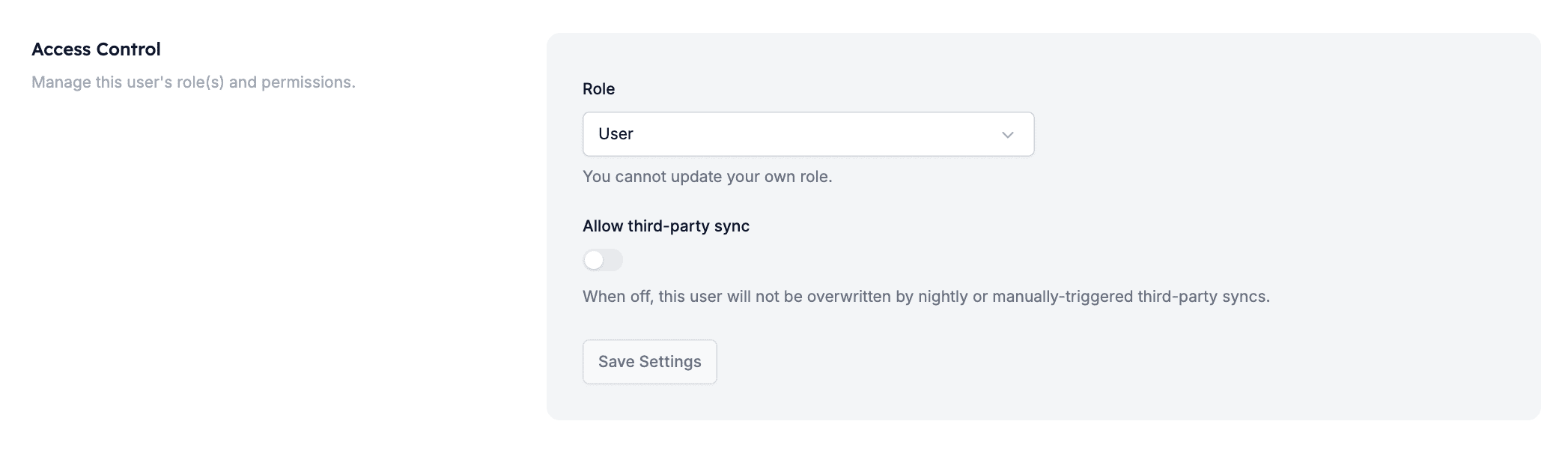
Scroll down to the **Access Control** section on the user's profile page. Find the **Enable Third-Party Sync** toggle.
* **Toggle on** – This user's role *will* be updated automatically during syncs from your ATS.
* **Toggle off** – This user's role *will not* be changed by any sync, whether nightly or manually triggered.
Click **Save Settings** to apply.
Turning this setting off does not disconnect the user from your ATS. It only prevents their HireData role from being overwritten during sync.
## Related topics
- [How to Resolve WhatsApp Business Account Permission Issues](/apps/messaging/whatsapp/how-to-resolve-whatsapp-business-account-permission-issues.md)
- [Manually sync Vincere with HireData](/apps/vincere/manually-sync-vincere-with-hiredata.md)
- [Manually sync OTYS with HireData](/apps/otys/manually-sync-otys-with-hiredata.md)
- [Manually sync Carerix with HireData](/apps/carerix/manually-sync-carerix-with-hiredata.md)
- [How profile pictures work in HireData](/apps/carerix/how-profile-pictures-work-in-hiredata.md)
## Protecting a user's role
Go to **Settings** in the main navigation, then select **Users**. Find the user you want to configure and click their name to open their profile.
This setting is per user. You'll need to configure it individually for each person who needs their role protected.
Scroll down to the **Access Control** section on the user's profile page. Find the **Enable Third-Party Sync** toggle.
* **Toggle on** – This user's role *will* be updated automatically during syncs from your ATS.
* **Toggle off** – This user's role *will not* be changed by any sync, whether nightly or manually triggered.
Click **Save Settings** to apply.
Turning this setting off does not disconnect the user from your ATS. It only prevents their HireData role from being overwritten during sync.
## Related topics
- [How to Resolve WhatsApp Business Account Permission Issues](/apps/messaging/whatsapp/how-to-resolve-whatsapp-business-account-permission-issues.md)
- [Manually sync Vincere with HireData](/apps/vincere/manually-sync-vincere-with-hiredata.md)
- [Manually sync OTYS with HireData](/apps/otys/manually-sync-otys-with-hiredata.md)
- [Manually sync Carerix with HireData](/apps/carerix/manually-sync-carerix-with-hiredata.md)
- [How profile pictures work in HireData](/apps/carerix/how-profile-pictures-work-in-hiredata.md)