> ## Documentation Index
> Fetch the complete documentation index at: https://help.hiredata.com/llms.txt
> Use this file to discover all available pages before exploring further.
# Setting a Default Language and AI Tone of Voice
> Set a default language and AI tone of voice in HireData so generated emails, messages, and content match your brand across every recruitment automation.
*Customizing your HireData account's localization settings ensures your communication aligns with your audience and brand. This guide will walk you through the simple steps to configure these settings and tailor them to your specific needs.*
## Step 1: Open the Localization page
Navigate to the \*\*Settings menu \*\*within HireData and open the **Localization page**. There, you can select a default language for your templates and an AI tone of voice for your WhatsApp conversations.
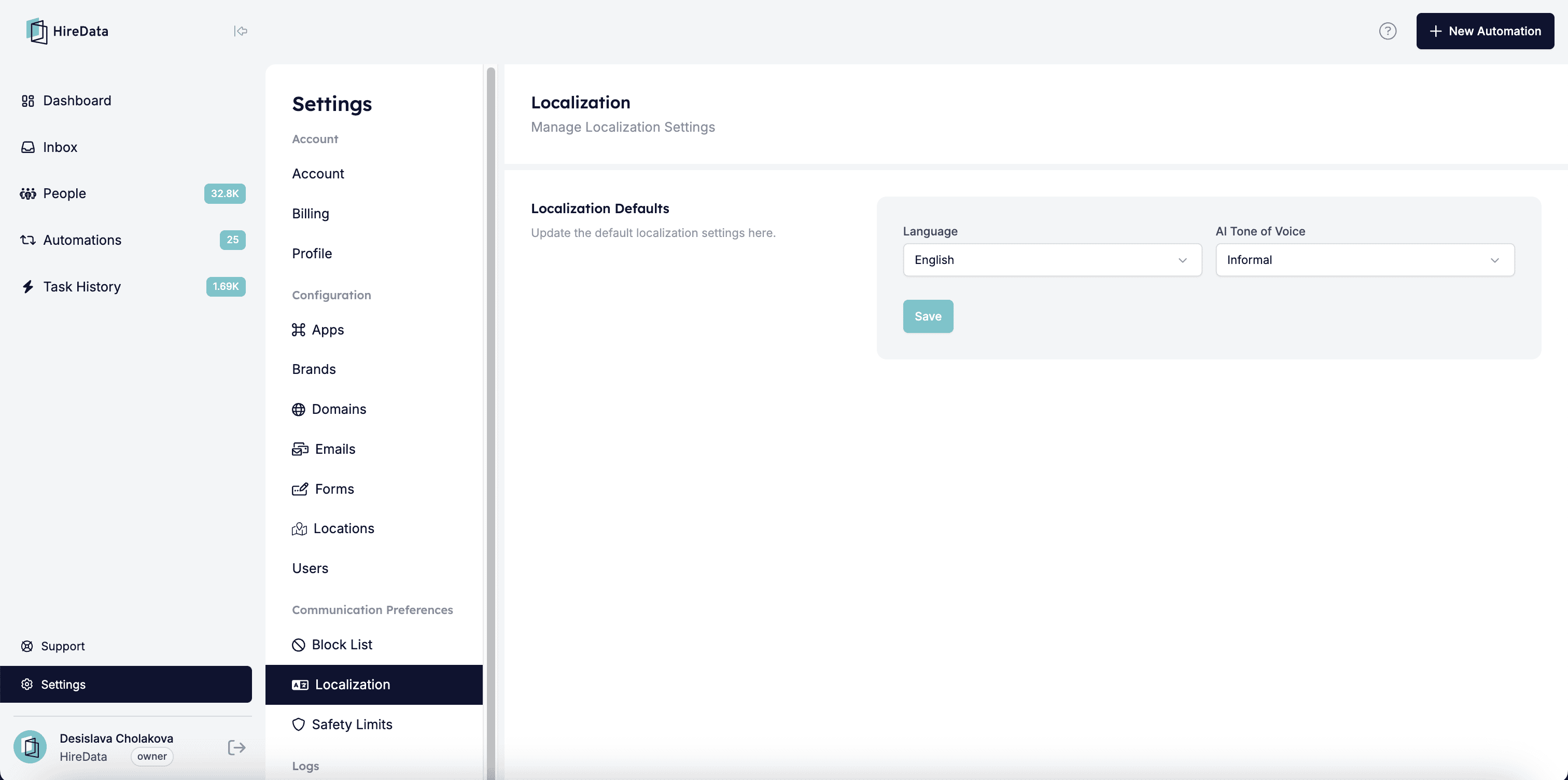 ## Step 2: Update the Default Localization Settings
### 2.1. Set a Default Language
Click on the \[Language box] to open a broad list of the available languages.
## Step 2: Update the Default Localization Settings
### 2.1. Set a Default Language
Click on the \[Language box] to open a broad list of the available languages.
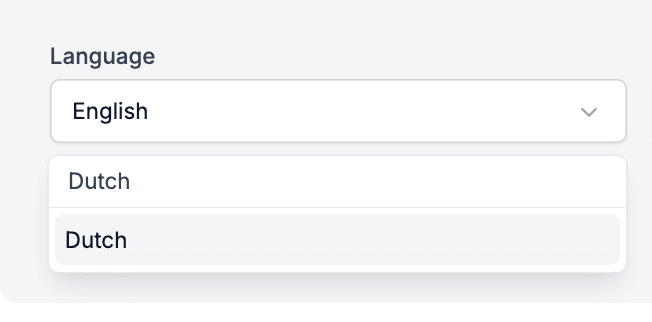
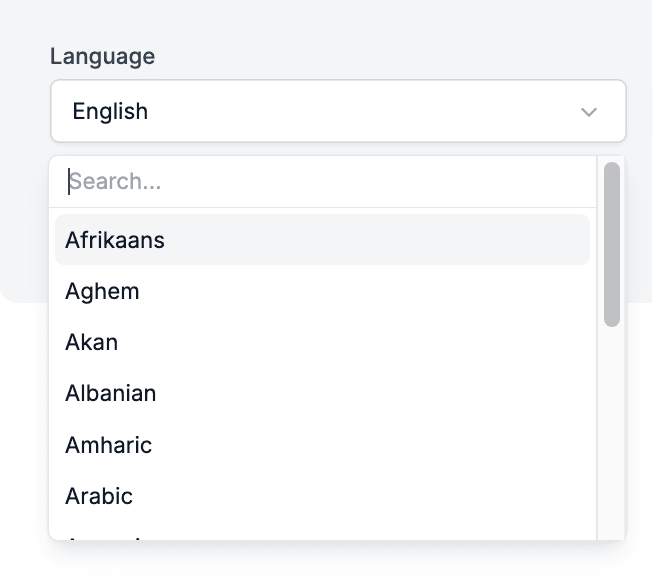 *If the desired language is not immediately visible, use the search bar to find it quickly:*
 ### 2.2. Set a Tone of Voice
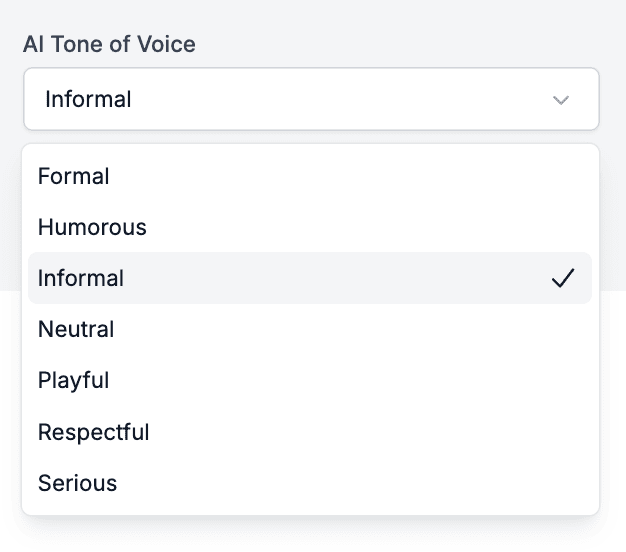
Click on the \[Tone of Voice box] to view the available options and select the tone that best matches your branding and communication needs.
### 2.2. Set a Tone of Voice
Click on the \[Tone of Voice box] to view the available options and select the tone that best matches your branding and communication needs.
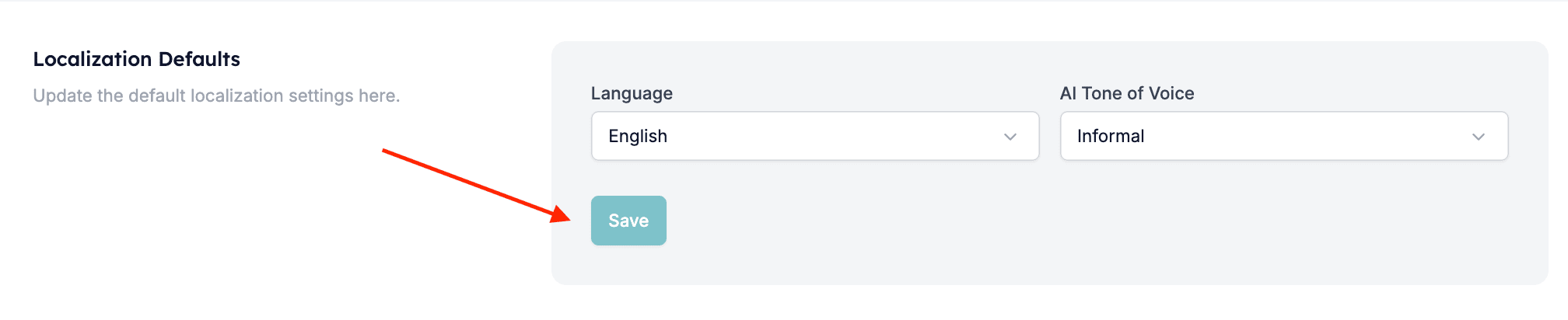
 ## Step 3: Review and Save
Double-check your selected language and tone of voice settings. Click on the \[Save] button to apply the changes.
## Step 3: Review and Save
Double-check your selected language and tone of voice settings. Click on the \[Save] button to apply the changes.
 ## Related topics
- [Creating a Form in HireData](/content/creating-a-form-in-hiredata.md)
- [Adding a default sender to your domains](/settings/domains/adding-a-default-sender-to-your-domains.md)
- [How WhatsApp Templates Work](/apps/messaging/whatsapp/how-whatsapp-templates-work.md)
- [Brands](/settings/brands.md)
- [How to Prevent User Role Changes During Third-Party Sync](/settings/prevent-user-role-changes-during-third-party-sync.md)
## Related topics
- [Creating a Form in HireData](/content/creating-a-form-in-hiredata.md)
- [Adding a default sender to your domains](/settings/domains/adding-a-default-sender-to-your-domains.md)
- [How WhatsApp Templates Work](/apps/messaging/whatsapp/how-whatsapp-templates-work.md)
- [Brands](/settings/brands.md)
- [How to Prevent User Role Changes During Third-Party Sync](/settings/prevent-user-role-changes-during-third-party-sync.md)