> ## Documentation Index
> Fetch the complete documentation index at: https://help.hiredata.com/llms.txt
> Use this file to discover all available pages before exploring further.
# AI variables
> Generate a per-recipient line inside HireData emails, forms, and automations with AI variables, and learn when a normal variable or modifier fits better.
A normal variable **looks up** a value. An AI variable **works one out**.
Where `{{ candidate.first_name }}` reads a field and drops it in, an AI variable runs a short instruction against the record and inserts what it produces. It is the tool for the line that has to be different every time — an opener that ties someone's background to a vacancy, or a birthday wish that does not read like a mail merge.
You use it exactly like any other variable:
```text theme={null}
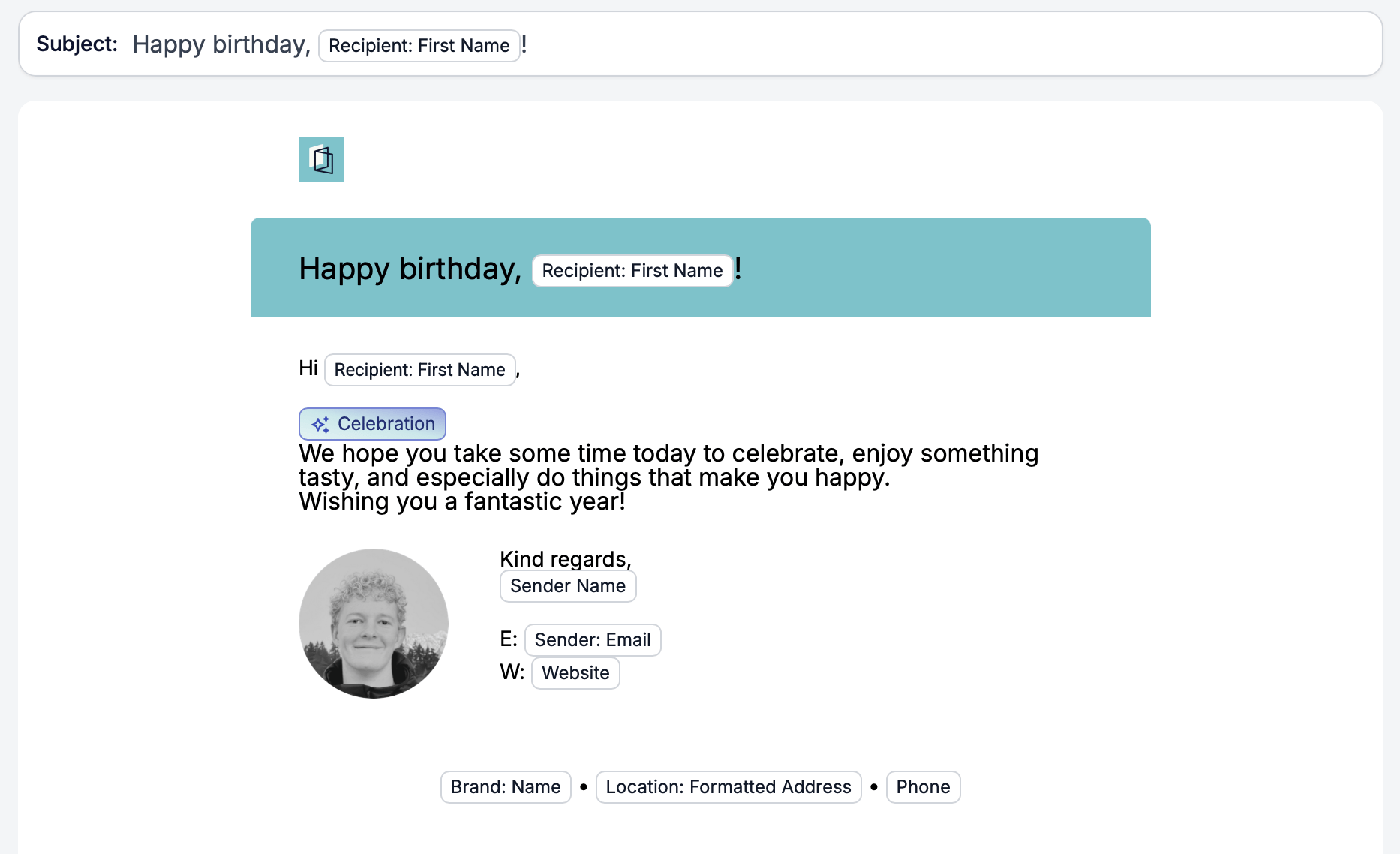
{{ celebration }}
We hope you take some time today to celebrate.
```
In the editor it appears as a chip, marked with the AI sparkle so you can tell it apart from a normal variable at a glance:
 ## Where you can add one
You can create AI variables in **email templates**, **forms**, and **automations**. The automation builder also offers presets, so a variable you use often does not have to be rebuilt by hand.
WhatsApp message templates can *reference* variables, but the variable list there is read-only — you cannot create an AI variable from the message builder. Define it on the automation that sends the message instead.
## When to use one
Reach for an AI variable when all three are true:
* the output has to be **derived**, not looked up;
* a fixed line with a fallback would read badly, because the value genuinely has to change per person;
* being slightly off is survivable — nobody makes a decision based on it.
Good candidates: a personalised opener, a re-engagement hook for a dormant candidate, a non-generic birthday line, or a tone rewrite of a fixed paragraph.
## When to use something else
Most personalisation is not an AI problem. Before adding an AI variable, check whether a plain variable or a [modifier](/variables/modifiers) already does the job — they are faster, cheaper, and cannot be wrong.
| You want | Use this instead |
| ------------------------------------------------ | ------------------------------------------------------- |
| A name, title, date, salary, or any stored value | A normal variable |
| A date formatted for the recipient's locale | `format_date` |
| A default when a field is empty | The [`default`](/variables/modifiers#fallback) modifier |
| Consistent casing or currency | `uppercase`, `format_currency` |
Never let an AI variable invent a fact. Dates, rates, salaries, contract terms, start dates, legal or GDPR status, and anything that reads as a commitment must come from a field. If the field is empty, the honest answer is to leave it out or use a fallback — not to let a model fill the gap. A generated sentence that invents a start date is a false statement sent to a candidate in your name.
## Setting one up
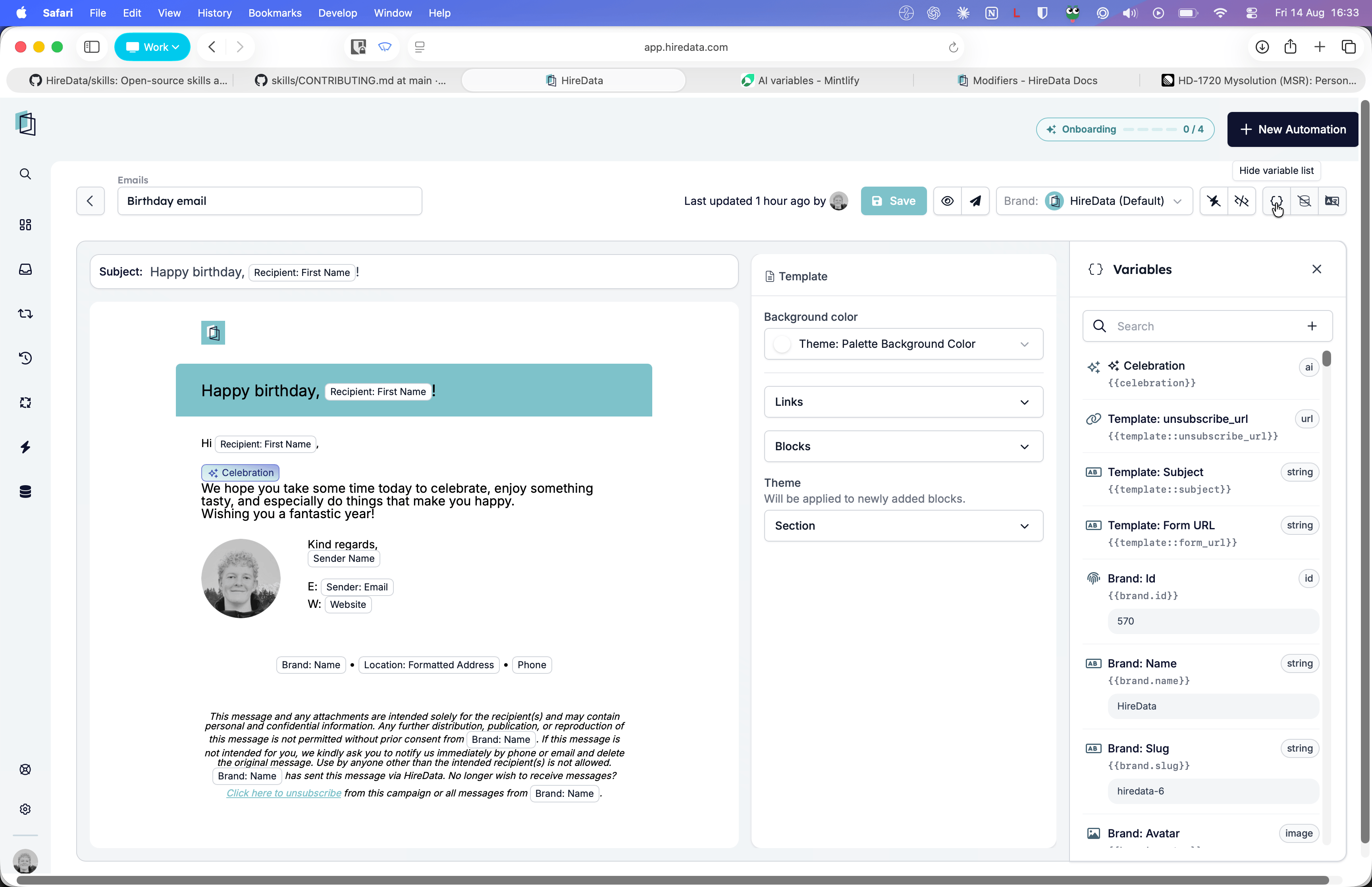
Open the variables panel with the `{}` control in the builder toolbar. Existing variables are listed with their key and type, so an AI one is easy to spot:
## Where you can add one
You can create AI variables in **email templates**, **forms**, and **automations**. The automation builder also offers presets, so a variable you use often does not have to be rebuilt by hand.
WhatsApp message templates can *reference* variables, but the variable list there is read-only — you cannot create an AI variable from the message builder. Define it on the automation that sends the message instead.
## When to use one
Reach for an AI variable when all three are true:
* the output has to be **derived**, not looked up;
* a fixed line with a fallback would read badly, because the value genuinely has to change per person;
* being slightly off is survivable — nobody makes a decision based on it.
Good candidates: a personalised opener, a re-engagement hook for a dormant candidate, a non-generic birthday line, or a tone rewrite of a fixed paragraph.
## When to use something else
Most personalisation is not an AI problem. Before adding an AI variable, check whether a plain variable or a [modifier](/variables/modifiers) already does the job — they are faster, cheaper, and cannot be wrong.
| You want | Use this instead |
| ------------------------------------------------ | ------------------------------------------------------- |
| A name, title, date, salary, or any stored value | A normal variable |
| A date formatted for the recipient's locale | `format_date` |
| A default when a field is empty | The [`default`](/variables/modifiers#fallback) modifier |
| Consistent casing or currency | `uppercase`, `format_currency` |
Never let an AI variable invent a fact. Dates, rates, salaries, contract terms, start dates, legal or GDPR status, and anything that reads as a commitment must come from a field. If the field is empty, the honest answer is to leave it out or use a fallback — not to let a model fill the gap. A generated sentence that invents a start date is a false statement sent to a candidate in your name.
## Setting one up
Open the variables panel with the `{}` control in the builder toolbar. Existing variables are listed with their key and type, so an AI one is easy to spot:
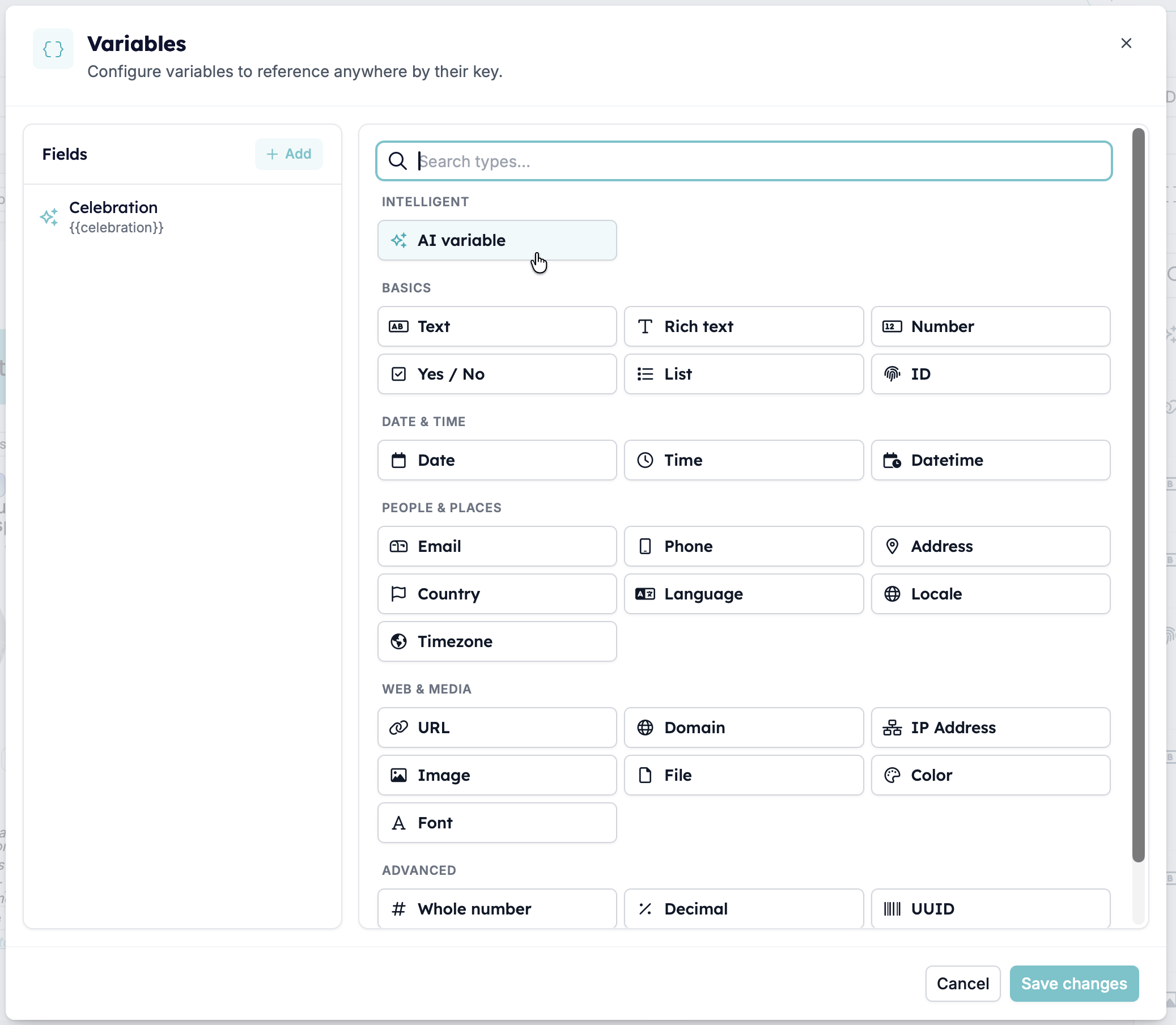
 Choose **Add**, then pick **AI variable** from the **Intelligent** group:
 ### Choosing what the AI should do
Before anything else, the editor asks what kind of job this variable is doing. There are seven modes, each shown as a tile with a one-line description:
### Choosing what the AI should do
Before anything else, the editor asks what kind of job this variable is doing. There are seven modes, each shown as a tile with a one-line description:
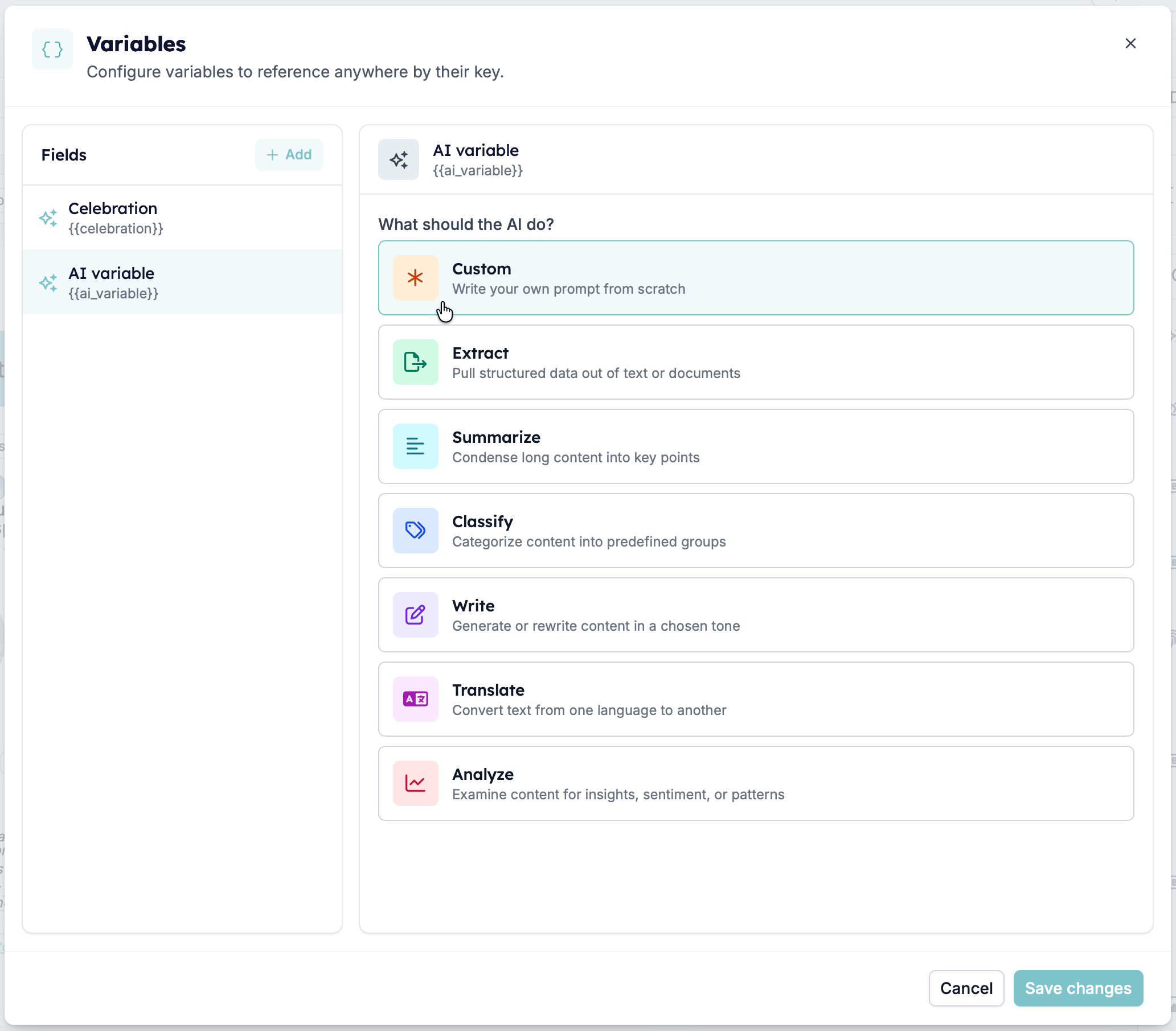 | Mode | What it is for |
| ----------- | ---------------------------------------------------- |
| `Custom` | Write your own prompt from scratch |
| `Extract` | Pull structured data out of text or documents |
| `Summarize` | Condense long content into key points |
| `Classify` | Categorize content into predefined groups |
| `Write` | Generate or rewrite content in a chosen tone |
| `Translate` | Convert text from one language to another |
| `Analyze` | Examine content for insights, sentiment, or patterns |
The mode is not locked in. Once you pick one, the tiles collapse into a compact dropdown, and you can change it whenever you like — reopen the variable and choose a different mode under **What should the AI do?**. The rest of the form adjusts to match.
### The rest of the editor
| Mode | What it is for |
| ----------- | ---------------------------------------------------- |
| `Custom` | Write your own prompt from scratch |
| `Extract` | Pull structured data out of text or documents |
| `Summarize` | Condense long content into key points |
| `Classify` | Categorize content into predefined groups |
| `Write` | Generate or rewrite content in a chosen tone |
| `Translate` | Convert text from one language to another |
| `Analyze` | Examine content for insights, sentiment, or patterns |
The mode is not locked in. Once you pick one, the tiles collapse into a compact dropdown, and you can change it whenever you like — reopen the variable and choose a different mode under **What should the AI do?**. The rest of the form adjusts to match.
### The rest of the editor
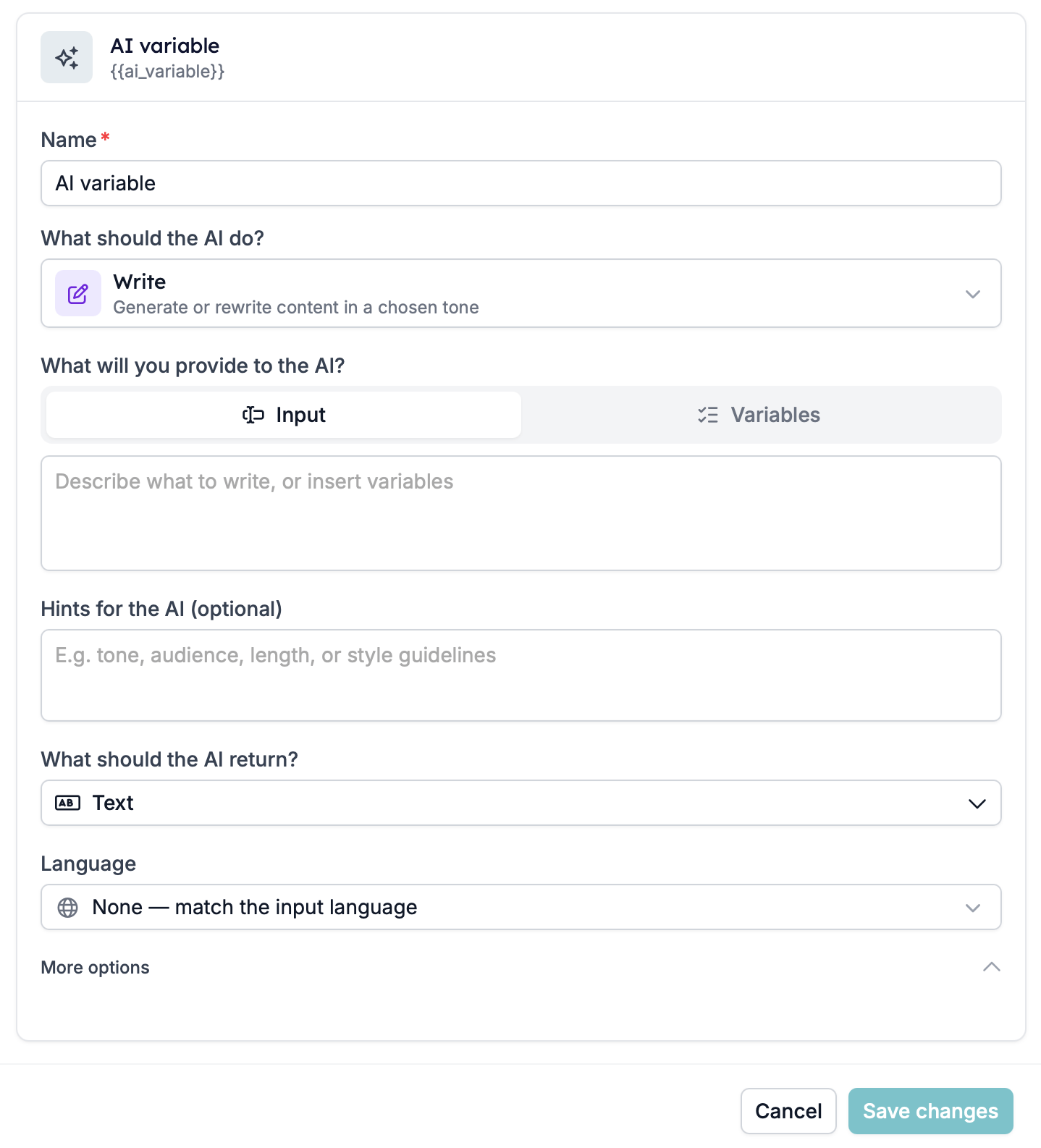 | Field | What it does |
| ------------------------------------ | -------------------------------------------------------------------------------------------------------------------------------------------------------------------------------- |
| **Name** | The human label, shown on the variable chip in your content. |
| **What should the AI do?** | The mode you chose, now as a dropdown. Change it here at any time. |
| **What will you provide to the AI?** | Two tabs. **Input** is a free-text prompt. **Variables** attaches specific fields with **Add Field**. See [Giving it something to work from](#giving-it-something-to-work-from). |
| **Hints for the AI** (optional) | Extra context, tone, or constraints, kept separate from the main instruction. |
| **What should the AI return?** | The output type — `Text`, `Rich text`, `Number`, `Yes / No`, `List`, `Date`, and the rest of the standard field types. |
| **Language** | The output language. The default, `None — match the input language`, follows the data it is given. |
| **More options** | **Reference as** is the key you type in content — `celebration` becomes `{{celebration}}`. **What is it for?** is an optional description. |
An AI variable does not have to produce prose. Because you choose the return type, one can just as well resolve to a `Yes / No`, a `Number`, or a value from a `List` — which is what the `Classify` and `Extract` modes are for. The [warning above](#when-to-use-something-else) still applies: deriving a value from data in the record is fine, inventing one is not.
## Giving it something to work from
The instruction alone is rarely enough — the model needs the record. There are two ways to hand it over, and they can be combined.
### Inline in the prompt
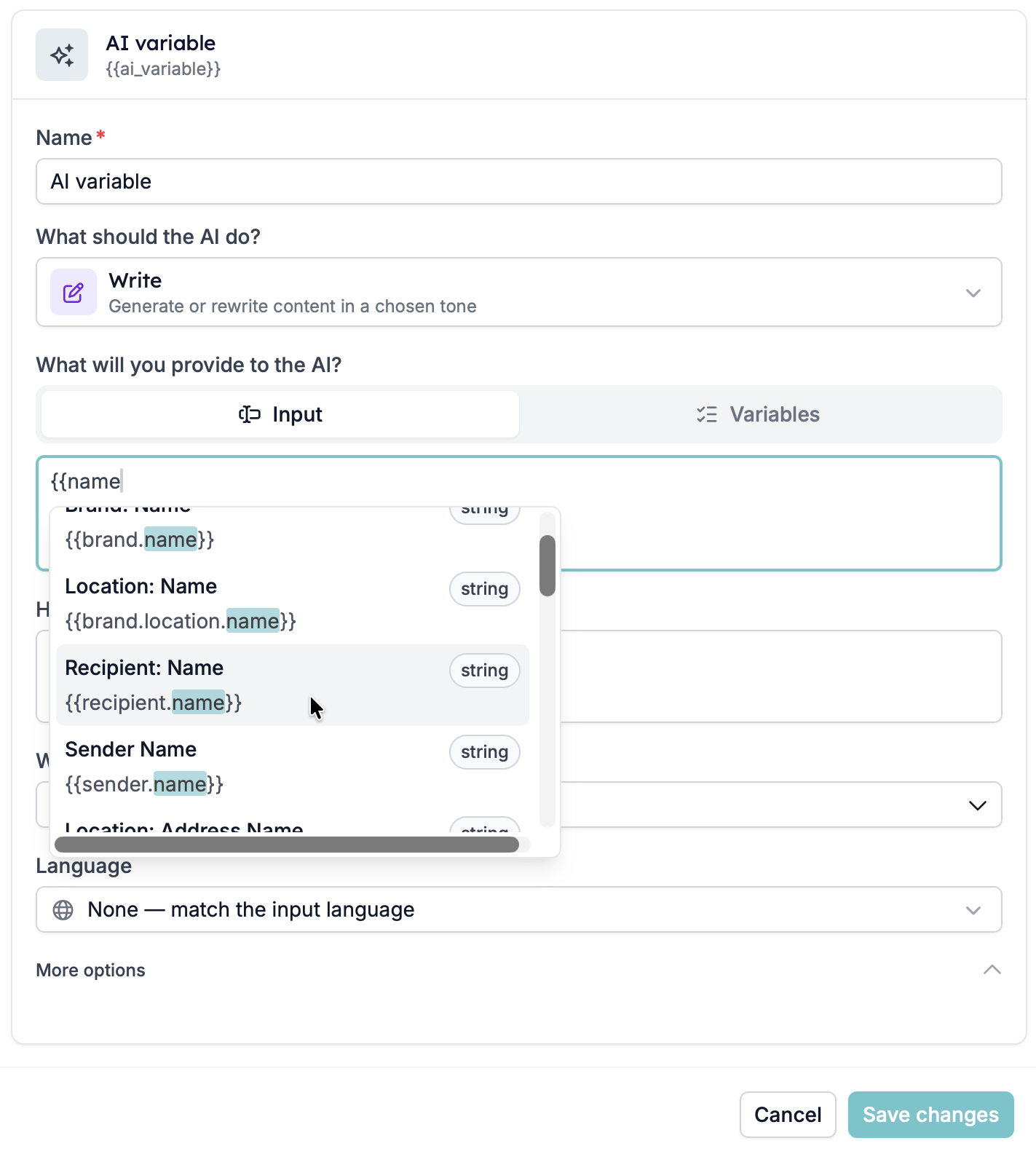
Type `{{` anywhere in the **Input** box and a picker appears, listing every variable available to this template with its key and its type. Keep typing to filter, then choose one to insert it:
| Field | What it does |
| ------------------------------------ | -------------------------------------------------------------------------------------------------------------------------------------------------------------------------------- |
| **Name** | The human label, shown on the variable chip in your content. |
| **What should the AI do?** | The mode you chose, now as a dropdown. Change it here at any time. |
| **What will you provide to the AI?** | Two tabs. **Input** is a free-text prompt. **Variables** attaches specific fields with **Add Field**. See [Giving it something to work from](#giving-it-something-to-work-from). |
| **Hints for the AI** (optional) | Extra context, tone, or constraints, kept separate from the main instruction. |
| **What should the AI return?** | The output type — `Text`, `Rich text`, `Number`, `Yes / No`, `List`, `Date`, and the rest of the standard field types. |
| **Language** | The output language. The default, `None — match the input language`, follows the data it is given. |
| **More options** | **Reference as** is the key you type in content — `celebration` becomes `{{celebration}}`. **What is it for?** is an optional description. |
An AI variable does not have to produce prose. Because you choose the return type, one can just as well resolve to a `Yes / No`, a `Number`, or a value from a `List` — which is what the `Classify` and `Extract` modes are for. The [warning above](#when-to-use-something-else) still applies: deriving a value from data in the record is fine, inventing one is not.
## Giving it something to work from
The instruction alone is rarely enough — the model needs the record. There are two ways to hand it over, and they can be combined.
### Inline in the prompt
Type `{{` anywhere in the **Input** box and a picker appears, listing every variable available to this template with its key and its type. Keep typing to filter, then choose one to insert it:
 So a birthday wish that greets the recipient by name reads:
```text wrap theme={null}
Write a friendly, single-sentence birthday wish, maximum 20 words, for {{recipient.first_name}}. Vary the wording so it does not sound templated. No emoji. Do not open with "Happy birthday". If the name is missing, write a general wish with no name.
```
Each token is replaced with that recipient's value before the instruction reaches the model, so for Sofia the model is asked for a wish *for Sofia* rather than for `{{recipient.first_name}}`.
### The Variables tab
Switch to the **Variables** tab and choose **Add Field** to attach fields instead of naming them in the prompt. Each row is a searchable picker over the same list of variables, and the `−` button removes one.
So a birthday wish that greets the recipient by name reads:
```text wrap theme={null}
Write a friendly, single-sentence birthday wish, maximum 20 words, for {{recipient.first_name}}. Vary the wording so it does not sound templated. No emoji. Do not open with "Happy birthday". If the name is missing, write a general wish with no name.
```
Each token is replaced with that recipient's value before the instruction reaches the model, so for Sofia the model is asked for a wish *for Sofia* rather than for `{{recipient.first_name}}`.
### The Variables tab
Switch to the **Variables** tab and choose **Add Field** to attach fields instead of naming them in the prompt. Each row is a searchable picker over the same list of variables, and the `−` button removes one.
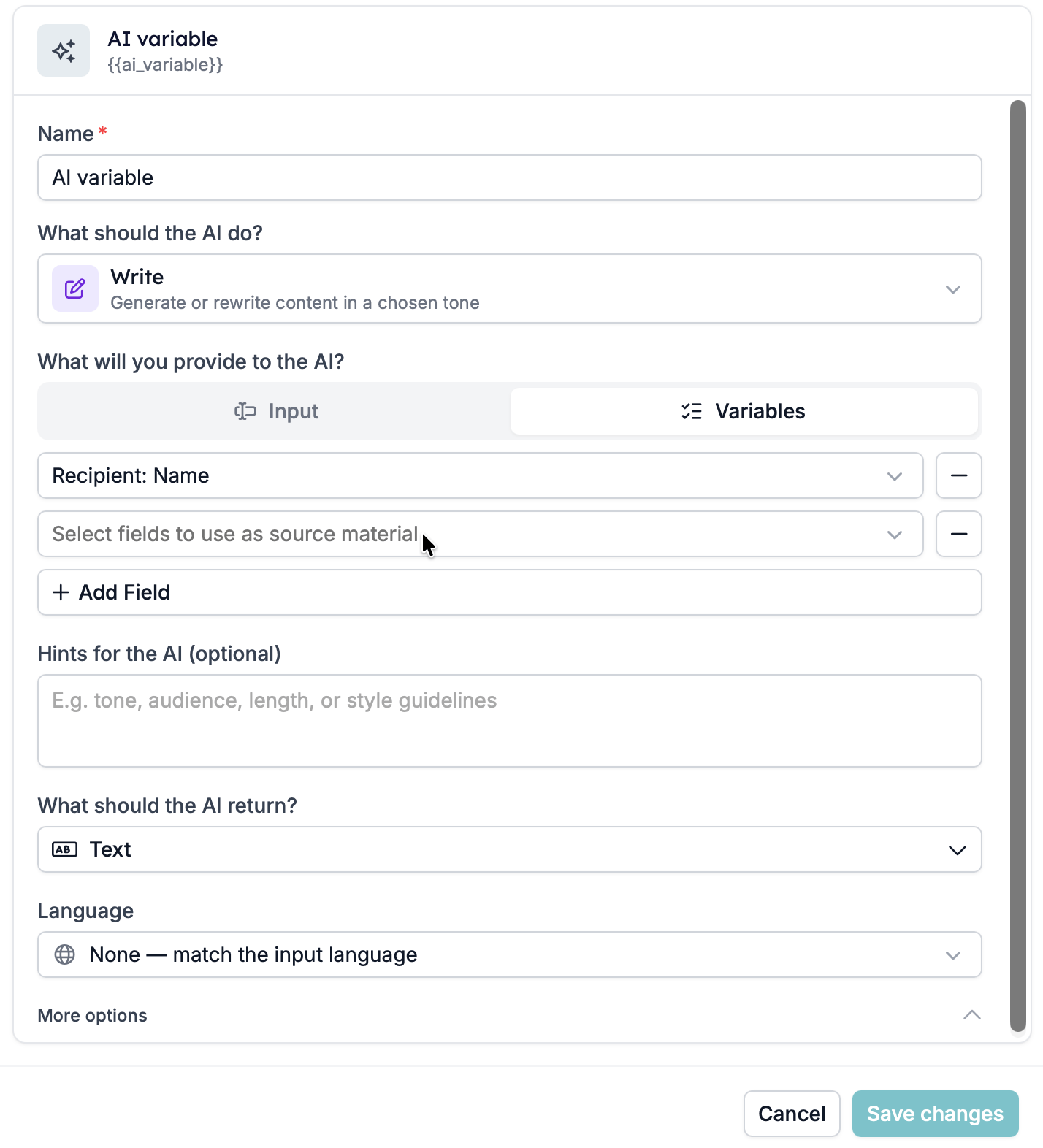 Attaching a field hands its value to the model without you having to mention it in the instruction. It also makes the variable's inputs obvious to whoever opens it next, which is worth doing once the prompt gets long.
### Why the inputs matter
The fields you reference, by either method, are the variable's **inputs** — and inputs are what decide when it is worked out again. Give it the fields it genuinely depends on rather than describing them in prose. See [Limitations](#limitations).
## Writing the instruction
A usable instruction names its shape and its limits. Let the dedicated controls do the work they are there for — set the output language in the **Language** control rather than describing it in the prompt, and set the return type rather than asking for one:
> Write a friendly, single-sentence birthday wish, maximum 20 words. Vary the wording so it does not sound templated. No emoji. Do not open with "Happy birthday". If the recipient's name is missing, write a general wish with no name.
That last sentence matters most. Say what to do when the data is missing, or the model will invent something to fill the space.
**Longer instructions are not better instructions.** Constraints do more work than description. State the maximum length, the tone, what it must not do, and what to produce when the source data is thin.
## Limitations
**It resolves once per send, then repeats.** The value is generated the first time the variable is referenced and reused for every other mention in the same message — so `{{ celebration }}` twice in one email gives you the same sentence twice, not two attempts. It is worked out again when its inputs change, which is what makes it per-recipient. A variable with no inputs attached has nothing to vary on.
**A stored default is not a safety net.** For an AI variable, the default value is the slot the generated value is written into, not a fallback you can set. If the model returns nothing, the variable resolves to nothing. To guarantee something lands on the page, use the [`default`](/variables/modifiers#fallback) modifier where you reference it:
```text theme={null}
{{ celebration | default: "We hope you have a lovely day." }}
```
**A valid template can still send with a hole in it.** Validation checks that a placeholder is *known*, not that it will have a value when the message goes out. So this template:
```text theme={null}
{{ celebration }}
We hope you take some time today to celebrate.
```
can validate perfectly and still arrive as an email that opens with a blank line, followed by "We hope you take some time today to celebrate." The template is not broken. The variable produced nothing.
**Test sends behave differently from real ones.** On a test send, every custom variable referenced in the body needs an explicit, non-empty value that you supply — stored values are deliberately not substituted. A clean test therefore proves the copy works; it does not prove the variable will resolve in production.
If a recipient reports a message with a missing sentence, an empty greeting, or a stray fragment, check which variables are AI variables before assuming the copy is wrong.
## Before you send
Confirm the value reads well and stays inside your length limit.
This is where AI variables fail. Check that a thin record produces something acceptable rather than a hallucinated detail or an empty line.
Tone and formality do not transfer between languages. A line that reads warm in English can read overfamiliar in Dutch.
Ask whether a candidate would be embarrassed, confused, or misled by this sentence. If the answer is maybe, tighten the constraints or use a fixed line.
## Related
* [Variables](/variables/introduction) — the basics and where variables work
* [Modifiers](/variables/modifiers) — deterministic formatting, defaults, and casing
* [Setting a default language and AI tone of voice](/settings/setting-a-default-language-and-ai-tone-of-voice)
* [Why didn't my automation run?](/knowledge-base/why-didnt-my-automation-run)
## Related topics
- [Variables](/variables/introduction.md)
- [Modifiers](/variables/modifiers.md)
Attaching a field hands its value to the model without you having to mention it in the instruction. It also makes the variable's inputs obvious to whoever opens it next, which is worth doing once the prompt gets long.
### Why the inputs matter
The fields you reference, by either method, are the variable's **inputs** — and inputs are what decide when it is worked out again. Give it the fields it genuinely depends on rather than describing them in prose. See [Limitations](#limitations).
## Writing the instruction
A usable instruction names its shape and its limits. Let the dedicated controls do the work they are there for — set the output language in the **Language** control rather than describing it in the prompt, and set the return type rather than asking for one:
> Write a friendly, single-sentence birthday wish, maximum 20 words. Vary the wording so it does not sound templated. No emoji. Do not open with "Happy birthday". If the recipient's name is missing, write a general wish with no name.
That last sentence matters most. Say what to do when the data is missing, or the model will invent something to fill the space.
**Longer instructions are not better instructions.** Constraints do more work than description. State the maximum length, the tone, what it must not do, and what to produce when the source data is thin.
## Limitations
**It resolves once per send, then repeats.** The value is generated the first time the variable is referenced and reused for every other mention in the same message — so `{{ celebration }}` twice in one email gives you the same sentence twice, not two attempts. It is worked out again when its inputs change, which is what makes it per-recipient. A variable with no inputs attached has nothing to vary on.
**A stored default is not a safety net.** For an AI variable, the default value is the slot the generated value is written into, not a fallback you can set. If the model returns nothing, the variable resolves to nothing. To guarantee something lands on the page, use the [`default`](/variables/modifiers#fallback) modifier where you reference it:
```text theme={null}
{{ celebration | default: "We hope you have a lovely day." }}
```
**A valid template can still send with a hole in it.** Validation checks that a placeholder is *known*, not that it will have a value when the message goes out. So this template:
```text theme={null}
{{ celebration }}
We hope you take some time today to celebrate.
```
can validate perfectly and still arrive as an email that opens with a blank line, followed by "We hope you take some time today to celebrate." The template is not broken. The variable produced nothing.
**Test sends behave differently from real ones.** On a test send, every custom variable referenced in the body needs an explicit, non-empty value that you supply — stored values are deliberately not substituted. A clean test therefore proves the copy works; it does not prove the variable will resolve in production.
If a recipient reports a message with a missing sentence, an empty greeting, or a stray fragment, check which variables are AI variables before assuming the copy is wrong.
## Before you send
Confirm the value reads well and stays inside your length limit.
This is where AI variables fail. Check that a thin record produces something acceptable rather than a hallucinated detail or an empty line.
Tone and formality do not transfer between languages. A line that reads warm in English can read overfamiliar in Dutch.
Ask whether a candidate would be embarrassed, confused, or misled by this sentence. If the answer is maybe, tighten the constraints or use a fixed line.
## Related
* [Variables](/variables/introduction) — the basics and where variables work
* [Modifiers](/variables/modifiers) — deterministic formatting, defaults, and casing
* [Setting a default language and AI tone of voice](/settings/setting-a-default-language-and-ai-tone-of-voice)
* [Why didn't my automation run?](/knowledge-base/why-didnt-my-automation-run)
## Related topics
- [Variables](/variables/introduction.md)
- [Modifiers](/variables/modifiers.md)