

If you use ChatGPT, Codex, or Claude, you can install the HireData plugin to get nine recruitment, diagnostic, and issue-reporting skills together with this MCP connection. Continue with this guide when you want MCP tools only, or use Gemini or another MCP client.
What you can do once connected
After connecting, your AI assistant can work directly with your HireData workspaces. For example, it can:- People: find, view, create, and update candidates and contacts, including their contact details and labels.
- Forms: build and maintain complete forms: fields, answer options, validation, and branching logic.
- Form responses: look up submitted answers, including responses to older versions of a form.
- Email templates: create branded email templates, translate them, and send test emails.
- Message templates & conversations: manage WhatsApp and messaging templates, check their approval status, and view conversation history.
- Team & invitations: manage workspace users, roles, and invitations.
- Statistics: request usage and performance figures, such as credit usage over any period, email and messaging performance, and automation runs.
- Knowledge base: search and read HireData help articles directly from your assistant.
Before you begin
- You need a HireData account with access to at least one workspace.
- The connection URL for all assistants is:
- Custom connectors require a specific plan on some assistants (see each section below).
Connect from Claude
Custom connectors are available on all Claude plans (Free, Pro, Max, Team, and Enterprise); free accounts are limited to one custom connector.Step 1: Add the HireData connector
- Open Claude and go to Settings > Connectors (in the desktop app you’ll find Connectors under Customize).
- Click Add > Add custom connector.
- Enter the MCP server URL:
https://api.hiredata.com/mcp - Click Add. HireData now appears in your connector list.
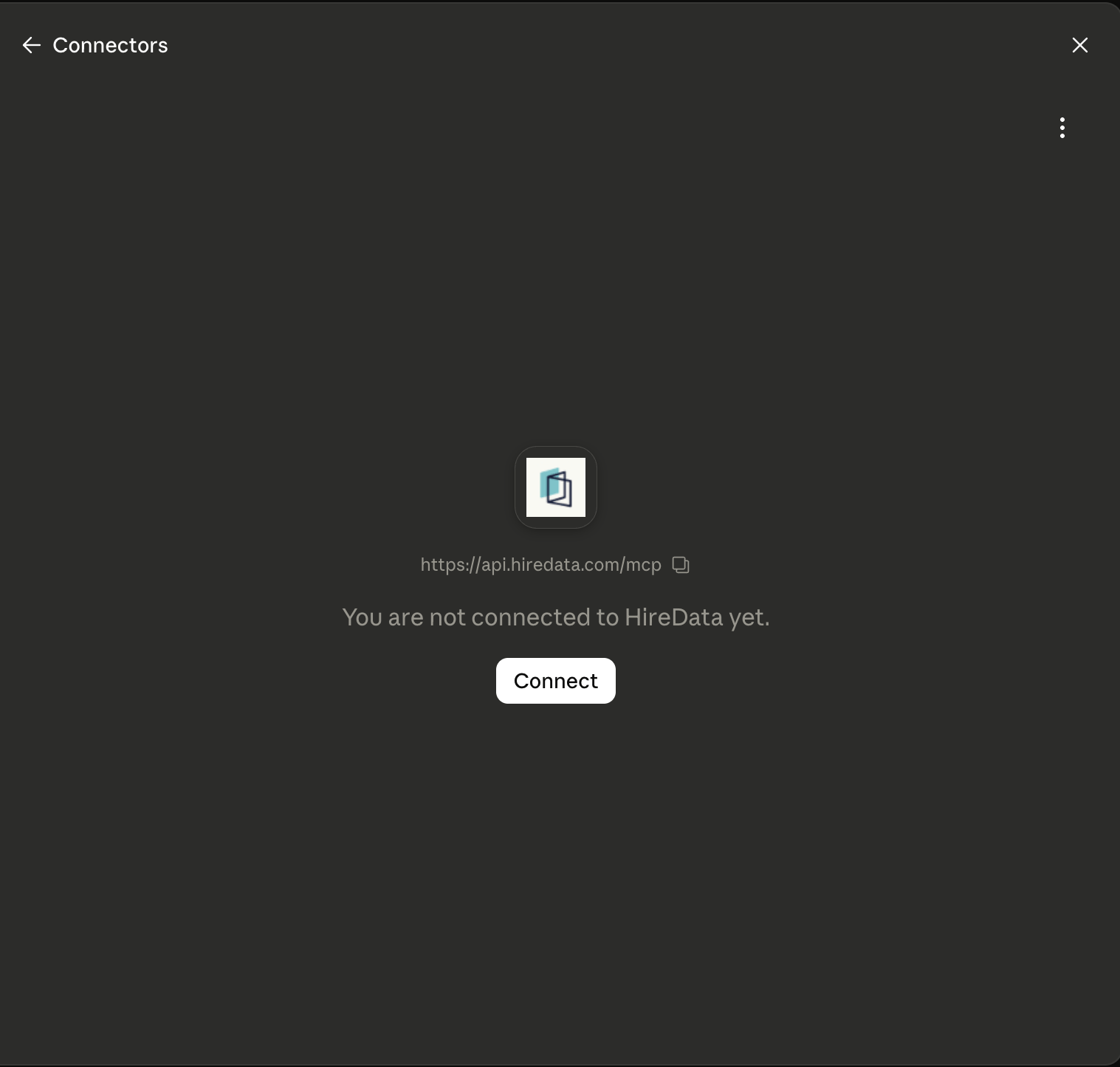
Step 2: Sign in and authorize
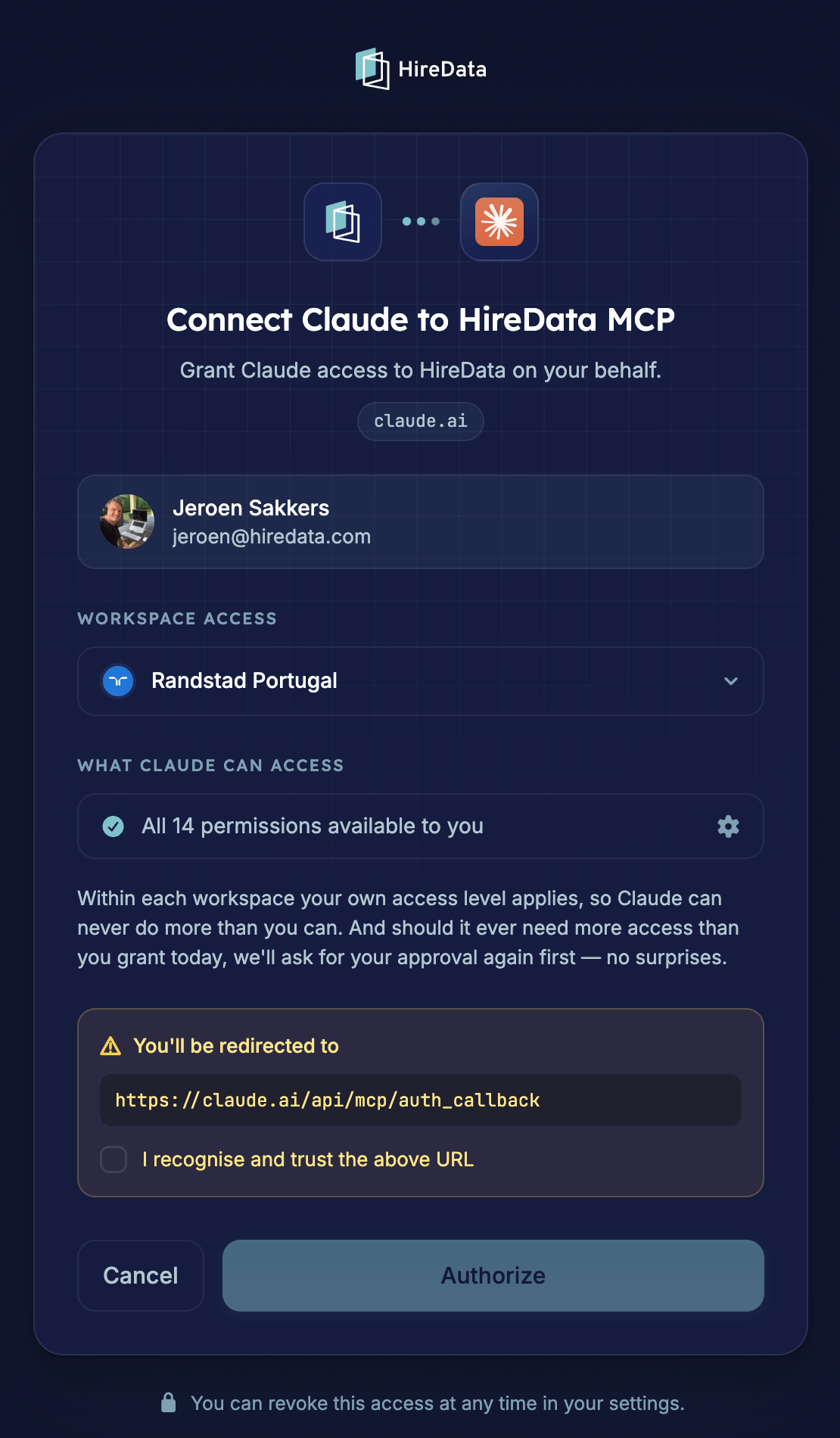
- Click Connect. Your browser opens HireData’s consent screen: “Connect Claude to HireData MCP”.
- Check that you’re signed in with the right HireData account.
- Under Workspace access, select the workspace(s) you want to grant access to.
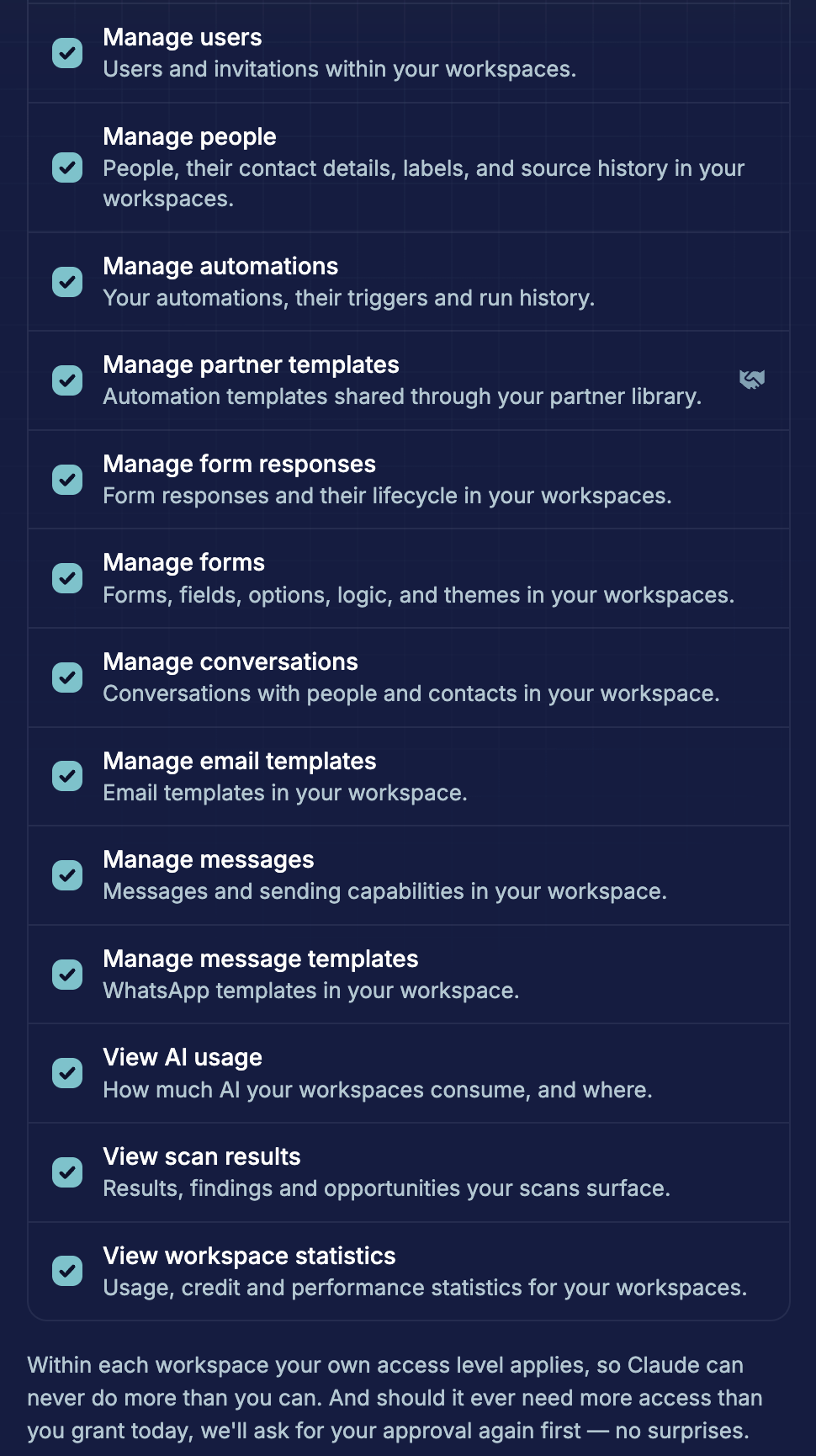
- Under What Claude can access, review the permissions. By default all permissions available to you are selected. Click the gear icon to narrow them down.
- Select “I recognise and trust the above URL” to confirm the redirect back to Claude, and click Authorize.
Step 3: Choose when Claude needs your approval
Back in Settings > Connectors, click the HireData connector to open Tool permissions. Tools are grouped into Read-only tools and Write/delete tools, and both default to Needs approval.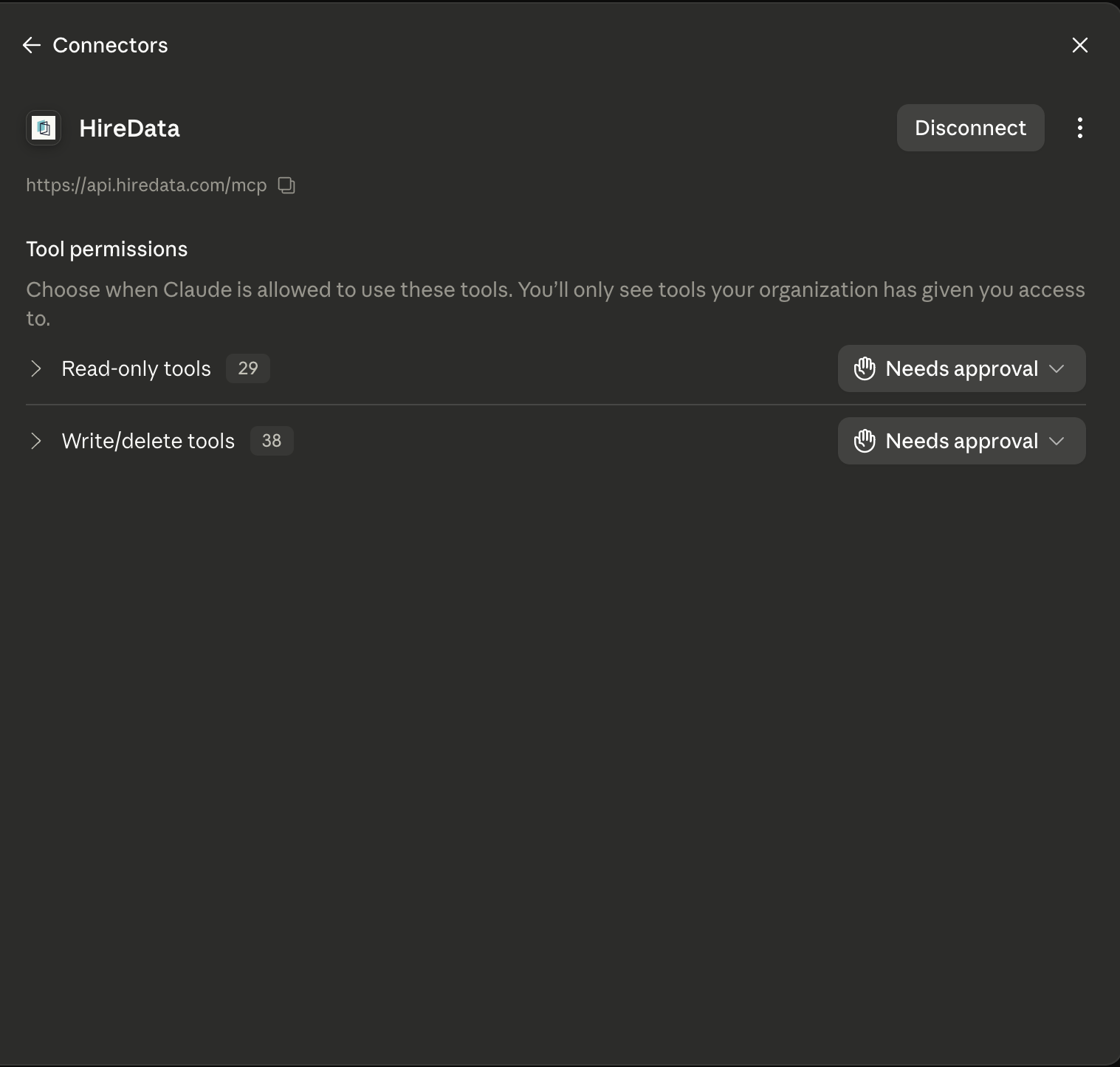

Step 4: Use it in a chat
In a conversation, click the + button, select Connectors, and make sure HireData is enabled. Then ask your question. For example: “Create a candidate NPS email template in our brand style and send me a test.”Connect from ChatGPT
Custom MCP connections are available on ChatGPT paid plans (Plus, Pro, Business, Enterprise, and Edu; not on the free plan).Step 1: Add the HireData MCP server
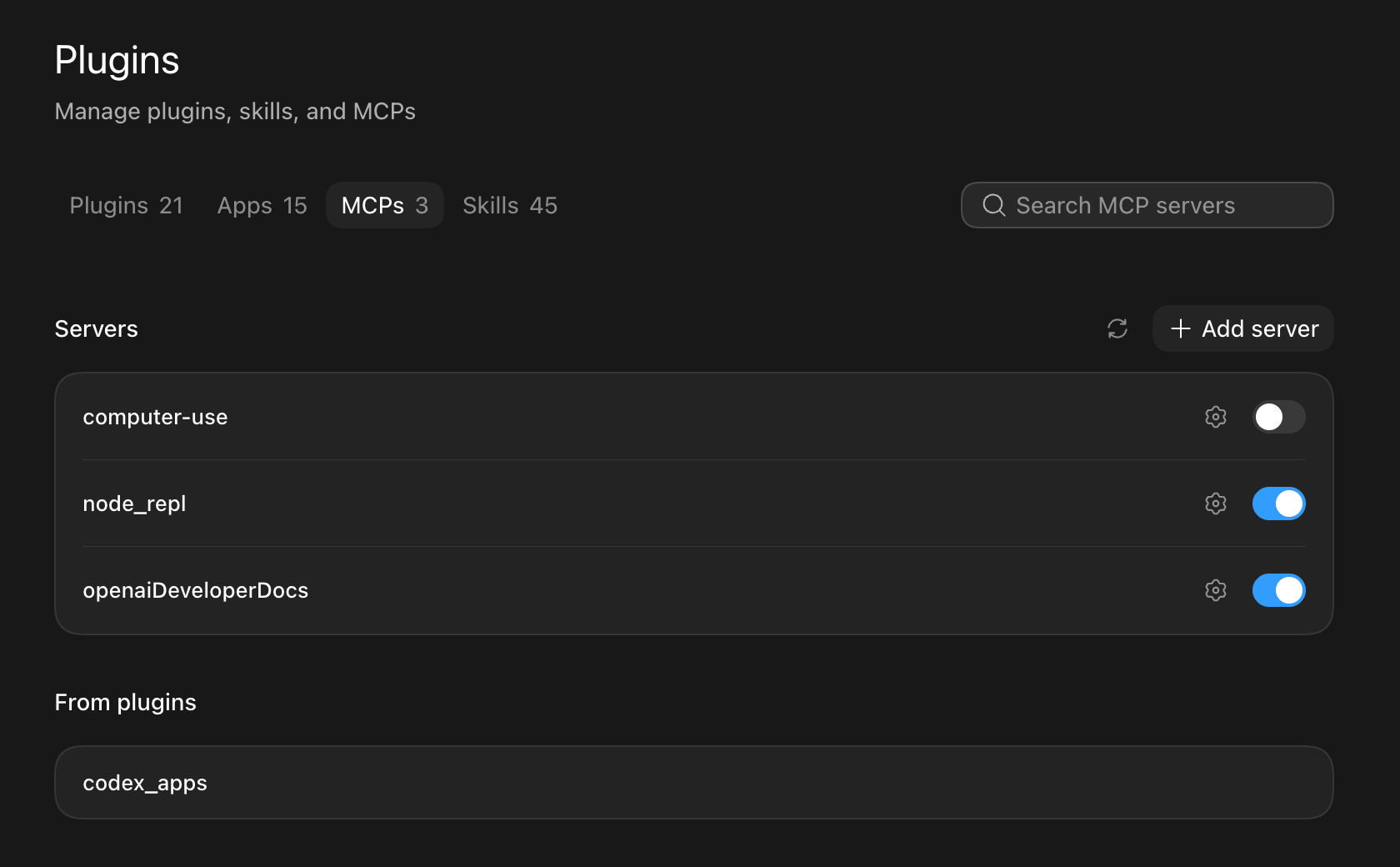
- Open ChatGPT (desktop app) and go to Settings > Plugins (under Integrations).
- Open the MCPs tab and click + Add server.
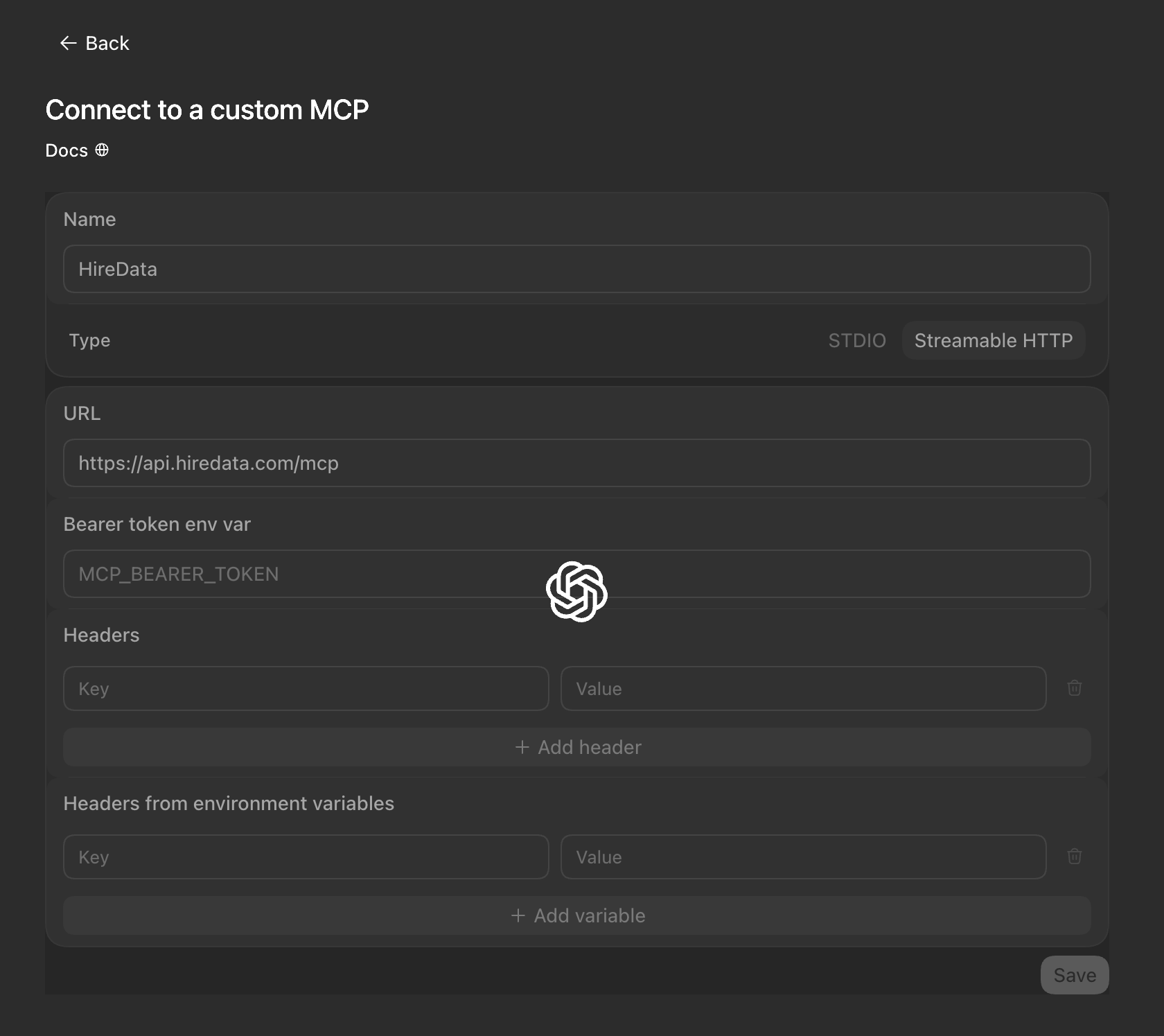
- In Connect to a custom MCP, fill in:
- Name:
HireData - Type: Streamable HTTP
- URL:
https://api.hiredata.com/mcp
- Name:
- Leave the token and header fields empty (HireData uses OAuth sign-in) and click Save.
On ChatGPT web, the same feature lives under Settings > Connectors: click Advanced, enable Developer mode, and use Add custom connector with the URL above.
Step 2: Sign in to HireData
The first time ChatGPT uses the server, it takes you to HireData’s sign-in and consent screen. Log in, select the workspace(s) you want to grant access to, review the permissions, confirm the redirect URL, and authorize. After that, toggle the HireData server on and its tools are available in your chats.Connect from Gemini
The regular Gemini chat app does not support custom MCP connections yet. Google currently offers them in two places:- Gemini Spark (Google AI Ultra): open Connected Apps in Spark’s settings, add a custom app, and enter the MCP server URL
https://api.hiredata.com/mcp. HireData asks you to sign in the first time you use it. - Gemini Enterprise: an administrator adds HireData as a custom MCP server connection in the Gemini Enterprise admin console using the same URL. After that, users sign in with their own HireData account.
Connect from Microsoft Copilot
The consumer Copilot app does not support custom MCP connections yet. Microsoft currently offers them through Copilot Studio:- In Microsoft Copilot Studio, open your agent’s Tools page and select Add a tool > New tool > Model Context Protocol.
- Enter a name and description (the agent uses the description to decide when to call HireData), and the server URL:
https://api.hiredata.com/mcp - Select OAuth 2.0 authentication with Dynamic discovery, create the connection, and add the tool to the agent.
- Publish the agent. Users sign in to HireData with their own account on first use, with the same workspace selection and permissions as other assistants.
How access and security work
- Your permissions, nothing more. The assistant works with the same rights you have in HireData, and only in the workspaces you selected during sign-in. Every request is re-checked on HireData’s side.
- Audit trail. Every action your assistant takes is recorded in the activity log, linked to the workspace it ran in.
- New capabilities need your approval. When HireData adds new MCP capabilities, your existing connection does not widen automatically. HireData asks you to re-authorize first. No surprises.
- Safe changes. Updates are partial (anything your assistant doesn’t mention stays unchanged), your assistant can’t silently overwrite newer work, and destructive or external-facing actions require explicit confirmation.
- Disconnect anytime. Remove the connector in your assistant’s settings, or revoke the grant from your HireData settings.
Troubleshooting
- 403 error during authorization (“The provided auth token for the request is different from the session auth token”): close the authorization tab and click Connect in your assistant again to restart the flow. This can happen when an older HireData sign-in session is still open in your browser.
- Tools don’t appear in the chat: check that the connector is enabled for that conversation (in Claude via the + menu > Connectors; in ChatGPT via the server toggle in Settings > Plugins > MCPs).
Try it out
Some example prompts to get started:- “Which email templates do we have in HireData, and which ones are missing a Dutch translation?”
- “Set up a GDPR consent form and show me a preview link.”
- “Create a candidate NPS form with a 0–10 score question and a follow-up question for scores below 7.”
- “How many credits did our workspace use in June and July?”
- “Invite jane@example.com to our workspace as a user.”