

- It adds HireData’s skills, the working method behind HireData’s tools, covering activation planning, triggers, forms, email and WhatsApp templates, automation and email diagnostics, ROI reporting, staffing domain knowledge, and actionable Linear issues.
- It sets up HireData’s official MCP connection, so your assistant can read and change things in the HireData workspaces you allow.
The plugin is currently available as an early-access install from HireData’s public GitHub marketplace. It does not appear in OpenAI’s universal Plugins Directory yet. In every assistant you add HireData’s marketplace first, then install the plugin from it. Use Settings > Plugins in the ChatGPT and Claude desktop apps, or the commands in the Codex CLI and Claude Code. For Gemini or an MCP-only connection, connect HireData to your AI assistant.
What the plugin adds
The plugin includes every skill HireData publishes (ten today). See HireData skills for your AI assistant for what each one does and example prompts:- Plan an activation: connect client problems to high-impact HireData workflows and measurable outcomes.
- Create triggers: choose the right event, timing, filters, and relationships before creating a trigger.
- Create forms: design concise forms with validation, branching, and a clear next step.
- Create email templates: use variables, modifiers, and bounded AI variables safely.
- Create WhatsApp templates: design concise, contextual templates with appropriate category reasoning and follow-up paths.
- Diagnose automations: find out why a workflow did not run, send, or finish as expected, and get a repair with its trade-off.
- Diagnose email performance: explain a drop in opens, clicks, or deliverability, and what to do about it.
- Report automation ROI: report what automations have actually delivered over the period they have genuinely been running.
- Write issue reports: draft and refine HireData Linear issues using the internal or partner workflow sources you can access.
- Apply staffing lifecycle knowledge: read recruitment requests correctly: a person, an application, and a placement are not the same thing.
https://api.hiredata.com/mcp. It does not bundle or deploy a separate MCP server.
Before you begin
You need:- A HireData account with access to at least one workspace.
- For ChatGPT: the desktop app, or the Codex CLI with
codex pluginsupport. ChatGPT on the web cannot install the plugin. See the note below. - For Claude: the desktop app, Claude web, or Claude Code in a terminal.
- Permission to add Git marketplaces and MCP connections. Your organisation’s AI administrator may restrict these features.
codex plugin and /plugin commands below are CLI commands. They do not work in the ChatGPT or Claude desktop apps. Add the marketplace from Settings > Plugins in those apps instead.
Install the plugin in ChatGPT
ChatGPT desktop app
1
Add the HireData marketplace
Open Settings > Plugins, click Add, then select Add a marketplace.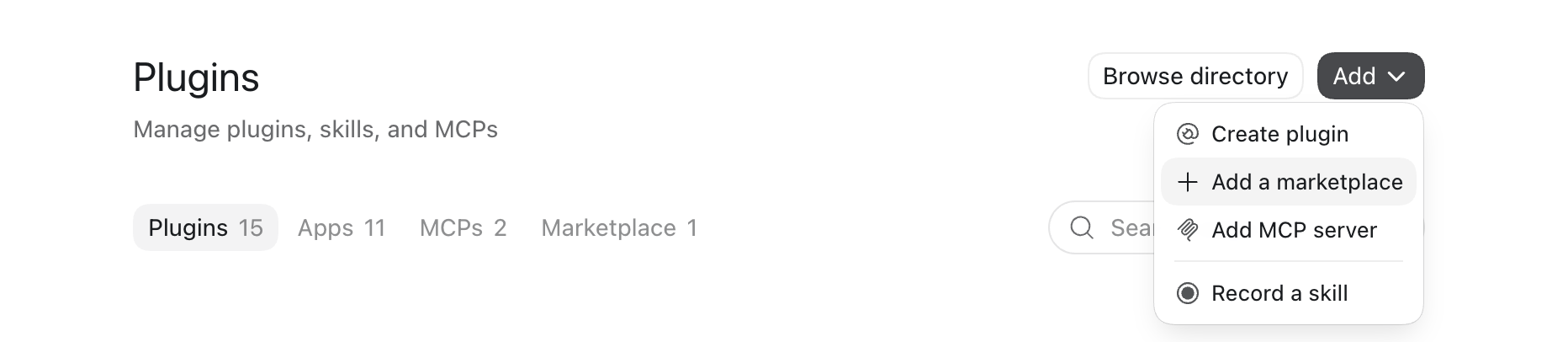
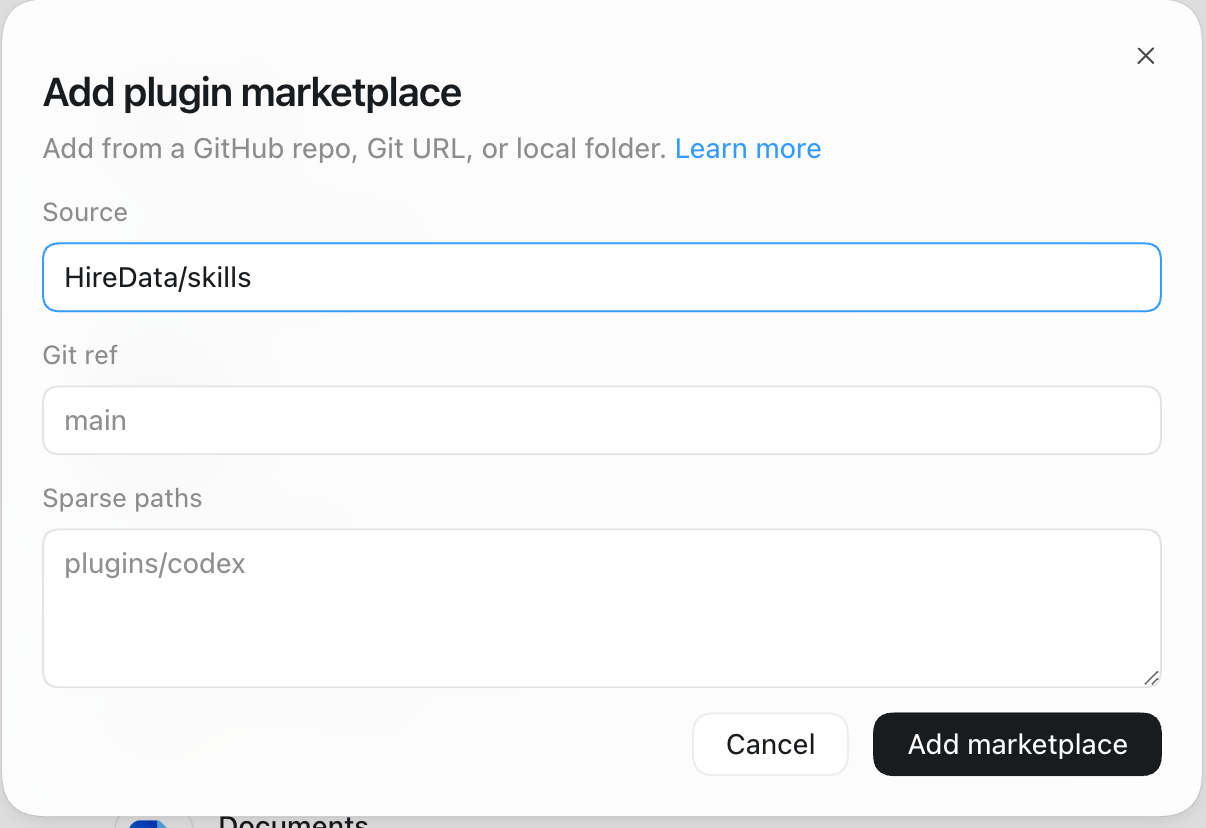
HireData/skills in the Source field and click Add marketplace. Leave Git ref and Sparse paths empty. Their greyed-out text is placeholder guidance, not a value you need to set. This adds HireData’s public GitHub repository as a marketplace; you do not need to clone it.2
Install HireData
HireData now appears under the HireData Skills marketplace. Click Install.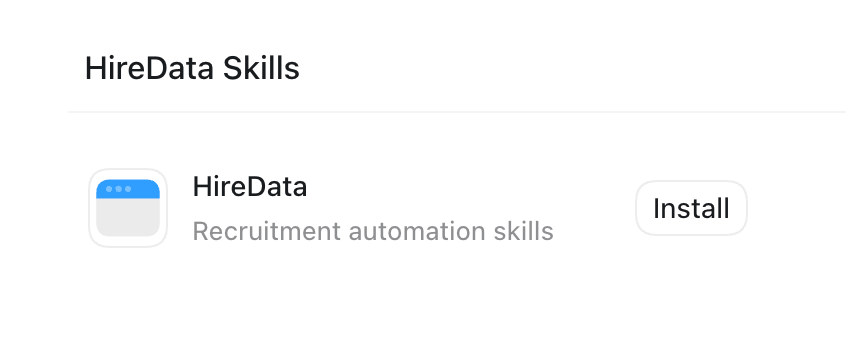
3
Connect your HireData account
Complete the sign-in flow when prompted. Select the workspace or workspaces the assistant may use, review the requested permissions, and click Authorize.The assistant receives only the workspace access you select and works with your existing HireData permissions. See how HireData access and security work.
4
Start a new conversation
Installed skills and tools load when you start a new conversation. They do not appear retroactively in an existing one. Then verify it works.
ChatGPT on the web cannot install the plugin: it cannot add a marketplace, and it does not show plugins you installed in the desktop app, so HireData will not appear there after a desktop install. Use the desktop app for the full plugin. On the web you can still upload skills from your computer, and add HireData as a custom MCP server with Developer mode enabled.
Codex CLI
1
Add the HireData marketplace
Open a terminal and run:This adds HireData’s public GitHub repository as the
hiredata-skills marketplace. You do not need to clone the repository.2
Install HireData
Run:Follow any setup prompt shown by Codex. The plugin source is public at github.com/HireData/skills.
3
Start a new session
Installed skills and tools load when you start a new Codex session. They do not appear retroactively in an existing one.
4
Connect your HireData account
When prompted, sign in to HireData. Select the workspace or workspaces the assistant may use, review the requested permissions, and click Authorize.The assistant receives only the workspace access you select and works with your existing HireData permissions. See how HireData access and security work.
5
Verify the installation
Install the plugin in Claude
Installing the plugin also configures the HireData MCP connection, so you don’t need to set up a separate connector.Claude desktop app and web
1
Add the HireData marketplace
Open Settings > Plugins, click Add, then select Add marketplace. On a personal Claude plan, Claude first asks where to add from. Select Add from a repository rather than Browse Anthropic sources.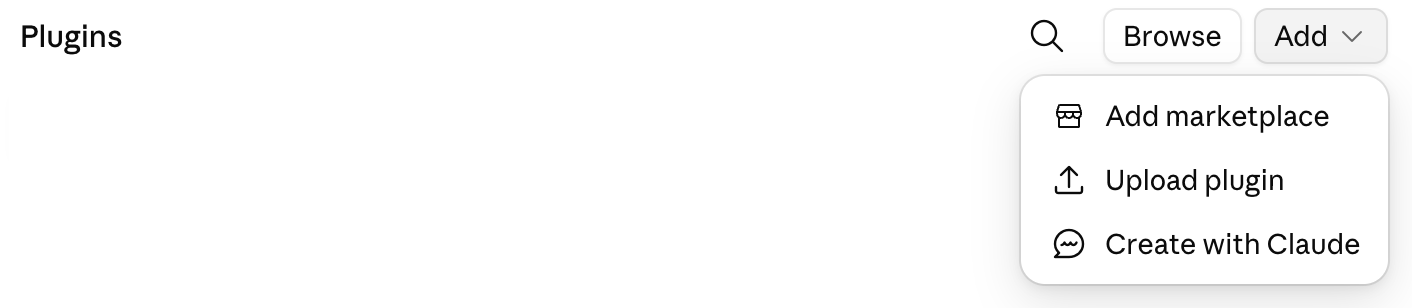
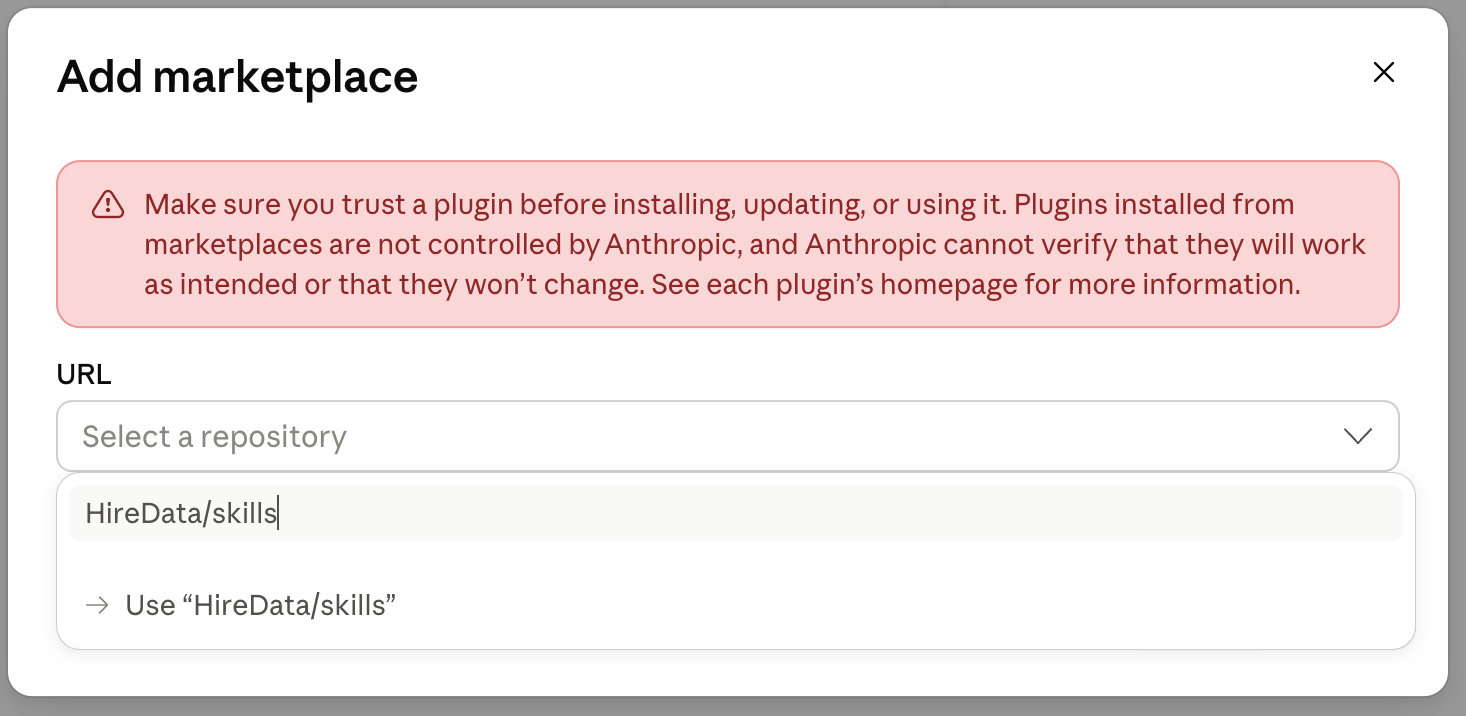
HireData/skills into the URL field, then click Use “HireData/skills” or press Enter. This adds HireData’s public GitHub repository as a marketplace; you do not need to clone it.Claude shows a warning that marketplace plugins are not controlled or verified by Anthropic. HireData publishes this plugin, and its source is public at github.com/HireData/skills.2
Install HireData
HireData appears under the skills marketplace on the Personal tab. Click the + on its card, or open the card and click Install.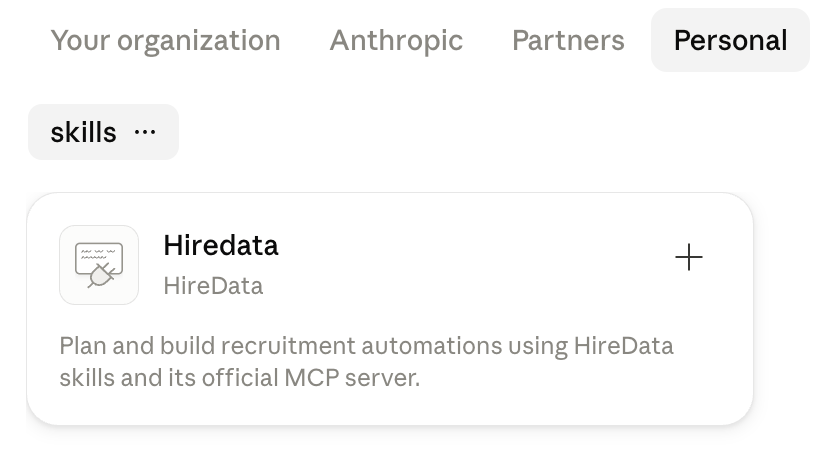
3
Connect your HireData account
Sign in to HireData when prompted on first use. Select the workspace or workspaces Claude may use, review the requested permissions, and click Authorize.Claude receives only the workspace access you select and works with your existing HireData permissions. See how HireData access and security work.
4
Start a new conversation
Installed skills and tools load when you start a new conversation. They do not appear retroactively in an existing one. Then verify it works.
Claude Code
The/plugin commands work in Claude Code in a terminal. Run:
/hiredata:hiredata-plan-activation and so on.
Claude Team and Enterprise
Owners can distribute the plugin through the organisation catalog instead of having each member add the marketplace:1
Add the marketplace
Open Organization settings > Plugins and add a GitHub-synced marketplace with the repository
HireData/skills. The initial sync runs automatically, and later plugin releases sync from the repository’s default branch.Alternatively, add a custom marketplace and upload the plugin as a ZIP file (the plugins/hiredata directory from the repository). Use this when your organisation prefers not to sync from GitHub; note that manual uploads do not receive automatic updates.2
Make the plugin available
Set the HireData plugin’s installation preference, for example Available for install or Installed by default.
3
Install as a member
Members open Settings > Plugins, install HireData, and complete the HireData sign-in on first use. They do not need to add the marketplace themselves. The plugin then works in Claude web chat, the Claude desktop app, and Cowork sessions. If the Owner set the plugin to Installed by default, members skip this step entirely.
Verify it works
Start a new conversation and try one of these requests:- “Use HireData to review our existing templates and rank the highest-impact missing workflow. Do not create anything yet.”
- “Use HireData to design an application acknowledgement email that uses an AI variable safely. Show me a preview and do not send it.”
- “Use HireData to create a candidate availability form. Show me the form and branching logic before creating it.”
- “Use HireData to turn these reproduction steps and screenshots into an issue report. Draft only.”
Install the skills with a prompt
Can’t install the plugin because your plan has no plugin support, or your organisation blocks the marketplace? The skills are plain, public files, so your assistant can fetch and package them for you instead, and you save them yourself. Install the HireData skills with a prompt has the copy-paste prompt for Claude, ChatGPT, and any other assistant, plus the full list of skill folder names. Pair it with the HireData MCP connection to get the same behaviour as the full plugin.Update the plugin
- ChatGPT or Claude desktop app: update the plugin from Settings > Plugins.
- Codex CLI: run
codex plugin marketplace upgrade hiredata-skills, then run/pluginsto apply the update. - Claude Code: run
/plugin marketplace update hiredata-skillsin a terminal. - Claude Team and Enterprise: GitHub-synced marketplaces update automatically when HireData publishes a new plugin version. Manually uploaded ZIPs require a new upload.
Troubleshooting
- A
/pluginorcodex plugincommand does nothing: these are CLI commands, and only work in Claude Code and the Codex CLI. In the ChatGPT and Claude desktop apps, add the marketplace from Settings > Plugins. - HireData does not appear in ChatGPT on the web after a desktop install: the web app cannot add marketplaces and does not show plugins installed in the desktop app. Use the desktop app, or add HireData as a custom MCP server on the web for tools without the skills.
- The
codex plugincommand is unavailable: update the Codex CLI, then try again. - The HireData marketplace does not appear in the Codex CLI: run
codex plugin marketplace list, then start a new session. - The plugin is installed but its skills do not appear: enable HireData in Settings > Plugins and start a new conversation.
- HireData does not ask you to sign in: start a new conversation with the plugin enabled and make a request that needs HireData workspace data.
- Your organisation blocks the installation: ask your ChatGPT or Claude administrator to allow the HireData marketplace and MCP connection.
- The skills do not trigger in Claude: confirm the plugin shows as installed (Settings > Plugins, or
/pluginin Claude Code) and start a new conversation. - You only need the MCP tools or use another assistant: follow the manual MCP connection guide.
Remove the plugin
- ChatGPT or Claude desktop app: remove the plugin from Settings > Plugins.
- Codex CLI: run
codex plugin remove hiredata@hiredata-skills. - Claude Code: run
/plugin uninstall hiredata@hiredata-skillsin a terminal. - Claude Team and Enterprise: remove the plugin from Settings > Plugins, or ask an Owner to change its availability in Organization settings > Plugins. Plugins marked Required by an Owner cannot be removed by members.
Install skills with a prompt
No plugin support, or a blocked marketplace? Let your assistant fetch the skills instead.
Keep skills up to date
Check your version, update in one step, and get told when new skills arrive.
Create your own skill
Capture your own method once, and contribute it back to the skills repository.
Connect via MCP only
Connect Gemini, or any MCP-compatible assistant, without installing the skills.