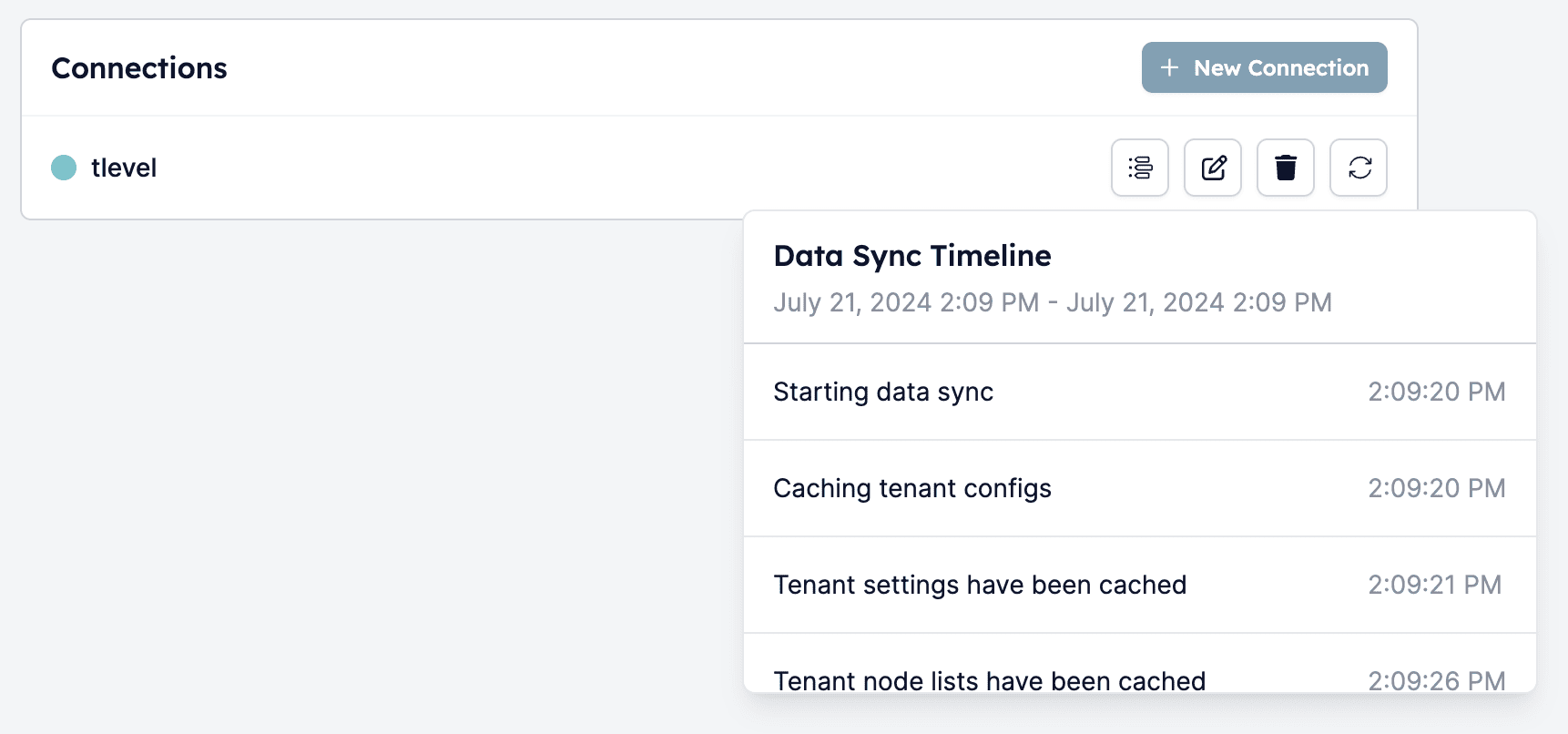
Step 1: Test your Carerix connection with HireData
To test whether your Carerix account and HireData connection have the correct access, you can initiate a manual sync from your account settings. If you see a “403: Forbidden” message during the sync process, it means that HireData doesn’t have the correct access within your Carerix setup. This issue is typically due to missing scopes in the client configuration.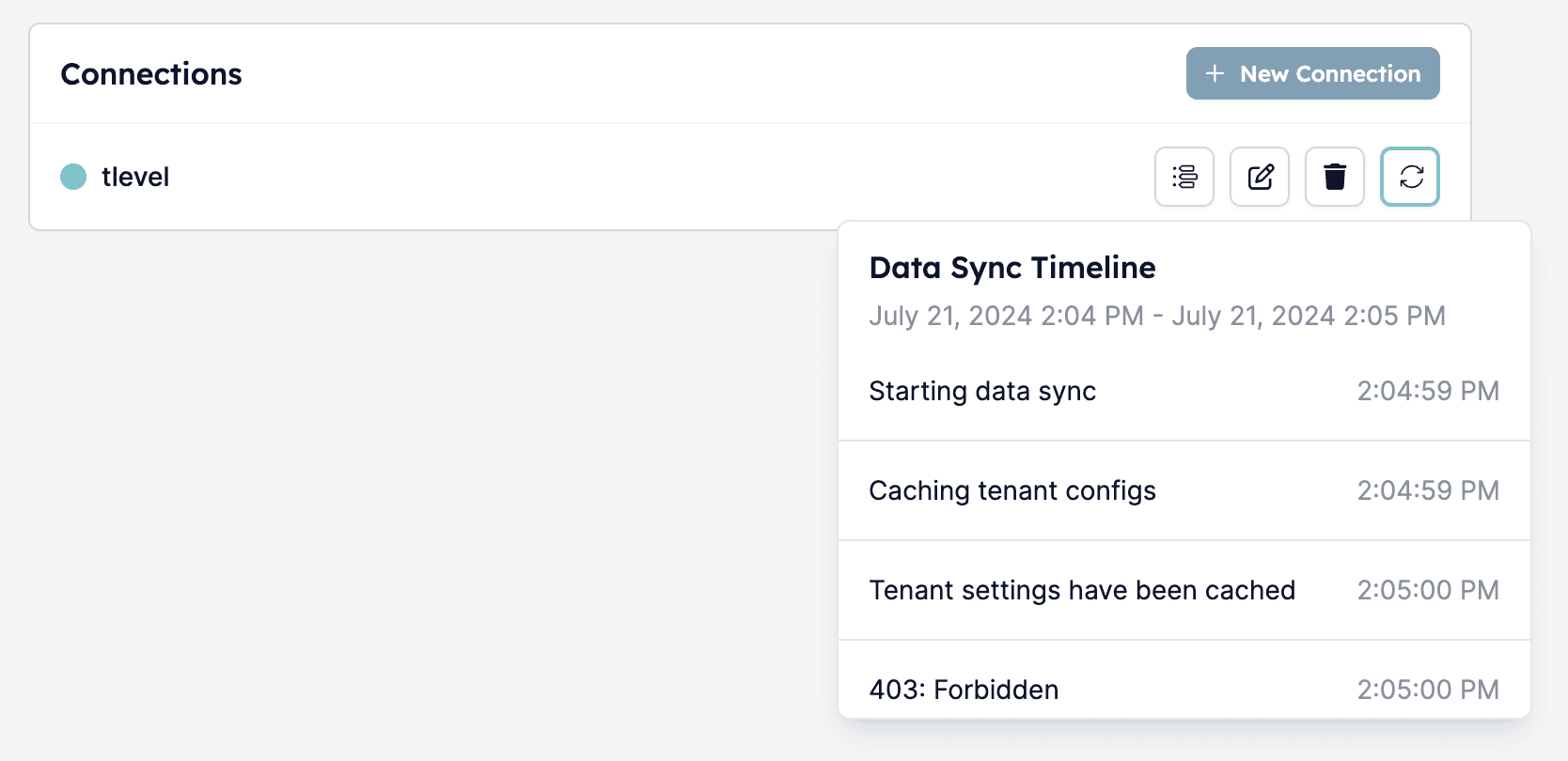
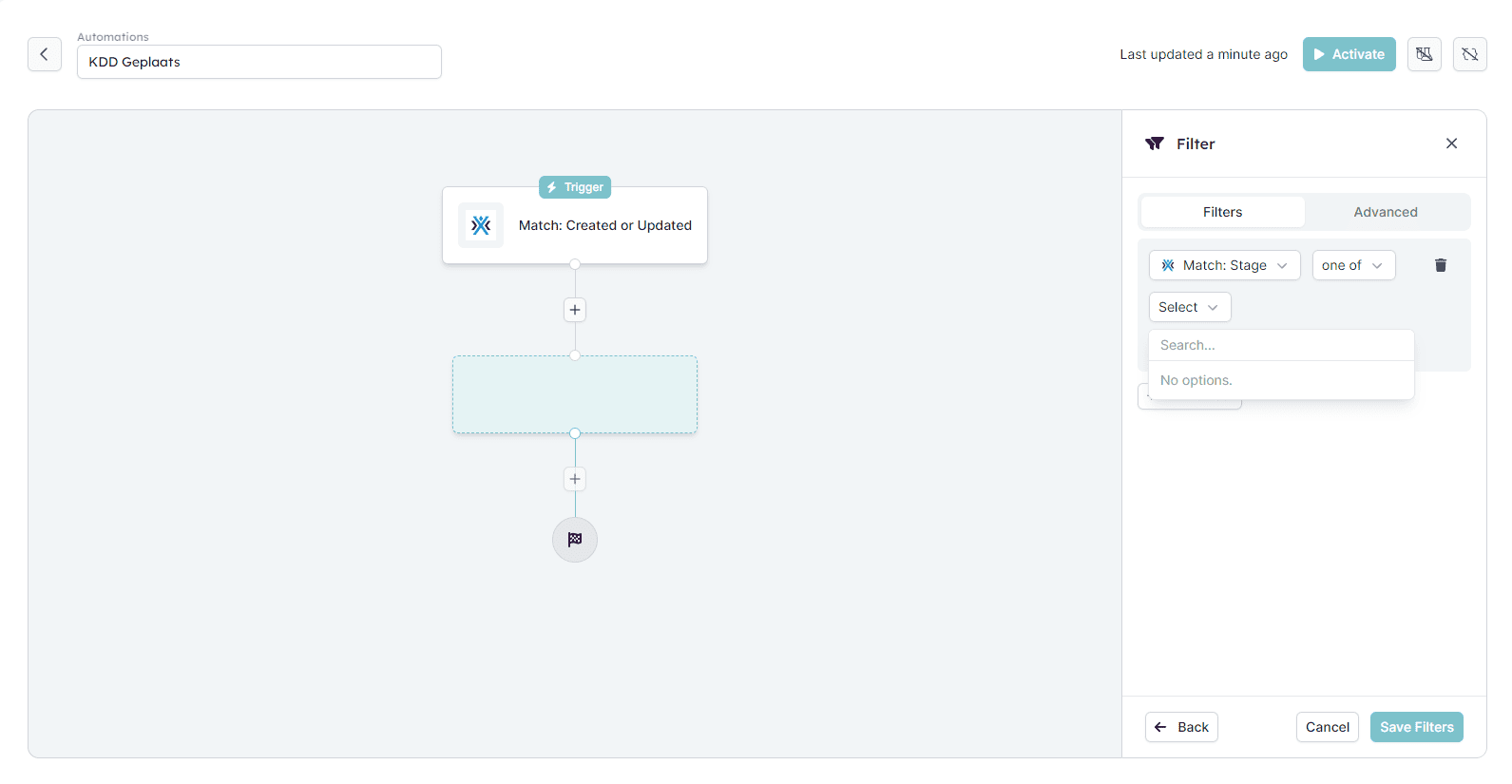
Step 2: Fix the connection
To restore the connection, you have to add the missing scopes from Carerix to HireData by following these steps: 2.1 Log in to your Carerix account 2.2 Locate the client Navigate to the Maintenance dropdown menu and then open the Identity Management page to find the client that was created during the initial setup.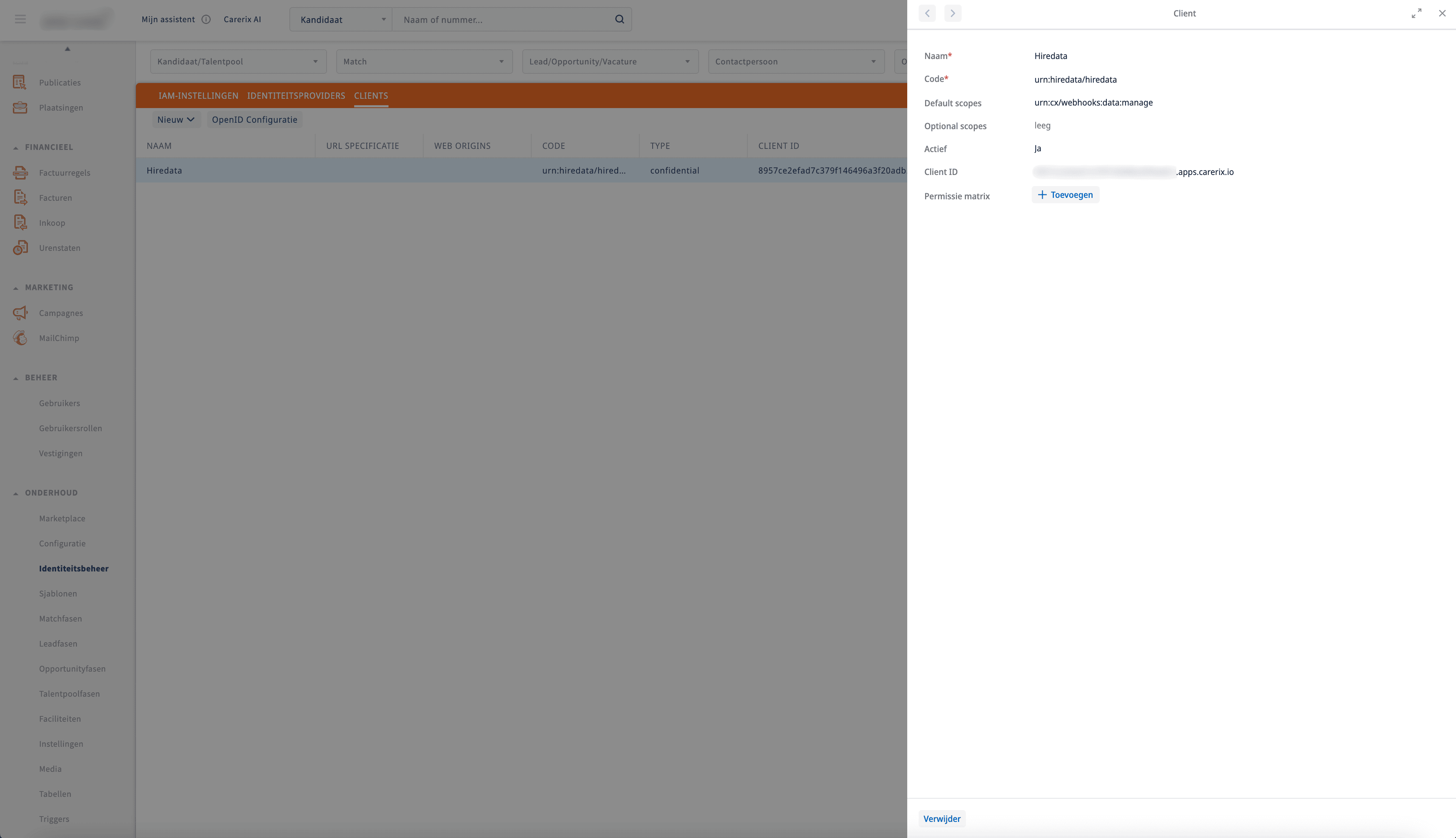
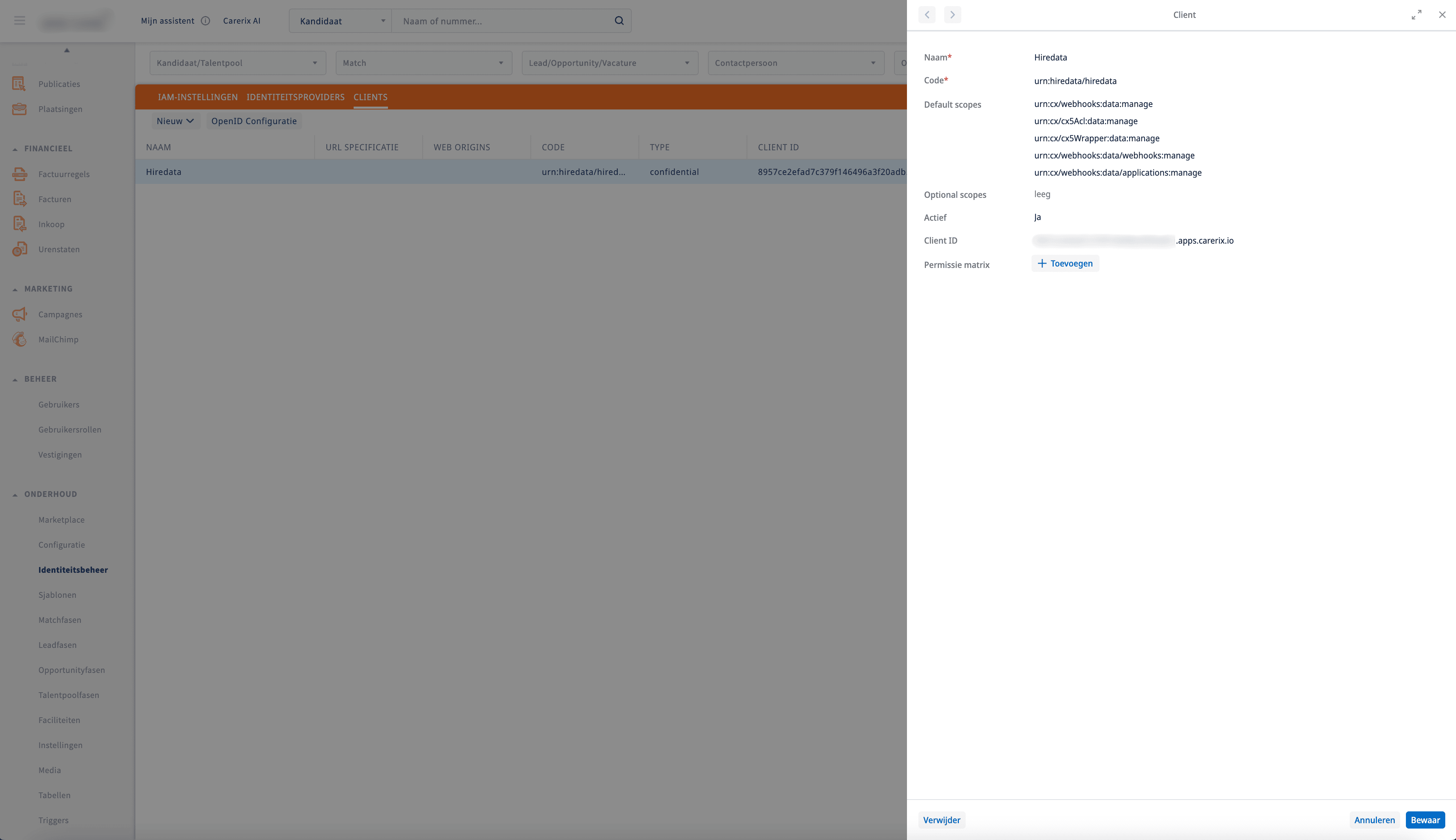
- urn:cx/webhooks:data:manage
- urn:cx/cx5Acl:data:manage
- urn:cx/cx5Wrapper:data:manage
- urn:cx/webhooks:data/webhooks:manage
- urn:cx/webhooks:data/applications:manage
Step 3: Re-sync Carerix
After updating the client scopes, you can manually sync Carerix again by following the same steps mentioned earlier for manually syncing. If you updated the permissions correctly, you should no longer see the “403: Forbidden” message. The sync should proceed successfully.