Step 1: Navigate to the Recruitee app
Navigate to the Apps section within HireData. You can find this under Settings > Apps. Here, you’ll see the option to integrate with Recruitee.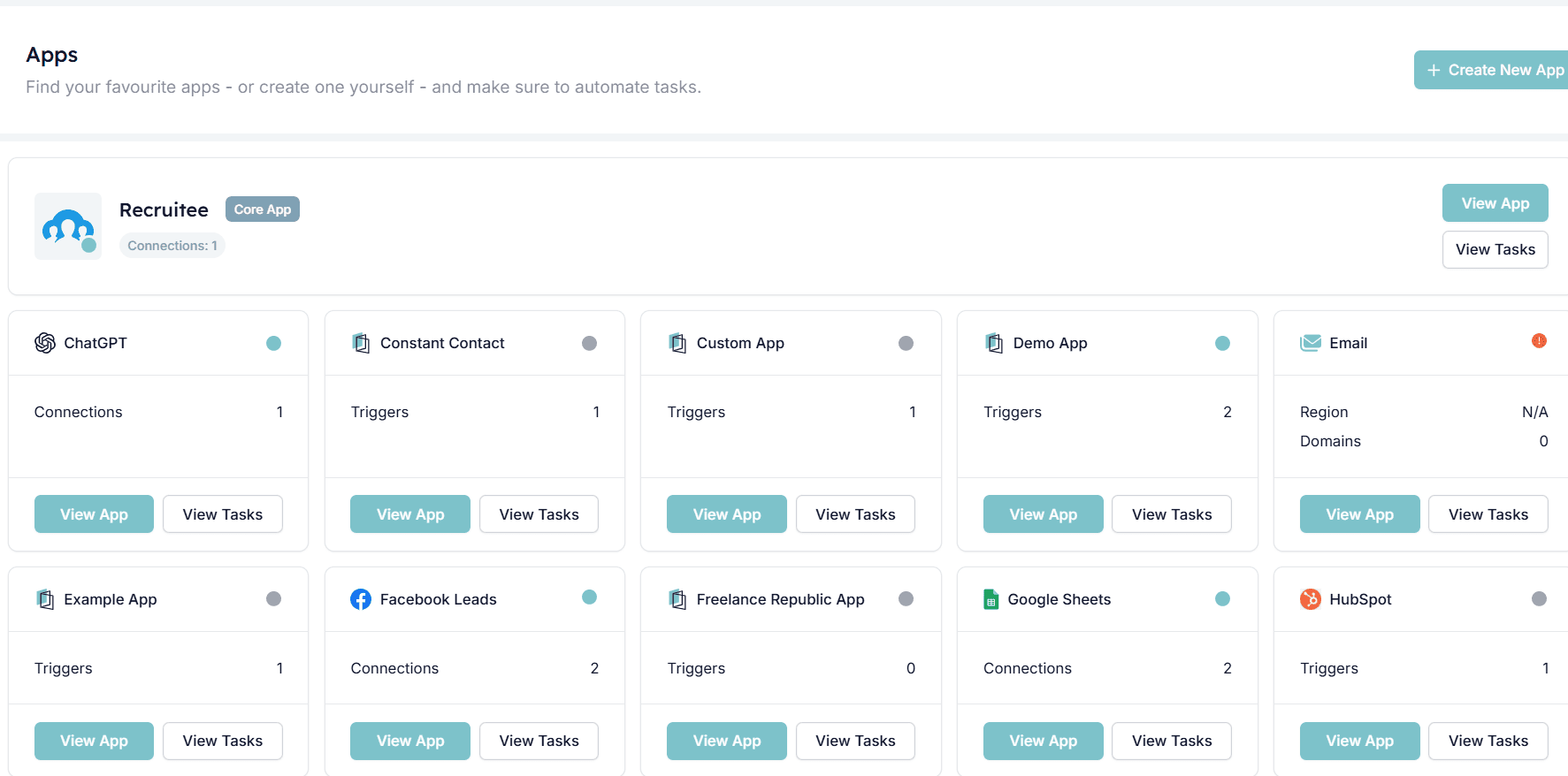
Step 2: Create a connection with Recruitee
Open the app and click Connect to Recruitee to start the integration process. This will allow HireData to connect with your Recruitee account.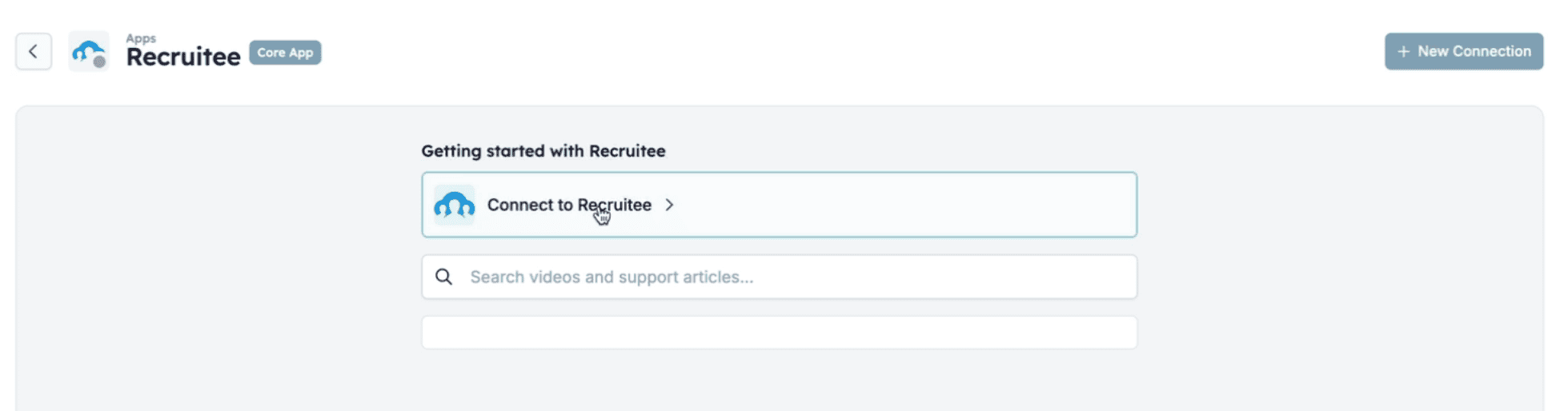
2.1. Create API token
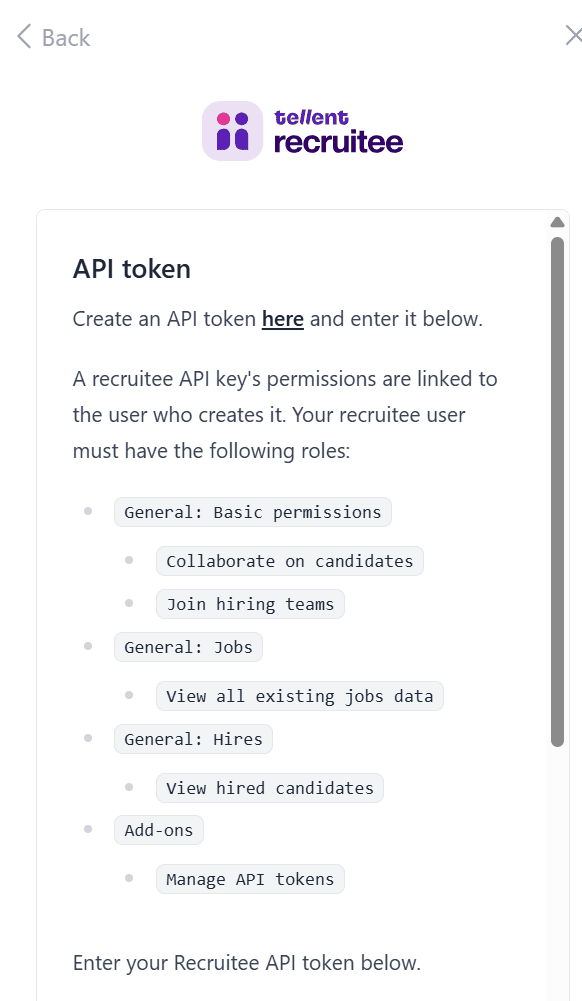
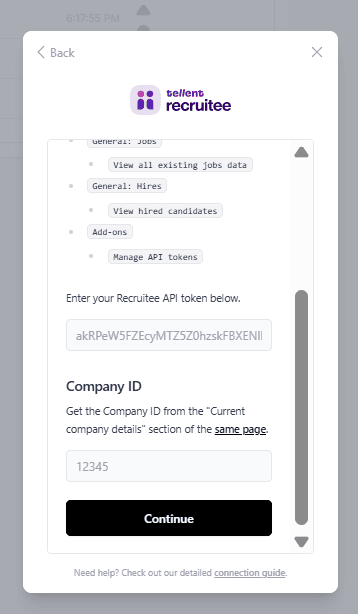
Click here to create a new API token in Recruitee. Make sure your user has these roles:- Basic permissions → Collaborate on candidates, Join hiring teams
- Jobs → View all existing jobs data
- Hires → View hired candidates
- Add-ons → Manage API tokens
2.2. Copy your Recruitee Company ID
Under Current company details in Recruitee, you’ll see your Company ID. Copy this ID and paste it into the HireData field.
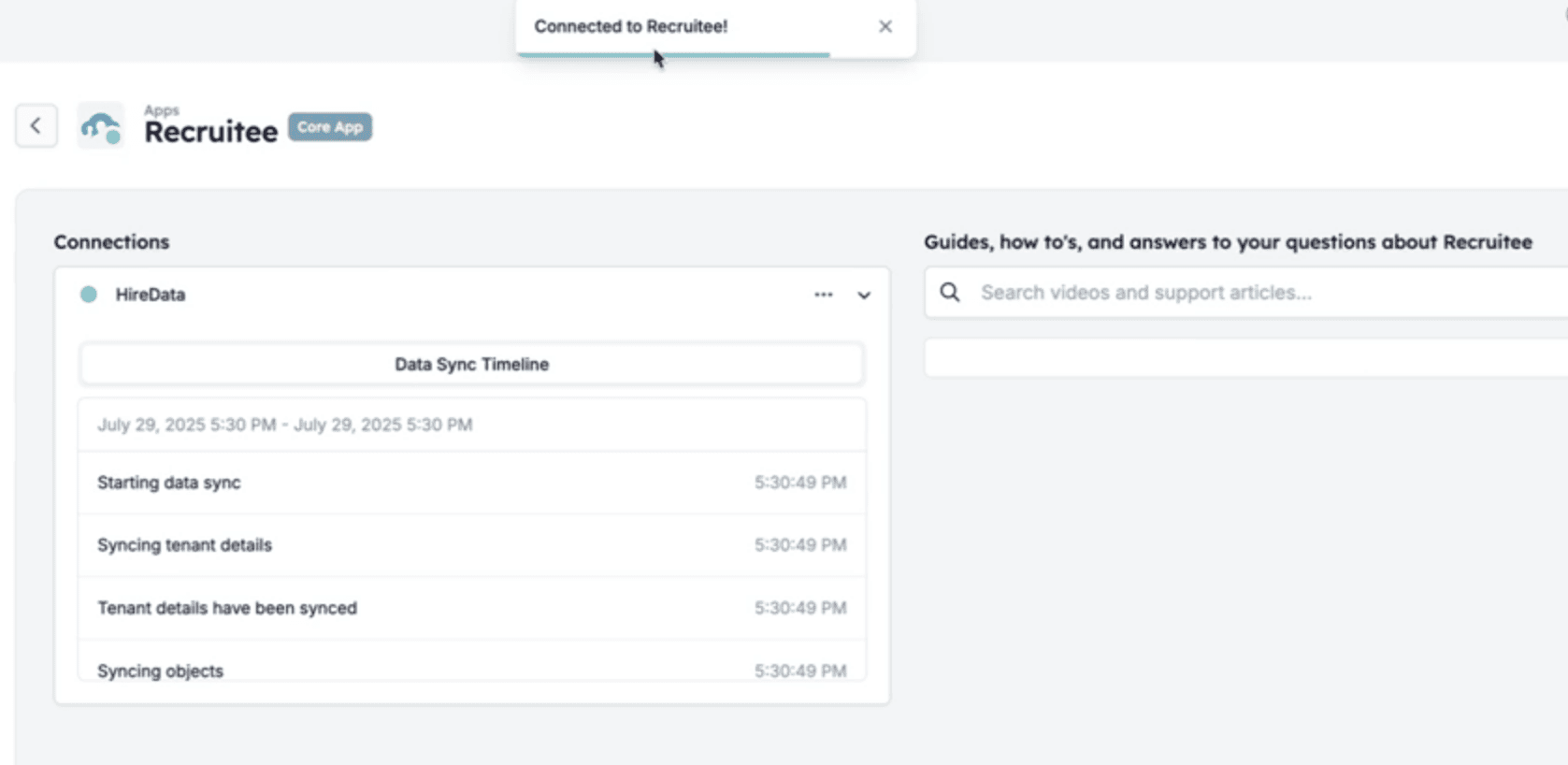
Step 3: Recruitee connected!
After you’ve clicked Continue, you’ve finished setting up the connection between Recruitee and HireData. When it’s the first time you’ve set up this connection, HireData might need a few minutes to sync data from your Recruitee database. After that, you’re all set to set up your first Recruitee automation in HireData.