

Step 1: Set up the automation
After you’ve set up the connection with Recruitee, you can create your first automation. Log in to HireData, go to the Automations page, and click New Automation.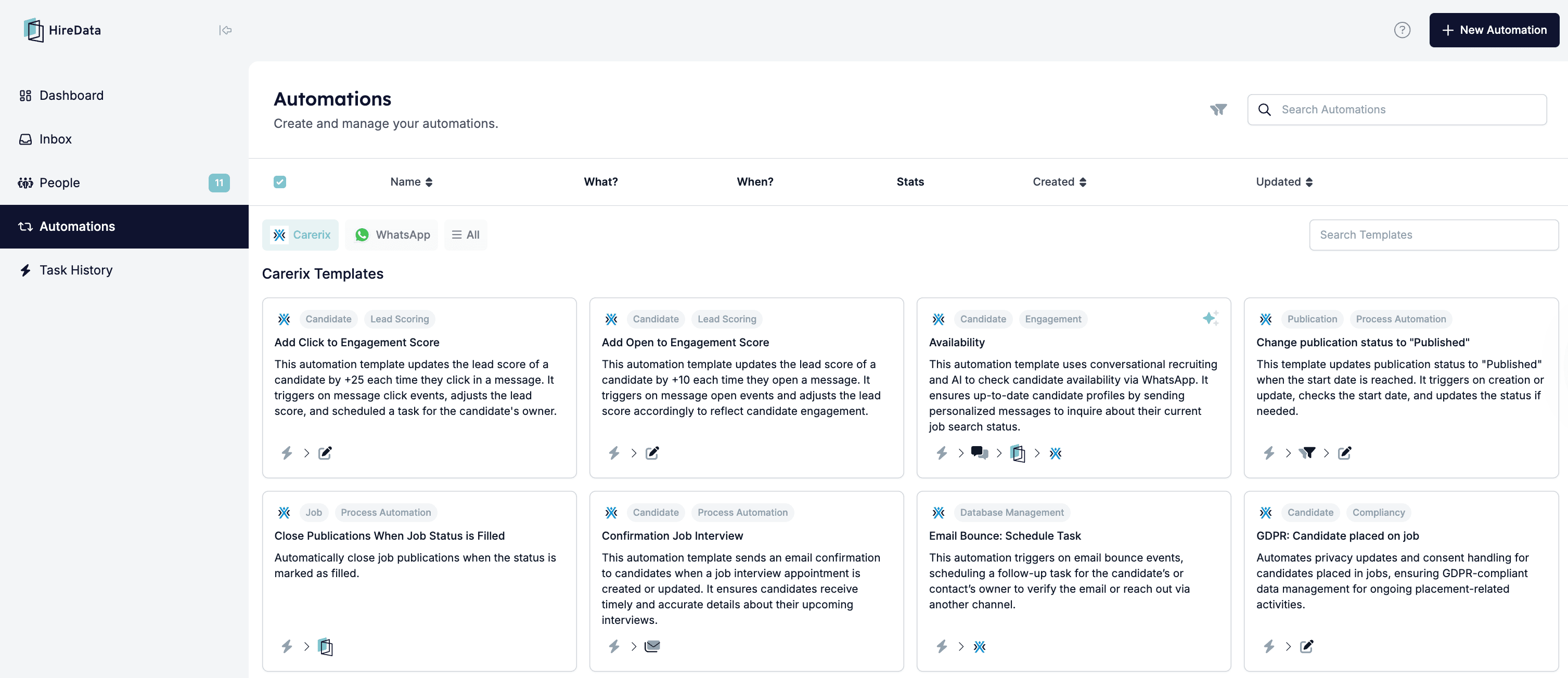
1.1 Select Blank Automation or any of the available templates
If you want complete control and the freedom to design every step of your workflow exactly as you need, then Blank Automation is the right choice. It allows you to build a fully customised process from the ground up. On the other hand, if you prefer a quick, ready-made solution, select any of the templates, and HireData creates the automation for you.Step 2: Define the trigger
The second step is to define the trigger. A trigger makes sure HireData “listens” to specific events occurring within Recruitee. To set this up, first select the app, then the object, and finally the trigger that should start the automation. You can also apply filters at this stage to narrow down when the automation runs. For example, you can target only applications that meet certain criteria. Example trigger: Application: Created or Updated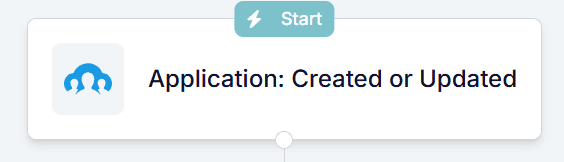
Step 3: Add a filter
Once you’ve set up the trigger, add filters so the automation only runs under specific conditions. You can add filters directly to the trigger, ensuring the automation only runs when specific conditions are met. You can also create them as a separate building block, which is especially useful when you need multiple filter sets for more complex workflows. Follow these steps: Example filter: If Outcome equals Declined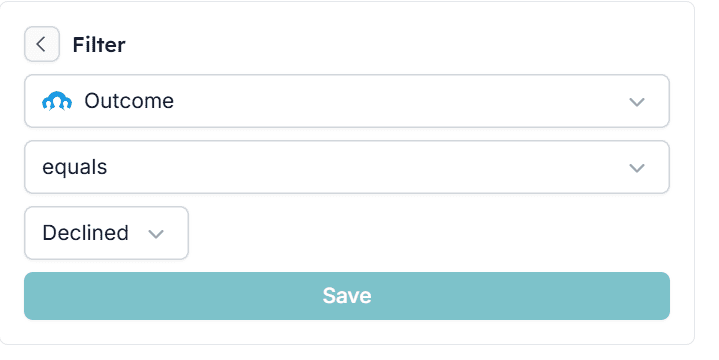
Step 4: Add a delay
In some cases, you may want to introduce a delay before executing the automation. A delay is when the automation waits a certain amount of time before performing the next action. Here’s how to add it: Example delay: 1 day (e.g., to inform a candidate about landing the job before sending a post-placement survey)
Step 5: Set up the ‘Send Email’ task
Next, configure the task to send the Candidate NPS survey. Follow these steps:5.1 Add a block from the + and then click Message
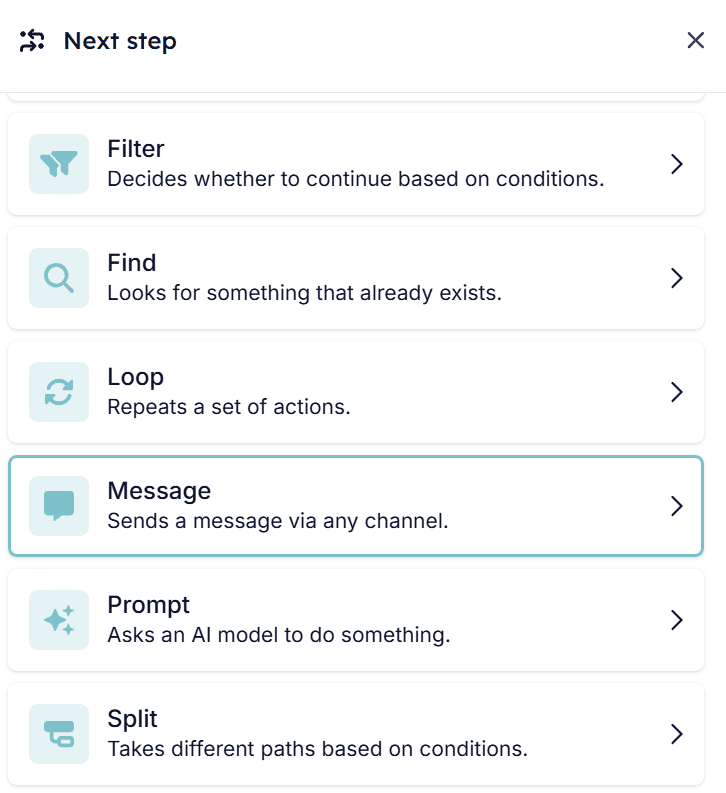
5.2 Select the type of message you want to send
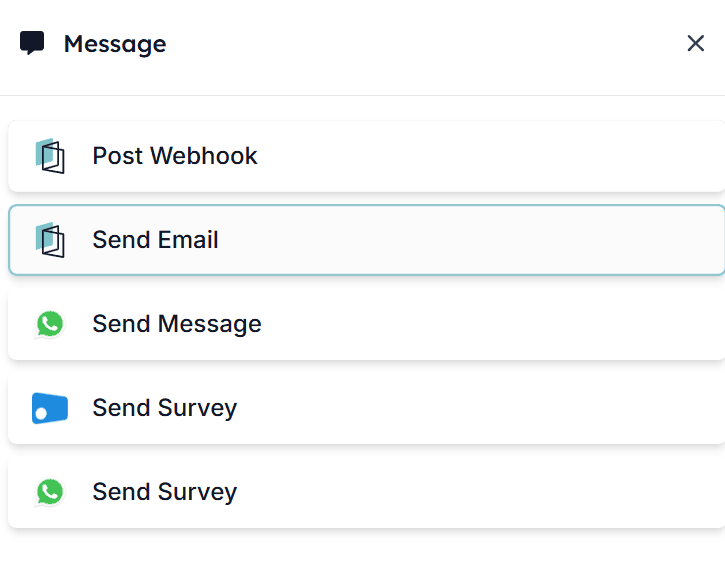
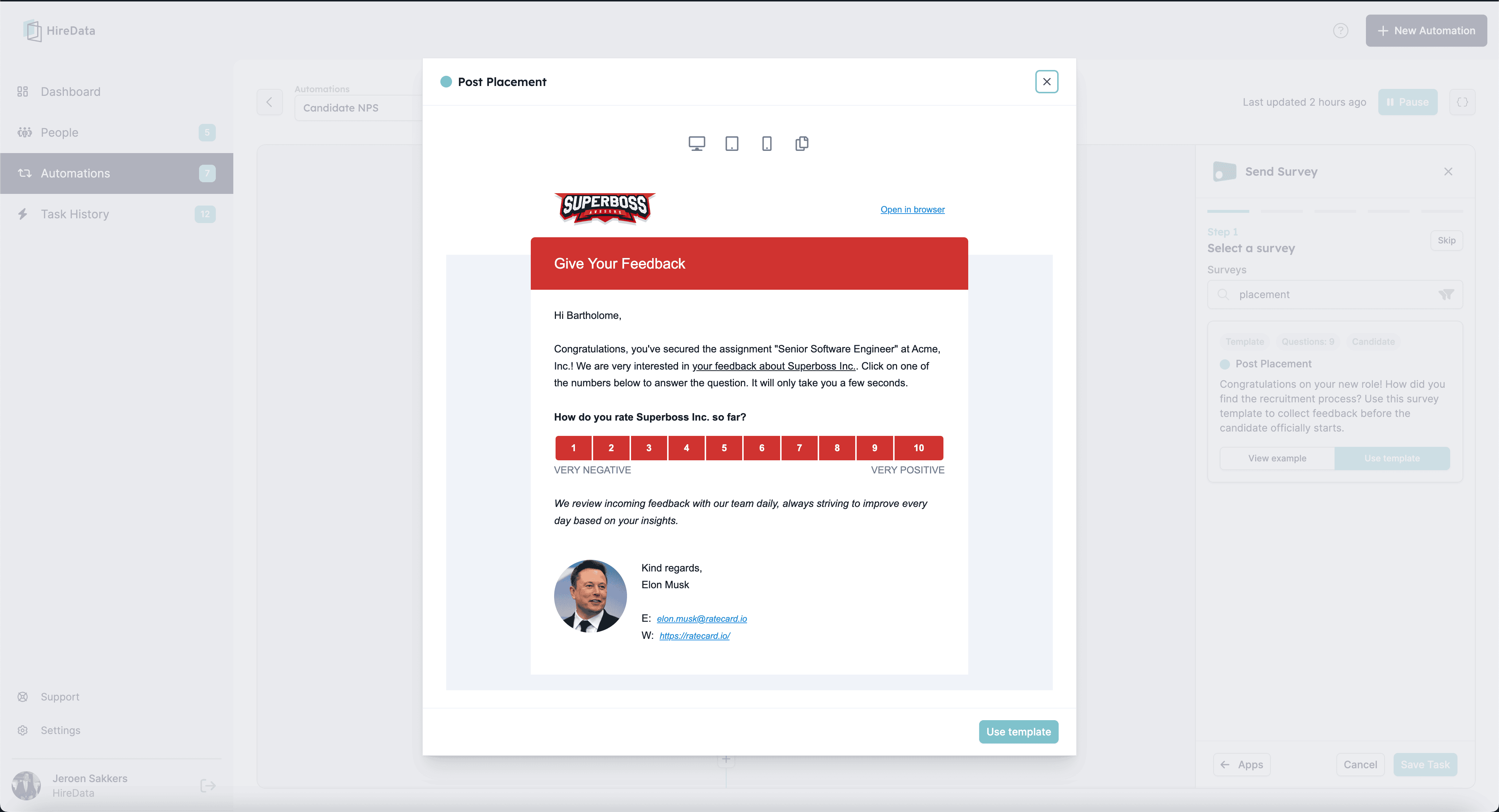
5.3 Select the template you want to use
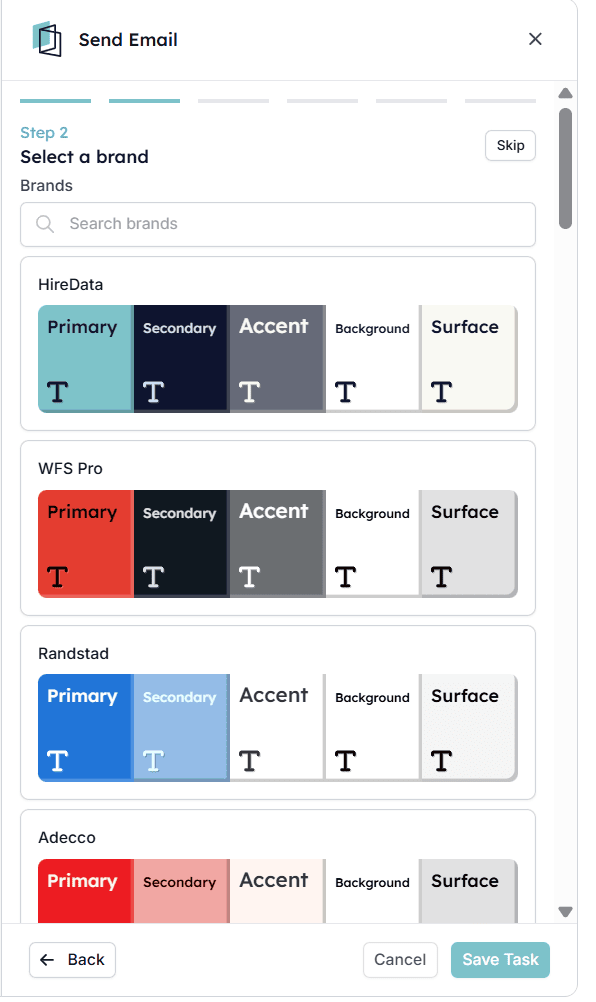
5.4 Select the branding of your email
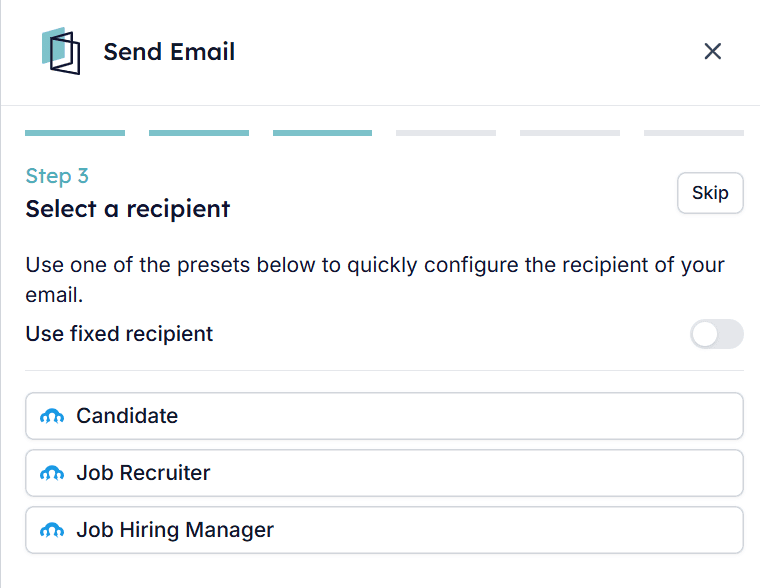
5.5 Select the recipient of the message
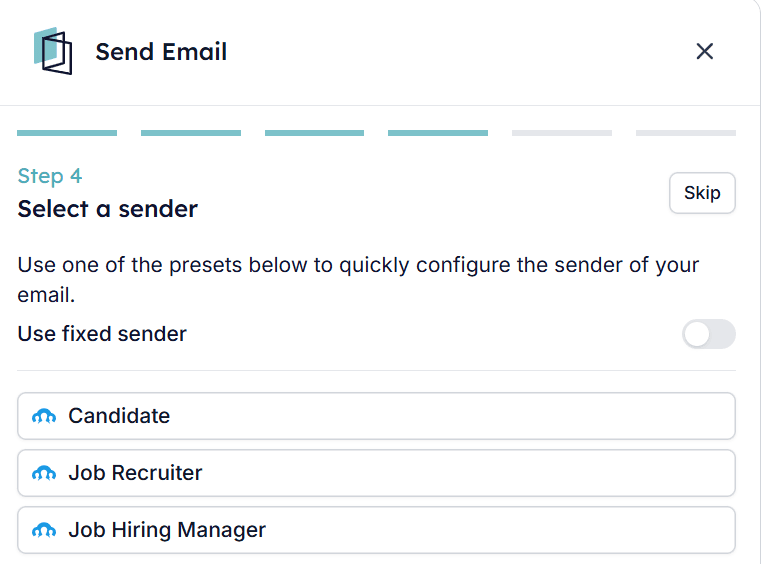
5.6 Specify the sender of the survey
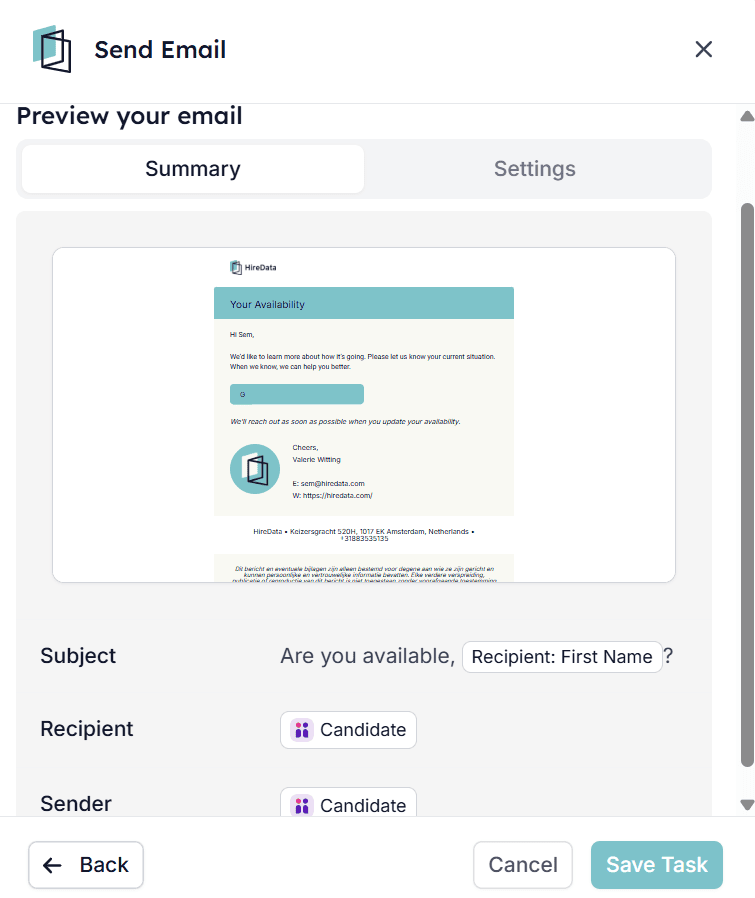
5.7 Ensure all settings are correct and save your task
5.8 Review the automation
After you set up your first automation, review it to make sure everything is set up correctly and runs smoothly. Here is how the example automation in this guide will work: When an application is updated to Declined, HireData will receive an event from Recruitee. Then the automation will wait one day while skipping weekends to avoid delays (optional). After this short pause, the candidates who meet the criteria will receive a personalised email. The email addresses them by name and includes a feedback form. This approach makes the rejection process more thoughtful and professional, while also giving you the chance to collect valuable feedback from candidates to improve the hiring experience.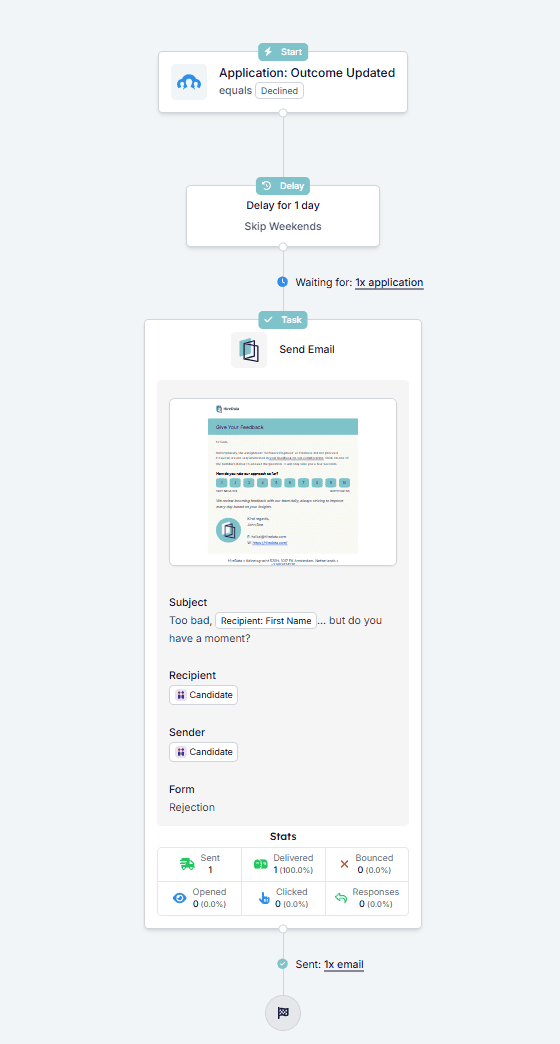
Step 6: Activate your automation
Once you’ve completed the setup, it’s time to activate your automation. With this step, your Recruitee automation is ready to go, streamlining your recruitment processes effortlessly. Click the Activate button to turn your automation on