

Step 1: Set up the trigger
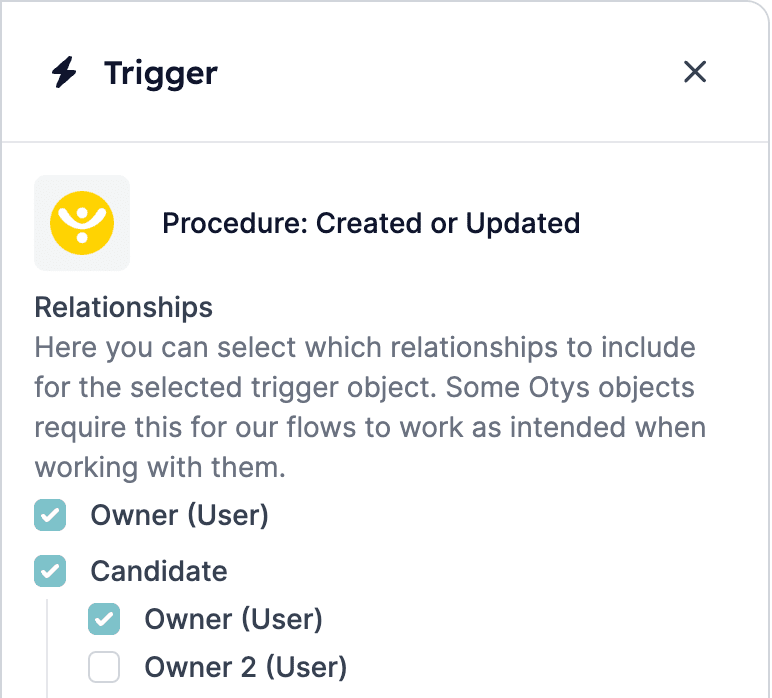
After you’ve set up the connection with OTYS, the first step in setting up an OTYS automation is to define the trigger. A trigger makes sure HireData “listens” to certain events occurring within OTYS. Select all relationships you’ll need later on. For example, select a candidate when you want to send them a survey in a later step of the automation. Here’s how to do it: Example trigger: Procedure: Created or Updated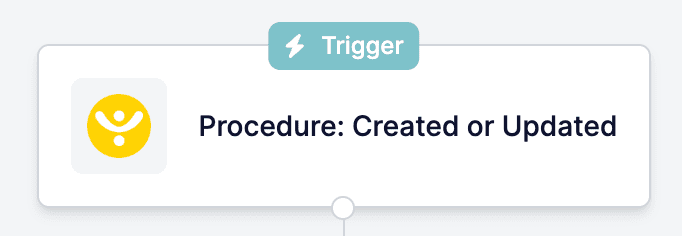
Step 2: Add a filter
Once you’ve set up the trigger, add filters so the automation only runs under specific conditions. Follow these steps: Example filter: If procedure status 2 equals one of these stages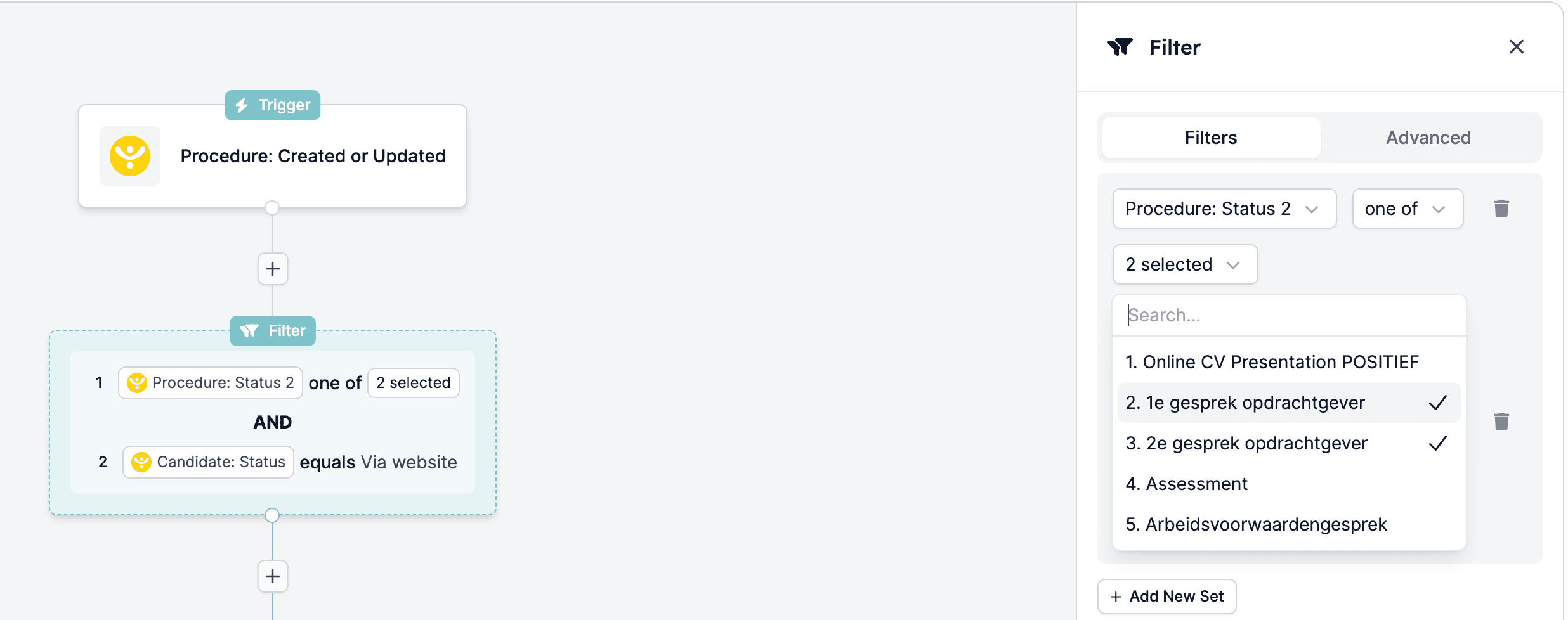
Step 3: Add a delay
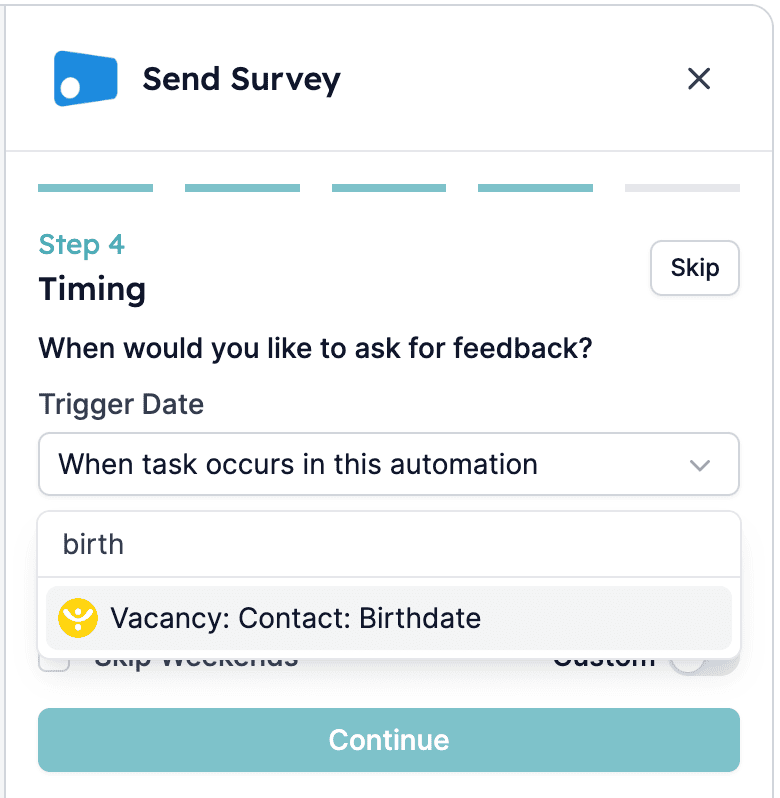
In some cases, you may want to introduce a delay before executing the automation. Here’s how to add a delay: Example delay: 1 day (e.g., to inform a candidate about landing the job before sending a post-placement survey)
Step 4: Set up the ‘Send Survey’ task
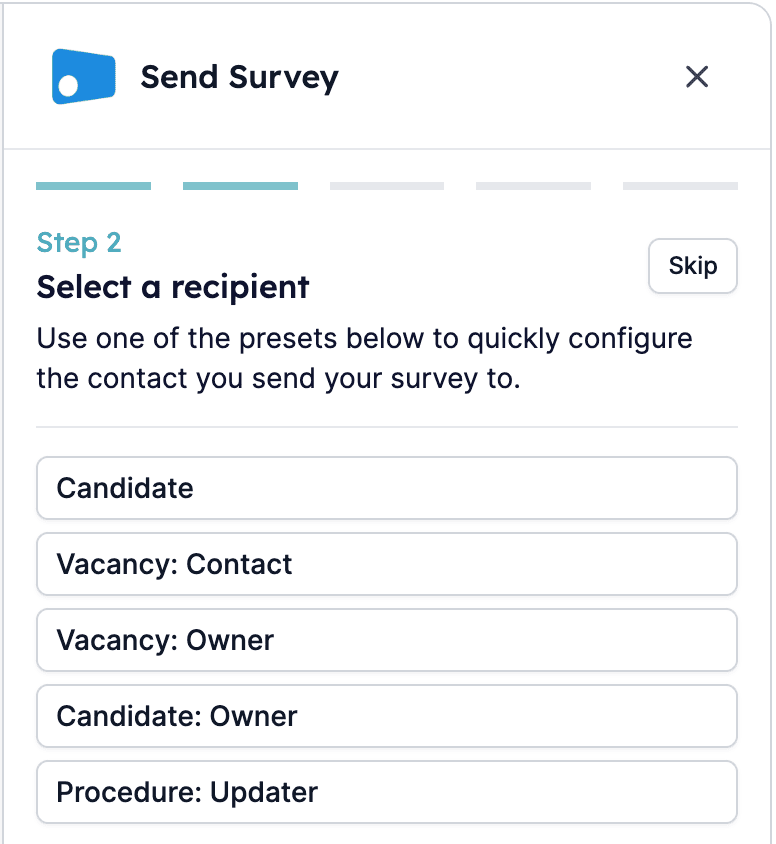
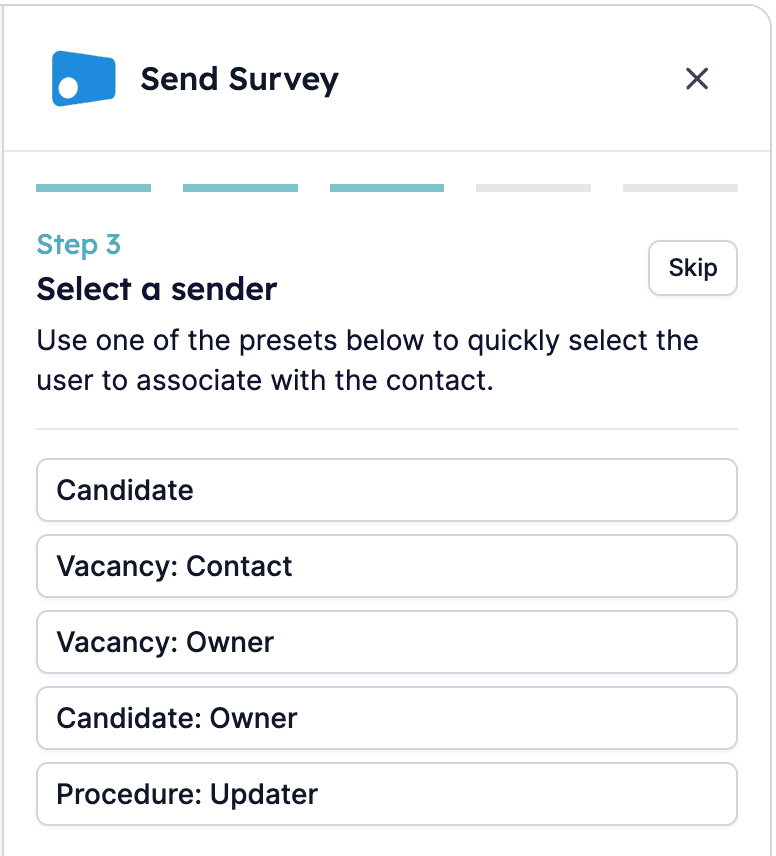
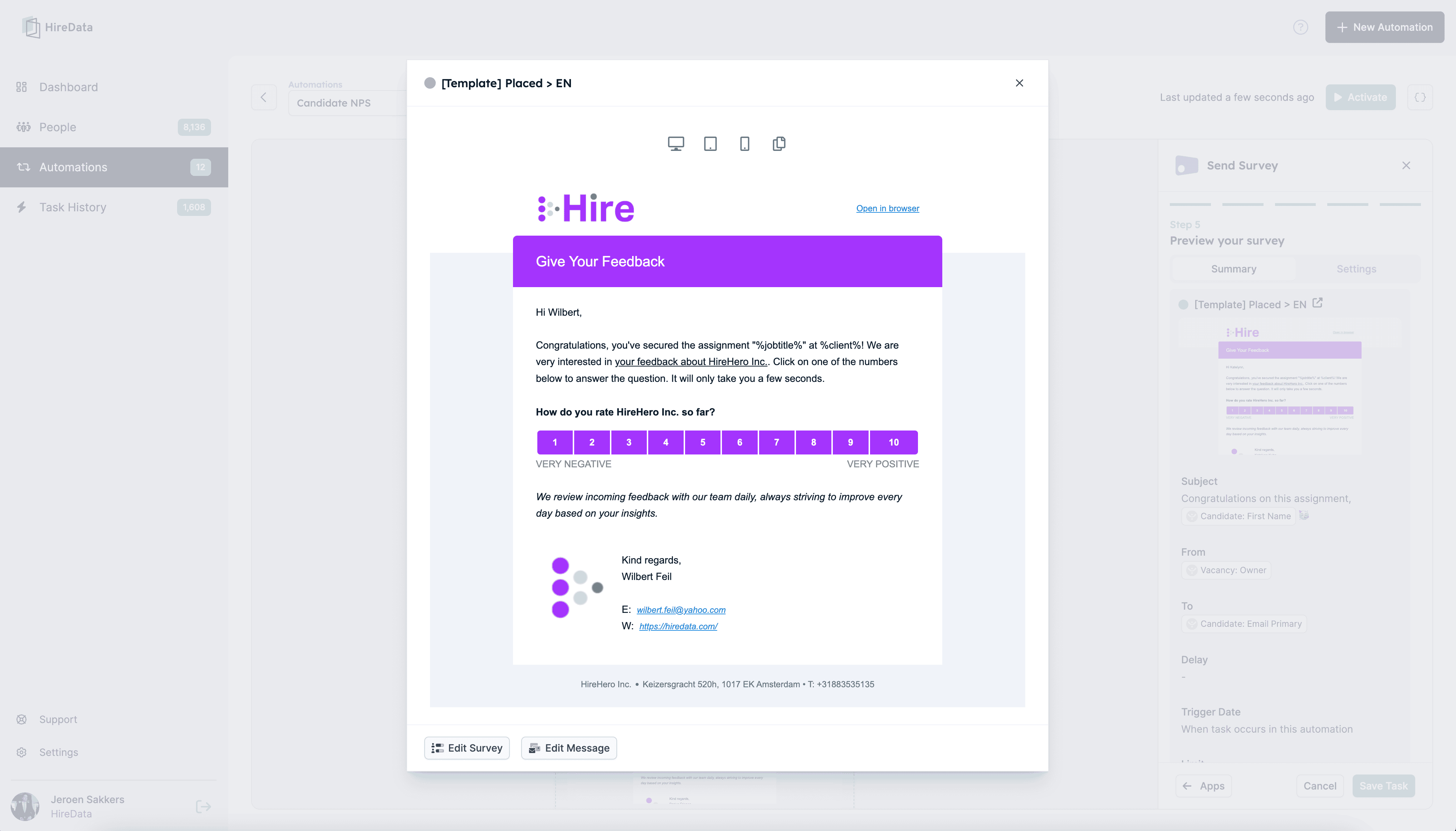
Next, configure the task to send the Candidate NPS survey. Follow these steps: 4.1. Select your survey template: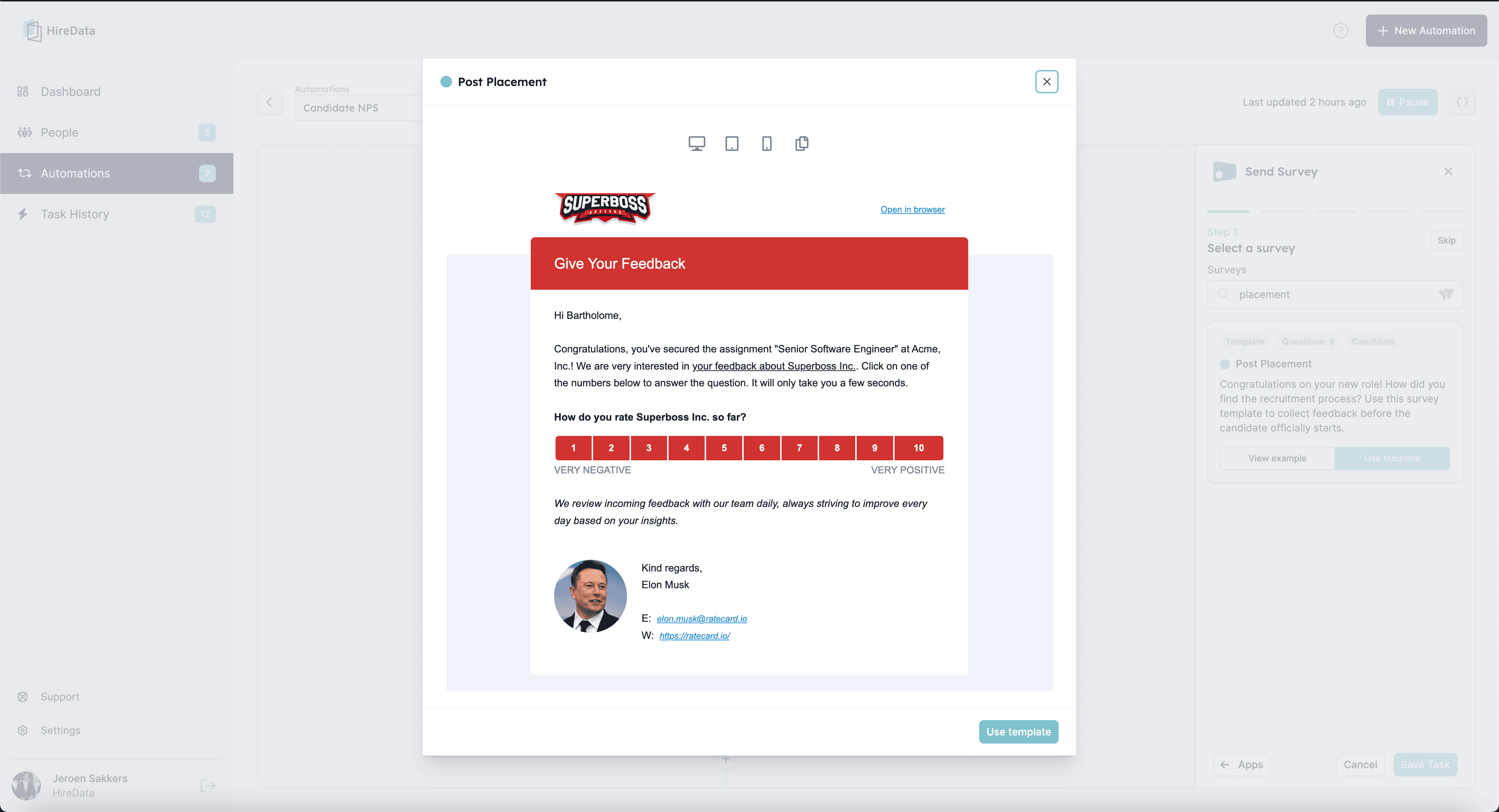
Step 5: Activate your automation
Once you’ve completed the setup, it’s time to activate your automation. With this step, your OTYS automation is ready to go, streamlining your recruitment processes effortlessly. Click Activate to turn your automation on