

How to recognize this issue
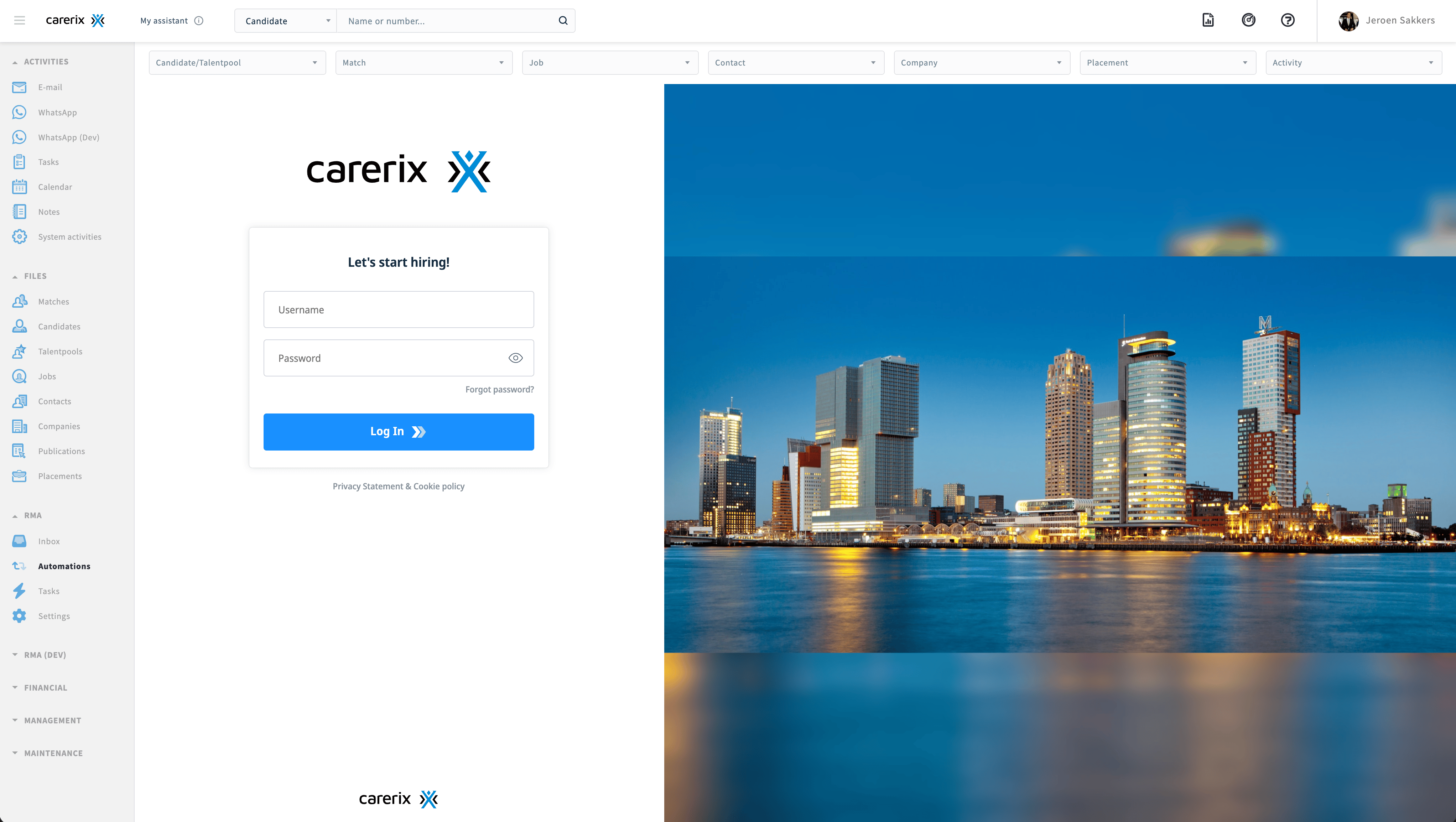
Blocked cross-site cookies can cause the HireData RMA or another Carerix Marketplace integration to:- Show a Carerix login screen even though you are already signed in
- Return to the login screen immediately after you sign in
- Remain white or gray instead of loading
- Show a connection refused or session expired message
Why this happens
Carerix Marketplace loads HireData inside a cross-site iframe. The iframe starts an OpenID Connect login with the Carerix Identity Server. Carerix SSO then uses your existing Carerix session to authenticate you without asking for your credentials again. If your browser prevents that session cookie from being used inside the iframe, the Identity Server cannot recognize your existing session. The embedded app can then display a login screen or enter a login loop. This is a known limitation of browser privacy controls and Carerix’s iframe-based Marketplace SSO. It is not a defect in HireData’s OpenID Connect implementation. Carerix describes the expected flow in its Marketplace authentication and SSO documentation.Comet and Google Chrome
Comet is based on Chromium, so you can use the same cookie exception as in Google Chrome.1
Open the third-party cookie settings
Open your browser’s Settings, then go to Privacy and security > Third-party cookies.
2
Add Carerix to the allowed sites
Under Sites allowed to use third-party cookies, click Add.Enter the following address exactly and click Add:The
[*.] prefix includes your Carerix environment and all other carerix.net subdomains.Carerix also recommends allowing its Identity Server domain. Add this as a separate entry:3
Save and reload Carerix
Return to Carerix and reload the page. Open the HireData RMA again. It should now open without showing the Carerix login screen.
Allow cookies from the address bar
If your browser displays a blocked third-party cookies icon in the address bar, you can also click that icon and turn on Third-party cookies for the current site. Reload the page afterward. Adding[*.]carerix.net in Settings is the more reliable option because it covers every Carerix environment on that domain.
Safari on macOS
Safari does not support a website-specific exception for this type of cross-site tracking protection. You must change the setting for the entire browser.1
Open Safari privacy settings
In the Safari menu, click Settings, then open Privacy.
2
Allow cross-site cookies
Turn off Prevent cross-site tracking. Make sure Block all cookies is also turned off.
3
Reload Carerix
Close Settings, return to Carerix, and reload the page. Open the HireData RMA again.
If you cannot change the setting
Your organization may manage your browser settings. If the option is unavailable or locked, ask your IT administrator to allow third-party cookies for[*.]carerix.net and [*.]carerix.io.
In Comet or Chrome, these exceptions allow Carerix to keep you signed in inside the HireData iframe. They do not enable third-party cookies for every website.