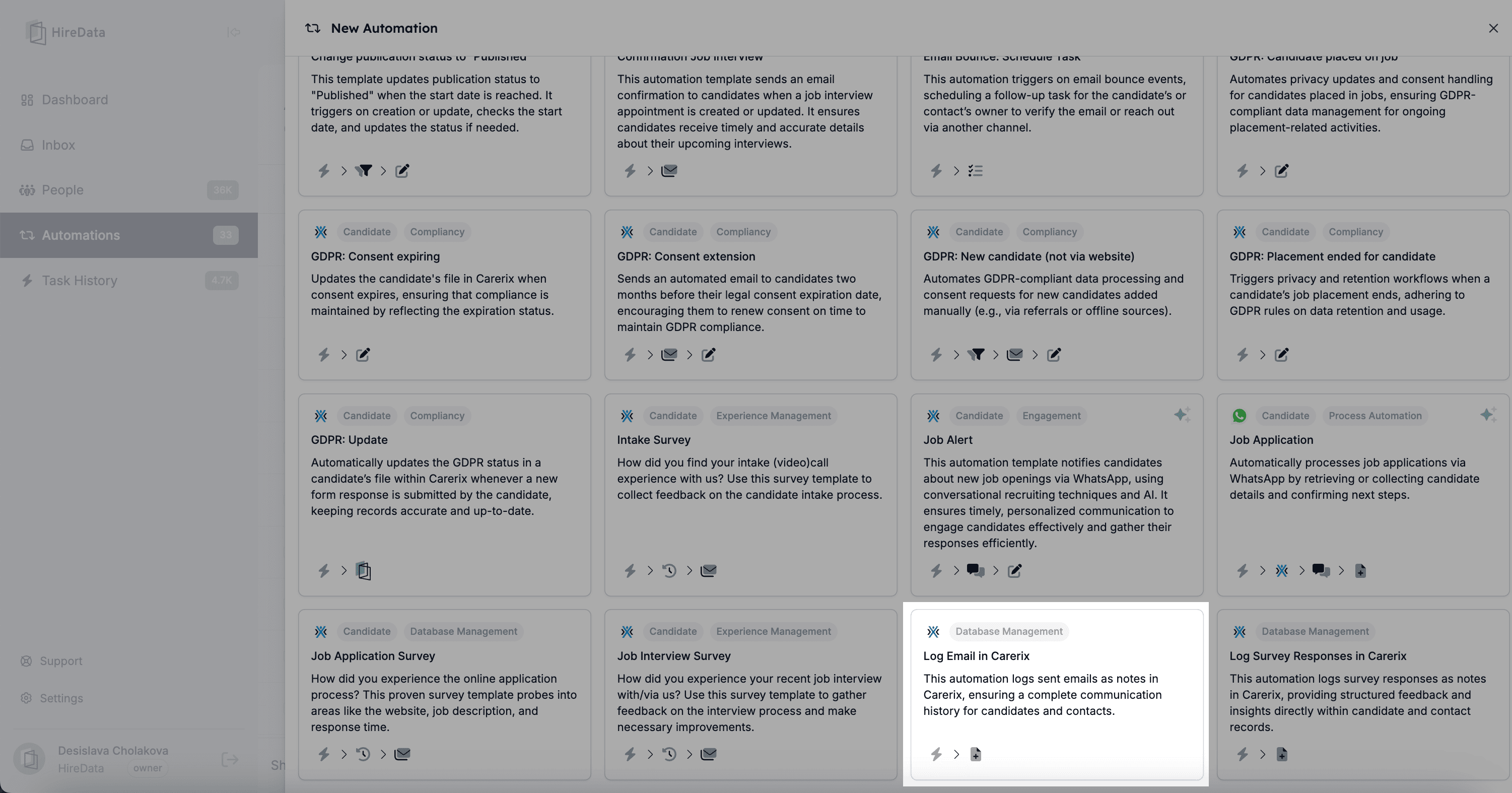
Step 1: Create a new automation
By integrating HireData with Carerix, you can automatically create WhatsApp conversation records in Carerix whenever a conversation is completed. The automation captures relevant details such as sender, recipient, subject, body content, and when the conversation has started or ended. This ensures that every conversation is properly logged.1.1. Navigate to the automations section in HireData and click Create New Automation
1.2. Select the “Log email in Carerix” template
Step 2: Add a trigger
2.1. Review the app connection
HireData selects it automatically. If you have multiple connections with Carerix, make sure it’s the correct one.2.2. Select object
HireData configures the Message object automatically, so change it to Conversation using the Edit button. HireData supports these object options in this case: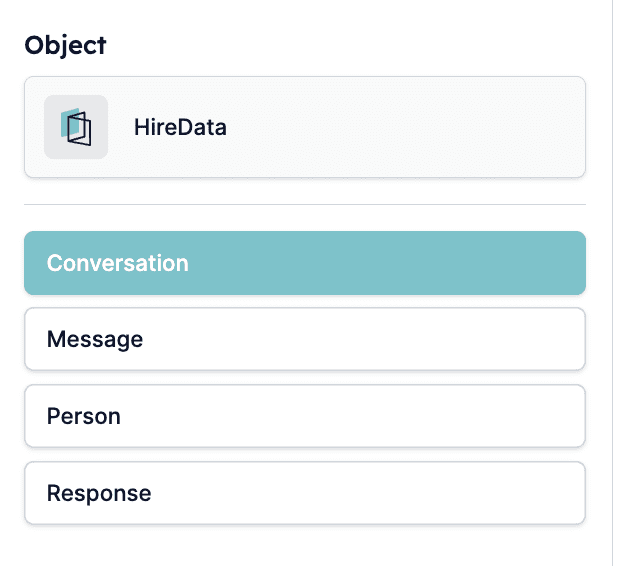
2.3. Set a trigger
Set the trigger to the conversation Started or Ended depending on when you want to trigger the automation, e.g. when the conversation has just started or ended.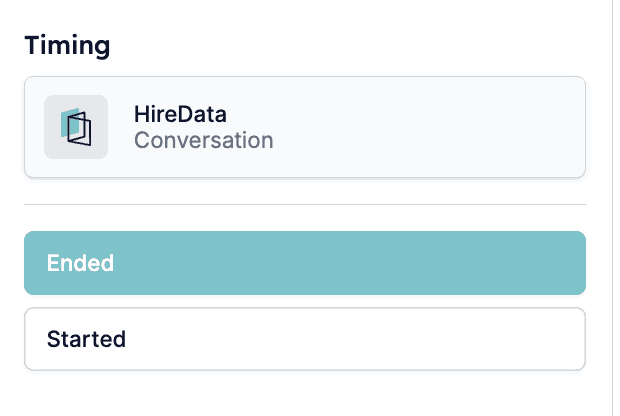
Step 3: Set up the Add X to Carerix task
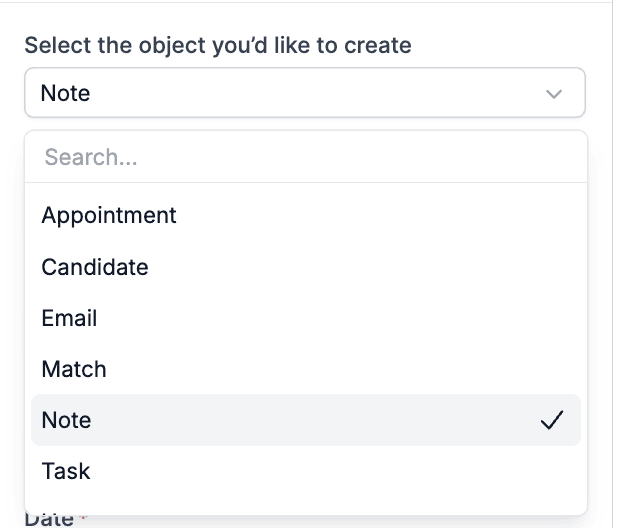
This task is part of the automation template. In it, you select an object and fill in the required fields so HireData logs the conversation data correctly in Carerix. You can select any of these objects to be added to your app:- Appointment: To schedule meetings or interviews
- Candidate: To add a new candidate to the system
- Email: To log email communications
- Match: To connect candidates with job opportunities
- Note: To record conversation details or observations
- Task: For follow-up actions or to-do items