Step 1: Create or edit an automation
In your HireData account, navigate to the Automations section and either create a new workflow or open an existing one by clicking + New Automation.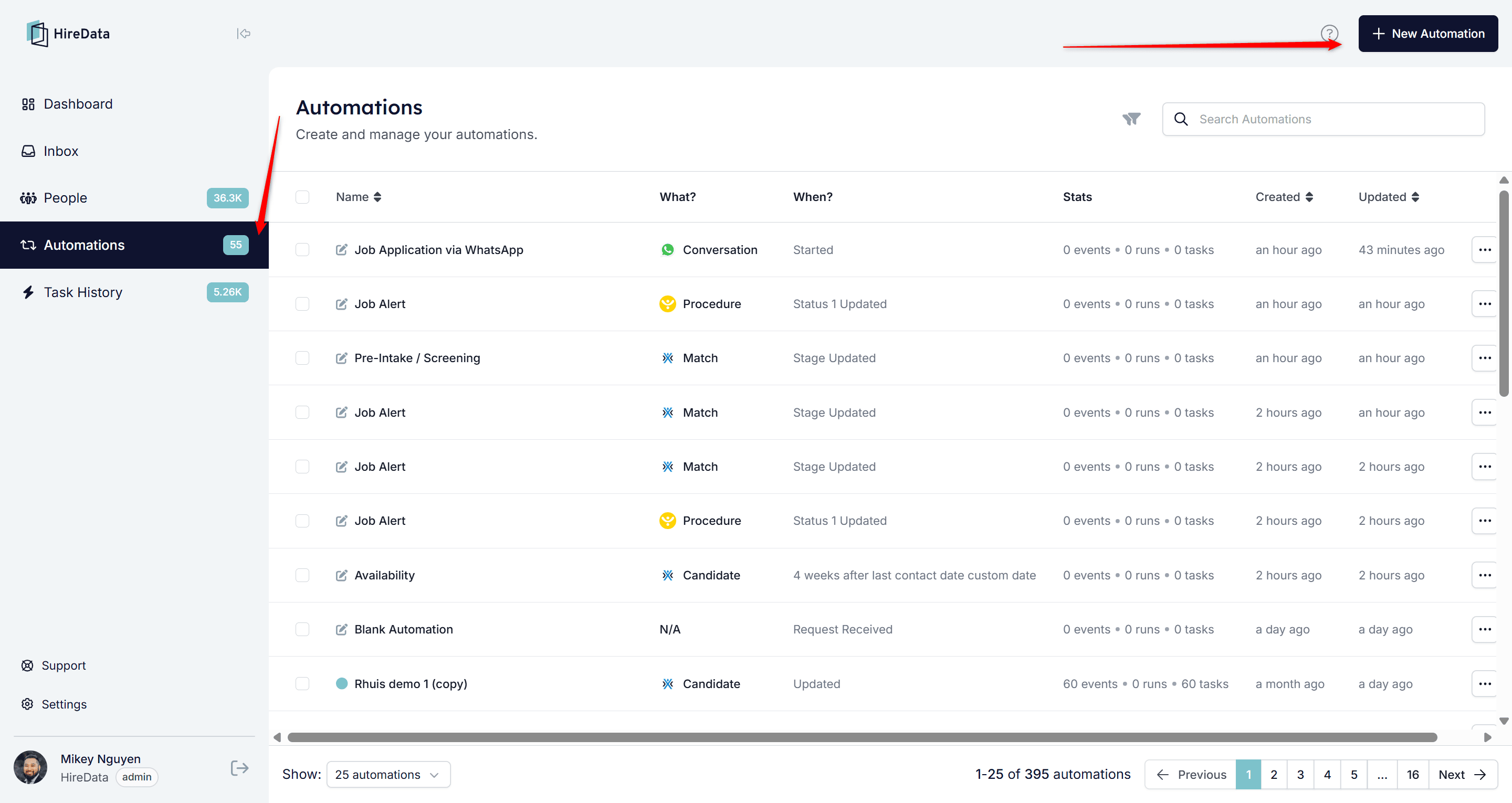
Step 2: Add the action
2.1. Click Blank Automation to start a new automation from scratch
Selecting Blank Automation creates a new automation.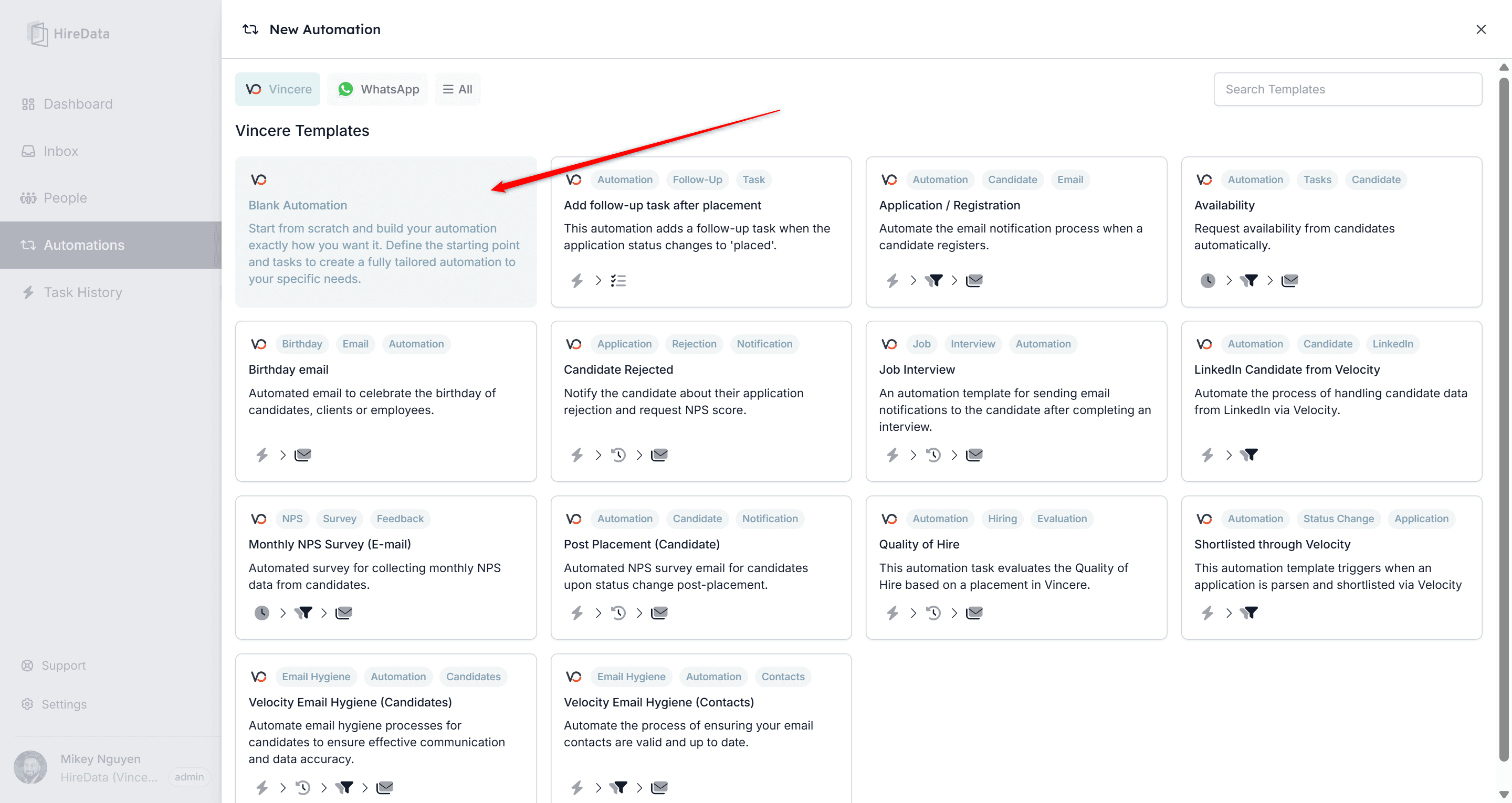
2.2. Click in the first building block/trigger to bring up the app panel and select Vincere
Click the first building block to select which app to link this to.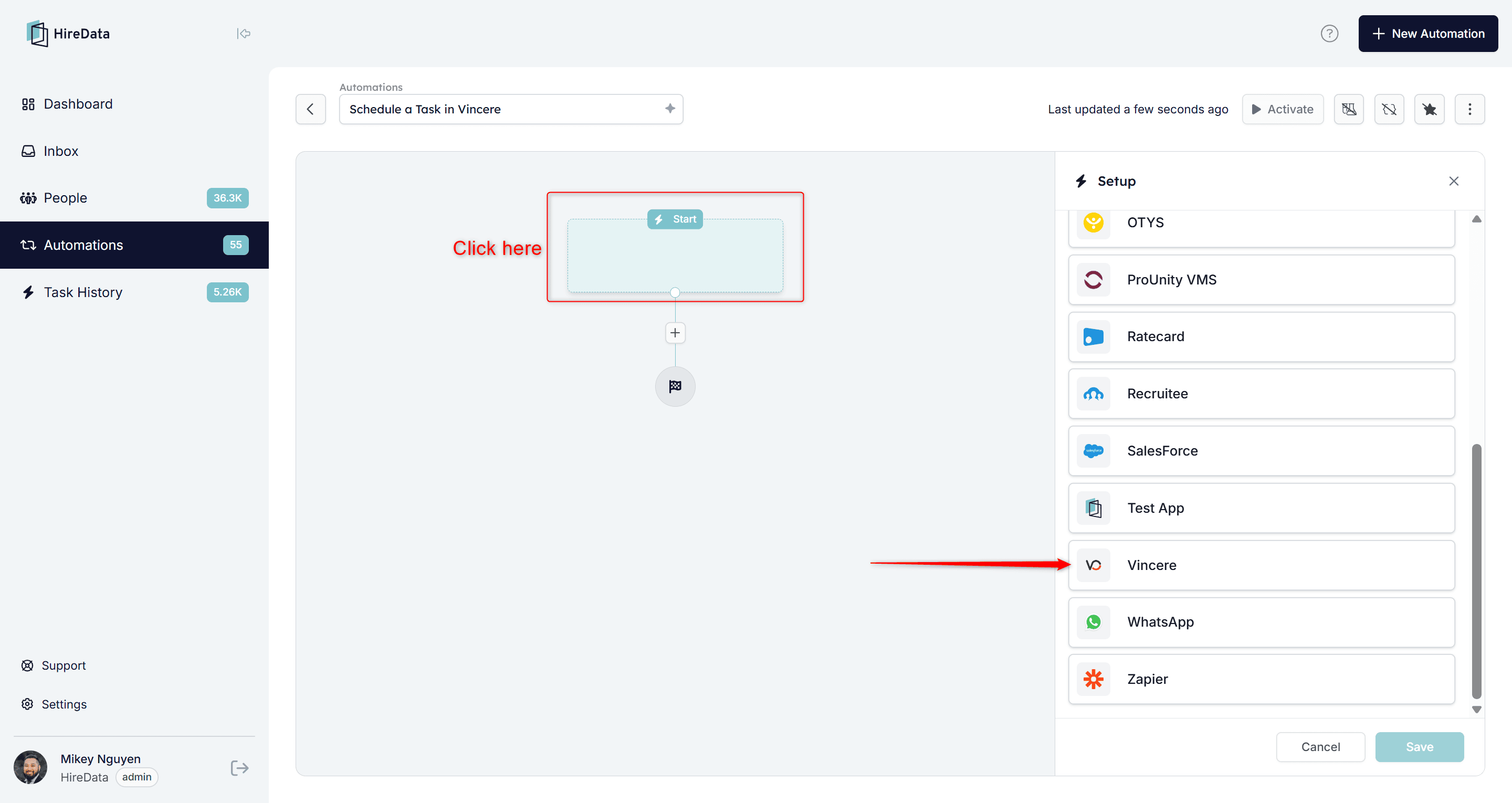
2.3. Select the trigger for the automation
Follow the setup steps to select how you would like this automation to trigger and click Save. Selecting the Object value for the app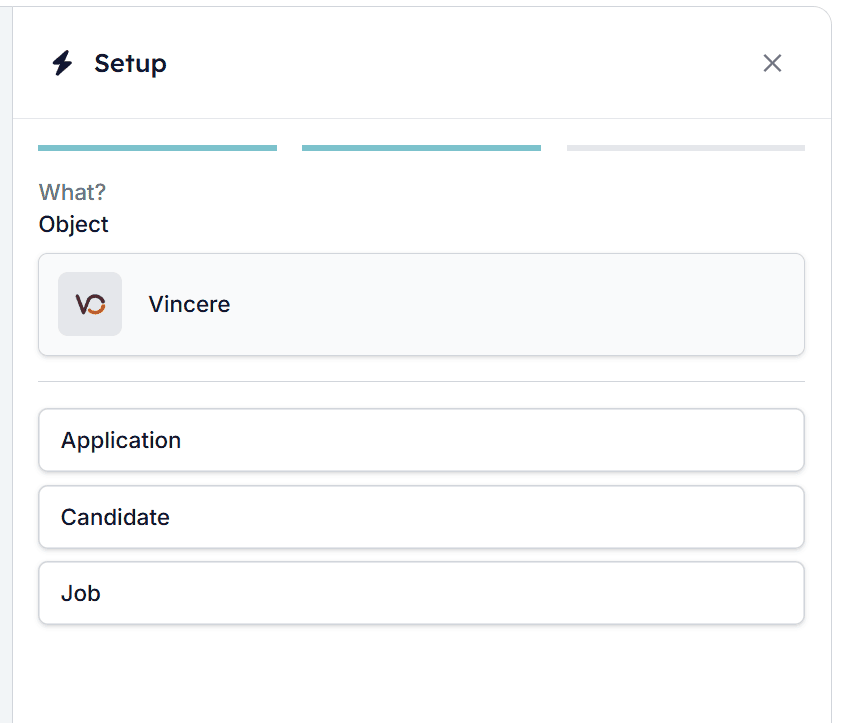
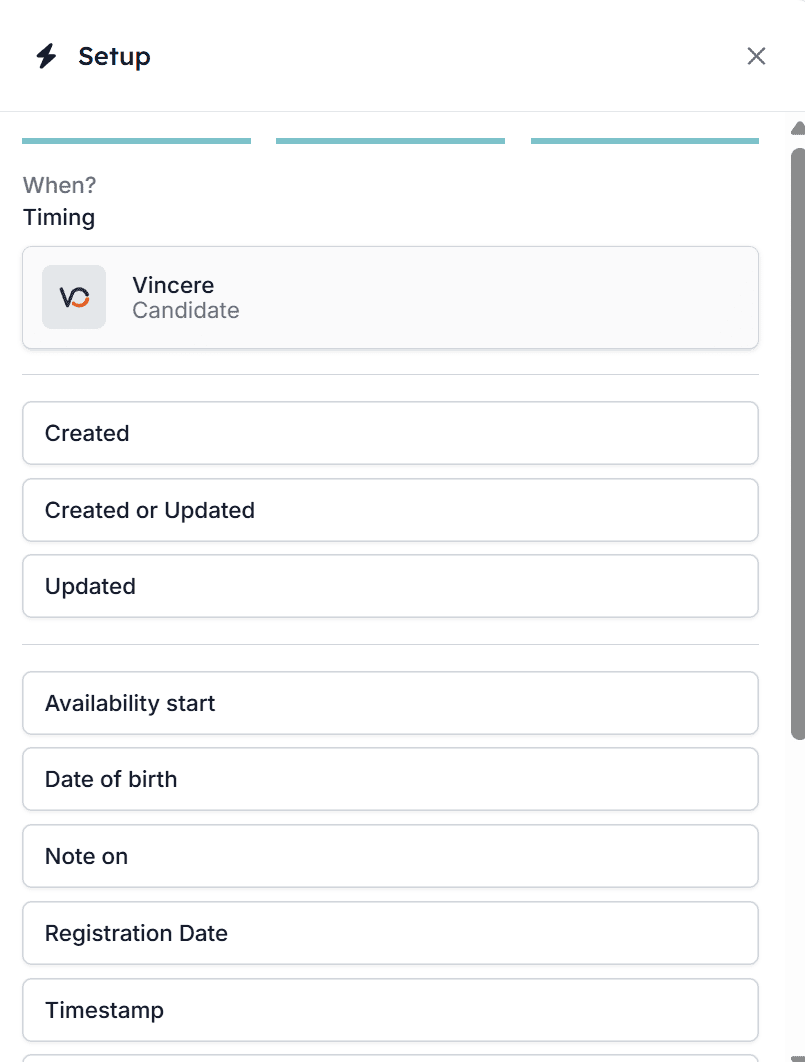
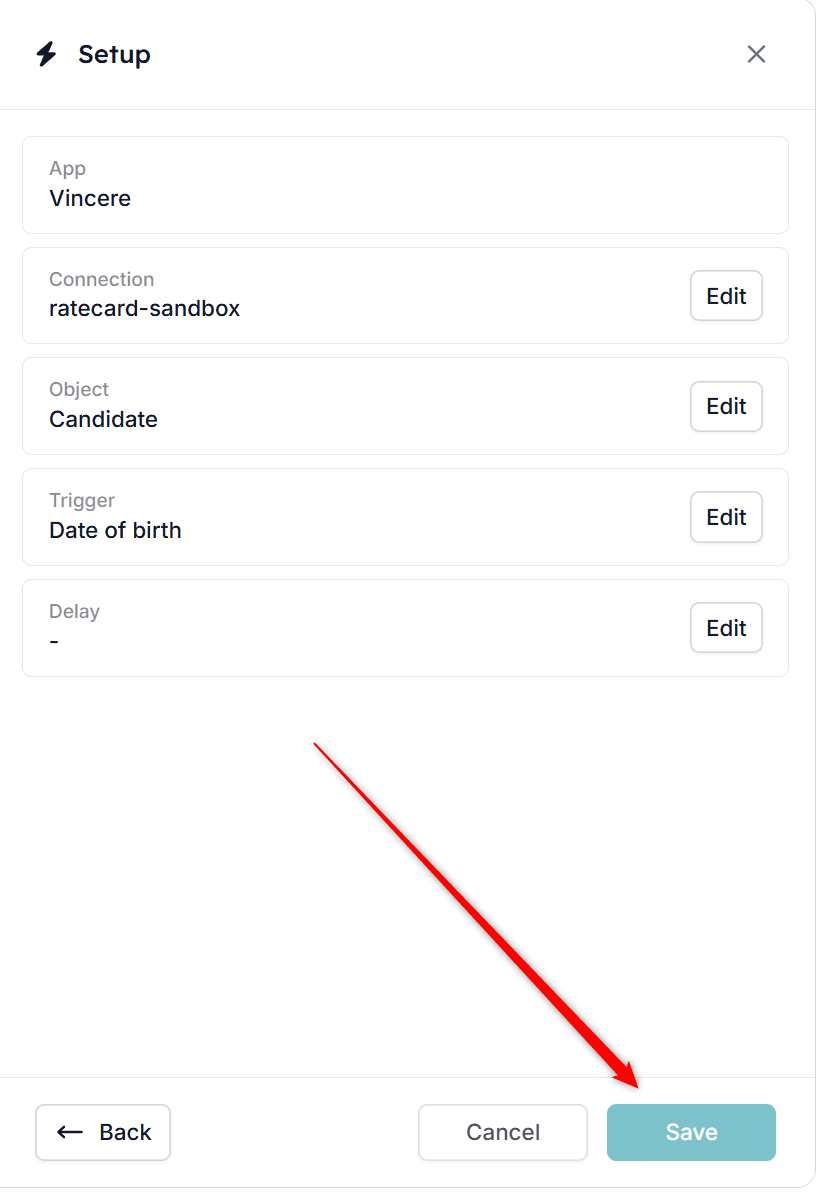
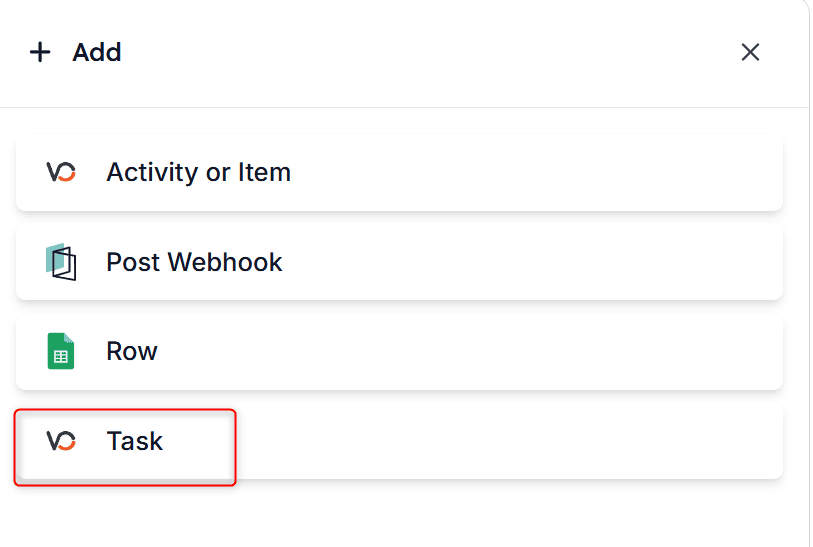
2.4. Click the 2nd building block to open the action panel and click Add to create a new task
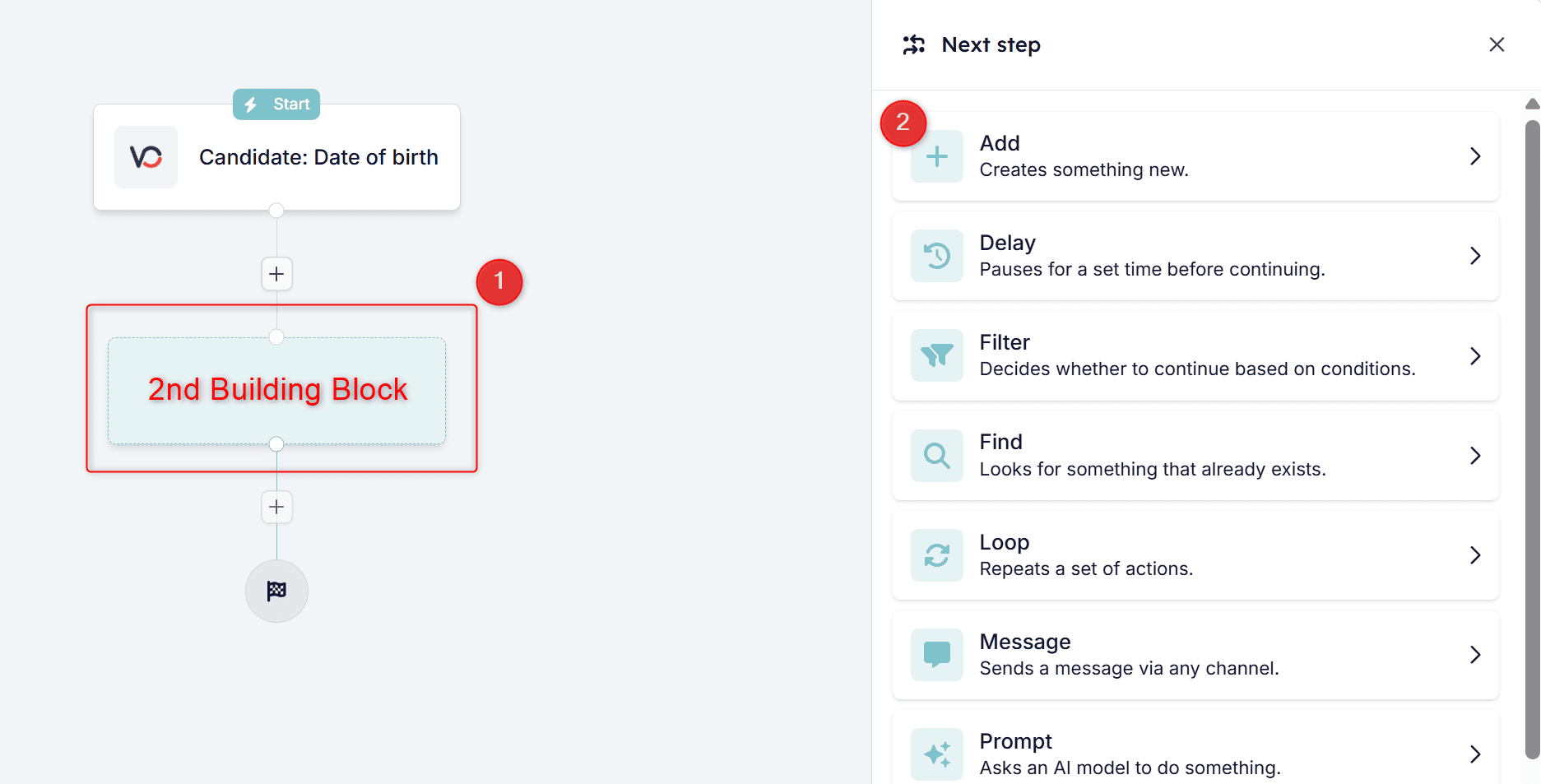
2.5. Navigate until you see the Vincere logo along with the text Task
Step 3: Fill in the task details
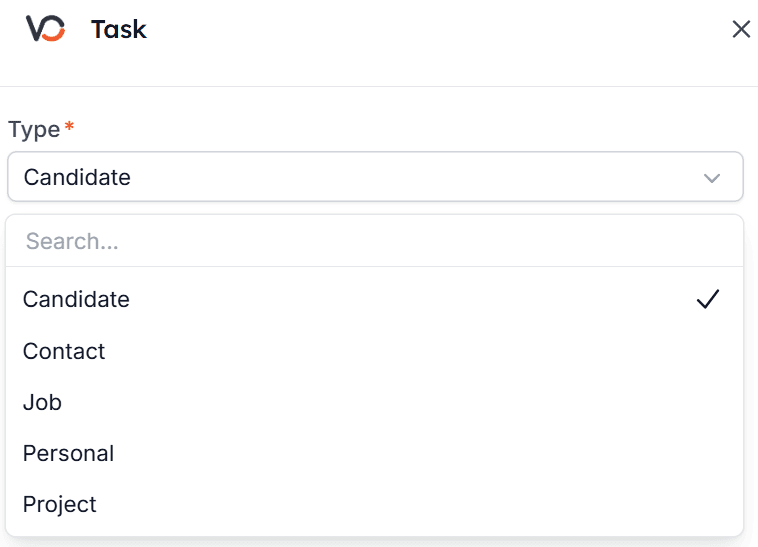
- Type: Select the Item Type you would like the Task to correspond to. This can be:
- Candidate - A task relating to the Job Seeker
- Contact - A task tied to the Client Contact
- Job - A task relating to a Job Order or Vacancy
- Personal - A task for your own use, such as reminders or admin duties
- Project - A task associated with a larger project or campaign
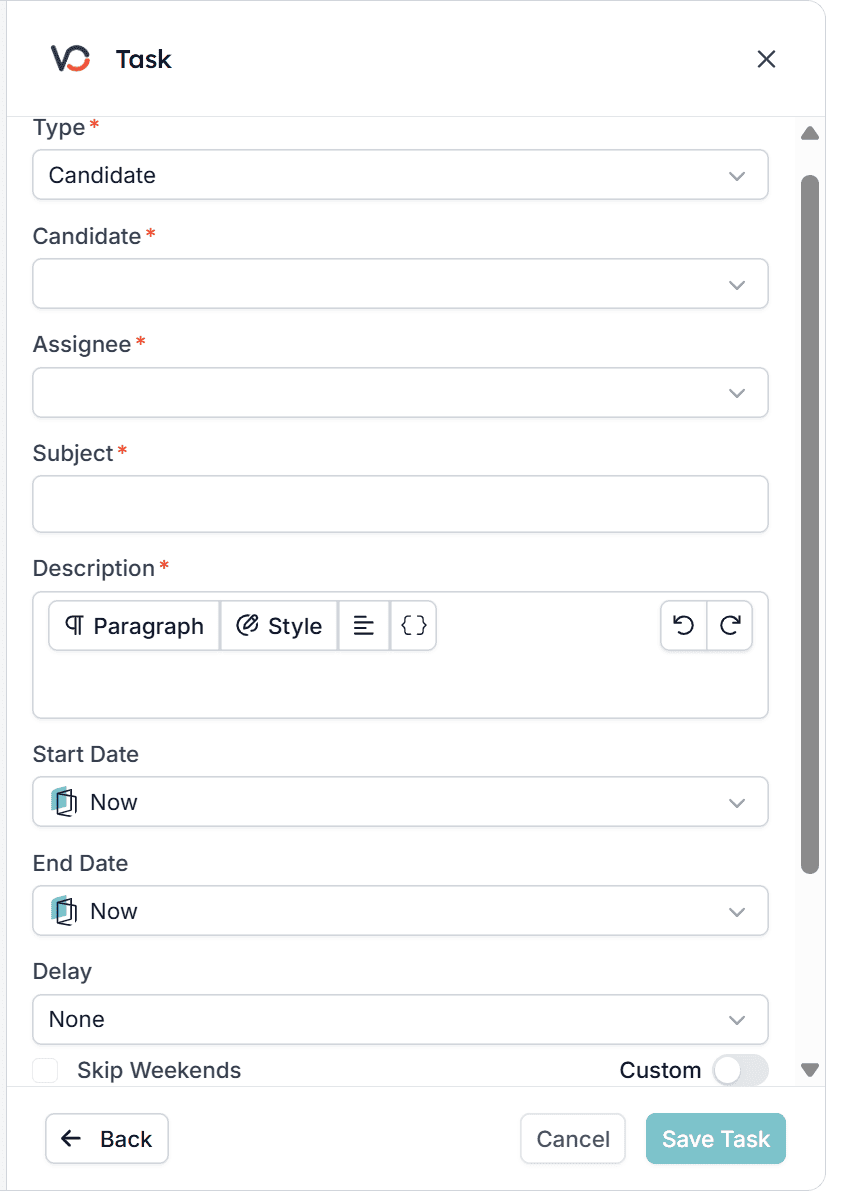
- Subject: Enter a clear and descriptive subject for the task (e.g., “Test project, local”)
- Description: Provide a detailed description of the task
- Start/End Date: Set the task’s start and end dates. You can also set a delay if you wish
- Reminders: Add a reminder to ensure the task is not forgotten
- Assignee: Assign the task to the relevant user in Vincere
Step 4: Save and test
Click Save Task to finalise the task configuration and run the automation workflow to test it.Step 5: Confirm the task
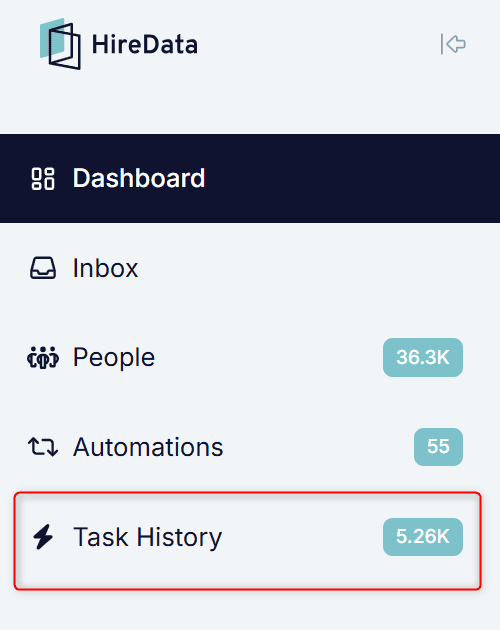
- HireData – Navigate to Task History to verify it was created.
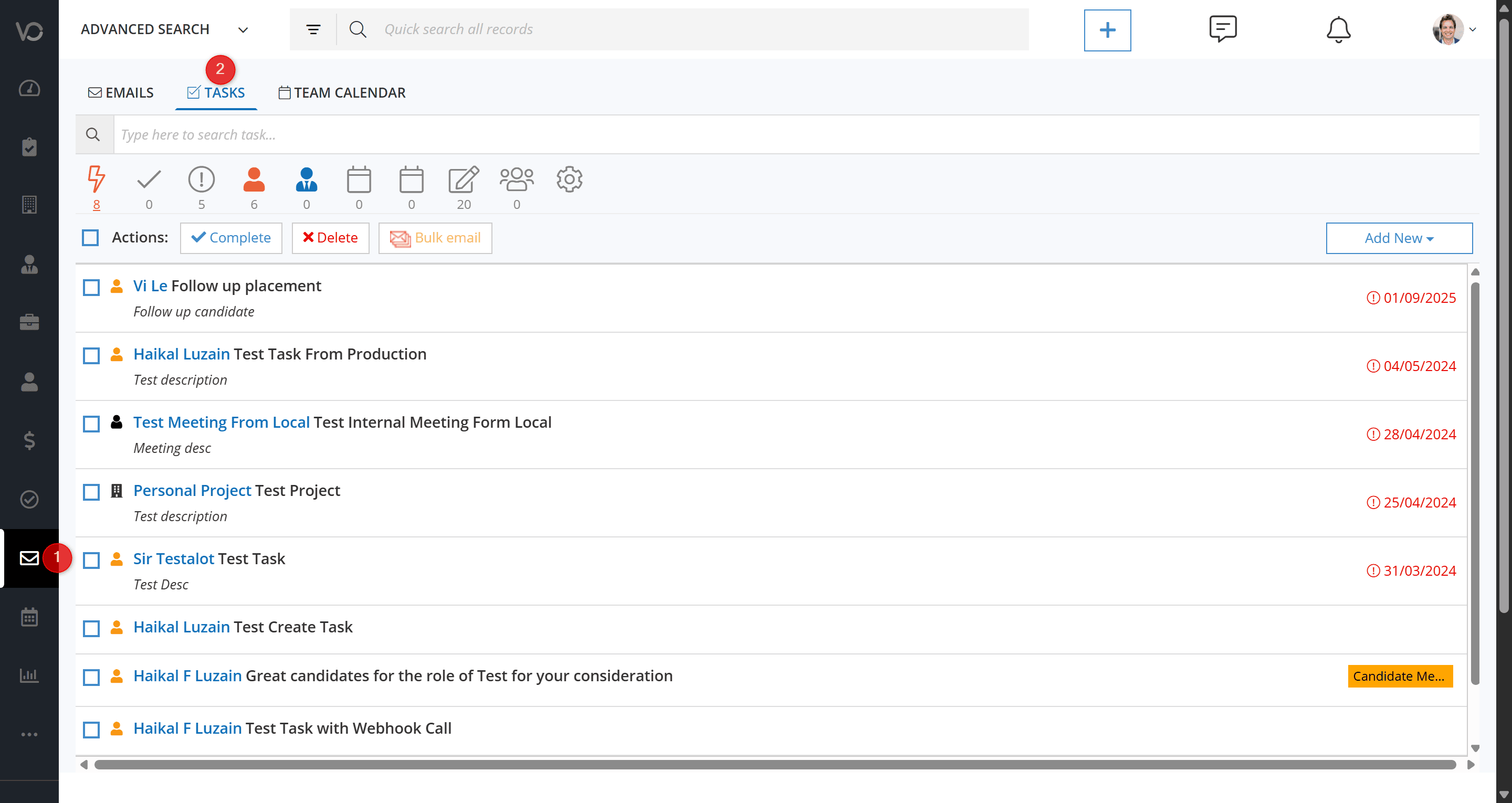
- Vincere – Open Email View → Task Tab.