Selecting how to test an automation
Navigate to the automation you want to test and click the test icon in the top-right corner of the screen. This opens the automation testing panel.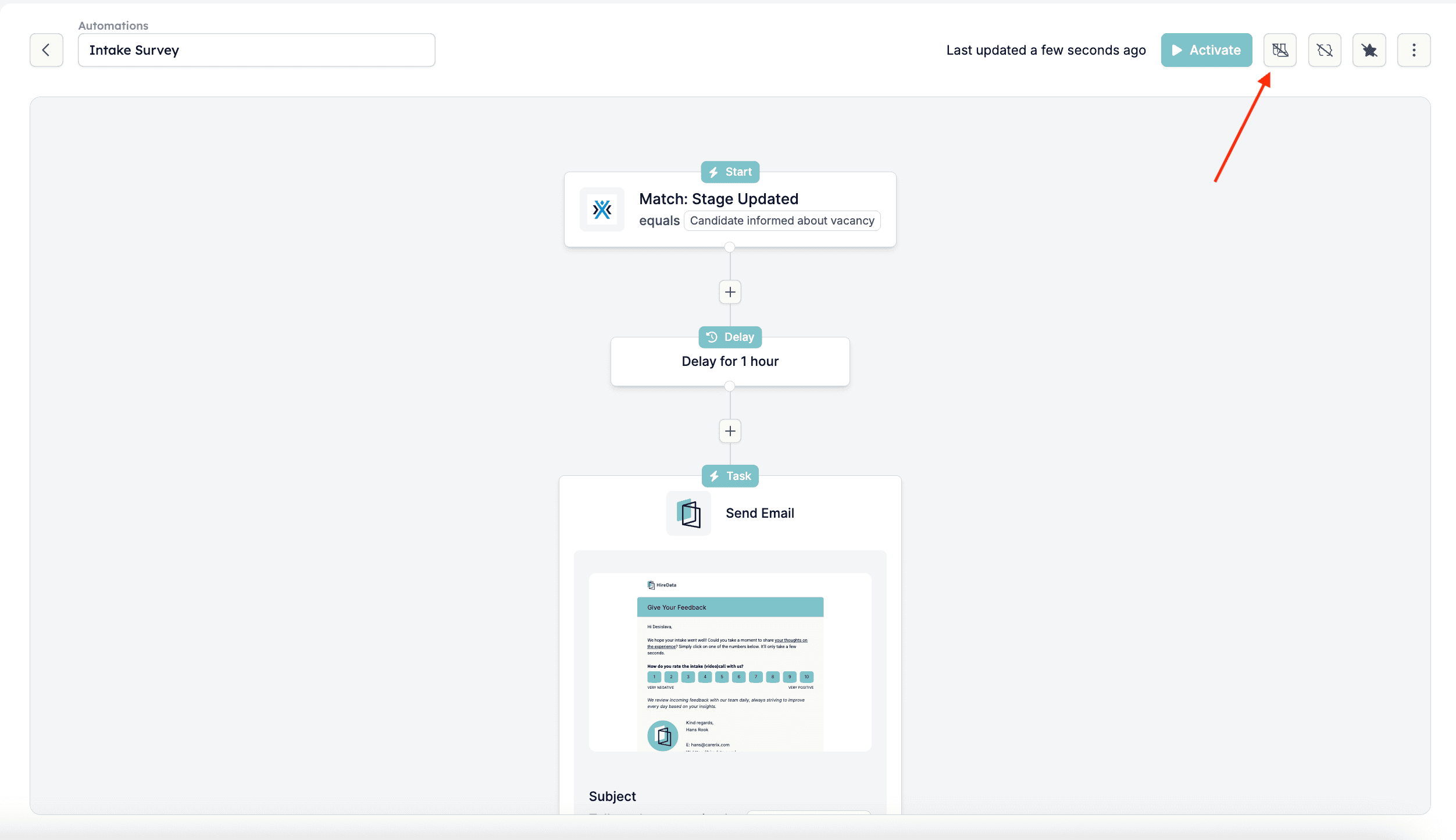
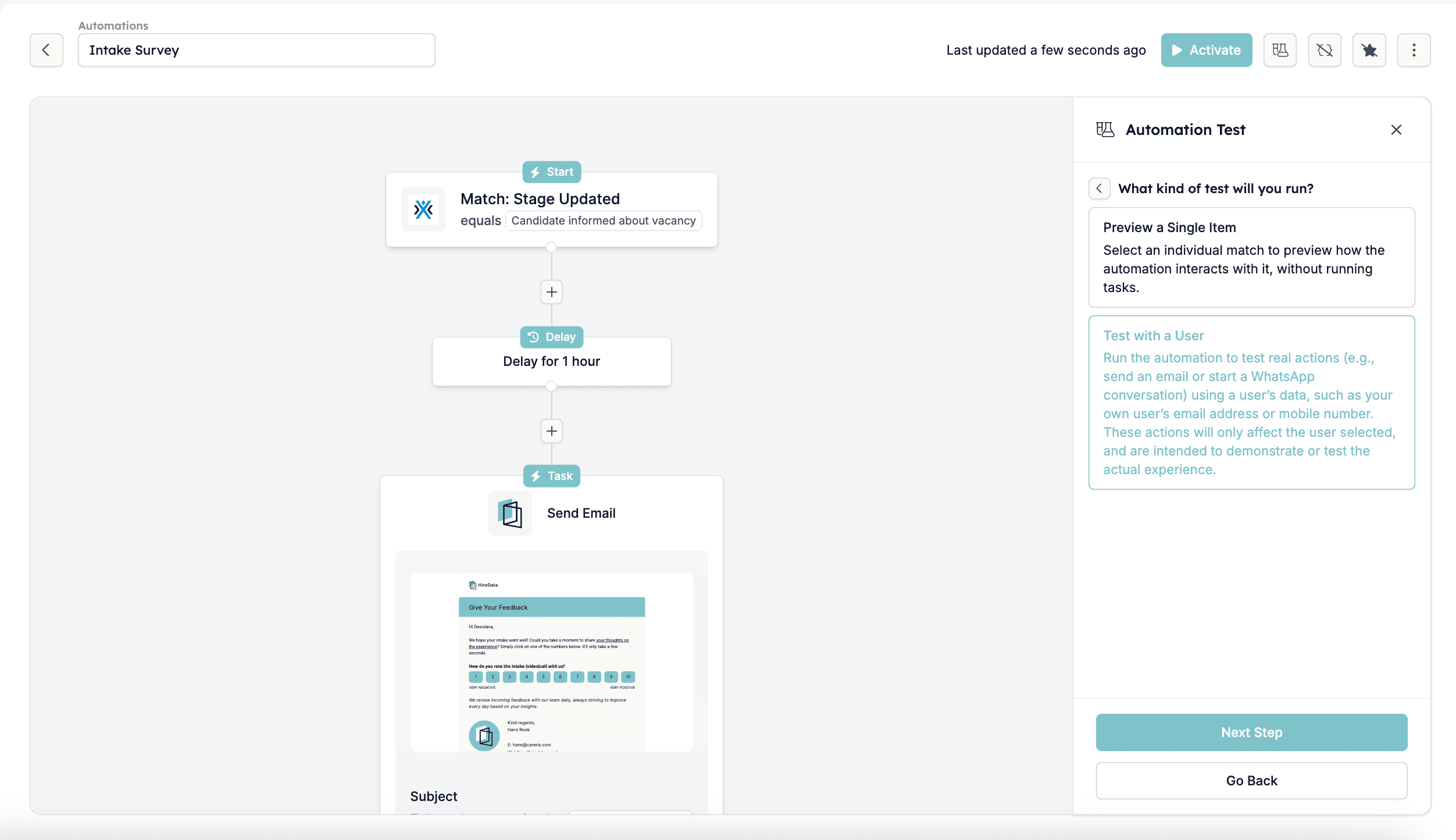
- Test with a User: This runs the automation using real user data, such as an email address or phone number. It simulates the actual experience of, for example, sending an email or starting a WhatsApp conversation.
- Preview a Single Item: This allows you to see how the automation would process an individual item without actually running tasks.
Testing with a user
This is the better choice if you want to see the whole experience of running an automation.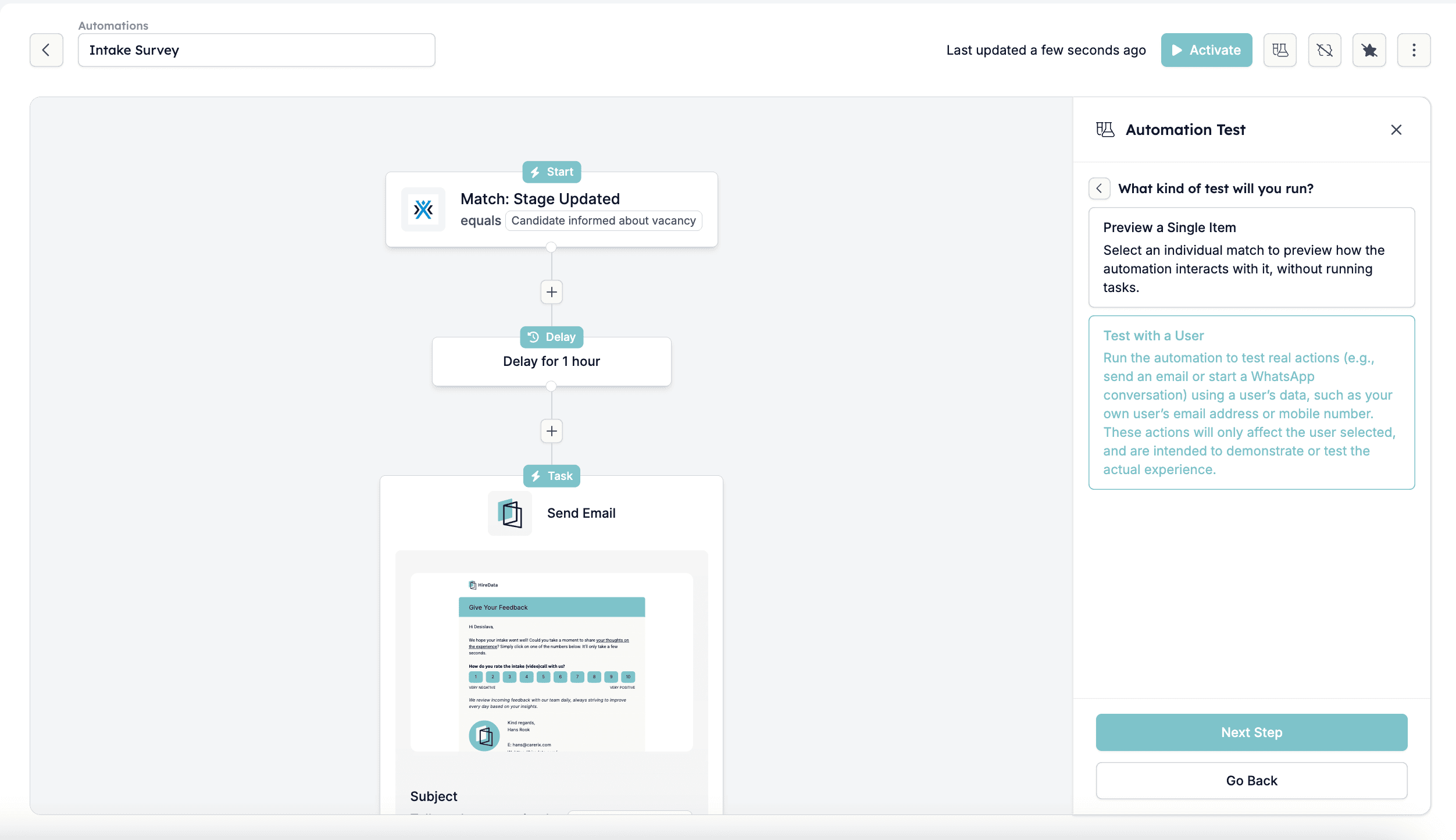
Step 1: Select the user whose data you want to test with
This user will receive emails or messages as if the automation was live. Select the user from the dropdown menu, then click Run Test to start the process.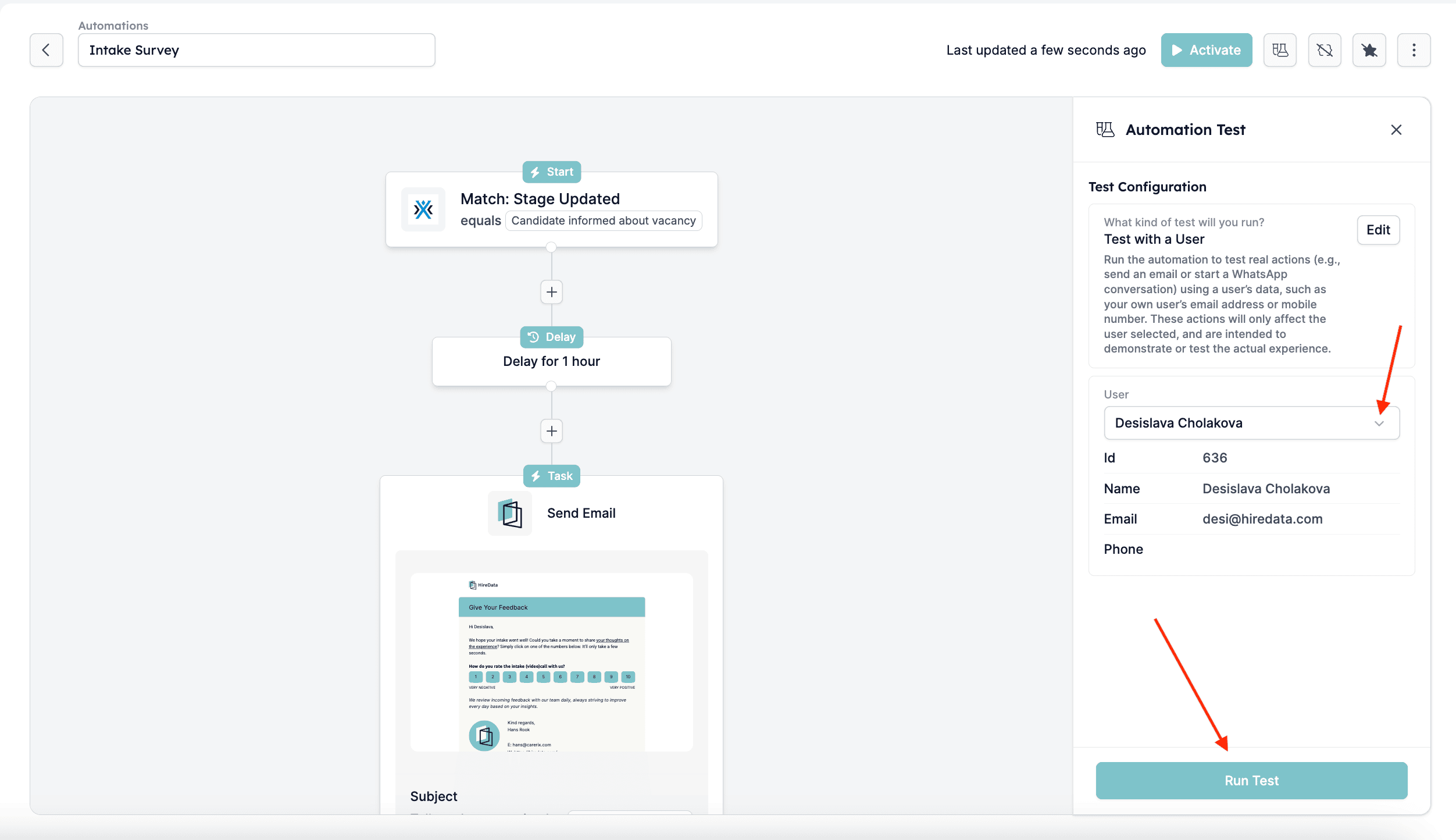
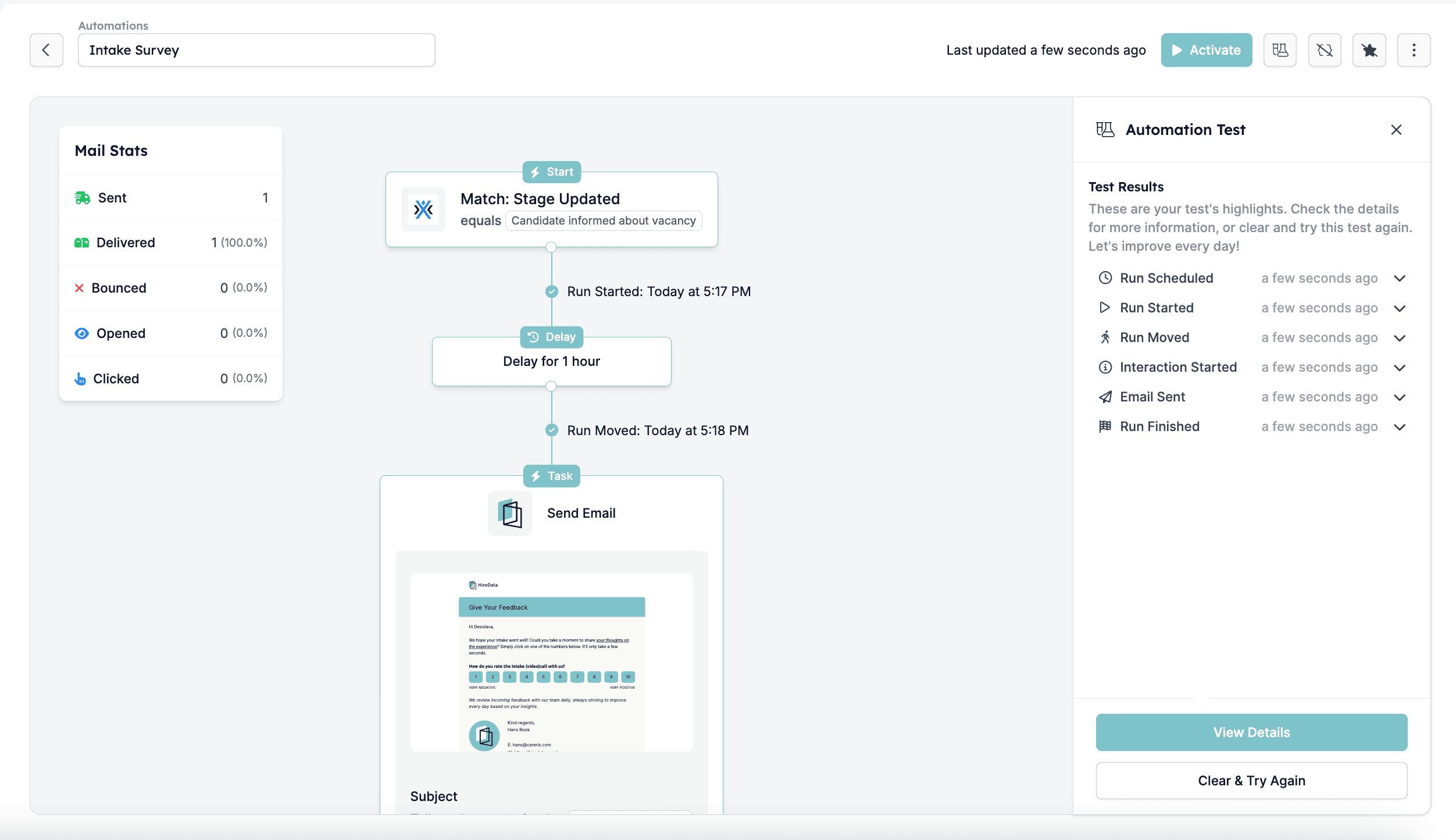
Step 2: Monitor the timeline
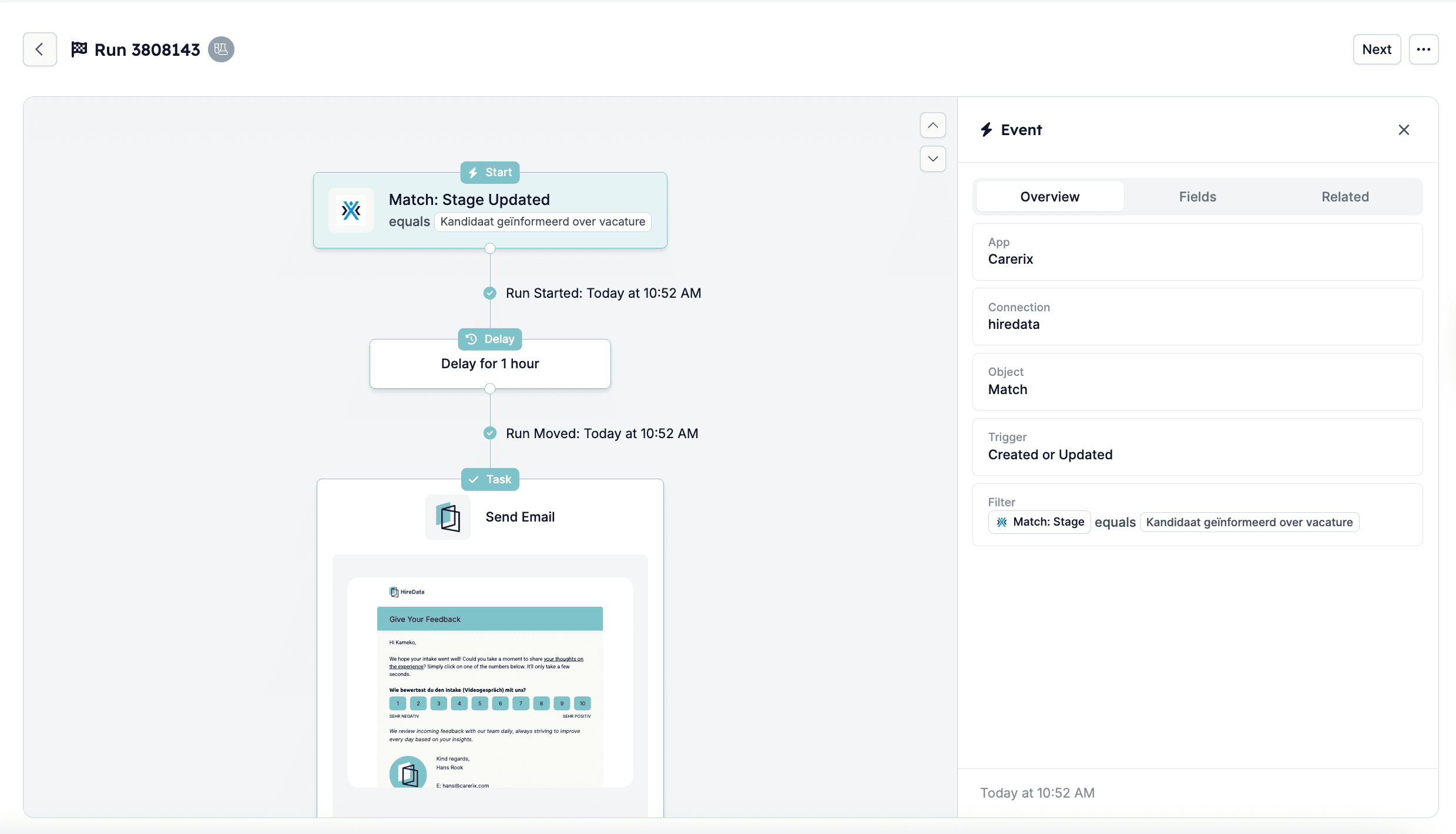
HireData displays a timeline of each step of the automation as it runs. You see alerts such as:- Run Scheduled
- Run Started
- Interaction Started
- Email Sent (or other task execution)
- Run Finished
Step 3: Check the user’s inbox
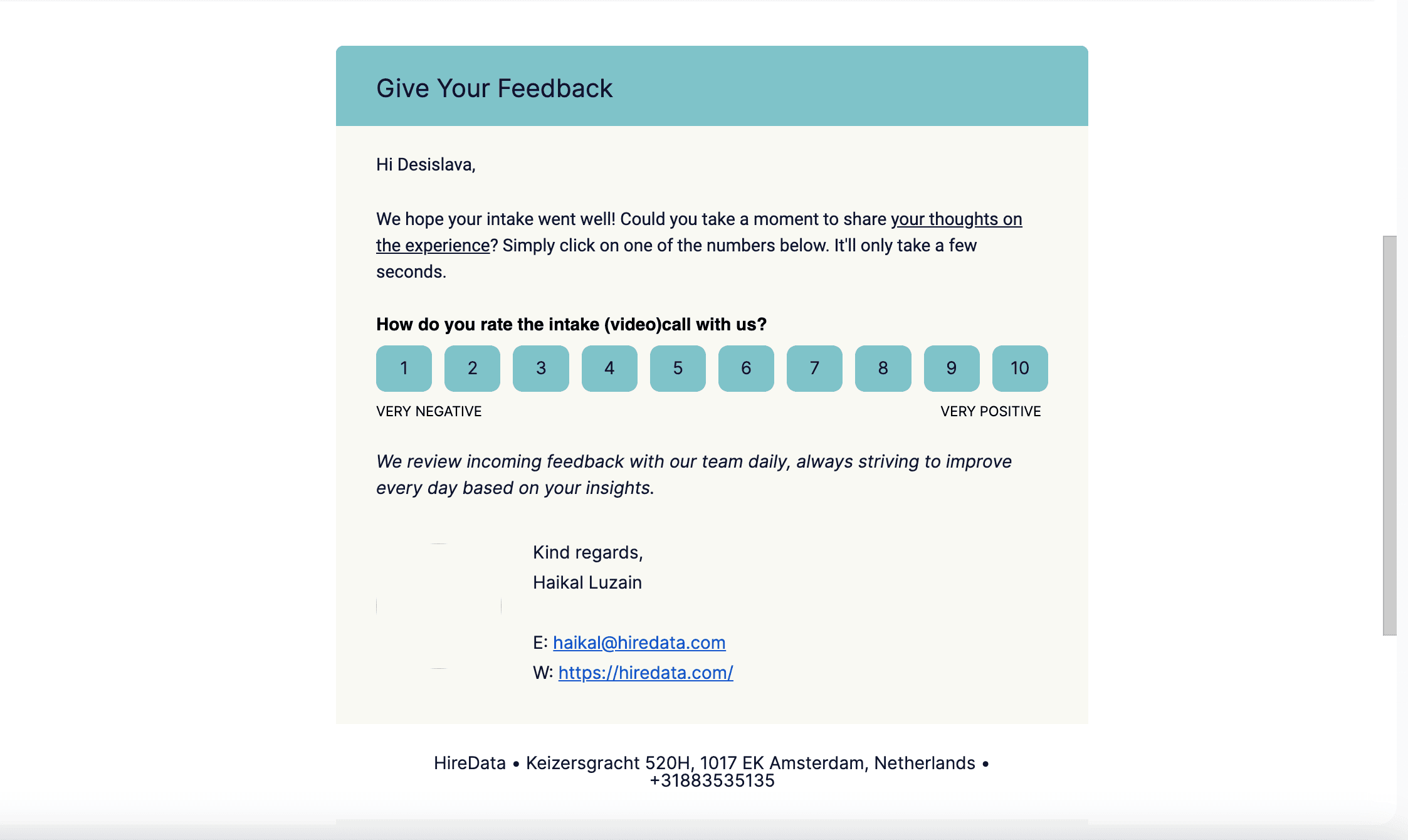
If the automation includes sending an email, go to the selected user’s inbox (for example, yours) and verify that the email was delivered correctly.- Check the formatting and content to ensure it appears as expected;
- Go through the form to ensure all questions are set up correctly.
Step 4: Review the run and event details
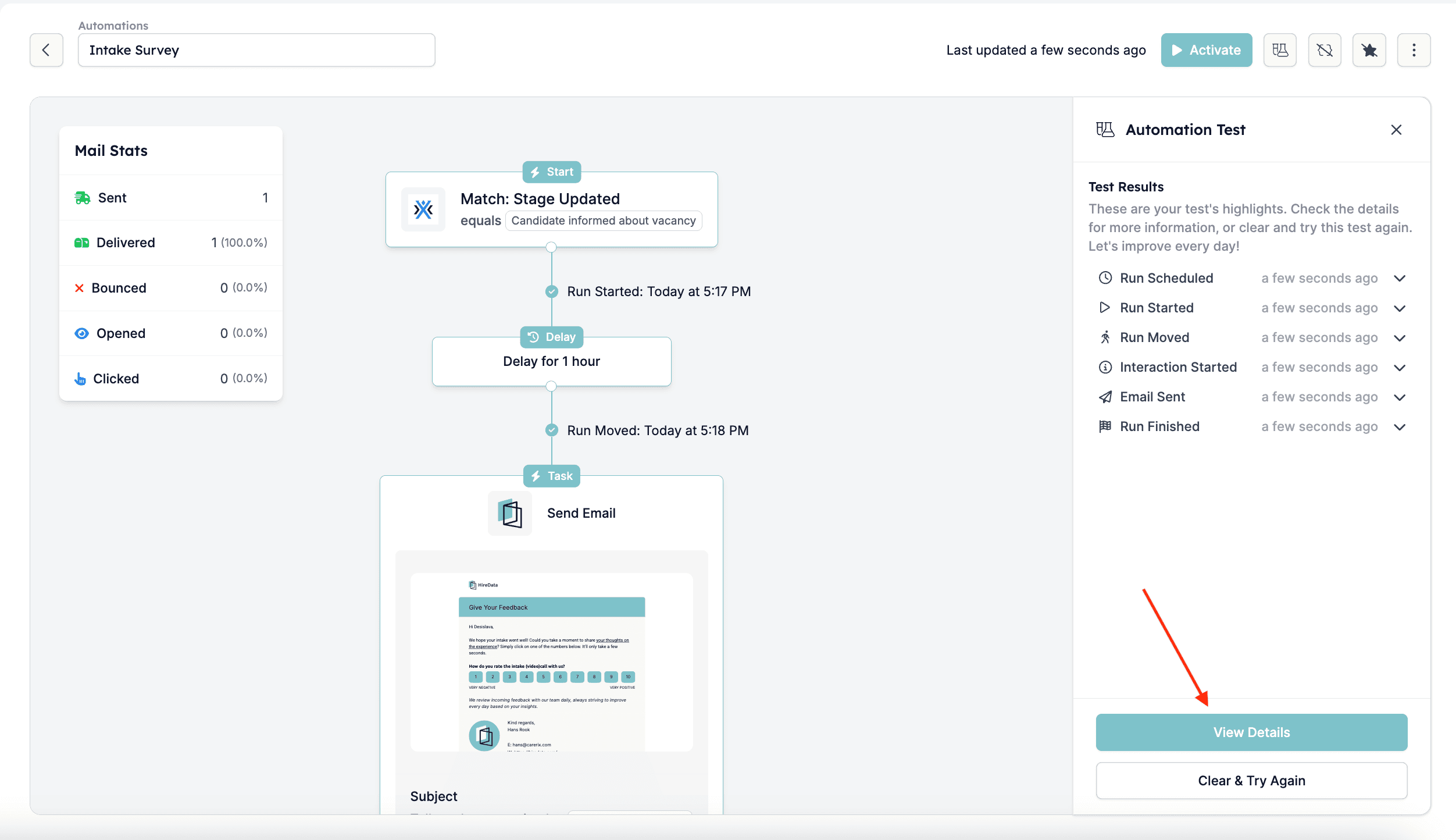
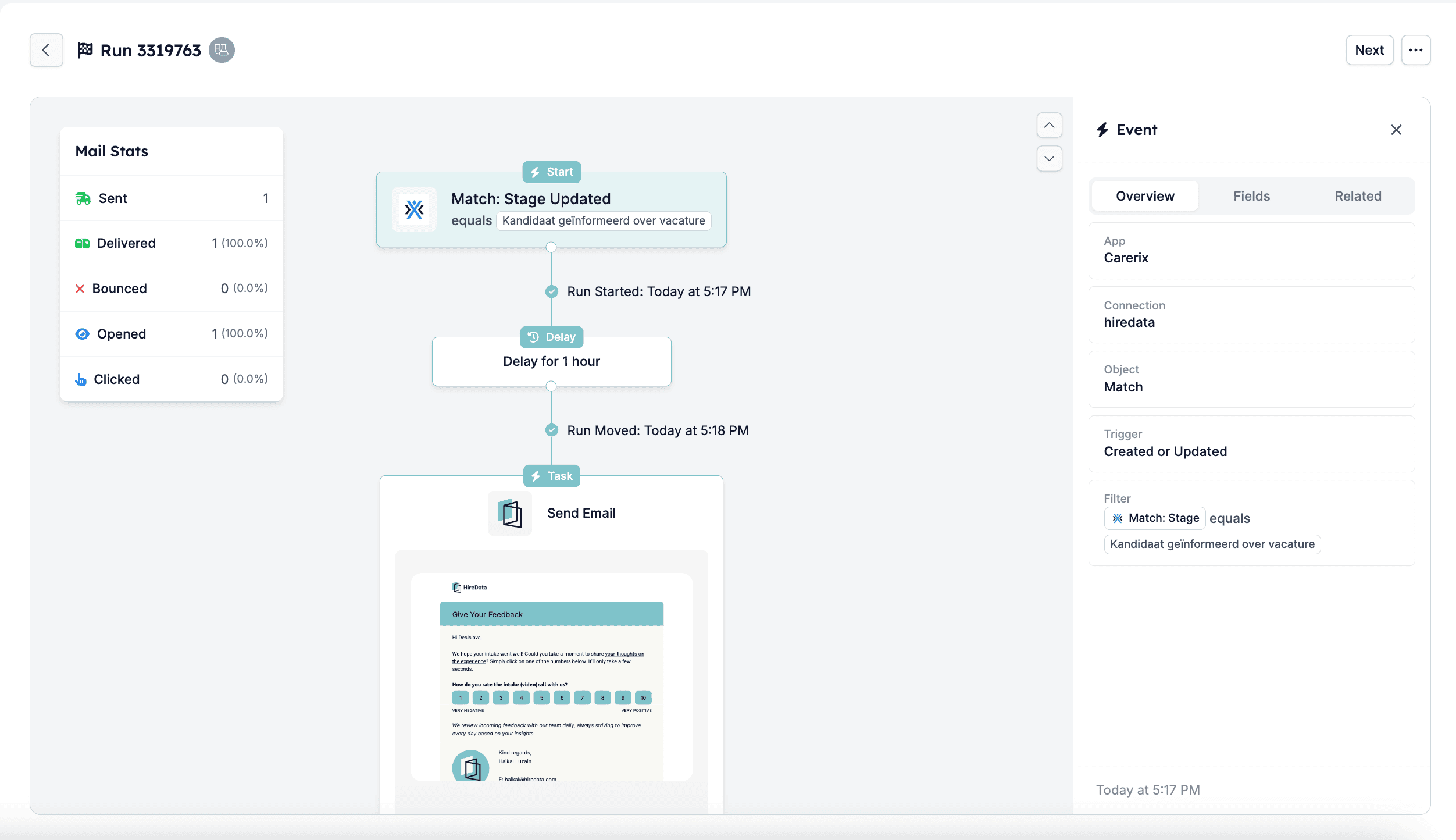
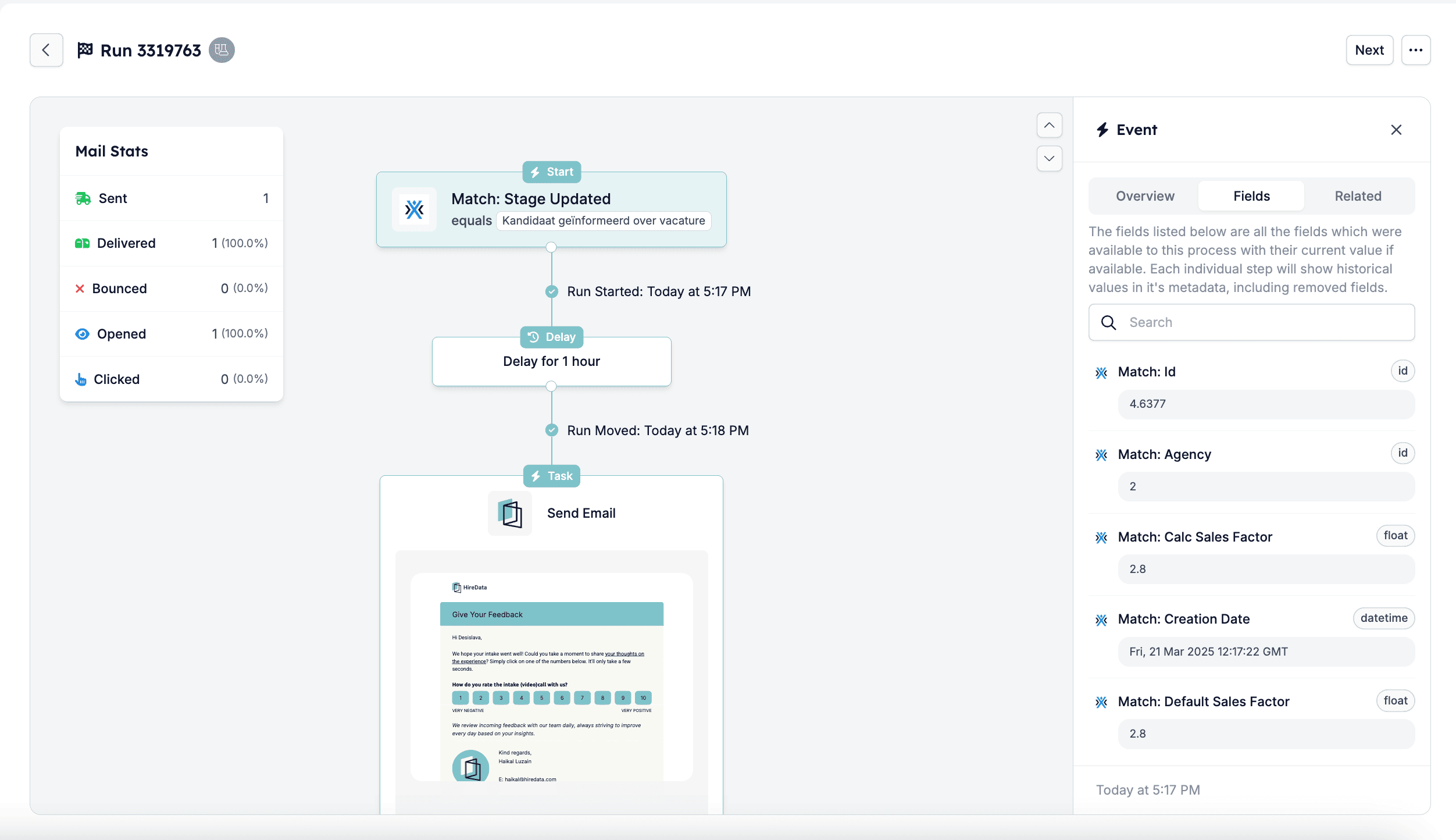
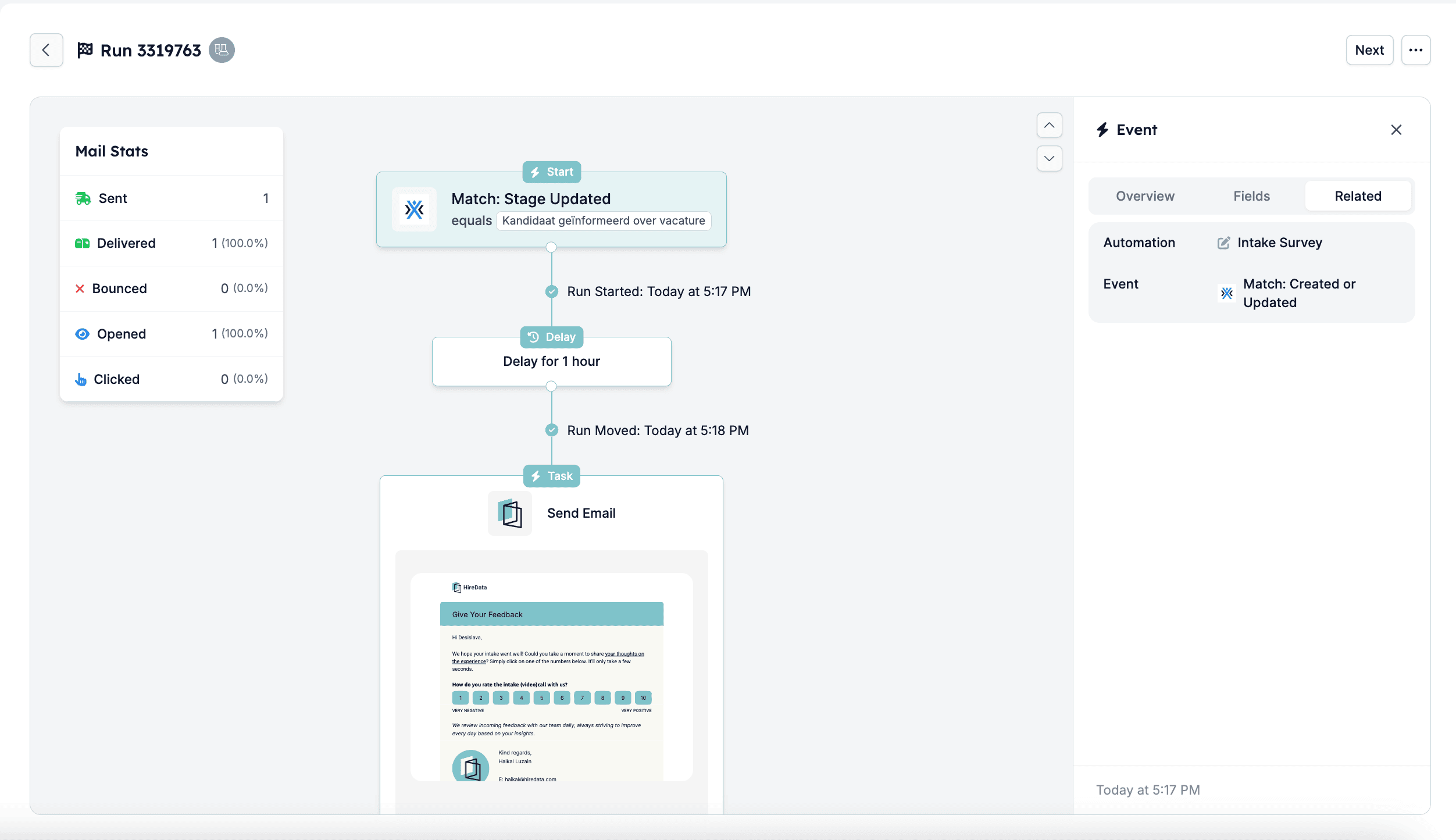
After the test run, you can click View Details to check specific event logs, including:- Email delivery status (sent, delivered, opened, clicked, or bounced)
- Any delays in execution
- Data values used in the test
Testing with Preview a Single Item
You can use this to see how the automation would process an individual item without actually running tasks.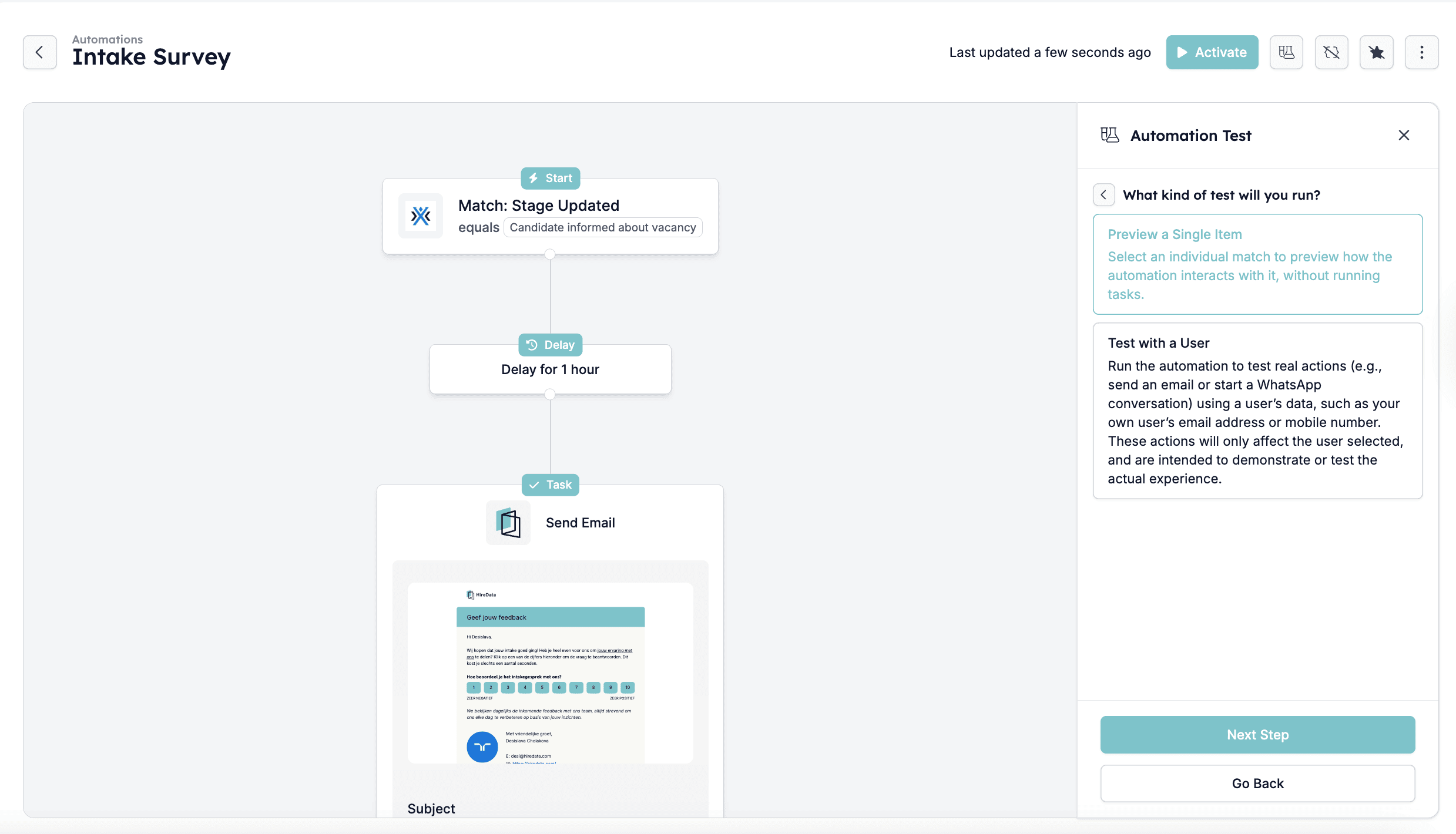
Step 1: Select the match or item to test with
Select the match or item you want to test with, then click Run Test.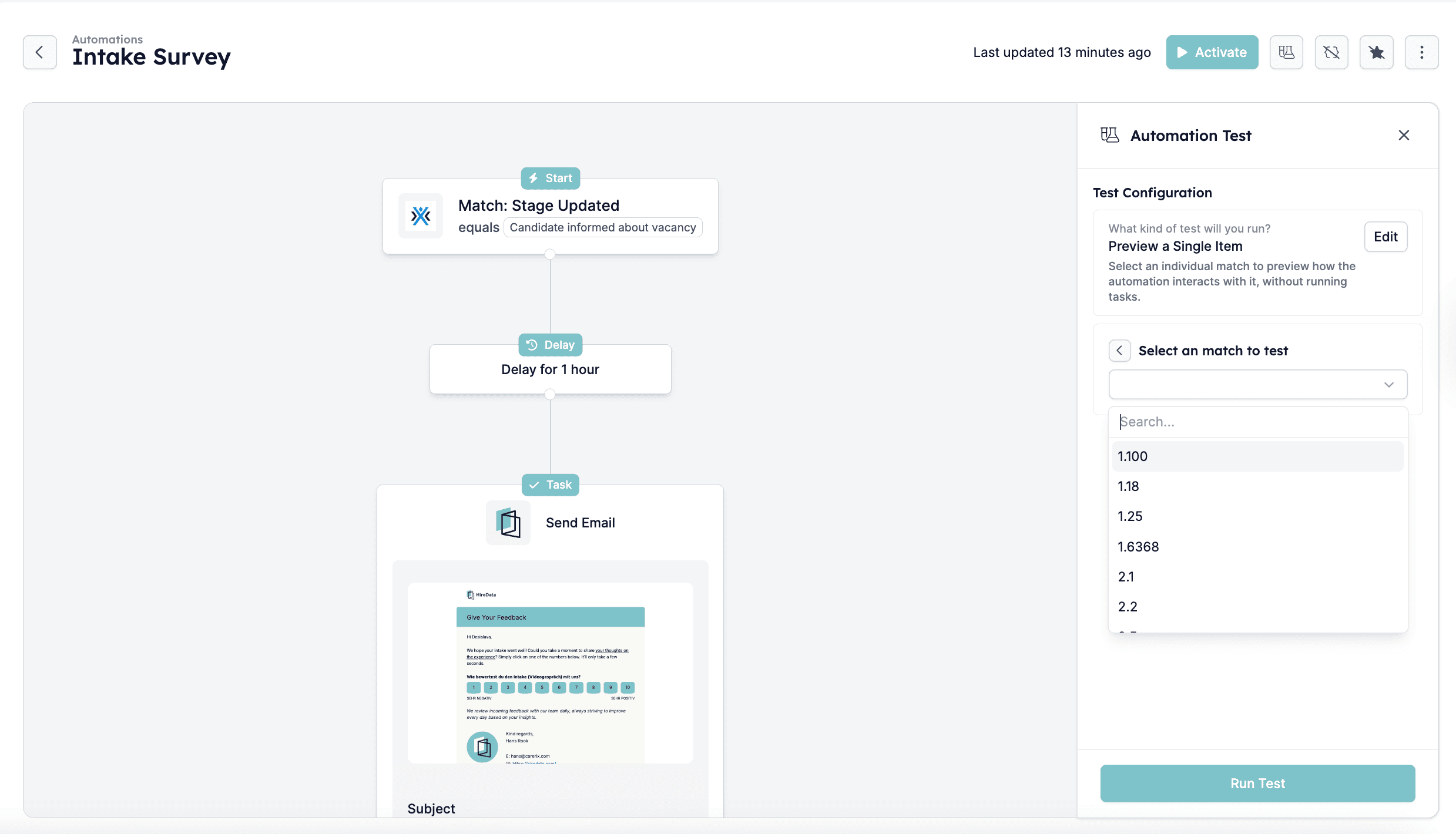
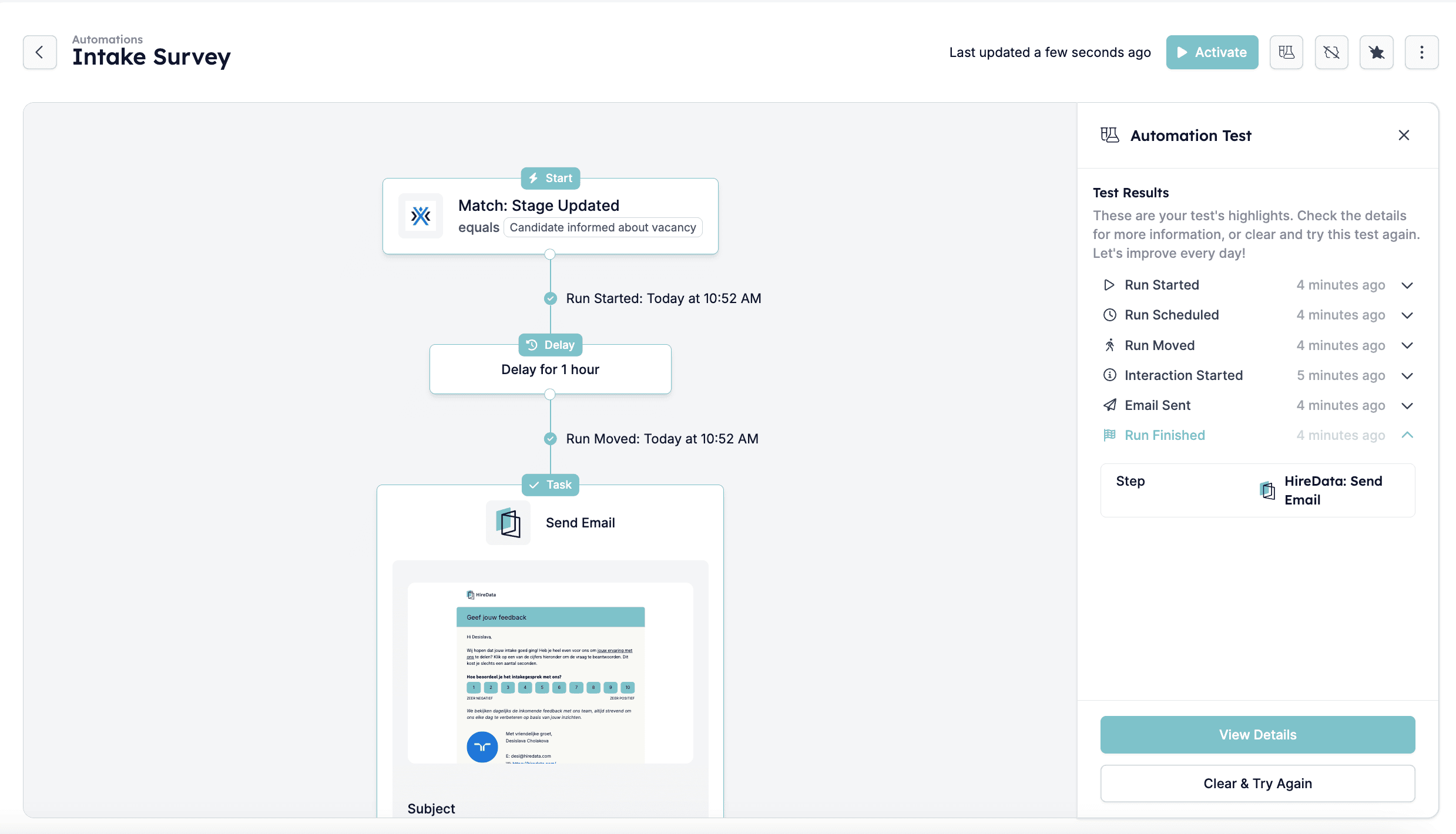
Step 2: Monitor the timeline
HireData displays a timeline of each step in the automation as it runs. You see alerts such as:- Run Scheduled
- Run Started
- Interaction Started
- Email Sent (or other task execution)
- Run Finished
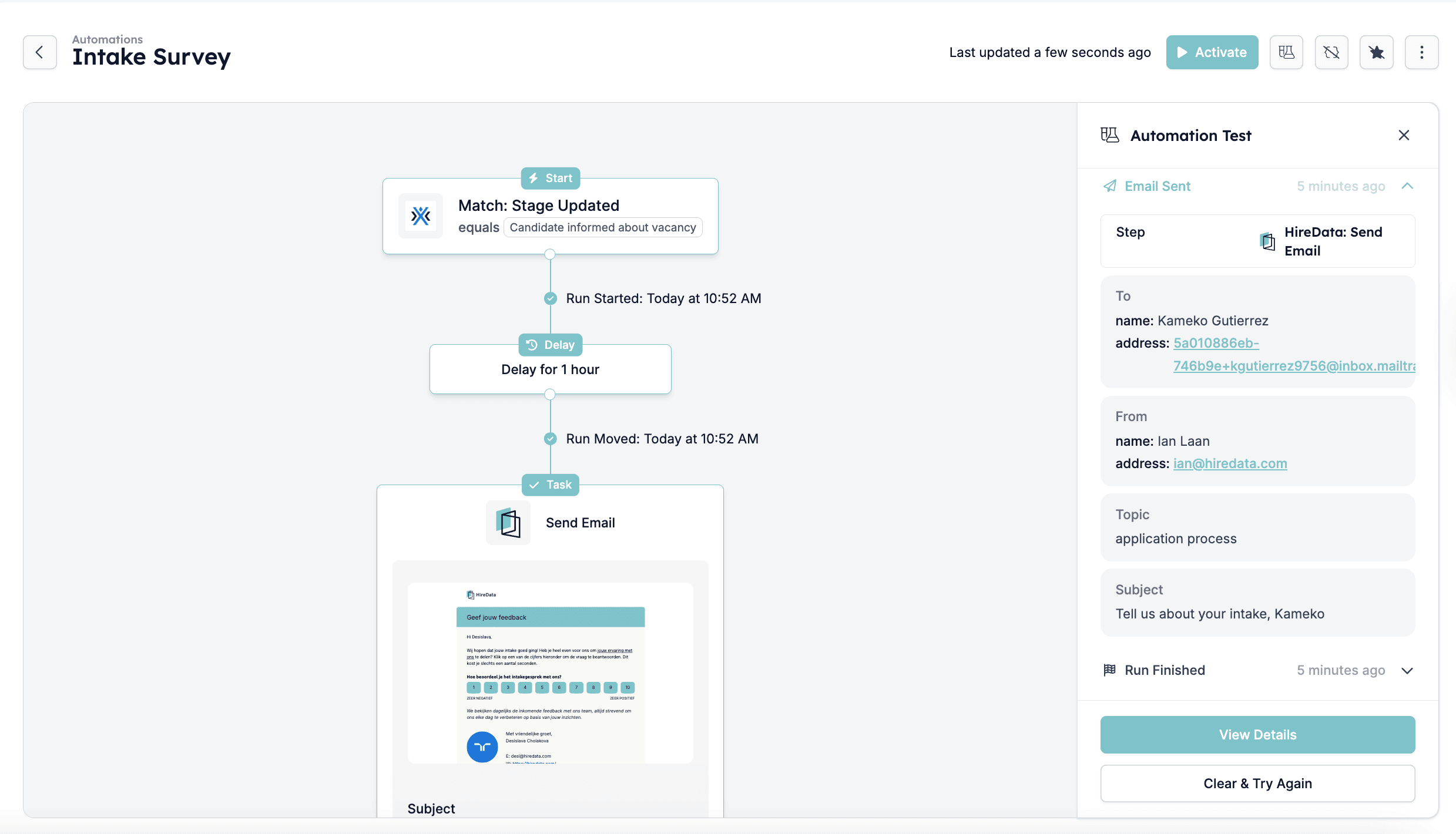
Step 3: Review the run and event details
After the test run, you can click View Details to check specific event logs, including:- Email delivery status (sent, delivered, opened, clicked, or bounced)
- Any delays in execution
- Data values used in the test